Categories
Archive

Mic Line Instrument Level

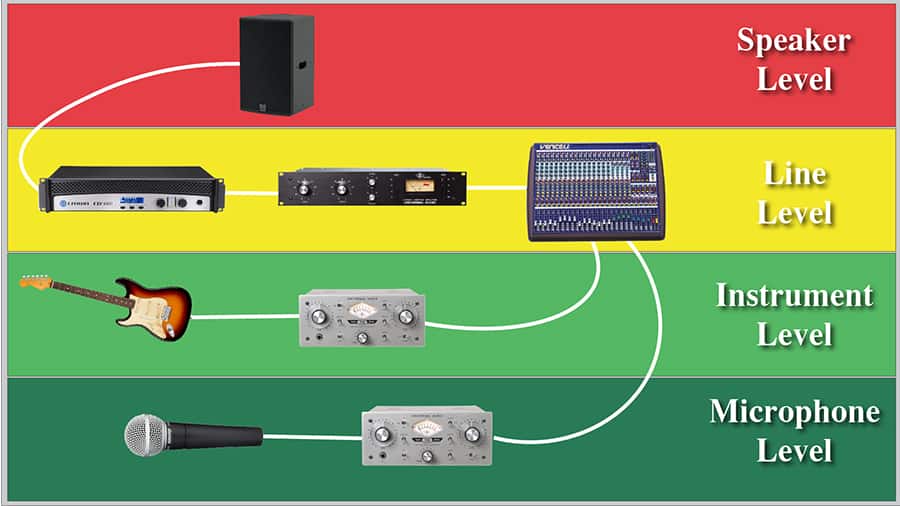
Mic line instrument level refers to the different voltages used by audio equipment to receive and transmit signals. Audio equipment has different voltage requirements for recording and playback, and these are usually divided into mic, line, and instrument levels.

Mic level signals are the weakest and require the most amplification, while instrument level signals are the strongest and require the least. Line level signals fall in between and are used for most other types of audio devices, such as mixers, amplifiers, and sound cards.

Understanding these different levels is essential for recording and mixing audio, as it helps to ensure optimal sound quality and prevent distortion or noise. We’ll explore the differences between mic, line, and instrument level signals and how they are used in audio systems.

Credit: electronics.stackexchange.com

Mic Level

Mic level refers to the signal strength of an audio device, such as a microphone or instrument. Mic, line, and instrument levels have different signal strengths, and it’s important to choose the correct level for your specific device.

If you’re a music producer or sound engineer, you’ve probably heard the term “mic level” thrown around a lot. But what exactly is mic level and how does it differ from other levels? In this post, we’ll explore mic level in-depth, its applications, and pros and cons.

What Is Mic Level?

Mic level, also known as microphones level, refers to the voltage level that is produced by a microphone. This voltage level is typically very low and is measured in millivolts (mV). In comparison, line level and instrument level are stronger signals, with line level being the strongest.

Mic Level Applications

Mic level is an important aspect of recording and audio production, as it determines the sensitivity of the microphone and how it will respond to sound. Mic level is typically used for recording vocals, acoustic instruments, and other sound sources that require a sensitive microphone. It is also commonly used in broadcasting and podcasting.

Pros And Cons Of Mic Level

As with any audio level, mic level has its advantages and disadvantages. The pros of mic level include: – High sensitivity for picking up low-level sounds – Little to no noise or distortion introduced into the signal – Ideal for recording softer sound sources, such as vocals or acoustic instruments However, the cons of mic level include: – Prone to picking up background noise and interference – Shorter cable runs due to the weak signal – Less versatility compared to line level or instrument level signals In conclusion, mic level is a crucial aspect of audio production and recording. Although it has its limitations, it offers high sensitivity and little distortion, making it ideal for recording soft sound sources. So, understanding mic level and how to use it properly can help take your recordings to the next level.

Line Level

Line level refers to the strength of audio signals, commonly used in professional audio equipment. Mic level is the weakest, followed by instrument level and then line level, which is the strongest audio signal. Each level requires different equipment to properly amplify the signal.

Line level is a term related to the audio industry. It refers to the strength of an audio signal that passes through a cable or any other transmission medium. Audio signals, in general, fall into three main categories, mic level, line level, and instrument level. Line level sits between mic level and instrument level in terms of strength.

What Is Line Level?

Line level is the standardized operating level for audio signals within a professional audio setup. It is the signal level that travels from a preamp, mixer or other line-level devices to an amplifier or recorder. In most cases, the line level signal travels through a balanced XLR or TRS cable. The standard level for line level is typically around +4dBu.

Line Level Applications

Line level signals are used in a wide range of audio applications. They are the preferred signal for high-end recording equipment, proper PA systems, and for audio equipment that is more sensitive to noise. Some of the most common applications for line-level signals include:

  1. Studio and live sound mixing
  2. Mastering and recording sessions
  3. Professional-grade home audio systems
  4. Radio and television broadcast signal distribution systems

Pros And Cons Of Line Level

Pros:

  • Line level signals offer high-quality audio with minimal noise interference.
  • They have a well-defined standard, which makes them easy to integrate with professional audio equipment.
  • They are suitable for most recording and live performance environments.
  • They are designed to work with balanced cables, ensuring a robust and noise-free signal over long distances.

Cons:

  • Line level signals require high-quality equipment to handle the signal correctly. Low-quality equipment can introduce unwanted noise into the signal.
  • Line level signals are not strong enough for some applications, and in those cases, instrument level signals are preferred.

In conclusion, the line level is an important aspect of the audio industry. Its standardized nature and superior strength make it the go-to signal level for professional audio applications. When dealing with audio signals, it is essential to get the levels right. The line level ensures high-quality, noise-free audio that is suitable for recording, broadcasting, and live performance environments.

Instrument Level

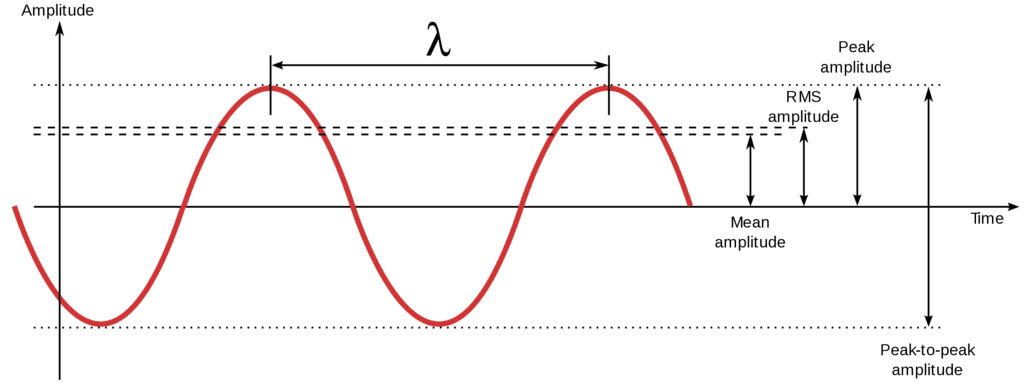
The level of an audio signal depends on its source and type. The level of an audio signal is determined by its amplitude, which is usually expressed in decibels (dB). Audio levels are generally divided into three categories: mic level, line level, and instrument level. The instrument level is often used in professional audio recording, and it refers to the audio signal generated by an electric guitar, bass, or other electronic instrument.

What Is Instrument Level?

Instrument level refers to the signal strength of an electric guitar, bass, or other electronic instrument. It is a low-level signal that needs to be amplified before it can be recorded or processed by audio equipment. Instrument level signals typically have a level range of -20 to -30 dBu. These signals are weaker than line level signals and much weaker than mic level signals.

Instrument Level Applications

Instrument level signals are commonly used in professional audio recording. They are used to record the output of an electric guitar, bass, or other electronic instrument. Once recorded, these signals can be processed to create a variety of effects, such as distortion, reverb, and delay. Instrument level signals can also be used for live performances, allowing musicians to connect their electronic instruments directly to the audio system.

Pros And Cons Of Instrument Level

The instrument level has several advantages over mic and line level signals. One of the biggest advantages is that it allows the guitar or bass to maintain its unique tone and character. This is because the instrument’s pickups are able to capture the nuances of the instrument’s sound, which can be lost when the signal is amplified. Additionally, instrument level signals are less susceptible to noise and interference, which makes them ideal for live performances.

However, there are also some disadvantages to using instrument level signals. One of these is that they require a special preamp, as most audio equipment is designed to work with mic or line level signals. Another disadvantage is that instrument level signals are significantly weaker than line level signals, which means they require more amplification, which can introduce noise and distortion into the signal.

Differences Between Mic, Line, And Instrument Levels

Understanding the differences between mic, line, and instrument levels is crucial in audio recording, mixing, and mastering. Each level represents a specific voltage, impedance, and signal strength that affects the overall quality of the sound output. Hence, it’s essential to understand each level’s features and functions to optimize your recording and mixing process

Voltage

Voltage refers to the electrical potential difference between a positive and negative electrical node. In mic level, the voltage is low, ranging from 0.006 to 0.005 volts, providing a leveled output for microphones. In line level, the voltage is higher, ranging from 0.3 to 2 volts, providing a balanced audio output for audio mixers, interfaces, and signal processors. In instrument level, the voltage is the highest, ranging from 1 to 100 volts, providing a hotter output for instruments such as guitars, basses, and keyboards.

Impedance

Impedance refers to the resistance of an electrical circuit to alternating current. In mic level, the impedance is high, ranging from 150 to 300 ohms, allowing the microphone to pick up low-level signals. In line level, the impedance is low, ranging from 600 to 10,000 ohms, providing a balanced output with low noise and interference. In instrument level, the impedance is medium, ranging from 1,000 to 50,000 ohms, providing sufficient power supply for the instrument to produce a strong signal.

Signal Strength

Signal strength refers to the level of the audio signal in terms of decibels (dB). In mic level, the signal strength is the lowest, ranging from -60 to -40 dB, requiring a preamp to boost the signal. In line level, the signal strength is medium, ranging from -10 to +4 dB, providing a balanced output that is sufficient for most audio applications. In instrument level, the signal strength is the highest, ranging from -10 to +18 dB, providing a strong and hot output that is suitable for guitar amps and other instrument processors.

Connector Types

The connector type refers to the interface used for audio signal transmission. In mic level, XLR connectors are commonly used, providing a balanced output for microphones. In line level, TRS connectors, such as 1/4-inch jacks, are commonly used, providing a balanced output for audio mixers, interfaces, and processors. In instrument level, TS connectors, such as 1/4-inch jacks, are commonly used, providing an unbalanced output for guitar amps, pedals, and processors.

Applications

  • Mic level: Ideal for recording acoustic instruments, vocals, and ambient sounds.
  • Line level: Ideal for connecting audio mixers, interfaces, and processors for recording, mixing and mastering.
  • Instrument level: Ideal for connecting instruments such as guitars, basses, and keyboards for live performances and recording.

Matching Levels

Matching levels is an essential process when connecting audio devices, particularly when dealing with mic, line, and instrument levels. Knowing the difference between these levels and how to match them ensures that the audio signal is properly processed without any distortion, noise, or loss of quality.

When it comes to matching levels in music production, it’s essential to understand how different equipment operates. Mic level, line level, and instrument level are common terms used in the industry. Each level refers to the voltage signal that travels through various equipment. Matching levels means ensuring that these signals are compatible with each other.

Mic Preamps

Mic preamps are essential tools that amplify weak microphone signals to line level, making them compatible with other audio equipment. They help improve the quality of recordings by adding a bit of warmth or color to the audio. Mic preamps come in handy when recording vocals, acoustic instruments, or any other sound source that produces a weak signal.

Direct Boxes

Direct boxes help match instrument level signals with line-level inputs. They convert unbalanced, high impedance signals from instruments like electric guitars and bass into balanced, low impedance signals that are compatible with mixers and audio interfaces. Direct boxes also help to eliminate noise and ground hum caused by unbalanced cable runs.

Attenuators

Attenuators are used to reduce a signal’s strength, making it compatible with other equipment. They are essential when dealing with loud sounds or a signal that is too hot. Attenuators can be inserted between an instrument and an amplifier or used in a recording situation to reduce volume or distortion.

Boosters

Boosters, on the other hand, are used to increase the strength of a signal that is too weak. They are ideal for boosting microphone signals to line level or amplifying instrument signals. Boosters can be in the form of amplifiers, preamps, or even pedals, and they help to add gain, allowing you to record or perform at a higher volume without distortion. In conclusion, matching levels require an understanding of the different signal levels and equipment used in music production. Mic preamps, direct boxes, attenuators, and boosters are some essential tools that help match levels and improve the quality of recorded audio. Knowing when and how to use each tool is crucial to achieving the best results when recording or performing.
Mic Line Instrument Level

Credit: audiouniversityonline.com

Choosing The Right Level For Your Audio Setup

When it comes to audio setups, choosing the right level is crucial for getting the best sound quality. Knowing whether to use a mic level setup, a line level setup, or an instrument level setup can make all the difference in your recordings. Here we will break down the different level setups and factors to consider when making your choice.

Factors To Consider:

  • Signal Strength: Depending on the intended use, different levels will be necessary to avoid distortion or a weak signal.
  • Compatibility: Not all audio devices are compatible with all level types, so double-check before making any connections.
  • Equipment: The equipment you are using, such as microphones or speakers, may have specific level requirements.

Mic Level Setup:

A mic level setup is typically used for recording vocals, speeches, or acoustic instruments. Mic level signals are the weakest of the three types but also produce the least amount of noise. If you’re using a microphone for recording, you will want to choose a preamp that supports mic level input. This will allow you to add gain to the signal and bring it up to line level.

Line Level Setup:

Line level signals are stronger than mic level signals but can still be susceptible to noise. This level setup is most commonly used for recording electronically amplified instruments such as electric guitars, synthesizers, and other electronic instruments. Line level signals require direct connections to other audio devices, so be sure you have the correct cables and jacks for your set up.

Instrument Level Setup:

Instrument level signals are the strongest of the three levels and are intended for use with instruments that do not have a built-in amplifier, such as electric guitars, basses, or keyboards. These signals typically require a direct connection to an amplifier or an audio interface. Be sure to double-check the compatibility of your equipment and use a DI box if necessary to ensure the best sound quality.

Mic Line Instrument Level

Credit: m.youtube.com

Frequently Asked Questions On Mic Line Instrument Level

Is A Microphone Line Or Instrument Level?

A microphone can be either line or instrument level. Line level microphones are typically used for recording audio from sources such as a mixer or CD player, while instrument level microphones are used for recording instruments like guitars and basses.

It’s important to choose the correct level for the desired sound quality.

What Is Mic Level Instrument Level?

Mic level refers to the signal level output from a microphone, which is typically low and requires a preamplifier to increase its level. Instrument level refers to the signal level output from an instrument, such as a guitar or keyboard, which is typically higher than mic level and can be directly plugged into a mixing console or amplifier.

What Is Line Level And Mic Level?

Line level is a high signal that is compatible with most audio devices. It typically ranges from +4 to -10 dB. Mic level, on the other hand, is a low signal that requires a preamp to raise the signal to a line level.

Mic level is typically around -60 dB.

What Is The Line Level Of An Instrument Level?

Line level is a higher voltage signal that operates at around 0. 5V to 2V, while instrument level is a lower voltage signal that operates at around 10 mV to 1V. Typically, line level refers to signals that come from sources such as CD players, mixers, or tape decks, while instrument level refers to electrical signals that are generated by musical instruments like guitars or basses.

Conclusion

Understanding the differences between mic, line, and instrument levels is crucial for achieving high-quality sound recordings. By selecting the appropriate level for each audio source, you can reduce potential damage to your equipment and improve the overall audio quality. Additionally, investing in quality cables and equipment is essential for obtaining optimal results.

With these tips in mind, you’ll be well on your way to producing professional-grade recordings.

Categories
Archive

Setup Template Studio One

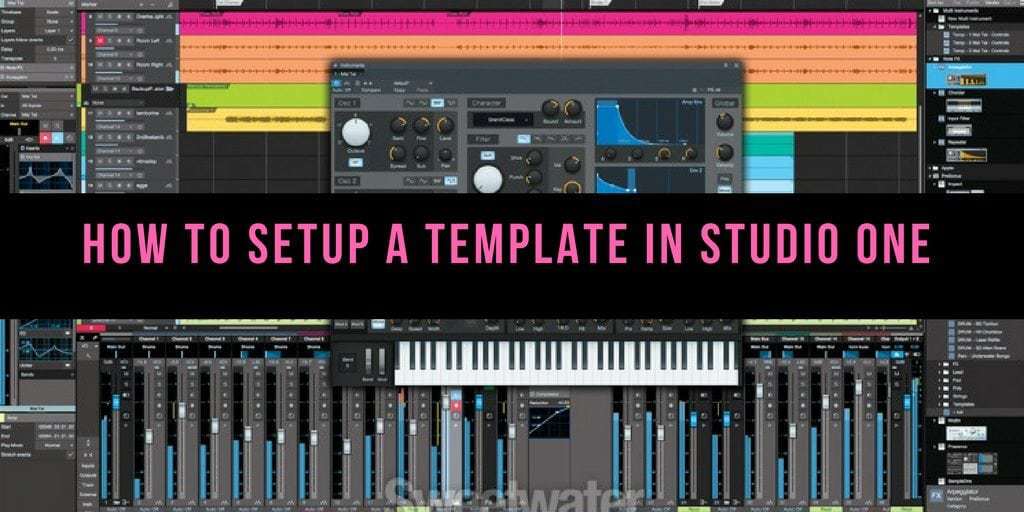
To setup Template Studio One, simply navigate to the preferences panel and click on “File” followed by “Show User Library.” From there, drag and drop your desired templates into the appropriate folder.

As an audio professional, having a streamlined workflow is essential for success in the industry. DAW templates are a great way to save time and stay organized, allowing you to focus solely on the creative process. Template Studio One is a must-have tool for any producer or engineer seeking efficiency in their music production sessions.

We will guide you step-by-step on how to set up and customize your own studio templates for Studio One. Whether you’re a seasoned veteran or a beginner, this guide will help you take your productions to the next level.

Download And Installation

To set up Template Studio One, first, download the software from the official website. Then double-click the installer and follow the instructions to complete the installation process. You can now start creating designs and templates on the user-friendly platform.

If you’re looking for a powerful DAW to help you create music, then Studio One is definitely a great option to consider. The software is packed with features and designed to help you make music from start to finish. If you’re keen to get started with Studio One, then the first thing you need to do is download and install it. In this section, we’ll look at the steps you need to follow to get Studio One up and running on your computer.

Download Studio One Installer

To get started, head over to the official Studio One website. From there, you should be able to find a download link for the latest version of the software. Make sure you choose the version that’s compatible with your operating system and computer architecture. Once you’ve clicked on the download link, the Studio One installer should begin downloading automatically.

Check System Requirements

Before you install Studio One, it’s important to make sure that your computer meets the minimum system requirements. These requirements can be found on the Studio One website and may vary depending on the version of the software you’re installing. Some of the common requirements include a multi-core processor, at least 4GB of RAM, and a sound card.

Run Installer

Once the installer has finished downloading, navigate to the location where you saved it and double-click on the file. This should launch the Studio One installer, which will guide you through the process of installing the software onto your computer.

Choose Installation Location

During the installation process, you’ll be asked to choose a location for Studio One to be installed. Make sure you choose a location that has enough disk space and is easily accessible. You may also want to create a desktop shortcut for Studio One so that you can easily launch the software later.

Start Installation

When you’re ready to proceed with the installation, click the ‘Install’ button in the Studio One installer. Depending on your computer’s speed and the version of the software you’re installing, the process may take a few minutes. After the installation is complete, you should be able to launch Studio One and start creating music right away. In conclusion, installing Studio One isn’t a difficult process as long as you follow the steps outlined in this section. By downloading the installer from the official website, checking your computer’s minimum requirements, and following the installation wizard, you should be up and running in no time. Start making music today by installing Studio One!

Setup Template Studio One

Credit: answers.presonus.com

Authorization And Registration

To set up Template Studio One, you need to first register and authorize the software. This process ensures that only licensed users can access the program’s features and templates. Once authorized, you can begin customizing templates to create unique marketing materials for your brand.

Creating your PreSonus account, authorizing Studio One and registering your product are integral to setting up your Studio One software. Here are the essential steps involved:

Create Presonus Account

To get started with Studio One, you need to create an account with PreSonus. It’s a simple process and only requires your name, email address, and a secure password. Once you create your account, you’ll receive an email with a verification link that you need to click to confirm your registration.

Authorize Studio One

After creating your account, you’ll need to authorize your Studio One software. This step ensures that you’re the legitimate owner of the software, and you’re allowed to use it on your computer. To authorize your software, you need to navigate to the Studio One tab on your PreSonus account and click the authorize button. Additionally, you’ll need to enter your computer’s unique hardware ID to complete the authorization process.

Register Your Product

Once you finish authorizing your software, the final step is to register your product. This step keeps you up-to-date with important software updates, new features, and bug fixes. To register your product, you need to navigate to your PreSonus account, go to My Products, and select the product you want to register. Then, enter your product key, and you’re done! By following these simple steps, you’ll have authorized Studio One and registered your product successfully.

Setup And Configuration

Setting up and configuring your digital audio workstation is crucial in bringing your musical ideas to life! In this section, we’ll focus on how to set up Studio One for the first time and optimize your preferences to suit your workflow. We’ll cover audio and MIDI device setup, adding plug-ins and virtual instruments, creating a new project, and customizing the interface to make your experience more efficient.

Audio Device Setup

The first step of creating a project is ensuring that your audio device is properly configured. The following are the steps you need to follow:

  1. Launch Studio One and open the Options menu.
  2. Select “Audio Setup.”
  3. Under “Devices,” select your audio interface from the dropdown menu.
  4. Configure your sample rate, bit depth, and buffer size according to your system requirements.
  5. Test your audio interface by playing audio through it to ensure everything is set up correctly.

Midi Device Setup

If you plan on using any MIDI devices in your Studio One project, you’ll need to set them up in the MIDI Devices menu. Here’s what to do:

  1. Go to the Options menu again and select “External Devices.”
  2. Click “Add” and select your device from the dropdown list.
  3. Name the device and select the appropriate MIDI input and output ports.
  4. Configure any additional settings for your MIDI device as needed.

Adding Plug-ins And Virtual Instruments

Studio One comes with a variety of built-in plug-ins, but you can also install third-party plug-ins and virtual instruments to expand your sound library. Here’s how:

  1. Go to the Studio One menu and select “Studio One Installation”
  2. Click on “Studio One Add-ons” tab and choose “Content location” for installing your desired software or plugin package.
  3. Select “Install” and follow the instructions to add your plug-ins or virtual instruments to your Studio One library.

Creating A New Project

Once your set up is done, we’re ready to create our first project:

  1. Click “New Song” in the Studio One welcome screen.
  2. Name your project and select the location you want to save it in.
  3. Configure your project settings such as tempo, time signature and sample rate. You can also choose to use a project template to get started quickly.
  4. Click “Create” and start making music!

Customizing The Interface

Studio One provides a customizable interface to suit your workflow. Here are some tips to make the most of it:

  • Hover over the edge of a window to resize it.
  • Click and drag the tabs of multiple windows to combine them into a single tabbed window.
  • Customize your layout by arranging windows to your preference.
  • Save your custom layout as a template for future projects.
Setup Template Studio One

Credit: www.youtube.com

Workflow And Navigation

Setting up a template in Studio One improves workflow and navigation, allowing for a more efficient and streamlined production process. By customizing your workspace layout and creating reusable templates, you can quickly access frequently used tools and plugins.

Setting up Studio One can seem like a daunting task, especially if you are new to music production software. But with its intuitive workflow and navigation features, even beginners can easily get started. In this post, we will focus on the important role played by workflow and navigation in Studio One setup. We will also cover key features of Studio One, from understanding the start page, to using the browser, working with tracks, and the mixing console overview.

Understanding The Start Page

When you open Studio One for the first time, you will be greeted by the start page. This page provides you with quick access to recent audio and MIDI files, links to helpful resources, instruments, and effects for your project. The start page also offers useful visual aids like RGB waveforms and an integrated video player to help you stay organized and get started with your project quickly.

Using The Browser

The browser is a valuable tool for managing and organizing resources in Studio One. With the browser, you can access files, virtual instruments, samples, and plug-ins with ease. You can even search for files and preview them without opening them. The browser also lets you create custom folders, rename files, and move files between folders. This feature makes it easier to manage large projects and reduces clutter.

Working With Tracks

Tracks are the heart of any project in Studio One. With Studio One, you can create and manage multiple tracks with various instruments, patterns, voices, effects, and automation. Furthermore, you can group tracks, change their display, and color code them for easy identification. Studio One also provides a great mix of pre-configured effects chains that help you to get started with your recordings quickly.

Mixing Console Overview

The mixing console overview is created with ease of use in mind. It has a simple and easy-to-use interface that lets you adjust and modify tracks’ audio before and after recording. You can adjust the volume, pan, add effects, and even modulate the frequency. The mixing console overview is hugely customizable, and you can change its visual appearance, rearrange tracks, add inserts and sends, and even automate the console with envelopes. In conclusion, Studio One’s intuitive workflow and navigation ensure that beginners and experienced producers alike can get started quickly. From the start page to the mixing console overview, Studio One provides powerful and straightforward tools for music production. By mastering the tools covered in this post, you can unlock your creativity and produce music with ease. Start creating your music today with Studio One!

Recording And Editing

Setting up a template in Studio One can streamline your recording and editing process. With pre-set settings for your preferred track and instrument settings, you can focus on creating music rather than technicalities.

Recording and Editing are two important aspects of music production. Whether you’re a beginner or an expert, having a reliable and user-friendly digital audio workstation is crucial. One such software is Studio One, which offers a Setup Template to make the process easier and faster.

Setting Up A Recording Session

To set up a recording session in Studio One, you need to create a new song file and select the appropriate input and output devices. You can then add audio and MIDI tracks, set their parameters, and choose their respective inputs and outputs. It is essential to ensure that the recording levels are optimal to avoid clipping or distortion.

Using Audio And Midi Clips

Studio One makes it easy to work with audio and MIDI clips. You can import them into your session, drag and drop them onto tracks, and customize their parameters. You can also use loops, virtual instruments, and plugins to enhance your tracks. Studio One has a built-in browser that enables you to search for and audition sounds from your sample library and the cloud.

Editing Audio And Midi Clips

Once you’ve recorded your tracks, it’s time to edit them. Studio One has a range of editing tools, such as cutting, copying, pasting, and dragging clips. You can also quantize MIDI notes, adjust pitch and timing, and apply fades and automation. Studio One’s user interface is intuitive and straightforward, making it easy for anyone to edit their tracks.

Working With Arrangement Markers

Arrangement markers are essential for organizing and structuring your tracks. With Studio One, you can add markers to your timeline, label them, and customize their colors. You can then use them to navigate your session, loop specific sections, and export your tracks. Studio One also has a range of export options, including MP3, WAV, and AIFF formats. In conclusion, Studio One’s Setup Template is a powerful tool for recording and editing music. Whether you’re a professional or a hobbyist, Studio One’s user-friendly interface, extensive library of sounds, and editing tools make it one of the best options on the market. With a bit of practice, you’ll be able to produce high-quality tracks in no time.

Setup Template Studio One

Credit: mixandmastermysong.com

Arranging And Mixing

Setting up a template in Studio One can save time when arranging and mixing songs. Use the “song” template to quickly set up instruments and effects, and customize your workflow to streamline the process.

Working With The Arrangement View

The arrangement view in Studio One is where you can organize your tracks, decide on the length and order of different sections of the song, and adjust the length of the song as a whole. It’s easy to work with this view, as you can drag and drop your audio and MIDI clips onto the timeline. You can also easily split, trim, and arrange your tracks to come up with a perfect arrangement for your song.

Using Automation

Automation is a powerful tool in Studio One that can help you take your mixes to the next level. With automation, you can control various parameters of your tracks such as volume, panning, and effects at different points in the song. You can create automation by simply clicking on a parameter in your mixer and drawing in automation data on the timeline. With automation, you can create dynamic, evolving mixes that capture the listener’s attention.

Mixing Techniques

Mixing is the art of blending all of the different elements of a song together to create a cohesive sound. In Studio One, you have access to a wide variety of mixing tools such as EQ, compression, and reverb. It’s important to use these tools in a way that complements the song and enhances the overall sound. For instance, you can use EQ to adjust the tonal balance of your tracks, compression to control the dynamic range, and reverb to add depth and space.

Exporting A Mixdown

Once you’ve arranged and mixed your song to perfection, it’s time to export it as a mixdown. Studio One makes this process easy and straightforward. From the file menu, simply select “Export Mixdown” and choose your desired file format and bit depth. You can also select if you want to export the entire mix or just a section of the song. With just a few clicks, you can have a high-quality mix that’s ready for sharing or mastering. In conclusion, arranging and mixing are critical steps in the music production process that can make or break your song. With Studio One, you have all the tools you need to create a professional-quality mix that will stand out from the crowd. Use the arrangement view to organize your tracks, automation to add dynamic movement, mixing tools to enhance the overall sound, and export your mixdown with ease.

Advanced Features

Setting up the Template Studio One can offer advanced features for music production. With tools like multi-track recording, mixing, and editing, it provides a comprehensive platform for musicians to create their music.

Studio One is a renowned Digital Audio Workstation (DAW) offering exceptional music production capabilities. The software comes with a set of advanced features that help music producers create unique sounds. In this article, we’ll focus on the advanced features of Studio One, specifically on the Project Page, external hardware integration, creating macros, and the Chord Track.

Using The Project Page

Studio One’s Project Page is the ideal location for mastering your music. It assists in organizing the album and song sections, editing tracks, and adding effects to the finished mix. It also allows you to integrate music from other music-making software such as Ableton and Reason.

Integrating External Hardware

Studio One’s software can connect to external hardware. This feature adds flexibility when creating sounds, particularly by recording and processing with analog equipment. To integrate external hardware, navigate to Studio One > Options > External Hardware. In the Devices tab, enter the necessary details of the hardware that you want to integrate with Studio One.

Creating Macros

Macros simplify the music production process by automating repetitive tasks, saving time and effort in the long run. To create a macro in Studio One, navigate to Studio One > Macros > Edit Macros. Click on “New Macro,” enter a name and description for the macro, then start recording the specific steps you want to automate in the DAW.

Using The Chord Track

The Chord Track’s primary objective is to provide a harmonic foundation in music production, giving direction to the melodic composition of tracks. It’s an exceptional tool for music producers whose strengths lie in melody and harmony. In Studio One, locate the Chord Track within the Inspector, right-click it, and choose “Create Chords” to start using it. In conclusion, Studio One’s advanced features elevate music production and give music producers exceptional results. Understanding how to use the Project Page, integrating external hardware, creating macros, and utilizing the Chord Track are a few examples of where these extraordinary benefits lie.

Troubleshooting And Support

Setting up and troubleshooting Template Studio One can be a bit challenging without proper guidance. Our support team is here to assist you step-by-step in this process, ensuring a smooth experience using this powerful software.

Setting up Template Studio One can be a smooth process, but there may be times when you encounter some issues. This is where having access to reliable troubleshooting and support resources can be very helpful. In this section, we will explore the common issues you may encounter and their solutions, as well as how to search the knowledge base and submit a support ticket for more complex issues.

Common Issues And Solutions

Here are some common issues you may encounter while setting up Template Studio One:

IssueSolution
The software fails to loadEnsure that your system meets the minimum requirements
The sound output is distortedCheck that your audio interface is properly connected and configured
Plugins fail to loadEnsure that they are properly installed and up to date
The software crashes frequentlyUpdate your system and ensure that you are using a stable version of Template Studio One

Searching The Knowledge Base

If you encounter an issue that is not listed above, you can search Template Studio One’s knowledge base for help. Here’s how you can do it:

  1. Open the Template Studio One website
  2. Click on the “Support” tab
  3. Select “Knowledge Base” from the dropdown
  4. Enter your query in the search bar
  5. Hit enter and browse through the results

You can also filter your search to get more targeted results.

Submitting A Support Ticket

If you are unable to resolve your issue using the knowledge base, you can submit a support ticket. Follow these steps:

  1. Open the Template Studio One website
  2. Click on the “Support” tab
  3. Select “Submit a ticket” from the dropdown
  4. Fill out the form with your issue details and attach any relevant files
  5. Submit the form and wait for a response from Template Studio One support team

Template Studio One’s support team typically responds to support tickets within 24-48 hours. Be sure to provide as much information as possible about your issue to get a quick resolution. With these troubleshooting and support resources, you’ll be able to address any issues that arise while setting up your Template Studio One software.

Frequently Asked Questions On Setup Template Studio One

How Do I Create A Preset In Studio One?

To create a preset in Studio One, first make the desired adjustments to a track or instrument. Then, click on the “Save Preset” button in the upper-left corner of the mixer channel or instrument window. Give the preset a name and click “OK” to save it for future use.

How Do I Install Studio One Add Ons?

To install Studio One add-ons, go to the “Studio One” menu, select “Studio One Installation”, click on “Install Extensions”. Then, select the add-ons you want to install and click ‘Install’ for each one. Finally, restart Studio One to use the installed add-ons.

How Do I Set Up Midi In Studio One?

To set up MIDI in Studio One, go to Studio One> Options> External Devices. Click “Add” and select your MIDI device from the list. Then, choose your MIDI input and output ports and assign a name. Finally, click “OK” to save your settings.

How Do I Set Output In Studio One?

To set output in Studio One: 1. Click on “Song Setup” at the top of the screen. 2. Select “Audio I/O Setup” from the menu. 3. Choose your audio device from the list. 4. Select the desired output channels. 5. Adjust the settings as necessary and click “OK” to save.

Conclusion

Overall, setting up Template Studio One is a relatively simple process that provides great benefits. With its many features and customizable templates, it is an excellent tool for both beginners and experienced designers. By following the steps outlined in this guide, you can feel confident in your ability to create eye-catching designs that will elevate your brand.

So what are you waiting for? Get started on your first design with Template Studio One today and take your creative skills to the next level!

Categories
Archive

Best Free Harp Vst

The best free harp VST is the LABS Harp by Spitfire Audio. It offers a high-quality sound and is easy to use.

The LABS Harp by Spitfire Audio is a top-grade VST plugin that delivers an impeccable sound. It’s ideal for those who are on a budget but don’t want to compromise on quality. This virtual instrument provides various options for customization, including a pedal sound and a range of dynamic and expression control features.

The LABS Harp is updated frequently with new features and is easy to use, even for beginners. It’s an excellent choice for composers who want a versatile and authentic harp sound in their productions. Overall, the LABS Harp is a great tool for adding warmth and depth to your tracks without breaking the bank.

Benefits Of Using A Harp Vst

Using a free harp VST can offer various benefits to musicians. With VSTs, you can add a realistic touch to your music without hiring a professional harpist. Additionally, many free harp VSTs come with a variety of customizable options.

Are you a music composer or producer looking for an easy and affordable way to add the beautiful sound of a harp to your tracks? Look no further than a Harp VST! Virtual Studio Technology (VST) plugins are a great way to access a wide range of digital instruments, including the harp.

Ease Of Use

One of the major benefits of using a Harp VST is its ease of use. You don’t need to be a classically trained harp player to create beautiful, ethereal sounds. With just a basic understanding of music production, you can use a Harp VST to add a magical touch to your music. And because it’s a digital plugin, you don’t need to worry about tuning or maintenance.

Versatility Of Sound

Another great thing about a Harp VST is the flexibility it provides in terms of sound. You can use it to create anything from delicate arpeggios to thunderous glissandos. With a Harp VST, you have access to a wide range of articulations, dynamic layers, and playing styles. Plus, you can easily tweak parameters like reverb and EQ to fine-tune the sound to your liking.

Affordability

One of the most attractive aspects of using a Harp VST is its affordability. While purchasing a physical harp can cost thousands of dollars, a high-quality Harp VST plugin can cost as little as nothing. In fact, there are many free Harp VST plugins available, making it easy to experiment with different sounds without breaking the bank. In conclusion, using a Harp VST is a great way to add the magical sound of a harp to your music. With its ease of use, versatility of sound, and affordability, a Harp VST is a must-have for any music composer or producer. So why not give it a try today?

Credit: hiphopmakers.com

Top 5 Best Free Harp Vsts

Discover the top 5 best free harp VSTs and enhance your music production with authentic harp sounds. These high-quality virtual instruments deliver a range of tones and styles, making them perfect for any genre or project. Get your hands on these free harp VSTs and create beautiful melodies today.

Top 5 Best Free Harp VSTs Are you on the hunt for the best free harp VSTs? You’ve come to the right place! Whether you’re a newcomer to harp instruments or an experienced musician, these top 5 free harp VSTs are sure to impress. Let’s dive into the details of each one: H3: VSCO2 Harp by Versilian Studios Versilian Studios’ VSCO2 Harp is a masterpiece that delivers accurate and realistic sound. With its impressive dynamic range, you can now create a harp melody that sounds like it’s being played live. VSCO2 Harp also features a stunning glissando effect, giving you even more creative flexibility. H3: Sonatina Harp by bigcat Instruments If you’re in search of an authentic and easy-to-use harp VST, look no further than bigcat Instruments’ Sonatina Harp. This VST is perfect for composers and hobbyists thanks to its simple interface and stunning sound quality. The Sonatina Harp also comes with a range of effects, including reverb, vibrato, and chorus, enabling you to create a unique sound. H3: Harp Time by Sound Magic Sound Magic’s Harp Time is one of the most acclaimed free harp VSTs, and for good reason. This VST boasts a highly detailed and expressive sound that captures the unique nuances of harp playing. With 13 velocity layers and a full range of parameters, you can now create a harp melody that’s indistinguishable from the real thing. H3: Skerratt London Piano by bigcat Instruments bigcat Instruments makes another appearance on our list, this time with Skerratt London Piano. This fantastic VST comes with several features, including the Sound Magic piano processor, which helps you create exquisite harp sounds. The Skerratt London Piano is perfect whether you’re composing or performing live. H3: DSK Virtuoso by DSK Music DSK Virtuoso from DSK Music offers an extensive range of instruments, including the harp, and all for free! This harp VST has an impressive sound quality and features a built-in reverb to add depth and character. Moreover, it comes with essential MIDI control, which allows you to play in real-time. In conclusion, these are the top 5 best free harp VSTs that we recommend. With their unique and authentic sound, they’re sure to elevate your music and make it stand out. Download them today and start creating some beautiful music!

Comparison Of The Top 5 Best Free Harp Vsts

Experience the stunning sounds of the harp with our top 5 best free harp VSTs comparison. Discover the unique features of each plugin to find the perfect virtual instrument for your music production needs.

The harp is an elegant instrument that produces soothing sounds that can take your music to new heights. To help you create beautiful melodies, a Virtual Studio Technology (VST) plugin can come in handy. However, with so many options available for free online, it can be challenging to choose the right one for your music production needs. To make the selection process easier, we’ve compiled a list of the top 5 best free harp VST plugins based on their sound quality, ease of use, compatibility, and unique features.

Sound Quality

When it comes to choosing a free harp VST plugin, sound quality is a significant criterion to consider. After all, the quality of the sound produced will significantly impact the overall output of your music production. Some of the harp VST plugins that produce excellent sound quality are:

  • Ample Sound Cloudrum: This plugin produces fantastic sound, primarily due to its accurate sampling of a steel tongue drum.
  • Fury-800: This retro-style VST plugin has an impressive emulation of the Yamaha CS-80 synthesizer’s sound and produces a rich, warm sound that’s perfect for adding a vintage touch to your tracks.

Ease Of Use

Ease of use is another crucial factor to consider when selecting a free harp VST plugin. Not all plugins are equally user-friendly. Some of the harp VST plugins that are easy to use and implement are:

  • SampleScience Famirom: This plugin has a simple and intuitive interface perfect for beginners and produces a warm and rich sound that complements any music style.
  • Spitfire Audio Labs Harp: This plugin’s interface is easy to navigate, even for new users, and its impressive articulation options make it an excellent tool for creating realistic harp sounds.

Compatibility

When selecting a free harp VST plugin, it’s essential to check if it’s compatible with your Digital Audio Workstation (DAW). Here are some harp VST plugins that are compatible with most DAWs:

  • DVS Saxophone: This plugin is compatible with multiple DAWs, including Cubase, FL Studio, Ableton Live, and Logic Pro X.
  • Alpine Project: This plugin is compatible with most popular DAWs, including Ableton Live, FL Studio, and GarageBand.

Unique Features

If you’re looking for a harp VST plugin that has unique features, you should consider plugins like:

  • Sonatina Orchestra Module: This plugin not only features a harp sound but also includes various other orchestral instruments, such as horns, violins, and cellos.
  • AAS Ultra Analog Session 2: This plugin is perfect for adding unconventional harp sounds to your tracks, with its analog synthesizer-inspired sound palette and range of effects.

In conclusion, choosing a free harp VST plugin for your music production needs can be daunting, but with this list of the top 5 best free harp VST plugins, you can easily select the perfect plugin that fits your requirements.

Best Free Harp Vst

Credit: happycomposer.com

Best Free Harp Vst

Credit: m.youtube.com

Frequently Asked Questions For Best Free Harp Vst

What Vst Instruments Do Professionals Use?

Professionals use a variety of VST instruments depending on the genre and personal taste. Some popular options include Serum, Kontakt, Omnisphere, and Synthmaster. These instruments offer a wide range of sounds and features that can elevate a professional’s production quality.

Who Makes The Best Vst?

It’s subjective, as what may work for one may not for another. Some popular options are Native Instruments, Waves, and Spectrasonics. Research and try out demos to see which VST suits your needs and preferences.

Where To Buy Cheap Vsts?

You can buy cheap VSTs on websites that offer discounts and deals on digital audio plugins. There are various options available on popular marketplaces like Plugin Boutique and Splice, where you can purchase VSTs at a discounted price. Keep an eye out for seasonal sales and special offers to save even more money!

Are Vst Plugins Royalty Free?

Yes, some VST plugins are royalty free. However, it depends on the terms and conditions set by the plugin developer or distributor. It is always recommended to check the license agreement of the specific plugin before using it commercially.

Conclusion

To conclude, the list of harp VST plugins mentioned are definitely worth trying for any music enthusiast. With a wide range of features such as realistic sound qualities, different harp types, and compatibility with various DAWs, there is something for everyone.

Plus, with all of these options being completely free, there’s no reason not to give them a try. Whether you’re a beginner or a seasoned musician, these harp VST plugins are sure to inspire and elevate your musical compositions.

Categories
Archive

Soundtoys 5 Review

Soundtoys 5 is an excellent bundle of audio effects plugins, offering a wide array of creative processing options. Soundtoys 5 is a comprehensive collection of audio effects plugins.

It features a suite of 21 plugins that covers everything from creative sound processing to classic analog emulations. The company behind Soundtoys is renowned for its high-quality plugins that offer some of the best-sounding effects available in the market. Soundtoys 5 is a favorite among music producers, sound designers, and audio engineers due to its intuitive interface, great sound quality, and immense creative potential.

With Soundtoys 5, you can harness the power of the past while exploring the future of audio production. It is an ideal tool for anyone looking to add depth, character, and personality to their audio production.

Soundtoys 5 Review

Credit: www.youtube.com

Key Features Of Soundtoys 5

The Soundtoys 5 is a much-awaited bundle of audio effects plugins that has been creating buzz in the world of sound engineers and music producers. Now, it’s finally here and has been causing quite a stir in the music production industry. The collection of effects plugins is perfect for those who are looking to create some unique soundscapes, textures, and tones that will help to elevate their music productions. What really sets it apart from other bundles on the market is its Analog Sound Emulation, Intuitive Interface, and vast Collection of Effects Plugins. Let’s dive into them one by one.

Analog Sound Emulation

If you are someone who values the warm sound of analog equipment, you will be happy to know that the Soundtoys 5 has Analog Sound Emulation. This feature emulates the warmth and characteristic sound of analog equipment. It makes the digital plugins sound like they’re coming out of an old-school analog mixing desk or tape machine. Soundtoys 5’s emulation of the classic SoundBlender gives you the unique and rich sound of the classic hardware. This feature is especially great for those who want to achieve the warmth of tape saturation, or the grit and dirt of analog distortion.

Collection Of Effects Plugins

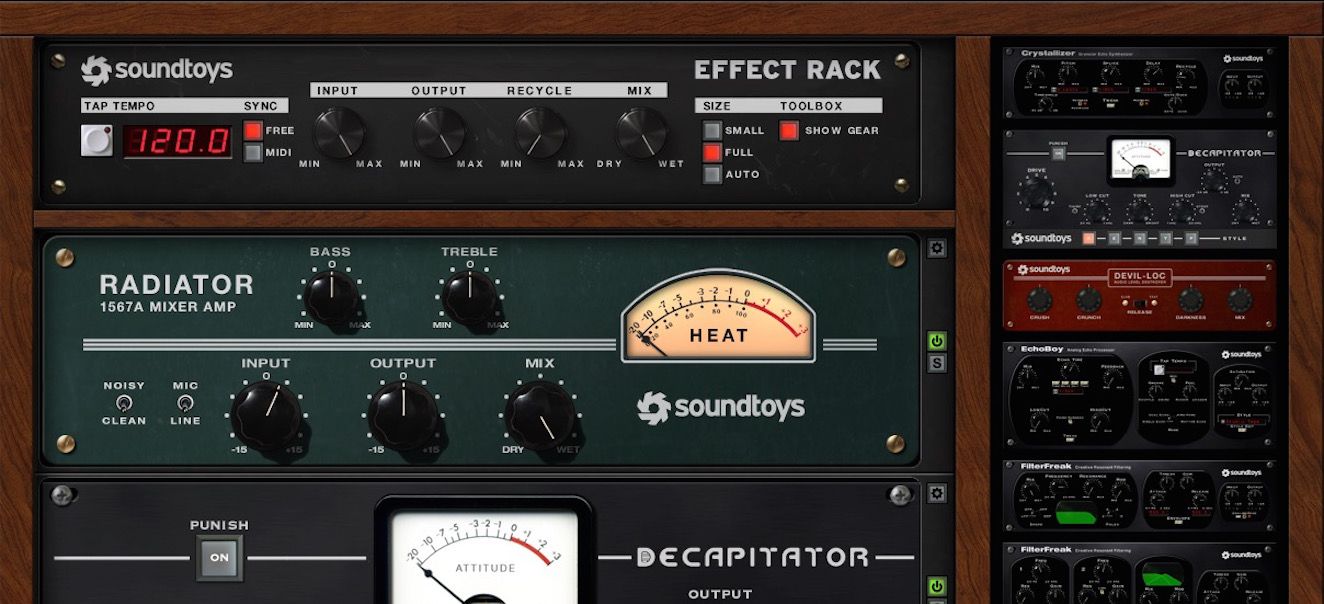
The Soundtoys 5’s collection of effects plugins is an extensive toolbox for any sound engineer or music producer. It offers more than 20 sound-altering plugins that include everything from delays and reverbs to distortion and filtering. The collection combines all the favorites from the Soundtoys range into one complete package. It includes some unique and new plugins such as Sie-Q, Echo Boy Jr, Devil-Loc Deluxe, and Little AlterBoy which can help create a dynamic and sonic soundscape.

Intuitive Interface

Soundtoys 5’s intuitive interface makes it easy for beginners and professionals to use. The interface has an organized flow that will help you achieve your desired sound easily. You will not have to fumble around with the settings to get the sound that you want. There are presets available that offer quick and made to use sound settings. The interface is modern, easy on the eye, and organized correctly so that one can know where each knob and fader is located.

In conclusion, the Soundtoys 5 is a collection of top-notch plugins that have taken Soundtoys range to the next level. Its Analog Sound Emulation, Collection of Effects Plugins, and Intuitive Interface make it a must-have for any sound engineer or music producer. It guarantees to elevate your music production game with its unique soundscapes, textures, and tones.

Soundtoys 5 In Action

If you’re a music producer, mixer or sound engineer, you might have come across Soundtoys 5- a popular collection of audio effects plug-ins. With Soundtoys 5, you can transform plain audio tracks into professional-quality, polished sound, giving your music compositions life and character. But how do you use Soundtoys 5 in action? In this article, we demonstrate various ways to using Soundtoys 5- from applying effects on individual tracks to advanced techniques and tips.

Using The Effects On Individual Tracks

Using Soundtoys 5 effects on individual tracks is an excellent way to experiment and add unique sonic flavors to a mix. For instance, you can apply the EchoBoy plugin on drums to create a vintage, distorted sound, or the Decapitator on bass guitar to produce a warm, saturated tone. Additionally, the Little AlterBoy can transform boring vocals into robotic and funky sounds. With various parameters like mix, rate, and modulation, you can adjust the effect to blend harmoniously with the original sound.

Applying Effects To An Entire Mix

Soundtoys 5 is not only suitable for individual tracks but also for applying effects to an entire mix. For instance, you might want to make your final mix sound more spacious and atmospheric by adding a reverb plugin like the Little Plate. You can use the PanMan to create a moving stereo effect that follows the beat of your music, or use the FilterFreak to add a unique filter to your master track. The key is to experiment with different plugins and effects until you find the right sound.

Advanced Techniques And Tips

Soundtoys 5 also allows you to use more advanced techniques and tips to achieve your desired sound. For example, you can parallel process your track by duplicating it and adding Soundtoys 5 effects to the duplicate. By mixing the dry signal with the processed one, you can create a more controlled version of the effect. Another advanced technique is using automation to change the parameters of a plugin like EchoBoy over time. This technique creates dynamic transitions in your audio and keeps your listener engaged.

Overall, Soundtoys 5 is a must-have audio plugin that every music producer should try for their tracks. By using the effects on individual tracks, applying effects to an entire mix, and using advanced techniques and tips, you can create a professional sound and take your music compositions to the next level.

Cost And Value Of Soundtoys 5

Cost and value are significant factors to consider when shopping for music production tools. In this Soundtoys 5 review, we will delve into different aspects of the plugin, but first, let’s focus on the pricing tiers and subscription programs to understand how it stacks up against other similar tools in the market.

Various Pricing Tiers

Soundtoys 5 pricing comes in three tiers. The first is the Effects Rack bundle, which contains 14 plugins that cost $299. The second tier is the Individual Plugins bundle, which features the same plugins but at a lower price point of $99 per plugin. Lastly, the Soundtoys 5 bundle, which can be purchased for $499, comes with the full suite of Soundtoys plugins. Whichever bundle you choose, you’re certainly getting your money’s worth.

Comparing To Other Plugins

Compared to other similar plugins available in the market, Soundtoys 5 offers excellent value for money. Other plugins may offer similar features, but the comprehensive bundle, high-quality sound, and user-friendly interface that Soundtoys 5 provides to make it worth every penny. In addition, there is no denying that Soundtoys 5 has been gaining popularity among producers and sound engineers all over for its expansive plugin offering, from reverb to distortion, and every effect in between.

Subscription Programs

In addition to the tiered pricing structure, Soundtoys 5 offers a subscription plan, which includes the Soundtoys 5 bundle for just $19.99 per month or individual plugins for $9.99 per month. Subscribing to Soundtoys 5 is a great way to access their entire collection of plugins without breaking the bank

Soundtoys 5 Review

Credit: www.soundonsound.com

Soundtoys 5 Review

Credit: www.macprovideo.com

Frequently Asked Questions Of Soundtoys 5 Review

What Is The Difference Between Soundtoys 5 And Effect Rack?

Soundtoys 5 is a plugin bundle that includes Effect Rack. Effect Rack is a standalone plugin that allows you to combine multiple Soundtoys plugins. Effect Rack offers a flexible way to create, save, and recall complex effect chains. Soundtoys 5 has a wider range of plugins to choose from.

How To Get Soundtoys 5 For Free?

Unfortunately, Soundtoys 5 is a paid software and cannot be obtained for free legally. Using cracked or pirated versions can lead to legal and software issues. To access the software, you can purchase it from the official website or wait for promotional offers.

Remember to support the developers and encourage ethical use of software.

What Does Soundtoys 5 Include?

Soundtoys 5 is a collection of top-notch audio plugins with versatile sound design capabilities including the classic Decapitator, EchoBoy, PrimalTap, and Little AlterBoy. It offers a wide range of effects, filters, and modulation tools for comprehensive audio manipulation.

Are Soundtoys Plugins Cpu Intensive?

Yes, Soundtoys plugins are known to be CPU intensive. However, the amount of CPU usage may vary depending on the specific plugin and the computer system being used. It’s recommended to have a powerful processor and enough RAM to handle the plugins effectively.

Conclusion

To wrap up, Soundtoys 5 is a comprehensive plugin bundle that provides a wide range of audio effects to enhance your music production. With its vintage-inspired aesthetics and easy-to-use interface, it’s a game-changer for both beginners and professionals. Whether it’s creating a dynamic chorus or adding a unique element to your sound, Soundtoys 5 has got you covered.

So, if you’re looking for a versatile set of tools to elevate your audio game, Soundtoys 5 is definitely worth checking out.

Categories
Archive

What Is Audio Saturation

Audio saturation is the phenomenon of intentionally overdriving an analog or digital audio signal to produce a pleasant distortion effect. Audio saturation improves the perceived loudness, warmth, and fullness of audio recordings.

It can be achieved using analog devices such as tape machines, tube preamps or digital plugins that model their characteristics. The amount of saturation can be tailored to suit different applications or styles, ranging from subtle warmth to heavy distortion.

Audio saturation is often used in music production, particularly in genres such as rock, blues, and hip-hop. We will discuss different types of audio saturation and how they can be used to enhance your audio recordings.

What Is Audio Saturation

Credit: www.sageaudio.com

Defining Audio Saturation

Audio saturation is a type of harmonic distortion that happens when an audio signal is overdriven. In simpler terms, it’s what makes audio sound warm and fuzzy rather than clean and digital. If you’ve ever heard the classic rock music of the 70s, then you’ve experienced audio saturation.

The Basics Of Audio Saturation

Audio saturation occurs when a signal exceeds the maximum level that it can handle. When this happens, the signal compresses and clips, leading to an increase in the harmonic content of the audio. This increase in harmonic content is what gives audio the warm and distorted sound that is often associated with analog recordings.

Types Of Audio Saturation

Type of Audio SaturationDescription
Tape SaturationTape saturation occurs when audio is recorded onto magnetic tape. The magnetic particles on the tape add a slight distortion to the audio signal, making it warmer and more pleasing to the ear.
Tub SaturationTub saturation happens when audio passes through a tube amplifier. The vacuum tubes in the amplifier have a unique way of distorting the signal, which results in a warm and natural sound.
Transformer SaturationTransformer saturation occurs when audio passes through a transformer. The transformer adds a slight distortion to the audio signal, resulting in a warmer and more pleasant sound.
  • Other types of audio saturation include:
  • Hardware saturation
  • Software emulation saturation
  • Solid-state saturation

All of these types of saturation can be used to add warmth and character to digital recordings, making them sound more like analog recordings.

What Is Audio Saturation

Credit: www.iconcollective.edu

How Audio Saturation Works

Audio saturation is a phenomenon that occurs when the input level of a recording device exceeds its maximum capacity. This results in a warm, analog-like distortion that can add character and depth to recordings. Saturation can be applied to individual tracks or to an entire mix, and can be controlled to achieve various levels of distortion.

The Physics Of Sound

Sound is measured in decibels, which is a logarithmic scale. The human ear can typically hear sounds ranging from 0 to 140 decibels. When sound waves enter a microphone, they are translated into an electrical signal. This signal is then processed, amplified, and sent to a speaker, which converts the electrical signal back into physical vibrations that we can hear. One important aspect of sound is its harmonic content. Harmonics are additional frequencies that appear above the fundamental frequency of a sound. These harmonics give music its rich and complex sounds. However, when compressed or processed digitally, these harmonics can be lost, resulting in a flat and lifeless sound.

Analog Saturation Vs Digital Saturation

Audio saturation is the process of adding harmonic content to a sound signal. This can be achieved through analog saturation, which involves running the sound through a physical circuit with magnetic tape or vacuum tubes, or through digital saturation, which involves using software to simulate the effects of analog equipment. Analog saturation adds warmth, depth, and richness to a sound. It also adds distortion, which can create a gritty or edgy sound. Digital saturation, on the other hand, is more precise and can be easier to control. However, it can also sound sterile or artificial. In both cases, the goal is to add harmonic content to a sound, resulting in a more vibrant and dynamic audio experience. By manipulating the harmonic content of an audio signal, audio saturation can bring out the best in a recording and enhance the emotional impact of the music. In conclusion, audio saturation is a vital tool for creating high-quality and engaging audio experiences. By understanding the physics of sound and the differences between analog and digital saturation, you can create the perfect sound for your project.

Benefits Of Audio Saturation

Audio saturation is the process of adding harmonic distortion to audio signals. The benefits of using audio saturation include a warmer, fuller and more dynamic sound. Saturation can help bring out the best in your recordings, adding character and depth to your music.

Audio saturation is a technique used to add warmth and depth to audio signals. It involves adding harmonic distortion to a signal to create a more pleasing sound. Saturation can improve the overall quality of audio recordings in various ways.

Added Warmth And Depth

Saturation can add warmth and depth to tracks, resulting in a more natural, analog-like sound. By adding distortion to a signal, it simulates the sound of vintage analog equipment and can make recordings sound warmer and fuller. This effect is particularly useful for digital recordings, which can often sound sterile and lack the warmth of analog recordings.

Improved Dynamics And Harmonics

Saturation can also improve the dynamics and harmonics of a track. By adding subtle distortion to a signal, saturation can add richness to the harmonic content of a recording. This can make instruments sound more full and realistic, with more detail and nuance. Additionally, saturation can smooth out the peaks and troughs of a track’s dynamic range, resulting in a more consistent sound that is easier on the ears. Using saturation techniques can help to make your audio recordings more engaging and stand out from the crowd. By adding warmth, depth, and improving dynamics and harmonics, saturation can take your recordings to the next level. So, the next time you are mixing a sound or working on a recording, don’t forget to use some saturation to enhance the quality of your work.

What Is Audio Saturation

Credit: www.pitchbends.com

Applications Of Audio Saturation

Applications of audio saturation are varied and span several different industries. Audio saturation is an essential tool in music production, but it is also used in other fields such as live sound, film, and TV sound. Below are some specific areas where audio saturation comes in handy:

Mixing And Mastering

Audio saturation finds extensive use in mixing and mastering music. During the mixing process, saturation is applied to add warmth and character to the individual tracks and bring out the fullness of the sound. On the other hand, in the mastering process, saturation is applied to glue all individual tracks to form an overall cohesive sound.

Live Sound

Audio saturation can also be used in live sound reinforcement. A typically sterile sounding live sound can benefit from saturation as it can add personality and warmth to the overall sound of the band playing live. It can also add depth and clarity, even in a noisy environment.

Film And Tv Sound

Saturation is also a useful tool in film and TV sound production. When used correctly, it can add an intimate, realistic, and full-bodied sound to various elements such as dialogue, music score, and sound effects. Saturation is used in sound design to provide depth and enhance the overall movie watching experience for the audience.

Popular Audio Saturation Tools

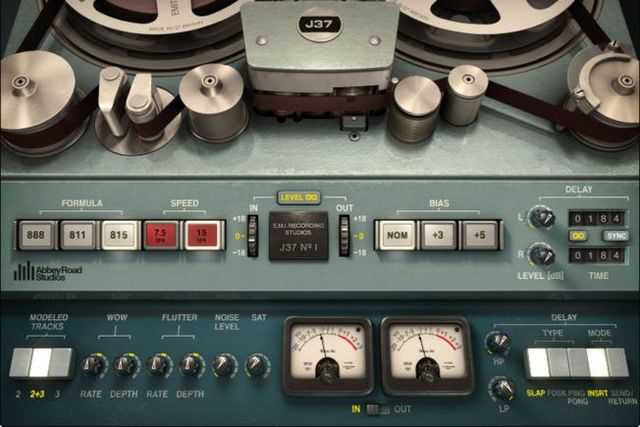
Audio saturation is the process of adding harmonics to sound. Popular audio saturation tools include plugins such as the Waves J37 and the Softube Tape, which emulate the warm, rich sound of analog tape. These tools are commonly used in music production to add character and depth to recordings.

When it comes to music production, audio saturation is an essential tool to enhance the sound of your recordings. The process of audio saturation mimics the effects of analog equipment, adding warmth, and character to the sound. With the increasing popularity of digital audio workstations, audio saturation tools have become vital to achieving a vintage sound in modern productions.

Tube Saturation Plugins

Tube saturation plugins mimic the warm, harmonic distortion that occurs when an audio signal passes through a vacuum tube. They add depth and character to the sound, making it more vibrant and dynamic. Popular tube saturation plugins include:

  • Waves PuigChild Compressor
  • Softube Tube-Tech CL 1B
  • Soundtoys Decapitator

Tape Saturation Plugins

Tape saturation plugins emulate the sound of audio recorded onto analog tape machines, adding warmth and character to the sound. They simulate the subtle distortion, saturation, and compression that occurs when audio passes through magnetic tape. Popular tape saturation plugins include:

  • Slate Digital Virtual Tape Machines
  • Universal Audio Ampex ATR-102
  • Waves Kramer Master Tape

Transistor Saturation Plugins

Transistor saturation plugins emulate the distortion and harmonics caused by analog transistor circuits. They are commonly used to add warmth and dynamic range to digital recordings, creating a more vintage sound. Popular transistor saturation plugins include:

  • Soundtoys Radiator
  • Universal Audio Thermionic Culture Vulture
  • Softube Saturation Knob

Using these audio saturation tools in your music production can take your sound to new heights. Experiment with different plugins and find the best ones for your sound!

Using Audio Saturation In Your Music

Audio saturation is a technique used to add warmth and character to recorded audio. It involves overdriving an analog or digital signal to produce harmonics and distortion that can enhance the sound quality and make it more interesting. Using audio saturation in your music can take your mix to the next level by giving it a certain level of “vibe” or “attitude”. Here are some tips on how to use audio saturation effectively in your music:

Experimenting With Different Saturation Types

Before you start using saturation in your music, it’s important to understand the different types of saturation. There are various types of analog and digital emulations that can be used, each with their unique characteristics. Make sure to experiment with different types of saturation to find the one that fits your genre and style.

Knowing When To Use Saturation

Saturation can be used in different ways depending on the purpose. You can use it to add warmth to a mix, to enhance specific instruments, or to give a particular track a vintage feel. Knowing when to use saturation is essential to achieving the desired effect without overdoing it. For instance, adding too much saturation could make the mix sound muddy and unnatural. Therefore, it’s important to use it in moderation.

Dos And Don’ts

Here are some dos and don’ts when using audio saturation:

DosDon’ts
Use saturation to add warmth and character to your mixExperiment with different types of saturation to find the desired effectUse saturation sparingly to avoid making the mix sound muddy or unnaturalUse saturation to enhance specific instruments or tracksUse saturation to give a vintage feel to your mixOverdo saturation, which can lead to a distorted and unpleasant soundUse saturation on every element of your mixUse saturation as a fix for poor recording or mixing qualityUse saturation in genres where it’s not appropriateUse saturation without considering the context or purpose

By following these dos and don’ts, you can use audio saturation effectively and elevate the sound quality of your music.

Frequently Asked Questions Of What Is Audio Saturation

What Does Saturation Effect Do?

The saturation effect is used in audio processing to add harmonics and warmth to a sound signal by increasing its amplitude. This effect is achieved by overdriving analog or digital circuits, amplifiers, or tape machines to produce a unique distortion that adds a richness to the original sound.

Is Distortion And Saturation The Same Thing?

No, distortion and saturation are not the same things. Distortion occurs when the audio signal is altered, resulting in added harmonics and a rougher tone. Saturation, on the other hand, happens when the audio signal is pushed too hard, resulting in a warmer, richer tone with increased dynamic range.

They both affect an audio signal, but in different ways.

Does Saturation Increase Loudness?

Saturation can increase the perceived loudness of a sound by introducing harmonic distortion. However, it also can introduce unwanted artifacts and reduce clarity in the signal. It is important to use saturation judiciously and in the context of the overall mix.

What Is The Difference Between Compression And Saturation?

Compression reduces the dynamic range of an audio signal, while saturation adds harmonic distortion to the signal. Compression reduces the difference between the loudest and softest parts, while saturation adds warmth and thickness to sound. Both can be used for creative effects and to control levels and peaks in a mix.

Conclusion

Audio saturation is a key element that can help you achieve a professional level of sound. Saturation techniques can add warmth, depth, and clarity to your tracks, making them sound fuller and richer. By understanding how saturation works, you can create unique sounds that stand out from the crowd.

Whether you’re a professional audio engineer or a passionate music producer, you can use saturation to enhance your work and bring your creativity to new heights. Start experimenting with different saturation techniques today and take your sound to the next level.

Categories
Archive

How Can I Mix Vocals

To mix vocals, set levels, EQ, compress, and use effects such as reverb and delay. Mixing vocals is a critical part of producing a polished and professional song.

It involves adjusting the levels of individual tracks, using EQ to remove unwanted frequencies, compressing to control dynamics, and using effects such as reverb and delay to add depth and dimension. Proper vocal mixing can make or break a recording, and it takes a certain level of skill and practice to get it right.

With some basic knowledge and experimentation, however, anyone can learn how to mix vocals effectively. We will explore the best techniques and tools for mixing vocals, whether you are working with a full band recording or a solo artist.

How Can I Mix Vocals

Credit: mastering.com

Preparing Your Mix

Achieving a well-mixed vocal recording takes patience, technique, and practice. Start by equalizing each vocal track and adjusting the levels to ensure there are no clashing frequencies. Then, apply compression to even out the dynamics and add some reverb or delay to create a cohesive sound.

Eliminate Unwanted Sounds

Before starting to mix vocals, it’s important to get rid of any unwanted sounds that might interfere with the clarity and quality of the vocals. These sounds can include anything from background noise to mouth clicks and pops. To eliminate these sounds, you can use a noise gate or a de-esser plugin. A noise gate helps to silence any sounds below a certain threshold, while a de-esser plugin specifically targets and reduces harsh sibilance sounds.

Adjust Eq

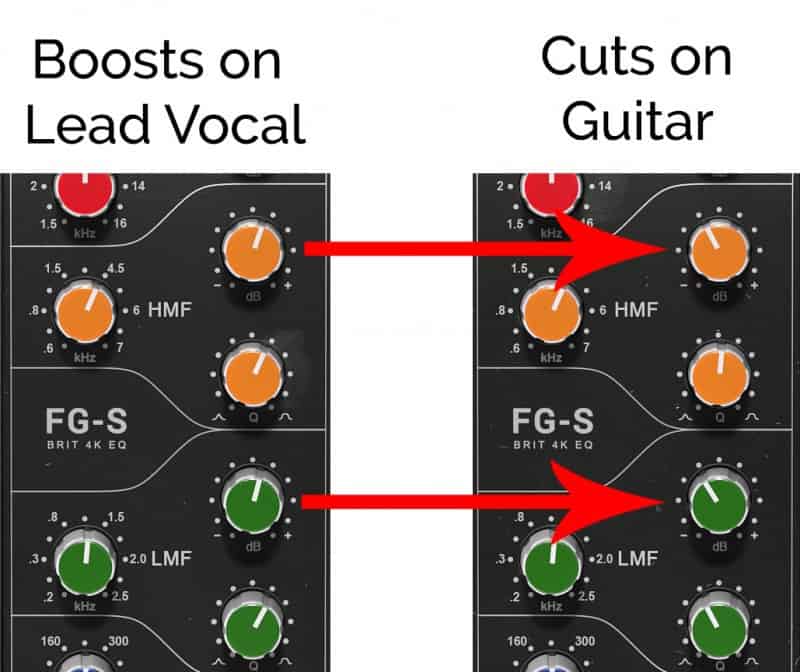
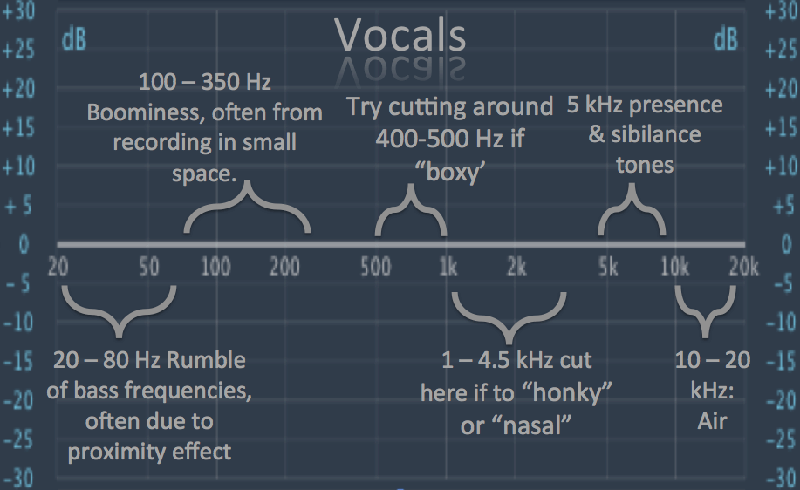
Equalization is important when mixing vocals as it helps to balance out the different frequencies of the voice. Start by using a high-pass filter to remove any low-end rumble or unwanted bass frequencies. Then, use a parametric EQ to boost or cut specific frequencies that may be either too prominent or dull in the mix. Be sure not to overdo it with EQ as it can lead to unnatural and unpleasant sounding results.

Reduce Sibilance

Sibilance refers to the harsh “s” and “sh” sounds that can occur in vocals. To reduce sibilance, use a de-esser plugin mentioned earlier. Another way to minimize sibilance is to use proper mic technique during recording. Having the singer sing slightly off-axis from the mic can help reduce sibilance and produce a smoother sound. It’s important to note, however, that completely removing sibilance can lead to a dull and lifeless vocal sound. By following these tips for preparing your mix, you can achieve a clearer and more polished vocal sound. Eliminating unwanted sounds, adjusting EQ, and reducing sibilance are essential steps in achieving a professional-sounding vocal mix.

Setting Up Your Track

Mixing vocals is an art that requires a good ear for music and technical expertise in using different tools and software. Before you get started with mixing, you need to set up your track in the right way. This includes importing vocals properly, creating different bus tracks and adjusting different levels and effects. Here is a detailed guide on how to set up your track for mixing vocals:

Import Vocals

The first step for mixing vocals is to import vocals into your DAW (Digital Audio Workstation). You can do this by dragging and dropping audio files, or by importing them directly from the menu. Make sure to select the right format, sample rate, and bit depth to ensure the best quality sound. You should also label each track properly to avoid confusion and make it easy to locate your files later on.

Create A Bus

One of the most important steps when it comes to mixing vocals is to create bus tracks. Bus tracks are used to group different elements of your mix, such as vocals and instruments, so that you can apply effects and adjustments to them all at once. The most popular way to group vocal tracks is to create a stereo bus, which will allow you to add reverb, delay, and other effects. You can do this by selecting “create bus” option from the menu and selecting the number of channels you need.

When you have created a bus, you can route all your vocal tracks to it by selecting the right input. This will allow you to control the overall level and effect of your vocals by adjusting the bus settings. You can also add compression, equalization, and other effects to the bus to enhance the overall sound quality.

By following these simple steps, you can set up your track properly and start mixing vocals like a pro. Whether you’re a beginner or an experienced sound engineer, these tips and tricks will help you to achieve the perfect mix every time.

Setting Levels

Achieving the perfect vocal mix involves setting levels. This process helps balance the volume of each vocal track in relation to the others and the instrumental track. Start by adjusting the volume of each vocal track until they blend well together.

When it comes to mixing vocals, setting the levels is crucial for achieving a balanced and professional sound. Without proper level settings, the vocals may get buried under other instruments or overpowering, causing the listener to lose interest. This section will cover how to set initial levels and adjust volume to ensure each element of the mix fits together seamlessly.

Setting Initial Levels

Before mixing vocals, it’s important to have a clear plan on how the vocals will fit in with the rest of the instrumental elements. To achieve this, it’s essential to set the initial levels of each track before making any adjustments. Here are the steps to set initial levels:

  1. Start by muting all tracks except for the lead vocal track to ensure you are not distracted by other elements.
  2. Set the fader of the lead vocal track to unity gain, which is the same level as the original recording.
  3. Play the vocal track and adjust the levels until they reach a comfortable and consistent volume.

Once the lead vocal track is at an appropriate level, unmute other tracks to see how they fit in with the vocals and make necessary adjustments.

Adjust Volume

After initial levels are set, adjusting the volume is the next step in mixing vocals. It’s essential to ensure that each element of the mix fits together seamlessly without masking or overpowering each other. Here are the steps to adjust the volume:

  • Start by listening to the instrumental tracks, including drums, bass, keyboards, and guitar, to determine any elements that mask or overpower the vocals.
  • Adjust the volume of each instrumental track to create a balance with the lead vocal track.
  • Make sure the lead vocal track is still at the appropriate level and adjust its volume if necessary.
  • Listen to the mix as a whole and adjust the volume of individual tracks if needed.

When adjusting the volume, it’s crucial to use your ears and not rely too much on visual cues such as meters. A mix that sounds good to your ears is more essential than one that looks good on a meter. In conclusion, setting levels is a crucial step when mixing vocals. Following the steps outlined above will help achieve a balanced and professional sound. Remember, the most important factor is to use your ears and not rely solely on visual cues. Happy mixing!

How Can I Mix Vocals

Credit: ekmixmaster.com

Panning And Stereo

To get the best mix for vocals, using panning and stereo techniques is essential. Panning helps in placing vocals in the mix while stereo creates width and depth, allowing the vocals to stand out. With the right balance, your vocals can sound clear and impactful, making your music stand out from the rest.

Pan Vocals

Panning is when you move the position of a recording in a mix from left to right. It allows you to isolate the vocals and place them in the center of your mix, while the other instruments are panned to the left or right. To pan the vocals, use the mixer panel in your recording software. Most mixers have a panning knob next to each track. You can use this to manually adjust the position of each track. It is important to keep in mind that too much panning can make your mix sound unbalanced. Avoid hard-panning the vocals too far to one side or the other.

Adding Stereo Width

In addition to panning, stereo width refers to the amount of space that a recording takes up in the stereo field. Adding stereo width to your vocals can greatly enhance the overall sound of your mix. There are several ways to add stereo width to your vocals, including using stereo widening plugins or doubling the vocal track and panning each track to opposite sides. Another option is to use a stereo reverb effect on the vocals. When using stereo effects, be sure to use them very sparingly and in moderation. Too much stereo width can make the mix sound too busy and cluttered. In conclusion, panning and adding stereo width to your vocals can take your mix to the next level. By using these techniques, you can create a more dynamic and interesting mix that highlights the vocals and brings out the full potential of your recording.

Applying Effects

To mix vocals, applying effects is crucial. EQing can help remove unwanted frequencies, while compression and reverb can add depth and character to the vocals. Experiment with different effects and settings to achieve the desired sound.

Adding effects to vocals is a crucial step in crafting an authentic and high-quality mix. While effects can enhance the sound of a vocal track, applying them correctly is crucial. Three primary effects used when mixing vocals are compression, delay, and reverb. Let’s dig into each of these effects and how to use them effectively.

Compression

Compression is essential in vocal mixing to keep the vocal from being too dynamic and out of control. Compression levels out the volume of the vocals, making them more consistent and easier to hear. Here are basic steps to apply compression to your vocal track:

  • Set the ratio at 2:1 to 4:1
  • Set the attack time at around 10-30ms
  • Set the release time to auto or at 100-200 ms
  • Adjust the threshold to where you see gain reduction of around 3-6dB

Delay

Delay is another popular effect used in vocal mixing, which adds depth and dimension to the vocal. With delay, you can create a sense of space, and it can also function as a subtle effect to fatten up the vocal. Here’s how to apply a simple vocal delay:

  • Set the delay time to a musical interval or to match the song’s tempo
  • Use a feedback level of between 10-30%
  • Adjust the wet-to-dry ratio to taste, to make the delay more apparent or subtle

Reverb

Reverb is a popular effect used in vocal mixing to add space and dimension to the vocal. It’s essential to apply it correctly to avoid making the vocal sound too washed out or distant. Here is how to use it effectively for vocals:

  • Choose a reverb plugin with a predelay control
  • Set the predelay to 10-20ms to create space or to match the song’s tempo
  • Select an appropriate reverb type such as plate, hall, or chamber
  • Adjust the reverb decay time, size, and diffusion to taste

In conclusion, applying the right effects to your vocal track will go a long way in creating a professional mix. Compression, delay, and reverb are popular effects; however, you can experiment with others such as chorus, distortion, and phasers. Remember that it’s essential to use effects in moderation and to use your ears when applying them.

How Can I Mix Vocals

Credit: www.waves.com

Automating Your Mix

Automating your mix can be a useful technique when it comes to mixing vocals. Plugins such as EQ filters, dynamic processors, and time-based effects can do the job for you. When setting up your automation, take note of the overall volume, frequency balance, and soundstage of the vocals.

When mixing vocals, it can be a challenge to balance them with the other elements in your track. One way to achieve a more consistent sound and save time is to automate your mix. This technique involves setting specific parameters for individual tracks, like volume and effects, and then programming those changes to occur automatically throughout the song. Here are some ways to automate your mix successfully:

Automate Volume

Controlling the volume of your vocals is an essential part of mixing. You can use volume automation to create smooth transitions between different parts of the song, like verses and choruses. Start by drawing in automation points on the volume fader for each vocal track. Then, adjust each point to create the desired volume level. By automating the volume of your vocals, you can ensure they are heard clearly and consistently throughout the track.

Automate Effects

Effects like delay, reverb, and compression can enhance the sound of your vocals and make them stand out in the mix. Automating these effects allows you to add variation and interest to your vocals without having to adjust them manually. For example, you could automate the reverb on a vocal track to increase in the chorus, creating a more spacious sound. To automate effects, you will need to use a plugin that has automation capabilities or use the built-in automation features of your DAW.

Conclusion

Automating your mix can save you time and help you achieve a more consistent and professional sound. By automating the volume and effects of your vocals, you can create smooth transitions and add variation to your mix without having to adjust them manually throughout the song. Experiment with different automation techniques to find the perfect balance for your vocals and make your mix stand out.

Frequently Asked Questions For How Can I Mix Vocals

What Is The Best Way To Mix Vocals?

The best way to mix vocals is to ensure each vocal track is clear and balanced in terms of volume, tone, and effects. Use compression, EQ, and reverb to enhance the vocals and avoid clashing frequencies. Make sure the vocals sit well within the mix without overpowering other elements.

Finally, monitor the mix on different speakers to ensure it sounds good on a range of systems.

In What Order Do You Mix Vocals?

Mixing vocals typically follows these steps: First, focus on the lead vocal and balance it with the instrumental mix. Second, address the harmonies and background vocals. Third, use equalization to adjust the frequencies. Fourth, add time-based effects like reverb and delay.

Finally, adjust the volume and overall level.

How Do You Edit And Mix Vocals?

To edit and mix vocals, you should start by cleaning up recordings for background noise and breathe sounds. Then, use EQ to balance frequencies and adjust levels to create a smooth sound. Compression, reverb, and delay can also enhance the vocals.

Finally, adjust the stereo image and volume levels to match the song.

How Do You Send Vocals To Be Mixed?

To send vocals to be mixed, you can either send the raw audio file or export the vocals as individual stems. Make sure to label and organize the files properly, and communicate any specific mixing requests to the audio engineer.

You can use cloud storage or file-sharing platforms to send the files securely.

Conclusion

To sum up, mixing vocals is all about balance and experimentation. It requires a deep understanding of how to enhance the singer’s performance and make their voice stand out in the mix. Remember to use EQ, compression, reverb, and other effects in moderation to avoid over-processing the vocal track.

Keep a clear objective in mind, trust your ears, and don’t be afraid to try new techniques. With practice and patience, you can achieve professional-sounding vocal mixes that elevate your music production to the next level.

Categories
Archive

Antares Autotune Efx Review

Antares Autotune EFX is a vocal processing tool that enhances pitch accuracy. Antares Autotune EFX is designed to offer quick and easy pitch correction while remaining accessible to users with a limited understanding of music theory.

Vocal processing has become an integral part of music production, enabling artists to correct pitch inaccuracies and enhance their voice’s tonal quality. Autotune EFX by Antares is a go-to tool for both professional producers and beginners alike. The plugin has been designed to make the pitch correction process straightforward and effortless, resulting in a better-sounding vocal performance.

We’ll be reviewing Antares Autotune EFX with an in-depth exploration of its features, functionality, and how it can benefit your music production.

Antares Autotune Efx Review

Credit: www.sweetwater.com

Features Of Antares Autotune Efx

Antares Autotune EFX is a powerful software that enables real-time pitch correction and gives a natural, realistic vocal effect. With features such as humanization and vibrato, it’s perfect for both studio and live performances.

Antares Autotune EFX is a popular tool among musicians and producers, known for its ability to correct pitch and create professional-sounding vocal tracks. It offers a range of features that not only enhance the performance but also allow for more creative possibilities. Let us explore the Features of Antares Autotune EFX, which makes it stand out from the rest. Real-time Pitch Correction: Antares Autotune EFX offers Real-time Pitch Correction, which means that it corrects pitch on the fly, as the singer is performing. This feature enables the singer to hear the pitch correction in their headphones, making it easier for them to stay in tune. In addition, it allows producers to make corrections while recording, reducing the need for re-recording or post-production editing. Flex-Tune Natural Pitch Correction Technology: The Flex-Tune technology is unique to Antares Autotune EFX, making it a favorite among users. Unlike other pitch correction software, it uses a natural method of pitch correction that retains the original character and style of the singer’s voice. It does not sound robotic or over-processed, giving a more natural and polished final product. Humanize Function: Antares Autotune EFX also boasts the Humanize function, which adds more realism and depth to the pitch correction. This function allows for more control and customization over the pitch correction, making it sound more like an actual human. The result is a more organic, human-like sound that creates an emotional connection with the listener. Automatic Formant Correction: Another feature of Antares Autotune EFX is the Automatic Formant Correction. The formant is the shape and tone of the singer’s vocal tract that gives their voice a distinct sound. This feature helps to ensure that the formant remains consistent even when the pitch is being corrected, resulting in a more natural and coherent vocal performance. Low Latency Mode: The Low Latency Mode in Antares Autotune EFX ensures minimal delays between the vocal input and the output processing. This feature is beneficial for live performances, allowing for real-time pitch correction without any noticeable delay or lag in the sound. In conclusion, Antares Autotune EFX is a powerful and versatile tool for pitch correction that offers a range of unique features. Its natural sounding pitch correction, humanized function, and automatic formant correction allow for professional-sounding vocal tracks that are both emotionally engaging and polished. The low latency mode makes it a valuable asset for live performances, and the real-time pitch correction mode simplifies the recording process. All these features make Antares Autotune EFX a must-have tool for any producer or musician.

Antares Autotune Efx Review

Credit: www.musicradar.com

Benefits Of Using Antares Autotune Efx

Are you tired of struggling to achieve the perfect pitch in your vocals? Look no further than Antares Autotune EFX. This powerful plugin allows users to effortlessly correct and enhance their vocal performances, resulting in a polished and professional sound.

Professional-sounding Vocals

With Antares Autotune EFX, anyone can achieve a professional-sounding vocal performance. This plugin corrects pitch automatically, ensuring that all notes are perfectly in tune. Additionally, Autotune EFX features a variety of settings that allow users to customize the vocal effect to suit their needs.

Whether you are recording a demo or laying down tracks for a commercial release, Antares Autotune EFX will give your vocals the polished, studio-quality sound you need.

Easy To Use Interface

One of the most appealing aspects of Antares Autotune EFX is its simplicity. The easy-to-use interface makes it accessible to experienced professionals and beginners alike.

The plugin’s interface features a clean, intuitive design that allows users to adjust settings and correct pitch with ease. This means that you can focus on delivering a great vocal performance, without worrying about complicated technical details.

Compatibility With Popular Daws

Antares Autotune EFX is compatible with a wide variety of popular digital audio workstations (DAWs), including Pro Tools, Logic Pro, Ableton Live, and FL Studio. This means that users can seamlessly integrate Autotune EFX into their existing music production workflow and enjoy its benefits without interruption.

Customizable Settings

One of the most impressive features of Antares Autotune EFX is its customizable settings. Users can adjust a range of parameters, including retune speed, humanization, and vibrato, to tailor the vocal effect to their liking.

This flexibility ensures that every user can achieve the perfect vocal sound for their project. Whether you want to create a natural, transparent pitch correction effect or an exaggerated, robotic sound, Antares Autotune EFX has got you covered.

Overall, Antares Autotune EFX is an excellent choice for anyone looking to achieve professional-quality vocals in their music production projects. Its ease of use, compatibility with popular DAWs, and customizable settings make it a must-have plugin for any serious musician or producer.

Comparing Antares Autotune Efx To Other Autotune Software

Antares Autotune EFX stands out when compared to other autotune software due to its ease of use and affordability. With its intuitive interface and quick processing power, it has become a go-to tool for both professional and amateur music producers alike.

Comparing Antares Autotune EFX to Other Autotune Software When it comes to pitch correction software, Antares Autotune EFX is undoubtedly one of the most popular choices. However, how does it stack up against other autotune software on the market? Let’s take a deeper look.

Antares Autotune Vs Celemony Melodyne

Melodyne is a popular alternative to Antares Autotune EFX. While they both have pitch correction capabilities, they differ in some key ways. Where Antares is primarily used for minor pitch correction, Melodyne offers greater control over the pitch, timing, and formant of a vocal recording. Additionally, Melodyne allows for pitch correction of individual notes within a chord, which Antares cannot do.

Antares Autotune Vs Waves Tune

Waves Tune is another popular autotune software that is comparable to Antares Autotune EFX. Both have similar pitch correction capabilities, although Waves Tune offers more flexibility for fine-tuning the pitch correction than Antares. Waves Tune also offers natural-sounding vibrato control, which Antares does not.

Antares Autotune Vs Logic Pro X Autotune

Logic Pro X Autotune is a pitch correction software that is included in the popular Logic Pro X DAW. While it is not as capable as Antares Autotune EFX, it is a great alternative for those who are on a budget. Logic Pro X Autotune is a simple and straightforward pitch correction plugin that offers basic pitch correction capabilities. In conclusion, Antares Autotune EFX is a popular choice for those who are looking for a straightforward and effective pitch correction software. However, there are other options on the market that offer greater control and flexibility, such as Celemony Melodyne and Waves Tune. Logic Pro X Autotune is also a great alternative for those who are on a budget. It’s important to consider your specific needs and budget when choosing an autotune software.

Antares Autotune Efx Review

Credit: musictech.com

Frequently Asked Questions For Antares Autotune Efx Review

Is Antares Auto-tune Artist Good?

Yes, Antares Auto-Tune is a professional and famous pitch correction software used in the music industry. Many popular artists use it to enhance their vocal performances. It is effective in correcting pitch issues and has become a standard tool for music producers.

What Is The Difference Between Auto-tune Efx And Artist?

Auto-Tune EFX is a software designed for real-time pitch correction while the artist version is a more advanced tool that offers more control over pitch and timing. Auto-Tune EFX is ideal for quick and easy corrections while artist provides greater flexibility for more precise editing.

What Auto-tune Do Professionals Use?

Professionals use a variety of Auto-Tune software, but some of the most popular ones include Antares Auto-Tune Pro, Waves Tune, and Melodyne. These tools allow for precise pitch correction and creative manipulation of vocal performances.

Is Antares Auto-tune Better Than Waves?

Both Antares Auto-Tune and Waves plugins have unique features that make them indispensable to audio production. Antares Auto-Tune is commonly used for pitch correction, while Waves plugins offer a comprehensive range of audio processing tools. Choosing which one is better depends on your specific needs and preferences.

Conclusion

To sum it up, Antares Autotune Efx is a versatile and powerful plugin for music producers, singers, and anyone who wants to add a professional touch to their sound. With advanced features like real-time pitch correction and creative FX, Autotune Efx is a must-have tool for anyone serious about music production.

Whether you’re recording in the studio or performing live, this plugin is easy to use and delivers great results. Give it a try and take your music to the next level.

Categories
Archive

How To Reverb Drums

To reverb drums, add reverb effects to the drum track. Reverb plugins can be used to add different levels of reverb to create a desired effect.

Creating a great drum sound is crucial in music production. And reverb plays a significant role in getting there. It can add a sense of space, depth and warmth to the drums, making them sound more alive and natural. However, reverb can be tricky.

Too much or too little can ruin the mix. To reverb drums effectively, one must choose the right type of reverb, determine the level of wetness, decide on the decay time and pre-delay, and EQ the reverb if necessary. Additionally, it is important to listen critically and make adjustments based on the context of the song. With these tips, you’ll be well on your way to achieving a professional-sounding drum mix.

How To Reverb Drums

Credit: www.youtube.com

Types Of Reverb

If you’re a drummer or a music producer, you know the impact of reverb on your sound. Reverb is a crucial element in music production, providing an ambient effect to the audio and adding depth, space, and dimension to the drums. But if you’re new to the process, it can be tough to determine which type of reverb to use. Here are the four main types of reverb:

Room Reverb

Room reverb is the sound of drums that are played in a small or large room. The sound bounces off the walls, and it creates a natural and realistic sound. This sound is best suited for drums that require a clean and natural sound, such as jazz, country or pop music.

Plate Reverb

Plate reverb is created by using a thin sheet of metal placed in front of a speaker. The sound waves from the drum kit vibrate the metal, creating a distinct sound that is rich and smooth. Plate reverb is best suited for drums that require a warmer and smoother sound, such as rock or blues.

Spring Reverb

Spring reverb is created when the sound is passed through a set of springs by a pickup. The sound waves travel up and down the metal springs, creating a unique and recognizable sound. Spring reverb is best suited for drums that require a bright and snappy sound, such as surf, rockabilly or punk rock.

Hall Reverb

Hall reverb replicates the sound of drums that are played in a large hall or auditorium. The sound bounces off the walls, creating an expansive and spacious sound. This reverb is best suited for larger-than-life drums, such as orchestral percussion or bombastic rock tracks.

How To Reverb Drums

Credit: m.youtube.com

How To Add Reverb To Your Drums

Reverb is an important element to add depth and dimension to your drums, making them sound more natural and full. There are various ways to add reverb to your drums, including using plugins or recording techniques to achieve the desired sound.

Drums without reverb can sound flat and lifeless. Adding reverb to your drums can help bring them to life and add depth to your mix. There are various ways to add reverb to your drums, including using a plugin, using a hardware processor, or creating a reverb send. Here’s a closer look at each option.

Using A Plugin

One of the easiest ways to add reverb to your drums is by using a plugin. Most digital audio workstations (DAWs) come with built-in reverb plugins that you can use to add different types of reverb to your drums. These plugins come with a variety of settings and presets that you can adjust to get the desired sound. To use a plugin, simply insert it onto the track or bus where your drums are. Then, adjust the settings until you get the desired reverb effect. You can adjust the decay time, pre-delay, wet/dry mix, and more. Be sure to experiment with the different parameters to find the sound that works best for your mix.

Using A Hardware Processor

Another way to add reverb to your drums is by using a hardware processor. This can be a bit more complicated than using a plugin, but it can also yield better results. A hardware processor allows you to add analog warmth and character to your drums that you can’t get with a digital plugin. To use a hardware processor, you’ll need to connect it to your DAW via an audio interface. Then, route your drum track or bus to the processor and adjust the settings until you get the desired reverb effect. You can adjust the decay time, pre-delay, EQ, and more.

Creating A Reverb Send

Finally, you can add reverb to your drums by creating a reverb send. This involves creating a separate aux track in your DAW and inserting a reverb plugin onto it. Then, you can send your drum track or bus to the aux track using a send. Creating a reverb send allows you to add different amounts of reverb to different parts of your mix. For example, you can add more reverb to the snare drum than to the kick drum. This can help create a more natural and cohesive sound. In conclusion, adding reverb to your drums is essential for bringing them to life and adding depth to your mix. Whether you choose to use a plugin, a hardware processor, or a reverb send, be sure to experiment with the different settings and parameters to find the sound that works best for your mix.

Reverb Tips And Tricks

Achieving the perfect reverb on your drums can be a challenging task. However, with the right techniques, such as utilizing EQ and adjusting the decay time, you can create a natural and immersive sound that adds depth and dimension to your mix.

If you want to add depth and character to your drum tracks, then using reverb is a great choice. However, it’s not just about adding reverb, but also about using it correctly to get the desired outcomes. In this section, we will discuss some reverb tips and tricks to help you get the most out of your drum mixes.

Using Pre-delay

Pre-delay refers to the time gap between the original sound and the onset of reverb. This parameter can significantly impact the sound of your drums. A shorter pre-delay time will make your drums sound closer, while a more extended pre-delay will make them sound farther away. Try experimenting with different values to get a suitable pre-delay time that compliments the tempo and mood of your track.

Adjusting The Decay Time

Decay time defines how long the reverb lasts after the initial sound has stopped. Longer decay times will create a more spacious sound that will add to the overall depth of the track. On the other hand, shorter decay times will produce tighter and more focused drum sounds that sit well in the mix. Depending on the genre of your track, you should be able to find a suitable decay time that blends well with your drums.

Mixing Reverb With Dry Drums

When you add reverb to your drums, it is essential to ensure that they still sound natural and coherent with the rest of the mix. One way to do this is by balancing the level of reverb with the level of the dry drums. A good starting point is to set the reverb level at around -18dB and then adjust it as necessary. Also, you can try using a sidechain compressor to duck the level of the reverb when the drums hit. This technique can help maintain clarity in the mix while still applying reverb to the drums. In conclusion, using reverb effectively can make or break your drum tracks. By following these tips and tricks, you can create drum mixes that sound natural and have depth and character. Remember to experiment and try out different values until you get the desired sound.

How To Reverb Drums

Credit: www.izotope.com

Frequently Asked Questions Of How To Reverb Drums

Should You Reverb Drums?

Yes, reverb can be used for drums to add depth and space to the sound. However, the technique should be used with caution and in moderation, as too much reverb can muddy the sound and reduce clarity. It ultimately depends on the desired style and effect of the drums in the mix.

What Is Reverb In Drumming?

Reverb in drumming refers to the echo or resonance of the sound produced by the drums. It is the result of sound waves reflecting off surfaces in the environment, creating a sense of space and depth in the sound. Reverb can be adjusted with different drumming techniques or through the use of effects pedals.

Should You Put Reverb On Toms?

Yes, adding reverb to toms can enhance their sound by providing depth and sustain. However, the amount of reverb applied should be balanced and not overpower the natural sound of the toms. Adjusting the decay time and pre-delay can also help create a more natural-sounding reverb.

How Do You Gated Reverb Drums?

Gated reverb drums are achieved by adding reverb to a drum track and then using a noise gate to shorten the duration of the reverb. This creates a distinct and powerful sound that is commonly used in the production of popular music tracks.

Conclusion

After following these helpful steps on how to reverb drums, you can now achieve a professional and high quality sound in your tracks. Remember to experiment with different reverb types and settings to find the best fit for your music style.

By taking the time to properly reverb your drums, you will give your music a more polished and dynamic sound. Don’t forget, practice makes perfect, so keep testing and refining your sound until you achieve your desired result.

Categories
Archive

Tips For Mixing Jazz Music

When mixing jazz music, prioritize balance, clarity, and warmth. Create space for each instrument and highlight the unique characteristics of the performers.

Jazz mixing requires an ear for detail and a deep understanding of the genre’s conventions. Begin by examining the individual tracks and assessing their needs. Use compression, EQ, and reverb to enhance the sound, and avoid over-processing. Make sure to leave room for improvisation and spontaneity in the final mix.

With careful attention to detail and a passion for jazz, anyone can create a dynamic and engaging mix that captures the essence of this timeless genre.

Overview Of Jazz Music Mixing

Jazz music mixing requires a delicate balance of instruments and vocals for a cohesive sound. Tips for successfully mixing jazz music include proper balancing of frequencies, utilizing panning techniques, and adding subtle effects to enhance the overall sound.

Mixing is a vital aspect of producing a quality jazz music track. It involves combining various elements, including instruments, effects, and vocals, to create a cohesive and balanced sound. The process of mixing jazz music requires a lot of patience and attention to detail. Therefore, it is essential to have an understanding of the fundamental principles of mixing for jazz music to get the best results. This blog post provides an in-depth overview of jazz music mixing, including the importance of mixing, factors to consider while mixing, and some popular mixing techniques used in jazz music.

Importance Of Mixing In Jazz Music

Mixing is essential in jazz music to blend the different instruments, vocals, and effects into a cohesive and balanced sound. Creating a good mix involves considering elements such as volume, dynamics, panning, and frequency balance. A well-mixed jazz music track has all the instruments and vocals audible and well-balanced, creating a pleasant listening experience for the audience. Mixing helps in creating emotional depth and expression in jazz music.

Factors To Consider While Mixing Jazz Music

Mixing jazz music requires attention to a few essential factors to produce a high-quality track. Some of these factors include:

  1. Arrangement of the song
  2. Instruments and vocals used
  3. Recording techniques and equipment
  4. Automated mixing tools and plugins
  5. Volume levels, EQ, and FX settings

Other essential factors to consider are the ambient noise, the acoustics of the recording room, and the target audience.

Popular Mixing Techniques In Jazz Music

Mixing techniques vary depending on the type of music, equipment used, and personal preferences. However, some popular mixing techniques used in jazz music include:

  • The use of compression to control dynamics
  • Applying reverb to create depth and ambience
  • Frequency equalization to balance the sound
  • Panning to position sounds within the stereo field
  • Noise reduction to eliminate unwanted sounds

In conclusion, mixing jazz music is a complex yet exciting process that requires skill, patience, and attention to detail. By following the tips outlined in this blog post, you can produce a high-quality jazz music track that engages your audience.

Equalization Techniques For Jazz Music Mixing

Achieving a balanced sound when mixing jazz music requires the implementation of proper equalization techniques. By utilizing the right EQ settings, you can enhance each instrument’s presence and clarity while maintaining an overall cohesive sound. With careful attention to detail, your jazz mixes can truly shine.

Jazz music is a dynamic and complex genre that requires a unique approach when mixing and mastering. Equalization, or EQ, is a critical tool that can help enhance the quality of jazz music in the mixing process. It can help achieve better frequency balance and adjust the clarity of each instrument. In this post, we’ll discuss some essential equalization techniques for mixing jazz music that can help you achieve a professional sound.

Adjusting The Frequencies To Fit Jazz Music Standards

Jazz music is characterized by its unique blend of harmonies, melodies, and rhythms that require a proper frequency mix to achieve ideal sound quality. Here are some tips for adjusting the frequencies to fit jazz music standards:

  • Use a high-pass filter to cut off low-end frequencies for instruments such as drums and bass
  • Boost the high frequencies for instruments such as horns, cymbals, and vocals to achieve clarity
  • Cut extra frequencies for each instrument to prevent masking of other instruments

Balancing The Frequency Spectrum

Properly balancing the frequency spectrum in jazz music can give it a smooth and balanced tone. Here are some tips for balancing the frequency spectrum:

  • Use a spectrum analyzer to visualize the frequencies of each instrument
  • Adjust the levels of each instrument to make sure they complement each other in the mix
  • Pay attention to the stereo image and ensure that each instrument is appropriately placed in the mix

Tips For Using Eq While Mixing Jazz Music

Here are some tips for using EQ while mixing jazz music:

  • Start by cutting before boosting: Try to cut problem frequencies before increasing the desirable range for smoother results
  • Don’t overdo it: Avoid over-EQing and trust your ears. It’s easy to remove too much out of the mix in the quest to reach perfection
  • Use EQ as a problem solver, not a coloration tool: EQ should be used to solve frequency issues in instruments and not to color them with artificial frequencies

In conclusion, EQ is an essential tool for mixing jazz music effectively. We hope that these equalization techniques have provided you with a better understanding of the challenges involved in jazz music mixing and have helped you learn how to use EQ to your advantage. With practice, you’ll be able to achieve a professional sounding jazz mix.

Panning Techniques For Jazz Music Mixing

Jazz music mixing requires a unique set of skills to achieve the perfect balance and depth in a mix, and panning plays an important role in this process. Panning involves placing individual instruments or groups of instruments in the stereo field, which helps to create a well-balanced mix that sounds natural and pleasing to the ears. In this blog post, we will explore some of the best panning techniques for jazz music mixing, including achieving a balanced stereo image, creating depth, and tips for using panning.

Achieving A Balanced Stereo Image

One of the most important aspects of panning in jazz music mixing is achieving a balanced stereo image. A balanced stereo image ensures that the mix sounds natural and that individual instruments aren’t overly dominant in either the left or right channels. As a general rule of thumb, it’s best to place the more important instruments, such as the lead instruments, in the center of the stereo field. Supporting instruments, such as rhythm instruments, can be panned to the left or right to create balance and depth in the mix.

Creating Depth In The Jazz Mix

Panning can also help to create depth in a jazz mix, which is crucial for recreating the natural sound of a live performance. To create depth, you can place instruments that are loud or high-pitched, such as cymbals, horns, or vocals, closer to the center of the stereo field. This helps to create the illusion that these instruments are closer to the listener. Instruments that are quieter or lower-pitched, such as bass or drums, can be panned to the sides, creating a sense of space and distance.

Tips For Using Panning While Mixing Jazz Music

  • Don’t be afraid to experiment with panning. There are no hard and fast rules when it comes to panning, so try different combinations until you find what works best for each particular song.
  • Avoid panning too many instruments to the center. This can create clutter and result in a muddy mix.
  • Use different panning techniques throughout the song to keep the mix interesting. For example, you can pan a solo instrument to the center during a solo and then pan it back to its original position afterward.
  • Use automation to create movement in the mix. For example, you can gradually pan an instrument from the left to the right over the course of a song.
  • Consider the context of the mix. Think about how the mix will be played back, whether it’s on headphones or speakers, and how the panning will sound in those scenarios.

In conclusion, panning plays an important role in achieving a well-balanced and natural-sounding jazz mix. By using the right techniques and following the tips outlined above, you can create a mix that sounds great on any playback system and captures the essence of a live jazz performance.

Tips For Mixing Jazz Music

Credit: majormixing.com

Compression Techniques For Jazz Music Mixing

Learn the best compression techniques for jazz music mixing with these helpful tips. When mixing jazz, it’s important to focus on the nuances of each instrument while maintaining a cohesive sound. By utilizing compression techniques, you can achieve a balanced and professional mix.

Jazz music can be one of the most challenging genres to mix. It requires skill, precision, and a deep understanding of the genre to create a cohesive sound. One technique that can greatly assist in achieving a professional and polished jazz mix is compression. Compression is a powerful tool that can help reduce dynamic range and create a more uniform sound. In this post, we will explore some tips and techniques for using compression while mixing jazz music.

Achieving A Cohesive Jazz Sound

Achieving cohesion in a jazz mix is critical. Jazz music is complex and intricate, and every instrument needs its own space in the mix. Good compression can help keep all the instruments in check and create a balanced mix. When mixing jazz, it’s important to understand the dynamics of the individual instruments and how they relate to each other. By using compression, you can create more space in the mix and allow each instrument to shine.

Reducing Unwanted Dynamics

One of the biggest challenges when mixing jazz is managing dynamics. Jazz music can be incredibly dynamic, and if not handled correctly, it can easily become overwhelming. Compression can help reduce unwanted dynamics and bring the quieter parts of the mix up while keeping the loud parts in check. When compressing jazz music, it’s important not to overcompress as it can easily remove the natural dynamics and nuances of the music.

Tips For Using Compression While Mixing Jazz Music

When using compression while mixing jazz music, there are several tips and techniques to keep in mind. Below are some best practices for using compression in jazz mixing:

  • Start with a low ratio – A ratio of 2:1 or 3:1 is a good starting point for jazz music. You can always increase the ratio if necessary, but it’s important not to overcompress.
  • Use a slow attack time – A slow attack time can help maintain the transient of the instruments, preserving the natural attack and decay of the sound.
  • Watch the release time – A release time that is too fast can lead to pumping and a lack of natural dynamics. A slower release time can help maintain the natural flow of the music.
  • Be mindful of the threshold – Setting the threshold too low can lead to overcompression, while setting it too high can result in no compression at all. It’s important to find the sweet spot that works for each instrument and the overall mix.
  • Use parallel compression – Parallel compression can help retain the natural dynamics of the music while still providing control and cohesion to the mix.
  • Listen to the mix – The most important tip for using compression while mixing jazz music is to listen carefully to the mix. Use your ears to determine what sounds good and what doesn’t. Be mindful not to overcompress and remove the essence of the music.

In conclusion, compression is a valuable tool for mixing jazz music. By understanding the dynamics of the individual instruments and how they relate to each other, you can create a balanced and cohesive mix. Remember to use compression sparingly and to always listen to the mix to ensure that you are preserving the natural dynamics and nuances of the music.

Reverb Techniques For Jazz Music Mixing

Learn the art of using reverb techniques to mix jazz music to perfection. Add depth and space to your tracks with subtle reverb effects that enhance the overall sound while keeping the jazz vibe intact. Mastering these techniques can elevate your music production skills to the next level.

Reverb is an essential ingredient for jazz music mixing. It helps create a sense of space and ambience, taking the listener on a journey. However, not using it effectively can ruin the flavor of jazz music. Therefore, it’s crucial to understand the techniques of using reverb while mixing jazz music. In this blog post, we will explore the important tips for mixing jazz music, focusing on the ‘Reverb Techniques for Jazz Music Mixing’ subheading.

Creating Ambience In Jazz Mix

Creating an ambiance is crucial for jazz music mixing. It sets the mood and creates the perfect feel for a particular track. The ambiance can range from a small, confined room to a big, spacious jazz club. To create the ambiance, use reverb, delay, and other effects tastefully. However, while using these effects, it is important to use them in moderation and not overdo them. Remember, less is always more.

Creating A Sense Of Space

Creating a sense of space is another crucial aspect of jazz music mixing. Using reverb, you can create a sense of distance between the instruments and the listener, adding depth to the track. You can achieve this by setting different decay times for different instruments. For instance, drums have a shorter decay time compared to horns, which have longer decay times. This simple tip will help you create a sense of space and separation in your jazz mix.

Tips For Using Reverb While Mixing Jazz Music

Here are some important tips for using reverb while mixing jazz music:

  • Use pre-delay: Set a pre-delay timing between 5-25 ms on the reverb. It will help keep the initial hits of the instrument dry, and then the reverb will add its space.
  • Choose the right room size: Choose the right room size by adjusting the reverb time. Jazz music requires a spacious sound, so choose a longer reverb time to create a sense of space.
  • Balance the dry and wet signals: Achieving the right balance between the dry and wet signals is crucial while mixing jazz music. Too much dry signal can make it sound flat and too much wet signal can make it sound washy.
  • Emphasize the fundamental frequency: Emphasize the fundamental frequency with an equalizer while mixing jazz music. This technique will help you to cut any unwanted resonance and get more clarity.

Conclusion: Mixing jazz music requires attention to detail and knowledge of techniques like reverb. Creating the right ambiance, sense of space, and balance of dry and wet signals can take your jazz mix to the next level. With these tips, you are well on your way to mixing great jazz tracks.

Tips For Mixing Jazz Music

Credit: majormixing.com

The Importance Of Dynamics In Jazz Mixes

The Importance of Dynamics in Jazz Mixes:

Balancing Dynamics While Mixing Jazz Music

It is important to balance dynamics while mixing jazz music because the genre is characterized by its dynamics, which means changes in volume and intensity are what makes jazz music interesting. Dynamics can range from soft and mellow to loud and intense, so it is crucial to balance them to create a natural flow and make sure that all the instruments are heard clearly.

Tips For Achieving A Smooth Jazz Sound

To achieve a smooth jazz sound, it is important to start with a clean recording. Remove any background noise or hiss before beginning the mixing process. Another key factor is to pay attention to the levels of the instruments and ensure they all blend harmoniously. Use EQ to shape the sound of the instruments, and employ compression to control dynamic range. Build the mix around the drums, as they are the rhythmic backbone of jazz music. Additionally, add reverb to create space in the mix, but be careful not to overdo it.

When mixing jazz music, the importance of dynamics cannot be overstated. Balancing dynamics while mixing jazz music enables you to create a rich and engaging mix that showcases each instrument’s strengths. By following the above tips, you can achieve a smooth and professional-sounding jazz mix that your audience will enjoy.

Achieving Clarity In Jazz Mixes

Achieving clarity in jazz mixes requires careful attention to instrument balance, panning, and room acoustics. Using specialized techniques such as parallel compression and side-chain EQ can help achieve a professional and cohesive sound.

Tips For Clear Jazz Mixes

Achieving clarity in jazz mixes is an essential component of producing high-quality jazz music. Jazz is a complex genre that typically involves multiple instruments, each playing different melodies and improvisations. It requires a delicate balance of tonal variations and harmonies to create a seamless and enjoyable listening experience. In this section, we discuss some valuable tips for achieving clear jazz mixes that enhance the overall quality of your music.

The Impact Of Clarity On Jazz Music

The clarity of your jazz mixes can significantly impact the overall quality of your music. A well-mixed jazz track highlights the intricate nuances of each instrument, allowing them to complement one another. It draws the listener into the music, creating a more immersive experience. Achieving clarity in your mix not only enhances the listening experience but also showcases your creative talent as a jazz musician.

Tips For Clear Jazz Mixes

Below are some tips for achieving clarity in your jazz mixes and improving the overall quality of your music.

  1. Start by cleaning up the individual tracks and removing any unwanted noise or artifacts that may distract from the mix
  2. Use equalization to balance the frequencies of each instrument, ensuring that they fit together seamlessly
  3. Avoid over-compression, which can create distortion and make the mix sound crowded
  4. Pay attention to the stereo field and use panning to create a sense of depth and space in the mix
  5. Use reverb and delay to add texture and dimension to each instrument, but be careful not to overdo it
  6. Ensure that the mix is properly leveled and that no instrument is too loud or too quiet relative to the rest of the mix

By incorporating these tips, you can achieve a clear and balanced jazz mix that enhances the overall listening experience and showcases your creative talent as a jazz musician.

Tips For Mixing Jazz Music

Credit: www.audio-issues.com

Frequently Asked Questions On Tips For Mixing Jazz Music

How To Mix Jazz Songs?

To mix jazz songs, follow these steps: 1. Listen to the tracks multiple times to get a feel for them. 2. Determine the songs’ tempos and keys, and ensure they match. 3. Use EQ, panning, and volume adjustments to balance the tracks.

4. Determine where to make transitions, such as breaks or fades. 5. Experiment, but stay consistent with the overall tone and feel of the music.

What Are The Techniques Used In Jazz Music?

Jazz music techniques include improvisation, syncopation, swing rhythm, call and response, and blue notes. Improvisation is the creation of new melodies and harmonic structures on the spot, while syncopation refers to playing offbeat rhythms. Swing rhythm is a style of playing that creates a “groove” feel, and call and response involves musicians trading musical statements.

Blue notes are the use of flattened third, fifth or seventh notes in a scale, creating a unique sound.

What Is The Most Important Element In A Traditional Jazz Mix?

In a traditional jazz mix, the most important element is the improvisation. Improvisation emphasizes the individuality of the musician and allows for creative expression. It also creates a unique and dynamic performance for each rendition of a song.

How Can I Get Better At Mixing Music?

Practice regularly, listen to different types of music, learn about signal flow, use quality headphones/speakers, experiment with effects and EQ. Attend workshops, study online tutorials, and gain feedback from your peers. Enhance your skills in beat-matching, timing, and song structure.

Overall, keep mastering your craft and stay patient throughout the learning process.

Conclusion

To sum it up, mixing jazz music requires a great ear and patience. The process should not be rushed, and one should thoroughly experiment with different instruments, levels, and effects to achieve the desired result. Keeping the human element in the music is also crucial, as jazz is all about expression and emotion.

By following these tips and guidelines, you can create a beautifully mixed jazz masterpiece that will impress even the most discerning of listeners. Happy mixing!

Categories
Archive

Mixing Gospel Music

Mixing gospel music requires a thorough understanding of Christian lyrics and music production techniques. To create a balanced gospel mix, you must pay attention to the dynamics, vocal arrangements, and instrumentation.

Gospel music is a unique genre that requires special considerations during mixing. Unlike other genres, gospel prioritizes the message in its lyrics over the instrumentals. Therefore, it’s essential to understand the message the artist is trying to convey and ensure that it’s delivered clearly without overpowering the music.

The vocal arrangements in gospel music are also crucial and require attention to every detail to bring out the desired effect. The instrumentation needs to be carefully balanced to ensure that each element works harmoniously within the mix. We’ll explore essential tips for mixing gospel music and producing a well-balanced mix that adequately delivers the message to the listener.

Elements Of Gospel Music

Gospel music includes various elements, such as chorus, lyrics, melody, and rhythm, that are mixed to create a unique sound. Mixing gospel music requires attention to detail and expertise to achieve a balanced and sonically pleasing result that will uplift listeners.

Gospel music is a genre that has evolved over time, but its core elements remain the same. These elements are what makes Gospel music unique and inspiring. Here are the three essential elements of Gospel music:

Soulful Vocals

Gospel music is known for its soaring vocals that touch the soul. The power of Gospel music lies in the ability of the vocalist to convey the emotion and message of the lyrics. The vocal performance is critical in Gospel music as it delivers the message of hope, faith, and love. The soulful vocals in Gospel music come from a place of deep emotion and spiritual connection. It’s this connection that allows the vocalist to bring the listener to a place of understanding and inspiration.

Powerful Lyrics

The lyrics of Gospel music are powerful and uplifting. They often tell stories of overcoming adversity and finding hope in difficult situations. The lyrics of Gospel music are filled with biblical references and spiritual messages that resonate with listeners. The lyrics are designed to inspire and uplift the listener. They offer hope, encouragement, and a sense of belonging to a community of faith.

Emotional Instrumentation

The instrumentation in Gospel music is designed to complement the vocals and lyrics. The music is often emotional and moves the listener on a deep level. The instrumentation can range from simple piano accompaniment to a full gospel choir and band. The emotional instrumentation in Gospel music helps to create an atmosphere of worship and connection with the divine. In conclusion, the elements of Gospel music work together to create a powerful and uplifting musical experience. The combination of soulful vocals, powerful lyrics, and emotional instrumentation creates an atmosphere of hope, faith, and love that resonates with listeners. Gospel music continues to inspire and uplift people around the world.

Mixing Gospel Music

Credit: m.youtube.com

Importance Of Mixing Gospel Music

Gospel music is known for its powerful and emotional impact on listeners. Whether it is the uplifting lyrics, soulful melodies or powerful harmonies, gospel music has a way of reaching deep into the soul. However, the impact of gospel music can only be fully realized when it is mixed properly.

Balancing Vocals And Instrumentals

One of the most important aspects of mixing gospel music is balancing vocals and instrumentals. Gospel music often features strong vocal performances supported by a range of instruments. Therefore, to create a balanced sound, it is crucial to ensure that neither the vocals nor the instruments overpower each other. The key is to strike a delicate balance so that both the vocals and instruments can be heard clearly and distinctly.

Striking Emotional Chords

Another reason why mixing gospel music is important is that it helps to strike emotional chords with the listener. A well-mixed gospel track has the ability to evoke powerful emotions and create a strong connection with the listener. Mixing allows for the manipulation of various elements such as the volume of the vocals, the tone of the instruments, and the overall sound quality, all of which play a crucial role in creating an emotional impact.

Creating A Smooth Sound

Finally, mixing gospel music is essential to create a smooth sound that is pleasing to listen to. Gospel music is characterized by its rich layers of sound, and it is the job of the mixer to ensure that each layer blends seamlessly into the next. A well-mixed gospel track should sound smooth and effortless, as if the various elements were always meant to be heard together.

Overall, the importance of mixing gospel music cannot be overstated. To create a powerful and emotional impact on the listener, it is essential to ensure that vocals and instruments are balanced, emotional chords are struck, and a smooth sound is achieved.

Preparation For Mixing Gospel Music

Preparing for mixing gospel music requires a deep understanding of vocals, instruments, and emotional connection. To create a polished and balanced mix, you need to organize your tracks, use proper EQ and effects, and adjust levels to bring out the song’s message and impact.

Setting Up Your Equipment

Before mixing gospel music, it’s crucial to make sure your equipment is set up correctly. Ensure that your mixing console, speakers, and headphones are all working correctly and are well-maintained. It’s also important to check that your cables are functioning correctly. Faulty equipment can lead to suboptimal sound quality and can derail the mixing process, so be sure to test everything ahead of time.

Importance Of Acoustic Treatment

Acoustic treatment is essential when mixing gospel music. This refers to treating your workspace, so it has optimum sound quality. A well-treated space will have minimal reflection and absorption, translating to a better end-product. Consider using various techniques such as covering the walls with acoustic panels, bass traps in corners, and diffusers. Acoustic treatment ensures that the gospel music sounds pleasing to the ear, and acoustics don’t distort the mix.

Understanding The Genre

Gospel music is a unique genre, and it’s essential to understand its characteristics. Gospel music has powerful voices with heavy instrumentation such as organs, pianos, and guitars. Gospel music has a signature vocal range and harmonies that characterize the genre. Understanding the genre helps you to focus on specific areas, such as the lead vocals, that require more attention. With this in mind, ensure all instruments, including percussions, are balanced, so the mix is well-rounded. In conclusion, mixing gospel music requires attention to detail. Therefore, preparing your equipment, treating your workspace, and understanding the genre and its signature sound are all critical. With these tips, you can produce a sublime sound, ensuring that the gospel message is conveyed effectively.

Mixing Gospel Music

Credit: majormixing.com

Mixing Techniques For Gospel Music

Achieving a balanced mix of instruments and vocals is a crucial aspect of gospel music production. Utilizing techniques such as gain staging, EQ, and compression can help create a cohesive and powerful sound. Incorporating subtle effects like reverb and delay can also add depth and emotion to the final product.

If you want your gospel music to sound polished, well-balanced, and professional, mixing is a crucial step in the production process. Here are some essential mixing techniques for gospel music that can take your tracks to the next level.

Eq Techniques For Vocals And Instrumentals

Equalization is a vital tool for balancing the frequencies of your mix. Here are some EQ techniques for vocals and instrumentals in gospel music:

  • Use high-pass filters to remove low-frequency rumble and mud.
  • Boost the presence range to add clarity and brightness to vocals.
  • Use shelving EQ to cut or boost the low or high end of instruments.
  • Use subtractive EQ to remove any harsh frequencies in vocals or instruments.

Use Of Reverb And Delay

Reverb and delay are essential tools in gospel music mixing that can add depth, space, and dimension to your tracks. Here are some tips for using reverb and delay effectively:

  • Apply reverb and delay to vocals to create depth and space in the mix.
  • Use short delays on instruments like pianos and guitars to create a sense of space without causing clashes with the vocals.
  • Experiment with different types of reverb and delay to find the sound that fits your track.

Panning And Spatial Effects

Panning and spatial effects are critical in gospel music mix as they create the illusion of space and stereophonic soundscape. Here are some tips for panning and spatial effects:

  • Pan instruments to different positions in the stereo field to create separation.
  • Use stereo wideners to add width to narrow-sounding instruments or vocals.
  • Use spatial effects like chorus, flanger, and phaser to create a sense of movement in your tracks.

In conclusion, mixing gospel music requires attention to detail and an ear for balancing frequencies and spatial effects. Apply these essential mixing techniques to your tracks, and you’ll be amazed at the difference it can make in taking your music to the next level.

Common Mistakes In Mixing Gospel Music

When it comes to mixing gospel music, there are common mistakes that many audio engineers make. One of the biggest mistakes is not giving the vocal enough presence in the mix, leading to a lack of clarity. To avoid these mistakes, it’s important to pay close attention to the balance of the different elements in the song and ensure that each element is heard clearly.

Mixing gospel music is an art that calls for a unique approach. As a gospel music producer, you want to create a sound that resonates with your listeners, engages them, and sends a message of hope. Unfortunately, many mixing engineers make mistakes that compromise the quality of the final product. Here are some common mistakes in mixing gospel music that you should avoid.

Overuse Of Effects

Effects such as reverb, delays, and chorus can add depth and character to your mix, but overusing them can lead to a cluttered and indistinct sound. For instance, too much reverb can make the vocals sound like they are in a hall, and this can make it hard for the listener to decipher the lyrics. Similarly, the overuse of chorus and delay can create a dizzying effect that distracts the listener from the message of the song. A good rule of thumb is to use effects sparingly, only where necessary, and in a way that enhances the natural sound of the instruments and vocals.

Compromising Dynamic Range

Dynamic range refers to the difference between the loudest and softest parts of a song. Many mixing engineers compress the dynamic range of a gospel track to make it sound louder, but this can lead to a loss of clarity, detail, and impact. Compressors are essential tools in mixing, but they should be used judiciously. When compressing a gospel track, strike a balance between preserving the dynamics and making the song sound full and powerful. Avoid compressing the vocals too much, as this can make them sound unnatural and pitchy.

Neglecting The Importance Of Levels

The levels of each instrument and vocal track in a gospel mix are critical to the overall sound and balance of the song. Neglecting the importance of levels can result in muddy or overpowering tracks that detract from the clarity and beauty of the music. Start by setting the levels of the drums and bass and building the mix from there. Pay attention to the levels of the vocals and ensure that they are clear and distinct. Use panning to create space for each instrument in the stereo field, and EQ to ensure that each instrument occupies a different frequency range. In conclusion, mixing gospel music requires skill, creativity, and attention to detail. Avoid these common mistakes in mixing gospel music, and you are on your way to producing a sound that inspires, encourages, and uplifts your listeners.

Mixing Gospel Music

Credit: majormixing.com

Frequently Asked Questions Of Mixing Gospel Music

What Were The 4 Elements Of Gospel Music?

The four key elements of Gospel music are call and response, improvisation, rhythmic intensity, and emotional expression. These elements work together to create the unique and powerful sound associated with Gospel music.

What Are The 2 Basic Types Of Gospel Music?

The two basic types of gospel music are traditional and contemporary. Traditional gospel music is characterized by hymns and spirituals, often performed with a choir or a cappella. In contrast, contemporary gospel music features more modern and varied musical elements and structures.

What Are 2 Elements Of Gospel Music?

Gospel music typically incorporates two key elements: religious lyrics and a focus on vocal harmony. The lyrics often center around themes of faith, redemption, and worship. Vocal harmony, meanwhile, is used to create a sense of unity and synergy among the performers, helping to amplify the message of the lyrics.

What Worship Songs Go Together?

Worship songs that go together can vary based on preferences and themes. However, a good way to choose songs is by looking at the key and tempo, as well as their message. Songs that have similar keys and tempos, and share a message of praise or adoration to God are a good fit.

Conclusion

To conclude, mixing Gospel Music requires understanding and appreciation for the genre’s unique sound. From adjusting EQs to utilizing the right effects and using the right plugins, there are many elements that need consideration to deliver the desired results. The mastering process also plays a vital role in ensuring that the entire mix is cohesive and sounds excellent across different platforms.

However, by adopting these best practices and experimenting with new techniques, you can create a mix that elevates Gospel music to a new level and leaves your listeners captivated.