Categories
Archive

Creating a New Project in Fl Studio : Essential Steps for Success

FL Studio is a powerful digital audio workstation that is popular among music producers and enthusiasts. If you’re new to FL Studio and want to start a new project, you’re in the right place. In this guide, we’ll walk you through the step-by-step process of creating a new project in FL Studio.

Credit: www.projectmanager.com

Step 1: Launching FL Studio

The first step is to launch the FL Studio application on your computer. Once the application is open, you will be greeted with the FL Studio interface which consists of various panels and windows.

Step 2: Setting Up the Project

Before you start working on your project, it’s essential to set up the project settings. Click on the “Options” menu and select “Project General Settings.” Here, you can configure the project’s tempo, time signature, and other settings according to your preferences.

Step 3: Adding Instruments and Samples

Once the project settings are in place, you can start adding instruments and samples to your project. FL Studio comes with a wide range of virtual instruments and samples that you can use to create your music. To add an instrument or sample, simply drag and drop it into the channel rack or the playlist.

Step 4: Sequencing and Arranging

With the instruments and samples added, it’s time to start sequencing and arranging your music. The channel rack is where you can sequence your patterns, while the playlist is where you can arrange your patterns into a complete song structure. Use the piano roll to create melodies and patterns for your instruments.

Step 5: Mixing and Effects

FL Studio provides a comprehensive set of mixing and effects tools to fine-tune your music. You can adjust the volume, panning, and apply various effects such as reverb, delay, and equalization to each instrument or sample. The mixer window allows you to control and adjust the various elements of your music.

Step 6: Automation and Editing

Automation adds movement and dynamics to your music. You can automate parameters such as volume, panning, and effects to create dynamic changes over time. In the playlist, you can edit and arrange different sections of your music to bring it all together into a cohesive composition.

Credit: www.shopify.com

Step 7: Exporting the Project

Once you’ve completed your project, it’s time to export it. Click on the “File” menu and select “Export” to choose the desired audio format and settings for your final mix. You can export your project as a WAV, MP3, or any other compatible audio format.

Frequently Asked Questions For Creating A New Project In Fl Studio : Essential Steps For Success


How Do I Create A New Project In Fl Studio?


To create a new project in FL Studio, simply launch the software and click on “File” in the top menu bar. From the dropdown menu, select “New” and then “Empty. ” This will create a new project with no pre-loaded content, allowing you to start from scratch.


What Are The Steps To Start A New Project In Fl Studio?


To start a new project in FL Studio, follow these simple steps:
1. Open FL Studio software. 2. Click on “File” in the top menu bar. 3. Select “New” and then “Empty” from the dropdown menu. 4. Your new project will now be ready to use, with no pre-existing content.


Can I Import Audio Files Into A New Fl Studio Project?


Yes, you can easily import audio files into a new FL Studio project. Simply click on the “File” menu, select “Import,” and choose the audio file you wish to import. FL Studio supports various audio formats, allowing you to seamlessly integrate audio files into your project.


What Is The Recommended File Format For Audio Import In Fl Studio?


FL Studio supports a variety of audio formats, but the recommended file format for audio import is WAV (Waveform Audio File Format). WAV files offer high audio quality and are widely compatible, making them the ideal choice for seamless audio integration in FL Studio projects.

Conclusion

Creating a new project in FL Studio is an exciting process that allows you to unleash your creativity and bring your musical ideas to life. By following the steps outlined in this guide, you can kickstart your music production journey in FL Studio and create your own unique soundscapes.
Categories
Archive

Using the Drumaxx Drum Machine in Fl Studio: Mastering Beat Production

FL Studio is known for its wide array of powerful instruments and effects, and the Drumaxx drum machine is no exception. Whether you are a novice or a seasoned producer, this plugin can add unique and professional drum sounds to your tracks.

With its intuitive interface and impressive sound design capabilities, Drumaxx gives you complete control over your drum patterns. Let’s dive into how to effectively use this drum machine in FL Studio to create professional-grade beats.

Credit: us.pluginsmasters.com

Getting Started: Installing Drumaxx

Before you can start using Drumaxx in FL Studio, you need to ensure that the plugin is properly installed:

  1. Open FL Studio and go to the “Options” menu.
  2. Select “Manage Plugins” from the dropdown menu.
  3. In the Plugin Manager, click on “Add Path” and locate the folder where you have installed Drumaxx.
  4. Once you’ve added the path, click on “Find Plugins” and FL Studio will scan for available plugins, including Drumaxx.
  5. Once Drumaxx appears in the list, make sure the box next to it is checked.
  6. Click “Close” to exit the Plugin Manager.

Creating Drum Patterns in Drumaxx

Now that Drumaxx is installed, it’s time to start creating drum patterns. Here’s a step-by-step guide on how to get started:

  1. Create a new pattern or open an existing one in FL Studio.
  2. Go to the Channel Rack and click on the “+” button to add a new instrument.
  3. Scroll down and select “Drumaxx” from the list of plugins.
  4. Once Drumaxx is added to the Channel Rack, click on the channel to access its settings.
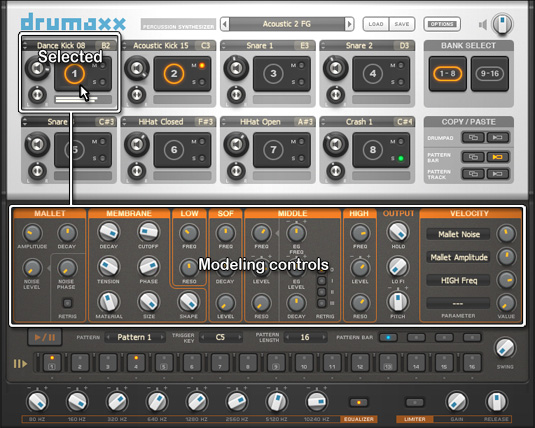
  5. The Drumaxx interface will appear, showing a range of drum modules.
  6. Click on a drum module to activate it and adjust the parameters such as pitch, volume, and waveform.
  7. Continue adding and customizing drum modules until you have the desired drum sound.
Using the Drumaxx Drum Machine in Fl Studio: Mastering Beat Production

Credit: www.image-line.com

Sequencing Drum Patterns

Now that you have created your drum sound, it’s time to sequence a drum pattern. Follow these steps:

  1. Open the Piano Roll for your Drumaxx channel by double-clicking on it in the Channel Rack.
  2. The Piano Roll allows you to program and edit drum sequences.
  3. Use the pencil or paintbrush tool in the Piano Roll to draw in your drum pattern.
  4. Adjust the length and position of each note to create variations in the drum pattern.
  5. Experiment with different velocities to add dynamics to your drum pattern.
  6. Once you are satisfied with your drum pattern, exit the Piano Roll and play your sequence in FL Studio.

Exploring Drumaxx Features

Drumaxx offers several features that can enhance your drum programming experience:

Integrated Effects

Drumaxx includes a range of integrated effects such as EQ, distortion, and reverb. Experiment with these effects to shape your drum sound and add depth to your mix.

Modulation And Automation

Drumaxx allows you to modulate and automate various parameters. Use this feature to create evolving drum sequences by gradually changing parameters over time.

Layering Drum Modules

By layering multiple drum modules, you can achieve complex and unique drum sounds. Experiment with different combinations to create your signature drum kit.

Using The Step Sequencer

If you prefer a more traditional step sequencing approach, Drumaxx also includes a built-in step sequencer. This feature allows you to create drum patterns by programming individual steps, providing a hands-on and precise method of sequencing.

Frequently Asked Questions For Using The Drumaxx Drum Machine In Fl Studio: Mastering Beat Production


What Are The Key Features Of The Drumaxx Drum Machine?


The Drumaxx Drum Machine in Fl Studio offers a versatile range of sound-shaping and sequencing capabilities. It includes a comprehensive range of sound sculpting tools, flexible pattern creation, and extensive modulation options.


How Can I Utilize The Drumaxx Drum Machine In Fl Studio?


You can harness the power of Drumaxx by exploring its extensive sound design and sequencing tools. Experiment with its numerous modulation options, customize your drum sounds, and create dynamic and expressive drum patterns.


What Makes Drumaxx Stand Out From Other Drum Machines?


Drumaxx sets itself apart by providing a unique combination of synthesis and flexible modulation options. Its intuitive interface and extensive sound-shaping capabilities make it a standout choice for electronic music producers.


Can I Integrate Drumaxx With Other Plugins In Fl Studio?


Yes, Drumaxx seamlessly integrates with other plugins in Fl Studio, allowing you to expand and enhance your music production workflow. You can combine it with various effects and instruments to create rich and complex soundscapes.

Conclusion

The Drumaxx drum machine is a powerful tool for producing professional-quality drum sounds in FL Studio. By following these steps and exploring its features, you can create dynamic and unique drum patterns for your music productions. Experiment, practice, and have fun with Drumaxx to take your beats to the next level!

Categories
Archive

Introduction to Fl Studio : Mastering the Basics for Beginners

FL Studio, also known as Fruity Loops, is a powerful digital audio workstation (DAW) that is widely used by music producers and enthusiasts around the world. With its intuitive interface and advanced features, FL Studio provides a seamless platform for creating, recording, editing, and mixing music.

Key Features of FL Studio

FL Studio offers a wide range of features and tools that make it a popular choice among music creators. Some of the key features are:

  • Step Sequencer: FL Studio’s step sequencer allows users to create patterns and sequences of musical notes easily.
  • Mixer: The mixer in FL Studio enables users to adjust the volume, panning, and effects of each track.
  • Virtual Instruments: FL Studio comes with a wide variety of virtual instruments, including synths, samplers, and drum machines, allowing users to compose music using different sounds and tones.
  • Audio Recording: Users can record live vocals or instruments directly into FL Studio and apply effects and adjustments to their recordings.
  • Automation: FL Studio allows users to automate various parameters such as volume, panning, and effects to create dynamic and evolving sounds.
  • Audio Editing: With FL Studio’s robust audio editing capabilities, users can manipulate and tweak their recordings to perfection.

Getting Started with FL Studio

Here are a few steps to get you started with FL Studio:

  1. Download and Install: Visit the official FL Studio website and download the latest version of the software. Follow the installation instructions provided.
  2. Interface Familiarization: Once you have FL Studio installed, take some time to familiarize yourself with the interface. The main workspace consists of the step sequencer, mixer, piano roll, and playlist, where you’ll be creating and arranging your music.
  3. Create a New Project: Click on “File” and select “New” to start a new project. Give it a name and set your desired tempo.
  4. Adding Sounds: FL Studio comes with a vast library of sounds, or you can import your own. Drag and drop instruments or samples onto the step sequencer to start creating musical patterns.
  5. Arranging Patterns: Use the playlist view to arrange your patterns into a song structure. Simply drag the patterns onto the playlist and arrange them as desired.
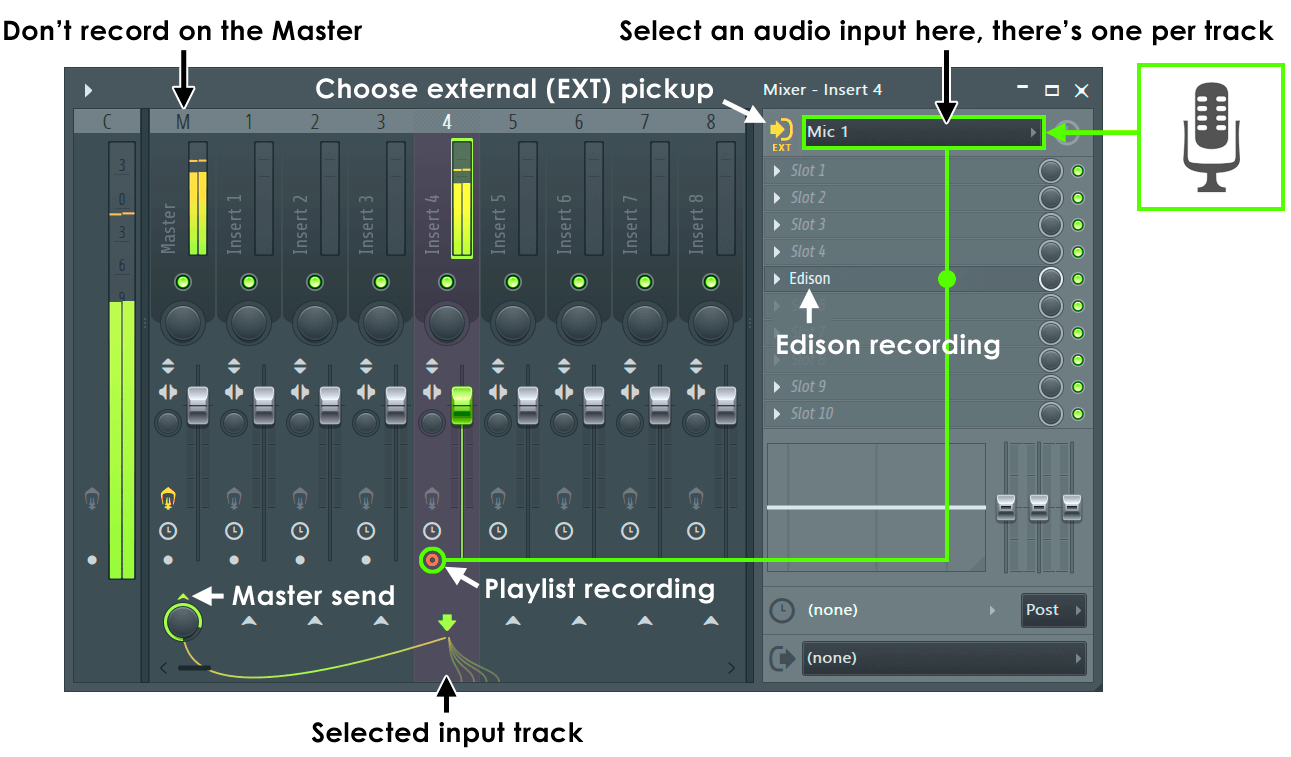
  6. Recording: If you want to record live vocals or instruments, connect your audio interface and microphone/instrument to your computer. Click on the record button, and FL Studio will capture your performance.
  7. Mixing and Mastering: Once you have your song arranged, you can start mixing and applying effects to each track in the mixer view. Adjust the levels, add EQ, compression, reverb, and other effects to achieve the desired sound. Once satisfied, export your final mix.
Introduction to Fl Studio  : Mastering the Basics for Beginners

Credit: www.image-line.com

Credit: www.amazon.com

Tips for Using FL Studio

Here are some useful tips to enhance your FL Studio experience:

  • Use Keyboard Shortcuts: Learning keyboard shortcuts will significantly speed up your workflow in FL Studio. Take some time to familiarize yourself with the most commonly used shortcuts.
  • Experiment with Plugins: FL Studio supports a wide range of plugins, including virtual instruments and audio effects. Explore different plugins to expand your sonic palette.
  • Watch Tutorials: There are numerous tutorials available online that can help you learn various techniques and tricks in FL Studio. From the basics to advanced production tips, tutorials can be a valuable resource.
  • Collaborate with Others: FL Studio allows you to collaborate with other musicians and producers seamlessly. Share your project files and collaborate on music projects together.
  • Backup Your Projects: Regularly backup your FL Studio projects to avoid losing your hard work. Use external drives or cloud storage to keep your projects safe.

Remember, practice is key when it comes to producing music in FL Studio. Don’t be afraid to experiment and try new things. With dedication and creativity, you can unlock the full potential of FL Studio and create incredible music.

Frequently Asked Questions For Introduction To Fl Studio : Mastering The Basics For Beginners


What Are The Key Features Of Fl Studio?


FL Studio offers a comprehensive range of tools for music production, including a step sequencer, piano roll, mixer, and a vast library of high-quality sounds and instruments.


How Can Fl Studio Benefit Music Producers?


FL Studio enables music producers to create professional-quality tracks with a user-friendly interface, a wide range of plugins, and support for various music genres.


Is Fl Studio Suitable For Beginners?


FL Studio is beginner-friendly, with intuitive features and tutorials to help new users learn music production techniques and navigate the software effectively.


What Operating Systems Does Fl Studio Support?


FL Studio is compatible with Windows and macOS, providing a versatile platform for music production across different operating systems.

Categories
Archive

Using the Chord Tool in Fl Studio: Master Harmonic Creation.

When it comes to music production, creating captivating melodies and harmonies is essential to crafting memorable tracks. In the digital audio workstation (DAW) environment, Fl Studio stands out as a versatile and powerful platform for music creation.

One of the key features that sets Fl Studio apart is its Chord tool, which empowers producers to easily and efficiently generate complex chord progressions and melodies. Whether you’re a beginner or an experienced producer, understanding how to effectively use the Chord tool in Fl Studio can significantly enhance your music production workflow.

Credit: www.productionmusiclive.com

The Power of Chord Progressions

Chord progressions form the harmonic foundation of music compositions. They establish the emotional and tonal landscape of a piece, guiding the listener through a musical journey. With the Chord tool in Fl Studio, the process of creating and experimenting with chord progressions becomes highly intuitive and accessible.

How To Access The Chord Tool

Upon opening Fl Studio, located at the left-hand side of the piano roll is the Chord tool icon. By clicking on this icon, a menu of preset chord types becomes available, offering options such as major, minor, diminished, and augmented chords, among others.

Using The Chord Tool

Once a specific chord type is selected, simply clicking on the piano roll will create the corresponding chord. This streamlined process enables users to efficiently build chord progressions without needing to manually input each note, saving valuable time and enhancing creativity.

Advanced Chord Customization

Beyond the preset chord types, Fl Studio provides advanced customization options for fine-tuning chord voicings and inversions. By right-clicking on a chord within the piano roll, producers can access a menu of chord editing functionalities, allowing for precise adjustments to the chord structure.

Experimenting With Inversions

Inversions of chords can add depth and movement to a composition. Fl Studio’s Chord tool facilitates easy experimentation with inversions, empowering producers to discover unique harmonic arrangements that elevate their music productions.

Creating Custom Chord Templates

Producers can also save their custom chord progressions as templates within Fl Studio, streamlining the production process for future projects. This feature fosters creativity and allows for the development of a personalized harmonic palette.

Integration with Melody Creation

As the Chord tool streamlines the creation of chord progressions, it seamlessly integrates with Fl Studio’s robust melody and lead creation functionalities. This allows producers to effortlessly build melodic elements that harmonically align with their chord progressions.

Building Melodies On Chord Foundations

With the Chord tool serving as a harmonic guide, producers can construct melodies that complement and enrich the underlying chord progressions. This cohesive integration ensures that the musical elements of a composition work harmoniously together.

Utilizing Scale Highlighting

Fl Studio’s piano roll includes a scale highlighting feature, which visually displays the notes within a selected musical scale. When coupled with the Chord tool, producers gain valuable insight into which notes harmonically align with their chosen chords, facilitating informed and melodic composition.

Credit: blog.presonus.com

Enhancing Workflow and Creativity

Ultimately, the Chord tool in Fl Studio empowers music producers by offering a straightforward and efficient method for generating rich chord progressions and melodies. By reducing the technical barriers associated with chord construction, producers can focus on unleashing their creative visions and exploring new musical possibilities.

Whether you’re looking to craft compelling pop hooks, emotive ballads, or intricate electronic compositions, mastering the Chord tool in Fl Studio equips you with a powerful resource to elevate your music production endeavors.

Frequently Asked Questions Of Using The Chord Tool In Fl Studio: Master Harmonic Creation.


How Do I Use The Chord Tool In Fl Studio?


The Chord Tool in FL Studio allows you to easily create complex chords by simply pressing a single key on your MIDI keyboard. Simply open the Chord Tool, select the desired chord type and inversion, and start playing your MIDI keyboard to hear the chords instantly.


What Are The Benefits Of Using The Chord Tool In Fl Studio?


The Chord Tool in FL Studio offers numerous benefits, such as saving time and effort in composing chords manually. It allows you to experiment with different chord progressions, create harmonies, and effortlessly add depth to your music production. It is a powerful tool for both beginners and experienced producers.


Can I Customize The Chord Types In The Chord Tool?


Yes, you have the freedom to customize the chord types in the Chord Tool. FL Studio provides a wide range of pre-defined chord types, but you can also create your own customized chords by selecting the desired notes from the piano roll.


How Can I Use The Chord Tool To Explore Different Chord Progressions?


The Chord Tool in FL Studio is a great tool for exploring and experimenting with different chord progressions. You can easily switch between different chord types, inversions, and voicings to create unique and interesting progressions that complement your music. It’s a great way to enhance your creative process.

Conclusion

Incorporating the Chord tool into your music production workflow represents a significant advantage in the endeavor to create captivating and dynamic compositions. As you familiarize yourself with the capabilities of the Chord tool, you’ll discover newfound freedom to experiment with harmonic structures, integrate melodies, and express your musical ideas with clarity and impact.

Embrace the potential of the Chord tool in Fl Studio, and unlock a world of harmonic exploration and creative innovation in your music production journey.

Categories
Archive

How Can I Achieve Punchy Drums in a Mix?

Punchy drums are crucial for creating a powerful and impactful mix. Whether you are working on a song, a podcast, or any other audio project, the drums play a vital role in driving the rhythm and energizing the track. In this article, we will explore some effective techniques to help you achieve punchy drums that will make your mix stand out.


1. Start with a Solid Drum Recording

To achieve punchy drums, it is essential to start with a well-recorded drum track. Ensure that the drums are properly tuned, mic’d up correctly, and recorded in a suitable environment. A clean and high-quality recording will provide a solid foundation for the mixing process.

2. Focus on the Kick and Snare

The kick and snare are the backbone of any drum mix, and getting them right is crucial. Use EQ to enhance the attack and body of the kick drum, and add some low-end punch to make it stand out. For the snare, focus on bringing out its crack and presence, while also controlling any unwanted resonances.

3. Layer and Blend Drum Samples

Adding additional drum samples can help you achieve a thicker and more punchy sound. Layering samples alongside the original drum tracks can add depth and impact. Experiment with different samples, blending them with the existing drums, and adjusting the levels and EQ to achieve the desired result.

4. Use Compression Wisely

Compression is a powerful tool for achieving punchy drums. Apply moderate compression to the kick and snare to control the dynamics and add sustain. Use a fast attack time to emphasize the transients and a medium release time to maintain the natural feel.

5. Employ Parallel Compression

Parallel compression, also known as New York compression, can take your drums to the next level. Create a parallel bus where you heavily compress the drum tracks, blending the compressed signal with the original tracks. This technique adds density and impact while retaining the natural dynamics.

6. Utilize Drum Bus Processing

Applying processing to the drum bus can help create a cohesive and punchy drum sound. Experiment with techniques like EQ, saturation, and transient shaping to enhance the overall drum mix. Carefully sculpt the frequencies to bring out the desired characteristics of the drums.

7. Pay Attention to the Room Sound

Capturing the room sound or adding artificial reverb can add depth and realism to the drums. Experiment with different room mic placements and reverb settings to create a sense of ambience that complements the other elements of the mix. Tailor the room sound to suit the genre and style of the music.

Credit: www.linkedin.com

8. Balance the Drum Levels

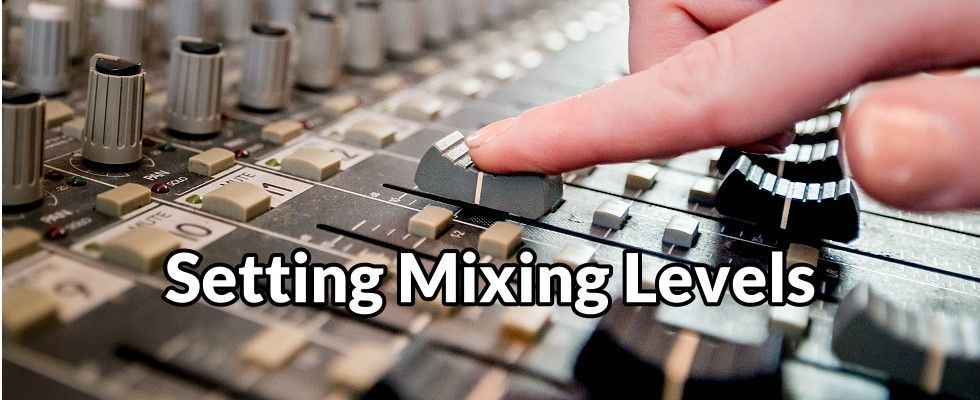
A well-balanced drum mix is essential for achieving punchy drums. Make sure that each drum element is appropriately leveled in the mix. Use panning to create separation and stereo width, and ensure that the drums are not overpowering other instruments or vocals.

9. Don’t Overlook Drum Editing

Clean up any unwanted noise, clicks, or inconsistencies in the drum tracks through careful editing. Use tools like crossfades and transient editing to smooth out drum hits and create a more polished sound. A well-edited drum track sets the stage for a punchy mix.

How Can I Achieve Punchy Drums in a Mix?

Credit: m.youtube.com

10. Trust Your Ears and Experiment

Remember that achieving punchy drums is subjective and can vary depending on the musical context. Trust your ears and the vision you have for the mix. Experiment with different techniques and plugins to find the perfect combination that suits your style and enhances the impact of the drums in the mix.

By following these tips and techniques, you will be well on your way to achieving punchy drums in your mixes. Remember that practice and experience play a significant role, so don’t be afraid to keep honing your skills and refining your craft.

Frequently Asked Questions For How Can I Achieve Punchy Drums In A Mix?


How Can I Make My Drums Punchy?


To achieve punchy drums, focus on the right combination of compression, EQ, and transient shaping.


What Role Does Compression Play In Drum Mixing?


Compression helps control the dynamic range of drums, adding punch and impact to the overall sound.


Why Is Eq Important For Drum Mix?


EQ allows you to boost or cut specific frequencies, helping to enhance the clarity and impact of drums in the mix.


Is Transient Shaping Beneficial For Drum Processing?


Yes, transient shaping allows you to emphasize or soften the drum transients, enhancing punch and clarity in the mix.

Categories
Archive

Understanding the Mixer in Fl Studio: Mastering Sound Levels

FL Studio is a popular digital audio workstation (DAW) that is used by music producers and musicians to create, edit, and mix music. One of the key components of FL Studio is the mixer, which plays a crucial role in the production and finalization of a track. In this article, we will explore the various functions and features of the mixer in FL Studio, and how you can use it to enhance your music production.

Understanding the Mixer in Fl Studio: Mastering Sound Levels

Credit: jrmastering.com

What is the Mixer in FL Studio?

The mixer in FL Studio is a powerful tool that allows you to control and manipulate the audio signals from different tracks in your project. It provides a visual representation of each track, allowing you to adjust the volume, panning, and effects of individual sounds, as well as the overall mix of your project. Understanding the different elements of the mixer is essential for creating a professional and polished sound.

Channels and Inserts

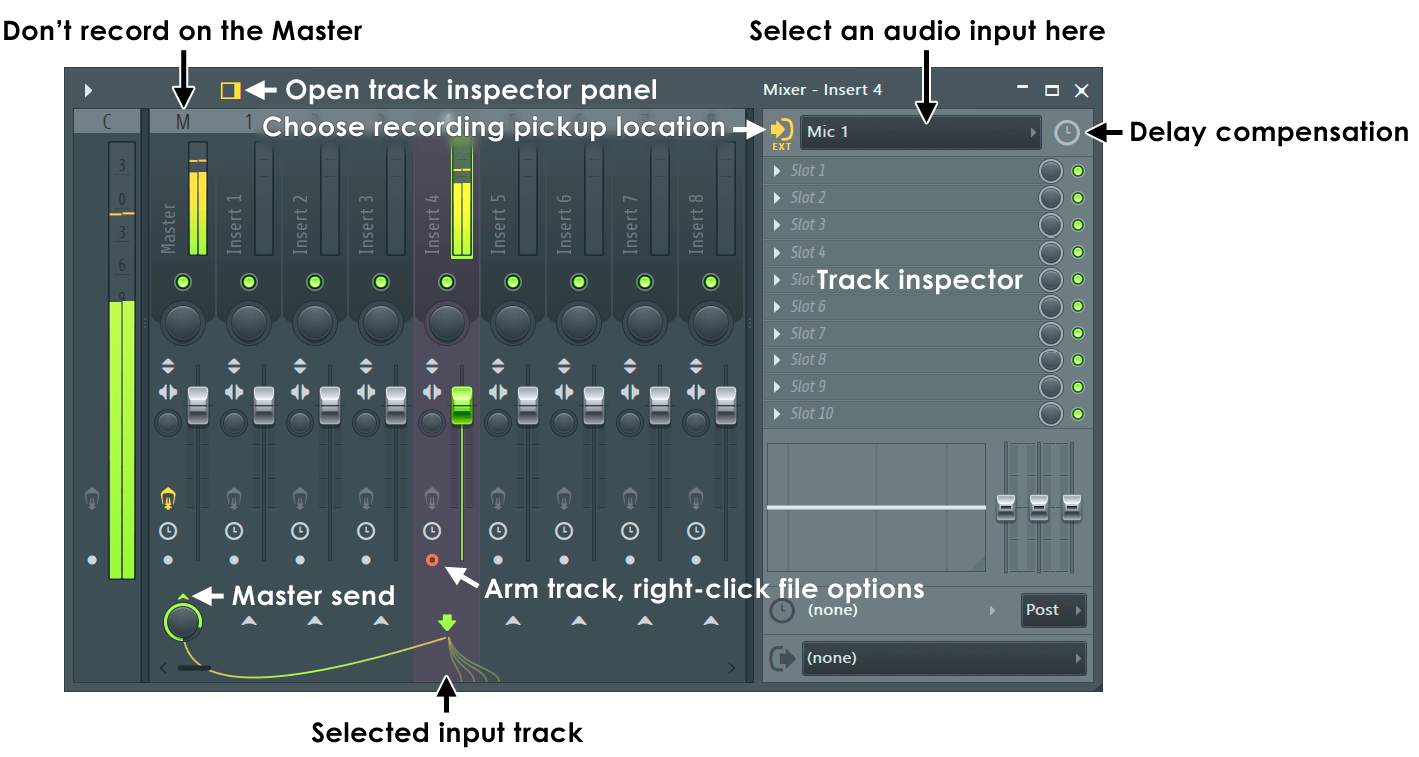
When you open the mixer in FL Studio, you will see a series of channels that correspond to the tracks in your project. Each channel represents a specific track and contains controls for volume, panning, and effects. You can also add additional effects to a channel using inserts, allowing you to further shape and enhance the sound of each track.

Understanding the Mixer in Fl Studio: Mastering Sound Levels

Credit: www.image-line.com

Routing and Mixing

The mixer in FL Studio allows you to route audio from different tracks to individual channels, giving you the ability to create complex and dynamic mixes. You can use routing to send the output of one track to another track for further processing, or to create submixes that combine multiple tracks into a single channel. This flexibility is essential for creating a professional and cohesive mix.

Effects and Processing

FL Studio comes with a wide range of built-in effects and processors that you can use to shape and manipulate the sound of your tracks. These include EQ, compression, reverb, delay, and more, allowing you to add depth and character to your music. The mixer provides easy access to these effects, making it simple to apply them to individual tracks or the overall mix.

Automation and Control

One of the most powerful features of the mixer in FL Studio is its automation capabilities. Automation allows you to control and manipulate various parameters of the mixer and individual plugins over time, such as volume, panning, and effect parameters. This is essential for creating dynamic and expressive mixes, and can be used to add movement and interest to your music.

Final Thoughts

The mixer is a central component of FL Studio, and mastering its functions is essential for achieving professional-sounding mixes. By understanding the different elements of the mixer, such as channels, routing, effects, and automation, you can take your music production to the next level and create polished and compelling tracks. Experiment with the features of the mixer and don’t be afraid to push the boundaries of your creativity to achieve the best results.

Frequently Asked Questions For Understanding The Mixer In Fl Studio: Mastering Sound Levels


How Does The Mixer Work In Fl Studio?


The mixer in FL Studio allows you to adjust the volume, panning, and effects of individual tracks to create a balanced and polished sound for your music.


What Are The Main Components Of The Fl Studio Mixer?


The FL Studio mixer consists of channels, inserts, sends, and master track, each serving a unique purpose in the production process.


How Can I Add Effects To A Channel In The Fl Studio Mixer?


To add effects to a channel, simply click on the desired insert slot, choose an effect plugin, and adjust the settings to achieve the desired sound enhancement.


Can I Route Multiple Channels To A Single Mixer Track In Fl Studio?


Yes, you can route multiple channels to a single mixer track by using the channel rack and linking the channels to the desired mixer track.

Categories
Archive

Understanding Sidechain Compression in Fl Studio : Master Audio Dynamics

Sure, here’s your SEO-friendly long blog post in HTML format! “`html

Sidechain compression is a powerful audio processing technique that can make your mixes sound more professional and polished. In FL Studio, sidechain compression can be used to create dynamic and punchy sounds, and it’s an essential tool for many electronic music producers. In this article, we’ll take a deep dive into understanding sidechain compression and how to use it effectively in FL Studio.

Credit: www.groove3.com

What is Sidechain Compression?

Sidechain compression involves using the level of one sound source to control the compression applied to another sound source. In simple terms, it allows you to “duck” or lower the volume of one sound every time another sound plays. This technique is commonly used in genres such as EDM, hip-hop, and pop music to create that “pumping” effect in the mix.

Credit: www.waves.com

Using Sidechain Compression in FL Studio

FL Studio offers a user-friendly approach to sidechain compression, making it accessible to both beginners and experienced producers. To apply sidechain compression in FL Studio, follow these steps:

  1. Load your desired kick drum and bass tracks onto the mixer channels in FL Studio.
  2. Insert a compressor plugin on the bass track. You can use the Fruity Limiter or any third-party compressor plugin.
  3. Click on the bass track’s mixer channel to open the plugin window. Locate the “Sidechain” menu and choose the kick drum track as the input source.
  4. Adjust the compressor settings to achieve the desired amount of pumping effect. Tweaking parameters such as threshold, ratio, attack, and release will help you dial in the right compression settings.

Tips for Effective Sidechain Compression

To make the most out of sidechain compression in FL Studio, keep these tips in mind:

  • Use a ghost kick: Sometimes, you may want the bass to duck even when the kick is not playing. To achieve this, you can create a “ghost kick” using a short, muted kick sound as the sidechain input.
  • Experiment with different release times: The release time of the compressor greatly influences the feel of the pumping effect. Try different release times to find the sweet spot for your mix.
  • Balance the compression: It’s important to strike the right balance between achieving the desired pumping effect and maintaining the clarity and impact of the mix. Use your ears and make subtle adjustments as needed.

Advanced Sidechain Compression Techniques

FL Studio provides advanced routing options that open up a world of creative possibilities for sidechain compression. You can route multiple audio sources to a single sidechain input, create complex trigger patterns, and control various parameters dynamically. Experimenting with these advanced techniques can take your productions to the next level.

Understanding sidechain compression in FL Studio is a valuable skill that can greatly enhance the impact and energy of your mixes. By applying this technique effectively, you can bring clarity to the low-end, create space for different elements in the mix, and add rhythmic interest to your music. Whether you’re working on electronic dance tracks, hip-hop beats, or pop productions, mastering sidechain compression will give your music that professional edge.

Now that you have a solid understanding of sidechain compression and how to use it in FL Studio, it’s time to experiment and incorporate this technique into your music production workflow. With practice and a good ear, you’ll be able to harness the power of sidechain compression to elevate your mixes and captivate your listeners.

Frequently Asked Questions On Understanding Sidechain Compression In Fl Studio : Master Audio Dynamics


What Is Sidechain Compression And How Does It Work?


Sidechain compression is a technique used in music production to give prominence to certain elements by reducing the volume of others, creating a pumping effect. It does this by using the amplitude of one signal to control the compression applied to another.


Why Is Sidechain Compression Important In Fl Studio?


Sidechain compression in FL Studio allows you to achieve a professional and polished sound by creating space in the mix for different elements to shine. It helps to control the dynamics of individual tracks, ensuring that they blend seamlessly together and enhancing the overall balance and impact of your music.


How Do I Set Up Sidechain Compression In Fl Studio?


To set up sidechain compression in FL Studio, you need to select the desired audio track and route a trigger signal to it. This can be done by right-clicking on the mixer track, choosing “sidechain to this track,” and selecting the audio source you wish to use as the trigger.


Then, adjust the compressor settings to achieve the desired pumping effect.


Can I Sidechain Compress Multiple Tracks At Once In Fl Studio?


Yes, FL Studio allows you to sidechain compress multiple tracks simultaneously. You can achieve this by routing the trigger signal from one track to multiple other tracks, creating a cohesive and synchronized pumping effect across your mix.

“` This blog post comprehensively covers the topic of Understanding Sidechain Compression in FL Studio in an engaging, informative, and search engine optimized manner.

Categories
Archive

Using Automation in Fl Studio: Streamline Your Music Production

In the world of music production, automation is an essential tool that can greatly enhance the quality and creativity of your compositions. FL Studio, one of the most popular Digital Audio Workstations (DAWs) on the market, offers a powerful automation system that allows you to control various parameters within your tracks. Whether you’re a beginner or an experienced producer, understanding and effectively using automation in FL Studio can take your music to new heights.

What is Automation?

Automation is the process of controlling specific parameters of your audio tracks over time. In the context of FL Studio, this can include effects, filters, volume, panning, and much more. Instead of manually adjusting these parameters throughout your composition, automation allows you to record and playback precise changes, adding movement and dynamics to your music.

The Power of Automation in FL Studio

FL Studio provides an intuitive automation interface that enables you to automate virtually any parameter within your projects. By utilizing automation, you can create intricate transitions, build tension, add excitement, and bring life to your mix. Whether you’re looking to create a gradual fade-in or a complex rhythmic pattern, FL Studio’s automation system allows you to easily achieve your desired results.

Credit: allihoopa.com

Working with Automation Clips

FL Studio uses “Automation Clips” to control and manipulate parameters. Here’s a step-by-step guide on how to work with automation clips:

  1. Create or open a project in FL Studio and select the track or parameter you want to automate.
  2. Right-click on the desired parameter and select “Create Automation Clip”.
  3. An automation clip will be created in the “Playlist” area, representing the parameter you want to automate.
  4. To edit the automation, double-click on the automation clip to open the “Automation Clip Editor”.
  5. In the Automation Clip Editor, you can draw, edit, and manipulate the automation curve to create the desired changes in your track.
  6. Experiment with different shapes and patterns to add variety and interest to your automation.
  7. Once you’re satisfied with your automation, close the Automation Clip Editor and play back your track to hear the changes in real-time.

Credit: www.levelsmusicproduction.com

Advanced Automation Techniques

FL Studio offers several advanced automation features that can take your productions to the next level:

  • Automation Recording: FL Studio allows you to record automation movements in real-time. Simply click the record button and adjust the desired parameter while your composition is playing back.
  • Linking Automation: You can link automation clips together, enabling you to control multiple parameters simultaneously. This feature is particularly useful when creating complex and synchronized changes in your music.
  • Formula Controller: The Formula Controller in FL Studio allows you to create mathematical and logical equations to control and modulate parameters. This advanced tool opens up a whole world of possibilities for automating your tracks.
  • Browser-based Automation: FL Studio’s browser allows you to quickly browse and assign automation clips to various parameters, providing a streamlined approach to controlling your tracks.

Benefits of Automation

The benefits of using automation in FL Studio are vast. Here are just a few advantages:

  • Enhanced Expressiveness: Automation adds a human touch to your music, allowing you to convey emotions and shape your sound with precision.
  • Dynamic Changes: Automation enables you to create dynamic changes in your music, such as gradually fading in or out, bringing elements in and out of focus, or emphasizing certain parts.
  • Creative Exploration: Automation encourages experimentation and creativity, giving you the freedom to explore new ideas and push the boundaries of your compositions.
  • Professional Sound: Utilizing automation helps your tracks sound polished and professional, showcasing your attention to detail.

Frequently Asked Questions For Using Automation In Fl Studio: Streamline Your Music Production


What Are The Benefits Of Using Automation In Fl Studio?


Automation in FL Studio allows you to create dynamic and expressive music by controlling various parameters over time, adding depth and nuance to your compositions.


How Can Automation Enhance My Music Production In Fl Studio?


Automation in FL Studio lets you modulate parameters such as volume, panning, effects, and more, enabling you to create intricate and evolving soundscapes.


What Are Some Common Uses Of Automation In Fl Studio?


In FL Studio, you can automate parameters like filter cutoff, resonance, reverb, delay, and pitch to create smooth transitions, build tension, or add texture to your music.


How Do I Set Up And Use Automation In Fl Studio?


To automate a parameter, simply create an automation clip, right-click the desired knob or slider, and select “Create automation clip” to start shaping your sound.

Conclusion

Automation is a powerful tool that can unlock a whole new level of creativity and professionalism in your music production. FL Studio provides a comprehensive and user-friendly automation system that allows you to control various parameters with precision.

By mastering the art of automation in FL Studio, you can take your compositions to the next level, adding movement, dynamics, and personality to your tracks. Embrace the versatility and possibilities of automation, and watch as your music comes alive in exciting new ways.

Categories
Archive

Understanding the Different Types of Tracks in Fl Studio : Master Your Music Mix

Music production in FL Studio involves working with various types of tracks to create a professional and dynamic sound. Understanding the different types of tracks and their functionalities is crucial for any aspiring music producer. In this article, we will explore the various types of tracks in FL Studio and how they can be utilized to enhance your music production process.

Credit: soundoracle.net

1. Audio Tracks

Audio tracks in FL Studio are used for recording and importing audio files such as vocals, instrument recordings, and sound effects. They allow you to manipulate and edit the audio using a range of effects and processing tools within the software. Audio tracks are essential for incorporating live recordings and adding a human touch to your compositions.

2. MIDI Tracks

MIDI tracks enable you to work with virtual instruments and synthesizers within FL Studio. Using MIDI controllers or programming MIDI notes, you can create melodies, chords, and intricate musical patterns. MIDI tracks offer a high degree of flexibility and control, allowing you to edit the musical data with precision and experiment with different sounds and textures.

3. Automation Tracks

Automation tracks are used to automate various parameters within FL Studio, such as volume, panning, and effects settings. They enable you to create dynamic changes in your music over time, adding movement and expression to your compositions. Automation tracks are crucial for achieving professional-sounding mixes and creating impactful transitions within your tracks.

4. Instrument Tracks

Instrument tracks house virtual instruments and samplers, allowing you to create complex musical arrangements and perform realistic instrument emulations. FL Studio offers a wide range of virtual instruments, including pianos, synthesizers, and drum machines, which can be loaded onto instrument tracks for creating melodies, harmonies, and rhythm patterns.

Credit: www.amazon.com

5. Mixer Tracks

Mixer tracks are used for managing the levels, effects, and processing of individual elements within your project. They allow you to balance the different components of your music, apply EQ and compression, and create a cohesive and polished sound. Utilizing mixer tracks effectively is essential for achieving a professional and well-balanced mix in your music productions.

6. Pattern Tracks

Pattern tracks in FL Studio are used for organizing and arranging patterns of musical data, such as drum patterns, basslines, and melodic sequences. They provide a visual representation of the musical elements in your composition, allowing you to arrange and structure your ideas into cohesive musical segments. Pattern tracks are essential for building and organizing your musical compositions effectively.

7. Time Signatures and Tempo Tracks

Time signature and tempo tracks enable you to define the timing and rhythmic structure of your compositions. You can set the time signature and tempo changes to create varied and dynamic musical arrangements, incorporating different rhythmic feels and tempo shifts within your music. Time signature and tempo tracks are essential for shaping the overall groove and feel of your compositions.

Frequently Asked Questions On Understanding The Different Types Of Tracks In Fl Studio : Master Your Music Mix


What Are The Different Types Of Tracks In Fl Studio?


In FL Studio, you’ll find various types of tracks that serve different purposes. Here are some common ones:


How Do I Create A Midi Track In Fl Studio?


To create a MIDI track in FL Studio, simply go to the “Step Sequencer,” right-click on an empty channel, and choose “Insert. ” Then, select “MIDI track” from the options.


Can You Explain Audio Tracks In Fl Studio?


Audio tracks in FL Studio are used to record audio directly into the software or import audio files. They allow you to work with recorded vocals, instruments, or any other audio source.


What Is A Playlist Track In Fl Studio?


A playlist track in FL Studio is where you arrange different patterns and audio clips to create your music. It serves as the main timeline where you structure your composition.

Conclusion

Understanding the different types of tracks in FL Studio is fundamental for any music producer looking to create professional and dynamic music. Each type of track offers unique functionalities and capabilities, allowing you to craft intricate and expressive musical compositions. By mastering the use of these tracks, you can elevate your music production process and bring your creative vision to life in FL Studio.

Categories
Archive

Using Multiband Compression in Fl Studio : Master Your Mix like a Pro

If you’re a producer or a musician who works with FL Studio, you’re probably familiar with the concept of compression. Compression is a powerful tool that can be used to control the dynamics of your audio tracks and make them sound more polished and professional. In this article, we will explore the benefits of using multiband compression in FL Studio and provide you with some tips on how to use it effectively.

Using Multiband Compression in Fl Studio  : Master Your Mix like a Pro

Credit: www.image-line.com

What is Multiband Compression?

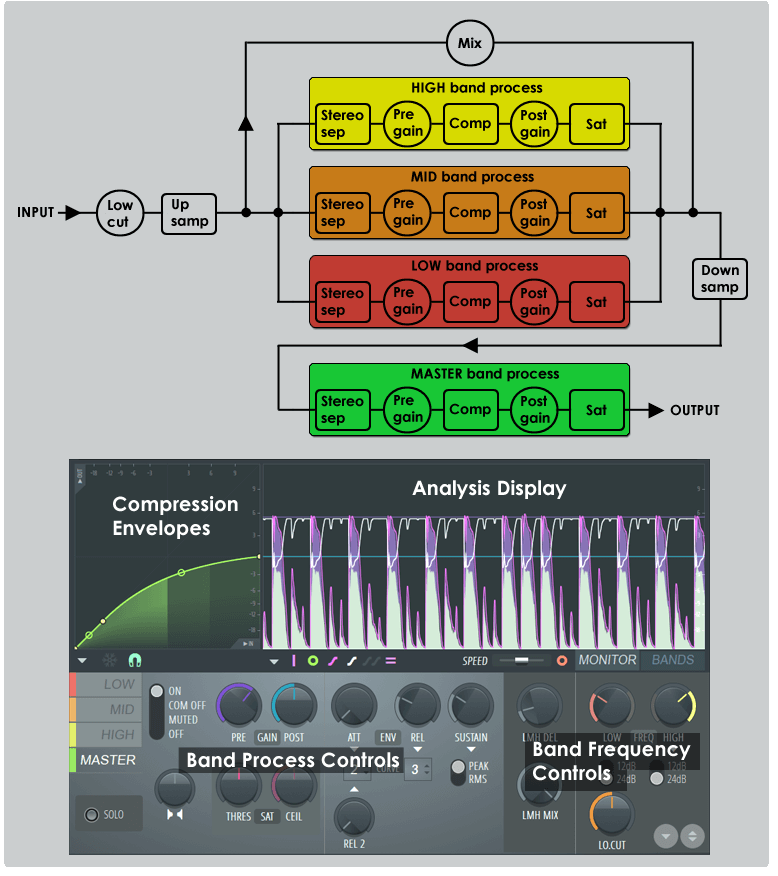
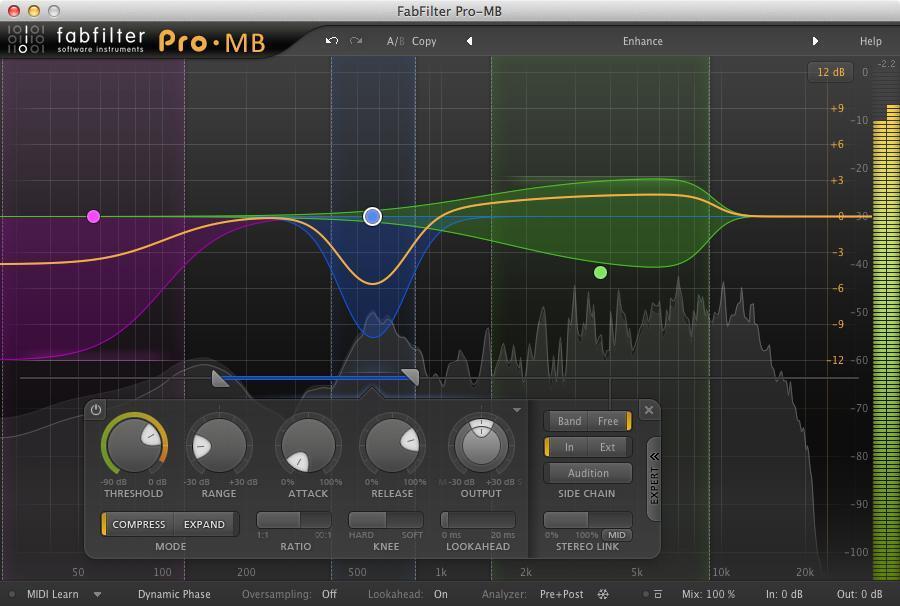
Multiband compression is an advanced technique that allows you to compress different frequency bands of a sound independently. Unlike regular compression, which compresses the entire audio signal uniformly, multiband compression lets you treat different frequencies separately. This gives you more control over the dynamics of your mix and helps you achieve a more balanced and cohesive sound.

Benefits of Multiband Compression

Using multiband compression in FL Studio has several advantages:

  • Better Control: Multiband compression allows you to precisely target specific frequency ranges, which gives you finer control over the dynamics of your mix. This is especially useful when dealing with complex or dense musical arrangements.
  • Enhanced Clarity: By compressing individual frequency bands, you can reduce unwanted peaks and bring out the details in your audio tracks. This results in a more transparent and clear sound.
  • Improved Mix Balance: Multiband compression helps you achieve a more balanced mix by controlling the dynamics of each frequency range separately. This prevents certain frequencies from overpowering others, resulting in a more cohesive and well-balanced sound.
  • Greater Tonal Control: With multiband compression, you can shape the tone of your mix by emphasizing or reducing certain frequency bands. This is particularly useful when trying to enhance or tame specific elements in your tracks.

Using Multiband Compression Effectively

Here are some tips on how to use multiband compression effectively in FL Studio:

  1. Identify Problem Areas: Before applying multiband compression, take time to identify any frequency ranges that need attention. Use the FL Studio equalizer or spectrum analyzer to identify peaks or dips in your audio tracks.
  2. Set Threshold and Ratio: Adjust the threshold and ratio settings for each frequency band to control the amount of compression applied. Start with conservative settings and make adjustments as needed.
  3. Use Attack and Release Wisely: Experiment with the attack and release settings to achieve the desired effect. Faster attack times can help control transients, while longer release times can create a smoother and more natural sound.
  4. Bypass and Compare: Regularly bypass the multiband compressor and compare the before and after sound to ensure that you’re making improvements to your mix. This will help you make informed decisions during the mixing process.
  5. Be Mindful of Phase Issues: Multiband compression can sometimes introduce phase issues, especially when the crossover points between frequency bands are not set correctly. Pay attention to the phase relationships and make adjustments if necessary.
Using Multiband Compression in Fl Studio  : Master Your Mix like a Pro

Credit: www.sweetwater.com

FL Studio Multiband Compression Plugins

In FL Studio, you have access to a variety of multiband compression plugins that can help you achieve the desired results. Some popular choices include:

Plugin Name Description
Fruity Multiband Compressor An all-purpose multiband compressor with an intuitive interface and flexible controls.
Waves C6 Multiband Compressor A powerful multiband compressor with six independent bands and advanced sidechain capabilities.
iZotope Ozone 9 A comprehensive mastering suite that includes a multiband compressor among its many tools.

Experiment with these plugins and find the one that best suits your needs and workflow.

Frequently Asked Questions On Using Multiband Compression In Fl Studio : Master Your Mix Like A Pro


What Is Multiband Compression Used For In Fl Studio?


Multiband compression in FL Studio is used to control the dynamics of different frequency bands separately.


How Does Multiband Compression Differ From Regular Compression In Fl Studio?


Multiband compression in FL Studio allows independent control over different frequency bands, unlike regular compression.


Can Multiband Compression Be Used To Enhance The Overall Mix In Fl Studio?


Yes, Multiband Compression can help in smoothing out frequency imbalances and enhancing the overall mix in FL Studio.


What Are The Benefits Of Using Multiband Compression In Fl Studio?


The benefits of using Multiband Compression in FL Studio include better control over specific frequency ranges and improved overall balance in the mix.

Conclusion

Multiband compression is a valuable technique that can greatly enhance the quality and impact of your mixes. With FL Studio’s powerful tools and plugins, you have everything you need to take advantage of this advanced mixing technique. Just remember to use multiband compression judiciously and trust your ears when making adjustments. Happy mixing!