Categories
Archive

Using Eq in Ableton Live : Mastering Audio Mixing Techniques

Ableton Live is a powerful and versatile digital audio workstation (DAW) used by music producers, DJs, and musicians around the world. One of the key tools in Ableton Live’s arsenal is the EQ (Equalizer), which allows you to shape the tonal balance of your audio tracks.

Using Eq in Ableton Live  : Mastering Audio Mixing Techniques

Credit: m.youtube.com

What is EQ?

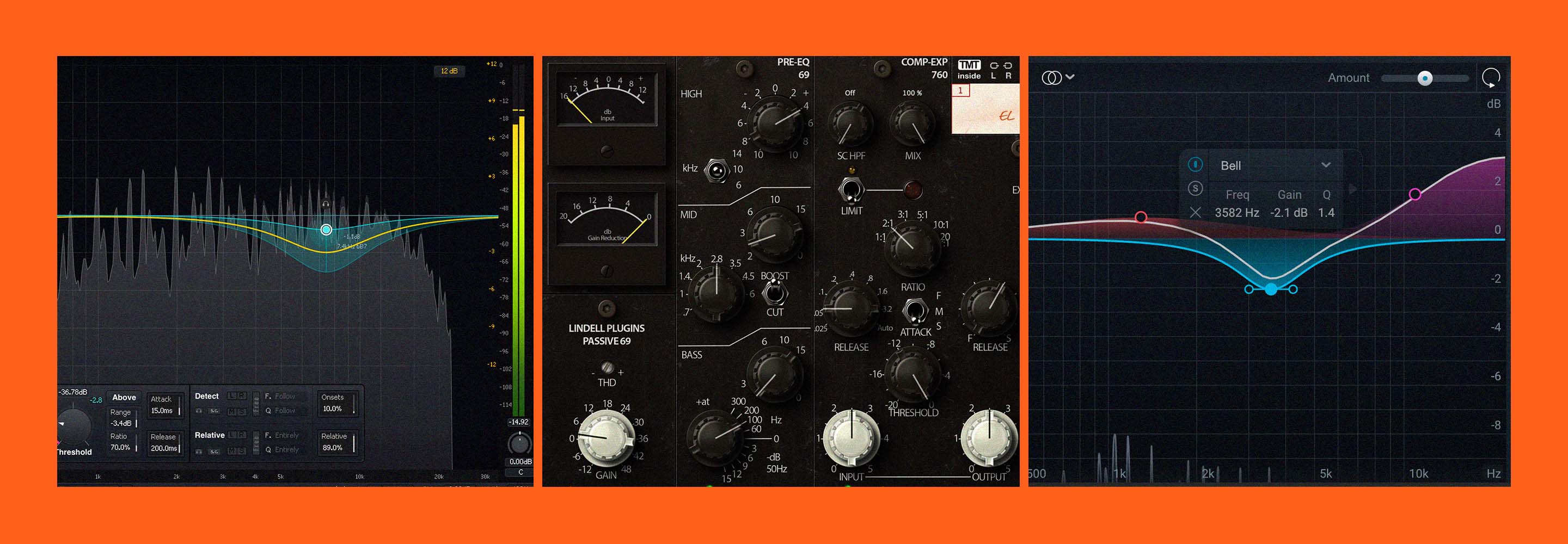
EQ is a tool used in audio production to adjust the balance between different frequencies in a sound. It consists of a series of filters that can boost or attenuate specific frequency ranges, allowing you to control the overall tonal balance of a track.
Using Eq in Ableton Live  : Mastering Audio Mixing Techniques

Credit: www.izotope.com

Using EQ in Ableton Live

Ableton Live offers a flexible EQ plugin called EQ Eight, which provides eight bands of EQ to work with. Here are some tips and techniques for using EQ in Ableton Live:

  1. Identify problem frequencies: Start by identifying any problem frequencies in your audio track. These can be frequencies that sound harsh, muddy, or unbalanced. It’s important to have a clear goal in mind before applying EQ to your track.
  2. High-pass and low-pass filters: Use high-pass and low-pass filters to remove unwanted frequencies from your audio. High-pass filters cut off frequencies below a certain point, while low-pass filters cut off frequencies above a certain point. This can help clean up your mix and remove any unnecessary rumble or hiss.
  3. Boost or cut frequencies: Use EQ to boost or cut specific frequency ranges to shape the sound of your track. For example, if you want to add more presence to a vocal track, you could boost the high-frequency range. If you want to reduce the boomy sound of a bassline, you could cut the low-frequency range.
  4. Q factor: The Q factor controls the width of the EQ band. A higher Q factor narrows the band, affecting a smaller range of frequencies, while a lower Q factor widens the band, affecting a broader range of frequencies. Experiment with different Q values to achieve the desired effect.
  5. Use EQ in conjunction with other effects: EQ works well when combined with other effects in Ableton Live. For example, you can use EQ before a compressor to shape the dynamics of a track, or after a reverb to control the frequency balance of the reverb tail.

Best Practices for EQ in Ableton Live

To ensure optimal results when using EQ in Ableton Live, consider the following best practices:

Tip Description
1 Start with subtle adjustments and make small incremental changes. It’s easy to go overboard with EQ, so take your time to find the right balance.
2 Listen critically and A/B test. Compare your audio before and after applying EQ to ensure you’re achieving the desired result.
3 Consider the context of the mix. EQ decisions should be made in relation to other elements in the mix to maintain a balanced sound.
4 Experiment with different EQ shapes and techniques to develop your own unique sound. There are no strict rules; trust your ears!

By understanding the fundamentals of EQ and utilizing the EQ Eight plugin in Ableton Live, you can take your audio productions to the next level. Remember to experiment, listen critically, and trust your ears to achieve the desired tonal balance in your tracks.

Frequently Asked Questions On Using Eq In Ableton Live : Mastering Audio Mixing Techniques


What Is Eq In Ableton Live Used For?


Eq in Ableton Live is used to adjust frequencies in audio signals for better clarity and balance.


How To Add Eq To A Track In Ableton Live?


To add Eq to a track in Ableton Live, simply drag and drop an Eq plugin onto the track.


What Are The Primary Functions Of Eq In Ableton Live?


The primary functions of Eq in Ableton Live include boosting or cutting specific frequency ranges, shaping the tonal quality, and removing unwanted noise from audio tracks.


Can Eq Be Automated In Ableton Live?


Yes, Eq parameters can be automated in Ableton Live to create dynamic changes in the audio frequency balance over time.
Categories
Archive

Understanding Sound Design in Ableton Live : Mastering Music Production

Ableton Live is a powerful digital audio workstation that allows musicians, producers, and sound designers to create and manipulate sounds in a variety of ways. Sound design is the art of creating and manipulating sounds to evoke specific emotions, enhance visual experiences, or simply create unique and interesting sonic textures. In this article, we will explore the fundamentals of sound design in Ableton Live and how you can use the software to craft your own sounds.

Credit: www.productionmusiclive.com

Credit: www.amazon.com

The Basics of Sound Design

Sound is a vibration that travels through the air and can be captured and manipulated using various tools and techniques. In sound design, you have control over several parameters such as pitch, volume, duration, and timbre. Ableton Live provides a range of tools and features to help you shape and sculpt sounds to your liking.

1. Using Synthesis

Synthesis is the process of creating sound from scratch using oscillators, filters, and envelopes. Ableton Live offers a variety of synthesizers like Operator and Analog, which allow you to generate a wide range of sounds. Experiment with different waveforms, filter settings, and modulation to create your desired sound.

2. Manipulating Samples

Ableton Live also allows you to import and manipulate audio samples. You can chop, stretch, and pitch-shift samples to create unique sounds. The Simpler and Sampler instruments are great tools for working with samples. Use automation to add movement and variation to your samples.

3. Applying Effects

Effects play a crucial role in sound design. Ableton Live offers an extensive collection of effects such as reverb, delay, distortion, and modulation. Experiment with different effect chains and parameters to further shape and transform your sounds. Automate effect parameters to create dynamic and evolving textures.

Tips for Effective Sound Design

Here are some tips to help you create effective and impactful sounds in Ableton Live:

1. Experiment And Explore

Don’t be afraid to experiment with different synthesis techniques, sample manipulation, and effects. Try out different combinations and settings to discover new and interesting sounds.

2. Use Layering

Layering multiple sounds together can create rich and complex textures. Combine different synths, samples, and effects to add depth and dimension to your sound design.

3. Understand Frequency Ranges

Having a good understanding of the frequency ranges helps you create a balanced mix. Low-frequency sounds are felt more than heard, while high-frequency sounds add brightness and definition. Use EQ and filters to shape the frequency spectrum of your sounds.

4. Work With Envelopes

Envelopes control the evolution of a sound over time. The most common envelopes are the ADSR envelopes (Attack, Decay, Sustain, Release). Experiment with different envelope settings to create evolving and dynamic sounds.

5. Play With Modulation

Modulation adds movement and modulation to your sounds. Ableton Live offers several modulation sources such as LFOs, envelopes, and MIDI mapping. Use modulation to create rhythm, texture, and variation in your sound design.

Frequently Asked Questions On Understanding Sound Design In Ableton Live : Mastering Music Production


What Is Sound Design In Music Production?


Sound design is the process of creating or manipulating sounds to fit a specific purpose within a musical composition.


Why Is Sound Design Important In Ableton Live?


Sound design is crucial in Ableton Live to create unique, professional-quality sounds and enhance the overall music production.


How Can Sound Design Affect The Mood Of A Song In Ableton Live?


Sound design can influence the emotional impact of a song by shaping the tone, texture, and atmosphere of the music.


What Are Some Techniques For Sound Design In Ableton Live?


Using synthesizers, audio effects, sampling, and modulation are essential techniques for sound design in Ableton Live.

Conclusion

Ableton Live is an excellent platform for exploring the world of sound design. Whether you are a musician, producer, or sound designer, being able to create your own sounds can greatly enhance your creative output. Remember to experiment, explore, and have fun with the tools and features available in Ableton Live to craft unique and compelling sounds.

Categories
Archive

Creating Bass Sounds in Fl Studio: Mastering the Art

In the world of music production, bass is a crucial element that adds depth, power, and energy to any track. Whether you are a beginner or an experienced producer, knowing how to create impactful bass sounds is essential. In this comprehensive guide, we will explore different techniques and tools you can use to create amazing bass sounds in FL Studio.

1. Choosing the Right Waveform

The waveform you select for your bass sound sets the foundation of its character and tone. In FL Studio, you have various options such as sine, sawtooth, square, and more. Experiment with different waveforms to achieve the desired bass texture and timbre.

2. Utilizing Oscillators

Oscillators are responsible for generating sound in synthesizers. In FL Studio, you can use multiple oscillators to create complex bass sounds. By detuning oscillators slightly, you can achieve a thicker and more powerful bass tone. Experiment with different combinations of detuning and waveshaping to find unique and interesting sounds.

3. Applying Filters and Envelopes

Filters allow you to shape the frequency spectrum of your bass sound. In FL Studio, you can use low-pass, high-pass, band-pass, or notch filters to remove unwanted frequencies and emphasize the desired ones. Additionally, envelopes are useful for controlling the dynamic behavior of your bass sound. For example, by applying a quick attack and a long decay, you can create a punchy bass sound with a sustained tail.

4. Adding Distortion and Saturation

Distortion and saturation are powerful tools for adding warmth and grit to your bass sounds. In FL Studio, you can use plugins such as Fruity Waveshaper, Fruity Blood Overdrive, or Fruity Fast Dist to introduce harmonics and drive into your bass. Be mindful of the intensity to maintain clarity and avoid muddiness.

Credit: www.practical-music-production.com

5. Layering Bass Sounds

Layering multiple bass sounds can take your productions to the next level. FL Studio allows you to stack different bass patches and blend their qualities. Combine a sub-bass for low-end depth, a mid-range bass for warmth, and a high-end bass for presence. This creates a complex and rich bass sound that fills the frequency spectrum.

Creating Bass Sounds in Fl Studio: Mastering the Art

Credit: www.image-line.com

6. Modulation and Automation

Modulating and automating various parameters can bring movement and interest to your bass sounds. FL Studio provides numerous modulation options, such as LFOs, envelopes, and modulation matrix. Experiment with modulating parameters like cutoff frequency, resonance, or volume to create evolving and dynamic bass sounds.

7. Experimenting with Effects

Effects are the icing on the cake when it comes to bass sound design. In FL Studio, you can use effects like reverb, delay, chorus, and flanger to add depth, space, and dimension to your bass sounds. Don’t be afraid to experiment with different combinations and settings to create unique and memorable bass textures.

8. Reference and Fine-Tuning

Always refer to professional tracks or songs that inspire you. Analyze their bass sounds and try to achieve a similar impact and character. Pay attention to how the bass interacts with other elements in the mix. Additionally, use EQ and compression to fine-tune your bass sound and ensure it sits well in the overall mix.

2026 Update: FL Studio’s Bassline Generator

FL Studio 2025 added a Bassline Generator to the Chord Progression Tool. Image-Line describes it as giving you instant basslines to pair with any progression. Treat the result as a starting point: generate a line, then shape it with the sound design and layering techniques below.

Frequently Asked Questions Of Creating Bass Sounds In Fl Studio: Mastering The Art

How Can I Create A Powerful Bass Sound In Fl Studio?

To create a powerful bass sound in FL Studio, start with a sine wave oscillator and layer it with a distorted wave for depth and richness.

What Effects Can Enhance The Bass Sound?

To enhance the bass sound, use effects such as distortion, compression, EQ, and stereo imaging to add depth, warmth, and presence.

Why Is Layering Important In Creating Bass Sounds?

Layering is important in creating bass sounds as it adds complexity and richness, allowing for a more dynamic and impactful sound.

What Are Some Techniques For Modulating Bass Sounds?

Techniques for modulating bass sounds include using LFOs for wobble effects, pitch modulation, and filter cutoff modulation for dynamic variation.

Can FL Studio generate a bassline automatically?

Yes. FL Studio 2025 added a bassline mode to the Chord Progression Tool that creates a bassline following your chords. Edit it in the Piano roll to make it your own.

Conclusion

In conclusion, creating bass sounds in FL Studio is a creative and dynamic process. By utilizing waveforms, oscillators, filters, effects, and modulation, you can design unique and powerful bass sounds that elevate your music productions. Remember to experiment, trust your ears, and don’t be afraid to push the boundaries of sound design. With practice and persistence, you’ll be able to create bass sounds that make your tracks stand out.

Categories
Archive

Creating Pad Sounds in Fl Studio : Ultimate Guide for Beginners

Are you an aspiring music producer looking to enhance your productions with lush and atmospheric pad sounds? Look no further! In this article, we will explore the process of creating stunning pad sounds using FL Studio, a popular digital audio workstation. With a few techniques and tips, you will be well on your way to crafting captivating soundscapes that will add depth and emotion to your music.

Selecting the Right Synth

The first step in creating pad sounds is selecting the right synthesizer. FL Studio offers a wide range of built-in synthesizers such as Sytrus, Harmor, and Serum. Each synth has its own unique features and capabilities. Experiment with different synths to find the one that suits your style and desired sound.

Layering Multiple Oscillators

To achieve a rich and full-bodied pad sound, it is essential to layer multiple oscillators. Oscillators generate the basic waveforms that form the foundation of your sound. Experiment with different waveforms such as sine, sawtooth, and square to create interesting harmonics. Adjust the volume and detune parameters of each oscillator to add depth and width to your sound.

Applying Filters and Effects

Filters and effects play a crucial role in shaping and molding your pad sound. FL Studio provides a wide range of filters, including low pass, high pass, and bandpass filters. Experiment with different filter types and settings to achieve the desired tonal characteristics. Additionally, applying effects such as reverb, delay, and chorus can further enhance the spatial and ambient qualities of your pad sound.

Creating Pad Sounds in Fl Studio  : Ultimate Guide for Beginners

Credit: itsgratuitous.com

Modulation and Automation

Modulation and automation are powerful tools for adding movement and expression to your pad sounds. FL Studio offers various modulation options such as LFOs (low-frequency oscillators) and envelopes. By assigning these modulators to parameters like filter cutoff or oscillator pitch, you can create evolving and dynamic pad sounds. Experiment with different modulation sources and destinations to find the perfect balance.

Utilizing Pads In Midi Chords

When playing pad sounds in chord progressions, it is essential to pay attention to the MIDI arrangement. Instead of playing all the notes simultaneously, create MIDI chords that spread the notes across a few octaves. This technique will ensure that each note blends seamlessly with the pad sound, giving a lush and harmonious result. Experiment with different inversions and voicings to add interest to your chord progressions.

Creating Movement with Arpeggios

Incorporating arpeggios into your pad sounds can add a sense of movement and rhythm. FL Studio’s piano roll allows you to easily create arpeggiated patterns by sequencing the individual notes of a chord. Experiment with different arpeggio patterns, note lengths, and velocities to create captivating rhythmic elements that complement your pad sound.

Creating Pad Sounds in Fl Studio  : Ultimate Guide for Beginners

Credit: m.youtube.com

Final Touches and Mastering

Once you have crafted your pad sound, it’s time to add the final touches and ensure a polished mix. Use EQ to balance the frequencies and remove any unwanted resonances. Apply gentle compression to control the dynamic range and add warmth to the sound. Utilize stereo imaging techniques to widen the stereo field and create a sense of space. Finally, apply a limiter to ensure the sound remains within a desirable volume range.

Conclusion

Creating pad sounds in FL Studio is a rewarding process that allows you to add depth and atmosphere to your music. By selecting the right synth, layering oscillators, applying filters and effects, as well as utilizing modulation and automation, you can create captivating pad sounds that will take your productions to the next level. Don’t be afraid to experiment and explore different techniques to find your unique sound. Happy music-making!

Frequently Asked Questions On Creating Pad Sounds In Fl Studio : Ultimate Guide For Beginners


How To Create Pad Sounds In Fl Studio?


To create pad sounds in Fl Studio, use soft synths like Serum and tweak filter envelopes.


What Are Some Techniques For Designing Pad Sounds?


Experiment with layering, use slow attack and release, adjust filter cutoff, and add reverb and delay.


Can I Use Stock Plugins To Make Pad Sounds?


Yes, Fl Studio’s stock plugins like Harmor, Sytrus, and 3xOsc are capable of creating diverse pad sounds.


What Is The Importance Of Modulation In Pad Sounds?


Modulation adds movement and interest to pad sounds, creating a dynamic and evolving texture.

Categories
Archive

Using the Arpeggiator in Fl Studio

For electronic music producers and enthusiasts, FL Studio has been a powerhouse for crafting sonic masterpieces. Among its many features, the arpeggiator stands out as a powerful tool for adding depth and complexity to your compositions.

Understanding the Arpeggiator

The arpeggiator is a fundamental component in electronic music production. This versatile tool takes chords and plays their individual notes in rapid succession, creating captivating melodic patterns. In FL Studio, the arpeggiator offers a wide range of customization options, allowing you to tailor the output to suit your creative vision.

Unlocking The Potential

By mastering the arpeggiator in FL Studio, you can elevate your music to new heights. Whether you’re aiming for pulsating dance anthems or ethereal soundscapes, the arpeggiator can breathe life into your compositions. Let’s delve into the essential techniques for harnessing the true potential of the arpeggiator.

Customization and Control

FL Studio empowers you with a plethora of options to fine-tune the arpeggiator. From adjusting the rhythm and note order to applying velocity and octave settings, you have the tools to shape the arpeggiated patterns to perfection.

Experimenting With Rhythmic Patterns

The arpeggiator’s rhythmic capabilities are a game-changer for infusing energy and movement into your tracks. By tweaking the timing and syncopation, you can create infectious grooves that propel your music forward. Experiment with different rhythmic patterns to discover the perfect fit for your composition.

Crafting Dynamic Melodic Sequences

With FL Studio’s arpeggiator, you can unleash a world of melodic possibilities. Adjusting the note order, range, and octave settings enables you to sculpt intricate and dynamic sequences. Whether you’re aiming for a cascading waterfall of notes or a pulsating synth lead, the arpeggiator puts the power of melodies in your hands.

Credit: www.musicradar.com

Credit: www.sweetwater.com

Layering and Texturing

One of the arpeggiator’s greatest strengths lies in its ability to enrich your soundscapes through layering and texturing. By combining multiple instances of the arpeggiator with different instruments or sound sources, you can create lush and multi-dimensional textures that captivate the listener.

Exploring Sound Design Possibilities

FL Studio’s arpeggiator opens doors to endless sound design explorations. By pairing it with diverse synthesizers, samplers, and virtual instruments, you can fashion an array of sonic textures and timbres. Experiment with blending arpeggiated patterns across various sounds to craft a rich and immersive sonic tapestry.

Integration with Automation

Automation adds a layer of dynamism and expressiveness to your music. In FL Studio, you can harness the power of automation to modulate the arpeggiator’s parameters in real-time, infusing your tracks with evolving and captivating sonic movement.

Dynamic Parameter Control

Through automation, you can dynamically alter the arpeggiator’s settings such as rhythm, velocity, and octave, creating evolving textures and captivating transitions. Integrate automation into your compositions to breathe life into your arpeggiator-driven sequences.

Performance and Live Applications

Beyond the studio environment, the arpeggiator in FL Studio shines as a potent tool for live performances. Whether you’re crafting pulsating arpeggio sequences for a stage performance or adding spontaneous flair to your DJ sets, FL Studio’s arpeggiator empowers you to engage and captivate your audience.

Seamless Integration With Performance Controllers

FL Studio’s compatibility with MIDI controllers allows for seamless integration of the arpeggiator into your live performances. By mapping the arpeggiator’s parameters to your controller’s knobs, sliders, or pads, you can unleash dynamic and expressive arpeggio manipulations on stage.

Real-time Arpeggio Manipulation

During live performances, the arpeggiator serves as a creative tool for real-time manipulation. Through intuitive control of the arpeggiator’s settings, you can craft mesmerizing arpeggio variations, transforming your live renditions into immersive sonic journeys.

Frequently Asked Questions On Using The Arpeggiator In Fl Studio: Mastering Musical Harmony


How Does The Arpeggiator Work In Fl Studio?


The Arpeggiator in FL Studio is a powerful tool that transforms chords into intricate melodies by automatically playing individual notes at lightning speed.


Can I Customize The Arpeggiator Patterns In Fl Studio?


Indeed! FL Studio allows you to fully customize the Arpeggiator patterns by adjusting the note order, octave range, and timing, enabling you to create unique and captivating musical sequences.


What Are The Different Arpeggiator Modes Available In Fl Studio?


FL Studio offers various Arpeggiator modes like Up, Down, Up/Down, Random, and Chord, each with its own distinct way of playing the notes. Experimenting with these modes can unleash a world of creative possibilities.


How Can The Arpeggiator Settings Be Synchronized With My Project Tempo In Fl Studio?


Syncing the Arpeggiator settings to your project tempo in FL Studio is effortless. By enabling the “Sync” button, the Arpeggiator will automatically adjust its speed and timing to match the tempo of your project.

Conclusion

With its boundless potential for creativity and expression, the arpeggiator in FL Studio stands as a cornerstone of modern electronic music production. By mastering its intricacies and exploring its diverse applications, you can unlock a world of captivating sonic possibilities.

So dive into the realms of FL Studio’s arpeggiator, and let your compositions flourish with the mesmerizing allure of arpeggiated sequences.

Categories
Archive

Using the 3Xosc Synthesizer in Fl Studio: Master Sound Design

When it comes to producing music in FL Studio, understanding and utilizing different synthesizers is crucial. One of the most popular and versatile synthesizers in the software is the 3Xosc. In this article, we will explore the features and functionality of the 3Xosc synthesizer, and how you can use it to create unique sounds for your music production.

Using the 3Xosc Synthesizer in Fl Studio: Master Sound Design

Credit: www.groove3.com

Using the 3Xosc Synthesizer in Fl Studio: Master Sound Design

Credit: www.youtube.com

What is the 3Xosc Synthesizer?

The 3Xosc synthesizer is a powerful yet user-friendly virtual analog synthesizer that comes bundled with FL Studio. It is capable of producing a wide range of sounds, from classic analog tones to futuristic electronic sounds. With its intuitive interface and flexible modulation options, it is suitable for both beginners and advanced producers.

Features And Functionality

The 3Xosc synthesizer consists of three oscillators, each of which can generate different waveforms such as sine, triangle, square, and sawtooth. These oscillators allow you to create rich and complex sounds by blending them together and adjusting their individual parameters.

In addition to the oscillators, the synthesizer also includes a versatile filter section. The filter allows you to shape the tone of your sound by adjusting parameters such as cutoff frequency, resonance, and filter type (low-pass, high-pass, band-pass, etc.). This feature is especially useful for creating unique and dynamic sound textures.

Furthermore, the 3Xosc synthesizer offers various modulation options to add movement and expression to your sounds. It includes three envelope generators for controlling the volume, pitch, and filter modulation. Additionally, there are two LFOs (Low-Frequency Oscillators) that can modulate different parameters such as pitch, filter, and oscillator phase.

Using the 3Xosc in FL Studio

Now that you understand the basic features and functionality of the 3Xosc synthesizer, let’s explore how you can use it to create your own sounds in FL Studio.

  1. Open FL Studio and create a new project.
  2. Drag and drop the 3Xosc synthesizer onto a channel in the Step Sequencer.
  3. Click on the 3Xosc to open its interface.
  4. Experiment with the different waveforms and oscillator settings to create desired tones.
  5. Adjust the filter parameters to shape the sound further.
  6. Use the envelope generators and LFOs to add movement and modulation.
  7. Experiment with different modulation routings to achieve unique effects.
  8. Save your preset for future use or create variations by tweaking the settings.
Tips for Using the 3Xosc

Here are some handy tips to enhance your experience when using the 3Xosc synthesizer in FL Studio:

  • Experiment with layering multiple instances of the 3Xosc to create complex and layered sounds.
  • Try automating different parameters to add variation and interest to your sounds over time.
  • Combine the 3Xosc with other synthesizers and effects in FL Studio to create even more unique and textured sounds.
  • Take advantage of the built-in presets in the 3Xosc for inspiration and to quickly access various sound options.

In conclusion, the 3Xosc synthesizer is a powerful tool in FL Studio that allows you to create a wide variety of sounds for your music production. Its user-friendly interface, versatile features, and modulation options make it suitable for both beginners and advanced producers. With a little experimentation and creativity, you can unlock the full potential of the 3Xosc and unleash your musical ideas.

Frequently Asked Questions For Using The 3xosc Synthesizer In Fl Studio: Master Sound Design


What Are The Key Features Of 3xosc Synthesizer In Fl Studio?


The 3Xosc Synthesizer in FL Studio offers three oscillators, multiple waveforms, and versatile sound modulation options.


How To Create A Simple Melody Using 3xosc Synthesizer?


To create a simple melody with 3Xosc Synthesizer, start by selecting a waveform, adjusting the pitch, and adding basic effects.


What Are The Best Tips For Optimizing 3xosc Synthesizer Settings?


Optimize 3Xosc Synthesizer by experimenting with different waveforms, adjusting envelope settings, and utilizing modulation for unique sounds.


Can 3xosc Synthesizer Be Used For Creating Basslines?


Yes, 3Xosc Synthesizer is ideal for creating basslines due to its powerful waveform and modulation capabilities.

Categories
Archive

Creating Sound Effects in Fl Studio: Expert Techniques for Dynamic Results

When it comes to music production, sound effects play a crucial role in enhancing the overall listening experience. Whether you are a seasoned producer or a beginner, learning how to create high-quality sound effects in FL Studio can take your music to the next level.

Credit: www.sweetwater.com

Creating Sound Effects in Fl Studio: Expert Techniques for Dynamic Results

Credit: blog.native-instruments.com

Understanding Sound Effects

Before diving into the world of sound effects creation, it’s important to understand the role they play. Sound effects are used to emphasize actions, enhance mood, and create a more immersive auditory experience. They can range from simple everyday sounds to complex, otherworldly textures.

Getting Started with FL Studio

FL Studio is a powerful digital audio workstation that offers a wide range of tools and features for sound design and music production. If you’re new to FL Studio, familiarize yourself with its interface, including the mixer, channel rack, and piano roll.

Creating Custom Sound Effects

Now, let’s delve into the exciting process of creating your own sound effects in FL Studio. Here are some effective techniques to get you started:

1. Layering Sounds

Combine multiple audio samples or synthesized sounds to create a more complex and unique sound effect. Experiment with different combinations and volumes to achieve the desired result.

2. Automation And Modulation

Use FL Studio’s automation and modulation features to add movement and dynamics to your sound effects. This can involve adjusting parameters such as pitch, volume, and filter cutoff over time.

3. Foley Recording

Explore the world of foley recording by capturing everyday sounds and manipulating them to fit your creative vision. This could involve recording sounds using everyday objects and processing them with FL Studio’s effects and processing tools.

4. Synthesis And Sampling

Experiment with FL Studio’s synthesis and sampling capabilities to create original sound effects. Whether you’re crafting futuristic sci-fi sounds or realistic environmental textures, the possibilities are endless with FL Studio’s versatile instruments and samplers.

Using Effects and Processing

Once you’ve crafted your sound effects, it’s time to enhance and polish them using FL Studio’s built-in effects and processing tools. Here are some essential techniques to consider:

1. Eq And Filtering

Use equalization and filtering to shape the frequency content of your sound effects. This can help emphasize certain sonic characteristics and remove unwanted noise or frequencies.

2. Reverb And Delay

Experiment with reverb and delay effects to add depth and spatial realism to your sound effects. Adjust the parameters to create a sense of space and ambiance that complements your audio creations.

3. Compression And Dynamics

Apply compression and dynamic processing to control the volume and intensity of your sound effects. This can help ensure a consistent and impactful sonic presence in your music productions.

4. Creative Sound Design

Embrace creative sound design by leveraging FL Studio’s synthesis and processing tools to transform ordinary sounds into extraordinary sonic elements. Explore granular synthesis, harmonic manipulation, and spectral processing to push the boundaries of your sound effects.

Exporting and Integration

Once your sound effects are perfected, it’s time to export them for use in your music projects. FL Studio provides seamless integration for exporting audio files in various formats, allowing you to easily incorporate your custom sound effects into your compositions.

Frequently Asked Questions Of Creating Sound Effects In Fl Studio: Expert Techniques For Dynamic Results


How Can I Create Sound Effects In Fl Studio?


To create sound effects in Fl Studio, you can utilize various features such as plugins, automation, and audio manipulation tools. Experiment with different settings and effects to achieve the desired sound.


What Are Some Essential Plugins For Creating Sound Effects In Fl Studio?


For sound effects creation in Fl Studio, consider using plugins like Harmor, Sytrus, and Gross Beat. These plugins offer a wide range of options for sound manipulation and can help you achieve unique and professional results.


How Can I Use Automation To Enhance My Sound Effects In Fl Studio?


Automation is a powerful tool in Fl Studio that allows you to control various parameters over time. By automating the effects, you can create dynamic and evolving sound effects that add depth and interest to your compositions.


Can I Import My Own Audio Files To Use As Sound Effects In Fl Studio?


Absolutely! Fl Studio provides the option to import audio files, allowing you to use your own recordings or sound libraries for creating sound effects. Simply drag and drop the audio files into the Fl Studio workspace and start manipulating them using the available tools.

Conclusion

With the powerful tools and creative capabilities of FL Studio, you have the potential to craft stunning and immersive sound effects that elevate your music to new heights. Whether you’re crafting subtle background textures or jaw-dropping cinematic impacts, FL Studio empowers you to unleash your sonic imagination and create sound effects that captivate and inspire.

So, dive in and explore the endless possibilities of sound design in FL Studio, and let your creativity soar!

Categories
Archive

Using the Piano Roll in Fl Studio: Mastering Music Production

Interested in composing music using FL Studio? The Piano Roll is an essential tool that can help you unleash your creativity and compose beautiful melodies. In this article, we will explore the various functions of the Piano Roll and how to make the most out of it.

Understanding the Piano Roll

The Piano Roll is a grid-like interface that visually represents the notes and rhythm of your music. It displays a virtual piano keyboard on one side, along with a timeline and grid on the other. This allows you to easily arrange and edit notes in a step-by-step manner.

Composing melodies

The Piano Roll makes it easy to compose melodies even if you don’t have any prior music theory knowledge. Simply select your desired instrument, click on the grid to add notes, and adjust their length and pitch as needed. You can experiment with different rhythms and tempos to create unique melodies that suit your style.

Editing notes

Need to make changes to your composition? The Piano Roll allows you to edit notes with precision. You can easily adjust the position, length, and velocity of each note by clicking and dragging them on the grid. This level of control enables you to fine-tune your melodies and make them sound exactly as you envision.

Advanced editing techniques

The Piano Roll offers various advanced editing techniques to take your music to the next level. You can use functions like quantization to automatically align your notes to the grid, making them sound more synchronized and professional. Additionally, you can apply swing settings to add a subtle groove to your composition.

Credit: eightify.app

Using scale highlighting

If you struggle to find the right notes within a scale, the Piano Roll has a useful feature called scale highlighting. By selecting a specific scale, the Piano Roll will highlight the keys that belong to that scale. This eliminates the guesswork and ensures that your composition remains in key.

Creating harmonies and chords

Want to add depth and richness to your melodies? The Piano Roll makes it simple to create harmonies and chords. By stacking multiple notes together, you can create chord progressions that evoke different emotions. The Piano Roll allows you to easily duplicate, transpose, and manipulate chords to create complex musical arrangements.

Working with MIDI

FL Studio is compatible with MIDI controllers, which can greatly enhance your experience with the Piano Roll. By connecting a MIDI keyboard, you can play and record your melodies in real-time, adding a human touch to your compositions. This allows for a more intuitive and expressive music-making process.

Using the Piano Roll in Fl Studio: Mastering Music Production

Credit: www.sweetwater.com

Exporting your composition

Once you have completed your masterpiece in the Piano Roll, you can export it to various file formats, such as WAV or MP3. This enables you to share your music online or collaborate with other musicians. FL Studio provides a seamless export process, ensuring that your composition sounds great in any playback device.

Frequently Asked Questions For Using The Piano Roll In Fl Studio: Mastering Music Production


What Is The Piano Roll In Fl Studio?


The Piano Roll is a graphical interface where you can create and edit MIDI notes for instruments.


How To Access The Piano Roll In Fl Studio?


To access the Piano Roll, just click on the piano icon of your desired instrument channel.


What Can You Do In The Piano Roll?


In the Piano Roll, you can draw, edit, and arrange MIDI notes, adjust velocity, and add articulations.


How Can You Quantize Notes In The Piano Roll?


To quantize notes, select the notes in the Piano Roll, then right-click and choose “Tools” > “Quantize. “

Conclusion

The Piano Roll in FL Studio is a powerful tool that empowers musicians to create incredible melodies and compositions. Whether you are a beginner or an experienced producer, the Piano Roll offers a user-friendly interface with advanced features to bring your musical ideas to life. So go ahead, start experimenting with the Piano Roll, and unlock your creative potential!

Categories
Archive

Understanding Mixing And Mastering in Fl Studio: Pro Tips for Success

Mixing and mastering are crucial steps in the production of professional music recordings. In this article, we will delve into the world of mixing and mastering in FL Studio, a popular digital audio workstation (DAW) used by many music producers and enthusiasts.

What is Mixing?

Mixing is the process of combining individual audio tracks, adjusting their levels, panning, EQ, and effects to create a cohesive and balanced final mix. It involves making sure that each element, such as vocals, drums, guitars, and synths, sits well together and occupies the appropriate space in the stereo field.

In FL Studio, the Mixer window is where all the tracks and their associated plugins are organized and controlled. The Mixer provides a comprehensive set of tools and features to manipulate and enhance your audio recordings.

Basic Mixing Techniques

To achieve a well-mixed track, here are some essential techniques to consider:

  • 1. Balancing Levels: Adjust the volume levels of each track to ensure that no element overpowers the others.
  • 2. Panning: Place each sound element appropriately in the stereo field to create a sense of space and separation.
  • 3. EQ (Equalization): Shape the frequency content of each track to remove unwanted frequencies and enhance desired ones.
  • 4. Compression: Use compression to control dynamics, even out the volume, and add sustain to individual tracks or the overall mix.
  • 5. Effects: Utilize different types of effects, such as reverb, delay, and modulation, to add depth, ambiance, and character to your sounds.

Credit: fltips.com

What is Mastering?

Mastering is the final step in music production, where the mixed track is prepared for distribution. It involves fine-tuning the overall sound, improving clarity, maximizing loudness, and maintaining consistency across an album or a collection of songs.

In FL Studio, the mastering process can be carried out using the Master Mixer track or by routing the mixed track to a separate mix bus. This allows for applying various mastering plugins and effects to the entire mix.

Key Mastering Techniques

Consider the following techniques when mastering your tracks:

  • 1. Equalization: Use EQ to enhance the tonal balance and correct any frequency imbalances.
  • 2. Compression and Limiting: Apply compression and limiting to control dynamics, enhance punch, and ensure the track reaches optimal loudness without clipping.
  • 3. Stereo Widening: Use stereo enhancement techniques to create a wider and more immersive stereo image.
  • 4. Stereo Imaging: Adjust the stereo placement of different elements to create separation and avoid any phase issues.
  • 5. Final Loudness Adjustments: Use a limiter or loudness maximizer to ensure that the track meets industry-defined loudness standards.

Credit: www.amazon.com

Collaboration and Iteration

Throughout the mixing and mastering process, it’s essential to maintain open communication with the artist or musician. Collaboration and iteration are key to achieving the desired sound and meeting the artist’s vision.

FL Studio provides numerous collaboration features, such as the ability to export stems for external mixing or sending project files to other producers for additional input.

Frequently Asked Questions Of Understanding Mixing And Mastering In Fl Studio: Pro Tips For Success


What Is The Importance Of Mixing In Fl Studio?


Mixing in FL Studio is crucial for blending and balancing the individual tracks to create a coherent and impactful sound.


How Does Mastering Improve Audio Quality In Fl Studio?


Mastering in FL Studio enhances the overall sound quality, ensuring consistency, tonal balance, and optimal playback across various audio systems.


What Are Some Common Mixing Mistakes To Avoid In Fl Studio?


Common mixing mistakes to avoid in FL Studio include over-compression, improper use of effects, neglecting the importance of levels, and overlooking frequency clashes.


Why Is It Essential To Understand The Concept Of Eq In Fl Studio?


Understanding EQ in FL Studio allows precise tonal shaping, frequency balancing, and addressing any potential masking issues, resulting in a clearer and well-defined mix.

Conclusion

Understanding the concepts and techniques of mixing and mastering in FL Studio is crucial for anyone looking to produce professional-quality music. By carefully balancing levels, applying EQ and effects, and refining the overall sound, you can create tracks that stand out and captivate your listeners.

With FL Studio’s extensive mixing and mastering capabilities, as well as its collaboration tools, you’ll have all the necessary resources to elevate your music production to new heights.

Categories
Archive

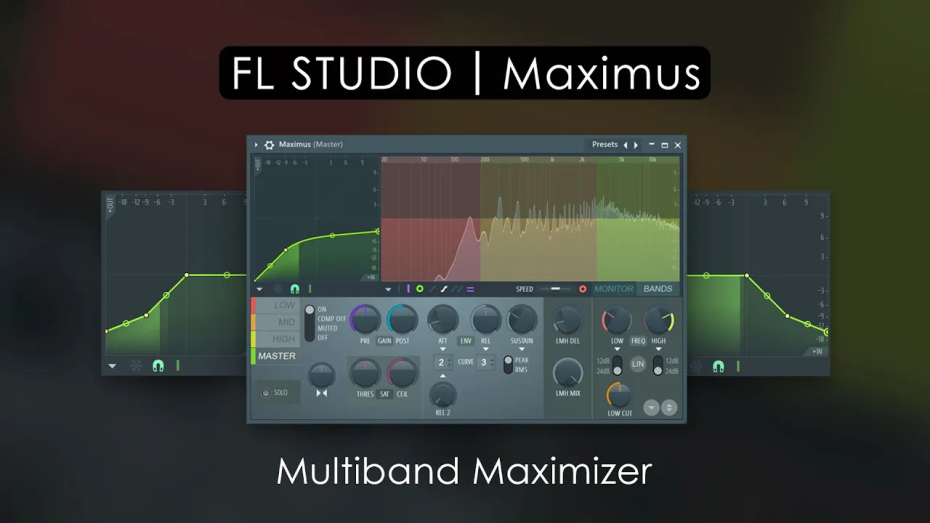
Using the Limiter in Fl Studio: Mastering Your Sound Production

FL Studio is a powerful and versatile digital audio workstation that offers a wide range of tools to help you perfect your music production. One of the most important tools in your arsenal is the limiter, which plays a crucial role in achieving a polished and professional sound.

Using the Limiter in Fl Studio: Mastering Your Sound Production

Credit: howtomakeelectronicmusic.com

What is a Limiter?

A limiter is an audio processing tool that is used to control the dynamic range of a sound. It works by setting a threshold level, beyond which the audio signal is not allowed to peak. This prevents clipping and distortion, ensuring that your tracks maintain a consistent and balanced volume.

How to Access the Limiter in FL Studio

When working in FL Studio, accessing the limiter is a straightforward process. Simply navigate to the mixer window and select the track you wish to apply the limiter to. Then, add the limiter plugin to the effects chain for that track.

Understanding the Controls

Once the limiter is added to your track, you will be presented with a range of controls that allow you to fine-tune its performance. The main controls typically include:

Control Description
Threshold Sets the level at which the limiter starts acting on the audio signal.
Ratio Determines the amount of gain reduction applied once the signal exceeds the threshold.
Attack Controls how quickly the limiter responds to peaks in the audio signal.
Release Determines how long it takes for the gain reduction to stop after the signal falls below the threshold.

Best Practices for Using the Limiter

When using the limiter in FL Studio, there are several best practices to keep in mind to achieve optimal results:

  • Set the Threshold Conservatively: It’s important to set the threshold at a level that allows for some dynamic range in your audio signal, without allowing it to peak and distort.
  • Use a Reasonable Ratio: The ratio setting should be chosen based on the specific needs of your track. A lower ratio will result in a more subtle compression, while a higher ratio is more aggressive.
  • Adjust Attack and Release Settings: Fine-tuning the attack and release controls can help you achieve the desired balance between controlling peaks and maintaining the natural dynamics of your audio.
  • Monitor Gain Reduction: Keep an eye on the gain reduction meter to ensure that the limiter is acting appropriately without overly compressing your signal.

Applying the Limiter in Different Scenarios

Depending on the specific needs of your production, there are different ways to apply the limiter effectively:

  • Master Bus Limiter: Applying a limiter to the master bus can help control the overall dynamics of your mix, ensuring a consistent and balanced sound across all tracks.
  • Individual Track Limiting: Using limiters on individual tracks can help tame any unruly peaks and ensure that each element of your mix sits well within the overall sonic landscape.
  • Creative Sound Shaping: Beyond its traditional mastering and mixing applications, the limiter can also be used creatively to shape the envelope of sounds, giving them a unique character.

Credit: github.com

Frequently Asked Questions On Using The Limiter In Fl Studio: Mastering Your Sound Production


How Does The Limiter Work In Fl Studio?


The Limiter in FL Studio is a plugin used for dynamic range compression. It helps prevent audio signals from exceeding a set threshold, resulting in a more balanced and controlled sound.


What Is The Purpose Of Using The Limiter In Fl Studio?


The Limiter plugin in FL Studio is primarily used to prevent audio clipping and ensure that the mix does not exceed a certain level, allowing for a more polished and professional sound.


How To Apply The Limiter In Fl Studio?


To apply the Limiter in FL Studio, simply insert the plugin on the desired track or master channel. Adjust the threshold, ratio, and other parameters as needed to achieve the desired level of dynamic control.


Can The Limiter Be Used For Mastering In Fl Studio?


Yes, the Limiter in FL Studio is commonly used for mastering purposes. By carefully adjusting the parameters, the Limiter helps maximize the loudness of the final mix while maintaining a balanced and controlled sound.

Conclusion

Mastering the use of the limiter is an essential skill for any music producer, and FL Studio provides a robust toolset to help you achieve professional results. By understanding the principles of audio dynamics and employing the limiter effectively, you can take your music to the next level, with a polished and powerful sound that stands out in the crowded world of modern music production.