Categories
Archive

Creating a New Project in Ableton Live : Ultimate Guide for Beginners

Ableton Live is a powerful digital audio workstation that is widely used for music composition, production, and performance. If you are new to Ableton Live, this step-by-step guide will help you get started with creating a new project in the software.

Credit: www.productionmusiclive.com

Step 1: Launching Ableton Live

Start by launching Ableton Live on your computer. Once the software is loaded, you will be presented with the Live’s Session View.

Step 2: Creating a New Live Set

To create a new project, click on “File” in the top menu bar and select “New Live Set” or use the shortcut Ctrl+N (Windows) or Command+N (Mac).

Step 3: Specify Project Settings

When you create a new Live Set, a dialog box will appear where you can specify the project settings:

Setting Explanation
Sample Rate Choose the desired sample rate for your project. The standard is 44.1 kHz.
Bit Depth Select the bit depth for your project. 24-bit is the standard for high-quality recordings.
Tempo Set the tempo for your project. This will determine the speed of the music.

Credit: www.levelsmusicproduction.com

Step 4: Organizing Your Project

Once you’ve specified the project settings, Ableton Live will create a new Live Set and open the Session View. Here are a few tips on organizing your project:

  • Tracks: Add tracks to your project by right-clicking in the empty space of the Session View and selecting “Insert Audio Track” or “Insert MIDI Track”. You can also use the shortcuts Ctrl+T (Windows) or Command+T (Mac) to add a new track.
  • Clips: Drag and drop audio or MIDI clips onto the tracks in the Session View. You can also record audio or MIDI directly into the clips.
  • Device View: To access the Device View, click on the “Device” button in the bottom left corner of the Ableton Live window. This view allows you to control and manipulate the devices on each track.

Step 5: Saving Your Project

Remember to save your project regularly to avoid losing your work. To save your project, click on “File” in the top menu bar and select “Save” or use the shortcut Ctrl+S (Windows) or Command+S (Mac). Choose a location on your computer and give your project a descriptive name.

That’s it! You have now successfully created a new project in Ableton Live. Take the time to explore the features and experiment with different possibilities to make the most out of your music production journey.

Frequently Asked Questions For Creating A New Project In Ableton Live : Ultimate Guide For Beginners


What Are The System Requirements For Ableton Live?


The minimum system requirements for Ableton Live are a multi-core processor, 4 GB RAM, and Windows 7 or later, or OS X 10. 11. 6 or later.


How Can I Create A New Project In Ableton Live?


To create a new project in Ableton Live, open the software, click “File” and then “New Live Set. ” You can also use the shortcut Ctrl + N (Windows) or Command + N (Mac).


What Are The Initial Setup Steps For A New Project?


After creating a new project, set the tempo, time signature, and routing options. You can then start arranging tracks and adding instruments and effects.


Can I Import Audio And Midi Files Into A New Project?


Yes, you can import audio and MIDI files into a new project by dragging and dropping them directly into Ableton Live’s interface.

Categories
Archive

Using the Harmor Synthesizer in Fl Studio: Master Sound Design

FL Studio is a popular digital audio workstation (DAW) used by producers and musicians around the world. One of the most powerful synthesizers within FL Studio is Harmor. In this guide, we will explore how to use Harmor to create unique and captivating sounds.

Understanding Harmor

Harmor is a software synthesizer that allows you to generate sounds using advanced additive synthesis techniques. Unlike traditional subtractive synthesizers, Harmor focuses on the manipulation of harmonics to create complex and rich tones. Its visual interface and extensive modulation capabilities make it a popular choice for sound designers.

Credit: www.instagram.com

Getting Started with Harmor

To begin using Harmor, open FL Studio and add an instance of Harmor to your project. Once added, you’ll notice Harmor’s interface consists of various sections, including the additive synthesis section, the effects section, and the modulation matrix.

Additive Synthesis

The additive synthesis section in Harmor allows you to manipulate individual harmonics to shape your sound. By adjusting the amplitude, phase, and frequency of each harmonic, you can create unique timbres and textures. Experiment with different settings to achieve the desired sound.

Effects Section

Harmor comes equipped with a range of built-in effects to enhance your sounds. From filters and distortion to delay and reverb, you can add depth and character to your creations. Simply toggle the effects on or off and adjust their parameters as necessary.

Modulation Matrix

The modulation matrix in Harmor allows you to assign various parameters to modulate other parameters over time. This adds movement and dynamics to your sounds. Experiment with different modulation sources, such as envelopes and LFOs, to create evolving and expressive patches.

Using the Harmor Synthesizer in Fl Studio: Master Sound Design

Credit: www.youtube.com

Tips for Harnessing the Power of Harmor

1. Understand the harmonic series: Familiarize yourself with the harmonic series to effectively manipulate harmonics in Harmor. This knowledge will help you create more musical and pleasing sounds.

2. Utilize the resynthesis feature: Harmor’s resynthesis feature allows you to analyze audio samples and recreate them as additive synthesis patches. This opens up endless possibilities for sound design and manipulation.

3. Experiment with presets: Harmor comes with a wide range of presets to get you started. Explore these presets to learn different sound design techniques and gain inspiration for your own creations.

4. Combine Harmor with other plugins: FL Studio offers a vast array of plugins and instruments. Experiment with combining Harmor with other synthesizers and effects to create truly unique and layered sounds.

5. Learn from tutorials and resources: There are numerous tutorials and resources available online that can help you master the intricacies of Harmor. Take advantage of these to expand your knowledge and skills.

Frequently Asked Questions Of Using The Harmor Synthesizer In Fl Studio: Master Sound Design


What Are The Main Features Of Harmor Synthesizer?


Harmor offers advanced resynthesis capabilities, additive, and subtractive synthesis along with image and audio resynthesis.


How Can I Use Harmor In Fl Studio?


To use Harmor, open FL Studio, insert the plugin, and start creating unique sounds by adjusting its parameters.


What Makes The Harmor Synthesizer Unique?


The Harmor Synthesizer stands out for its resynthesis technology, image and audio import features, and precise sound design capabilities.


Can I Import My Own Audio In Harmor Synthesizer?


Absolutely, Harmor allows you to import your own audio files to create unique and personalized sounds.

Conclusion

The Harmor synthesizer in FL Studio is a powerful tool for sound design and music production. With its advanced additive synthesis capabilities, comprehensive effects section, and versatile modulation matrix, Harmor offers a wealth of possibilities for creating captivating and original sounds. By familiarizing yourself with its features and experimenting with different techniques, you can unlock the full potential of Harmor and take your music production to new heights.

Categories
Archive

Understanding Sampling in Fl Studio : Master the Basics

Sampling is an essential technique used in music production, allowing producers to manipulate recorded sounds to create unique compositions. FL Studio, a popular digital audio workstation, offers a wide range of sampling capabilities that can help you elevate your music to the next level. In this article, we will explore the basics of sampling in FL Studio and how you can effectively use this feature in your own productions.

Understanding Sampling in Fl Studio  : Master the Basics

Credit: www.image-line.com

What is Sampling?

In the context of music production, sampling refers to the process of taking a portion or a snippet of a recorded sound and reusing it in a new composition. This can include anything from sampling a drum break, a guitar riff, or even a vocal line. By sampling, producers can tap into a vast library of existing sounds and manipulate them to create something entirely new and unique.

Getting Started with Sampling in FL Studio

FL Studio offers several tools and features that make sampling a breeze. Here are the key steps to get started:

  1. Importing Audio: FL Studio allows you to import audio files into your project. Simply drag and drop the audio file into the playlist or use the “File” menu to import it.
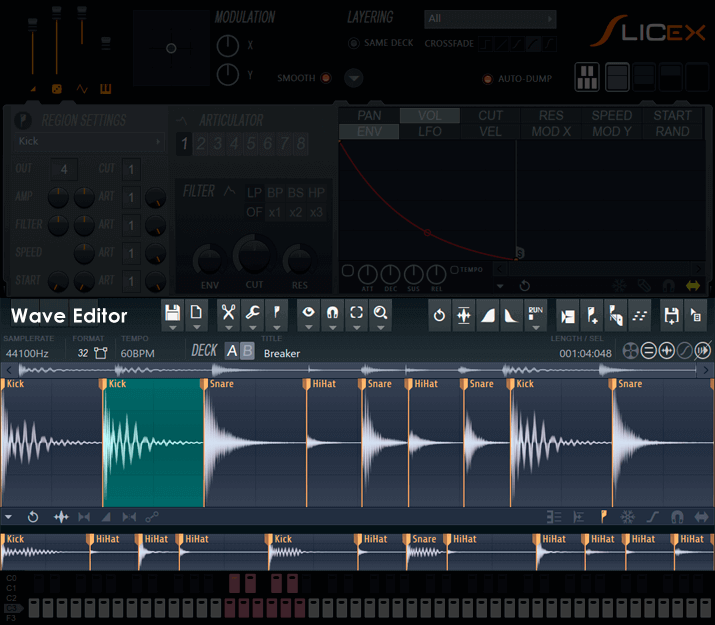
  2. Slicing and Chopping: After importing the audio, you can use the “Slice” tool to cut the audio into smaller parts or “chops.” This is particularly useful for drums or rhythmic elements.
  3. Mapping to Sampler: FL Studio’s Sampler allows you to map the chopped samples across the keyboard, turning them into playable instruments. This enables you to create melodies or trigger specific sounds as needed.
  4. Applying Effects: FL Studio provides a vast array of effects that you can apply to your samples to enhance or manipulate their sound. Experiment with parameters such as reverb, delay, or distortion to shape the desired sound.
  5. Arranging and Sequencing: Once you have your samples set up, you can arrange and sequence them in the playlist to create your composition. FL Studio’s intuitive interface makes it easy to arrange your samples precisely.
Understanding Sampling in Fl Studio  : Master the Basics

Credit: www.youtube.com

Tips for Effective Sampling

Here are some tips to help you make the most out of your sampling experience in FL Studio:

  • Dig Deep: Explore various genres of music and dig deep into the archives to find unique and obscure samples. This will help you stand out and add a distinctive touch to your music.
  • Layering: Experiment with layering multiple samples to create complex and textured sounds. Combine different elements to achieve a unique sonic result.
  • Pitch and Time Manipulation: Take advantage of FL Studio’s tools for pitch-shifting and time-stretching. Altering the pitch and tempo of your samples can give them a completely different vibe.
  • Add Your Own Touch: While sampling is a great way to incorporate existing sounds, don’t shy away from adding your own elements to truly make the composition your own. You can record your own vocals, play an instrument, or incorporate original melodies.

The Legal and Ethical Side of Sampling

It is important to note that sampling can have legal and ethical implications. While it is common for producers to sample copyrighted material, it is crucial to obtain the necessary permissions or licenses, especially if you plan to release your music commercially. Respect the intellectual property rights of others and make sure to give credit where credit is due. There are also websites and services available that offer royalty-free samples that you can use without any legal issues.

Final Thoughts

Sampling in FL Studio opens up a world of creative possibilities for music producers. By understanding the basics of sampling and learning how to effectively use the tools and features provided by FL Studio, you can take your compositions to new heights. Remember to stay creative, experiment, and always respect the legal and ethical aspects of sampling. Happy producing!

Frequently Asked Questions For Understanding Sampling In Fl Studio : Master The Basics


What Is Sampling In Fl Studio?


Sampling in FL Studio refers to capturing and reusing audio snippets for music production.


How Can I Use Sampling In Fl Studio?


You can use the sampler to import and manipulate audio samples in FL Studio.


What Are The Benefits Of Sampling In Music Production?


Sampling allows the creation of unique sounds, adds versatility, and enhances creativity in music production.


Where Can I Find High-quality Samples For Fl Studio?


You can find high-quality samples on reputable websites, sample libraries, and digital marketplaces.

Categories
Archive

Using the Sytrus Synthesizer in Fl Studio : Mastering Music Creation

FL Studio is a popular digital audio workstation (DAW) used by musicians and producers to create music. One of its most powerful tools is the Sytrus synthesizer, which offers a wide range of features and capabilities for crafting unique sounds. In this article, we will explore how to effectively use the Sytrus synthesizer in FL Studio.

Introduction to the Sytrus Synthesizer

The Sytrus synthesizer is a versatile plugin that provides a comprehensive set of tools for sound design. It is capable of creating a variety of sounds, from simple pads and leads, to complex textures and basslines. With its extensive sound-shaping capabilities, the Sytrus synthesizer is ideal for both beginners and professional musicians alike.

Getting Started with Sytrus

To begin using the Sytrus synthesizer, we first need to load it into our FL Studio project. This can be done by navigating to the plugin database, locating Sytrus, and dragging it onto an empty instrument channel in the mixer.

Once Sytrus is loaded, we are presented with a user-friendly interface consisting of multiple oscillators, filters, and effects. Each section can be customized to shape the sound to our liking.

Credit: www.image-line.com

Creating Sounds with Sytrus

One of the key features of Sytrus is its extensive modulation capabilities. By assigning different modulation sources to various parameters, we can achieve dynamic and evolving sounds. This can be done by right-clicking on a parameter, selecting ‘Link to Controller,’ and choosing a modulation source from the list.

For example, by assigning an envelope to the filter cutoff, we can create a sweeping effect that changes over time. This adds movement to our sound, making it more interesting and expressive.

Exploring the Oscillators

The oscillators in Sytrus are responsible for generating the basic waveform of the sound. Sytrus offers a range of oscillator types, including sine, sawtooth, square, and more. Each oscillator can be fine-tuned, detuned, and adjusted to create complex harmonic relationships and rich textures.

Using Filters and Effects

In addition to the oscillators, Sytrus provides a variety of filters and effects that can further shape our sound. Filters help remove unwanted frequencies, while effects add depth and character to the sound.

By experimenting with different filter types, such as low-pass, high-pass, and band-pass, we can sculpt the frequency content of our sound. Effects like reverb, delay, and distortion can be used to add spatialization, ambience, and grit to our sound.

Credit: online.fliphtml5.com

Utilizing Presets and Customization

Sytrus comes with a vast library of presets that cover a wide range of musical genres. These presets serve as a great starting point for beginners and can be easily customized to fit our specific needs.

Customization options in Sytrus are endless. We can modify parameters such as envelope curves, filter resonance, oscillator waveforms, and more. This allows us to create truly unique sounds that are tailored to our musical vision.

Frequently Asked Questions On Using The Sytrus Synthesizer In Fl Studio : Mastering Music Creation


What Is The Sytrus Synthesizer?


The Sytrus Synthesizer in FL Studio is a powerful software synthesizer that allows users to create a wide variety of sounds, from traditional to experimental.


How To Use The Sytrus Synthesizer?


To use the Sytrus Synthesizer in FL Studio, simply open the plugin, browse through the presets or create your own sounds by manipulating the various oscillators, filters, and envelopes.


What Makes The Sytrus Synthesizer Unique?


The Sytrus Synthesizer stands out for its extensive modulation capabilities, flexible oscillator algorithms, and advanced filtering options, allowing for complex sound design.


Why Should I Use The Sytrus Synthesizer?


Using the Sytrus Synthesizer in FL Studio provides access to a palette of sounds suitable for genres ranging from electronic and hip-hop to orchestral and ambient music production.

Conclusion

The Sytrus synthesizer in FL Studio is a powerful tool for sound design and music production. By understanding its various features and experimenting with different parameters, we can create captivating sounds that elevate our music to the next level.

Whether you are a beginner or an experienced producer, the Sytrus synthesizer offers endless possibilities for creating your own signature sound. So go ahead, dive in, and let your creativity soar with the Sytrus synthesizer in FL Studio!

Categories
Archive

Using the Simpler in Ableton Live for Sampling: Master the Art

Have you ever wanted to incorporate sampled sounds into your music productions? The Simpler in Ableton Live is a powerful tool that allows you to easily sample and manipulate audio. In this article, we will explore how to use the Simpler for sampling in Ableton Live.

Credit: www.youtube.com

What is the Simpler?

The Simpler is a device in Ableton Live that specializes in sampling and playing back audio. It allows you to take any audio file and map it across a keyboard or MIDI controller, giving you the ability to play and manipulate the sampled sound in various ways.

Sample Importing

Importing a sample into the Simpler is an easy process. To begin, simply drag and drop an audio file directly onto the Simpler device in your Ableton Live project. Alternatively, you can right-click within the Simpler and select “Import Sample” to choose a file from your computer.

After importing the sample, you will notice waveform representation of the audio. This visual representation allows you to precisely set the starting and ending points of the sample, as well as loop and adjust its playback mode.

Sample Mapping

Once you have imported your sample, you can map it across the keyboard or MIDI controller within the Simpler. This allows you to play the sample in different pitches and octaves. To do this, click on the “Simpler” tab in the device view, then click on the “Zone” button.

In the Zone view, you can see the keyboard layout and the sample mapping. By default, the entire sample is mapped from C3 to C4, but you can adjust the range by dragging the start and end markers. Additionally, you can set different parameters like velocity sensitivity and key tracking to further customize your sample playback.

Sample Manipulation

The Simpler offers a variety of tools for manipulating your samples. Here are some key features:

  1. Envelope: The Envelope section allows you to shape the amplitude of your sample over time. You can adjust the Attack, Decay, Sustain, and Release parameters to create dynamic and expressive sound variations.
  2. Filter: The Filter section enables you to apply different types of filters to your samples. You can choose from a range of filter types such as low-pass, high-pass, band-pass, and more. Adjusting the cutoff and resonance parameters gives you further control over the character of your sound.
  3. Warping: Ableton Live’s powerful warping capabilities are also available within the Simpler. You can stretch, pitch shift, and time warp your samples to fit your project’s needs. This is particularly useful when working with samples of different tempos or musical phrases.
  4. LFO: The Simpler includes a dedicated LFO (Low-Frequency Oscillator) section, allowing you to modulate various parameters of your sample. You can use this to create rhythmic movement, vibrato, or other dynamic effects.

Sample Slicing

If you want to further explore the individual components of your sample, you can utilize the Slice mode in the Simpler. By slicing your sample, you can trigger and rearrange different sections of it in real-time. This is great for creating glitchy, chopped-up patterns or drum loops.

To slice a sample, select the Slice tab within the Simpler. You can then choose automatic slicing based on transients or manually set your own slice points. Each slice is then assigned to a MIDI note, allowing you to trigger them independently.

Credit: www.udemy.com

Frequently Asked Questions Of Using The Simpler In Ableton Live For Sampling: Master The Art


How Can I Use Simpler In Ableton Live?


You can use Simpler in Ableton Live for easy and efficient sampling of audio clips.


What Are The Key Features Of Simpler?


Simpler offers intuitive sample-based synthesis and is perfect for shaping and manipulating sounds.


Can I Import My Own Audio Samples Into Simpler?


Yes, you can import your own audio samples into Simpler to create unique and personalized sounds.


How Does Simpler Simplify The Sampling Process?


Simpler streamlines the sampling process by providing easy-to-use controls for adjusting start, loop, and end points.

Conclusion

The Simpler in Ableton Live is a versatile and essential tool for anyone interested in sampling and creating unique sounds. With its intuitive interface and powerful features, you can seamlessly incorporate samples into your music productions. Use the Simpler to bring new life to your tracks and explore the endless possibilities of audio manipulation.

Categories
Archive

Using Compression in Ableton Live : Improve Sound Quality with Ease

Compression is an essential tool in music production that helps to control the dynamics of a sound. In Ableton Live, compression can be used to even out the volume levels of different tracks, add sustain to instruments, and bring out the details in a mix. In this article, we will explore the basics of compression and how to effectively use it within Ableton Live.

Credit: www.waves.com

Credit: www.amazon.com

Understanding Compression

Compression works by reducing the dynamic range of an audio signal. It reduces the volume of the loudest parts of a sound while raising the level of the softer parts. This helps in achieving a more balanced mix where all the elements can be heard clearly.

When using compression, it is important to understand a few key parameters:

Parameter Description
Threshold This sets the level at which the compression begins to take effect. Any audio above this threshold will be compressed.
Ratio The ratio determines how much the audio will be compressed once it exceeds the threshold. A ratio of 4:1 means that for every 4dB above the threshold, only 1dB will be allowed through.
Attack This controls how quickly the compression engages after the audio surpasses the threshold.
Release The release time determines how long it takes for the compressor to stop compressing once the audio falls below the threshold.
Gain After applying compression, you might need to boost the overall volume. The gain control allows you to make up for any perceived loss in volume.

Using Compression in Ableton Live

Ableton Live offers several devices and plugins for applying compression. The most commonly used ones are the “Compressor” and “Glue Compressor” found in the audio effects section.

Step 1: Insert The Compressor

To add compression to a track, first, select the track you wish to compress. From the “Audio Effects” section, drag and drop the “Compressor” device onto the track.

Step 2: Set Up The Parameters

Adjust the compression settings based on the characteristics of the track. Start by setting the threshold. If you want gentle compression, set a higher threshold, and for more aggressive compression, lower the threshold.

Next, adjust the ratio to control the amount of compression you desire. A lower ratio gives a more transparent and subtle effect, while a higher ratio provides a more pronounced compression effect.

The attack and release settings determine how quickly the compression engages and releases. For most instruments, a relatively fast attack and release time works well, but feel free to experiment and see what suits your track best.

After setting up the parameters, use the gain control to adjust the post-compression volume. Increase it to compensate for any perceived loss in loudness.

Step 3: Utilize Sidechain Compression

In addition to regular compression, Ableton Live also offers sidechain compression. This technique allows you to create a pumping or breathing effect by using another audio source to trigger the compression on a different track.

To set up sidechain compression, simply click on the small triangle on the top left corner of the “Compressor” device and enable the sidechain option. Then select the audio source you want to use as the trigger, such as a kick drum. Adjust the settings to achieve the desired effect.

Tips for Effective Compression

Here are some tips to help you make the most out of compression in Ableton Live:

  • Use compression sparingly to avoid over-compressed sounds.
  • Experiment with different compression settings to find the right balance for your mix.
  • Consider using parallel compression, where a heavily compressed signal is blended with the original signal, to achieve a more controlled sound without sacrificing dynamics.
  • Use automation to adjust the compression settings over time for added dynamic variation.

By understanding the principles of compression and how to effectively use it in Ableton Live, you can enhance the quality and clarity of your mixes. Experiment, trust your ears, and have fun exploring the countless possibilities that compression brings to your music production!

Frequently Asked Questions On Using Compression In Ableton Live : Improve Sound Quality With Ease


What Is Compression In Music Production?


Compression is a technique used to control the dynamic range of audio signals, making loud parts quieter and quiet parts louder. It helps to even out the volume and add punch to sounds.


How Does Compression Affect Sound Quality?


Compression can enhance sound quality by reducing inconsistencies in the audio levels, making the overall mix sound more balanced and polished.


When Should I Use Compression In Ableton Live?


Compression can be used during both the recording and mixing stages of music production to improve the overall sound and dynamics of the music. It can be applied to individual tracks or the master track.


Can Compression Be Overused?


Yes, over-compression can result in loss of dynamics and make the music sound unnatural or dull. It’s important to use compression judiciously to avoid these effects.

Categories
Archive

Using the Stereo Shaper in Fl Studio: Master Your Music Mix

In the world of music production, achieving a professional and polished sound is crucial. One of the key elements in achieving this is through effective stereo imaging. FL Studio, a popular digital audio workstation (DAW) software, provides a powerful tool for enhancing stereo width and imaging – the Stereo Shaper.

The Stereo Shaper in FL Studio is a versatile plugin that allows producers and engineers to manipulate the stereo image of their audio signals, ultimately creating a more immersive and dynamic listening experience. Whether you’re working on a dance track, a pop song, or a cinematic score, the Stereo Shaper can be an invaluable asset in your production arsenal.

Using the Stereo Shaper in Fl Studio: Master Your Music Mix

Credit: www.image-line.com

Using the Stereo Shaper in Fl Studio: Master Your Music Mix

Credit: m.youtube.com

Understanding the Basics of Stereo Shaper

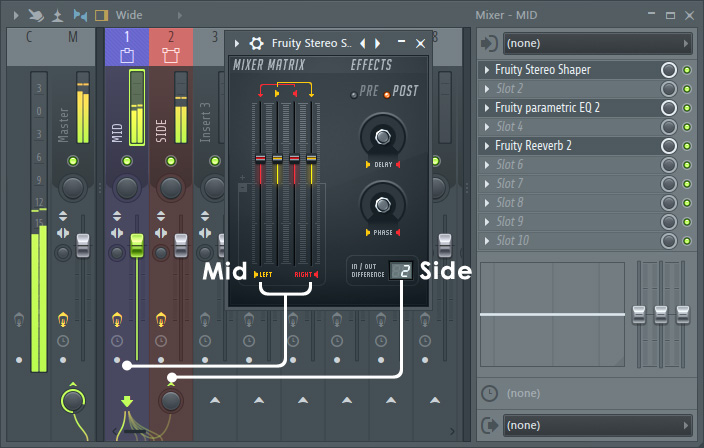
Before delving into the practical applications of the Stereo Shaper, it’s essential to understand its core functionalities. At its core, the Stereo Shaper enables users to control the stereo width, balance, and panning of audio signals. This means you can adjust the placement and spread of sound within the stereo field, giving you the ability to create a sense of space and dimension in your mixes.

Key Features Of The Stereo Shaper

Let’s explore some of the key features of the Stereo Shaper and how they can be utilized to enhance your music production:

Feature Description
Width Control It allows you to adjust the stereo width of the audio signal, making it narrower or wider as needed.
Phase Offset By manipulating the phase relationship between the left and right channels, you can create unique stereo effects and alter the perceived location of sound sources.
Panning The Stereo Shaper provides precise panning controls, enabling you to place sounds anywhere in the stereo field.
Mid/Side Processing This feature allows you to independently process the middle (mono) and side (stereo) components of the audio signal, offering greater flexibility in shaping the stereo image.

Practical Applications of the Stereo Shaper

Now that we understand the capabilities of the Stereo Shaper, let’s explore some practical applications:

  • Enhancing Synth Pads: When working with lush synth pads, you can use the Stereo Shaper to widen the stereo image, creating an expansive and ethereal sound.
  • Creating Stereo Movement: By modulating the width control over time, you can introduce dynamic movement in the stereo field, adding interest and depth to your mixes.
  • Stereoizing Mono Recordings: Transform mono recordings into stereo by using the Stereo Shaper’s width control and phase offset, breathing new life into old tracks.
  • Adding Spatial Effects: Experiment with the phase offset and panning controls to introduce captivating spatial effects, such as swirling motion and wide stereo sweeps.
Tips for Using the Stereo Shaper Effectively

To make the most of the Stereo Shaper, consider the following tips:

  1. Subtle Adjustments: Small changes in stereo width and positioning can yield significant improvements, so approach the controls with precision.
  2. Referencing in Mono: Check your mix in mono to ensure that important elements remain coherent and impactful, even with stereo processing applied.
  3. Automation: Experiment with automating the parameters of the Stereo Shaper to create evolving stereo landscapes throughout your music.
  4. Layering Effects: Combine the Stereo Shaper with other spatial processing effects for a more complex and nuanced stereo image.
Final Thoughts

The Stereo Shaper is a valuable tool for shaping the spatial characteristics of your audio, offering a myriad of creative possibilities. By mastering the art of stereo manipulation, you can elevate your music to new dimensions, captivating your listeners with immersive and engaging sonic experiences.

With its intuitive interface and powerful features, the Stereo Shaper in FL Studio empowers producers and engineers to sculpt their mixes with precision and artistry. Embrace the potential of stereo imaging and let the Stereo Shaper guide you towards a more compelling and impactful sound.

Take your music production to the next level with the Stereo Shaper – explore its capabilities, experiment with different settings, and discover the endless ways it can enrich your sonic creations.

Frequently Asked Questions On Using The Stereo Shaper In Fl Studio: Master Your Music Mix


How Does The Stereo Shaper Work?


The stereo shaper is a plugin in FL Studio that manipulates the stereo field of a sound, allowing you to widen or narrow the stereo image.


What Are The Benefits Of Using The Stereo Shaper?


Using the stereo shaper can enhance the depth and width of your audio mix, making it more immersive and engaging for listeners.


Can The Stereo Shaper Be Used On Individual Tracks?


Yes, the stereo shaper can be applied to individual tracks, giving you precise control over the stereo image of each element in your mix.


How Can I Widen The Stereo Image With The Stereo Shaper?


By increasing the stereo separation or adjusting the stereo width controls in the stereo shaper, you can achieve a wider stereo image.

Categories
Archive

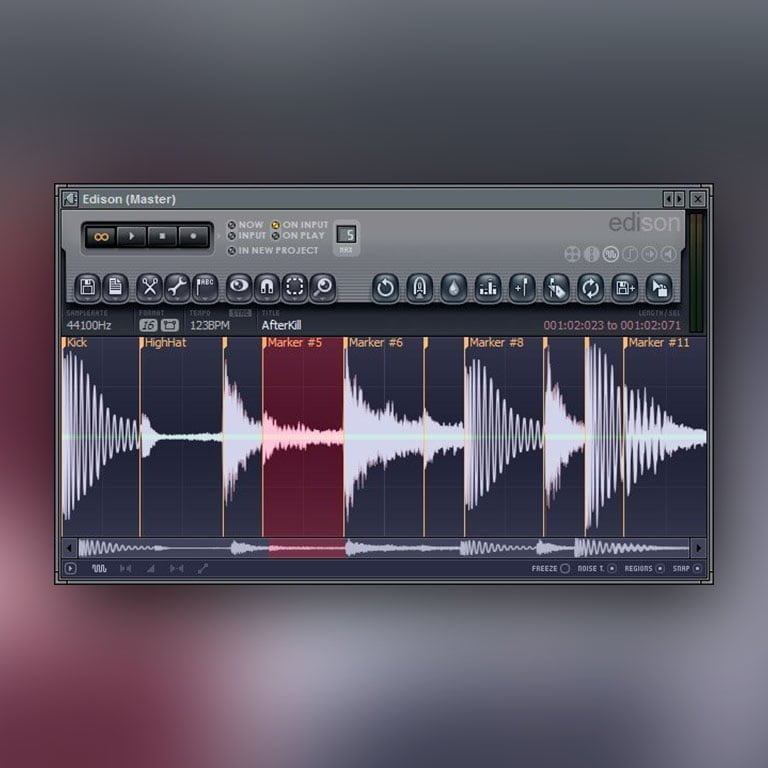
Using the Edison Audio Editor in Fl Studio: Mastering Sound Production

When it comes to producing high-quality music, having the right tools at your disposal is essential. FL Studio is a powerful digital audio workstation that offers a wide range of features to help you create professional-sounding tracks. One of the most powerful tools in FL Studio is the Edison audio editor. In this guide, we will explore how to use the Edison audio editor to edit and manipulate audio in FL Studio.

Getting Started with Edison

Before we dive into the details of using the Edison audio editor, let’s first understand how to access and open the editor in FL Studio. To open Edison, simply add it as an effect to the mixer track of the audio clip you want to edit. Once added, you can double-click on the Edison icon in the mixer to open the editor window.

Using the Edison Audio Editor in Fl Studio: Mastering Sound Production

Credit: www.youtube.com

Using the Edison Audio Editor in Fl Studio: Mastering Sound Production

Credit: us.pluginsmasters.com

Basic Editing Functions

Once you have opened the Edison audio editor, you will have access to a range of basic editing functions to help you manipulate your audio. These include functions such as cut, copy, paste, and delete. You can use these functions to trim audio clips, remove unwanted sections, and rearrange audio to fit your desired composition.

Warping And Time-stretching

One of the most powerful features of the Edison audio editor is its ability to warp and time-stretch audio. This allows you to manipulate the timing and tempo of audio clips to fit your project. Simply select the audio clip you want to manipulate and use the time-stretching tools in Edison to adjust the timing and tempo as needed.

Noise Reduction And Restoration

Another useful feature of the Edison audio editor is its noise reduction and restoration tools. These tools allow you to clean up audio recordings by reducing background noise and restoring clarity to your audio. You can use these tools to improve the overall quality of your audio recordings and ensure that your tracks sound professional and polished.

Advanced Editing and Analysis

In addition to basic editing functions, the Edison audio editor also offers advanced editing and analysis tools to help you fine-tune your audio. These tools include spectral analysis, frequency analysis, and audio processing functions. You can use these tools to dive deep into the details of your audio and make precise adjustments to achieve the perfect sound.

Exporting And Saving

Once you have finished editing your audio in the Edison audio editor, you can easily export and save your work. Simply click on the export button within the editor and choose your desired file format and settings. This makes it easy to seamlessly integrate your edited audio back into your FL Studio project.

Frequently Asked Questions For Using The Edison Audio Editor In Fl Studio: Mastering Sound Production


How Do I Open The Edison Audio Editor In Fl Studio?


To access the Edison Audio Editor in FL Studio, simply click on the “Channel Rack” button and then select “Edison” from the drop-down menu.


What Are The Key Features Of The Edison Audio Editor?


The Edison Audio Editor in FL Studio offers a range of powerful features such as waveform editing, spectral analysis, audio recording, time stretching, and pitch shifting.


How Can I Use The Waveform Editing Feature In The Edison Audio Editor?


To edit the waveform in the Edison Audio Editor, simply select the portion of audio you want to modify, and then apply various editing tools such as cut, copy, paste, normalize, reverse, and more.


Can I Record Audio Directly Into The Edison Audio Editor?


Yes, you can easily record audio directly into the Edison Audio Editor by clicking on the “Record” button and selecting the input source.

Conclusion

In conclusion, the Edison audio editor in FL Studio is a versatile and powerful tool that offers a wide range of features to help you edit and manipulate audio with ease. Whether you are a beginner or an experienced producer, the Edison audio editor has everything you need to take your audio production to the next level. By mastering the use of the Edison audio editor, you can unlock endless creative possibilities and produce professional-sounding tracks that stand out from the crowd.

Categories
Archive

Using the Fruity Slicer in Fl Studio : Mastering Slice Techniques

FL Studio is a widely used digital audio workstation known for its powerful features and intuitive interface. One of its standout tools is the Fruity Slicer, a versatile plugin that offers users the ability to slice and manipulate audio samples with precision and creativity. Whether you’re a seasoned producer or just starting out, the Fruity Slicer can take your music production to the next level.

What is the Fruity Slicer?

The Fruity Slicer is a plugin within FL Studio that can be used to chop up audio samples into smaller parts, also known as slices. These slices can then be rearranged, sequenced, and processed in various ways to create unique musical elements. The Fruity Slicer is perfect for working with drum loops, vocal samples, melodies, and any other audio material that you want to manipulate.

How to Use the Fruity Slicer

Using the Fruity Slicer in FL Studio is a straightforward process. Here’s a step-by-step guide to get you started:

  1. First, load a sample into FL Studio by dragging and dropping it onto the Playlist or Channel Rack.
  2. Next, add the Fruity Slicer plugin to the channel where your sample is loaded.
  3. Once the plugin is added, you can adjust the start and end points of the slice markers to define the boundaries of each slice.
  4. To create custom slice markers, simply click and drag on the waveform display in the Fruity Slicer interface.
  5. You can also use the Auto-Slice feature to automatically detect and assign slice markers based on transients in the audio.
  6. Once you have your slices defined, you can start rearranging them by dragging and dropping them onto the step sequencer or piano roll.
  7. The Fruity Slicer offers a range of additional features, such as pitch and time manipulation, volume and pan envelopes, and various effects.
Using the Fruity Slicer in Fl Studio  : Mastering Slice Techniques

Credit: www.image-line.com

Using the Fruity Slicer in Fl Studio  : Mastering Slice Techniques

Credit: m.youtube.com

Tips for Using the Fruity Slicer Effectively

Here are some tips to help you make the most of the Fruity Slicer:

  • Experiment with different slice markers to find interesting and unique combinations.
  • Apply effects such as reverb, delay, and distortion to individual slices for added variety and texture.
  • Automate the slice markers’ positions to create evolving patterns and sequences.
  • Try using the Fruity Slicer on non-traditional samples, such as field recordings or sound effects, to create unconventional sounds.
  • Combine the Fruity Slicer with other FL Studio plugins and features, such as the piano roll and mixer, to further enhance your creative options.

Final Thoughts

The Fruity Slicer is an incredibly powerful tool for slicing and manipulating audio in FL Studio. Whether you’re using it for beat production, remixing, or experimental sound design, the possibilities for creativity are endless. By taking advantage of the Fruity Slicer’s features and experimenting with different techniques, you can add depth, uniqueness, and professional polish to your music productions. So go ahead, dive into the world of the Fruity Slicer, and let your imagination run wild!

Frequently Asked Questions For Using The Fruity Slicer In Fl Studio : Mastering Slice Techniques


What Is The Fruity Slicer In Fl Studio?


The Fruity Slicer is a powerful tool in FL Studio used for slicing and rearranging audio samples.


How Can I Use The Fruity Slicer For Beat-making?


You can use Fruity Slicer to chop and rearrange samples, create unique beats, and add flair to your music.


What Are The Key Features Of The Fruity Slicer?


Fruity Slicer offers precision slicing, pitch-shifting, time-stretching, and intuitive sample manipulation tools for music production.


Can I Import My Own Samples Into The Fruity Slicer?


Yes, you can easily import your own samples into the Fruity Slicer for creative experimentation and music production.

Categories
Archive

Understanding the Different Types of Tracks in Ableton Live : Ultimate Guide

Ableton Live is a powerful digital audio workstation that offers musicians and producers a wide range of creative tools. One of the key features of Ableton Live is its versatile track options. In this article, we will explore the different types of tracks available in Ableton Live and how they can enhance your music production workflow.

Midi Tracks

Midi tracks in Ableton Live allow you to sequence and manipulate virtual instruments and hardware synthesizers. With a midi track, you can create melodies, chords, and rhythms using a piano roll editor, step sequencer, or by playing a midi controller. Midi tracks are perfect for electronic music producers or anyone who wants to incorporate virtual instruments into their compositions.

Audio Tracks

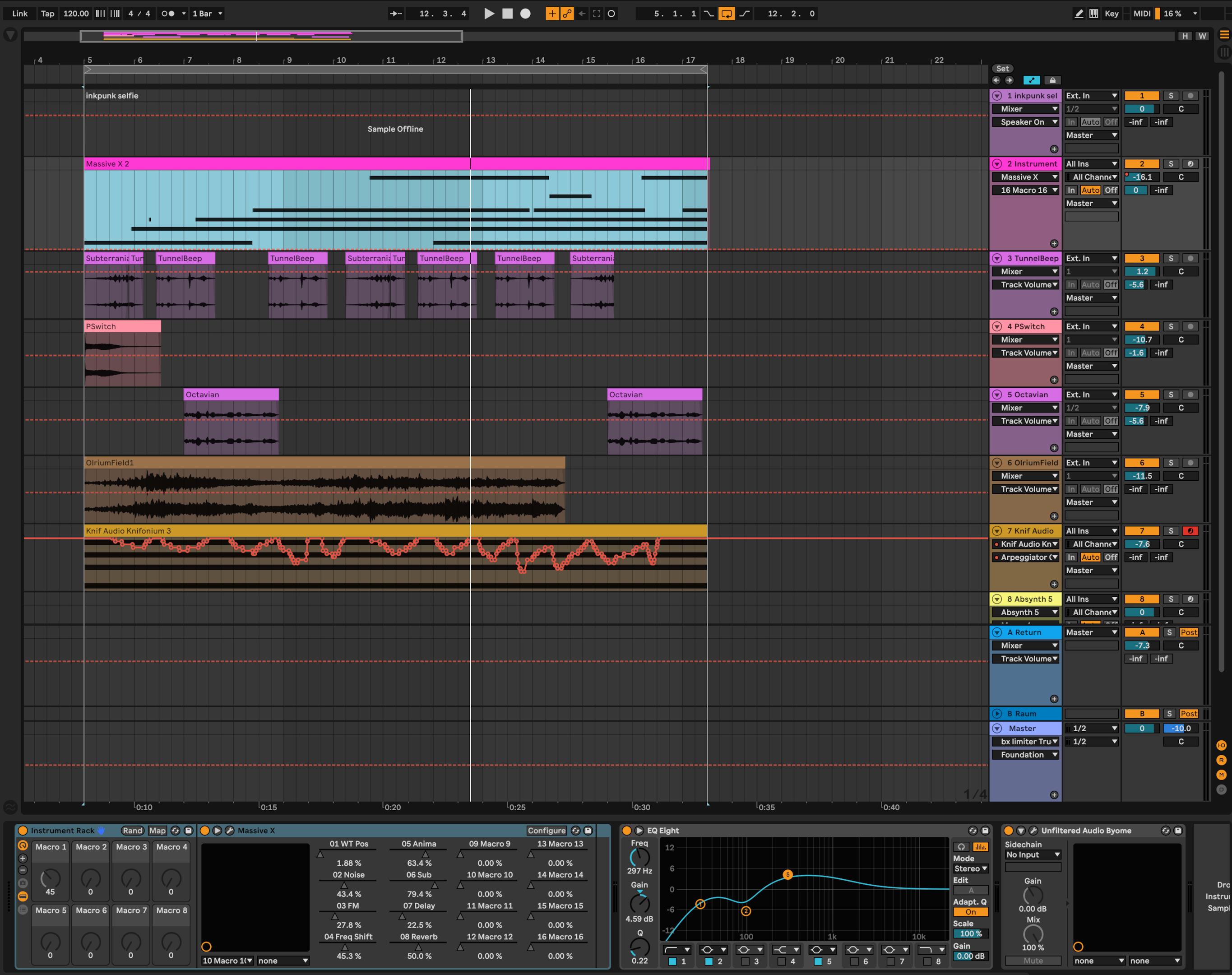
Audio tracks in Ableton Live are used for recording and processing audio signals. Whether you want to record vocals, guitars, drums, or any other live audio source, audio tracks provide the means to do so. You can apply various audio effects and plugins to shape the sound and create unique textures. Audio tracks are essential for capturing and manipulating real-world sounds in your productions.

Credit: www.productionmusiclive.com

Return Tracks

Return tracks in Ableton Live are special tracks designed to receive audio from other tracks in the session. They are commonly used for adding reverb, delay, or other time-based effects to multiple tracks simultaneously. By sending audio to a return track, you can create cohesive and immersive soundscapes in your mix. Return tracks are also useful for applying master bus processing effects.

Group Tracks

Group tracks in Ableton Live act as containers for other tracks, allowing you to group related tracks together. By grouping tracks, you can process them as a whole, apply effects to multiple tracks simultaneously, and easily manage your mix. Group tracks are useful for organizing your session and applying collective processing to multiple tracks, such as adding compression or EQ to a group of drums.

Drum Racks

Drum racks in Ableton Live are specialized midi tracks designed for creating and performing drum sounds. With a drum rack, you can load and trigger multiple samples or virtual drum machines, allowing you to create dynamic drum patterns and perform live. Drum racks are perfect for beat-making and electronic music production.

Instrument Racks

Instrument racks in Ableton Live are versatile tools that allow you to combine and layer multiple instruments or effects. With an instrument rack, you can create complex sounds by stacking and manipulating different sound sources and effects. This feature is especially useful for sound design and creating unique textures in your music.

Understanding the Different Types of Tracks in Ableton Live : Ultimate Guide

Credit: glitchmagic.com

Audio Effect Tracks

Audio effect tracks in Ableton Live are dedicated tracks for hosting audio effects. They allow you to apply audio effects globally across multiple tracks in your session. By grouping tracks and sending them to an audio effect track, you can achieve parallel processing and effortlessly add consistent effects to your mix. Audio effect tracks are ideal for adding polish and character to your sound.

Frequently Asked Questions Of Understanding The Different Types Of Tracks In Ableton Live : Ultimate Guide


What Are Midi Tracks In Ableton Live?


MIDI tracks in Ableton Live are used for sequencing and controlling virtual instruments and external hardware.


How Do Audio Tracks Work In Ableton Live?


Audio tracks in Ableton Live are for recording and playing back audio clips and samples.


Can You Explain The Purpose Of Return Tracks In Ableton Live?


Return tracks in Ableton Live are used for applying effects to multiple tracks and creating parallel processing chains.


What Are Group Tracks Used For In Ableton Live?


Group tracks in Ableton Live are used to process and control multiple tracks as a single unit.

Conclusion

Ableton Live offers a diverse set of track types that cater to every aspect of music production. By understanding the different track options available, you can elevate your creative process and unlock new possibilities. Midi tracks, audio tracks, return tracks, group tracks, drum racks, instrument racks, and audio effect tracks all play a vital role in shaping your music and ensuring a seamless production workflow. Experiment with these track types, and you’ll discover new ways to express yourself and create impressive music using Ableton Live.