Categories
Archive

Using the Arrangement View in Ableton Live : Mastering Music Production.

Ableton Live is a powerful music production software that offers two main views for creating and arranging music: Session View and Arrangement View. In this blog post, we will focus on the latter, the Arrangement View, and explore its features, benefits, and how to use it effectively.

Overview of Arrangement View

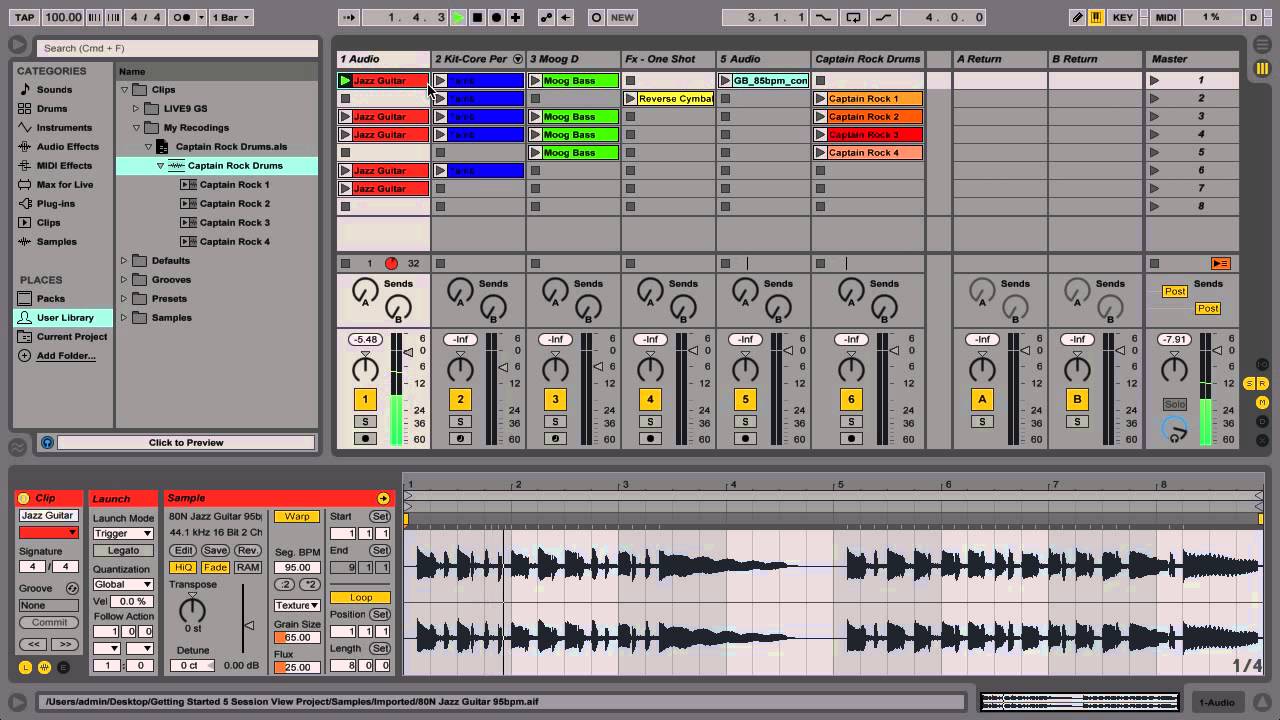
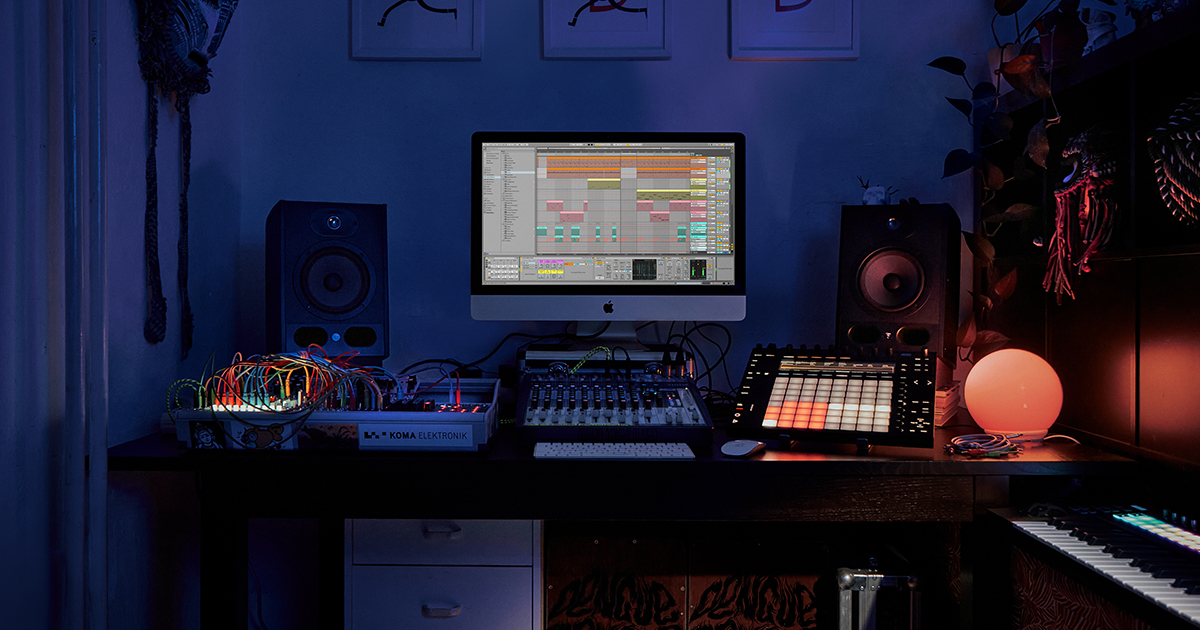
The Arrangement View in Ableton Live is designed for linear music creation and arrangement. It resembles a traditional timeline-based recording software, where you can arrange and rearrange your clips, tracks, and MIDI notes to create your final composition.
Using the Arrangement View in Ableton Live  : Mastering Music Production.

Credit: audioservices.studio

Credit: www.facebook.com

Benefits of Arrangement View

The Arrangement View offers several benefits to musicians and producers:

  • Flexible composition: With the Arrangement View, you can easily experiment with different song structures, create dynamic arrangements, and make changes to your composition on the fly.
  • Precise control: Unlike the Session View, the Arrangement View allows for precise control over your music by enabling you to edit and arrange individual clips, automate parameters, and apply effects with ease.
  • Advanced editing features: The Arrangement View offers powerful editing capabilities such as MIDI note manipulation, audio warping, time-stretching, and more. These features allow you to refine your music and achieve the desired sound.

Using the Arrangement View

1. Setting Up Your Tracks

Start by setting up your tracks in the Arrangement View. Each track represents a layer of sound or a specific instrument in your composition. You can create new audio or MIDI tracks by right-clicking anywhere in the track area and selecting the desired option from the menu.

2. Adding Clips

Clips are small chunks of pre-recorded MIDI or audio data that you can arrange in the Arrangement View. To add a clip, simply drag and drop it from the Browser panel onto the desired track. You can then resize, duplicate, or move the clips within the timeline to create your arrangement.

3. Arranging Your Composition

Once you have added clips to your tracks, you can start arranging your composition by dragging and dropping the clips within the timeline. This allows you to create different sections of your song, such as verses, choruses, and bridges. You can also copy and paste clips to repeat patterns or create variations.

4. Editing And Shaping Your Music

The Arrangement View offers a wide range of editing tools to shape and refine your music. You can adjust MIDI notes, apply quantization to tighten up timing, use audio warping to match different tempo and pitch, and automate parameters to create dynamic changes throughout your composition.

5. Applying Effects And Mixing

Once your composition is arranged, you can apply effects to individual tracks or the entire arrangement. Ableton Live provides a variety of built-in audio effects that allow you to shape the sound to your liking. You can also use the mixer section in the Arrangement View to balance levels, pan sounds, and add final touches to your mix.

Frequently Asked Questions Of Using The Arrangement View In Ableton Live : Mastering Music Production.


What Is Arrangement View In Ableton Live?


Arrangement View is a linear layout for composing and arranging music in Ableton Live. It allows you to arrange and organize your music in a traditional, timeline-based format.


How Do I Navigate Arrangement View In Ableton Live?


You can navigate Arrangement View by using the zoom controls, scrollbar, and timeline markers to move around the timeline and section of your music.


Can I Edit Midi And Audio Clips In Arrangement View?


Yes, you can edit MIDI and audio clips directly in Arrangement View by moving, copying, and looping them within the timeline.


What Are The Benefits Of Using Arrangement View?


Arrangement View provides a clear and intuitive way to structure your music, allowing for detailed editing and fine-tuning of your composition.

Conclusion

The Arrangement View in Ableton Live is a versatile and powerful tool for music production. Its timeline-based layout and advanced editing features give you precise control over your composition. By following these steps, you can effectively use the Arrangement View to arrange, edit, and shape your music, ultimately bringing your musical ideas to life.

Categories
Archive

Understanding Parallel Processing in FL Studio: Master Your Mix

Parallel processing is a powerful technique used in FL Studio to enhance the quality of audio tracks and achieve a more professional sound. This article explores the concept of parallel processing, its benefits, and how you can effectively use it in FL Studio to elevate your music production.

What is Parallel Processing?

Parallel processing, also known as parallel compression or New York compression, involves blending a heavily compressed version of an audio signal with the dry (uncompressed) signal. This technique allows you to retain the clarity and dynamic range of the original signal while adding power and presence to it.

The Benefits of Parallel Processing

Parallel processing offers several advantages, including:

  • Enhanced Dynamics: It helps to maintain the dynamics of the original signal, preventing it from sounding overly squashed or lifeless.
  • Increased Power and Presence: It adds weight and energy to the audio signal, making it stand out in the mix.
  • Improved Control: It provides greater control over the balance between the dry and processed signals, allowing you to fine-tune the overall sound.

Parallel Processing in FL Studio

FL Studio offers a range of tools and features for implementing parallel processing, including the use of mixer tracks, audio effects, and plugins. Here’s how you can make use of parallel processing in FL Studio:

Setting Up Parallel Processing

To set up parallel processing in FL Studio, follow these steps:

  1. Create Sends: Route the audio signal to a separate mixer track using sends or aux channels.
  2. Apply Compression: Apply heavy compression to the parallel track to achieve the desired effect.
  3. Blend the Signals: Adjust the level of the compressed signal to mix it with the original signal to achieve the desired balance.

Using Parallel Processing Plugins

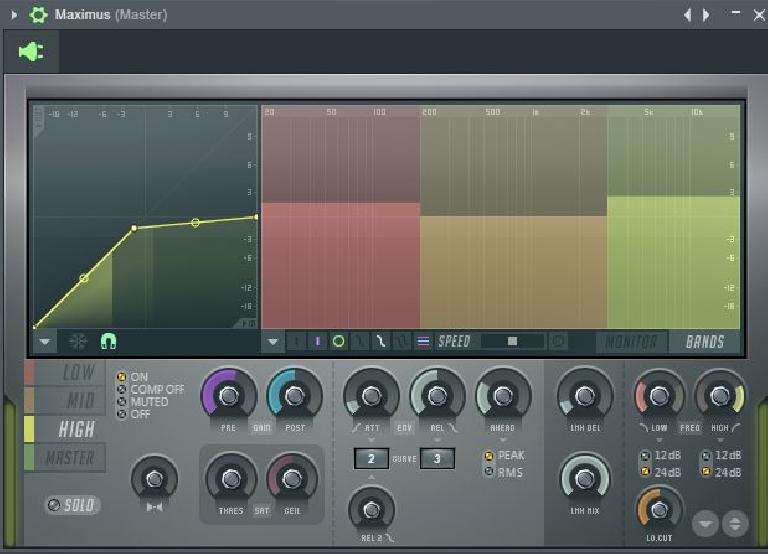
FL Studio offers various third-party plugins that are well-suited for parallel processing, including compressor, EQ, and saturation plugins. These plugins can help to enhance the dynamic range, tonal balance, and warmth of your audio tracks when used in parallel processing chains.

Understanding Parallel Processing in FL Studio: Master Your Mix

Credit: howtomakeelectronicmusic.com

Tips for Effective Parallel Processing

When implementing parallel processing in FL Studio, keep the following tips in mind:

  • Use Your Ears: Pay attention to how the processed signal blends with the dry signal and make adjustments based on what sounds best to you.
  • Start with Moderate Settings: Begin with moderate compression and processing settings before making further adjustments to avoid over-processing the signal.
  • Experiment with Different Effects: Try using different combinations of effects and plugins in parallel processing chains to explore new sounds and textures.

Credit: www.morningdewmedia.com

Frequently Asked Questions Of Understanding Parallel Processing In Fl Studio: Master Your Mix


How Does Parallel Processing Work In Fl Studio?


Parallel processing in FL Studio refers to the technique of splitting audio signals into multiple tracks and processing them separately. This helps to optimize CPU usage and allows for individual control over different aspects of the sound.


What Are The Benefits Of Using Parallel Processing In Fl Studio?


Using parallel processing in FL Studio provides several benefits. It allows for greater control over individual audio elements, helps to achieve a more balanced mix, enhances the sound by adding depth and richness, and improves overall audio quality.


How Can Parallel Processing Improve The Clarity Of My Mix In Fl Studio?


Parallel processing can improve mix clarity in FL Studio by allowing you to apply different effects and processing techniques to specific elements of the mix. This helps to bring out the desired characteristics of each element, reducing muddiness and enhancing overall clarity.


Can Parallel Processing Help In Achieving A Wider Stereo Image In Fl Studio?


Yes, parallel processing can be an efficient way to achieve a wider stereo image in FL Studio. By applying stereo widening techniques on parallel processed tracks, you can create a more spacious and immersive soundstage, enhancing the stereo image of your mix.

Conclusion

Parallel processing is a valuable technique that can significantly enhance the quality and impact of your audio productions in FL Studio. By understanding the concept of parallel processing and learning how to implement it effectively, you can take your music production to the next level and achieve professional-sounding results.

Categories
Archive

Using the Slice to Midi Function in Ableton Live: Mastering Music Production

Are you ready to take your music production to the next level? Ableton Live offers a range of powerful tools that can help you create amazing tracks. One such tool is the Slice to MIDI function, which allows you to slice audio files into smaller sections and convert them into MIDI notes. In this article, we will explore how to use this feature effectively to enhance your music production workflow.

What is the Slice to MIDI Function?

The Slice to MIDI function in Ableton Live is a feature that enables you to convert audio clips into a MIDI sequence. It essentially slices the audio file at transient markers and assigns each slice to a separate MIDI note. This allows you to manipulate and rearrange the audio in various ways, giving you greater flexibility and creative control over your tracks.

How to Use the Slice to MIDI Function

Using the Slice to MIDI function is a straightforward process. Follow these steps to get started:

  1. Drag and drop an audio clip into an audio track in Ableton Live.
  2. Select the audio clip by clicking on it.
  3. In the Clip Detail View, navigate to the Transients section.
  4. Click on the “Slice” button. Ableton Live will analyze the audio clip and place markers at each transient.
  5. Adjust the sensitivity of the slicing by using the Sensitivity knob.
  6. Once you are satisfied with the slicing, click on the “Slice to MIDI” button.
  7. A dialog box will appear, allowing you to choose the desired settings for the sliced MIDI notes.
  8. Click “OK” to confirm and create a new MIDI track with the sliced MIDI notes.

Exploring the Sliced MIDI Notes

Once the audio clip has been converted into sliced MIDI notes, you can now work with them in various ways:

  • Editing: You can edit the individual MIDI notes to fine-tune the timing, pitch, and other parameters.
  • Arrangement: Arrange the sliced MIDI notes in different patterns to create unique musical phrases.
  • Sampling: Use the sliced MIDI notes as a basis for creating new drum kits or melodic samples.
  • Sound Design: Manipulate the sliced MIDI notes using Ableton Live’s powerful MIDI effects and instruments to create interesting sound textures.

Credit: flypaper.soundfly.com

Using the Slice to Midi Function in Ableton Live: Mastering Music Production

Credit: www.ableton.com

Tips for Using the Slice to MIDI Function

Here are some tips to help you make the most out of the Slice to MIDI function:

  • Experiment with different sensitivity levels to achieve the desired slicing accuracy.
  • Use the Warp Markers in Ableton Live to refine the timing of the sliced MIDI notes if necessary.
  • Experiment with different MIDI instruments and effects to add creativity and depth to your sliced MIDI patterns.
  • Combine multiple sliced MIDI clips to create complex rhythm and melodic compositions.
  • Save your sliced presets for future use to speed up your workflow.

In Conclusion

The Slice to MIDI function in Ableton Live is a powerful tool that allows you to extract MIDI information from audio files. It offers endless creative possibilities for manipulating and arranging your tracks. By using this function effectively, you can elevate your music production to new heights. So go ahead, unleash your creativity, and start exploring the incredible capabilities of the Slice to MIDI function in Ableton Live!

Frequently Asked Questions For Using The Slice To Midi Function In Ableton Live: Mastering Music Production


What Is The Slice To Midi Function In Ableton Live?


The Slice to Midi function in Ableton Live is a feature that allows you to slice audio and convert it into a MIDI track, enabling manipulation of the audio in a variety of ways.


How Can I Use The Slice To Midi Function Effectively?


To use the Slice to Midi function effectively, first select the audio clip, then right-click to access the context menu, and choose “Slice to Midi. ” Adjust the slicing parameters to tailor the conversion to your specific needs.


What Are The Benefits Of Using The Slice To Midi Function?


By utilizing the Slice to Midi function, you can easily manipulate audio recordings and loops, creating unique musical patterns and arrangements. It provides creative flexibility and experimentation in music production.


Can The Slice To Midi Function Help With Remixing Music?


Yes, the Slice to Midi function can greatly aid in remixing music as it allows you to extract specific elements from an audio sample and rearrange them in a MIDI track to create a new musical composition.

Categories
Archive

Using Reverb in Fl Studio : Ultimate Tips for Enhanced Sound

Reverb is an essential tool in music production, adding depth, presence, and dimension to sounds. In FL Studio, utilizing reverb can take your tracks to the next level, creating a rich and immersive listening experience for your audience. Let’s delve into the world of reverb and how it can be effectively used in FL Studio to enhance your music.

Understanding Reverb

Reverb is the persistence of sound after the original sound is produced. It simulates the natural acoustic properties of different spaces, from small rooms to expansive concert halls. By applying reverb, you can make your sounds feel like they exist in a physical space, adding a sense of realism and atmosphere to your mix.

Credit: www.amazon.com

Using Reverb in FL Studio

FL Studio offers a range of reverb plugins that cater to various sonic needs. From the classic Fruity Reverb 2 to more advanced third-party plugins, FL Studio provides a versatile toolkit for applying reverb to your tracks.

Best Practices For Applying Reverb

When using reverb in FL Studio, it’s important to consider the following best practices:

  • Experiment with Pre-Delay: Adjusting the pre-delay parameter can influence the perceived distance of the sound source, allowing you to create a sense of spaciousness or intimacy.
  • Set the Decay Time: Tailoring the decay time of the reverb helps in shaping the length of the reverberation, determining how long the reflections persist in the virtual space.
  • Consider EQ-ing the Reverb: Applying EQ to the reverb can help in sculpting the tonal characteristics of the reverberated signal, ensuring it complements the original sound.
  • Experiment with Room Size and Shape: FL Studio’s reverb plugins allow for adjusting the room size and shape, enabling you to mimic a diverse range of acoustic environments.

Credit: www.sweetwater.com

Creating Depth and Space

One of the key benefits of reverb is its ability to create a sense of depth and space in your mix. By applying reverb to various elements, such as vocals, instruments, and drums, you can establish a cohesive and expansive sonic landscape.

Vocal Reverb

When working with vocals in FL Studio, applying reverb can elevate the vocal performance, adding a luscious ambience and sense of airiness. By judiciously blending the dry and wet signals, you can craft a vocal sound that sits beautifully within the mix.

Instrument Reverb

For instruments, such as guitars, pianos, and synths, reverb can be used to imbue them with a sense of space and emotive resonance. By adjusting the reverb parameters, you can tailor the spatial characteristics to suit the specific instrument and musical context.

Drum Reverb

Applying reverb to drums in FL Studio can transform the percussive elements, adding depth and dimension to the rhythm section. Whether it’s a subtle room ambience or a thunderous hall reverb, experimenting with different reverb settings can enhance the impact and texture of your drum tracks.

Enhancing Presence and Atmosphere

In addition to creating depth, reverb can enrich the presence and atmosphere of your music. Whether you’re aiming for a subtle and intimate vibe or a grandiose and ethereal sonic landscape, reverb in FL Studio can help you achieve the desired mood and atmosphere in your productions.

Ambient Soundscapes

Reverb is a powerful tool for crafting lush and expansive ambient soundscapes in FL Studio. By carefully designing the reverb settings, you can transport your listeners to captivating sonic realms, where every sound feels enveloped in a captivating sense of space and atmosphere.

Cinematic Effects

For producers working on film scoring and cinematic music, reverb can be employed to create evocative and cinematic effects. Whether it’s simulating the vast expanse of a desolate landscape or capturing the intimacy of a poignant moment, reverb allows you to infuse your compositions with cinematic grandeur and emotion.

Experimentation and Creativity

Ultimately, the art of using reverb in FL Studio is a journey of experimentation and creativity. Don’t be afraid to push the boundaries and explore unconventional applications of reverb to achieve unique and compelling sonic results. Trust your ears, and let reverb be a tool for sculpting the sonic tapestry of your music.

Frequently Asked Questions Of Using Reverb In Fl Studio : Ultimate Tips For Enhanced Sound


Q: What Is Reverb In Fl Studio?


A: Reverb in Fl Studio is a sound effect that adds depth and spaciousness to audio by simulating the sound reflections in a physical space.


Q: How Do I Add Reverb In Fl Studio?


A: To add reverb in Fl Studio, select the desired track, open the mixer, and insert a reverb plugin. Adjust the parameters to achieve the desired effect.


Q: What Are The Different Types Of Reverb In Fl Studio?


A: Fl Studio offers various types of reverb, including plate, room, hall, and cathedral. Each type offers a different sonic character and ambiance.


Q: Can I Adjust The Reverb Settings In Fl Studio?


A: Yes, in Fl Studio, you can customize the reverb settings such as decay time, pre-delay, diffusion, and damping to tailor the effect to your liking.

Conclusion

Using reverb effectively in FL Studio can transform your music, elevating it to new levels of depth, presence, and atmosphere. Whether you’re crafting intimate vocal ballads, expansive ambient soundscapes, or thunderous cinematic compositions, reverb is your ally in shaping the sonic identity of your creations. Embrace the art of reverb, and let your music resonate with captivating depth and presence.

Categories
Archive

Using the Utility Tool in Ableton Live : Enhance Your Sound Production

When it comes to music production, having the right tools at your disposal can greatly enhance your creative process and enable you to achieve the desired results. One such tool that is often overlooked but highly effective is the Utility tool in Ableton Live. In this article, we will explore the various ways in which this tool can be used to take your music to the next level.

What is the Utility Tool?

The Utility tool is a versatile audio effect device in Ableton Live that provides a range of functions for manipulating sound. It can be accessed from the audio effects section of the software. The tool offers multiple parameters and controls which allow you to modify audio signals in different ways.

Credit: www.ableton.com

Using the Utility Tool for Gain Adjustments

One of the primary functions of the Utility tool is to adjust the gain or volume of audio signals. Whether you want to boost the volume of a track or decrease it to create a dynamic mix, the Utility tool makes it simple. Simply drag and adjust the Gain knob to increase or decrease the volume. The tool also offers a handy volume slider, which allows for precise adjustments.

Frequency Gain
Bass +3dB
Mids +1dB
Treble +2dB

Working with Stereo Width

The Utility tool also offers a powerful feature to control the stereo width of your audio. This allows you to manipulate the placement of sounds in the stereo field, giving you greater control over your mix. You can use the Width knob to adjust the stereo image, either making it wider or narrower as per your requirements.

Mono Compatibility

Ensuring that your mix sounds good in mono is vital, especially for targeting audiences who might be listening on mono playback systems. The Utility tool comes in handy here as well. Simply switch to the Mono mode using the Stereo/Mono button. This will collapse the stereo image into mono, providing a clear representation of how your mix will sound in mono.

Phase Inversion

Another useful feature of the Utility tool is phase inversion. This can help deal with phase cancellation issues that may occur when combining multiple audio sources. By inverting the phase of one source, you can effectively eliminate or minimize any phase cancellation, resulting in a cleaner and more defined sound.

Automation and MIDI Mapping

The Utility tool in Ableton Live can also be automated and MIDI mapped, allowing you to create dynamic changes in real-time. You can automate parameters such as gain and stereo width, providing movement and variation to your mix. MIDI mapping is particularly useful if you want to control the tool’s parameters using external MIDI controllers.

Using the Utility Tool in Ableton Live  : Enhance Your Sound Production

Credit: www.production-expert.com

Frequently Asked Questions For Using The Utility Tool In Ableton Live : Enhance Your Sound Production


What Is The Utility Tool In Ableton Live?


The Utility Tool is a versatile audio effect that provides essential features for adjusting audio signals within Ableton Live.


How Can I Use The Utility Tool In Ableton Live?


You can use the Utility Tool to adjust gain, stereo width, and phase, as well as for mid-side processing and mono bass enhancement.


What Is Gain In The Utility Tool?


Gain in the Utility Tool allows you to increase or decrease the volume of the audio signal, providing precise control over the audio levels.


How Does The Utility Tool Affect Stereo Width?


The Utility Tool can widen or narrow the stereo image of the audio, altering the perception of space and placement within the mix.

Conclusion

The Utility tool in Ableton Live is a versatile tool that offers a range of functions to enhance your music production workflow. From gain adjustments to stereo width control and mono compatibility, using this tool allows you to achieve greater precision and control over your mix. Take advantage of its features and elevate your music to new heights.

Categories
Archive

Using the Simpler in Ableton Live : Mastering Music Production

The Simpler is a powerful tool in Ableton Live that allows producers and musicians to manipulate and create unique sounds. Whether you are a beginner or an advanced user, the Simpler can enhance your music production process. In this article, we will explore the various features and functions of the Simpler and how to use it effectively.

What is the Simpler?

The Simpler is a sampling instrument in Ableton Live that allows you to play and manipulate audio samples. It is a versatile tool that can be used for basic sound manipulation, slicing, chopping, and even creating complex soundscapes. With its user-friendly interface, the Simpler makes it easy for anyone to dive into the world of sampling and sound design.

Features and Functions

Let’s take a closer look at some of the features and functions of the Simpler:

  1. Sample Import: The Simpler allows you to import audio samples of various formats, making it easy to integrate your own sounds into your tracks.
  2. Playback Modes: You can choose from different playback modes such as Classic, One-Shot, Slicing, and more. Each mode offers a unique way of triggering and manipulating your samples.
  3. Looping: The Simpler allows you to loop sections of your samples, enabling you to create repetitive patterns or sustain sounds for longer durations.
  4. Envelope and Filter Controls: You can shape the sound of your samples using the Simpler’s envelope and filter controls. Adjusting parameters such as attack, decay, sustain, release, and resonance can drastically transform your samples.
  5. Pitch and Time Controls: With the Simpler, you have the ability to adjust the pitch and time of your samples, allowing you to create interesting effects and textures.
  6. Modulation: The Simpler offers a range of modulation options to add movement and depth to your samples. You can use LFOs, envelopes, and other modulation sources to modulate parameters such as pitch, filter, and volume.

Credit: www.youtube.com

How to Use the Simpler

Using the Simpler in Ableton Live is a straightforward process. Let’s go through the basic steps:

  1. Drag and drop a sample onto an audio track in Ableton Live.
  2. Select the sample and click on the Simpler instrument in the instrument rack.
  3. Once the Simpler is loaded, you can choose a playback mode that suits your needs.
  4. Adjust the start and end points of the sample using the start and end markers in the waveform display.
  5. Experiment with the various controls such as pitch, filter, envelope, and modulation to shape the sound of your sample.
  6. If you want to slice your sample, activate the Slice mode and adjust the sensitivity and other settings as desired.
  7. After refining the sound, you can further enhance it by adding effects and other audio processing plugins in Ableton Live.

Remember, the Simpler is a versatile tool, and there is no right or wrong way to use it. Be creative and experiment with different settings to discover new sounds and techniques.

Credit: soundbetter.com

Frequently Asked Questions Of Using The Simpler In Ableton Live : Mastering Music Production


What Is The Simpler In Ableton Live?


The Simpler is a versatile sampling instrument in Ableton Live, designed for easy manipulation of audio samples.


How Can I Use The Simpler For Audio Editing?


You can use the Simpler to slice, warp, and loop audio samples, as well as apply various effects for creative audio editing.


What Are The Key Features Of Simpler?


Simpler provides features such as slicing, warping, pitch modulation, and easy integration with Ableton Live’s workflow.


How Does The Simpler Facilitate Music Production?


Simpler streamlines the process of importing and manipulating audio samples, making it an essential tool for music production in Ableton Live.

Conclusion

The Simpler in Ableton Live is a game-changer when it comes to sampling and sound design. Its intuitive interface and powerful features make it an essential tool for any music producer or musician. Whether you are looking to manipulate existing samples or create unique soundscapes, the Simpler has got you covered. Take the time to explore its capabilities and unlock a world of sonic possibilities.

Categories
Archive

Using Compression in Fl Studio: Master Your Tracks!

Compression is a powerful tool in the world of music production. It helps to control the dynamics of audio signals and can drastically improve the overall sound quality of your tracks. FL Studio, one of the most popular digital audio workstations, offers a wide range of compression tools that you can utilize to enhance your music productions. In this article, we will explore the basics of compression and how you can effectively use it in FL Studio to take your music to the next level.

Using Compression in Fl Studio: Master Your Tracks!

Credit: howtomakeelectronicmusic.com

The Basics of Compression

Before diving into the specifics of using compression in FL Studio, it’s essential to understand the basics of compression. In simple terms, compression reduces the dynamic range of an audio signal by attenuating the louder parts, resulting in a more balanced and controlled sound. This is achieved through the use of threshold, ratio, attack, and release parameters.

Threshold And Ratio

The threshold determines the level at which the compression begins to kick in. Any signal above the set threshold will be affected by the compression. The ratio dictates how much the signal above the threshold will be compressed. For example, a 4:1 ratio means that for every 4dB the signal goes over the threshold, only 1dB will be allowed through.

Attack And Release

The attack parameter determines how quickly the compression reacts once the signal crosses the threshold, while the release parameter governs how long the compression persists after the signal drops below the threshold. These parameters play a crucial role in shaping the overall dynamics of the audio signal.

Using Compression in Fl Studio: Master Your Tracks!

Credit: macprovideo.com

Using Compression in FL Studio

FL Studio provides a variety of compression tools, including the Fruity Limiter, Fruity Compressor, and Wave Candy, among others. Let’s take a closer look at how you can effectively use compression in FL Studio to enhance your music productions.

Fruity Limiter

The Fruity Limiter is a versatile tool that offers compression, limiting, and noise gating functionalities. To use compression with the Fruity Limiter in FL Studio, follow these steps:

Step Description
1 Insert the Fruity Limiter on the track you want to compress.
2 Adjust the threshold to set the level at which compression will begin.
3 Set the ratio to control the amount of compression applied to the signal.
4 Tweak the attack and release parameters to fine-tune the compression’s response.

By following these steps, you can effectively use the Fruity Limiter to achieve dynamic control and enhance the sound quality of your tracks in FL Studio.

Fruity Compressor

Another powerful compression tool in FL Studio is the Fruity Compressor. This plugin offers precise control over the compression process and can be used to shape the dynamics of individual sounds or entire mix buses. Here’s how you can use the Fruity Compressor:

  1. Insert the Fruity Compressor on the desired track.
  2. Adjust the threshold to determine the compression level.
  3. Set the ratio to control the amount of compression applied.
  4. Fine-tune the attack and release settings to achieve the desired compression response.

With the Fruity Compressor, you can effectively shape the dynamics of your audio signals and ensure a more balanced and polished sound in your FL Studio productions.

Wave Candy

Wave Candy is a visualization tool in FL Studio that can also be used to understand the effect of compression on audio signals. It provides real-time visual feedback, allowing you to see the changes in the waveform as you apply compression. By using Wave Candy in conjunction with other compression tools, you can gain a better understanding of how compression impacts your audio signals and make more informed decisions when tweaking the compression parameters.

Frequently Asked Questions For Using Compression In Fl Studio: Master Your Tracks!


How Does Compression Work In Fl Studio?


Compression in FL Studio works by reducing the dynamic range of audio signals, controlling the volume levels and enhancing the overall clarity and balance of the mix.


Why Should I Use Compression In Fl Studio?


Using compression in FL Studio helps to bring out the details in your audio, increase the perceived loudness, and create a more professional and polished sound.


What Are The Benefits Of Using Compression In Fl Studio?


Compression in FL Studio provides benefits like improving the overall balance of the mix, reducing harsh peaks, controlling dynamics, and adding a sense of cohesion to the audio.


How Do I Set Up A Compressor In Fl Studio?


To set up a compressor in FL Studio, insert the plugin on the desired audio track, adjust the threshold to control when compression starts, set the ratio to determine the amount of compression, and adjust the attack and release to shape the compression envelope.

Conclusion

Understanding how to use compression effectively is crucial for achieving professional-sounding music productions. With the diverse range of compression tools available in FL Studio, you have the power to shape the dynamics of your audio signals and elevate the overall sound quality of your music. By mastering the art of compression and making use of the versatile tools in FL Studio, you can take your music production skills to new heights and create impactful and polished tracks that stand out in the crowded music industry.

Categories
Archive

Using Distortion in Fl Studio : Mastering Sonic Edge

Distortion is an essential tool in music production. It can add character, grit, and excitement to your tracks. FL Studio, one of the leading digital audio workstations (DAW), provides a wide range of distortion plugins and effects that can help you shape your sound. In this article, we will explore how to effectively use distortion in FL Studio to enhance your music.

1. Understanding Distortion

Distortion occurs when an audio signal exceeds the maximum amplitude available in a system. This leads to the clipping of the waveform, resulting in harmonic overtones and a unique tonal color. Distortion can be applied to various elements in a song, such as drums, guitars, synths, or vocals, to create a desired effect.

Credit: www.sweetwater.com

2. Choosing the Right Distortion Plugin

FL Studio offers a plethora of distortion plugins, each with its own unique characteristics. The choice of plugin depends on the type of sound you want to achieve. Some popular distortion plugins in FL Studio include:

Distortion Plugin Description
Fruity Blood Overdrive Creates a warm, vintage-style distortion effect.
Fruity Fast Dist Provides aggressive and edgy distortion perfect for rock and metal genres.
Fruity Waveshaper Allows precise and customizable waveform shaping.
Fruity WaveShaper+ An advanced version of Fruity Waveshaper with additional features.

3. Using Distortion on Different Elements

Now let’s dive into how you can use distortion on various elements in your FL Studio projects:

A) Drums:

Distorting drum samples can add punch and harmonically rich textures. Experiment with different distortion plugins and settings to find the right balance between excitement and clarity.

B) Guitars:

For guitar recordings, distortion is often used to achieve a crunchy, overdriven tone. Consider using amp simulators and specific guitar-focused distortion plugins for realistic and satisfying guitar sounds.

C) Synths:

Distorting synth sounds can add character and make them stand out in a mix. Experiment with different distortion types, such as wavefolding or saturation, to add warmth or harmonic complexity to your synths.

D) Vocals:

When used tastefully, distortion can add grit and attitude to vocals. Apply a subtle amount of distortion to give your vocals a vintage or gritty edge, or go for more aggressive distortion for a modern and unique vocal effect.

4. Understanding Distortion Parameters

When using distortion plugins in FL Studio, it is essential to understand the various parameters available:

  • Drive: Controls the amount of distortion applied.
  • Tone: Adjusts the tonal characteristics of the distortion effect.
  • Presence: Enhances the upper harmonics and presence of the distorted sound.
  • Mix: Controls the balance between the dry and distorted signals.

Experimenting with these parameters will allow you to fine-tune the distortion effect to suit your specific needs.

Credit: vi-control.net

5. Automation and Modulation

Adding movement and dynamics to your distorted effects can greatly enhance the overall impact. FL Studio provides comprehensive automation and modulation features that allow you to automate distortion parameters over time. This can create interesting and evolving distortion effects throughout your tracks.

Frequently Asked Questions For Using Distortion In Fl Studio : Mastering Sonic Edge


What Is Distortion In Music Production?


Distortion refers to altering the sound’s waveform, adding harmonics, and creating a gritty, edgy tone.


How Can Distortion Enhance Audio In Fl Studio?


Distortion can add warmth, energy, and excitement to audio, creating powerful and dynamic sound.


What Types Of Distortion Effects Are Available In Fl Studio?


FL Studio offers various distortion effects like overdrive, bitcrushing, and fuzz to shape diverse audio characters.


Why Is Distortion Widely Used In Electronic Music Production?


Distortion is popular in electronic music as it adds edge, intensity, and sonic interest to sounds and instruments.

Conclusion

Using distortion in FL Studio is a powerful method to shape and enhance your music. By understanding the basics of distortion, choosing the right plugins, and experimenting with different elements and parameters, you can create unique and captivating sounds for your projects. Remember to utilize automation and modulation to add dynamic movement to your distorted effects. As with any production technique, practice and experimentation are key. So, start exploring the world of distortion and take your music production to the next level!

Categories
Archive

Using the Glue Compressor in Ableton Live: Master Dynamic Beats

When it comes to music production, using the right tools can make all the difference in achieving a professional and polished sound. One such tool that has gained significant popularity among producers is the Glue Compressor in Ableton Live. In this article, we will explore what the Glue Compressor is, how it works, and how you can use it to take your tracks to the next level.

Credit: m.youtube.com

What is the Glue Compressor?

The Glue Compressor is a versatile and powerful dynamics processor that is specifically designed to “glue” together individual tracks or an entire mix. It is based on the legendary SSL bus compressor and provides a characteristic analog-style compression that adds depth, punch, and cohesion to your audio.

How does it work?

At its core, the Glue Compressor works by automatically adjusting the gain of an audio signal, reducing the dynamic range and making the overall sound more consistent. It does this by applying both downward and upward compression simultaneously, resulting in a smooth and transparent sound.

The Glue Compressor features various parameters that allow you to fine-tune the compression to suit your needs. The most essential controls are the Threshold, Ratio, Attack, Release, and Makeup Gain.

Parameter Description
Threshold Determines at what level the compression will be applied. Signals above the threshold will be compressed.
Ratio Controls the amount of compression that will be applied to the signal above the threshold.
Attack Determines how quickly the compression will be applied once the signal crosses the threshold.
Release Determines how quickly the compression will stop once the signal falls below the threshold.
Makeup Gain Allows you to compensate for the volume loss that occurs due to compression.
Using the Glue Compressor in Ableton Live: Master Dynamic Beats

Credit: audioordeal.co.uk

Using the Glue Compressor in Ableton Live

Now that we understand the basics of the Glue Compressor, let’s explore how you can use it in Ableton Live to enhance your tracks.

  1. Start by adding the Glue Compressor to the track or the group you wish to compress.
  2. Set the Threshold to a level where the compression starts to engage. You can use the visual feedback on the meter to guide you.
  3. Adjust the Ratio to control the amount of compression. Higher ratios result in more pronounced compression, while lower ratios provide a more transparent effect.
  4. Fine-tune the Attack and Release settings to shape the dynamics of the track. Experiment with different settings to find the perfect balance between smoothness and punch.
  5. Use the Makeup Gain to compensate for any volume loss caused by the compression.
  6. Lastly, listen critically to your track and make further adjustments as needed. Remember, the Glue Compressor should enhance the sound without compromising its integrity.

With the Glue Compressor, you have the ability to add that extra touch of professionalism to your music. From tightening up drums to gluing together your entire mix, this versatile tool can make your tracks sound cohesive and professional.

Frequently Asked Questions Of Using The Glue Compressor In Ableton Live: Master Dynamic Beats


What Is The Glue Compressor In Ableton Live?


The Glue Compressor in Ableton Live is a versatile tool used for dynamic audio processing.


How Does The Glue Compressor Differ From Other Compressors?


The Glue Compressor is designed to “glue” the mix together, emphasizing cohesiveness and enhancing the overall sound.


What Are The Key Features Of The Glue Compressor In Ableton Live?


Key features of the Glue Compressor include soft clipping, a Dry/Wet control, and an external sidechain input.


How Do I Use The Glue Compressor To Enhance My Mix?


You can use the Glue Compressor to add punch and warmth to a mix, improve the overall dynamic range, and create a more unified sound.

Conclusion

The Glue Compressor in Ableton Live is a powerful tool that allows you to take control of your dynamics and achieve a polished sound. By understanding its parameters and learning how to use it effectively, you can elevate your music production to new heights. So give it a try and experience the magic of the Glue Compressor for yourself.

Categories
Archive

Master the Beat: Unleashing the Potential of the Warp Function in Ableton Live

Are you a music producer looking to take your tracks to the next level? One of the most powerful tools in Ableton Live that can help you achieve this is the Warp function. The Warp function allows you to manipulate the tempo and timing of audio clips, giving you the flexibility to experiment and create unique sounds.

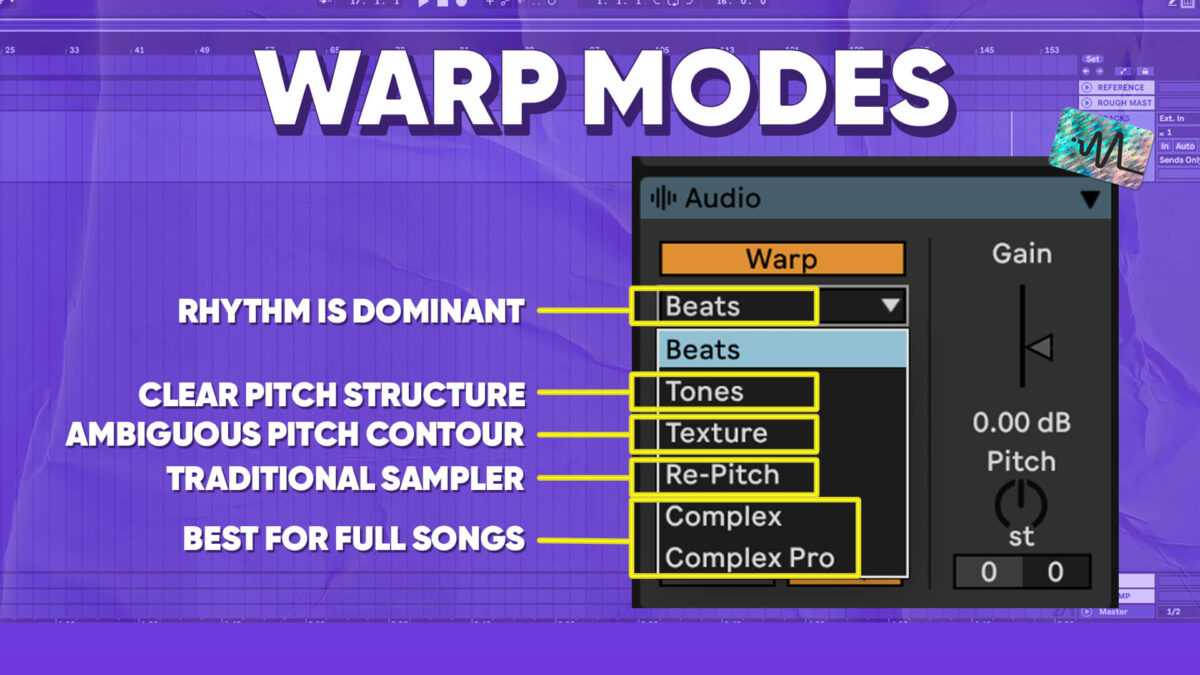
Understanding Warp Modes

Before diving into how to use the Warp function, it’s important to understand the different Warp modes available in Ableton Live. There are several Warp modes to choose from, each with its own characteristics:

Warp Mode Description
Beats Great for rhythmic material such as drums and percussion.
Tones Ideal for melodic material like vocals and synths.
Texture Perfect for complex audio textures and soundscapes.

Credit: m.youtube.com

Using the Warp Function

Now that you’re familiar with the Warp modes, let’s explore how to use the Warp function in Ableton Live:

  1. Select the audio clip you want to Warp in the Arrangement View.
  2. Right-click on the audio clip and choose “Warp” from the dropdown menu.
  3. Choose the desired Warp mode based on the characteristics of your audio clip.
  4. Adjust the Warp markers to manipulate the timing and tempo of the audio.
  5. Experiment with different Warp modes and settings to create unique sounds.

Tips for Warp Function

Here are some tips to make the most out of the Warp function in Ableton Live:

  • Use Warp markers to align audio transients for precise timing adjustments.
  • Try using the Complex Pro Warp mode for high-quality time-stretching of audio clips.
  • Automate Warp settings to create dynamic and evolving sounds throughout your track.
Master the Beat: Unleashing the Potential of the Warp Function in Ableton Live

Credit: distinctmastering.com

Final Thoughts

The Warp function in Ableton Live is a powerful tool that can help you unlock new creative possibilities in your music production. By understanding the different Warp modes and following these tips, you can take your tracks to new heights and explore innovative ways to manipulate audio. Experiment, have fun, and let the Warp function propel your music to the next level!

Frequently Asked Questions On Master The Beat: Unleashing The Potential Of The Warp Function In Ableton Live


What Is The Warp Function In Ableton Live?


The Warp function in Ableton Live allows you to change the tempo and timing of audio clips.


How Can I Use The Warp Function In Ableton Live?


You can use the Warp function in Ableton Live by activating the Warp switch in the clip view and adjusting the markers.


Why Is The Warp Function Important In Music Production?


The Warp function is crucial in music production as it enables aligning audio clips to different tempos and creating seamless transitions.


What Are The Benefits Of Using The Warp Function In Ableton Live?


Using the Warp function in Ableton Live offers the advantage of matching audio clips to the project tempo and experimenting with creative time-stretching techniques.

For more background, see Ableton Live on Wikipedia. You may also like our guide: How To Warp Or Cut A Track In Ableton Live.