Categories
Archive

Using the Eq Eight in Ableton Live: Mastering Audio Essentials

If you are a music producer or sound engineer, you probably know how important it is to have a good equalizer to shape the frequencies in your tracks. In Ableton Live, one of the most powerful and versatile equalizers is the Eq Eight. In this article, we will explore how to effectively use this tool to enhance your music.

Understanding the Eq Eight

The Eq Eight is a native Ableton Live device that enables you to control and adjust the frequency content of your audio. It consists of eight bands, each representing a different frequency range, and offers a variety of features to shape the sound to your liking.

Here are some key features of the Eq Eight:

  • Frequency Bands: The Eq Eight has eight frequency bands, starting from the low end (20 Hz) to the high end (20 kHz). Each band can be independently adjusted to boost or attenuate specific frequencies.
  • Gain Control: You have control over the gain (volume) of each frequency band. This allows you to increase or decrease the level of specific frequencies in your audio.
  • Q Control: The Q control determines the width of the frequency band affected by the gain adjustment. A narrower Q value focuses on a smaller range of frequencies, while a wider Q value affects a broader range.
  • Filter Types: The Eq Eight offers different filter types, including low-pass, high-pass, band-pass, and notch filters. These filters allow you to sculpt your audio by selectively filtering out unwanted frequencies.
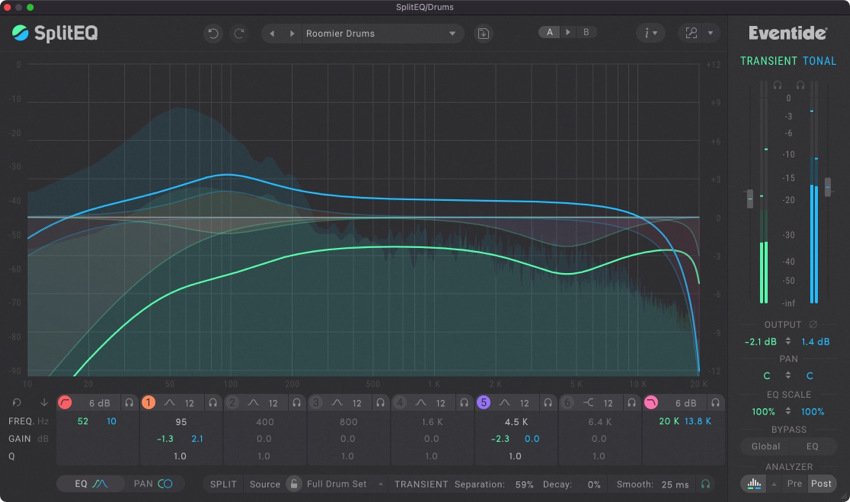
Using the Eq Eight in Ableton Live: Mastering Audio Essentials

Credit: www.production-expert.com

Using the Eq Eight Effectively

Now, let’s dive into some practical tips on how to effectively use the Eq Eight in your productions:

1. Frequency Analysis

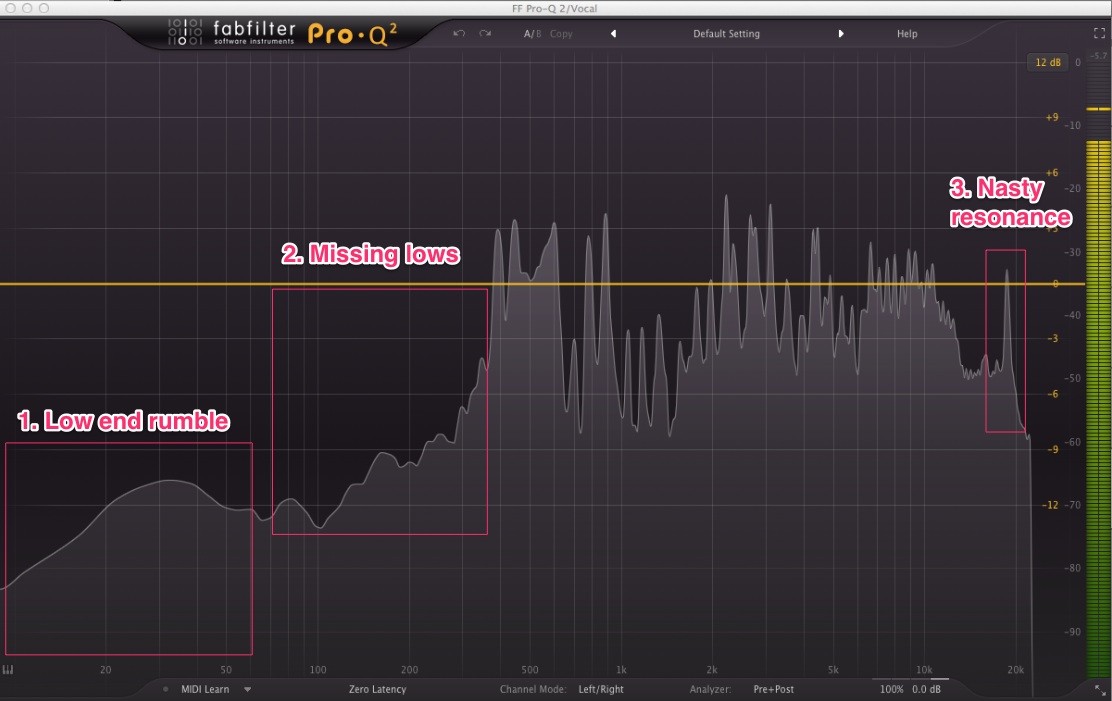
Before making any adjustments, it’s helpful to analyze the frequency content of the audio you are working with. You can use Ableton Live’s built-in Spectrum analyzer or third-party tools to identify any problematic frequencies or areas that need enhancement.

2. Corrective Equalization

If you notice any frequency imbalances or unwanted resonances in your audio, you can use the Eq Eight to correct them. For example, if a specific frequency is too dominant, you can attenuate it by reducing the gain in the corresponding frequency band.

3. Enhance The Mix

The Eq Eight can also be used to enhance the overall mix of your track. By gently boosting certain frequency ranges, you can add warmth, clarity, or presence to your audio. However, be cautious not to overdo the boosts, as it can result in an unbalanced mix.

4. Creative Sound Design

Experimenting with the Eq Eight’s filters and frequency adjustments can lead to creative sound design possibilities. By applying drastic EQ changes, such as using a notch filter to create a unique vocal effect or applying a high-pass filter to remove low-end rumble, you can add character and uniqueness to your audio.

5. Automation

The Eq Eight’s parameters, including frequency bands, gain controls, and filter types, can be automated over time. This allows for dynamic changes throughout your track, adding movement and interest to specific sections or individual elements.
Using the Eq Eight in Ableton Live: Mastering Audio Essentials

Credit: blog.native-instruments.com

Frequently Asked Questions Of Using The Eq Eight In Ableton Live: Mastering Audio Essentials


What Is The Eq Eight Used For?


The Eq Eight is used for precise and versatile equalization in music production.


How To Access The Eq Eight In Ableton Live?


To access the Eq Eight in Ableton Live, simply add it as an audio effect to a track.


What Are The Main Features Of Eq Eight?


The Eq Eight features eight parametric filters, various filter types, spectrum analyzer, and EQ curves.


How Does Eq Eight Improve Sound Quality?


Eq Eight helps in shaping the audio by adjusting the frequency content to achieve better balance and clarity.

Conclusion

The Eq Eight is an essential tool for any music producer or sound engineer working in Ableton Live. By understanding its various features and applying them effectively, you can shape the frequencies in your tracks to achieve a professional and polished sound. Remember to analyze, correct, enhance, experiment, and automate to maximize the potential of the Eq Eight in your productions.

Categories
Archive

Understanding MIDI in Ableton Live : Mastering Tips

When it comes to music production and performance, MIDI (Musical Instrument Digital Interface) is a crucial component that has revolutionized the way musicians create and manipulate sound. In this comprehensive guide, we will explore MIDI and its application in Ableton Live.

What is MIDI?

MIDI is a protocol that allows electronic musical instruments, computers, and other devices to communicate and control each other. It works by transmitting and receiving musical information as digital data.

MIDI data consists of messages that represent different aspects of music, such as notes, dynamics, timing, and control parameters. These messages can be generated by MIDI controllers, synthesizers, drum machines, and various other MIDI-compatible devices.

Understanding MIDI in Ableton Live  : Mastering Tips

Credit: splice.com

Credit: www.facebook.com

MIDI in Ableton Live

Ableton Live is a popular digital audio workstation (DAW) that offers extensive MIDI functionality. It allows users to record, edit, and manipulate MIDI data to create complex musical compositions.

Midi Instruments And Devices

Ableton Live supports virtual and external MIDI instruments. Virtual instruments are software-based synthesizers, samplers, and drum machines that can be controlled and played using MIDI. External MIDI instruments are hardware devices that generate sound based on MIDI input.

Midi Clips

In Ableton Live, MIDI data is organized into clips. A MIDI clip contains a sequence of MIDI notes, along with other musical information, such as velocity, pitch, and duration. These clips can be arranged and triggered within Ableton Live’s timeline, allowing for the creation of intricate musical arrangements.

Midi Effects

Ableton Live provides a wide range of MIDI effects that can be applied to MIDI clips. These effects include arpeggiators, chord generators, scale adjusters, and more. MIDI effects can add depth, complexity, and variation to MIDI sequences, enhancing the overall musical experience.

Working with MIDI in Ableton Live

Now that we have an understanding of MIDI and its role in Ableton Live, let’s explore some practical uses and techniques for working with MIDI:

Recording Midi

Ableton Live allows users to record MIDI data in real-time using MIDI controllers. Simply connect your MIDI controller to your computer, select the appropriate MIDI input in Ableton Live’s preferences, and hit the record button. You can then play your MIDI instrument and the recorded MIDI data will be captured and displayed as a MIDI clip.

Editing Midi

Ableton Live provides powerful MIDI editing capabilities. You can adjust note lengths, velocities, and positions, quantize MIDI notes to improve timing, and even transpose entire MIDI sequences. This flexibility allows for precise control over MIDI data and enables you to fine-tune your musical compositions.

Midi Mapping

Ableton Live allows users to map MIDI controls to various parameters within the software. This means you can use your MIDI controller to manipulate various aspects of your Live set, such as adjusting volume levels, tweaking effects parameters, and triggering MIDI clips. MIDI mapping provides a hands-on approach to controlling Ableton Live, enhancing your workflow and performance capabilities.

Tips for Using MIDI in Ableton Live

To make the most of MIDI in Ableton Live, consider the following tips:

  • Experiment with different MIDI instruments and devices to discover unique sounds and textures.
  • Explore the extensive range of MIDI effects available in Ableton Live to add depth and creativity to your compositions.
  • Take advantage of MIDI mapping to customize your MIDI controller and create a personalized performance setup.
  • Utilize MIDI clips to create dynamic and evolving musical arrangements.
  • Learn keyboard shortcuts and workflows within Ableton Live to speed up your MIDI production process.
  • Experiment with MIDI editing techniques to add flair and expression to your MIDI sequences.

By understanding MIDI and harnessing its power within Ableton Live, you can unlock endless possibilities for musical expression and creativity. With practice and experimentation, MIDI can become a powerful tool in your music production toolkit.

Frequently Asked Questions On Understanding Midi In Ableton Live : Mastering Tips


What Is Midi And How Does It Work?


MIDI (Musical Instrument Digital Interface) is a protocol that allows electronic musical instruments, computers, and other devices to communicate with each other. It transmits performance data such as note information, control signals, and clock signals.


How Can I Use Midi In Ableton Live?


In Ableton Live, you can use MIDI to control virtual instruments, sequence musical performances, and manipulate sound parameters. MIDI allows for creative expression and control within the software.


What Are The Advantages Of Using Midi In Music Production?


Using MIDI in music production enables flexible editing of musical performances, integration of diverse hardware and software, and precise control over musical elements. It also simplifies the process of recording and arranging music.


Can I Connect External Midi Devices To Ableton Live?


Yes, Ableton Live allows you to connect external MIDI devices such as keyboards, drum machines, and controllers to integrate hardware instruments and expand your creative capabilities within the software.

Categories
Archive

Using Stereo Imaging in Ableton Live : Enhance Your Mix

Stereo imaging is an essential tool in music production, enabling producers and engineers to create a wide and immersive soundstage. In Ableton Live, you can easily manipulate the stereo image of your tracks to enhance the spatial depth and width of your mix. In this article, we will explore various ways to utilize stereo imaging techniques in Ableton Live.

1. Panning

Panning is the most basic and widely used technique for stereo imaging. It involves placing audio elements at different positions within the stereo field. Ableton Live offers precise panning controls on each track, allowing you to position sounds anywhere from left to right. By careful panning, you can create an enhanced sense of space and separation in your mix.

Using Stereo Imaging in Ableton Live  : Enhance Your Mix

Credit: www.teammbl.com

2. Stereo Widening

Stereo wideners are plugins that can expand the stereo image of a sound beyond its original width. Ableton Live provides various stereo widening plugins, allowing you to increase the perceived width of your audio. These plugins work by manipulating the phase relationship between the left and right channels, resulting in a wider soundstage.

When using stereo wideners, be mindful not to overdo it as it can lead to phase cancellation and cause your mix to sound unnatural or lose its mono compatibility. Use them subtly to enhance your mix rather than radically transforming it.

3. Mid-Side Processing

Mid-Side (M/S) processing is a powerful technique that enables you to separately process the mono (mid) and stereo (side) components of an audio signal. In Ableton Live, you can utilize M/S processing techniques using the utility plugin and EQ Eight.

To apply M/S processing, start by duplicating your audio track. On one track, apply a utility plugin and set the width to 0%, effectively collapsing the audio to mono. On the other track, adjust the width to 200%, emphasizing the stereo aspects. Now you can process each track differently, focusing on the mono elements for clarity and the stereo elements for width and depth.

4. Haas Effect

The Haas effect, also known as the precedence effect, is a psychoacoustic phenomenon that allows you to create the perception of stereo width by introducing a small delay between the left and right channels. In Ableton Live, you can easily achieve this effect by using a delay plugin.

To apply the Haas effect, insert a delay plugin on the desired track and set the delay time between 10-30 milliseconds on one channel. Ensure that the delayed channel is panned to the opposite side of the original sound. This delay time is short enough to avoid being perceived as a separate echo, but sufficient to generate a spacious stereo image.

Using Stereo Imaging in Ableton Live  : Enhance Your Mix

Credit: www.waves.com

5. Frequency-Based Stereo Enhancement

Another effective technique for stereo imaging is frequency-based stereo enhancement. By selectively widening specific frequency bands, you can add depth and spatial separation to different elements of your mix. Ableton Live offers EQ Eight, which can be used for this purpose.

To apply frequency-based stereo enhancement, open an instance of EQ Eight on the desired track. Enable EQ Eight’s M/S mode by clicking on the “M/S” button, allowing you to adjust the stereo width independently for different frequency bands. By widening the higher frequency bands, such as vocals or cymbals, you can create a sense of spaciousness while keeping the lower frequencies centered for a solid foundation.

Frequently Asked Questions Of Using Stereo Imaging In Ableton Live : Enhance Your Mix


What Is Stereo Imaging In Ableton Live?


Stereo imaging in Ableton Live involves manipulating the stereo field to create a sense of width in the mix.


Why Is Stereo Imaging Important In Music Production?


Stereo imaging enhances the spatial perception of sound, making the mix more immersive and enjoyable for the listeners.


How Can I Improve Stereo Imaging In Ableton Live?


You can improve stereo imaging in Ableton Live by using stereo widening plugins, panning instruments effectively, and using spatial effects like reverb and delay.


What Are Some Common Mistakes To Avoid In Stereo Imaging?


Common mistakes to avoid in stereo imaging include excessive stereo widening, neglecting mono compatibility, and overusing panning.

Conclusion

Stereo imaging is a valuable tool in music production, allowing you to create a captivating and immersive listening experience. In Ableton Live, the panning controls, stereo wideners, mid-side processing, the Haas effect, and frequency-based stereo enhancement techniques provide you with a wide range of options to experiment with.

Remember to use stereo imaging techniques judiciously, always considering the context and intention of your mix. Experiment with different combinations of techniques and find what works best for your tracks. By mastering stereo imaging in Ableton Live, you can take your mixes to a whole new level of sonic excellence.

Categories
Archive

Using Effects in Ableton Live : Mastering the Essential Audio Tools

Ableton Live is a powerful digital audio workstation that offers a wide range of effects to enhance your sounds and take your music production to the next level. Whether you’re a beginner or an experienced producer, understanding and utilizing effects can greatly influence the quality and creativity of your music.

1. Understanding Effects

Effects are audio processing tools that shape and modify sound. In Ableton Live, effects can be applied to individual tracks or the entire mix. They can be used to add depth, create ambiance, enhance dynamics, or completely transform sounds.

Types Of Effects:

  • Dynamic Effects: Compressors, limiters, and gates that control volume and dynamics.
  • Time-based Effects: Reverbs, delays, and echoes that add space and ambiance.
  • Modulation Effects: Chorus, flanger, and phaser that create movement and texture.
  • Filtering Effects: EQs, filters, and wah-wah pedals that sculpt the frequency spectrum.
  • Distortion and Saturation Effects: Overdrives, saturators, and amp simulators that add grit and character.

2. Applying Effects in Ableton Live

Ableton Live provides a user-friendly interface for applying and manipulating effects. Here are the steps to follow:

  1. Open Ableton Live and select the track where you want to apply the effect.
  2. Click on the “Audio Effects” tab in the browser window to access the effects library.
  3. Drag and drop the desired effect onto the track.
  4. Adjust the effect parameters to achieve the desired sound.
  5. Experiment with different effects and their settings to explore creative possibilities.

3. Using Effects Creatively

While effects can be used to fix certain audio problems, they are also great tools for unleashing your creativity. Here are a few tips:

  • Automation: Utilize automation to create dynamic changes in effect parameters over time.
  • Layering Effects: Stack multiple effects to create complex and unique sounds.
  • Parallel Processing: Blend the original sound with an effect-processed copy to add depth and dimension.
  • External Hardware: Explore connecting external effects processors for a more hands-on approach.
  • Presets and Templates: Save your favorite effect settings as presets or create templates for quick and consistent results.

4. Performance Effects

Ableton Live offers real-time performance effects that can be controlled using MIDI controllers or automation. These effects can add excitement and interactivity to your live performances or recordings. Some popular performance effects in Ableton Live include beat repeat, arpeggiator, and grain delay.

Using Effects in Ableton Live  : Mastering the Essential Audio Tools

Credit: www.avid.com

Credit: www.amazon.com

5. Mixing and Mastering Effects

When it comes to mixing and mastering, Ableton Live provides a variety of effects specifically designed for these stages. EQ, compression, stereo imaging, and mastering tools are essential for achieving a polished and professional sound.

Final Words

Understanding the fundamentals of effects and their application in Ableton Live will enable you to take full advantage of this powerful software. Experiment, explore, and let your creativity soar as you utilize effects to shape and transform your music.

Frequently Asked Questions On Using Effects In Ableton Live : Mastering The Essential Audio Tools


What Are The Different Types Of Effects In Ableton Live?


Ableton Live offers a wide range of effects including delay, reverb, EQ, compression, and more to enhance your audio.


How Can I Add Effects To A Track In Ableton Live?


To add effects to a track in Ableton Live, simply drag and drop the desired effect from the browser onto the track.


Is It Possible To Automate Effects In Ableton Live?


Yes, you can easily automate effects in Ableton Live by using automation lanes in the arrangement view.


Can I Use Third-party Effects Plugins In Ableton Live?


Absolutely! Ableton Live supports third-party effects plugins, giving you access to a vast array of additional creative tools.

Categories
Archive

Using the Sampler in Ableton Live : Master Sampling Techniques

Ableton Live is a powerful digital audio workstation that offers a wide range of tools and features for music production. One of the most essential tools in Live is the Sampler. The Sampler is a versatile instrument that allows you to manipulate and play back audio samples.

Credit: www.amazon.com

Getting Started with the Sampler

To access the Sampler in Ableton Live, simply drag and drop a sample onto a MIDI track. Once the sample is loaded into the Sampler, you can start exploring its various parameters and functions.

Adjusting Playback Parameters

The Sampler provides you with the ability to adjust playback parameters such as start and end points, looping, and the pitch of the sample. This allows you to manipulate and shape the sound to fit your project’s needs.

You can also apply various modulation and effects to the sample, such as filters, LFOs, and envelopes. This adds depth and character to your sample and helps you create unique and interesting sounds.

Mapping Samples to MIDI

One of the most exciting features of the Sampler is its ability to map samples to different MIDI notes. This allows you to create melodic patterns and play the sample like a traditional instrument.

To map a sample to a MIDI note, simply click on the “Zone” tab in the Sampler’s interface and select the desired range of notes. You can also adjust the root note and fine-tune the pitch to match your desired key.

Using Sampler In Live Performance

The Sampler is not only useful in the studio, but it can also enhance your live performances. With the Sampler, you can trigger samples and create on-the-fly remixes, adding an extra layer of creativity and improvisation to your live sets.

To integrate the Sampler into your live performance, you can assign specific samples to a MIDI controller, allowing you to trigger them with the press of a button or the strike of a pad. This gives you immediate control over your samples and allows you to manipulate them in real-time.

Credit: m.youtube.com

Tips and Tricks

Here are some additional tips and tricks to optimize your experience with the Sampler:

  • Experiment with different sample manipulation techniques, such as reversing, time-stretching, and slicing.
  • Use the Sampler’s built-in automation features to create dynamic and evolving sounds.
  • Explore the vast library of pre-made sampler instruments and loops available online.
  • Combine multiple instances of the Sampler to create complex and layered textures.

Final Thoughts

The Sampler in Ableton Live is an incredibly powerful tool that opens up endless possibilities for audio manipulation and creative expression. Whether you’re a producer, performer, or sound designer, the Sampler is an essential part of your musical toolkit. With its intuitive interface and extensive feature set, the Sampler allows you to take your music to new heights.

Frequently Asked Questions On Using The Sampler In Ableton Live : Master Sampling Techniques


How Can I Use The Sampler In Ableton Live?


To use the Sampler in Ableton Live, drag and drop a sample onto the Sampler instrument and start creating music.


What Are The Key Features Of The Sampler In Ableton Live?


The Sampler in Ableton Live offers advanced sound manipulation, sample slicing, multisample support, and powerful modulation capabilities.


What Are Some Creative Ways To Use The Sampler In Ableton Live?


You can use the Sampler to create unique textures, manipulate vocals, experiment with time-stretching, and design complex soundscapes.


Can I Import My Own Samples Into The Sampler In Ableton Live?


Yes, you can import your own samples and use the Sampler’s powerful tools to tailor and sculpt them into your desired sonic creations.

Categories
Archive

Understanding the Different Types of Synthesizers in Ableton Live: Master Your Music Creation

When it comes to music production, one of the most versatile tools you can have in your arsenal is a synthesizer. Synthesizers allow you to create a wide range of sounds and textures, making them extremely popular among producers and musicians alike.

If you’re an Ableton Live user, you have access to a variety of synthesizers that come bundled with the software. Each synthesizer has its own unique characteristics and features, which can make choosing the right one a bit overwhelming, especially for beginners.

Understanding the Different Types of Synthesizers in Ableton Live: Master Your Music Creation

Credit: samplefocus.com

1. Analog Synthesizers

Analog synthesizers are designed to replicate the sound generation methods of early electronic musical instruments. They use analog circuits and components to create and shape sounds. Ableton Live offers several analog synthesizers, such as Analog and Operator.

Analog: Analog is a powerful subtractive synthesizer that emulates the characteristics of vintage analog hardware. It features two oscillators, a multimode filter, and various modulation options.

Operator: Operator is a frequency modulation (FM) synthesizer that allows you to create complex and evolving sounds. It offers four oscillators and a vast array of modulation possibilities.

2. Wavetable Synthesizers

Wavetable synthesizers are a modern type of synthesizer that use wavetables as their sound source. Wavetables contain a collection of pre-recorded waveforms that can be manipulated in real-time. In Ableton Live, you have two popular wavetable synthesizers: Wavetable and Serum.

Wavetable: Wavetable is a versatile synthesizer that lets you create evolving and complex sounds using its extensive wavetable library. It offers powerful modulation capabilities and an intuitive interface.

Serum: Serum is a third-party wavetable synthesizer that has gained immense popularity among producers. It features a wide range of wavetables and a comprehensive set of modulation options, making it a favorite for sound designers.

3. FM Synthesizers

FM synthesizers use frequency modulation to generate sounds. They are known for their ability to create bright and metallic tones and are widely used in genres like electronic and pop music. Ableton Live includes a notable FM synthesizer called FM8.

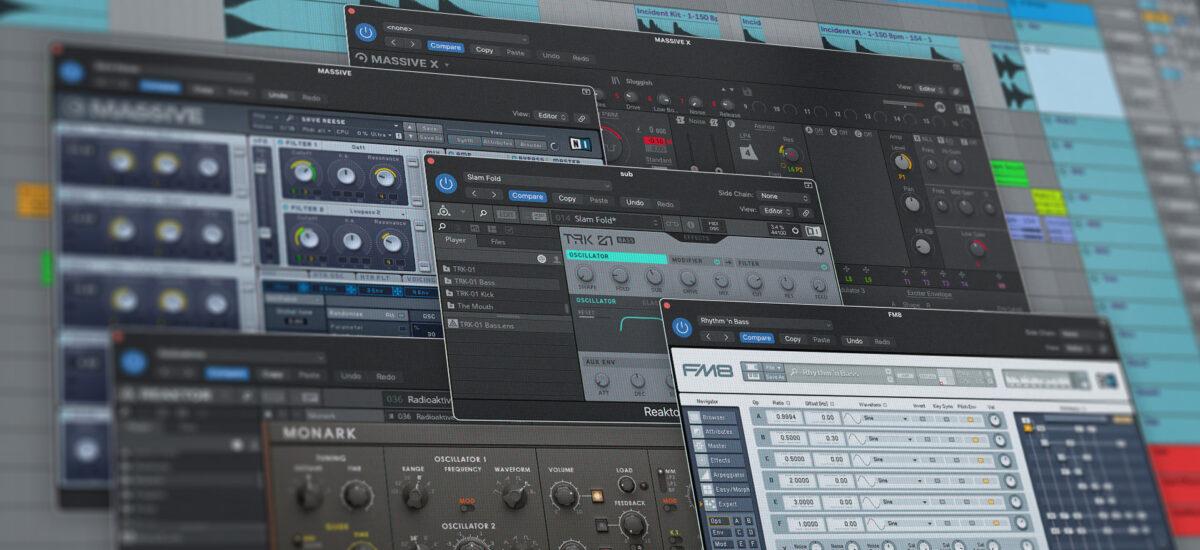
FM8: FM8 is a software synthesizer developed by Native Instruments. It offers powerful FM synthesis capabilities, a flexible modulation system, and an extensive library of presets. It is highly regarded for its ability to create rich and complex sounds.

Understanding the Different Types of Synthesizers in Ableton Live: Master Your Music Creation

Credit: blog.native-instruments.com

4. Physical Modeling Synthesizers

Physical modeling synthesizers simulate the behavior of acoustic instruments and allow you to create realistic emulations of pianos, strings, and other acoustic sounds. Ableton Live provides a unique physical modeling synthesizer known as Collision.

Collision: Collision uses algorithms to recreate the resonant properties of objects colliding, giving you the ability to generate an array of percussive and tonal sounds. It is perfect for producing realistic percussion and plucked instrument sounds.

5. Sampler and Simpler

Although Sampler and Simpler are not traditional synthesizers, they are powerful tools for sample-based sound design in Ableton Live.

Sampler: Sampler is a professional-grade sampling instrument that lets you manipulate and manipulate samples in numerous ways. It offers advanced mapping and modulation options, making it a favorite among sample-based music producers.

Simpler: Simpler is a streamlined version of Sampler, offering a more straightforward interface for quickly loading and manipulating samples. It is perfect for anyone looking to dive into sample-based production with ease.

By understanding the different types of synthesizers in Ableton Live, you can unlock an infinite world of sound possibilities. Whether you’re a beginner or an experienced producer, each synthesizer offers unique features that can help you craft your sonic landscapes. Experiment with different synthesizers and let your creativity soar!

Frequently Asked Questions For Understanding The Different Types Of Synthesizers In Ableton Live: Master Your Music Creation


What Are The Main Types Of Synthesizers Used In Ableton Live?


The main types of synthesizers used in Ableton Live are analog, digital, and software synthesizers. Each type has its own unique characteristics and sound capabilities.


How Does An Analog Synthesizer Differ From A Digital Synthesizer?


Analog synthesizers generate sound using electronic circuitry and are known for their warm and organic sound. On the other hand, digital synthesizers use digital signal processing to create and manipulate sounds, offering a wide range of sonic possibilities.


What Are The Advantages Of Using Software Synthesizers In Ableton Live?


Software synthesizers in Ableton Live offer a convenient, portable, and versatile solution for music production. They also provide a wide variety of sound options, easy integration with other software, and the ability to save and recall presets.


Can I Use Both Hardware And Software Synthesizers In Ableton Live?


Yes, Ableton Live allows seamless integration of both hardware and software synthesizers, providing users with the flexibility to combine different sonic textures and timbres in their music production.

Categories
Archive

Using the Spectrum Analyzer in Ableton Live : Mastering Audio Analysis

Are you an aspiring music producer or DJ looking to take your skills to the next level? If so, then you’re probably familiar with Ableton Live, one of the most popular digital audio workstations (DAWs) used in the industry today. One of the powerful tools available in Ableton Live is the Spectrum Analyzer, which can greatly assist you in analyzing and visualizing audio signals in real-time.

The Spectrum Analyzer is an essential tool for audio engineers, producers, and DJs as it provides a comprehensive and detailed view of the frequency content of a sound. It allows you to identify the various components of a sound, such as its low, mid, and high frequencies, and assess its overall tonal balance. With the Spectrum Analyzer, you can make informed decisions about EQ adjustments, identify problematic frequencies, and enhance the overall mix.

Using the Spectrum Analyzer in Ableton Live  : Mastering Audio Analysis

Credit: resoundsound.com

Getting Started with the Spectrum Analyzer in Ableton Live

To use the Spectrum Analyzer in Ableton Live, follow these simple steps:

  1. Open Ableton Live and select a track you wish to analyze.
  2. Click on the “Devices” tab in the browser located on the left-hand side of the screen.
  3. Navigate to “Audio Effects” and then select “Spectrum”.
  4. Drag and drop the Spectrum device onto the desired audio track.
  5. Once the Spectrum Analyzer is added, you will see a real-time visual representation of the audio signal.
  6. Explore the various parameters and settings available in the Spectrum Analyzer to customize your analysis.

Understanding the Spectrum Analyzer Display

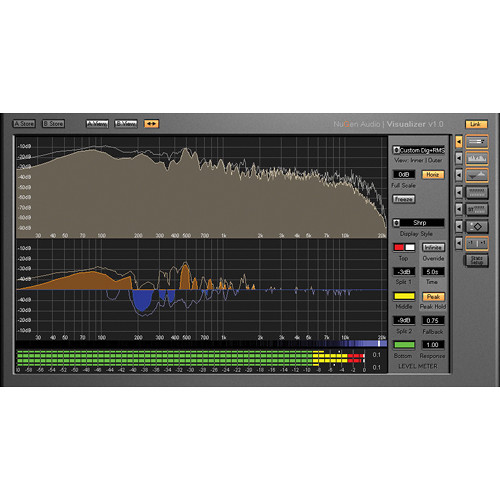
The Spectrum Analyzer display consists of a graph with the frequency range on the x-axis and the amplitude or energy level on the y-axis. The spectrum is usually represented using different colors to differentiate between different frequency bands. For example, low frequencies might be represented as blue, mid frequencies as green, and high frequencies as red.

By observing the spectrum display, you can identify the dominant frequencies in a sound, detect resonant peaks or notches, and pinpoint areas where certain frequencies may need adjustment. Analyzing the spectrum can help you identify frequency clashes between different elements of your mix and make precise EQ decisions.

Advanced Features and Tips for Using the Spectrum Analyzer

Beyond the basic functionality of the Spectrum Analyzer, Ableton Live offers several advanced features to enhance your analysis capabilities. Here are a few tips to make the most out of this powerful tool:

  • Adjust the FFT Size: The FFT (Fast Fourier Transform) Size determines the resolution of the spectrum analysis. A smaller FFT Size provides a broad overview, while a larger FFT Size offers more detailed information.
  • Change Display Modes: Experiment with different display modes such as Bar, Dot, or Line to suit your preference and improve visibility.
  • Use Freeze Mode: The Freeze button allows you to freeze the spectrum display, allowing you to closely examine certain sections of the audio signal.
  • Compare Spectrums: Enable the “Delta” function to compare the spectrum of the selected track with another track in your mix. This can be helpful in identifying frequency imbalances between different audio sources.
  • Utilize EQ Eight Integration: Ableton Live’s built-in EQ Eight can be linked to the Spectrum Analyzer to make precision EQ adjustments directly from the analyzer display.
Using the Spectrum Analyzer in Ableton Live  : Mastering Audio Analysis

Credit: www.bhphotovideo.com

Why the Spectrum Analyzer is a Must-Have Tool

Integrating the Spectrum Analyzer into your workflow can significantly improve your mixing and mastering process. By visually understanding the frequency content of your audio, you can make more informed decisions and achieve a more balanced and professional sound quality in your mixes.

Whether you are a beginner or an experienced music producer, the Spectrum Analyzer in Ableton Live offers an intuitive and powerful way to analyze audio signals. Take advantage of this tool to enhance your creativity and improve the overall quality of your music productions.

Now that you have a better understanding of how to use the Spectrum Analyzer in Ableton Live, you can start exploring its capabilities and incorporating it into your production workflow. Analyze, adjust, and elevate your music with the help of this invaluable tool.

Frequently Asked Questions Of Using The Spectrum Analyzer In Ableton Live : Mastering Audio Analysis


What Is The Spectrum Analyzer In Ableton Live?


The Spectrum Analyzer in Ableton Live is a visualization tool for analyzing the frequency content of audio signals.


How Can I Use The Spectrum Analyzer For Mixing?


You can use the Spectrum Analyzer in Ableton Live to identify and adjust the frequency balance of your mix.


Is The Spectrum Analyzer Helpful For Sound Design?


Yes, the Spectrum Analyzer in Ableton Live can be very useful for visualizing and understanding the frequency characteristics of sound.


What Are The Key Features Of The Spectrum Analyzer?


The Spectrum Analyzer in Ableton Live offers real-time frequency analysis, customizable settings, and easy integration within the software.

Categories
Archive

Understanding the Ableton Live Interface: Mastering Tips and Tricks

Ableton Live is a powerful digital audio workstation (DAW) that offers a wide range of creative possibilities for musicians, producers, and DJs. To fully harness its potential, it is essential to have a solid understanding of the Ableton Live interface. In this article, we will explore the various components of the interface and how they work together to create music.

The Arrangement View

The Arrangement View is the main workspace in Ableton Live, where you arrange and edit your music. It consists of vertical tracks that represent different elements of your composition, such as instruments, vocals, and effects. Each track contains individual clips that can be arranged horizontally along the timeline.

The Arrangement View allows you to easily arrange your music in a linear fashion, making it ideal for recording and editing. You can easily move and resize clips, add automation, and apply various effects to each track.

Understanding the Ableton Live Interface: Mastering Tips and Tricks

Credit: blog.native-instruments.com

The Session View

The Session View is a unique feature of Ableton Live that sets it apart from other DAWs. It provides a non-linear, improvisational approach to music creation. In the Session View, you can trigger and manipulate clips in real-time to create dynamic performances.

Clips in the Session View are organized into scenes, which can be launched individually or together to create different song sections. This allows for spontaneous experimentation and live performance possibilities. You can also record your performance in the Session View and later drag it to the Arrangement View for further editing and arrangement.

Credit: shop.343labs.com

The Browser

The Browser in Ableton Live is where you can access your audio files, presets, and devices. It provides a streamlined workflow by allowing you to easily search, preview, and drag and drop various elements into your project. The Browser is divided into different categories, such as Instruments, Audio Effects, MIDI Effects, and Samples, making it simple to find what you need quickly.

The Mixer

The Mixer in Ableton Live allows you to control the volume, panning, and effects of each track. It provides a visual representation of your audio levels and offers flexible routing options. You can add insert and send effects to individual tracks, as well as group tracks together for easier control.

The Mixer also features a master track, where you can apply global effects and adjust the overall volume of your mix. It provides precise control over your audio and ensures that each element sits well in the mix.

The Clip View

The Clip View is where you can edit and manipulate individual clips in Ableton Live. When a clip is selected, its parameters are displayed in the Clip View, allowing you to make adjustments and apply effects. You can change the clip’s start and end points, adjust its volume and fades, and apply various time-based and modulation effects.

Frequently Asked Questions Of Understanding The Ableton Live Interface: Mastering Tips And Tricks


What Are The Main Features Of Ableton Live Interface?


Ableton Live Interface offers a user-friendly design, flexible workflow, session view, and arrangement view.


How Can I Customize The Ableton Live Interface?


You can customize Ableton Live Interface by rearranging windows, changing color schemes, and organizing device chains.


What Is The Purpose Of The Session View In Ableton Live Interface?


The Session View allows for non-linear workflow, launching clips, creating arrangements, and improvising live performances.


How Can I Access The Mixer In Ableton Live Interface?


Access the mixer in Ableton Live Interface by clicking on the mixer icon in the bottom right corner of the interface or pressing the “M” key.

Conclusion

Understanding the Ableton Live interface is essential for making the most out of this powerful software. By familiarizing yourself with the Arrangement View, the Session View, the Browser, the Mixer, and the Clip View, you will be able to create, arrange, and perform your music with ease.

Whether you are a beginner or an experienced musician, mastering the Ableton Live interface opens up a world of possibilities for your musical journey. So, take the time to explore and experiment with the interface, and unleash your creativity in ways you never thought possible.

Categories
Archive

Using the Wavetable Synthesizer in Ableton Live: Mastering Sound Creation

When it comes to music production and sound design, having a versatile and powerful synthesizer is essential. One such tool that has gained popularity among electronic music producers is the Wavetable Synthesizer in Ableton Live. In this article, we will explore how to make the most out of this feature-packed synthesizer to create unique and captivating sounds for your productions.

Using the Wavetable Synthesizer in Ableton Live: Mastering Sound Creation

Credit: sequence-one.teachable.com

Credit: seedtostage.com

Understanding Wavetables

Before diving into using the Wavetable Synthesizer, let’s first understand what wavetables are. A wavetable is a collection of single-cycle waveforms, typically arranged in a grid or a series. These waveforms can consist of different harmonics and timbres, allowing for infinite sound possibilities.

Ableton Live’s Wavetable Synthesizer provides an intuitive interface to browse, select, and manipulate these wavetables. With its powerful sound engine and extensive modulation capabilities, it enables you to sculpt sounds that range from warm analog tones to futuristic digital textures.

Getting Started with the Wavetable Synthesizer

To begin using the Wavetable Synthesizer in Ableton Live, simply create a new MIDI track and load the instrument by selecting “Wavetable” from the instrument options. Once loaded, you will be presented with a visually appealing interface that consists of several sections to shape your sounds.

The heart of the Wavetable Synthesizer lies in the oscillator section. Here, you can choose from a wide selection of wavetables or even import your own. Experiment with different wavetables to discover unique combinations and textures that fit your musical style.

Alongside the oscillator, you will find various parameters to shape your sound further. Envelopes, filters, and LFOs (Low-Frequency Oscillators) provide means to add movement and dynamics to your sound. Dive deep into these controls, and you’ll unlock the true potential of the Wavetable Synthesizer.

Modulation and Effects

To add depth and complexity to your sounds, take advantage of the Wavetable Synthesizer’s modulation and effects capabilities. By utilizing modulation sources such as envelopes and LFOs, you can assign them to various parameters and create evolving textures and sequences.

Ableton Live also offers a range of built-in effects such as reverb, delay, distortion, and more. Applying these effects to your wavetable sounds can help you achieve the desired atmospheric, spatial, or distorted characteristics.

Advanced Sound Design Techniques

While the Wavetable Synthesizer provides an extensive collection of preset sounds, it is in the realm of sound design where its true potential shines. By utilizing the modulation matrix, you can explore complex and intricate soundscapes that are uniquely yours.

Consider experimenting with automation and macro controls to create dynamic and expressive performances. By mapping parameters to macro knobs or automation lanes, you can manipulate various aspects of your sound during live performances or studio sessions.

Frequently Asked Questions Of Using The Wavetable Synthesizer In Ableton Live: Mastering Sound Creation


What Is A Wavetable Synthesizer?


A Wavetable Synthesizer is a digital instrument that creates sound using pre-recorded waveforms.


How Does A Wavetable Synthesizer Work?


It works by blending and morphing different waveforms to create evolving and complex sounds.


What Are The Benefits Of Using A Wavetable Synthesizer In Ableton Live?


Using a Wavetable Synthesizer in Ableton Live offers a wide range of preset sounds and the ability to create unique and evolving textures.


Can I Import My Own Wavetables Into Ableton Live’s Wavetable Synthesizer?


Yes, Ableton Live allows users to import their own custom wavetables to create completely unique sounds.

Conclusion

In conclusion, the Wavetable Synthesizer in Ableton Live opens up endless possibilities for sound creation and music production. Its user-friendly interface, extensive sound design capabilities, and modulation options make it an indispensable tool for any electronic music producer.

Whether you are new to synthesizers or an experienced sound designer, the Wavetable Synthesizer provides a playground for sonic exploration. Take your music to new heights by unleashing the power of the Wavetable Synthesizer in Ableton Live.

Categories
Archive

Using the Audio Editor in Ableton Live : Boost Your Music Production

Introduction

Ableton Live is a powerful digital audio workstation (DAW) used by musicians, producers, and DJs worldwide. One of its standout features is the Audio Editor, a versatile tool that allows users to manipulate and enhance audio files. In this article, we will explore the various capabilities of the Audio Editor and how you can make the most of it in your music production process.

Basic Editing Functions

The Audio Editor in Ableton Live offers a wide range of basic editing functions, such as cutting, cropping, and fading. By simply selecting a portion of the audio file, you can easily delete or crop unwanted parts, ensuring seamless transitions in your tracks. Additionally, you can apply fades to smoothen abrupt starts and endings, creating a more polished and professional sound.

Advanced Editing Techniques

Beyond the basic editing functions, the Audio Editor provides advanced techniques to fine-tune your audio. One such feature is the ability to warp audio, which allows you to adjust the timing and tempo of a sample or loop. This is particularly useful when trying to match the timing of different elements in your track or when creating unique rhythmic patterns.

Another powerful feature of the Audio Editor is the ability to apply audio effects. Ableton Live offers a wide array of built-in effects, such as EQ, reverb, and compression, which can be applied directly within the editor. This allows you to experiment with different sound treatments and enhance the sonic characteristics of your audio.

Working with Transients

Transients are the short, impactful peaks in audio waveforms, such as drum hits or plucked guitar strings. Ableton Live’s Audio Editor features a transient detection tool that automatically identifies these transients within an audio file. By selecting and manipulating the transients, you can easily adjust the timing and emphasize specific elements of your audio, adding more energy and impact to your music.

Pitch and Time Manipulation

The Audio Editor also allows you to manipulate the pitch and time of your audio files. You can transpose audio up or down to create unique melodies or harmonies, and adjust the timing to match the tempo of your project. This enables you to experiment with different creative ideas and explore new musical possibilities.

Collaborative Editing

Ableton Live’s Audio Editor supports collaborative editing, making it easy to work with other musicians and producers. You can export specific sections of audio, create loops, or even edit multiple tracks simultaneously. This collaborative approach promotes creativity and allows for seamless integration of audio recorded by different artists.

Credit: www.amazon.com

Using the Audio Editor in Ableton Live  : Boost Your Music Production

Credit: www.logicalincrements.com

Frequently Asked Questions On Using The Audio Editor In Ableton Live : Boost Your Music Production


What Is The Audio Editor In Ableton Live?


The Audio Editor in Ableton Live is a powerful tool that allows users to precisely manipulate audio waveforms and apply various editing effects.


How Can I Use The Audio Editor For Audio Comping?


You can use the Audio Editor in Ableton Live for audio comping by seamlessly selecting and combining the best parts from multiple recordings into one cohesive take.


What Features Does The Audio Editor Offer For Mixing?


The Audio Editor in Ableton Live offers features such as volume automation, audio effects, and the ability to fine-tune individual audio clips for effective mixing.


Can The Audio Editor Be Used For Time-stretching Audio?


Yes, the Audio Editor in Ableton Live can be used for time-stretching audio, allowing you to adjust the tempo and timing of audio clips in a flexible manner.

Conclusion

The Audio Editor in Ableton Live offers a powerful set of tools and features for manipulating and enhancing audio files. By using its basic editing functions, advanced techniques, transient manipulation, pitch and time adjustment, and collaborative editing capabilities, you can take your music production to the next level. Experiment with the Audio Editor, unleash your creativity, and create professional-quality tracks that stand out from the crowd.