In order to achieve high-quality audio recordings in Ableton Live, it is crucial to properly set up your audio interface. An audio interface serves as the bridge between your computer and external audio sources, such as microphones and instruments. In this article, we will guide you through the steps of setting up your audio interface in Ableton Live, ensuring optimal recording and playback results.
Step 1: Connect Your Audio Interface
Firstly, connect your audio interface to your computer using an appropriate cable. Most audio interfaces use USB, Thunderbolt, or FireWire connections. Make sure to consult the manual of your specific audio interface for the correct cable and connection.
Step 2: Install the Software Driver
Next, you need to install the software driver for your audio interface. The software driver allows your computer to recognize and communicate with the audio interface effectively. Visit the manufacturer’s website and download the latest driver for your particular operating system.
Credit: rolandcorp.com.au
Step 3: Configure Audio Settings in Ableton Live
Launch Ableton Live and navigate to the Preferences menu by clicking on “Options” and selecting “Preferences.” In the Preferences window, select the “Audio” tab.
Under the “Audio Device” dropdown menu, choose your audio interface from the available options. If your interface supports it, select the highest available sample rate for optimal audio quality. Common sample rates include 44.1 kHz and 48 kHz.
Next, select the desired buffer size. Smaller buffer sizes provide lower latency but may require more CPU power. Larger buffer sizes offer higher latency but provide more stable performance. Experiment with different buffer sizes to find the best balance for your specific setup.
Step 4: Set Up Input and Output Routing
In the Audio Preferences window, click on the “Input Config” tab. Here, you’ll be able to specify which inputs of your audio interface you want Ableton Live to recognize. Enable the inputs you wish to use for recording by clicking on the respective checkboxes.
Similarly, click on the “Output Config” tab to configure your desired output routing. This setting determines where Ableton Live will send the audio for playback. Enable the outputs that correspond to your speakers or headphones.
Step 5: Test and Adjust Levels
Once you have set up your inputs and outputs, it’s important to test and adjust the audio levels in Ableton Live. Create a new audio track by clicking on the “+” icon in the track view. Ensure that the audio track is armed for recording by clicking on the small red “Arm” button.
Speak or play your instrument into the microphone or audio source connected to your audio interface. Observe the signal level meters on the audio track. Make sure the input signal is neither too quiet nor clipping (indicating it’s too loud). Adjust the input gain on your audio interface accordingly until you achieve a balanced signal.
Step 6: Apply Monitoring and Recording Settings
To monitor your audio inputs while recording, click on the small headphone icon located on the audio track. This enables the “Input Monitoring” feature, allowing you to hear the input signal in real-time. Adjust the monitoring level to a comfortable level.
Configure the recording settings in Ableton Live by choosing the desired audio format and bit depth. In most cases, 24-bit is recommended as it offers a wider dynamic range and higher audio quality compared to 16-bit. Select either mono or stereo recording mode based on your requirements.
Credit: glitchmagic.com
Step 7: Ready to Record and Produce
With your audio interface properly set up in Ableton Live, you are ready to record and produce music with confidence. Ensure that you save your preferences in Ableton Live for future sessions.
Remember to refer back to the manual of your audio interface for additional guidance and troubleshooting specific to your model. Take your time to explore the features and capabilities of your audio interface in conjunction with Ableton Live, and enjoy the enhanced audio recording and production experience.
Frequently Asked Questions For Setting Up Your Audio Interface In Ableton Live : Ultimate Guide For Beginners
What Is An Audio Interface?
An audio interface is a hardware device that allows you to connect microphones, instruments, and other audio gear to your computer for recording and playback.
Why Do I Need An Audio Interface For Ableton Live?
An audio interface is essential for achieving high-quality sound input and output, reducing latency, and connecting professional studio gear to your Ableton Live setup.
How Do I Connect My Audio Interface To Ableton Live?
Connect your audio interface to your computer using a USB or Thunderbolt cable, and then select it as your input and output device in Ableton Live’s preferences.
Can I Use Multiple Audio Interfaces With Ableton Live?
Yes, you can use multiple audio interfaces with Ableton Live by setting up an aggregate device on your computer to combine the inputs and outputs of the individual interfaces.
Transients in music are short, high-energy bursts that occur at the onset of a sound. They are crucial for defining the character of an instrument or sound within a mix.
Transients grab the listener’s attention, shaping the clarity and punch of audio tracks. In the realm of music production, understanding and manipulating transients is essential for sound engineers and producers. This knowledge enables them to craft a mix where each element stands out or blends smoothly as desired.
Properly managing transients can also help in maintaining the dynamic feel of a live performance when recorded. By using compression and transient-shaping tools, producers ensure that the music’s energy and drive are translated effectively through speakers or headphones to the audience. Recognizing the importance of transients is fundamental for achieving a professional and impactful sound in any musical work.
Introduction To Transients In Music
When we talk about music, we often focus on melody and rhythm. But there’s another element that’s just as crucial—transients. Transients are the very first sounds we hear when an instrument is played. They act like a musical handshake; they catch our attention and set the tone for what’s to come.
Defining The Pulse Of Sound
Imagine throwing a stone into a calm pond. The initial splash is what we can compare to a transient in music. It’s bold and demands attention. In audio, transients are the short bursts of energy that occur at the beginning of a sound. They can be the strum of a guitar or the hit of a drumstick—these are the moments that give a sound its initial impact.
The Role Of Transients In Acoustic Signatures
Transients are more than just the start of a sound; they are a sound’s unique signature. Just as no two people have the same voice, no two musical instruments have identical transients. They help us instantly recognize the type of instrument and the way it’s being played. This is crucial for listeners to identify and connect with the music on a deeper level.
Why Do Transients Matter?
They grab our attention.
They define the character of a sound.
They help in sound recognition.
They enhance musical dynamics and expression.
The Science Of Transients
Transients in music are sudden bursts of energy. They mark the start of musical sounds. Your ears pick up these quick changes. Transients help in feeling the rhythm and understanding the texture of instruments. Let’s delve into the science behind transients.
Physical Properties Of Transients
Transients have unique properties. These include sharp attack time and high amplitude. They occur at the beginning of a sound. This is known as the ‘attack phase’. The attack phase is quick. It can be as short as a few milliseconds.
Short Duration: They’re brief but powerful.
High Energy: They add punch to music.
Diverse Spectrum: They give each instrument a unique sound.
These properties help in distinguishing sounds. They make a piano sound different from a drum, for example.
How Sound Engineering Captures Transients
Sound engineers use special tools to capture transients. They aim for clarity and detail. The goal is to make every transient heard. This is what makes music feel alive.
Tool
Function
Microphones
Capture the raw sound waves.
Compressors
Control the dynamic range.
Limiters
Prevent distortion.
Equalizers
Enhance certain frequencies.
In the studio, precise settings ensure every transient gets recorded just right. High-quality equipment is crucial. Great recordings can preserve the transients without losing any detail.
Perception Of Transients
The world of music is rich with nuances that shape our listening experience. Among these nuances are transients, the initial attack phase in a sound wave. These spikes in audio signal are critical for the clarity and definition of a sound. They guide us in identifying the type of instrument or the nature of a sound source. Understanding transients enriches our perception of music and affects how we interact with sound.
Human Hearing And Transient Sensitivity
Human ears are like super detectors for sudden changes in sound. We have a natural ability to notice the start, or ‘attack,’ of any note or sound effect. This skill helps us recognize different sounds and where they come from. Our ears pay close attention to these quick bursts of audio energy, known as transients.
Frequency Range: Humans can hear frequencies from 20 Hz to 20,000 Hz, and transients often occupy a broad spectrum within this range.
Dynamic Range: Our hearing can pick up the softest whispers to the loudest roars, making it capable of detecting the faintest to the most powerful transients.
Spatial Awareness: Transients contribute to our ability to locate sounds, enhancing 3D auditory perception.
The Psychological Impact Of Transients On Listeners
Transients hold power over our emotions. They can make a song feel punchy, aggressive, soft, or delicate. Listeners subconsciously associate different transient characteristics with specific emotional responses.
Transient Characteristic
Emotional Response
Sharp, Quick Attack
Excitement, Energy
Slow, Gentle Attack
Calmness, Serenity
The impact transients have on listeners is vast. They are like the punctuation in the language of music. Proper handling of transients can turn ordinary sound into an extraordinary listening experience, leaving a lasting impression on the listener.
Transients In Musical Genres
In the realm of music, transients play a pivotal role. These sharp bursts of sound at the beginning of notes guide our ears. Transients help define a genre’s identity, from the punchy strikes in drum ‘n’ bass to the gentle plucks of a classical guitar. Now, let’s explore how transients leave their mark across different musical landscapes.
Characterizing Different Genres With Transients
Diverse genres lean on transients to shape their core sound. Let’s break this down:
Rock ‘n’ Roll: It thrives on the raw energy of drum hits and guitar riffs.
Jazz: Here, the subtle onset of a saxophone or double bass speaks volumes.
Electronic: This genre boasts synthesized transients that can be sharp or atmospheric.
Ambient: Soft and slow transients blend to create a seamless audio experience.
Each genre’s transients tell a unique story, inviting us into different auditory worlds.
Iconic Transient Moments In Music History
Certain transient-rich moments have left an indelible mark on music. Below are some memorable instances:
Year
Artist
Song
Transient Highlight
1968
The Beatles
Revolution
Fuzzy guitar intro
1980
The Police
Don’t Stand So Close to Me
Striking snare snap
1991
Nirvana
Smells Like Teen Spirit
Explosive drum entrance
These snapshots shape moments that resonate with listeners even decades later. Iconic transients become part of our collective memory, defining the beats of generations.
Transient Shaping And Production Techniques
When a beat drops or a finger plucks a guitar string, there’s a spike in sound. That’s a transient—the first hit of sound that commands attention. Properly managing these transients in a mix can mean the difference between a flat track and one that pops. In the world of music production, transient shaping tools and techniques are crucial for delivering precision and vibrancy to a track.
Tools For Shaping Transients In The Studio
Great mixes often rely on well-crafted transients. The right tools ensure artists achieve the desired punch or smoothness in their music.
Dynamic Range Compressors: Reduce the volume of loud sounds or amplify quiet sounds by changing the dynamic range of the audio signal.
Limiters: Ensure audio does not exceed a certain level, acting as a ceiling for transients.
Envelope Shapers: Adjust the attack, hold, decay, and sustain characteristics of audio signals.
Transient Designer Plugins: Allow for shaping of the attack and release of sound without altering other dynamics.
Equalizers (EQ): While not transient shapers per se, EQs can be used to accentuate or diminish certain frequencies that are transient-rich.
Creative Use Of Transient Shapers In Mixing
Transient shapers are not just repair tools. They’re key to creative mixing approaches. Transient shapers can:
Add crispness to percussion or soften them for a blend into the background.
Give a plucked string a sharper attack, making it more pronounced.
Adjust the body of a note for longer resonance or a quick fall-off in sound.
Create an illusion of space, making the listener feel closer or further away from the sound source.
With these techniques, engineers shape the dynamics of music, ensuring each beat, pluck or vocal nuance is felt with the intended impact. Subtle tweaks make a track feel alive, creating an engaging listening experience.
Credit: www.binghamton.edu
Impact Of Transients On Musical Feel
The impact of transients on musical feel shapes how we experience rhythm, energy, and emotion in a song. Transients are the initial attack of a sound wave and create the dynamic peaks that make music feel alive.
Transients And The Groove Of A Track
Transients are essential in defining a track’s groove. They are the precise moments where instruments meet the beat, giving a song its bounce and swing. The sharpness or softness of these transients guide the listeners’ feet to the rhythm. Drum kicks and snare hits are prime examples as they punctuate the groove with their transients.
Snappy kick drums drive the dance floor’s energy.
Snares with strong transients add snap to the groove.
Hi-hats with subtle transients contribute to the track’s overall shuffle.
Dynamics And Expression Through Transients
Transients can convey feelings without words. In softer music, like a string quartet, the bow’s transients against the strings communicate tension or release. In electric guitar riffs, transients express aggression or gentleness. The manipulation of these peaks can impact the emotional response that the music evokes.
Instrument
Transient Character
Emotional Impact
Piano
Soft transients
Intimacy, nostalgia
Electric Guitar
Sharp transients
Energy, excitement
Dynamic changes in transients also enhance a song’s expression. Crescendos and diminuendos rely on the rise and fall of transient intensity to communicate emotion and anticipation.
The Future Of Transients In Sound Design
Transients in music shape the dynamics and energy of sounds. These momentary bursts are crucial in giving vibrancy to audio. They often define the attack of percussive instruments, making them pop in a mix. As we venture into the future, transients hold a new significance in sound design. Tech advancements allow unprecedented control over these fleeting sounds.
Innovations In Transient Manipulation
Sound engineers constantly seek new ways to mold transients. With recent software developments, producers now have tools at their fingertips to enhance or suppress transients. This provides precise control over the sonic character of a track.
Envelope Shapers: Modify attack and sustain of sounds, offering more punch or smoothness.
Dynamic EQs: Change frequency content with precision, affecting transient presence.
Transfuser Plugins: Merge sounds, creating hybrid transients for unique textures.
Producers can now sculpt the transient response of any instrument to fit seamlessly into a mix, creating clearer, more defined tracks.
Exploring The Frontiers Of Transient-based Effects
Transient-based effects push the envelope of what’s possible in sound design. These effects tap into transients to generate novel sonic landscapes.
Transients as Modulators: They can modulate other effects, inducing rhythmic variations.
Transient Distortion: When selectively applied, adds grit and character to the initial hit of sounds.
Transient Filtering Effects: Can highlight or diminish specific aspects of the sound’s attack.
These techniques are revolutionizing how we perceive rhythm, timbre, and space in music production. With continued innovation, the manipulation and utilization of transients in sound design will surely advance, leading to fresh approaches and sonic discoveries.
Analyzing And Learning From The Masters
Transients in music are the initial attack sounds that begin musical notes. These powerful spikes operate as sonic signatures. Great producers expertly manipulate transients to define a track’s character. Understanding how this works helps create dynamic and captivating music. We can learn much by analyzing successful tracks and producers.
Studying Producers’ Handling Of Transients
Every experienced producer has a unique touch with transients. Examining their techniques offers valuable insight for us to grow. Let’s break down how these wizards wield sonic elements.
Clipping and limiting – Some shape transients through clipping or limiting, enhancing a track’s punchiness.
Transient shaping – Others use transient shapers, narrowing or widening the transient impact.
Envelope manipulation – Tweaking envelopes in synthesizers allows for precise transient editing.
Layering – Smart layering of sounds can intensify or soften the bite of a note’s onset.
Learning Techniques From Famous Tracks
Legendary tracks often contain mastered treatment of transients. Let’s dissect and learn. Here’s a simple way to study.
Pick a track: Choose a famous track known for its production quality.
Listen carefully: Focus on how the attack of notes varies throughout.
Identify the tools: Guess which tools might have shaped the transients.
Experiment: Try to replicate the transient effects in your productions.
Digging into the nitty-gritty of these hits could unlock the secrets to their punch and clarity. It’s all about practice and observation.
Conclusion: The Unseen Heroes Of Sound
Transients in music are crucial, yet often overlooked. These brief bursts of sound are the backbone of rhythm and clarity in our favorite tunes. As we wrap up our exploration, let’s remember: these sonic pulses steer the emotion and dynamics within a melody. Without them, music loses its punch and personality.
Summarizing The Essence Of Transients
Transients are instantaneous peaks in audio signals. They mark the start of a sound and are followed by a decline to silence. Think of them like the spark that ignites a musical note. These elements play a pivotal role as they:
Define articulation and timbre
Guide our ears to rhythm and texture
Provide signals for audio processing tasks
With precise transients, every pluck, beat, and percussion hit stays crisp and emotionally impactful.
Incorporating Transient Awareness In Music Creation
For music creators, understanding transients is a vital skill. It opens up ways to sculpt sound with finesse. Here’s how artists and producers use this knowledge:
By adjusting attack and decay in sounds
Applying compression for desired punchiness or softness
Shaping sonic textures to enhance listening experiences
Balance in sound design makes music better. Creators must respect transients for their art to resonate with listeners. Reflecting on the role of transients can lead to masterful soundscapes that listeners love.
Frequently Asked Questions On What Are Transients In Music Why Are They Important Explained
What Defines A Transient In Music?
Transients in music are short bursts of energy that occur at the beginning of a sound. They help define the attack and contribute to the overall clarity and punch of auditory events. These initial spikes are crucial for perceiving rhythm and timbre.
Why Are Transients Crucial For Clarity?
Transients are crucial for clarity as they mark the precise beginning of sounds. They help distinguish separate instruments and notes in a mix. Their sharpness and definition can significantly affect the intelligibility of complex musical passages.
How Do Transients Affect Music Dynamics?
Transients impact music dynamics by influencing the perceived loudness and impact of notes. They provide the initial spike in energy that can make a sound stand out or blend within a piece, affecting the overall dynamic expression and feel.
Can Transients Shape Music Genre Characteristics?
Yes, transients can shape music genre characteristics. For example, in EDM, pronounced transients contribute to the punchy beats, while in classical music, smoother transients can create a more organic flow, reflecting each genre’s distinct sound.
Conclusion
Understanding transients in music elevates production and listening experiences. These elements inject life, aiding in dynamic expression and sonic clarity. Recognizing their impact helps artists create compelling tracks and enables listeners to appreciate the nuances of sound. Embracing transients can truly transform your musical journey.
In today’s music production landscape, achieving a professional-sounding mix is crucial, and having a good understanding of compression techniques is essential. One of the most powerful tools available in the world of audio production is multiband compression. In this guide, we will explore how to use multiband compression effectively in Ableton Live.
Credit: www.waves.com
What is Multiband Compression?
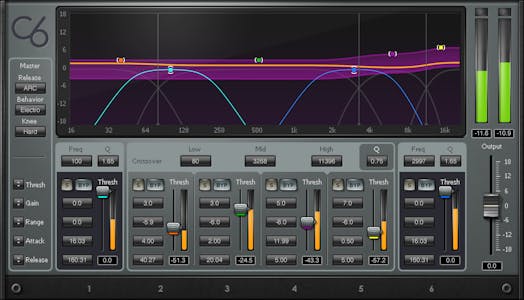
Multiband compression is a technique used to control the dynamic range of specific frequency bands. Unlike regular compression, which applies the same compression settings to the entire audio signal, multiband compression allows for independent control over different frequency ranges. This gives you the ability to target and compress specific areas of the audio spectrum.
Credit: m.youtube.com
Why Use Multiband Compression?
Using multiband compression can help to achieve a more balanced and controlled mix. It allows you to address specific frequency issues without affecting the rest of the audio spectrum. Here are a few scenarios where multiband compression can be particularly useful:
Taming Harsh Frequencies: If a particular frequency range in a mix sounds harsh or piercing, you can use multiband compression to gently reduce the volume of that specific frequency range.
Balancing a Mix: Multiband compression can be used to even out the dynamics of individual instruments or elements in a mix, ensuring they sit well together.
Enhancing Low-End: By compressing the low-frequency range, you can add weight and clarity to bass-heavy elements in your mix.
Managing Sibilance: Multiband compression can help control excessive sibilance in vocals, resulting in a smoother and more pleasant sound.
Using Multiband Compression in Ableton Live
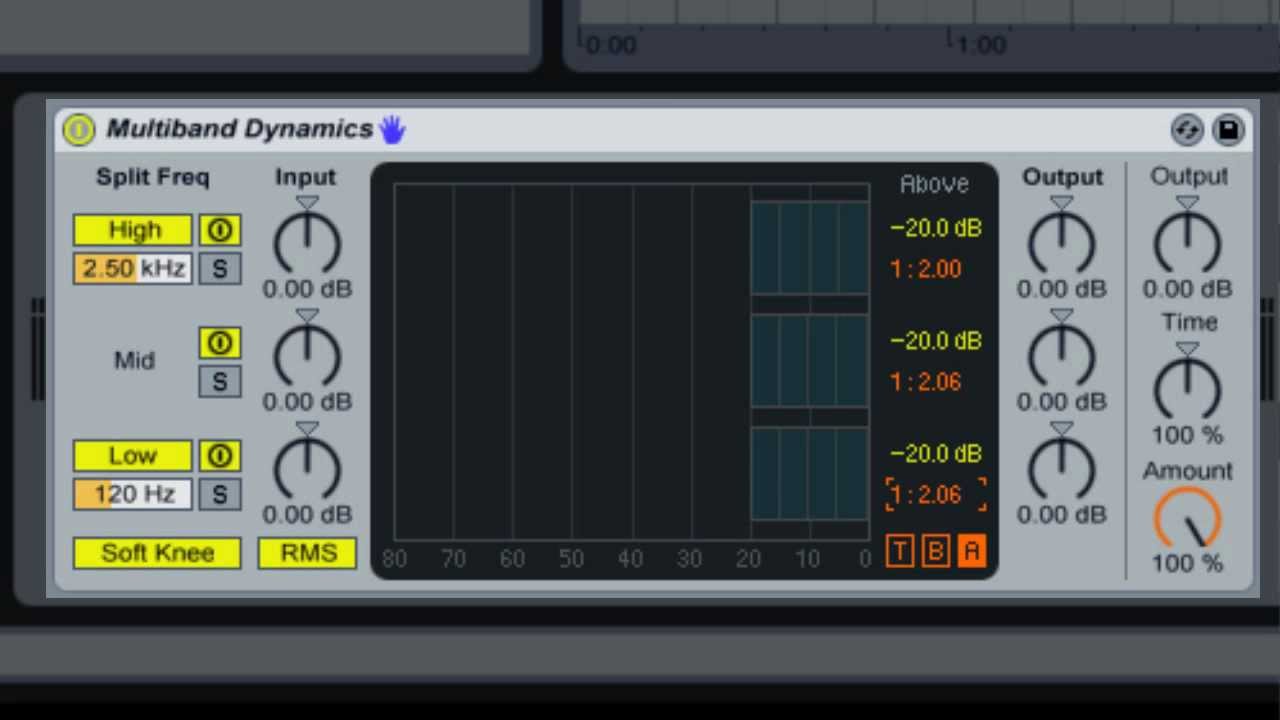
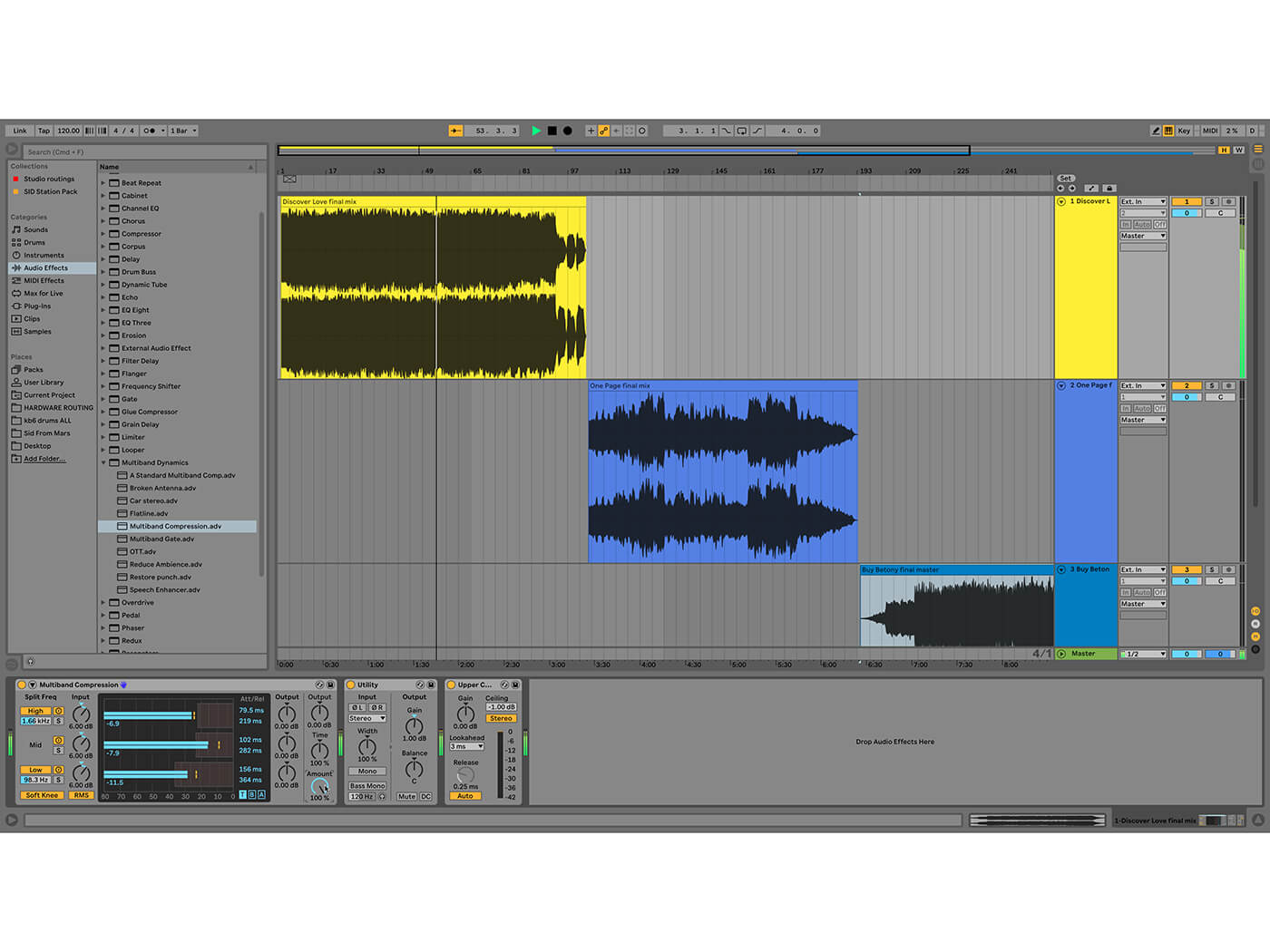
Ableton Live offers a built-in multiband audio effect called “Multiband Dynamics” that allows you to apply multiband compression to your tracks. Here’s how you can use it:
Drag and drop the “Multiband Dynamics” effect onto the track you want to process.
Start by adjusting the crossover frequencies for each band. The crossover points determine where the frequency bands begin and end. You can typically find three or four bands in a multiband compressor, each with its own set of controls.
Set the compression parameters for each band. This includes adjusting the threshold, ratio, attack, and release settings to shape the compression for each frequency range.
Listen to the effect in the context of your mix and make adjustments as needed.
Remember, it’s important to use multiband compression subtly and listen carefully to the impact on your mix. Be mindful not to over-compress and lose dynamics or create an unnatural sound.
Tips for Effective Multiband Compression
Here are a few tips to help you make the most out of multiband compression:
Set appropriate crossover frequencies: Experiment with different crossover points to ensure that each band is targeting the desired frequency range. A well-chosen crossover point is crucial for avoiding phase cancellation and achieving a transparent sound.
Use visual feedback: Monitor the gain reduction meter for each band to guide your adjustments. This will help you see how much compression is being applied to each frequency range.
Compare different settings: A/B testing allows you to compare the original sound with the compressed sound. This can help you decide if the compression is enhancing the mix or causing any negative effects.
Pros of Multiband Compression
Cons of Multiband Compression
Targeted control over frequency bands
Enhanced mix balance
Improved control over dynamic range
Flexibility in sound shaping
Potential for phase cancellation if crossover points are not appropriately set
Can introduce artifacts if used excessively
Requires careful listening and adjustment
With practice, multiband compression can become a powerful tool in your audio production arsenal. It allows you to sculpt your sound and bring out the best in your mix. Remember to experiment, trust your ears, and always strive for a balanced and professional result. Happy mixing!
Frequently Asked Questions Of Using Multiband Compression In Ableton Live: Master Dynamic Mixes
What Is Multiband Compression?
Multiband compression divides the audio signal into multiple frequency bands for more precise control over dynamics.
How Does Multiband Compression Differ From Regular Compression?
Multiband compression allows separate compression settings for different frequency bands, providing more focused and detailed dynamic processing.
When Should I Use Multiband Compression In My Ableton Live Projects?
Multiband compression is ideal for taming unruly frequencies, controlling dynamic range, and adding clarity and punch to your mixes.
What Are The Benefits Of Using Multiband Compression In Ableton Live?
Multiband compression can help to balance out the tonal and dynamic content of your audio, resulting in a more polished and professional sound.
Cubase templates are usually stored in the user’s application data folder. Specifically, this path is often within the ‘Steinberg/Cubase’ directory under ‘Templates’.
Cubase, the highly regarded music production software developed by Steinberg, streamlines the creative process for artists and producers. With customizable templates, users can jump-start their projects, maintaining consistency and speeding up workflow. These templates save not only the instrument and effects settings but also the chosen routing and mixer configurations.
By leveraging templates, professionals and hobbyists alike can focus more on creativity rather than setup intricacies. With a wide range of genres and recording situations covered, Cubase templates are a valuable asset for anyone looking to minimize setup time and get straight to work. Whether scoring for film, producing a podcast, or crafting the next hit song, these templates are readily available to kickstart your Cubase session.
The Quest For Cubase Templates
Many music producers and sound engineers seek the perfect starting point for their projects—a familiar battleground known as Cubase templates.
What Are Cubase Templates?
Cubase templates are project files that set the stage for audio production. They might include predefined tracks, effects, and even virtual instruments. They allow users to jump into the creative process without losing time setting up.
Pre-set configurations for quick start
Includes audio, MIDI tracks, and more
Saves time, boosts workflow efficiency
The Importance Of Template Management
Understanding where Cubase stores these templates is crucial for any serious producer.
Reason
Explanation
Backup Essentials
Keep copies of your templates safe.
Easy Sharing
Share your workflow with others quickly.
Clear Organization
Maintain a well-organized template library.
By mastering template management, users ensure their work remains intact, portable, and accessible whenever inspiration strikes.
Default Locations On Different Systems
Cubase Templates simplify music creation. They save settings per project. Knowing where Cubase stores these templates saves time and streamlines workflow. This blog post reveals the default file locations for Cubase templates on different operating systems. Let’s dive in.
Windows File Path
On Windows, Cubase templates live in a folder deep within the system. Here’s the path:
As with Windows, replace [Username] with your Mac username. The Library folder can be hidden. Hold the Option key while using the Go menu in Finder to access it.
Customizing Template Storage
Customizing Template Storage in Cubase boosts workflow efficiency. It allows quick access to preferred project settings. Users benefit from tailoring storage locations to their needs. Let’s dive into optimizing template storage paths.
Changing The Default Path
To change the default storage path for Cubase templates, follow these steps:
Open Cubase and navigate to the File menu.
Select “Preferences”.
In the Preferences window, click “VST”.
Look for “Default Locations” and click on “Project Templates”.
Click the “Browse” button to set a new location.
Choose your custom folder and click “Select Folder”.
Hit “OK” to save your changes.
Note: The next time you save a template, Cubase will use this new path.
Organizing Custom Templates
Keeping templates organized speeds up the creative process. Here’s a simple method:
Create folders by project type, like “Rock” or “Orchestral”.
Name each template clearly, for instance, “Rock-Basic Setup.cpr”.
Launch Cubase, click on “New Project”, and select “More”.
Your custom folders now appear, offering quick access to organized templates.
Credit: access.redhat.com
Finding Lost Cubase Templates
Working with Cubase often involves using a variety of templates to streamline music production. At times, these valuable templates can go missing. To help you get back to making music swiftly, here’s a guide on finding lost Cubase templates.
Common Misplacement Issues
Users often encounter template misplacement. This occurs for several reasons:
Default saving locations could have been overlooked.
Folder paths may change after updates or migrations.
Inadvertent movements of files outside of Cubase can cause disconnections.
Ensure hidden folders are visible on your system to locate these paths.
Recovering Deleted Templates
If a template has been deleted, steps to recover are straightforward:
Check the Recycle Bin or Trash folder.
If available, restore the file to its original location.
Backup drives can be a restoration source.
Use file recovery software as a last resort.
Remember, prompt action increases recovery chances. Templates often contain customized settings crucial for projects. Maintaining regular backups can prevent potential losses.
Saving And Sharing Templates
When working with Cubase, templates are time-savers. They store your settings. They allow you to jump-start new projects. But, knowing where they are and how to handle them is key. This essential guide explains how to save and share Cubase templates. So, let’s dive into the best practices for keeping your workflow smooth and collaborative.
Best Practices For Saving
User templates in Cubase are not just files. They are the blueprints for your projects. To ensure their safety and usability:
Choose a memorable name for easy identification.
Store them locally in the default location or a custom folder.
Back them up regularly on an external drive or cloud service.
Update your templates as you refine your workflow.
Methods For Sharing With Others
Sharing your Cubase templates can help others. It can improve collaboration too. Here are top ways to share:
Use the ‘Export’ function within Cubase to create a .cpr file.
Compress the template file to reduce size and make transfer easier.
Email the file or use a file-sharing service for larger templates.
Following these steps, you ensure your Cubase templates are safe. You make sure they’re accessible to those who need them.
Credit: support.spectrasonics.net
Troubleshooting Common Issues
Troubleshooting common issues with Cubase template storage can save time and prevent frustration. Whether you’re dealing with corrupted templates or version incompatibility, knowing how to fix these problems is essential for a smooth music production workflow. Discover solutions to the most common hiccups that might occur with your Cubase templates.
Corrupted Template Files
Corrupted template files are a nuisance. They can halt your creative process. If you find that some templates won’t load or function improperly, consider these steps:
Locate the original template file.
Delete the corrupted version.
Recover from a backup, if available.
Recreate the template, if necessary.
Keep backups of your templates to avoid losing important setups. Always save new versions after making significant changes.
Incompatibility Between Versions
Issue
Solution
Template not opening in a new Cubase version
Update the old template within the latest Cubase to ensure compatibility
Missing features or plug-ins
Check plug-in versions; update or replace as necessary
Error messages on load
Refer to documentation for error codes; address specific issues
Running into version incompatibility can be challenging. Always ensure both your project and Cubase software are updated. When updating Cubase, check the documentation for changes that might affect your templates. Pay special attention to plugin compatibility within your projects.
Leveraging Templates For Efficient Workflows
Efficient workflows save time and reduce stress for music producers using Cubase. Templates are the secret weapon for quickly jumping into the creative process. They store your preferred starting points, including track setups, effects, and signal routing. Knowing where these templates are stored boosts your productivity. Let’s explore how to leverage them.
Streamlining The Setup Process
A template in Cubase can streamline your setup process immensely. With templates, you save hours on initial setup, meaning more time for creativity. Once you create a template, it’s just a click away for your next project.
Track Presets: Save instrument and effect chains.
Mixer Settings: Keep your fader levels and pan adjustments.
Input/Output Assignments: Set up your audio routing.
Find your templates at: C:\Users\Username\AppData\Roaming\Steinberg\Cubase\Project Templates
Creating Consistency Across Projects
Consistent quality is key in music production. Cubase templates ensure this across all your projects.
They let you maintain:
Element
Benefit
Sound Settings
Unified audio quality
Effects Chains
Signature sound in all projects
Mixing Presets
Fast final product finishing
Credit: unison.audio
Advanced Tips And Best Practices
Welcome to the deep dive into Cubase templates. This section covers advanced tips and best practices that can take your music production workflow to the next level. Discover how to make the most out of Cubase’s powerful features.
Optimizing Template Performance
Template optimization ensures smooth operation and quick loading times. Follow these tips for peak performance:
Disable unused tracks: Right-click and select ‘Disable Track’ to free resources.
Strip silence: Use the ‘Strip Silence’ feature to remove dead space, reducing file size.
Update plug-ins: Keep third-party VSTs up-to-date for compatibility and efficiency.
Archive unused takes: Right-click on the track, then select ‘Archive’ to prevent overloading.
Set up folders: Group similar tracks into folders to make templates clearer and easier to navigate.
Presets: Save effect and instrument settings as presets to recall with one click.
Creative Uses Of Templates
Templates can be more than starting points for new projects. Here’s how to get creative:
Mood boards: Create templates with specific sound palettes for various moods.
Genre-specific setups: Have a go-to template for each genre you work on, with tailored instruments and effects.
Pre-mixed templates: Design templates with pre-mixed tracks for quicker results.
Education: Use templates to teach specific production techniques.
Live performance: Set up templates for live sets, with macro controls mapped out.
Collaborative projects: Share your templates with other producers to streamline collaboration.
Template Quick Tips
Tip
Benefit
Version Control
Track changes across template iterations
Minimal VSTs
Load templates faster with fewer VSTs
By integrating these advanced techniques and best practices, Cubase users can enhance their music production workflows efficiently. Explore these tips to uncover your own unique template strategy.
Frequently Asked Questions Of Where Are Cubase Templates Stored
Where Can I Find Cubase Project Templates?
Cubase project templates are typically stored within the application’s folder under ‘Templates’. On Windows, this path usually resembles ‘C:\Users\[Your User Name]\AppData\Roaming\Steinberg\Cubase [Version]\Project Templates’. Replace ‘[Your User Name]’ and ‘[Version]’ with your actual Windows username and Cubase version.
How To Access Cubase Track Presets Quickly?
To access Cubase track presets quickly, open the MediaBay by pressing [F5] or navigating through the ‘Media’ menu. Inside MediaBay, go to ‘VST Sound’ then ‘Track Presets’ and choose from various categories. This enables instant access to pre-configured settings.
Can I Change The Location Of Cubase Templates?
By default, you cannot change the Cubase template location within the program. However, you can manually copy and move templates to another directory, but you’ll need to navigate to the new location when loading them. It’s recommended to keep the original path for seamless operation.
Are Cubase Templates Shared Between Versions?
Templates created or saved in one version of Cubase generally remain within that version’s specific directory. They are not automatically shared between versions, but you can manually transfer them to the appropriate folder for different versions you have installed.
Conclusion
As we wrap up, remember that Cubase templates save time and streamline your workflow. Stored locally in the “Templates” folder, they’re a click away. Regular backups will protect your custom setups. Happy music-making with your personalized Cubase environment at hand! Keep creating, experimenting, and enjoying the ease of pre-set templates.
When it comes to music production, Ableton Live is a popular choice among producers and DJs. One of the key features that sets Ableton Live apart from other DAWs (Digital Audio Workstations) is its powerful parallel processing capabilities. In this article, we will dive into the world of parallel processing and explore how it can enhance your music production workflow in Ableton Live.
Credit: www.attackmagazine.com
What is Parallel Processing?
Parallel processing, also known as parallel compression or New York compression, is a technique used to enhance the dynamic range and overall impact of audio signals. It involves blending a heavily compressed version of the original signal with the dry (uncompressed) signal.
The compressed signal adds punch, sustain, and consistency to the mix, while the dry signal preserves the original transients and dynamics. The result is a harmonious blend of the best qualities from both signals.
How to Use Parallel Processing in Ableton Live
Ableton Live provides several ways to utilize parallel processing, allowing you to experiment and find the right approach for each specific audio element in your mix. Here are a few techniques:
1. Parallel Compression On Individual Tracks
You can apply parallel compression to individual tracks to add depth and impact. Start by duplicating the track you want to process, and then apply heavy compression to the duplicated track. Blend the compressed track with the original using the fader or the track’s volume control. This technique works exceptionally well on drums, vocals, and basslines.
Benefits
Considerations
Enhances sustain and attack
May increase background noise
Increases perceived loudness
Can introduce artifacts if overdone
2. Parallel Processing With Audio Effect Racks
Ableton Live’s Audio Effect Racks provide a flexible way to implement parallel processing. Create an Audio Effect Rack, and within the rack, add a chain for the original (dry) signal and another chain for the heavily processed (wet) signal. Adjust the volume and processing settings for each chain, and blend them together using the rack’s macro controls. This technique is ideal for adding parallel effects such as reverb or distortion.
3. Parallel Processing With Return Tracks
Return Tracks in Ableton Live allow you to create parallel processing chains that can be shared across multiple tracks. Set up a return track, and insert the desired audio effects or processors. Now, send a portion of the original signal from each track to the return track using the track’s send controls. Adjust the return track’s volume and effect settings to achieve the desired parallel processing effect across multiple tracks.
Credit: shop.343labs.com
Advantages of Parallel Processing in Ableton Live
Parallel processing offers several advantages that can elevate your music production to the next level:
Enhanced control over dynamics: Parallel compression allows you to shape the dynamics of individual tracks or the entire mix, providing greater control over the overall sound.
Increased loudness without sacrificing transients: By blending the compressed and uncompressed signals, you can achieve a louder mix while preserving the original transients and dynamics.
Improved depth and impact: Parallel processing can make your tracks sound bigger, fuller, and more impactful by adding sustain, punch, and consistency.
Greater creativity and experimentation: Ableton Live’s versatile parallel processing capabilities empower you to experiment with various techniques and effects, encouraging creativity in your music production.
Whether you’re a seasoned producer or just starting, understanding and incorporating parallel processing techniques in Ableton Live can take your music to new heights. Experiment, refine, and find your own unique sonic signature with the power of parallel processing!
Frequently Asked Questions For Understanding Parallel Processing In Ableton Live : Master Audio Production
What Is Parallel Processing In Music Production?
Parallel processing allows blending original and processed signals for enhanced audio effects.
How Does Parallel Processing Benefit Music Production?
It adds depth, clarity, and uniqueness to audio with a controlled application of effects.
Can I Use Parallel Processing In Ableton Live?
Yes, Ableton Live offers advanced parallel processing techniques for versatile audio manipulation.
What Are The Common Parallel Processing Techniques In Ableton Live?
Utilize sends/returns, audio effect racks, and group tracks for effective parallel processing.
Ableton Live is a popular digital audio workstation (DAW) used by musicians, producers, and DJs to create and perform music. One of its key features is the Clip View, which allows users to manipulate and edit audio clips within a session. In this article, we will explore the various functions and techniques of the Clip View in Ableton Live.
Credit: www.levelsmusicproduction.com
Getting Started with Clip View
Clip View can be accessed by double-clicking on a clip within Ableton Live’s session view. Upon opening Clip View, you are presented with an array of controls and parameters to shape and mold your audio clip.
The Clip View interface is divided into different sections. The top section contains the name of the clip, its color, and a dropdown menu where you can select different clip settings. The middle section displays the waveform of the audio clip, allowing you to visualize the audio content. The bottom section consists of various controls and parameters for editing and manipulating the clip.
Basic Clip Editing
Clip View offers a range of basic editing tools to help you refine and polish your audio clips. You can easily shorten or lengthen a clip by dragging its edges, quantize the timing of the clip to the grid, or adjust the volume and pan settings to achieve the desired stereo image. Additionally, you can reverse the clip, apply fades, and even transpose the pitch of the audio.
Looping And Warping
One of the most powerful features of Clip View is its ability to loop and warp audio clips. By enabling the loop switch, you can set the in and out points of the loop, allowing the clip to repeat indefinitely. This is particularly useful when working with drum loops or repetitive musical patterns.
Warping is another essential function in Clip View. It allows you to adjust the timing and tempo of a clip without affecting its pitch. By warping a clip, you can sync it to the project’s tempo or create interesting rhythmic variations. Ableton Live’s warping engine is highly regarded for its accuracy and flexibility, making it a sought-after tool for DJs and live performers.
Automation And Modulation
Clip View provides a seamless integration between audio and MIDI clips. You can easily automate various parameters of a clip, such as volume, pan, or any other device parameter in Ableton Live. This allows for smooth and dynamic changes throughout the duration of the clip. By modulating the clip’s parameters, you can create evolving soundscapes, expressive melodies, or intricate rhythmic patterns.
Credit: www.facebook.com
Advanced Techniques in Clip View
Now that we have covered the basics of Clip View, let’s explore some advanced techniques to take your audio manipulation to the next level.
Audio Effects And Processing
Ableton Live offers a vast array of audio effects that can be applied directly within Clip View. From EQ and compression to reverb and delay, these effects can help shape the sonic character of your audio clips. With Live’s extensive collection of audio effects, you can achieve professional-sounding results without the need for external plugins.
Max For Live Integration
Max for Live is a powerful extension of Ableton Live that allows users to create their own custom devices and tools. With Clip View, you can utilize Max for Live devices to add unique functionalities to your audio clips. This integration opens up endless creative possibilities, enabling you to create customized effects, sequencers, and even instruments.
Live Performance And Djing
Clip View plays a significant role in live performances and DJ sets. Ableton Live offers session view, which is designed for live improvisation and performance. By triggering and launching different clips within Clip View, you can create intricate arrangements, build-ups, and breakdowns in real-time. The ability to manipulate audio clips on the fly provides DJs and live performers with unparalleled creative potential on stage.
Frequently Asked Questions For Using The Clip View In Ableton Live : Mastering Music Production
What Is The Clip View In Ableton Live?
The Clip View in Ableton Live is the interface where you can manipulate and control individual clips within tracks.
How To Access The Clip View?
To access the Clip View in Ableton Live, simply double-click on the clip you want to edit or use the shortcut Shift+Tab.
What Can I Do In The Clip View?
In the Clip View, you can adjust parameters like volume, panning, and add effects to the individual clip.
Can I Automate Parameters In The Clip View?
Yes, you can automate various parameters within the Clip View to create dynamic and evolving sounds.
Conclusion
The Clip View in Ableton Live is a powerful tool for manipulating and editing audio clips. It offers a range of features and functions that can elevate your music production and live performances. By mastering Clip View, you gain precise control over your audio clips, allowing you to create unique and captivating musical experiences.
Do you want to take your music production skills to the next level? Look no further than Ableton Live, one of the most popular digital audio workstations (DAWs) among musicians, producers, and DJs. In this article, we will delve into the world of audio recording in Ableton Live and explore the essential concepts you need to understand to master this powerful software.
1. Setting Up Your Audio Interface
Before you can start recording audio in Ableton Live, it’s crucial to set up your audio interface properly. Connect your audio interface to your computer and launch Ableton Live. Navigate to the preferences menu and select your audio interface as the input and output device. Remember to adjust the sample rate and buffer size for optimal performance.
2. Understanding Tracks
In Ableton Live, tracks are the building blocks of your projects. They can be either audio tracks or MIDI tracks. Audio tracks are used for recording audio, while MIDI tracks are used for programming virtual instruments. To create an audio track, simply right-click on the empty space in the track area and select “Insert Audio Track.”
3. Choosing the Right Inputs and Outputs
Once you have created an audio track, it’s time to select the appropriate input and output sources. Click on the “In” and “Out” menus on the track header to choose the desired audio inputs and outputs. It’s essential to choose the correct input source to ensure that Ableton Live receives the audio signal correctly.
Credit: www.facebook.com
4. Enabling Monitoring
Monitoring allows you to hear the audio input in real-time as you record. By default, monitoring is disabled in Ableton Live. To enable it, click on the “Monitor” button on the track header. You can choose between “Auto,” “In,” or “Off.” The “Auto” option enables monitoring when the track is armed for recording.
5. Arm the Track for Recording
Before you can start recording, you need to arm the audio track. Click on the “Arm” button on the track header to enable recording. The button will turn red when the track is armed. You can also arm multiple tracks at once by holding down the “Shift” key and clicking on the “Arm” buttons of the desired tracks.
6. Setting the Correct Input Levels
Properly setting the input levels is crucial to achieve high-quality recordings. To avoid clipping and distortion, make sure the input signal is strong enough but not too loud. Use the “Input Gain” knob on your audio interface or the “Input Gain” controls in Ableton Live to adjust the input levels. Aim for a healthy signal level that never reaches the “Red” zone.
Credit: musictech.com
7. Recording in Session View
Ableton Live offers two primary recording modes: Session View and Arrangement View. In Session View, you can record and experiment with ideas spontaneously. To record audio in Session View, make sure the track is armed for recording and press the record button located above the track. Hit the play button to start recording, and press stop when you are done.
8. Recording in Arrangement View
In Arrangement View, you can arrange your recorded clips into a song structure. To record in Arrangement View, click on the “Arrangement Record” button located at the top of the screen. This mode allows for more precise editing and fine-tuning of your recordings. You can overdub multiple takes and rearrange them easily.
9. Editing and Post-Processing
After recording your audio, it’s time to edit and refine your recordings. Ableton Live offers a wide range of editing tools and techniques to help you polish your recordings. You can trim, crop, duplicate, and reverse audio clips. You can also apply various audio effects, adjust the volume and panning, and even time-stretch your recordings.
10. Exporting Your Final Recording
Once you are satisfied with your recordings and editing, it’s time to export your final masterpiece. Ableton Live provides various export options, allowing you to choose the file format, sample rate, and bit depth. Click on the “Export” button and follow the on-screen prompts to export your audio file.
Frequently Asked Questions On Understanding Audio Recording In Ableton Live : Master Your Mixes
How Can I Improve Audio Recording Quality In Ableton Live?
To improve audio recording quality in Ableton Live, consider using a high-quality microphone and ensuring optimal soundproofing in your recording space.
What Are Some Essential Tips For Recording Vocals In Ableton Live?
For recording vocals in Ableton Live, make sure to use a pop filter and adjust microphone placement to achieve the best sound quality. Additionally, experiment with different room acoustics.
Why Is Monitoring Important During Audio Recording In Ableton Live?
Monitoring is crucial during audio recording in Ableton Live as it allows you to hear the real-time sound, ensuring optimal levels and avoiding unwanted distortions in the recording.
How Can I Reduce Background Noise In My Audio Recordings In Ableton Live?
To minimize background noise in audio recordings in Ableton Live, try using noise reduction plugins or positioning the microphone closer to the sound source while maintaining proper gain levels.
Conclusion
Understanding audio recording in Ableton Live is crucial for unleashing your creative potential in music production. With the knowledge gained from this article, you are now equipped to navigate the world of audio recording in Ableton Live confidently. Remember to experiment, have fun, and keep refining your recordings to create professional-quality music.
When it comes to music production, having captivating lead sounds is essential in capturing the attention of your listeners. In this article, we will explore how to create incredible lead sounds using Ableton Live, a popular digital audio workstation (DAW).
The Importance of Lead Sounds
Lead sounds play a crucial role in a music composition. They often carry the melody and instantly grab the audience’s attention. Whether you’re producing electronic dance music, pop, or even orchestral pieces, having a memorable lead sound can make all the difference in creating a hit.
Getting Started
Ableton Live offers various tools and features that allow producers to craft unique and impressive lead sounds. Let’s dive into a step-by-step process of creating lead sounds in Ableton Live:
Choose the Right Synthesizer
Using a synthesizer is the foundation for creating lead sounds. Ableton Live comes with several built-in synthesizers such as Analog, Operator, and Wavetable. Each synthesizer offers different sound characteristics, so explore them to find the one that fits your desired lead sound.
Experiment with Oscillators
Oscillators generate the basic waveform of your sound. Ableton Live offers multiple oscillator types, including sine, square, triangle, and sawtooth. Experiment with different combinations to create interesting timbres and harmonics for your lead sound.
Modify Envelope Parameters
Envelopes control how the sound evolves over time. Typically, a lead sound benefits from a fast attack and decay, allowing it to cut through the mix. Adjust the envelope parameters such as attack, decay, sustain, and release to shape the sound to your liking.
Add Effects
Effects are essential in adding depth and character to your lead sound. Ableton Live provides a wide range of effects such as reverb, delay, distortion, and chorus. Apply effects strategically to enhance the sound and create a unique sonic texture.
Experiment with Modulation
Modulation adds movement and expression to your lead sound. Utilize Ableton Live’s modulation tools like LFOs (Low-Frequency Oscillators) to create vibrato, tremolo, or other dynamic effects. Play around with modulation to give your lead sound a lively and organic feel.
Credit: www.amazon.com
Designing Custom Lead Sounds
While exploring the presets and built-in sounds is a great starting point, designing your own custom lead sounds can give your music a distinctive touch. Here are a few approaches to consider:
Layering Sounds
Layering involves combining multiple sounds to create a more complex and rich lead sound. Select different synthesizers or sound sources and layer them together. This technique allows you to blend various timbres and create a unique sonic palette for your lead sounds.
Actionnable Tweaking
Incorporating automation in your lead sounds can make them more dynamic and expressive. Use Ableton Live’s automation features to modulate parameters such as filter cutoff, resonance, or effects parameters in real-time. This technique can add excitement and variation to your lead sounds.
Sampling And Manipulation
Sampling existing sounds, whether from your own recordings or libraries, can offer a vast array of possibilities for creating lead sounds. In Ableton Live, you can manipulate and process samples using audio effects, warp modes, and slicing techniques. This approach can lead to some truly unique and captivating lead sounds.
The Final Touches
Once you’ve created your lead sound, it’s essential to fine-tune it to suit your composition. Consider the following tips:
Adjust EQ: Use EQ to shape the overall frequency response of your lead sound. Cutting or boosting specific frequencies can help it sit better in the mix.
Apply Compression: Compression can add sustain and control the dynamics of your lead sound. Experiment with different settings to achieve the desired result.
Create Variations: Duplicate your lead sound and make subtle changes to each instance. This technique can add interest and variation to your lead melody over time.
Save Your Presets: Once you’ve created a lead sound you are happy with, save it as a preset. This way, you can easily access and reuse it in future projects.
Credit: m.facebook.com
Frequently Asked Questions On Creating Lead Sounds In Ableton Live: Mastering Sound Design
What Are Lead Sounds In Music Production?
Lead sounds are melodic elements that carry the main melody and capture the listener’s attention.
How To Create Lead Sounds In Ableton Live?
In Ableton Live, utilize synthesizers, such as Analog or Wavetable, and experiment with oscillators, filters, and modulation to craft unique lead sounds.
Why Is Sound Design Important In Music Production?
Sound design allows producers to create unique and captivating sounds, enhancing the overall quality and appeal of their music.
What Role Do Lead Sounds Play In A Track?
Lead sounds serve as the focal point of a track, guiding the listener through the melody and adding depth to the overall musical composition.
Conclusion
Creating lead sounds in Ableton Live opens up a world of possibilities for music producers. By exploring the powerful synthesizers, experimenting with modulation and effects, and designing your own custom lead sounds, you can elevate your music to new heights. Remember to fine-tune your lead sound to fit your composition and save your presets for easy access in the future. Now, armed with these techniques, go ahead and create captivating lead sounds that will leave a lasting impact on your audience!
Sidechain compression is a powerful technique used in music production to create dynamic and impactful mixes. It is commonly used to duck or control the volume of one track based on the level of another track. In this article, we will dive deep into understanding sidechain compression in Ableton Live, a popular digital audio workstation (DAW) among producers and musicians.
What is Sidechain Compression?
Sidechain compression is a specific type of compression where the audio signal on one track triggers the compression on another track. This technique is often used to make room for the kick drum in a mix by reducing the volume of other elements, such as bass or pads, whenever the kick drum hits.
Sidechain compression can also be used creatively to add a pumping or rhythmic effect to a track. It can be heard in genres like EDM, where the bassline or other elements are rhythmically “sucked in” or pulsate in sync with the kick drum.
Setting Up Sidechain Compression in Ableton Live
Ableton Live provides a user-friendly way to set up sidechain compression using its built-in Compressor device. Here are the steps to configure sidechain compression in Ableton Live:
Insert the Compressor device on the track you want to apply sidechain compression to.
Click on the “Sidechain” button on the Compressor device.
Choose the source track that will trigger the compression from the drop-down menu.
Adjust the threshold, ratio, attack, and release settings according to your desired effect.
By adjusting the threshold, you determine the level at which the sidechain compression is activated. The ratio control sets the amount of compression applied, while the attack and release parameters determine how quickly the compression reacts and recovers.
Applications of Sidechain Compression in Ableton Live
Sidechain compression can be used in various ways to improve your mix and create interesting sound effects. Here are a few applications:
1. Mixing The Kick And Bass
In many genres, the kick drum and bassline are the foundation of the track. By applying sidechain compression, you can ensure that the bassline ducks whenever the kick drum hits, preventing conflicting frequencies and creating a tight, defined mix.
2. Creating Pumping Effects
Sidechain compression can be used creatively to create pumping effects that add energy and movement to your tracks. By sidechaining elements like pads, synths, or vocals to the kick drum, you can achieve a rhythmic pulsating effect that elevates the overall groove of the song.
3. Clearing Space For Vocals
Sidechain compression can also be used to make room for vocals in a mix. By sidechaining other elements, such as guitars or pads, to the vocal track, you can automatically reduce their volume whenever the vocals are present, allowing the vocals to cut through the mix more effectively.
4. Dynamic Effects And Sound Design
Aside from traditional mixing applications, sidechain compression can be used for creative sound design. By sidechaining various effects, such as reverb or delay, to the source material, you can create interesting rhythmic patterns and dynamic textures.
Credit: www.waves.com
Tips for Using Sidechain Compression Effectively
While sidechain compression can be a powerful tool, it’s important to use it tastefully and in moderation. Here are some tips for using sidechain compression effectively in your Ableton Live projects:
Experiment with different attack and release settings to find the right balance between the pumping effect and maintaining a natural sound.
Use sidechain compression subtly to avoid creating a distracting or exaggerated effect.
Automate the sidechain compression settings to add movement and variation throughout the song.
Consider using different sidechain sources for different sections of the song to create dynamic transitions.
Try using sidechain compression on effects like delays or reverbs to create interesting rhythmic textures.
Remember that sidechain compression is just one tool in your mixing and production arsenal. It’s essential to pair it with other techniques and tools to achieve a professional and polished mix.
Credit: www.kvraudio.com
Frequently Asked Questions Of Understanding Sidechain Compression In Ableton Live : Mastering Audio Dynamics
What Is Sidechain Compression In Music Production?
Sidechain compression is a technique where the input of a compressor is triggered by an external source, such as a kick drum, to create a pumping effect in the music.
How Does Sidechain Compression Work In Ableton Live?
In Ableton Live, sidechain compression works by using the sidechain input of a compressor to detect the audio signal from another track and then apply compression to the track it is placed on.
What Is The Benefit Of Using Sidechain Compression?
Using sidechain compression can help in creating a rhythmic effect, reducing clashing frequencies, and making sounds more pronounced in a mix.
Can Sidechain Compression Be Used For More Than Just Ducking?
Yes, sidechain compression can also be used creatively for creating breathing effects, rhythmic gating, and shaping the sound of instruments in a mix.
Conclusion
Understanding sidechain compression in Ableton Live opens up a world of creative possibilities in your music productions. Whether you’re aiming for a tight mix, a pumping effect, or creating dynamic transitions, sidechain compression can help you achieve your desired results. By following the steps outlined in this article and experimenting with different settings, you’ll be well on your way to mastering the art of sidechain compression in Ableton Live.
Reverb is an essential effect that can transform your sound and give it depth and space. As a producer or musician, understanding how to use reverb in Ableton Live can take your tracks to the next level. In this article, we will explore the ins and outs of using reverb in Ableton Live and provide some tips and tricks to help you optimize your sound.
What is Reverb?
Reverb is a natural acoustic phenomenon that occurs when sound waves reflect off surfaces in a space. It is the sonic footprint of a room and can vary depending on the size, shape, and materials of the room. In the digital world, reverb is created using algorithms to simulate these characteristics.
In Ableton Live, the reverb effect is an audio effect that can be applied to individual tracks or the master track. It adds a sense of space and realism to your sounds, making them feel like they are being played in a specific environment.
Adding Reverb to Individual Tracks
To add reverb to an individual track in Ableton Live, simply create a new audio track, select the track you want to process, and navigate to the audio effects rack in the browser. Drag and drop the reverb effect onto the track.
Once you have added the reverb effect, you can adjust its parameters to achieve the desired sound. The most common parameters include:
Parameter
Description
Room Size
Controls the perceived size of the virtual space
Decay Time
Determines how long the reverb tail lasts
Damping
Controls the high-frequency decay of the reverb
Pre-Delay
Sets the time before the reverb effect kicks in
Mix
Adjusts the balance between the dry and wet signal
Experiment with these parameters to find the right balance for your track. A smaller room size and shorter decay time can make your sound feel closer and more intimate, while a larger room size and longer decay time can create a sense of spaciousness.
Credit: www.fullcompass.com
Using Reverb on the Master Track
Applying reverb to the master track in Ableton Live can help unify the overall sound of your mix and give it a cohesive feel. To add reverb to the master track, simply create a return track, select the master track, and route it to the return track.
Once you have routed the master track to the return track, you can add the reverb effect to the return track. Adjust the parameters to achieve the desired sound, keeping in mind that a subtle amount of reverb can go a long way when applied to the entire mix.
Tips and Tricks
Use EQ before and after the reverb effect to shape the reverb tail and avoid muddiness.
Automate the reverb parameters to create dynamic and evolving sounds.
Try layering multiple instances of reverb with different settings for more complex and unique effects.
Experiment with different types of reverb, such as plate, hall, or spring, to achieve different sonic characteristics.
Consider using sidechain compression on the reverb to create rhythmic pumping effects.
Remember, less is often more when it comes to reverb. It is easy to overdo it and end up with a muddy or washed-out mix. Use your ears and trust your instincts to find the right balance for your tracks.
Credit: www.udemy.com
Frequently Asked Questions For Using Reverb In Ableton Live: Mastering Advanced Techniques
What Is Reverb And How Does It Work?
Reverb is a sound effect that simulates acoustic spaces, adding depth and dimension to audio.
Why Is Reverb Important In Music Production?
Reverb enhances the sound by giving it a sense of space and making it more immersive.
Can Reverb Be Used On Different Instruments And Vocals?
Yes, reverb can be used on various instruments and vocals to create a cohesive and balanced mix.
What Are Some Common Reverb Techniques In Ableton Live?
Common reverb techniques in Ableton Live include using predelay, adjusting decay time, and experimenting with different reverb types.
Conclusion
Reverb is a powerful tool that can transform your tracks and add depth and realism to your sound. By understanding how to use reverb in Ableton Live and experimenting with different settings, you can create professional-sounding mixes that stand out. So go ahead, dive into the world of reverb, and take your music to new heights!