Categories
Archive

Where are Cubase Projects Stored?

Cubase projects are typically stored in a folder selected during the initial project setup. By default, this can often be the “Cubase Projects” folder within the “Documents” directory on your computer.


As a professional music production software, Cubase by Steinberg provides musicians, composers, and producers with powerful tools for creating and managing audio files. When you start a new project in Cubase, the program prompts you to choose a location on your hard drive where all associated files, such as recordings, MIDI data, and mixing settings, will be saved.


Knowing where your Cubase projects are stored is essential for effective file management and to ensure that your work is securely backed up. Being organized with your project files also facilitates collaboration, as you can readily share the correct folder with collaborators or transfer it to different systems for further work.


Introduction To Cubase Storage

Welcome to the digital realm of Cubase, where music production meets innovation. Understanding where Cubase stores projects is crucial for every user. This guide provides essential insights into project storage and file management within Cubase.

Cubase Projects: A Brief Rundown

Cubase projects are the heart of your music creation. Here’s a quick overview:

  • Project Files (.cpr): Cubase project files contain all the details of your work.
  • Audio Files: These are the raw audio tracks recorded or imported into your project.
  • MIDI Files: MIDI data records your performance without actual audio, giving you flexibility.
  • Plugin Information: This includes settings for virtual instruments and effects.

You can typically find these files in a folder named after your project on your computer’s storage.

Importance Of Project File Management

Good file management ensures a smooth production process. It keeps tracks organized and accessible.

  1. Prevents data loss: Properly saved projects mean no unexpected surprises.
  2. Enhances workflow: An organized project lets you focus on creativity, not clutter.
  3. Makes collaborations easier: Share projects without missing files or data.

Backing up projects in multiple locations is always a smart move.


Default Storage Locations In Cubase

Cubase makes music creation a smooth affair with its advanced features. An essential aspect of managing your projects in Cubase involves understanding where they are saved. By default, Cubase chooses particular folders for project storage. Here’s a deep dive into where to find these in Windows and Mac OS.

Windows Default Directories

On Windows, Cubase projects are typically stored in the “Documents” folder. Within this, they reside in a folder labeled “Cubase Projects“. To give a clearer picture, see the path outlined below:

C:\Users\\Documents\Cubase Projects

Replace with your actual Windows username.

Mac Os Default Directories

For Mac users, Cubase saves your musical creations in the “Music” folder. Here, look for a folder named “Cubase Projects“. The default path looks like this:

/Users//Music/Cubase Projects

is where your Mac username goes.

Keeping projects organized in these default locations ensures everything is at your fingertips. Remember, you can always choose a different spot when setting up a new project. But knowing the defaults can save time and avoid confusion!

Exploring Cubase Project Files

Understanding the storage destination and the structure of Cubase projects sharpens your workflow. Cubase, the renowned music production software, creates specific files and folders that encapsulate the essence of your projects. Let’s decode where these are kept and what they contain.

.cpr Files At A Glance

Cubase project files end with the extension ‘.cpr’. These files hold your project’s data. When you open Cubase, it creates a .cpr file that embodies everything from MIDI tracks to audio edits. Think of it as the heart of your project.

  • Stores your edits, plugins, and settings
  • Essential for reopening projects

Associated Files And Folders

Alongside the .cpr file, Cubase generates additional folders:

  • Audio: Contains recorded audio files
  • Images: Stores visual representations of waveforms
  • Track Pictures: Keeps custom images for tracks
  • Edits: Saves versions and offline processing states

These folders are in the same location as the .cpr file. They ensure your project loads with all elements intact.

Changing The Default Save Path

Knowing where Cubase projects are stored helps you manage files better. By changing the default save path, you tailor your workflow to fit your organization style.

Step-by-step Guide

Let’s walk through changing the save path:

  1. Open Cubase and go to File, then Preferences.
  2. Select ‘Defaults’ and click on ‘Project’.
  3. Find the ‘Project Folder’ option.
  4. Click ‘Choose…’ to set a new path.
  5. Browse to your preferred folder and select it.
  6. Press ‘OK’ to confirm.

All new projects will now save to your chosen path.

Pros And Cons Of Custom Save Locations

Consider these points when choosing a save location:

Pros Cons
Better organization Can be confusing if too many
Easy to back up Different locations to manage
Separate work and personal files Possible to forget the location

Organizing Your Cubase Projects

A well-organized Cubase workspace can be the defining factor between a streamlined workflow and a cluttered mess. Keeping your Cubase projects neatly stored boosts efficiency, prevents data loss, and simplifies collaboration. Let’s break down the essential steps to achieve optimum organization within your Cubase application.

Best Practices For File Organization

Good file management is crucial for locating files quickly and avoiding duplicate content. Here are some tips:

  • Create separate folders for each project to house all related files.
  • Use a centralized location on your hard drive to store all project folders.
  • Consider external storage options for backup and space management.
  • Delete unused takes and files to maintain a tidy workspace.

Naming Conventions For Efficiency

Consistent naming conventions save time and prevent confusion. Adhere to these strategies:

Type of File Naming Convention Example
Project Files __
Audio Files _
MIDI Files _
  • Include dates for version tracking.
  • Capitalize key identifiers for improved visibility.
  • Use underscores for spaces to ensure compatibility with all operating systems.
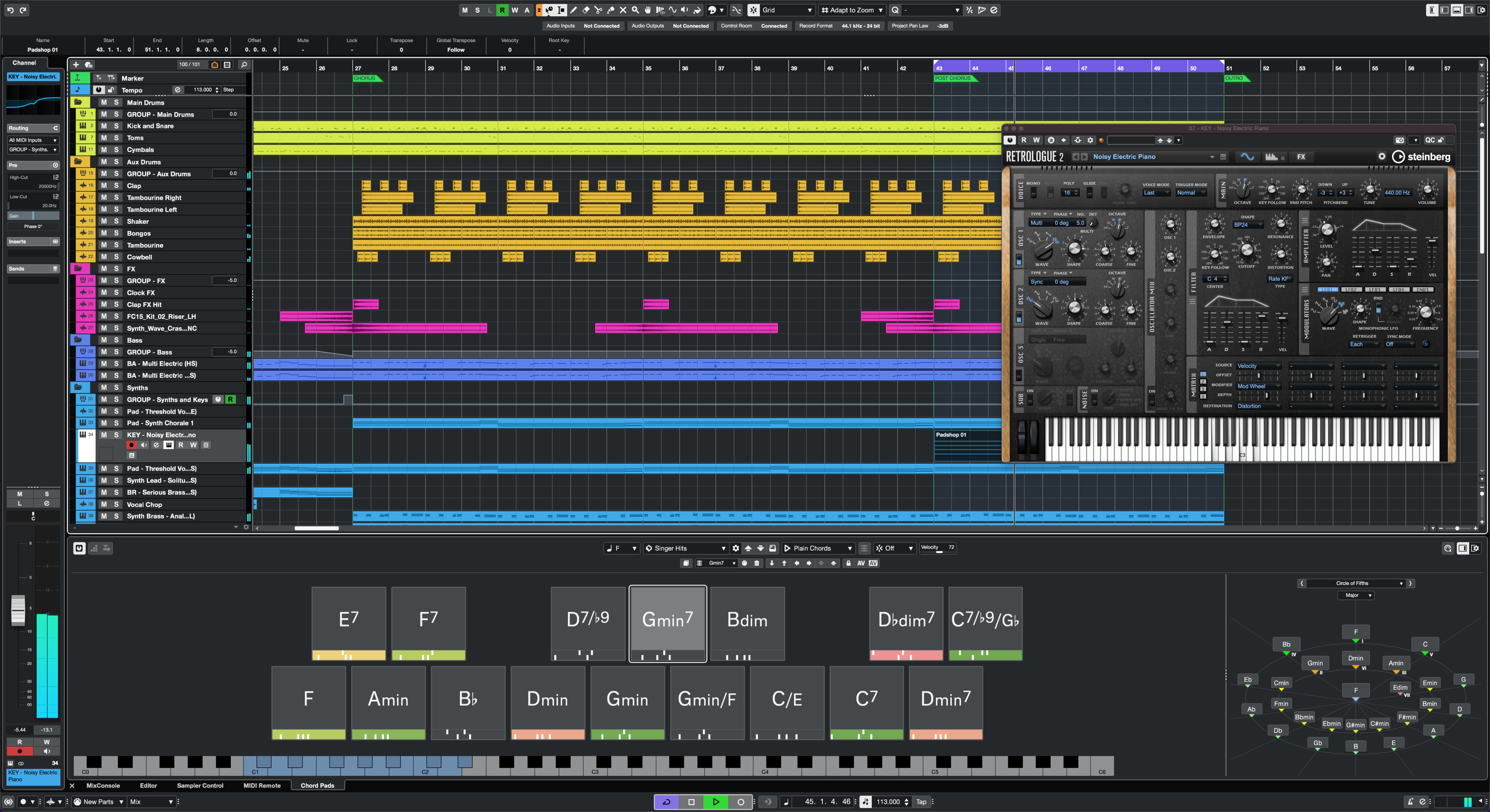
Where are Cubase Projects Stored: Pro Tips Revealed


Credit: www.steinberg.net


Backup Strategies For Cubase Projects

Safeguarding your audio masterpieces can avert unexpected losses. Backup strategies for Cubase projects are essential for musicians and producers. Knowing where your files reside and how to protect them provides peace of mind and keeps creativity flowing.

Automated Backup Features

Cubase’s in-built backup tools offer seamless safeguarding. Set the feature to auto-save at intervals to ensure progress is never lost.

  • Auto-Save: Automatically saves copies at chosen intervals.
  • Project Backup: Creates a full project duplicate, including all used files.
  • Versioning: Keeps older versions as you make new changes.

External Backup Solutions

For added security, external backup options extend beyond Cubase’s scope.

Backup Type Advantages
Hard Drives Large storage capacity; quick access.
Cloud Services Accessible anywhere; provides off-site protection.
Optical Media Longevity; less prone to corruption.

Remember to regularly update your backups and test them to ensure they work.


Managing Versions And Takes

Managing Versions and Takes in Cubase ensures smooth progress during music production. This process allows artists to explore creative options without losing any previous work. Understanding and effectively handling versions and takes can take your music production to the next level.

Utilizing Cubase’s Versioning System

Versioning in Cubase is a game-changer for project management. It keeps music production organized and efficient. Each saved version is a snapshot of the entire project at a specific point in time. This control means creators can experiment without worry.

  • Create Project Versions easily through the File menu.
  • Access Previous States of your project with a few clicks.
  • Compare Versions to decide which direction to pursue.

Rename Versions clearly to avoid confusion later. Use descriptive labels so you can recall each version’s specific traits. Descriptive naming is critical for quick identification.

Keeping Track Of Multiple Takes

Managing takes during recording sessions can be challenging. Cubase streamlines this process. Maintain focus on performance by using its powerful take management features.

  1. Record several takes back-to-back seamlessly.
  2. Lane Tracks display all takes neatly under the main track.
  3. Select the best performance with a simple click-and-select method.

Use Cubase’s comping tool to combine the best parts of different takes. Build the perfect take by slicing and dicing, all within the track lane. This method enhances your workflow and creativity.


Credit: www.sweetwater.com


Troubleshooting Cubase File Issues

Troubleshooting Cubase File Issues can be a simple process with the right guidelines. Cubase, the powerful DAW (Digital Audio Workstation), keeps all your musical creations in project files. Sometimes, users may face challenges like missing or misplaced files. Let’s walk through some common problems and solutions.

Common File Location Problems

Finding your Cubase projects is the first step to getting back on track. By default, projects save in the “Cubase Projects” folder within your “Documents” directory. Here are typical issues:

  • Projects mistakenly saved in the wrong folder
  • Folder moved to a new location or drive
  • Differing default paths based on Cubase versions
  • Hidden files and folders in your operating system

Begin by searching your entire system for “.cpr” files, Cubase’s project file format. Consider organizing your files consistently to avoid future problems.

Recovering Lost Projects

Accidentally deleted or unsaved projects demand quick action. Firstly, check the Recycle Bin (Windows) or Trash (Mac). If not there, Cubase’s auto-save feature might be your savior:

  1. Open Cubase and the project’s original folder
  2. Look for “.bak” files – these are backup files
  3. Rename a recent “.bak” file to “.cpr” to restore it

If backups aren’t available, consider using file recovery software. Remember, regular backups prevent stress and save work!

Advanced Cubase Project Management

Keeping track of your Cubase projects can be daunting, especially as you work on more complex compositions. Fear not, as advanced Cubase project management is here to streamline your music production workflow. From cloud storage solutions to the use of project templates, these tips will keep your sessions organized and readily accessible.

Integrating With Cloud Storage

Cubase projects often involve large files that can be tough to manage. Cloud storage not only frees up your local drive but also enables collaboration. Here’s how to get started:

  • Choose a cloud service like Dropbox or Google Drive.
  • Set up a dedicated folder for your Cubase projects.
  • Use Cubase’s ‘Backup Project’ function to save directly to the cloud.

This strategy ensures that your projects are safe, synced, and shareable anytime, anywhere.

Streamlining Workflows With Project Templates

Consistency is key in music production. Cubase’s project templates can vastly improve your efficiency. Here is the template creation process:

  1. Open a new Cubase project.
  2. Set up tracks and routing according to your preference.
  3. Include essential FX channels and VSTis that you frequently use.
  4. Save the project as a template via “File > Save as Template.”

With these templates, starting a new project becomes quick and easy. You can jump straight into the creative process, eliminating repetitive setup tasks.

Pro Tips From Experienced Users

Cubase sessions are essential for audio production. Knowing where they are stored is crucial. Over the years, adept Cubase users have discovered tips that can benefit both novices and seasoned professionals alike.

Insider Secrets

Insider tips help. They make managing Cubase projects easier. Experienced users recommend:

  • Custom locations. Don’t rely on default folders.
  • External drives. Use them for projects.
  • Short, clear labels. Name your files thoughtfully.

Keep your templates separate. This will save time.

Enhancing Performance And Storage

Action Benefit
Defragment your hard drive Faster access to files
Dedicate an SSD Speeds up load times
Regular backups Secures your work

Consider cloud storage for additional safety. Clean your project folders regularly. Your system will thank you.

Frequently Asked Questions On Where Are Cubase Projects Stored


Where Are Cubase Projects Saved By Default?


Cubase projects are typically saved in a folder named “Cubase Projects,” located in your “Documents” directory. This applies to both Windows and Mac OS. Users can also choose a custom location at the start of a new project.


How Do I Change The Storage Location For Cubase Projects?


To change the storage location, open Cubase, go to ‘File’, select ‘Preferences’, and navigate to the ‘Default Project Location’ option. Here you can set a new default path for your Cubase projects.


Can I Move A Cubase Project To Another Computer?


Yes, you can move a Cubase project by copying the entire project folder, which includes the. cpr file and all associated audio files, to the other computer. Ensure Cubase is installed there to open the project.


How To Find Missing Files In A Cubase Project?


If your Cubase project shows missing files, use the ‘Backup Project’ function under ‘File’ to consolidate files. Then look in the created backup folder for any missing files and relink them if necessary.


Conclusion


Understanding your Cubase project storage is essential for streamlined music production. Remember, default paths can vary between operating systems. Always back up your files to avoid data loss. Embrace an organized folder structure to enhance workflow. Keep making music and let Cubase handle the rest with ease.

Categories
Archive

Understanding Mixing And Mastering in Ableton Live : Expert Tips

When it comes to creating professional-sounding music, understanding the concepts of mixing and mastering is crucial. In Ableton Live, one of the most popular digital audio workstations (DAWs), these processes play a vital role in transforming raw tracks into polished, radio-ready songs. In this article, we will delve into the world of mixing and mastering in Ableton Live and explore how these techniques can elevate your music to the next level.

Mixing: The Art of Balancing

Mixing is the process of balancing and combining individual audio tracks to create a cohesive and harmonious final mix. Ableton Live provides a powerful set of tools for mixing, allowing you to control various aspects of the sound, such as volume, panning, EQ (equalization), and dynamics.

Volume And Panning

Controlling the volume and panning of each track is fundamental to achieving a well-balanced mix. In Ableton Live, you can adjust the volume levels of individual tracks using faders, ensuring that each element sits in the mix at the right level. Panning, on the other hand, allows you to position sounds across the stereo field, giving your mix depth and width.

Equalization And Dynamics

Equalization is a vital tool for sculpting the frequency content of your tracks. With Ableton Live’s EQ Eight, you can boost or cut specific frequencies, remove unwanted resonances, or add clarity and warmth to your mix. Dynamics processing, such as compression, helps to control the dynamic range of individual tracks, making sure that no elements are too loud or too quiet.

Effects And Automation

Ableton Live offers a wide range of effects that can further enhance your mix. From reverb and delay to modulation and distortion, these effects allow you to add depth, space, and character to your tracks. Additionally, automation lets you create changes in parameters over time, adding movement and dynamics to your mix.

Mastering: The Final Polish

Once your mix is finalized, it’s time to move on to mastering. Mastering is the last stage in the music production process, where the final mix is processed and prepared for distribution. Ableton Live provides powerful mastering tools like EQ, compression, stereo imaging, and limiting.

Eq And Compression

Mastering EQ helps to shape the overall tonal balance of your music, ensuring that each element sits together cohesively. Compression in mastering helps to control the dynamics of the entire mix, giving it a polished and consistent sound.

Stereo Imaging And Limiting

Stereo imaging tools in Ableton Live allow you to adjust the width and placement of your mix elements, creating a sense of space and depth. Lastly, limiting ensures that the final mix reaches an appropriate loudness level without clipping or distortion, making it radio-ready.

The Importance of Reference Tracks

Throughout the mixing and mastering process, it is crucial to refer to professional tracks in the same genre as a benchmark. Comparing your mix to well-mixed and mastered songs will help you achieve a similar sound quality, allowing you to make necessary adjustments to your mix.

Credit: shop.343labs.com

Credit: www.amazon.com

Frequently Asked Questions On Understanding Mixing And Mastering In Ableton Live : Expert Tips


What Is The Difference Between Mixing And Mastering In Ableton Live?


Mixing in Ableton Live involves adjusting and combining individual tracks, while mastering focuses on finalizing the mix for a polished sound.


How Can I Improve The Quality Of My Mix In Ableton Live?


To enhance the mix quality, use proper gain staging, EQ, compression, and effects to achieve a balanced and professional sound in Ableton Live.


What Are Some Common Mixing Mistakes To Avoid In Ableton Live?


Avoid over-processing, neglecting room acoustics, excessive low-end buildup, and neglecting reference tracks when mixing in Ableton Live.


Why Is Mastering Important In The Music Production Process For Ableton Live?


Mastering ensures that the final mix is optimized for various playback systems, balances the audio, and enhances overall sonic characteristics in Ableton Live.

Conclusion

Understanding the concepts of mixing and mastering and how to apply them in Ableton Live is essential for every producer and musician. By honing your skills in balancing tracks, processing audio, and utilizing the mastering tools, you can take your music from amateur to professional. Remember, practice and experimentation are key to finding your unique sound and achieving the desired results. Start your journey in Ableton Live today and unleash your creative potential.

Categories
Archive

Do You Need Ableton to Use a Launchpad?

No, you do not need Ableton Live to use a Launchpad, as it can work with other software that supports MIDI input. Launchpads offer versatility, functioning well with various digital audio workstations (DAWs).


A Launchpad serves as a powerful tool for music creators, providing an intuitive interface for triggering samples, loops, and effects. Originally designed to integrate seamlessly with Ableton Live, a Launchpad’s compatibility extends beyond this software, allowing users to map its controls to other compatible DAWs.


With its grid of pads that light up in response to your touch, a Launchpad transforms music production into a tactile and visual experience. Musicians can ignite their creativity and live performance fluency regardless of their preferred software environment. Whether you’re a professional producer or a hobbyist, a Launchpad opens up a realm of possibilities for creating and manipulating music in real-time.

Do You Need Ableton to Use a Launchpad? Uncover the Truth!


Credit: www.amazon.com


Unveiling The Myth: Launchpad With Ableton

Many music enthusiasts believe that to truly harness the power of a Launchpad, using Ableton Live is a must. Let’s dive deep into this belief and explore the relationship between a Launchpad and Ableton, lifting the veil on common misconceptions.

The Birth Of The Launchpad

Novation’s Launchpad was created as a physical extension to bring the functionality of Ableton Live to the fingertips of musicians. It offered an intuitive way to make music, with pads that light up to show scenes, clips, and more. A game-changer for live performances, the Launchpad transformed how artists interact with their DAW.

Popular Misconceptions About Launchpads And Ableton

  • Owning Ableton is mandatory to use a Launchpad: a widely held belief, yet not entirely true.
  • Launchpads only work with Ableton: this is not the case, as they can be mapped to other DAWs as well.
  • Maximum Launchpad potential is only reached with Ableton: while Ableton enhances functionality, it’s not the sole path to mastery.

Compatibility extends beyond Ableton. Launchpads are MIDI controllers that work with various software, opening up a world of possibilities. They come with their own software, Novation’s Launchpad app, allowing for music creation even without Ableton. The myth that Launchpads are exclusively tied to Ableton is hereby dispelled.

What Is A Launchpad?

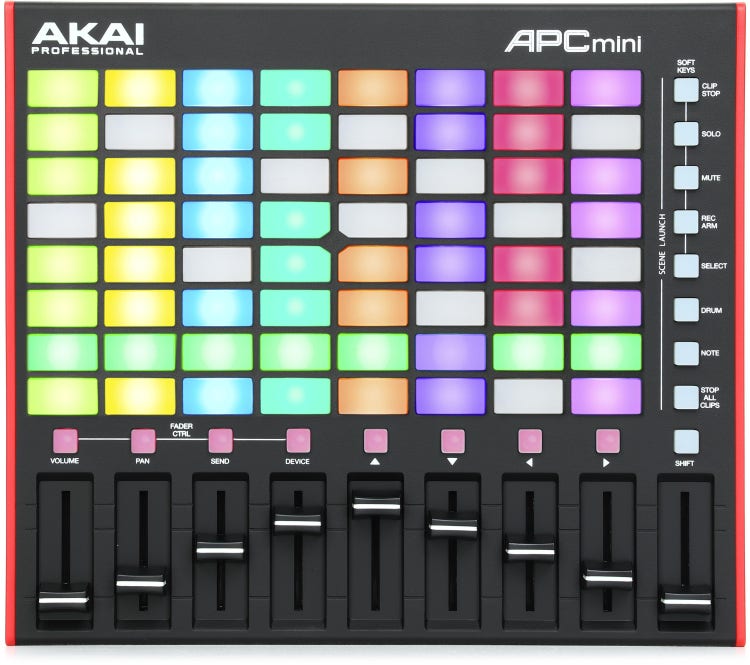
A Launchpad is an instrumental gadget that brings music to life. Musicians love it. It looks like a grid with pads. These pads light up and make sounds. You press them to play music. It’s not just for pros. Anyone can have fun with it. You can make beats, control music software, and perform live. It connects to your computer. It does not play sounds by itself. You need software for the sounds.

Exploring The Launchpad’s Functionality

The Launchpad has many uses. Let’s check them out:

  • Make Beats: Touch the pads to drum and make rhythms.
  • Live Performances: Play your music live. Amazing light shows included.
  • Control Music Software: Use it with software like Ableton. It lets you loop, mix, and edit.
  • MIDI Controller: It gives commands to music software. It’s like a remote control for your music.

Variants Of Launchpads In The Market

Launchpads come in different shapes and sizes. Here are a few:

Launchpad Model Features
Launchpad Mini Compact, portable, great for beginners
Launchpad X Has velocity-sensitive pads, good for live shows
Launchpad Pro Advanced features for pros, more control options

Each model offers something special. Bigger models often have more features. The best one for you depends on your needs and skill level.

Ableton Live: The Heartbeat Of Music Production?

Imagine a tool that unleashes creative music-making. That’s Ableton Live for you. It’s the go-to software for artists worldwide. Whether you craft beats, compose cinematic scores, or set the stage ablaze as a live performer, Ableton Live’s versatile nature is like a sonic Swiss Army knife. Its seamless music production capabilities make it an industry staple. So, let’s explore.

Core Features Of Ableton Live

Ableton Live’s features are robust. Each one offers a unique advantage:

  • Intuitive Interface: A clean layout to make music without hassle.
  • Session View: A canvas for improvisation and flexible performance.
  • Audio Warping: Manipulate timing and tempo like playdough.
  • Built-in Instruments: From synths to samplers, sounds are in abundance.
  • Audio and MIDI Effects: Sculpt your sound with precision and creativity.

Ableton’s Compatibility With Controllers

Do you want tactile control over your music? Ableton Live answers with wide controller compatibility. It means buttons, knobs, and faders are at your command. Consider the Launchpad. This controller lights up your Ableton session, literally. It’s designed for:

  1. Launching clips in real-time.
  2. Playing drum racks with a finger drumming flair.
  3. Controlling your mix, effects, and more through a colorful grid.

It might seem like you need Ableton for Launchpad. But truth is, the Launchpad is flexible too. It can work with other software. Still, pairing it with Ableton Live unlocks its full potential.

The Compatibility Conundrum

Many music enthusiasts dream of creating beats with a Launchpad. A common question arises: do you need Ableton to use a Launchpad? Let’s uncover the truth behind this conundrum.

Software Options For Launchpad Users

Launchpads are versatile and can work with different software. Let’s explore these options.

  • Ableton Live: The most popular choice, designed to integrate seamlessly with Launchpads.
  • FL Studio: With its native support for MIDI controllers, it also pairs well.
  • Bitwig Studio: A newer DAW that offers great flexibility and control for Launchpad users.
  • Other MIDI compatible software depending on your creativity and technical skills.

Pros And Cons Of Using Non-ableton Software

Choosing the right software for your Launchpad impacts your musical journey.

Pros Cons
Variety of Features: Different DAWs offer unique tools and workflows. Learning Curve: Each new DAW requires time and dedication to learn.
Cost-Effectiveness: Some alternatives to Ableton are more affordable. Integration Challenges: Not all software syncs as smoothly with Launchpads.
Flexibility: Explore various music production styles. Support Limitations: Fewer tutorials and community support can be available.

Consider your needs and skill level when picking software for your Launchpad. Choose wisely to ensure a smooth creative process.


Setting Up Your Launchpad Without Ableton

If you’re wondering whether you need Ableton to use a Launchpad, rest easy. You can set up your Launchpad with various software. Let’s explore how to configure your performance tool without relying on Ableton Live.

Step-by-step Configuration Guide

Follow these steps to get your Launchpad running with other music software:

  1. Connect Your Launchpad: Plug your Launchpad into a USB port on your computer.
  2. Install Drivers: If needed, download and install the necessary Launchpad drivers.
  3. Choose Software: Select the digital audio workstation (DAW) or software compatible with your Launchpad.
  4. Configure MIDI Settings: Open MIDI settings in your chosen software and look for the Launchpad device.
  5. Map Controls: Assign functions to the Launchpad buttons within the software.
  6. Load Sounds/Samples: Import your sounds or samples into the software to use with the Launchpad.
  7. Start Playing: Begin your session by pressing the pads to trigger sounds.

To ensure a smooth setup, consult your Launchpad’s manual and your software’s help section.

Troubleshooting Common Setup Issues

Let’s tackle some common challenges:

Issue Solution
Launchpad not recognized Check USB cable and ports, then reinstall drivers
Buttons not responsive Verify MIDI mapping in software settings
Incorrect sound triggers Reassign the MIDI notes to the correct samples

Lorem ipsum dolor sit amet, consectetur adipiscing elit. Morbi, commodo purus sed.

Do You Need Ableton to Use a Launchpad? Uncover the Truth!


Credit: www.sweetwater.com


Maximizing Your Launchpad’s Potential

A Launchpad can be much more than just a trusty companion for Ableton users. This powerful tool opens up a world of creative possibilities, turning any user into a master of sound and visuals. Let’s dive into how to get the most out of your Launchpad beyond its basic functions.

Creative Uses Beyond Music Production

Creative Uses Beyond Music Production

Think of your Launchpad as a painter’s canvas or a writer’s notebook. Unleash creativity with these fun ideas:

  • Visual art: Design light shows in sync with music.
  • Interactive storytelling: Trigger sound effects during a story or performance.
  • Games: Play or create simple Launchpad games.

Enhancing Performance with Third-Party Software

Enhancing Performance With Third-party Software

Third-party software can take your Launchpad experience to the next level. Here are some tools to help:

Software Use
Ableton Live (not mandatory) For seamless music production and performance.
MIDI Mapping Software Customize buttons to control other applications.
Visual Jockey Software Sync visuals perfectly with your beats.

Real-life User Experiences

Exploring the journey of music production unveils countless stories of passion and creativity. Real-life user experiences often provide invaluable insights. These insights can prove crucial for aspiring artists wondering about the necessity of tools like Ableton for operating a Launchpad.

Success Stories: Alternative Setups

Countless users have discovered creative paths to use their Launchpads. Many have shared their success stories online, inspiring others in the process:

  • Jane’s Journey: She synced her Launchpad with FL Studio. It took effort, but she found harmony.
  • Tom’s Tale: Tom didn’t have Ableton. He opted for open-source software like LMMS. His beats are now live.
  • Nick’s Narrative: Surprisingly, Nick uses his with Lightroom for photo editing. It works!

These stories highlight the adaptability of the Launchpad, encouraging users to explore beyond Ableton.

Expert Opinions On Launchpad’s Versatility

Experts praise the Launchpad’s versatility. Its compatibility with different software opens doors:

Expert Opinion
Emily: “The Launchpad transcends beyond Ableton. It’s an instrument of its own.”
Josh: “With the right mapping, it can be an all-in-one controller for any DAW.”
Mike: “The potential is limitless. It’s about the artist, not just the tool.”

The consensus? Launchpad’s potential is not limited by software. It’s an extension of the user’s imagination and creativity.

Moving Forward: The Future Of Launchpads And Music Production

Launchpads have revolutionized how we create and perform music. The integration of hardware and software opens a universe of possibilities for artists and producers. As we look ahead, exciting innovations await in the realm of music production.

Emerging Trends In Controller Usage

The use of controllers like Launchpads is transforming. New playing techniques are emerging. Artists blend traditional musical skills with digital manipulation. This results in unique soundscapes.

  • Multi-genre fluidity
  • Live performance enhancements
  • Increased tactile feedback

Controllers are no longer just for electronic music. They find their place in multiple music genres. The boundary between digital and acoustic blurs.

Anticipating New Developments In Music Software

Music software is constantly evolving. Integration is key. Users anticipate seamless compatibility between devices and software.

  1. Advanced software that learns from user patterns
  2. Intuitive design interfaces
  3. Software that adapts to various music genres

Expect to see music software that offers smarter assistance and greater creative freedom. This will empower artists to push boundaries and explore new horizons in music production.


Credit: www.facebook.com


Frequently Asked Questions Of Do You Need Ableton To Use A Launchpad


Is Ableton Required To Operate Launchpad?


No, Ableton is not strictly required to operate a Launchpad. Launchpads are MIDI controllers that can be used with various digital audio workstations (DAWs), although they are often designed to integrate smoothly with Ableton Live.


Can You Use Launchpad With Other Software?


Yes, you can use the Launchpad with other music software. It’s a MIDI controller, which means it can send MIDI signals to any DAW or software that accepts MIDI input, not just Ableton Live.


What Software Works Best With Launchpad?


Ableton Live works best with Launchpad as they are designed to integrate seamlessly. However, compatible software includes FL Studio, Bitwig Studio, and Logic Pro, which can all be mapped to work with Launchpad.


Do I Need Extra Drivers For Launchpad?


No extra drivers are usually needed for Launchpad. It’s class-compliant, which means it should work when plugged into a USB port with most modern operating systems recognizing it without additional drivers.


Conclusion


Wrapping up, a Launchpad offers versatility with or without Ableton. Your choice depends on personal preference and setup goals. Explore compatible software to harness its full potential. Embrace experimentation to find your ideal production workflow. Remember, creativity is not bound by a single tool or platform.

Categories
Archive

Using the Session View in Ableton Live : Mastering your music-production workflow

When it comes to music production, Ableton Live stands out as one of the most versatile and powerful digital audio workstations (DAWs) on the market. One of its key features that sets it apart from other DAWs is the Session View. In this article, we will explore how to effectively use the Session View in Ableton Live.

Credit: www.facebook.com

What is the Session View?

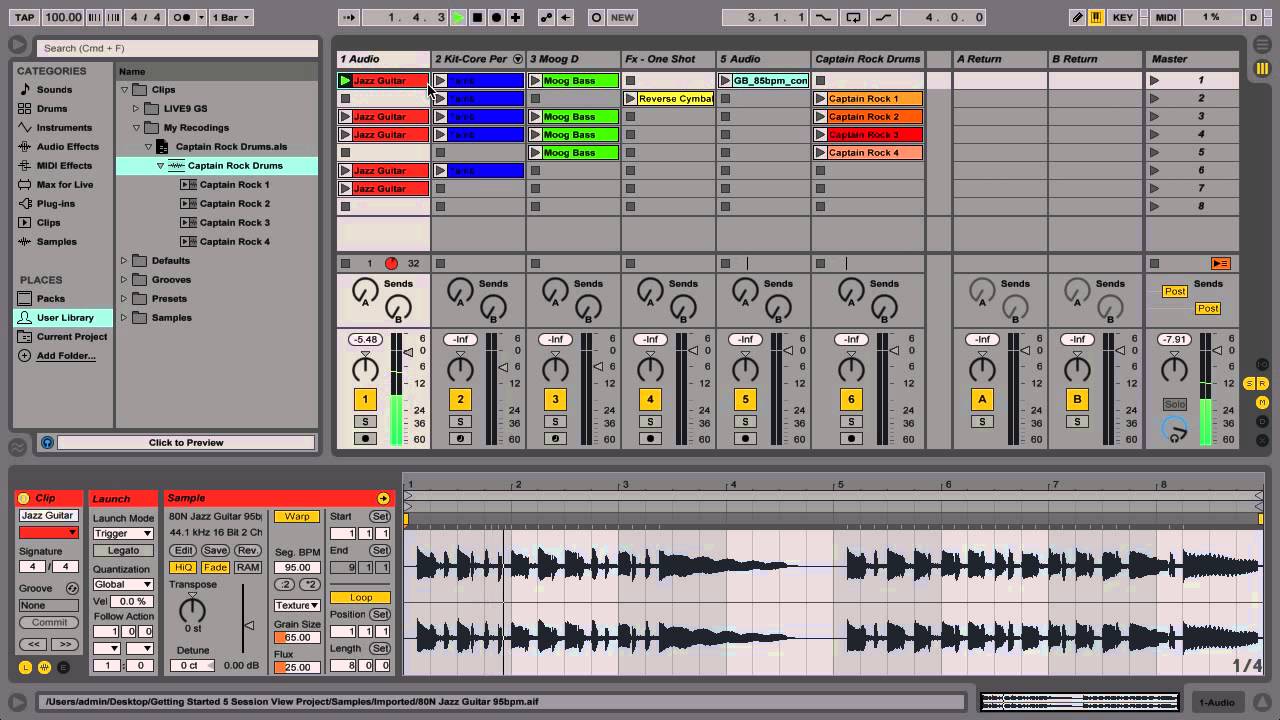
The Session View in Ableton Live is a non-linear arrangement view, designed for improvisation, live performances, and experimentation. It offers a grid-based layout that allows you to trigger and manipulate audio and MIDI clips in real-time.

Getting Started with the Session View

To get started with the Session View, launch Ableton Live and create a new project. Once you’re in the project, you can switch between the Session View and the Arrangement View by using the buttons at the top right corner of the interface.

In the Session View, you’ll see a grid consisting of vertical columns and horizontal rows. Each column represents a track, while each row represents a scene. A scene can be thought of as a collection of clips that you can trigger together.

Working with Clips

Clips are the building blocks of the Session View. To create a new clip, simply drag and drop an audio or MIDI file onto an empty slot in the track. You can also record directly into a clip using a MIDI controller or your computer keyboard.

Once you have clips in the Session View, you can trigger them by simply clicking on them or using a MIDI controller. Clips can be played, looped, and stopped individually or in groups, giving you complete control over the arrangement of your music.

Using the Session View in Ableton Live  : Mastering your music-production workflow

Credit: audioservices.studio

Organizing and Manipulating Clips

In the Session View, you have the flexibility to organize and manipulate your clips in a way that suits your workflow. You can easily rearrange clips by dragging and dropping them to different locations within the grid.

Ableton Live also offers various features to help you manipulate your clips creatively. You can adjust the playback speed, transpose the pitch, apply audio effects, and much more. By leveraging the power of automation, you can create dynamic and evolving performances.

Working with Scenes

Scenes are collections of clips that you can trigger together. They allow you to trigger different combinations of clips to create variations and build-ups in your music. To create a new scene, simply drag and drop clips onto an empty row in the Session View.

Using scenes, you can experiment with different arrangements and create dynamic performances. Scenes can be triggered manually or automated to change at specific points in your music. This gives you the freedom to improvise and adapt to different performance situations.

Recording and Performing Live

The Session View is particularly useful for live performances. Ableton Live allows you to record your performance in real-time while triggering clips, manipulating effects, and adjusting parameters on the fly.

With the Session View, you can easily build up and break down your music on the spot, creating unique and engaging performances. The non-linear nature of the Session View allows for improvisation and spontaneity, making it an essential tool for live electronic musicians.

Frequently Asked Questions Of Using The Session View In Ableton Live : Mastering Your Music-production Workflow


What Is The Session View In Ableton Live?


The Session view in Ableton Live is a creative space where you can experiment with musical ideas and arrange your tracks on the fly.


How Can I Use The Session View For Live Performances?


Utilize the Session view in Ableton Live to trigger different clips, loops, and effects in real time, providing a dynamic and engaging performance.


What Are The Benefits Of Using The Session View?


The Session view allows for spontaneous creation, improvisation, and arrangement flexibility, making it ideal for both studio production and live performances.


Can I Launch Multiple Clips Simultaneously In The Session View?


Yes, you can trigger multiple clips and create complex arrangements by launching various musical elements simultaneously in the Session view.

Conclusion

The Session View in Ableton Live is a powerful tool for live performances, improvisation, and experimentation. It allows you to trigger, manipulate, and arrange audio and MIDI clips in real-time. By harnessing the features of the Session View, you can create dynamic and engaging performances that are sure to captivate your audience.

Categories
Archive

Creating Pad Sounds in Ableton Live : Master the Art

Ableton Live is a popular digital audio workstation (DAW) used by music producers and composers worldwide. One of its key features is the ability to create rich and atmospheric pad sounds. Pads are often used to add depth and texture to a track, creating a lush and evolving background that supports the main elements of the music. In this article, we will explore various techniques and tools in Ableton Live to create compelling pad sounds.

1. Layering Multiple Sounds

Layering is a tried-and-true method for creating complex and interesting pad sounds. Ableton Live provides a variety of instruments and effects that can be combined to achieve unique textures. Here’s how you can do it:

  1. Start by selecting a few sounds with different characteristics, such as a warm string ensemble, a shimmering synth, and a gentle choir.
  2. Create separate tracks for each sound and add the instruments to the respective tracks.
  3. Experiment with different volume levels for each layer to achieve the desired balance.
  4. Apply effects like reverb, delay, and chorus to the entire pad to enhance the width and depth.

2. Modulation and Automation

Modulation and automation are powerful techniques that can breathe life into your pad sounds. Ableton Live offers a range of modulation options to explore:

  • Use LFOs (Low-Frequency Oscillators) to create subtle or dramatic changes in parameters like filter cutoff, resonance, or volume.
  • Experiment with automation envelopes to control various parameters over time, such as adding movement to the sound by automating a filter sweep.
  • Apply modulation effects like phaser, flanger, or tremolo to create interesting timbral variations.

3. Sample Manipulation

Manipulating samples can offer unique possibilities for creating pads in Ableton Live:

  1. Import a sample into a Sampler or Simpler instrument.
  2. Experiment with different looping techniques, like crossfading or adding release tails, to create sustained sounds.
  3. Adjust the start and end points of the sample to focus on specific harmonic content.
  4. Apply effects like granulation or time-stretching to transform the sample into a texture suitable for pad creation.

Credit: m.facebook.com

4. Using Ableton Live’s Synths

Ableton Live offers several synthesizers that are well-suited for creating pads:

  • The Analog synthesizer provides classic analog-inspired sounds.
  • The Operator offers FM (Frequency Modulation) synthesis capabilities for intricate and evolving pad textures.
  • Wavetable allows you to create rich pads using wavetable synthesis.
  • The Max for Live devices, such as Granulator or LFO, offer additional synthesis and modulation possibilities.

Credit: www.productionmusiclive.com

5. Creative Sound Design Techniques

Unconventional sound design techniques can help you push the boundaries and create unique pad sounds:

  • Experiment with resampling and layering the resampled material to create complex and evolving pads.
  • Explore effects like vocoders or vocally inspired sounds for ethereal and otherworldly textures.
  • Try incorporating field recordings or found sounds into your pad creations for a touch of originality.

In conclusion, Ableton Live offers a vast array of tools and techniques to create captivating pad sounds. By layering multiple sounds, utilizing modulation and automation, manipulating samples, exploring synthesizers, and employing creative sound design techniques, you can produce pads that enhance your tracks and elevate your music production to new heights. So go ahead, dive into Ableton Live, and start crafting those mesmerizing pad sounds.

Frequently Asked Questions Of Creating Pad Sounds In Ableton Live : Master The Art


How To Create Pad Sounds In Ableton Live?


To create pad sounds in Ableton Live, start by choosing a soft synth or sampler. Then, add layers of sustained tones with slow attack and release times.


What Are The Best Synths For Pad Sounds?


The best synths for pad sounds in Ableton Live include Analog, Operator, and Wavetable. Experiment with different waveform shapes and modulation options.


Why Are Pad Sounds Essential For Music Production?


Pad sounds add depth and atmosphere to music compositions. They provide a warm and lush backdrop for other instruments and contribute to the overall mood of a track.


What Effects Can Enhance Pad Sounds?


Effects like reverb, delay, and chorus can enhance the richness of pad sounds. Experiment with modulation and spatial effects to create a larger sonic landscape.

Categories
Archive

How Much Spotify Pays Artists: Unveiling The Truth!

Spotify pays artists between $0.003 to $0.005 per stream on average. The exact amount can vary based on numerous factors.


Understanding Spotify’s payment system for artists is crucial for musicians aiming to monetize their streams. It’s a complex ecosystem influenced by the user’s subscription type, the listener’s country, and the artist’s royalty agreements. Aspiring and established artists alike must navigate this digital terrain to ensure they receive proper compensation for their creative outputs.


Meanwhile, Spotify’s model continues to adapt, potentially influencing these payout rates. For artists, grasping the nuances of Spotify’s payment structure is a stepping stone towards a successful streaming strategy. With millions of users globally, Spotify presents a modern avenue for artists to earn income and gain exposure.


The Spotify Economic Model

The Spotify Economic Model operates in a web of complexity. This digital streaming giant has reshaped how music gets monetized. Grasping Spotify’s approach to revenue and artist payments can enlighten artists and listeners alike.

Revenue Streams

Spotify’s financial engine thrives on two primary revenue sources:

  • Subscriptions: Users pay monthly fees for ad-free listening experiences. Various plans include individual, family, and student options.
  • Advertisements: Non-subscribed users listen for free but hear ads. These ad spots generate income for Spotify.

Both streams contribute to the overall revenue that Spotify later allocates.

Artist Compensation Structure

Artists earn money from Spotify through a complex structure:

Streams Revenue Share Payment
Individual Plays Portion of Total Variable Rate
Total Monthly Listens Percentage Depends on Plays

An artist’s earnings vary due to factors like:

  1. User country – Different countries may have different rates.
  2. Subscription plans – Premium plays pay more than ad-supported plays.

Real-time statistics make tracking these earnings straightforward for artists.


From Plays To Paychecks

Ever wondered how an artist earns money from Spotify? It all starts when you hit play. From casual listeners to die-hard fans, every stream pushes an artist closer to success. Let’s dive into how these plays transform into paychecks for artists.

Stream Counts Impact

Artists get paid each time someone streams their song. More streams mean more money. It’s that simple. A single stream might not pay much, but it adds up quickly with many listeners.

  • Plays track how often a song gets streamed.
  • Spotify counts a play after 30 seconds of listening.
  • Popular tracks with millions of streams can lead to substantial earnings.

Payment Calculation

To understand earnings, knowing Spotify’s payment process is crucial. Here’s a breakdown:

Playlist Streams Total Pay (Estimated)
1,000 Streams $3-$5
10,000 Streams $30-$50
100,000 Streams $300-$500

Earnings vary based on different factors:

  1. Artist’s agreement with Spotify or record label.
  2. Geographical location of streams.
  3. Subscriber status – premium or ad-supported plays.

Premium streams usually pay more than ad-supported ones.

Breaking Down Per Stream Payouts

Artists and creators often wonder how much Spotify pays per stream. This post dives into the details of Spotify’s payout process. Understanding per stream payments tells us how Spotify rewards musicians for their art. Here’s a breakdown of what you, as an artist, might expect from Spotify streams.

Average Rates

Spotify doesn’t have a set rate for per stream payouts. It can vary widely, but reports suggest the average payout is between $0.003 and $0.005 per stream. This means that to earn $1,000, artists may need between 200,000 and 333,333 streams. These numbers reflect the average, but actual payouts can be lower or higher.

Factors Affecting Earnings

Different elements influence how much artists make from Spotify streams. Here is a list:

  • Stream location: Countries with higher subscription fees might lead to higher payouts.
  • User subscription: Premium subscribers generate more revenue than free users.
  • Actual plays: Spotify pays for each play that lasts over 30 seconds.
  • Artist’s contract: The share of revenue received depends on the artist’s agreement with labels and distributors.

These factors work together to calculate final earnings, resulting in the varied pay rates seen across the platform.

Payout Factors Example
Factor Impact on Payout
Stream Location Varying payout rates by country/region
User Subscription Higher rates for Premium streams
Actual Plays Must exceed 30 seconds for payout
Artist’s Contract Percentage received after label/distributor cuts

To navigate these earnings, artists should be familiar with their own contracts and understand Spotify’s streaming data. This knowledge will empower artists to make better decisions for their streaming strategy and financial planning.


Case Studies Of Artist Earnings

Artists’ earnings on Spotify can vary dramatically. Every musician’s journey is different, with stories ranging from indie artists to chart-topping celebrities. Understanding these earnings is key. Let’s dive into specific case studies to see just how much artists make from Spotify.

Indie Musicians

Independent musicians often rely on multiple income streams. Spotify plays a role in their earnings. Case studies show a wide range of figures. Some indie artists earn mere dollars, while others may pull in thousands. It’s a tough grind, but creative marketing and a strong fanbase can significantly boost streams and revenue.

Consider an example of an indie artist with a moderate following:

  • Monthly Listeners: 20,000
  • Average Streams: 50,000/month
  • Estimated Earnings: $200 – $300/month

This scale can fluctuate based on factors like listener countries and song length.

Chart-topping Stars

Mainstream artists see bigger numbers. With millions of listeners, top-performing stars earn substantial amounts. High-profile artists negotiate better rates at times, too. Here’s a breakdown:

Artist Monthly Listeners Estimated Monthly Earnings
Artist A (Top 10) 50 million $300,000
Artist B (Top 50) 20 million $120,000

These figures highlight the huge disparities between the top tier and indie artists.

The Role Of Major Labels

Major labels hold a powerful spot in the music industry. They seal deals with streaming platforms like Spotify. These deals help artists earn money from streams. Artists signed with these labels usually get better rates. But major labels keep a big part of the revenue. Let’s delve deeper into how major labels influence payouts and the distribution of funds.

Negotiating Payouts

Major labels have the clout to negotiate favorable terms with Spotify. They come to the table with big rosters of artists and can secure higher payouts. Strong negotiations mean more money for the label and potentially the artists. Yet, artists themselves rarely have a say in these talks. They rely on the label to fight for the best deal.

Distribution Of Funds

The cash flow from Spotify to artists goes through several channels. After Spotify pays the label, the money splits multiple ways. Here’s a breakdown:

  • Label’s Cut: A big chunk goes to the label.
  • Artist Royalties: The artist gets a share as agreed in their contract.
  • Producers and Songwriters: A part pays these key figures.
  • Taxes: Government taxes shrink the pie further.

In summary, major labels dictate much of the economics in an artist’s Spotify earnings. Understanding this dynamic is crucial for anyone in the music scene.

How Much Spotify Pay Artist: Unveiling Earnings Truth!


Credit: www.hollywoodreporter.com


Controversies And Criticisms

Spotify’s payment model for artists has stirred up widespread discussion. This digital streaming platform offers a space for artists to showcase their music to millions of listeners. Yet, the debate around the fairness of Spotify’s payout system remains heated.

Artist Voices

Many musicians have raised concerns about Spotify’s compensation practices. They claim the payments they receive do not match their music’s streaming numbers. Artist advocacy groups argue for increased transparency and better rates. High-profile artists have publicly criticized the platform. They stress the need for a model that supports all artists fairly.

Comparisons With Other Platforms

Spotify often finds itself compared to other music streaming services. Consider the payouts of platforms like Apple Music or Tidal. Industry reports suggest these competitors may offer more per stream. Yet, Spotify’s dominance in the market remains unshaken. They have a large user base and extensive music catalog. To understand artist earnings, one must consider both the number of streams and the rate per stream.

Breakdown of Spotify’s Payouts:

Streaming Service Average Payout Per Stream
Spotify $0.003 – $0.005
Apple Music $0.005 – $0.007
Tidal $0.009 – $0.012

Musicians must navigate the complexities of streaming revenue. They must also understand the variances across platforms. Whether Spotify will adjust its pay structure remains a topic of lively debate. The music community continues to call for fair compensation in the streaming era.

Improving Artist Revenue

Artists always look for ways to make more money from their music. Spotify streams can be a big part of their income. But many artists wonder if they’re earning enough from the platform. Let’s talk about how artists can improve their revenue on Spotify.

Efforts By Spotify

Spotify knows that happy artists mean more great music for listeners. They have efforts to help artists earn more. Spotify has a feature called “Spotify for Artists”. This lets musicians see how their songs perform. The platform also offers Spotify Direct Payment. This is where artists can make money directly from fans.

Alternative Monetization Strategies

  • Fan Subscriptions: Musicians can let fans subscribe for exclusive content.
  • Merchandise Sales: Artists can sell t-shirts, vinyl, and more right from their Spotify profile.
  • Concert Promotion: Spotify can show tour dates. Fans can buy tickets through the app.
  • Crowdfunding: Collect funds for upcoming projects directly from supporters.

Many musicians use these methods to boost income. Combining Spotify’s efforts with these strategies creates a solid plan. Musicians should explore all options to maximize their earnings.

The Future Of Music Streaming Payments

Artists today are deeply interested in the future of music streaming payments. As digital listening habits grow, questions about fair compensation emerge. The music industry’s pulse beats to the rhythm of technology. It now explores new ways to balance artist income with the music we enjoy on platforms like Spotify.

Technological Advancements

The music scene is buzzing with tech progress. Artificial Intelligence and blockchain could change how artists earn. AI might predict hit songs, influencing payment models. Blockchain promises transparent, direct artist payment. This tech makes each stream a potential micro-transaction, ensuring real-time royalties.

  • Artificial Intelligence: It’s set to shape music trends.
  • Blockchain Technology: It provides clarity in payments.

Potential Changes In Royalty Systems

Expect the unexpected with royalty systems. Artists seek a shift to ‘user-centric’ payments. Each subscription would benefit only listened-to artists. More discussions on ‘stream share’ models unfold. These dialogues aim for fair artist payouts, not just big hits. The table below breaks down potential royalty system changes:

Current Model User-Centric Model Stream Share Model
Pay per total streams Pay per listener’s choice Shares based on subscription
Favors top hits Benefits niche artists Evenly distributes income

Music streaming platforms may soon adopt these systems. Artists and fans may witness a revolution in digital music consumption. Investors and industry experts watch closely. They aim to strike a balance. The goal is fair pay for music creators amidst evolving tech landscapes.

Frequently Asked Questions Of How Much Spotify Pay Artist


How Much Does Spotify Pay Per Stream?


On average, Spotify pays artists between $0. 003 and $0. 005 per stream. The exact amount can vary based on factors such as the listener’s country and the artist’s royalty agreement.


Can Independent Artists Make Money On Spotify?


Yes, independent artists can earn money on Spotify. Royalties are paid out based on streams. With effective promotion and a growing fanbase, independent artists can generate a steady income.


What Factors Affect Spotify Artist Earnings?


Spotify artist earnings are influenced by the type of subscription listeners have, the country where the streams originate, and the specific contractual agreements between artists, labels, and distributors.


Do Artists Earn More From Spotify Premium Streams?


Artists earn a higher payout from Spotify Premium streams compared to ad-supported streams. This is because Premium subscriptions generate more revenue, which in turn increases the royalty pool for artists.


Conclusion


Understanding Spotify’s payment structure is crucial for artists aiming to monetize their music streaming. By staying informed and proactive, musicians can optimize their earnings. While rates may vary, every play counts towards an artist’s income, amplifying the importance of marketing and a strong, engaged listener base.


Embrace the digital age—every stream is a step towards success.


Categories
Archive

Mastering the Mixer: Unleash the Full Potential of Ableton Live

Welcome to this comprehensive guide on the Mixer in Ableton Live! In this article, we will explore the fundamental aspects of the Mixer within the renowned music production software, Ableton Live. Regardless of whether you are a novice or an experienced user, understanding the Mixer is crucial for enhancing your production skills and achieving high-quality sound mixes in your music projects.

What is the Mixer in Ableton Live?

The Mixer in Ableton Live is the central control hub where you can adjust the volume, panning, and effects of individual tracks within your project. It enables you to blend and balance different audio elements to create a cohesive and professional-sounding mix. The Mixer plays a pivotal role in shaping the overall sound of your music compositions.

Essential Features of the Mixer

Let’s delve into some of the key features that make the Mixer in Ableton Live a powerful tool for music production:

  • Volume Faders: These sliders allow you to adjust the volume level of each track in your project. Proper volume balancing is essential for achieving a well-mixed and dynamic sound.
  • Pan Controls: Pan controls determine the placement of the audio signal within the stereo field, allowing you to create a sense of spatial width and depth in your mix.
  • Send/Return Tracks: These tracks enable you to route audio from multiple tracks to a shared effects track for applying reverb, delay, or other effects uniformly across your mix.
  • Audio Effects: Ableton Live offers a wide range of built-in audio effects that can be applied to individual tracks within the Mixer to enhance the sonic characteristics of your sounds.

Optimizing Your Workflow with the Mixer

Efficiently utilizing the Mixer in Ableton Live can significantly streamline your workflow and boost your productivity during the music production process. Here are some tips to optimize your experience:

  1. Organize Your Tracks: Group similar tracks together in the Mixer to maintain a structured layout and facilitate easier navigation.
  2. Use Bus Routing: Route multiple tracks to a bus track for collective processing, allowing you to apply effects to multiple tracks simultaneously.
  3. Save and Recall Mixer Settings: Save custom mixer configurations as presets for quick access, enabling you to recall your preferred settings for future projects.

Advanced Techniques in the Mixer

For more experienced users looking to elevate their mixing skills in Ableton Live, here are some advanced techniques to explore:

Technique Description
Sidechain Compression Use sidechain compression to create rhythmic pumping effects by triggering the compressor on one track with the audio signal from another track.
Parallel Processing Implement parallel processing by duplicating a track, applying heavy processing to the duplicate, and blending it back with the original track for added depth and texture.
Midi Mapping Assign MIDI controls to Mixer parameters for real-time manipulation and automation, providing dynamic control over your mix elements.
Mastering the Mixer: Unleash the Full Potential of Ableton Live

Credit: www.amazon.com

Credit: www.facebook.com

Frequently Asked Questions Of Mastering The Mixer: Unleash The Full Potential Of Ableton Live


What Is The Role Of The Mixer In Ableton Live?


The mixer in Ableton Live functions as the control center for adjusting volume, panning, and effects for all tracks.


How Can I Use The Mixer For Audio Routing?


You can use the mixer in Ableton Live to route audio by sending a track’s output to a specific mixer channel or bus.


Can I Apply Effects Through The Mixer In Ableton Live?


Yes, you can apply a variety of effects such as EQ, compression, and reverb through the mixer in Ableton Live for each track.


What Is The Purpose Of Track Grouping In The Mixer?


The track grouping feature in the mixer allows for simultaneous control of multiple tracks, making it easier to adjust settings collectively.

Conclusion

In conclusion, mastering the Mixer in Ableton Live is essential for achieving professional-quality mixes that stand out in the music industry. By understanding the core features, optimizing your workflow, and exploring advanced techniques, you can elevate your music production skills and unleash your creative potential within the digital audio workspace of Ableton Live. Start experimenting with the Mixer today and witness the transformative impact it can have on your music projects!

Categories
Archive

How Long Does It Take To Mix A Song: Quick Guide

Mixing a song typically takes 4-12 hours, depending on complexity. Experienced professionals might do it faster.


The process of mixing a song is a critical stage in music production, balancing various audio elements to ensure clarity and harmony. This period can vary widely due to factors such as the number of tracks, the genre of music, the complexity of the audio, and the level of perfection sought by both the mixer and the artist.


Skilled mixing engineers carefully tweak levels, pan positions, equalization, and effects like reverb and delay. They sculpt the sound to create a polished final product that resonates with listeners. The exact time can also depend on whether the mix is for a demo, a commercial release, or personal use, with professional standards often requiring additional hours of meticulous work.


The Art And Science Of Mixing A Song

Mixing a song is a delicate balance between creativity and technical precision. It’s like painting with sound. Each layer of music works together to create a sonic masterpiece. Artists and producers spend hours in the studio perfecting this craft. So, let’s dive into the intricate world of blending sounds.

Blending Creativity With Technical Skills

A song mixer is both an artist and a scientist. Creativity meets technology in their hands. Mixers adjust levels, tweak equalization, and add effects. This shapes the emotional impact of a song. It’s crucial to have a deep understanding of musical elements. But you also need to master advanced audio software. A great mixer uses both to bring a song to life.

Understanding The Mixer’s Role

The role of a mixer is to find harmony between sound elements. This might include vocals, guitars, drums, and more. A mixer must consider several aspects. These are volume, panning, dynamics, and frequency balance. They also need to preserve the song’s vision. The goal is to enhance the listener’s experience. A well-mixed song feels complete and polished. It should take the audience on an auditory journey.

  • Assessing the Raw Materials: Review the individual tracks for quality.
  • Setting Levels and Pan: Balance each track in the stereo field.
  • Applying EQ and Dynamics: Shape the sound to fit together like pieces of a puzzle.
  • Adding Effects and Processing: Use reverb, delay, and other tools to create depth.
  • Final Touches: Ensure that all elements work in unity for a polished result.

Pre-mix Preparation

Before diving into the audio waves, solid prep sets the stage for a standout mix. This phase lays down the canvas where the song’s colors will shine. Thoughtful organization and high-quality recordings define this crucial step. Get these right, and mixing your song flows smoother and faster.

Organizing Tracks And Sessions

Good organization makes mixing easier. Start by naming tracks clearly.

  • Kick, Snare, Guitar, Vocals — Keep it simple and direct.
  • Colors and Numbers — Use them to group similar tracks.
  • Template Use — Saves time with preset routings and effects.

Consolidate audio files for a clean session view. Be sure each track starts at the same point. This prevents timing issues and maintains sync.

Ensuring Quality Recordings

High-class mixes rely on top-notch takes. Check each track for clarity.

  1. No Clipping — Distortion ruins good takes. Keep levels in check.
  2. Clean Editing — No abrupt cuts. Fade in and out gently.
  3. Tune and Time — Pitch-perfect and in rhythm often wins the day.

Invest time in removing background noise. Listen for hisses, hums, or pops. Fix these now, not later.

Factors Affecting Mixing Time

Finding out how long it takes to mix a song is like asking how long it takes to paint a picture. Many elements can influence the time it takes for a song to go from raw tracks to a polished mix. Understanding these factors is key for artists, producers, and mix engineers alike. Let’s dive into what impacts mixing time.

Complexity Of The Song

The number of layers in a song directly affects the mixing time. More elements mean more work. Here are a few aspects to consider:

  • Track count: More tracks demand more attention.
  • Instrument variety: Different instruments can challenge a mixer’s skills.
  • Vocal arrangements: Harmonies and ad-libs require fine-tuning.
  • Audio quality: Poor recordings may need extra work to sound good.

A complex song with many tracks will take longer to mix than a simple acoustic piece.

Experience Level Of The Mixer

A mixer’s expertise plays a critical role in the mixing process. The experience will influence not just the time it takes, but the quality of the final mix. Let’s compare:

Mixer Experience Level Impact on Mixing Time
Novice Longer, due to a learning curve.
Intermediate Medium, with fewer revisions needed.
Professional Faster, with more efficient workflows.

A seasoned mixer might mix a song in a few hours, while a beginner might need several days to achieve a similar outcome.

How Long Does It Take To Mix A Song: Quick Guide


Credit: moosecatrecording.com


Average Timeframes For Mixing

The journey of a song from recording to release is thrilling. One key step is mixing. This process blends recorded tracks together. It balances sounds. It polishes the final piece. Mixes vary in complexity. So, the time to mix a song can differ. Let’s explore average timeframes for different settings.

Indie And Home Studios

Mixing in indie or home studios is unique. These settings often mean more flexibility. There’s no rush. Artists work at their own pace. Still, average mixing time frames exist.

  • Simple projects: 1-2 days
  • Medium complexity: up to 1 week
  • Complex tasks: 2 weeks or more

Artists mix as they create. This could lead to faster completion. Or, it might extend mixing time. It depends on the project’s needs and the artist’s vision.

Professional Studio Expectations

In professional studios, the process is different. Timelines are tighter. The focus is efficiency. Sessions are booked by the hour or day. Here’s a general idea of what to expect:

Project Type Expected Time
Single song 8-16 hours
EP (3-5 songs) 3-5 days
Full album (10-12 songs) 2-4 weeks

Experience dictates speed. Professional engineers work swiftly. They deliver quality fast. They keep to schedules. Some projects might need extra time. Quality takes precedence.

Phase-by-phase Breakdown

Entering the world of music production unveils a fascinating process, song mixing. The duration of mixing a song can vary widely. It depends on the complexity and number of tracks. Dive into a detailed phase-by-phase breakdown of the mixing process and discover the journey your music undertakes before it shines to perfection.

Initial Listen And Assessment

Knowing your material is the first step in mixing. The engineer plays the song, identifying the standout elements. This phase is crucial for setting goals. A typical initial listen may involve:

  • Note-taking on specific areas of improvement
  • Understanding the creative vision of the artist
  • Recognizing the emotional heart of the song

This phase sets the stage for the mix and usually takes about an hour.

Tweaking Individual Tracks

Attention shifts to each track independently. The aim is to ensure clarity and balance. This involves:

  1. Cleaning up unwanted noise
  2. Adjusting timing and pitch where necessary
  3. Setting basic volume levels and pans

Depending on the track count, this could range from several hours to multiple sessions.

Applying Effects And Dynamics

The next phase is about enhancing the mix with effects and dynamics processing. Key tasks include:

Effects/Dynamics Goals
Compression To achieve a balanced, smooth performance
Reverb To add depth and space
EQ To shape the tone

This creative step varies greatly, taking from a few hours to a whole day or more.

The Role Of Automation And Presets

The Role of Automation and Presets has become increasingly crucial in the music production industry. Automation tools and preset libraries can propel the mixing phase forward at an impressive pace. A discussion on their advantages and possible pitfalls is essential for modern producers.

Speeding Up The Process

Mixing a song can be time-consuming. Automation and presets transform this task. They deliver consistent results quickly. Presets serve as starting points for effects and settings, cutting down the time needed to mix tracks. Automated processes guide repetitive tasks, allowing for creative focus elsewhere.

  • Equalizer presets match common instruments
  • Compression settings ready for various genres
  • Reusable templates for consistent project structures

Automation enables real-time adjustments to multiple tracks. Volume levels, panning, and effects parameters sync to song elements, without manual input each time.

Risks Of Over-reliance

Despite the benefits, heavy reliance on presets and automation poses risks. Every song is unique, so a one-size-fits-all approach can lead to a mix that lacks character. Identical presets across different songs diminish sonic diversity. It can make tracks sound too similar or generic.

  • Overuse may stifle creativity
  • Lack of attention to detail in critical mix elements
  • Potential for disregarding an artist’s unique style

Strong knowledge of basic mixing principles ensures presets serve as aids rather than crutches. Aim for a balance between automated conveniences and personalized tweaks. This strategy maintains a song’s individuality while still benefiting from technology’s pace.

Strategies To Efficiently Mix A Song

Welcome to the heart of music production: the mixdown. Crafting a clear, balanced and dynamic mix requires both skill and patience. Goal-oriented strategies ensure a fluid process and stellar end product. We dive into time-tested methods to streamline your mixing process, making it as efficient as possible.

Time Management Practices

Efficient session management is the cornerstone of a good mix. Diligent scheduling and breaks fall under this framework.

  • Set achievable goals: Break your mix into smaller tasks.
  • Allocate time: Assign specific periods to each task.
  • Take regular breaks: Short pauses help maintain a fresh ear.
  • Monitor progress: Use checklists to track completion.

Using Reference Tracks

A reference track is a secret weapon for efficient mixing. It provides a roadmap for sound quality and balance.

  1. Choose wisely: Select tracks that mirror your desired output.
  2. Analyze the mix: Note its balance, dynamics, and frequency distribution.
  3. Match levels: Ensure your track plays at a similar perceived loudness.
  4. Compare and adjust: Regularly switch between the reference and your mix.


Common Pitfalls And How To Avoid Them

When diving into the complex world of mixing a song, it’s easy to get caught off track. Recognizing common pitfalls can save valuable time and energy. Understanding what to watch out for enables you to streamline the mixing process and achieve results that truly resonate with listeners. Let’s walk through some of these traps and learn the best practices to avoid them.

Over-mixing And Ear Fatigue

Over-mixing is a frequent misstep that can lead to a flat and lifeless track. The key is finding balance and knowing when to step back. Here are a few tips:

  • Set time limits for mixing sessions to prevent overwork.
  • Take regular breaks to rest your ears and maintain perspective.
  • Use reference tracks to ensure your mix stays dynamic.

Ear fatigue diminishes your mixing abilities. Your ears become less sensitive to changes in the mix. To combat this:

  • Mix at lower volumes when possible.
  • Step away from the studio every couple of hours.
  • Consider alternate listening environments for fresh perspectives.

Losing Perspective Of The End Goal

It’s easy to lose sight of the song’s ultimate objective amid the minutiae of mixing. Always keep the end goal in mind:

  1. Start with a clear vision of the song’s final sound.
  2. Regularly revisit the original demo for direction.
  3. Get feedback from trusted ears to avoid tunnel vision.

Remember, the goal of mixing is to enhance the song, not overshadow its core essence. Ensuring each element complements the other is paramount.


Finalizing The Mix

Finalizing the Mix stands as a critical stage in music production, where the intricate process of blending tracks reaches its culmination. Precision and an attentive ear steer this journey towards a polished, coherent single track that radiates the artist’s vision. Let’s delve into the essential steps at this juncture.

Knowing When It’s Done

A common dilemma faced by producers is deciding when a mix is truly finished. Signs of a complete mix often include clarity in each instrument, balanced levels, and a sense of sonic harmony that aligns with the intended artistic message. Trusting your instincts plays a key role in drawing the line. Here are clear indicators to watch for:

  • Consistency across various listening devices
  • Dynamics and emotion in line with the song’s mood
  • Feedback from unbiased ears representing the target audience

Preparing For Mastering

With the mixdown set, preparation for mastering is the next vital step. It ensures your track is ready to compete in the loudness and quality arena of commercial releases. Follow these important pre-mastering tasks:

  1. Check for adequate headroom, ideally peaking at -6dB
  2. Perform a final quality control pass, removing any clicks or noise
  3. Render the mix in the highest possible resolution, like 24-bit

By sticking to these guidelines, your song stands tall, primed for the mastering process that will elevate it to its fullest potential.


Credit: info.xposuremusic.com


Frequently Asked Questions For How Long Does It Take To Mix A Song


What Factors Affect Song Mixing Time?


Song mixing time can be influenced by several factors including the complexity of the track, the number of instruments, the quality of the recording, the experience of the mixing engineer, and the desired quality of the final mix. Generally, more elements require more time.


How Long Should Mixing A Single Song Take?


Mixing a single song can take anywhere from a few hours to several days. Professional engineers often spend 4-8 hours for a basic mix. However, complex songs with numerous tracks may require 10-20 hours or more to achieve the desired sound quality and detail.


Can Mixing Be Done In One Day?


Yes, mixing can be done in one day, especially for simpler projects or with tight deadlines. That said, extra time allows for finer adjustments and a more polished end product. Adequate breaks are crucial for critical listening throughout the process.


What’s The Average Time To Mix An Ep?


The average time to mix an Extended Play (EP) can range from a couple of days to a week or more. An EP typically includes 3-5 songs, and each song may require one or two days of mixing, depending on the complexity and production goals.


Conclusion


Wrapping up, mixing a song varies in time due to multiple factors. Expertise, song complexity, and equipment all play a role. Aim for patience and precision rather than speed. A well-mixed track can elevate your music, making the time invested utterly worthwhile.


Keep practicing and refining your skills for the best results.

Categories
Archive

Creating Bass Sounds in Ableton Live: Mastering the Art

Ableton Live is a powerful digital audio workstation (DAW) that offers a wide range of tools and features for music production. When it comes to creating bass sounds, Ableton Live provides various plugins and techniques to help you achieve the desired results. In this article, we will explore some useful tips and tricks to create compelling bass sounds in Ableton Live.

Selecting the Right Oscillator

The oscillator is the fundamental building block of any bass sound. Ableton Live offers a variety of oscillator types, such as sine, square, sawtooth, and triangle waves. Each waveform has its unique characteristics, and you can experiment with different combinations to find the perfect match for your bass sound.

Applying Filters and Envelopes

To shape your bass sound further, you can apply filters and envelopes. Filters allow you to remove unwanted frequencies and emphasize certain aspects of the sound. Ableton Live features various filter types, including low-pass, high-pass, band-pass, and notch filters. Experimenting with different filter settings can help you achieve the desired tonal qualities.

Envelopes, on the other hand, control how the sound evolves over time. The most commonly used envelope parameters include Attack, Decay, Sustain, and Release (ADSR). Adjusting these parameters can significantly impact the character and dynamics of your bass sound.

Layering Multiple Sounds

Layering multiple bass sounds can add depth and complexity to your compositions. Ableton Live allows you to stack multiple sound sources together, combining different oscillator waveforms, filters, and effects. Experiment with different layering techniques to create a unique and powerful bass sound.

Creating Bass Sounds in Ableton Live: Mastering the Art

Credit: blog.faderpro.com

Utilizing Effects and Modulation

Ableton Live provides a wide range of effects and modulation tools that can enhance your bass sound. Some popular effects for bass include distortion, overdrive, chorus, and reverb. Additionally, utilizing modulation effects like LFOs (Low-Frequency Oscillators) can bring movement and texture to your bass sound.

Working with MIDI Controllers

Ableton Live can be integrated with various MIDI controllers, allowing you to have hands-on control over your bass sounds. MIDI controllers offer tactile and expressive ways to manipulate parameters in real-time, enabling you to create dynamic and organic bass performances. Consider investing in a MIDI controller to take your bass sound creation to the next level.

Credit: www.mind-flux.com

Sound Design Resources

There are plenty of resources available online for learning more about sound design in Ableton Live. Websites, forums, tutorials, and YouTube channels dedicated to music production can provide valuable insights and ideas for creating unique bass sounds. Exploring these resources can help you stay updated with the latest techniques and trends in bass sound design.

Frequently Asked Questions For Creating Bass Sounds In Ableton Live: Mastering The Art


How To Create A Classic Bass Sound In Ableton Live?


To create a classic bass sound in Ableton Live, start with a simple waveform like a sine or sawtooth, add a low-pass filter, and adjust the envelope to give it punch and sustain.


What Are Some Essential Effects For Processing Bass Sounds?


Essential effects for bass processing in Ableton Live include EQ to boost or cut specific frequencies, compression to even out the volume, and saturation to add warmth and harmonics.


Why Is Proper Eq Important For Bass Sounds In Ableton Live?


Proper EQ is important for bass sounds in Ableton Live to ensure clarity and definition, remove muddiness, and tailor the sound to fit with other elements in the mix.


How Can Layering Enhance The Depth Of A Bass Sound?


Layering bass sounds in Ableton Live can enhance depth by combining different waveforms or samples, blending frequencies, and stacking different timbres to create a rich, full-bodied sound.

Conclusion

Creating captivating bass sounds in Ableton Live involves careful selection and manipulation of oscillators, filters, envelopes, effects, and modulation. By experimenting with different settings, layering techniques, and utilizing MIDI controllers, you can develop unique and impactful bass sounds that add depth and richness to your music productions. Remember to stay curious and continue learning to refine your skills in bass sound design.

Categories
Archive

Can Spotify Artists Discover Their Song Streamers?

Spotify artists cannot see exactly who listens to their songs. They only have access to anonymized, aggregated data about their listeners.


Spotify is an audio streaming platform that has revolutionized music consumption, offering musicians insights that were once inconceivable. Now, artists can view a treasure trove of anonymous data, such as listener demographics, location, and listening habits, through Spotify for Artists.


This information helps artists understand their audience, plan tours, and tailor marketing strategies. With over 345 million active users, Spotify provides artists with the tools to analyze their reach and impact within the vast landscape of digital music consumers. Despite this, the exact identities of listeners remain private, ensuring user confidentiality and keeping personal listening experiences discreet.


The Spotify Landscape

Spotify has transformed the way we consume music, creating a vast landscape where artists and fans connect like never before. In this terrain, questions about privacy and data naturally surface, especially for artists curious about their listeners.

The Rise Of Streaming

Streaming services have skyrocketed in popularity, with Spotify leading the charge. Millions now prefer instant access to their favorite tunes over owning physical copies.

  • Convenient and flexible music consumption.
  • Access to a vast library of songs anytime.
  • Personalized playlists and music discovery features.

Privacy And User Data

Privacy remains pivotal for Spotify, ensuring user data stays protected. Artists receive insightful analytics without compromising listener identity.

Artists Can See: User Data Not Shared:
General listener demographics Individual names or accounts
Total number of streams Personal listener information
Playlist adds and location data Specific user listening habits

Such measures ensure a balance between valuable feedback for artists and essential privacy for listeners.

Artist Analytics On Spotify

Imagine you are a music artist on Spotify. You want to know who enjoys your music. Spotify has tools for that! They help artists see who is listening and where their songs are popular. This is useful for planning tours and knowing your fans better.

Spotify For Artists: Features

Spotify for Artists is a dashboard full of goodies. It shows you who is streaming your tracks. It even tells you about your listeners. You can see where they are from and what they like to listen to. This helps you connect with your fans.

  • Real-Time Stats: See when fans play your songs.
  • Profile Customization: Make your Spotify profile look great.
  • Playlist Submission: Submit new music to Spotify’s editorial team.

Metrics And Data Available

Spotify does not show specific names of listeners. But, it provides lots of info to help you understand your audience. Here’s what you can see:

Metrics What It Shows
Monthly Listeners How many people play your music every month.
Listener Demographics Ages and locations of your listeners.
Playlist Adds Which playlists feature your tracks and how many times they have been played.
Song Saves How many times listeners have saved your songs.

These details help artists grow their music careers. Use them to make your fans happy with more of what they love!


Streamer Data: Limits And Accessibility

In the world of music streaming, artists crave insights into their audiences. Yet, there’s a balance to maintain. Spotify provides artists with data on their listeners, but strict limits ensure privacy remains unbreached. Understanding what information is accessible to artists and what stays private helps to demystify the Spotify experience for both creators and streamers. Let’s dive into the details of streamer data on Spotify.

Data Privacy Policies

Spotify takes user privacy seriously. Adherence to global data protection regulations shapes the kind of information artists can see about their listeners. Here’s a breakdown of the privacy boundaries:

  • No individual identification: Spotify doesn’t allow artists to identify who is streaming their music.
  • General analytics only: Creators get aggregate data, such as total plays, skips, and saves.
  • Geographical insights: Artists know the countries and cities their listeners are from but not exact locations.
  • Anonymous demographic details: Ages and genders of listeners are provided without personal identifiers.

Information Artists Can Access

Artists have access to a wealth of anonymous streaming statistics that help them understand their audience. Below is what artists can explore:

Type of Data Description
Listener Numbers Total and unique listener counts over different time frames.
Playlist Adds Information on which playlists feature their songs and listener counts from those playlists.
Song Popularity Metrics on how their songs perform on the platform overall.
Social Sharing Insights into how often listeners share their songs on social platforms.

Customized dashboards in Spotify for Artists allow creators to analyze trends, track growth, and make informed decisions about promotions and fan engagement.


The Power Of Listener Insights

The world of music streaming has evolved, and with it, so has the interaction between artists and their listeners. The Power of Listener Insights is revolutionizing the way artists understand their audience. Spotify has provided musicians with valuable data to refine their music and marketing strategies. Explore how artists are leveraging these insights to their advantage.

Understanding Demographics

Knowing who listens to their music is crucial for artists. This helps them tailor their content and promotional efforts.

  • Age and Gender: Artists see listener age ranges and gender distribution.
  • Geographic Location: Spotify shows listener locations down to the city level.
  • Music Tastes: Insight into other music their audience enjoys informs collaboration decisions.

Demographic data benefits artists in crafting targeted campaigns and developing a deeper connection with their fans.

Tracking Listener Engagement

Engagement metrics shine a spotlight on how listeners interact with an artist’s songs. This is crucial for understanding which tracks resonate more with audiences.

Engagement Data Benefit to Artist
Play Counts Assess popularity and reach
Playlist Adds Measure listener retention and potential for virality
Skip Rates Judge song appeal and listener engagement
Save Rates Understand which songs fans love the most

With engagement data, artists fine-tune their musical craft, fostering higher listener satisfaction and growth.

Case Studies

Artists on Spotify have a world of data at their fingertips. But what insights can they really glean from streaming statistics? By diving into case studies, we can see how analyzing listeners shapes the music industry. Let’s explore the impacts of analytics and privacy.

Success Through Analytics

Analytics help artists grow. Take the story of indie musician, Lucy Dream. She used Spotify’s analytics to understand her fanbase. Her data showed that a specific city had a high number of streams. Lucy organized a tour in that city and sold out her shows.

  • Identified high-listener areas
  • Planned targeted tours
  • Increased engagement with fans

Privacy Challenges And Spotify

However, with great data comes great responsibility. Artist Ben Rock faced a backlash when he mentioned specific fans during a show. Ben received insights about his top listeners from Spotify. But he didn’t know that sharing such data could invade privacy. It sparked a debate on user privacy.

  • Artist mentioned fans by name
  • Fans felt their privacy was violated
  • Renewed discussion on ethical use of data

These cases show how Spotify’s analytics can boost success yet challenge privacy. Artists balance between understanding their audience and respecting listener anonymity.

Balancing Privacy And Marketing

Artists and marketers often walk a tightrope between accessing valuable listener data and respecting fan privacy. On streaming platforms like Spotify, this balance is crucial. Adequate data helps artists understand their audience better, tailor their music and promotional efforts, and ultimately succeed in a competitive industry. Yet, privacy remains a top concern for listeners who cherish their anonymity. This section explores how artists can navigate these waters effectively.

Fan Privacy Concerns

Fans cherish their ability to stream music anonymously. They worry about personal data misuse. Spotify artists do not see specific listener details, ensuring user privacy. The platform offers generalized data, not individualized tracking. Listener’s trust is paramount. Confidentiality promotes a safe listening environment.

Strategies For Responsible Use Of Data

Strategic and ethical use of listener data benefits both artists and fans. Artists get anonymized insights, not personal identities. They should focus on trends and patterns, not individuals. Respect for privacy builds loyal fan bases. Using data to improve musical offerings can enhance the listener experience without compromising privacy. Ethical data practices are a win-win.

  • Analyze genre popularity amongst listeners to inform future creations.
  • Monitor song performance to tailor marketing strategies.
  • Engage with audiences through personalized content, mindful of privacy boundaries.

By adopting these strategies, artists can embrace the power of data while upholding their fans’ right to privacy.

Tools And Integrations

Spotify offers artists fantastic insights about their music. But with third-party tools and advanced analytics integrations, the experience only gets better. These add-ons help artists understand their audience on a deeper level. Knowing who listens, from where, and which songs they love the most is crucial. Let’s discover the tools that bridge the gap between artists and fans.

Connecting With Third-party Tools

To broaden the scope of analytics, Spotify has made connecting with third-party tools simple. Here’s what artists can do:

  • Link up their Spotify profile with social media analytics.
  • Track song performances across different platforms.
  • Analyze listener demographics in detail.

Enhancing Spotify Analytics

By enhancing Spotify’s existing analytics, artists can unlock new potential:

  1. Identify listener trends over time.
  2. Get notified when songs are added to popular playlists.
  3. Understand fan engagement through detailed reports.
Can Spotify Artists Discover Their Song Streamers?


Credit: www.hypebot.com


The Future Of Music Streaming

The world of music streaming is rapidly evolving, pushing the boundaries of how artists connect with fans. At the heart of this innovation lies a question that piques the curiosity of many musicians: Can Spotify artists see who listens to their songs? As we look ahead, the future of music streaming promises to deepen the bond between artist and listener through data and technology. Let’s explore what these changes might look like.

Predicting Trends

Understanding listener preferences is crucial for artists to stay ahead. With advanced analytics, artists can now:

  • Identify emerging genres – Spot new music trends as they start.
  • Track song performance – Monitor which tracks gain traction.
  • Analyze listener demographics – Tailor promotions to specific groups.

Such insights help artists predict and influence future music trends.

Evolving Artist-listener Relationships

Music streaming platforms are transforming artist-fan interactions:

  • Real-time feedback loop – Instant reactions to new releases.
  • Personalized experiences – Custom content for individual fans.
  • Exclusive access – Behind-the-scenes glimpses for engaged listeners.

By leveraging listener data, artists can create more personal, long-lasting relationships with their audience.

Frequently Asked Questions Of Can Spotify Artist See Who Listens To Their Songs


Can Artists View Listener Demographics On Spotify?


Artists can access demographic information about their listeners via Spotify for Artists. This includes age, gender, location, and what playlists are generating the most streams. However, individual user profiles are not shared with artists for privacy reasons.


Do Spotify Artists See Individual User Data?


No, Spotify does not provide artists with data on individual listeners for privacy reasons. They get aggregated data to understand their listener base but cannot see individual profiles or listen habits.


How Do Artists Know Their Popular Songs On Spotify?


Spotify for Artists gives detailed insights on song performances. Artists can see the number of plays, listener retention, and playlist additions. This helps them identify which songs are most popular among their audience.


Can Spotify Artists Interact With Their Fans?


Spotify doesn’t offer direct communication tools between artists and listeners. Artists often share their social media handles in their Spotify profiles to interact with fans elsewhere.


Conclusion


Wrapping up, Spotify provides artists valuable insights, but not individual listener details. This balance maintains privacy while helping artists grow. Stay updated with Spotify’s evolving features for the best experience. Whether you’re streaming or creating, this platform is shaping the future of music consumption and creation.