Categories
Archive

Studio Desk

A studio desk is a workstation designed for music producers, sound engineers, and other professionals who require a comfortable and ergonomic working space to manage their equipment and deliver high-quality results. It is typically equipped with a desktop surface, shelves, racks, and drawers to hold mixing consoles, speakers, monitors, computers, and other peripherals.

Studio desks have become an essential piece of furniture in modern recording studios, home recording setups, and video editing rooms. They provide not only a functional working environment but also an aesthetic appeal with their sleek and elegant designs. Choosing the right studio desk is crucial to maximize productivity and enhance your creativity.

This article aims to provide you with comprehensive guidance on how to select the ideal studio desk for your needs and budget.

Design And Features

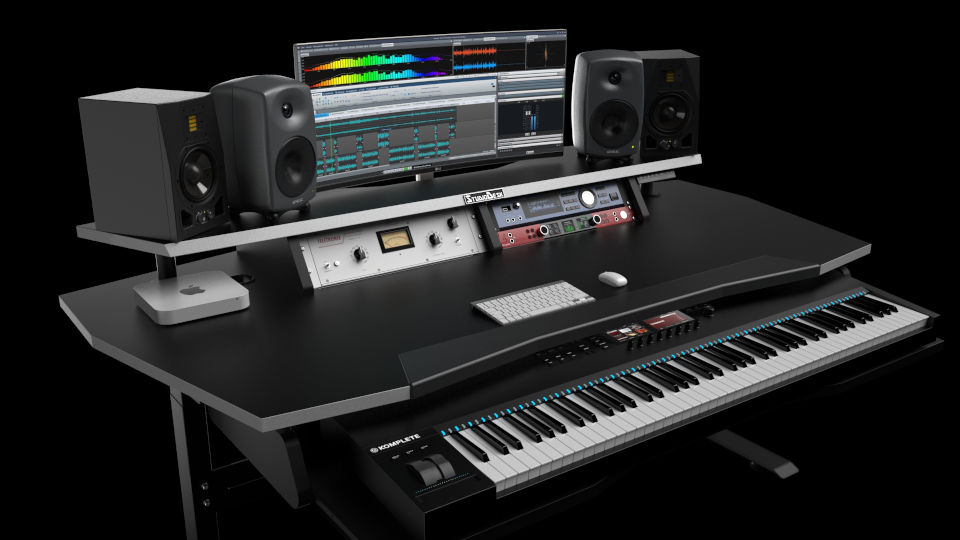
The studio desk boasts an ergonomic design that ensures maximum comfort, efficiency, and utility. It features ample space for accommodating monitors, keyboards, controllers, speakers, and other hardware accessories. The desk is also designed with cord management systems to minimize clutter and maximize organization.

A well-designed studio desk is a key piece of furniture that every musician, producer, or sound engineer needs. Not only should it be sturdy and durable, but it should also be designed to enhance the workflow and ensure the best sound quality. A studio desk with a sleek and modern design can also inspire creativity and help organize your workspace. In this article, we will be discussing the various features and design aspects that make a perfect studio desk.

Ergonomics Of A Studio Desk

Ergonomics is an essential factor to consider when choosing a studio desk. A desk that is too high or too low can cause discomfort and lead to long-term health problems. The ideal studio desk should allow you to position your arms in a comfortable and relaxed position, with the monitor at the correct height to avoid eye and neck strain. Additionally, the keyboard tray should be at the right angle to prevent wrist injuries.

Built-in Cable Management

A messy workspace can be distracting and affect your productivity. That’s why a studio desk with built-in cable management is a must-have feature. It helps keep all the cables organized and tidy, preventing tangling, knots, and dust. Some desks offer zip-ties or clips to hold cables in place or cable routing channels to hide cables from sight. This feature not only improves the aesthetic appeal of the desk but also helps maintain the overall longevity of the setup.

Speaker Isolation Pads

If you are a sound professional, you know how crucial it is to isolate your speakers from external vibrations to achieve the best sound quality. Speaker isolation pads absorb the unwanted frequencies that resonate through the desk and can lead to loss of sound quality. These pads are made of high-density foam and offer a non-slip surface, ensuring the speakers do not move or skid while in use. Studio desks with built-in speaker isolation pads make for an efficient setup, saving you both time and effort.

Storage Options

Every studio desk needs ample storage to keep the workspace clean and organized. A desk with built-in storage options such as drawers, shelves or cabinet space, provides plenty of room to store all the necessary equipment needed during the recording process. Drawers can hold papers, documents, and small items while storage shelves can store books, cables, or even a small keyboard. Some desks offer modular storage options that can be customized to your specific needs.

Material And Construction Quality

A studio desk is not something you want to replace every year, so it is essential to choose one made of quality materials that can withstand the wear and tear of everyday use. The construction quality should be top-notch, with durable joints, sturdy legs, and a smooth finish. Desks made from solid wood or metal frames are known for their durability and make for a long-lasting investment. Moreover, a studio desk with a painted or laminated surface is more resistant to scratches and stains, improving the lifespan of your desk. In conclusion, a well-designed studio desk can help increase productivity, improve acoustics and ultimately enhance your final product. Features such as ergonomic design, built-in cable management, speaker isolation pads, and ample storage options, all play an important role in making a perfect desk for sound professionals. Choosing a desk made of top-quality materials also ensures longevity, making it an investment worth considering.
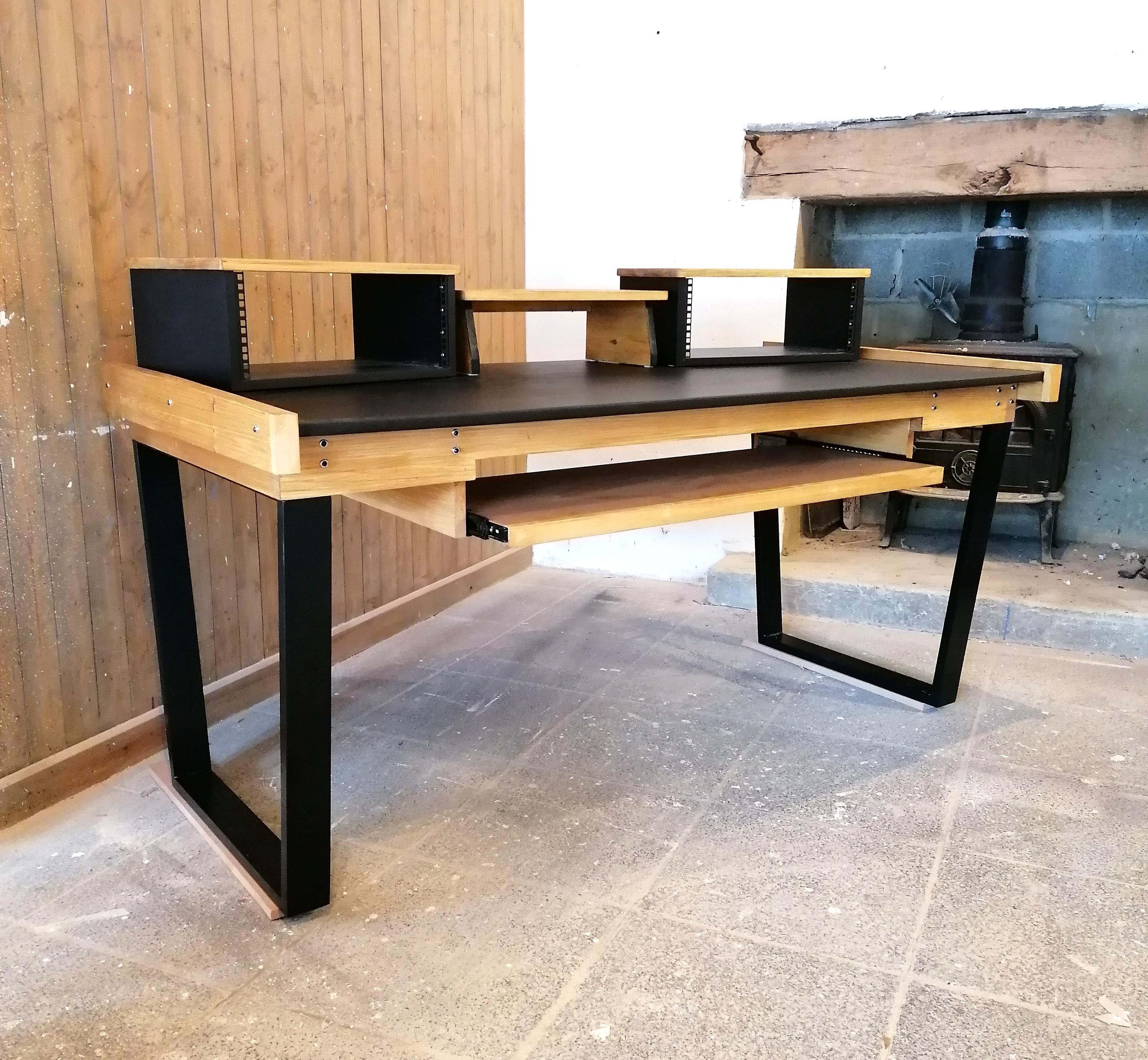
Studio Desk

Credit: www.etsy.com

Types Of Studio Desks

Studio desks come in various types to suit the different needs of music producers and audio engineers. The types include the traditional workstation, the L-shaped desk, the corner desk, the adjustable height desk and the modular desk.

Studio desks are a crucial component for music producers and sound engineers. A high-quality studio desk helps to maintain the right posture while working, and it can also be a great asset to enhance your studio’s overall aesthetic appeal. When it comes to studio desks, there are several types available in the market which are designed to cater to different requirements.

Standard Studio Desk

The Standard Studio Desk is perfect for music producers with a limited workspace. It’s a simple yet effective desk that ensures smooth workflow. It usually comes with a keyboard tray, a monitor shelf, and space to house your studio monitors. Additionally, it may have a dedicated space for your computer or laptop. The desk is designed to support your arms and wrists while working to prevent fatigue.

Corner Studio Desk

Corner Studio Desks are a great option if you have a confined room or if you need your desk to be out of the way. It makes good use of the corner space and comes with plenty of desk space. The desk provides a 90-degree angle that allows the music producer to have a comfortable and natural view of the screen. The screen must be kept at least an arm’s length away from the eyes.

Adjustable Height Studio Desk

If you have back problems or have a tall build, then the Adjustable Height Studio Desk might be best suited for you. These desks come with adjustable legs that allow you to adjust the height of your desk. The desk can be raised to a level that suits your height, ensuring good posture and preventing back pain. These adjustable desks come with a premium price tag, but they are an excellent investment in the long run.

L-shaped Studio Desk

The L-Shaped Studio Desk provides ample space to work with, making it the perfect option if you’re running a recording studio with multiple equipment pieces. The desk provides multiple surfaces to place your studio equipment, including your computer, mixing console, studio monitors, and more. With an L-Shaped desk, you can efficiently manage your studio’s workflow, enhancing productivity, and maximizing space in the studio.

Custom-built Studio Desk

Finally, if you have a unique requirement that is not met by the standard desks available in the market, then the Custom-Built Studio Desk is the way to go. Custom-built desks are specifically designed to cater to your needs, ensuring the perfect space and storage for you and your equipment. They may cost more than standard desks, but the convenience and comfort they offer are incomparable. In conclusion, choosing the right studio desk plays a vital role in enhancing productivity and workflow in your recording studio. Regardless of the type of desk you choose, always ensure that it provides comfort, ample workspace, and easy accessibility to your equipment.

Factors To Consider While Choosing A Studio Desk

A studio desk is an essential piece of furniture for any music producer, sound engineer, or video editor. It provides a comfortable workspace and storage for your equipment. When choosing a studio desk, there are various factors you need to consider.

Size And Shape

The size and shape of the desk are critical factors to consider. You need to take into account the space available in your studio and the number of equipment you have. If you have a small studio, a compact desk would be the best option. On the other hand, if you have a lot of equipment, you might need a desk with multiple tiers or shelves.

Usage

Another key factor to consider when choosing a studio desk is usage. Think about how you plan to use it. If you work with multiple monitors, you need a desk with enough space to accommodate them. If you are a music producer, you might want a desk with a keyboard tray. Make sure the desk you choose fits your specific needs.

Budget

Studio desks come in different price ranges. Some are affordable, while others are expensive. When choosing a desk, you need to consider how much you are willing to spend. Keep in mind that a higher price does not always mean better quality. Research the different types of desks available to find one that suits your needs and budget.

Aesthetics

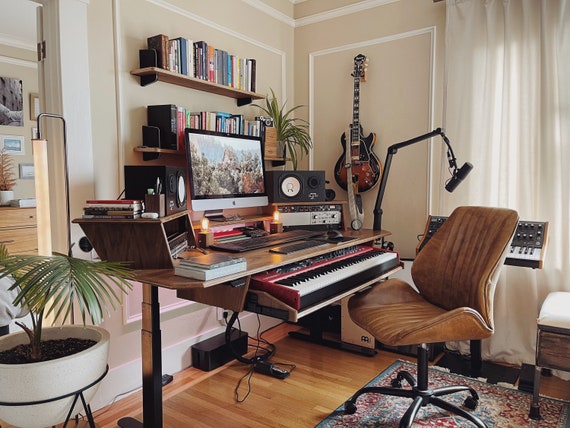
While functionality is critical, aesthetics cannot be ignored. The desk you choose should complement the style of your studio. For instance, if you have a modern studio, you might want a desk with a sleek, minimalistic design. If your studio has a classic look, a wooden desk would be a great option.

Future Upgradability

Finally, you need to think about future upgradability. It is essential to choose a desk that can accommodate future upgrades and additional equipment. The desk you choose should be adaptable enough to accommodate different gear setups. Consider choosing a desk that has extra slots, shelves, or compartments that can be added or removed.
Studio Desk

Credit: www.studiodesk.net

Setting Up A Studio Desk

If you are someone who works with video or music production, you understand the importance of a well-equipped studio. A studio desk is a crucial component of any studio, and how it is set up can make all the difference in the quality of your work. Here we will discuss the key factors you need to consider when setting up your studio desk.

Positioning Of The Desk

The position of your desk is essential when setting up your studio. You want to ensure that it is positioned in a way that optimizes your workflow while creating a comfortable work environment. Your desk should be located facing away from the wall, to allow for easy access to your equipment and prevent distracting reflections. You should be able to turn your chair easily to access any equipment you need during a project.

Studio Monitor Placement

When it comes to setting up your studio desk, the placement of your studio monitors is critical. Your speakers should be at an equal distance from each other and at ear level. A common placement technique is placing your speakers in an equilateral triangle with your head, forming a 60-degree angle. Doing so will result in a more balanced and accurate sound while producing music or videos.

Acoustic Treatment

Acoustic treatment is another crucial aspect of your studio setup. If your studio has too many reflective surfaces, such as walls, floors, and ceilings, it may create unwanted echoes, making it challenging to record high-quality audio. Acoustic treatments like sound-absorbing wall panels, bass traps, and diffusers can help reduce reflections and improve the overall quality of sound in your studio.

Optimizing The Workstation

Optimizing your workstation is vital for a comfortable and efficient workspace. Ensure that your desk is the correct height according to your individual needs to prevent neck and back pain. Organize your workspace to suit your needs, such as cable management and access to your equipment. A well-organized workspace can increase your efficiency and productivity.

Conclusion

Maintenance And Care

Proper maintenance and care of your studio desk is essential to ensure long-lasting durability and functionality. Regularly cleaning and dusting the surface, avoiding excessive weight on the desk, and using coasters for drinks can all help to extend the life of your workspace.

Maintenance and Care: Taking care of your studio desk is crucial to ensure its longevity and optimal performance. Proper maintenance and care can not only keep your desk looking new, but it can also help prevent potential damage. In this section, we’ll take a closer look at how to clean and dust your desk, avoid scratches and water damage, and explore options for repair and replacement. Cleaning and Dusting: Regular cleaning and dusting is essential to keep your studio desk looking fresh and new. To clean your desk, start by wiping it down with a dry microfiber cloth to remove any dust or debris. If there are stains or grime, you can use a mild cleaning solution and a soft cloth to wipe down the surface gently. Avoid using harsh chemicals or abrasive cleaners that may damage the finish of your desk. Avoiding Scratches and Water Damage: Scratches and water damage can be detrimental to the appearance and functionality of your studio desk. To avoid scratches, make sure to place any objects on the desk gently and use coasters for drinks. If you need to move equipment or furniture, use protective pads to prevent scratches. For water damage, wipe up any spills immediately and avoid placing drinks or other liquids directly on the desk. Repair and Replacement Options: Despite your best efforts, accidents can happen, and you may need to repair or replace your desk. If the damage is minor, it may be possible to fix it yourself using touch-up paint or wood filler. For more extensive damage, it may be worth contacting a professional to evaluate the repair options. If the damage is beyond repair, you may need to consider replacing the desk. Check with the manufacturer or seller to see if your desk is still under warranty or if there are replacement parts available. By following these maintenance and care tips, you can help ensure your studio desk stays in top shape for years to come.

Reviews Of Popular Studio Desk Models

Choosing the right studio desk is crucial for music producers, sound designers, and video editors. A good studio desk should provide ample space for your equipment, facilitate comfortable and efficient workflow, and enhance the overall look of your workspace. However, with so many brands and models available in the market, finding the perfect studio desk can be a daunting task. To help you make an informed decision, we have reviewed some of the popular studio desk models from different brands.

Brand A Studio Desk:

Brand A offers a range of studio desks that cater to different needs and budgets. Their flagship model is the XYZ Studio Desk, which features a sturdy frame made of steel and hardwood, and a spacious tabletop with room for multiple monitors, laptops, and desktops. The desk also has built-in cable management and height-adjustable legs that make it comfortable for long sessions. Users have praised the desk’s durability, functionality, and aesthetic appeal.

Brand B Studio Desk:

Brand B is known for its high-end studio furniture that combines elegance with utility. Their signature model is the ABC Studio Desk, which boasts a minimalist design with clean lines and smooth surfaces. The desk is made of premium-grade materials such as solid oak, walnut, and steel, and features multiple slots, shelves, and drawers for storing and organizing your gear. Users have praised the desk’s craftsmanship, attention to detail, and ergonomics.

Brand C Studio Desk:

Brand C specializes in studio furniture that blends vintage and modern elements. Their flagship model is the DEF Studio Desk, which has a retro-inspired design with curved edges, tapered legs, and a distressed finish. The desk is made of reclaimed wood and metal, and features a large tabletop with a built-in monitor shelf, keyboard tray, and storage cabinet. Users have praised the desk’s unique design, rustic charm, and value for money.

Brand D Studio Desk:

Brand D caters to budget-conscious buyers who need a functional and stylish studio desk. Their popular model is the GHI Studio Desk, which has a sleek and simple design with a black or white finish. The desk is made of lightweight and durable materials such as MDF and metal, and features a compact tabletop with a riser that can hold a monitor or laptop. Users have praised the desk’s affordability, portability, and ease of assembly.
Studio Desk

Credit: www.etsy.com

Frequently Asked Questions On Studio Desk

What Is A Studio Desk?

A studio desk is a specialized piece of furniture designed for music production or audio recording. It usually has a large workspace, storage shelves or compartments for equipment, and may include features like cable management or ergonomic design.

Why Do I Need A Studio Desk?

A studio desk can help you organize your gear and create a more efficient workspace for your music production or audio recording needs. It can also enhance your creativity by providing a comfortable and ergonomic environment to work in.

What Size Should My Studio Desk Be?

The size of your studio desk will depend on your specific needs and available space. Consider the size of your equipment, the amount of storage you require, and the physical dimensions of your workspace when selecting a desk.

What Materials Are Studio Desks Made Of?

Studio desks are often made of high-quality materials like wood, metal, or glass. Different materials offer different aesthetics, durability, and functionality, so choose the materials that best suit your needs and budget.

Conclusion

A studio desk is essential for any music producer, writer, or designer working from home or in a small studio. While there are plenty of options available on the market, finding one that combines functionality, ergonomics, and durability can be a challenge.

By doing your research, you can find the perfect desk that suits your needs and takes your creative work to the next level. Invest in a high-quality studio desk, and you’ll see a significant improvement in your productivity and comfort.

Happy crafting!
Categories
Archive

Best Glitch Vst Plugins

The best glitch VST plugins are Glitch 2, Stutter Edit 2, and RC-20 Retro Color. These plugins are perfect for creating unique and creative glitch effects in music production.

Glitch effects have been popular in various music genres, from electronic to pop. It adds a creative and unexpected twist to the music, making it stand out and memorable. To create a glitch effect, glitch VST plugins are essential tools for any music producer.

We’ll explore the best glitch VST plugins that are currently available in the market. We’ll dive into the features of each plugin and how they can help you create unique and creative glitch effects in your music.

Best Glitch Vst Plugins

Credit: cymatics.fm

Top 5 Glitch Vst Plugins

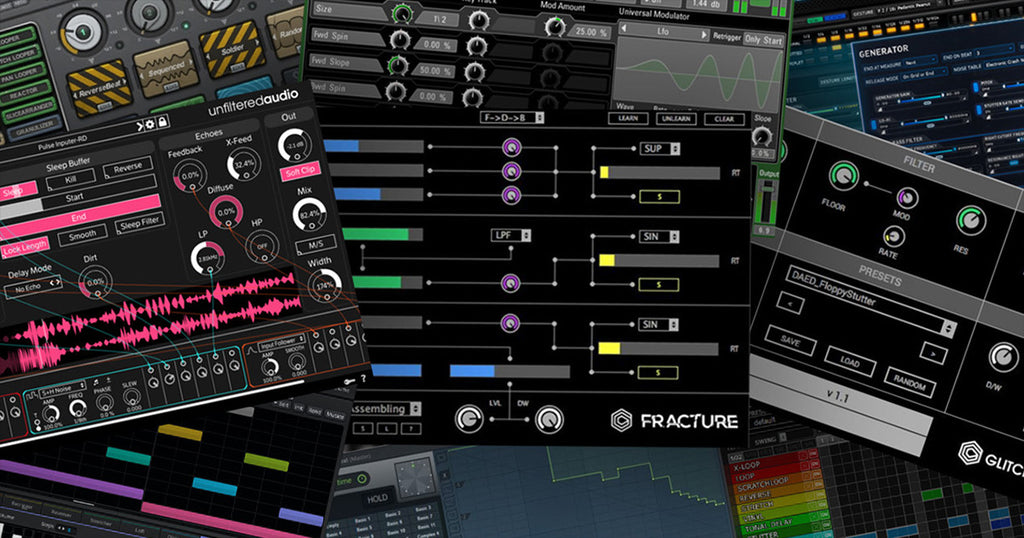
Discover the top 5 glitch VST plugins for music production with innovative features that create unique rhythms and sound effects for tracks. These plugins – Glitch 2, dBlue Glitch, Tantra, Stutter Edit 2, and Portal – are essential for electronic music producers seeking to add new dimensions to their music and expand their sound palette.

If you’re a music producer who loves incorporating a glitchy sound effect in your tracks, then you should definitely consider having one of the best glitch Vst plugins on the market. These tools can help you achieve that unique sound that you’re looking for. In this post, we’ll be exploring the top 5 best glitch Vst plugins that you should consider adding to your plugin collection.

Izotope Stutter Edit 2

The iZotope Stutter Edit 2 is a great tool for music producers who are looking for a glitch Vst plugin that can deliver a wide range of effects. With an intuitive interface, this plugin enables you to create complex stutter effects, set up custom rhythms, and use various presets of morphing effects. Its advanced features make it easy to sync it up with your song’s tempo.

Glitch 2 By Illformed

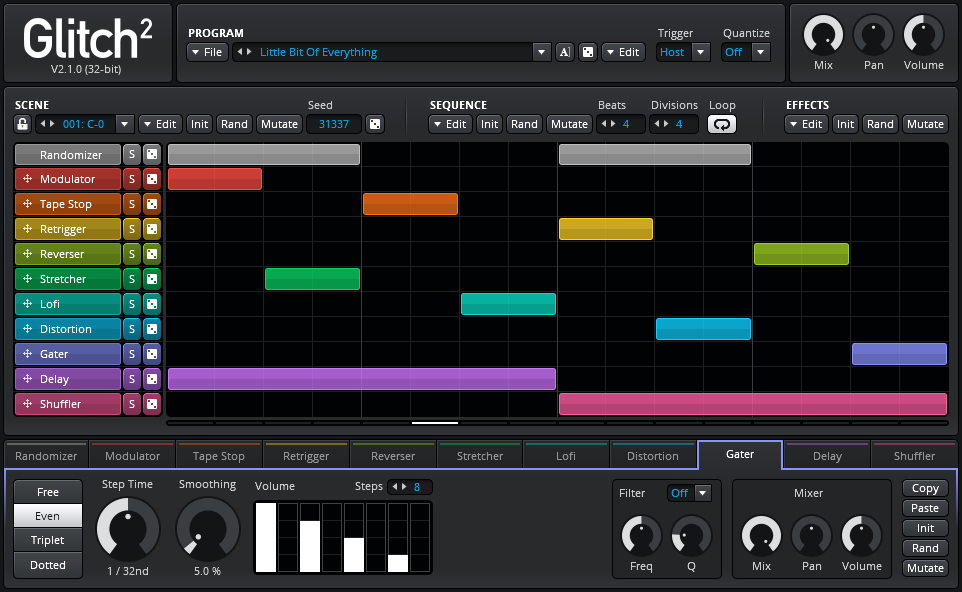
Glitch 2 by Illformed is another powerful plugin that you should consider getting if you’re looking for a tool that can help you create unique sounds. With its advanced sequencing capabilities, this VST plugin features various modulation options, 128 effect modules, and real-time effect processing. This plugin can create anything from shaking basslines to chaotic glitches making it very versatile.

Effectrix By Sugar Bytes

Effectrix by Sugar Bytes is a fantastic plugin that can be used to add various glitch effects to your tracks. Whether you’re looking to create granular loops, rhythmical pads, or even melodies, this Vst plugin has a lot to offer. It features 14 effect algorithms, 16-step sequencer, and MIDI routing support.

Cableguys Halftime

When it comes to slowing down your tracks, Cableguys HalfTime is the best plugin to use. This plugin can help you create half-speed effects by halving the audio’s speed in real-time. It features various adjustable parameters that can help you further shape the sound and create something very unique.

Portal By Output

Portal by Output is a powerful Vst plugin that can help you add intricate glitch effects to your tracks. The plugin comprises of granular synthesis, pitch-shifting, and various modulation options. Over 250 presets and a user-friendly interface makes it easy to create various soundscapes and adjust it to your needs. So there you have it, the top 5 best glitch Vst plugins you should consider adding to your collection. Each one offers different features and capabilities, so choose wisely based on your requirements. Note that all these tools require a compatible digital audio workstation and should be installed properly to have a seamless experience.

Best Glitch Vst Plugins

Credit: cymatics.fm

Best Glitch Vst Plugins

Credit: www.productionmusiclive.com

Frequently Asked Questions On Best Glitch Vst Plugins

What Is Glitch Vst?

Glitch VST is a virtual instrument plug-in designed to manipulate and create glitchy music effects. It adds stuttering, chopping and other variations to a digital audio signal for an exciting and unique sound. It is popular among electronic music producers and sound designers.

What Vsts Do Pros Use?

Professional music producers prefer VSTs from reputable companies such as Native Instruments, Spectrasonics, Arturia, FabFilter, Waves, and UAD. They use a variety of virtual instruments, effects processors, and software synthesizers to create unique and high-quality sounds for their music.

What Is The Best Cymatics Plugin?

The best Cymatics plug-in is subjective and depends on personal preference and the specific needs and goals of the user. Some popular options include Serum, Sylenth1, and Massive. Ultimately, thorough research, experimentation, and trial and error can help determine which plug-in is best suited for one’s production style and sound design needs.

Who Makes The Best Vst?

It is subjective to determine who makes the best VST, as there are many companies producing high-quality virtual instruments. However, some popular choices among producers include Native Instruments, Spectrasonics, and Omnisphere. Ultimately, the best VST is the one that meets the individual’s specific needs and preferences.

Conclusion

The best glitch VST plugins can add a new dimension to your music production. Whether you are a beginner or a seasoned pro, using these plugins can help you create innovative and unique sounds. With various options available in the market, it can be challenging to choose the right one.

We hope our list of the best glitch VST plugins has helped you narrow down your choices and find the perfect plugin for your needs. Happy glitching!

Categories
Archive

Overloud Echoson Review

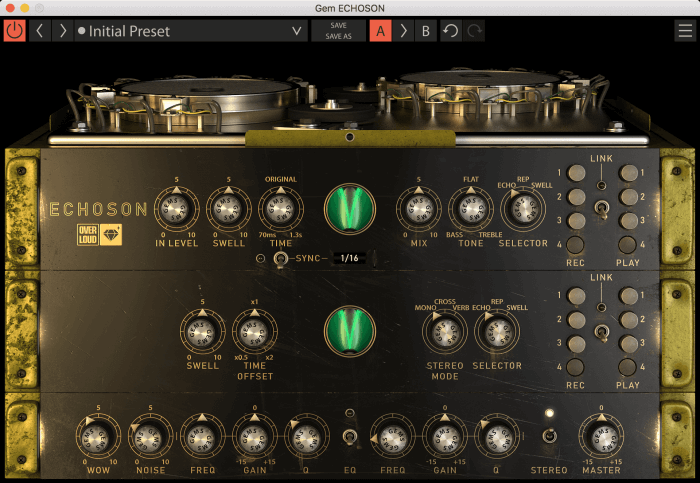
Overloud Echoson is a powerful audio plugin for emulating vintage tape delays. It can recreate the sound of legendary echo units, and it offers a versatile set of controls for precise adjustments.

Overloud Echoson is a meticulously crafted plugin that brings the characteristic warmth of vintage tape delays to modern audio recordings. Its intuitive interface features all the necessary parameters for shaping the delay effect, including time, feedback, and saturation controls. Additionally, the plugin offers a variety of advanced options for further customizing the sound, such as modulation settings and a high-pass filter.

With its accurate emulation of iconic echo units and flexible capabilities, Overloud Echoson is an excellent choice for adding depth and character to any mix.

Overloud Echoson Review

Credit: www.youtube.com

Features

Overloud Echoson boasts a user-friendly interface that allows you to easily adjust parameters such as delay time and feedback. With its authentic tape echo sound, this plugin is perfect for achieving that vintage sound in your mixes.

When it comes to producing authentic and high-quality tape delay effects, Overloud Echoson is the go-to plugin for musicians, producers, and audio engineers. Its outstanding tape delay emulations and features make it a must-have tool in any music production setup.

Authentic Tape Delay Emulation

Echoson’s unique tape delay emulation ensures that the tape delay effects sound as authentic as possible, without the need for bulky and expensive tape machines. The plugin features a high-quality tape emulation process that accurately captures the warmth, saturation, and character of vintage tape machines.

Two Different Tape Machines Modeled

Overloud Echoson offers users the choice of two tape machines, the ‘Binson Echorec 2’ and the ‘Maestro Echoplex EP-3’. The Binson Echorec 2 is a classic tape delay machine that was widely used in the 60s and 70s. The Maestro Echoplex EP-3, on the other hand, is a delay machine that was heavily used in the 70s and 80s.

Easy To Use Interface

The user interface of Echoson is designed to be easy to navigate, with clear and concise controls that make it easy for beginners and professionals alike to achieve the desired effects quickly. The plugin features an intuitive interface that is divided into various sections to make it easy to find exactly what you are looking for. In conclusion, the features of Overloud Echoson make a compelling case for its necessity in any music production setup. With its authentic tape delay emulation, two different tape machines modeled, and easy-to-use interface, it is an excellent choice for anyone who wants to add warmth, depth, and character to their music.

Overloud Echoson Review

Credit: synthanatomy.com

Sound Quality

Sound quality is one of the most important factors to consider when it comes to choosing an echo plugin. Overloud Echoson is known for its excellent sound quality that can add warmth and richness to any audio recording. The plugin is highly versatile and can be used in a variety of settings, thanks to its flexible controls.

Warm And Rich Analog Sound

One of the standout features of Overloud Echoson is its warm and rich analog sound. The plugin has been designed to emulate the sound of classic tape echo machines, providing a vintage feel that can add depth and character to any recording. The analog sound is particularly impressive, with realistic tape hiss and distortion that can really bring a track to life.

Great For Vintage And Modern Recordings

Whether you’re recording a classic rock track or a modern pop song, Overloud Echoson is a great tool to have at your disposal. The plugin can be used to add a vintage touch to any recording, or to create unique effects that can’t be achieved with other plugins. The controls are intuitive and easy to use, making it a great choice for both beginners and experienced producers alike.

Versatility

When it comes to choosing the right plugin for your mixing and mastering needs, versatility should be a key factor to consider. The Overloud Echoson is a delay plugin that offers a variety of features that make it a versatile tool for any music producer or sound engineer.

Perfect For Mixing And Mastering

The Overloud Echoson’s versatility makes it perfect for mixing and mastering. With a variety of presets and parameters, it allows you to sculpt your sound in any way you desire. The plugin’s delay effects can be subtle or extreme, making it a versatile tool for creating space and depth in your mixes. Additionally, it offers a range of controls such as time, feedback, tone, and modulation, making it easy to fine-tune the plugin to your desired sound.

Great For Guitars, Vocals, And More

The Overloud Echoson is not just limited to mixing and mastering. It is also a great tool for processing guitars, vocals, and other instruments. The plugin’s versatility allows you to experiment with a range of delay effects, from vintage tape echoes to modern digital reverbs. Moreover, it comes with presets designed specifically for guitars and vocals, making it easy to achieve a professional sound with minimal effort.

In conclusion, the Overloud Echoson is a versatile delay plugin that offers a range of features suitable for mixing and mastering as well as processing guitars, vocals, and other instruments.

Comparison

The Overloud Echoson is a versatile and highly accurate emulation of classic echo units. Its feature-packed interface allows for easy customization of both stereo and mono signals, making it a great choice for a variety of recording scenarios.

How Does Echoson Compare To Other Tape Emulation Plugins?

When it comes to tape emulation plugins, Overloud Echoson is a top contender. But how does it compare to other plugins in the same category? Let’s take a closer look. First off, Echoson stands out from the rest with its high-quality sound and intuitive user interface. While some plugins may offer a wider range of features, Echoson’s focus on authenticity and simplicity sets it apart. In terms of pricing, Echoson falls into the mid-range bracket. It’s not the cheapest option out there, but it’s also not the most expensive. However, when you consider its superior sound quality and ease of use, it’s definitely worth the investment.

Echoson Versus Hardware Tape Delay Units

While tape emulation plugins have come a long way in recent years, they still can’t quite match the sound of a hardware tape delay unit. That being said, Echoson comes pretty close. One of the main advantages of Echoson over hardware units is its versatility. With Echoson, you have a wide range of customizeable options at your fingertips, allowing you to dial in the perfect sound for your needs. Additionally, Echoson takes up much less physical space than a hardware unit, making it a more practical option for many users. Of course, hardware tape delay units have their own unique charm and character that can’t be replicated by a plugin. But for those who want a top-quality tape emulation experience without the hassle of hardware, Echoson is an excellent choice.

User Interface

The user interface of Overloud’s Echoson is intuitive and user-friendly, offering a variety of options for customizing and shaping your audio. The sleek design and easy-to-use controls make it easy for both beginners and professionals to achieve their desired sound.

If you’re looking for an easy-to-use recreation of a tape delay system with state-of-the-art effects and functionality, you might want to consider the Overloud Echoson. This plugin is quite flexible and versatile, with a powerful user interface that is remarkably customizable and adaptable, making it an excellent choice for top-notch sound production. The user interface is essentially how you control and interact with the plugin. In this post, we’ll look at some of the key features of the plugin’s user interface.

Simple And Straightforward Controls

One of the most distinguishing aspects of the Overloud Echoson is its simple and straightforward controls. When you first launch the plugin, you’ll notice that the user interface is designed to be as user-friendly as possible. The plugin’s parameters are well-arranged, and most of them are displayed in the form of intuitive knobs and sliders, which makes it very easy to modify and shape the sound of your tracks just the way you want them. No unnecessary extras and options to be confused about.

Realistic Tape Deck Interface

The plugin offers a realistic tape deck interface. The tape delay simulator is presented in a vivid and engaging graphic user interface (GUI) that resembles a vintage reel-to-reel machine. As you work with the tape deck interface, you’ll see and hear the tape roll and capture your audio. The GUI is straightforward to navigate, making it simple to work with all the available options and parameters of the plugin. The interface also displays the current tempo, which you can use to sync the delay to your tracks automatically. In conclusion, the Overloud Echoson is a highly recommended plugin for anyone looking for an easy-to-use tool for emulating classic tape delay systems. The plugin’s user interface is one of its most essential features, which makes it suitable for both professional music producers and beginners. So, if you’re in search of a high-performance and versatile audio processing tool, give the Overloud Echoson a chance, and you won’t regret it!

Overloud Echoson Review

Credit: www.youtube.com

Price And Value

The Overloud Echoson Review showcases the perfect balance between price and value, providing high-quality digital emulation of vintage tape echo units without compromising on sonic capabilities. The plugin offers precise sound shaping, intuitive controls, and an affordable price tag, making it a must-have for any sound engineer or musician working in a digital audio workstation.

Is Overloud Echoson Worth The Investment?

Overloud Echoson has been making its mark in the music industry with its unique tape delay plugin. But the question remains: is it worth the investment? The answer is unequivocally yes. Here’s why: for only $139, users get a high-quality emulator with exceptional features and unparalleled sound quality. Whether you’re a professional musician or just starting your career, the investment in Overloud Echoson is well worth the cost.

How Does Echoson Compare To Other Tape Delay Plugins In Its Price Range?

One of the most impressive aspects of Overloud Echoson is its affordability. In its price range, Echoson provides one of the best tape delay plugins available. Its unique technology and accurate emulation of classic analog gears, such as Binson Echorec, provides a warm and organic sound that sets it apart from other tape delay plugins in the same price range. The fact that Echoson is a complete package, incorporating many vintage sound effects, only adds to its value. It is not just a delay plugin, but also a highly versatile effects processor.

Conclusion

Overloud Echoson offers a high-quality tape delay plugin at an affordable price, making it an attractive option for music producers and musicians of all levels. Its exceptional features, accurate emulation of classic analog gears, and unique technology make it stand out from other tape delay plugins in this price range. In conclusion, for the price, Overloud Echoson is by far one of the best tape delay plugins on the market today.

Frequently Asked Questions Of Overloud Echoson Review

What Is The Echoson Plugin?

The Echoson plugin is a digital emulation of the Maestro Echoplex, a classic analog delay effect used by guitarists and producers.

What Features Does The Echoson Plugin Offer?

The Echoson plugin offers a range of features including tape saturation, EQ controls, modulation, and the ability to sync the delay time to the tempo of your project.

How Does The Echoson Plugin Compare To The Original Echoplex?

The Echoson plugin faithfully recreates the sound and character of the original Echoplex, while also offering additional features and flexibility.

Is The Echoson Plugin Easy To Use?

Yes, the Echoson plugin is designed to be user-friendly and intuitive, with a simple interface that allows for easy control over the various parameters.

Conclusion

After thoroughly testing Overloud Echoson, it’s safe to say that this innovative plugin is worth the investment. Its accurate emulation of classic echo units and its extensive customization options make it a valuable tool for both recording and live performance.

Whether you’re a sound engineer, producer, or musician, Echoson will elevate your sound game to a whole new level. Start experimenting with this digital processor and discover a new world of echo and delay effects to enhance your music productions.

Categories
Archive

Beginner Course In Fl

A Beginner Course in FL is a course for those who want to learn the basics of FL Studio, a Digital Audio Workstation (DAW) used for music production. It covers the basics of how to navigate the software, record and manipulate audio and MIDI, and create and arrange musical ideas using the built-in instruments and effects.

This course is ideal for beginners who have no prior experience in using a DAW or music production software and want to start making music on their computer. By the end of the course, students will have a solid foundation in the basics of FL Studio and be able to create their own tracks and compositions.

Setting Up Fl Studio

Learn how to set up FL Studio in a beginner course that will guide you through the process step by step. With clear instructions and hands-on exercises, you can master the basics of music production and start creating your own tracks.

If you’re a beginner in FL Studio, the first step is to set up the software on your computer. In this article, we’ll go through the system requirements needed to run FL Studio, the steps to download and install the software, and how to understand and navigate the FL Studio interface.

System Requirements

Before downloading and installing FL Studio, it’s important to make sure your computer meets the system requirements. This will ensure the software runs smoothly and without any issues. Here are the minimum system requirements for FL Studio:

  • Operating System: Windows 7 or later / macOS 10.13.6 or later
  • CPU: Intel or AMD processor with 2 GHz or higher
  • RAM: 4 GB or more recommended
  • Storage: 4 GB free disk space
  • Sound card with DirectSound drivers

Downloading And Installing Fl Studio

Once you’ve confirmed that your computer meets the minimum system requirements, you’re ready to download and install FL Studio. Follow these steps:

  1. Visit Image-Line’s website and select the version of FL Studio you want.
  2. Click on the download link and wait for the installer to download.
  3. Once the installer is downloaded, run it and follow the on-screen instructions to install FL Studio.
  4. After installation, open FL Studio and it should be ready to use.

Understanding The Fl Studio Interface

Navigating any new software can feel overwhelming, but the FL Studio interface is relatively straightforward. Familiarizing yourself with the different sections of the interface can help make the software seem less daunting. Here are some key components of the FL Studio interface:

ComponentDescription
Channel RackDisplays all of the instruments and samples used in the project with associated patterns and sequencing.
Step SequencerUsed to program beats, melodies, and chords.
MixerControls the volume and other effects for individual tracks and instruments.
BrowserUsed to search and import new sounds, samples, and plugins into the project.

By familiarizing yourself with the FL Studio interface, you’ll be able to navigate the software with ease and start creating your own music in no time. Overall, setting up FL Studio is a simple process that is accessible to beginners. By following these steps, you can ensure that you have a smooth and successful experience with the software.

Beginner Course In Fl

Credit: soundcloud.com

Basic Music Theory

Learning music theory can be daunting for beginners, but it’s an essential part of becoming a skilled FL Studio user. Basic music theory covers everything from notes, scales, chords, and tempo to creating melodies and harmonies. By mastering the basics, you’ll have a solid foundation to create music that sounds great.

Notes, Scales, And Chords

Notes are the basic building blocks of music. They’re represented on the musical staff as dots and lines and are written in the form of sheet music. In FL Studio, notes are displayed on the Piano Roll, which is like a digital version of sheet music. Scales are groups of notes that work together to create a melody. Chords are groups of notes that play at the same time to create harmony. Knowing the difference between these three elements is crucial to creating music that sounds good.

Understanding Tempo And Time Signature

Tempo refers to the speed at which a song is played. It’s measured in beats per minute (BPM) and is typically set at the beginning of a project. Time signatures are the numerical values that represent the organization of beats in a measure. For example, 4/4 time means that there are four beats in each measure, and the quarter note receives one beat. Understanding tempo and time signatures will help you create a consistent rhythm in your music.

How To Use The Piano Roll

The Piano Roll is where you’ll spend most of your time in FL Studio. It’s where you’ll create melodies, chords, and basslines. The Piano Roll allows you to enter notes, adjust their lengths, and move them up and down to create different pitches. It also gives you access to a wide range of editing tools and features, making it a powerful tool for creating music.

Creating Your First Track

Learn how to create your first track as a beginner in FL Studio with our comprehensive course. Our easy-to-follow tutorials cover everything from creating beats and melodies to mixing and mastering your final product. Start your music production journey today and unleash your creativity with FL Studio.

Creating Your First Track If you’re a beginner music producer, starting to make your first track can be an overwhelming experience. However, with enough practice and patience, you can create a masterpiece that you will be proud of. In this Beginner Course in FL Studio, we will guide you through the process of making your first track. We will cover everything from choosing instruments and sounds to programming drums and percussion, as well as writing melodies and chords. Let’s dive in! Choosing Instruments and Sounds Once you have a basic idea of what you want your track to sound like, the first step is to choose the right instruments and sounds. FL Studio comes with an extensive library of instruments and sounds to choose from. You can also purchase additional sound libraries if you want to expand your sound palette. When selecting instruments and sounds, be sure to choose ones that complement each other and fit together well. It’s essential to keep your vision and style in mind when selecting sounds for your track. Programming Drums and Percussion Programming drums and percussion is an essential part of making a track. It creates the backbone of your song and gives it a sense of rhythm and groove. In FL Studio, you can use the step sequencer to create and program drums and percussion. You can also use pre-made drum loops and samples to help you get started. When programming drums and percussion, make sure they fit the style and tempo of your track. Add variation to your drum patterns to keep the listener engaged. Writing Melodies and Chords Melodies and chords are the heart and soul of your track. They create the emotional impact and the overall vibe of the song. When writing melodies and chords, choose a scale that complements your track’s style and mood. In FL Studio, you can use the piano roll or the MIDI keyboard to write your melodies and chords. Experiment with different chord progressions and harmonies until you find the ones that work best for your track. Remember to keep your melody and chord structure simple, as it’s easier to build complexity later on. In conclusion, creating your first track can be a daunting task. However, with the right guidance and practice, it can be a rewarding experience. Follow the steps outlined in this Beginner Course in FL Studio, and you’ll be on your way to making your first track in no time. Keep in mind that it takes time and dedication to become a proficient music producer, so don’t be afraid to experiment and make mistakes. Good luck!

Beginner Course In Fl

Credit: www.productionmusiclive.com

Mixing Techniques

Mixing techniques in FL Studio are essential for creating a great-sounding track. It’s a process of bringing all the elements of a song together and making them work well as a unit. In this beginner course in FL Studio, we’ll cover the basic techniques of mixing that will help you produce professional-grade music.

Balancing Levels

One of the most critical aspects of mixing is balancing the levels of all the sounds in the track. Balancing levels involves adjusting the volume of each sound to ensure that none of them are too loud or too quiet in relation to each other. It’s essential to ensure that no sound predominates over the others, resulting in a well-balanced and clear mix. You can use the mixer in FL Studio to do this.

Applying Effects

Effects are crucial in shaping the sound of each channel and giving it character. Without effects, your mix might sound lifeless and dull. There are several effects you can apply in FL Studio, such as reverb, distortion, delay, and chorus. Applying the right effects can enhance the character and tone of each channel. You can use the mixer to apply effects to the channel, and FL Studio offers a vast range of effects plugins to achieve this.

Using Eq And Compression

Equalization (EQ) allows you to manipulate the frequency spectrum of each sound, making it match the overall sound of the track. Compression controls the dynamic range of a sound, which effectively means the difference between the loudest and quietest parts of the sound. Using EQ and compression in FL Studio can help you create a clear mix with each sound fitting well into its frequency range. You can use FL Studio’s built-in EQ and compressor plugins or use third-party plugins to achieve the desired results.

Arranging Your Track

Learn to arrange your track like a pro with this beginner course in FL Studio. Follow step-by-step instructions to create professional-sounding tracks and take your music production skills to the next level.

As you start learning the basics of producing music on FL Studio, you will come across the term “arranging” or “composition,” which is an essential part of creating a track that sounds cohesive and professional. Arranging your track helps you put together all the different elements of your song, such as melodies, beats, and harmonies, into a structure that sounds pleasing to the ears.

Structure And Form

The structure and form of your track are crucial in keeping your listeners engaged from beginning to end. Whether you’re making a pop song or an instrumental track, a well-structured composition adds coherence to your music. To do this, you must have a clear idea of the genre, style, and mood you want to convey. Here are some ways to structure your track:

  • Intro
  • Verse
  • Chorus
  • Bridge
  • Outro

The intro is the first part of your track that sets the tone and mood for the rest of the composition. The verse and chorus follow, where you introduce the main melodies, rhythm, and lyrics. The bridge serves as a transition from one part of the song to another, while the outro concludes the track.

Building Tension And Release

One essential technique in arranging your track is building tension and release. This technique involves gradually increasing the energy level in the music until it reaches a climax and then easing the energy back down. It’s like telling a story with your music, slowly building up excitement until the moment of release. You can build tension and release by using elements like volume, pitch, and rhythm, progressively adding layers of sounds that bring about a sense of excitement in the listener. You can then ease back the tension by slowly removing some of those elements, allowing the listener to relax and enjoy the calmer parts of your track.

Adding Variety And Interest

Another technique to keep your listeners engaged is by adding variety and interest to your composition. One way to do this is by introducing subtle variations to the melodies or beats, adding different instruments or sounds that create contrast, or using effects like filters, delays, and reverbs. By doing so, you create a sense of depth and character to your track, making it more appealing to the listener. You can also break the rules by introducing unexpected surprises that challenge the listener’s expectations, creating a sense of anticipation. In conclusion, arranging your track is an essential part of producing music on FL Studio. By knowing the structure and form, building tension and release, and adding variety and interest, you can create a composition that sounds cohesive, engaging, and professional. Remember that practice makes perfect, so keep experimenting with different techniques until you find your unique sound.

Automation And Effects

Fl Studio beginners can enhance their music production skills through the Automation and Effects course. The course offers in-depth tutorials on automating parameters and adding effects to create dynamic tracks.

Automation and Effects are the backbone of creating music that is not only pleasing to the ear but also captivating to the soul. As a beginner in the world of music production, taking a course in FL is a great way to not only learn the ins and outs of the software but also to explore the endless possibilities that exist when it comes to creating movement and dynamics in your tracks, using automation to enhance your track, and exploring different effect types.

Creating Movement And Dynamics

Movement and dynamics are what keep the listener engaged throughout the music. By using FL Studio’s automation tools, you can create movement and dynamics in your tracks. Automation is the process of automating changes in various parameters in your music, such as volume, panning, or effects over time. By automating different parameters, you can create build-ups and drops, panning effects, and other exciting elements to spice up your music.

Using Automation To Enhance Your Track

Automation can be used in many ways to enhance your track. For example, you can automate different parameters to create a filter sweep effect, which can add excitement to a breakdown or a buildup in your music. You can also use automation to change the wet/dry ratio of an effect such as reverb or delay during a song, which can help create depth and add interest to your mix.

Exploring Different Effect Types

The type of effects you choose for your track can have an enormous impact on the overall sound and feel of your music. FL Studio provides a plethora of built-in effects, ranging from basic EQ and compression to complex modulators and filters. By using different effect types and experimenting with different settings, you can create unique sounds and textures that are specific to your style of music. In conclusion, taking a beginner course in FL Studio will help you understand the basics of music production, but it will also allow you to explore the endless possibilities of automation and effects. By creating movement and dynamics with automation and experimenting with different effect types, you can make your music stand out from the crowd.

Finalizing Your Track

Finalizing your track in FL can be a daunting task, especially for beginners. However, with consistent practice and careful attention to detail, you can produce a professional and polished final product. Make use of the various tools and features available in FL Studio to fine-tune your track and bring it to the next level.

Once you have created your track in FL, the final step is to finalize it before you can share it with others. In this section, we will go over the process of adding finishing touches, exporting your track, and sharing it with others.

Adding Finishing Touches:

After you have finished arranging your song and tweaking the levels, it’s time to add the final touches that will make your track stand out. Here are a few things that you can do to finalize your track:

  • Add effects and plugins to enhance the sound quality.
  • Adjust the EQ to bring out specific frequencies.
  • Add automation to create movement and variation.
  • Add transitions to create smooth flow between sections.
  • Use compression to even out the volume levels.

Exporting Your Track:

Once you are satisfied with the final sound, it’s time to export your track. Here’s how to do it:

  1. Click on File and select Export.
  2. Select the format that you want to export the file in, such as WAV or MP3.
  3. Adjust the settings according to your preference.
  4. Select the location where you want to save the file and click Export.

Sharing Your Music With Others:

Finally, it’s time to share your music with others. FL Studio makes it easy to share your tracks as you can export them in various formats that can be played on different devices. Here are a few ways to share your music:

  • Upload your track on SoundCloud or other music sharing platforms.
  • Burn a CD and distribute it to friends and family.
  • Share it on social media platforms like Facebook, Twitter, or Instagram.
  • Email the track as an attachment to people you want to share it with.

By following these steps, you can finalize your track in FL Studio and share it with the world. Don’t be afraid to experiment with different techniques to create a unique sound that reflects your personality. Happy music-making!

Beginner Course In Fl

Credit: fltips.com

Frequently Asked Questions Of Beginner Course In Fl

Which Fl Studio Is Best For Beginners?

FL Studio Fruity Edition is considered the best choice for beginners. It’s affordable and easy to use without compromising on features. The user-friendly interface helps beginners to grasp the basics quickly and create professional-level music.

Can Anyone Learn Fl Studio?

Yes, anyone can learn FL Studio with dedication, practice, and a willingness to learn. FL Studio is user-friendly, and there are many online resources and tutorials available to help beginners. With consistent effort and practice, anyone can become proficient in using FL Studio.

Is There A Fl Studio Course?

Yes, there are several FL Studio courses available online, both free and paid, that cover various skill levels and topics such as mixing, mastering, and music production. You can find these courses on platforms like Udemy, Skillshare, and Coursera.

Is Fl Studio Free?

No, FL Studio is not free. It offers a free trial period for users to try out the software, but after that, users are required to purchase a license to continue using it. There are various license options available for FL Studio, depending on the user’s needs and budget.

Conclusion

As a beginner starting to learn FL, it is essential to have a proper approach and mindset. Our beginner course will provide you with the tools and techniques needed to get started. With the right guidance, patience, and diligent practice, you can develop the skills to create your own music and express yourself through your art.

We hope this course will be the stepping stone to a new journey in music production for you.

Categories
Archive

Use Softubes Console 1

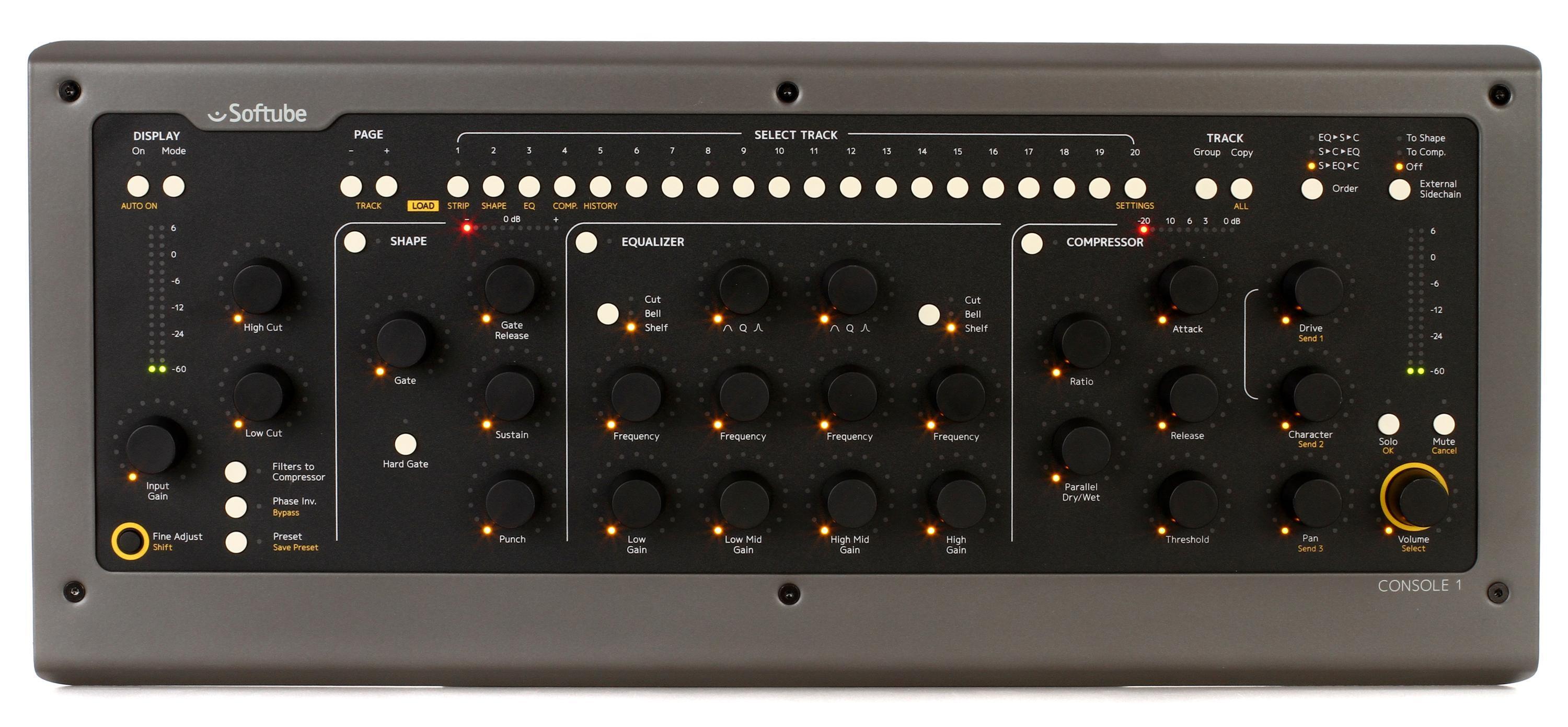
Softube’s Console 1 is a mixing console for digital audio workstations. It provides a hardware interface with plugin control for analog sound emulation.

Softube’s Console 1 is a revolutionary mixing console that aids digital audio workstations by providing a hardware interface. It offers unique plugin control for analog sound emulation, making it the ultimate mixing tool for music producers and sound engineers. By combining the best of both worlds, Softube’s Console 1 gives you an authentic mixing experience that’s both intuitive and fun to use.

This innovative mixing technology has been praised for its independence and versatility, allowing you to work seamlessly across multiple platforms. Whether you’re mixing music in a studio or mastering in a post-production suite, Console 1 is the perfect tool for modern music producers.

Features Of Softubes Console 1

Softube’s Console 1 offers a range of features for audio mixing, including the ability to control EQ, compression, and gate settings. Use Console 1 alongside your favorite digital audio workstation to streamline your workflow and improve your sound.

Softubes Console 1 is a highly advanced mixing solution that has taken the music industry by storm. Here are some of its key features that have made it a favorite among professionals and beginners alike.

Virtual Console Emulation

Softubes Console 1 allows you to use its virtual console emulation which allows you to access classic analog sound within a digital mixing system. This software accurately replicates the sound of a vintage hardware console, making it a go-to tool for any music producer looking to add warmth and punch to their tracks.

Integrated Hardware/software System

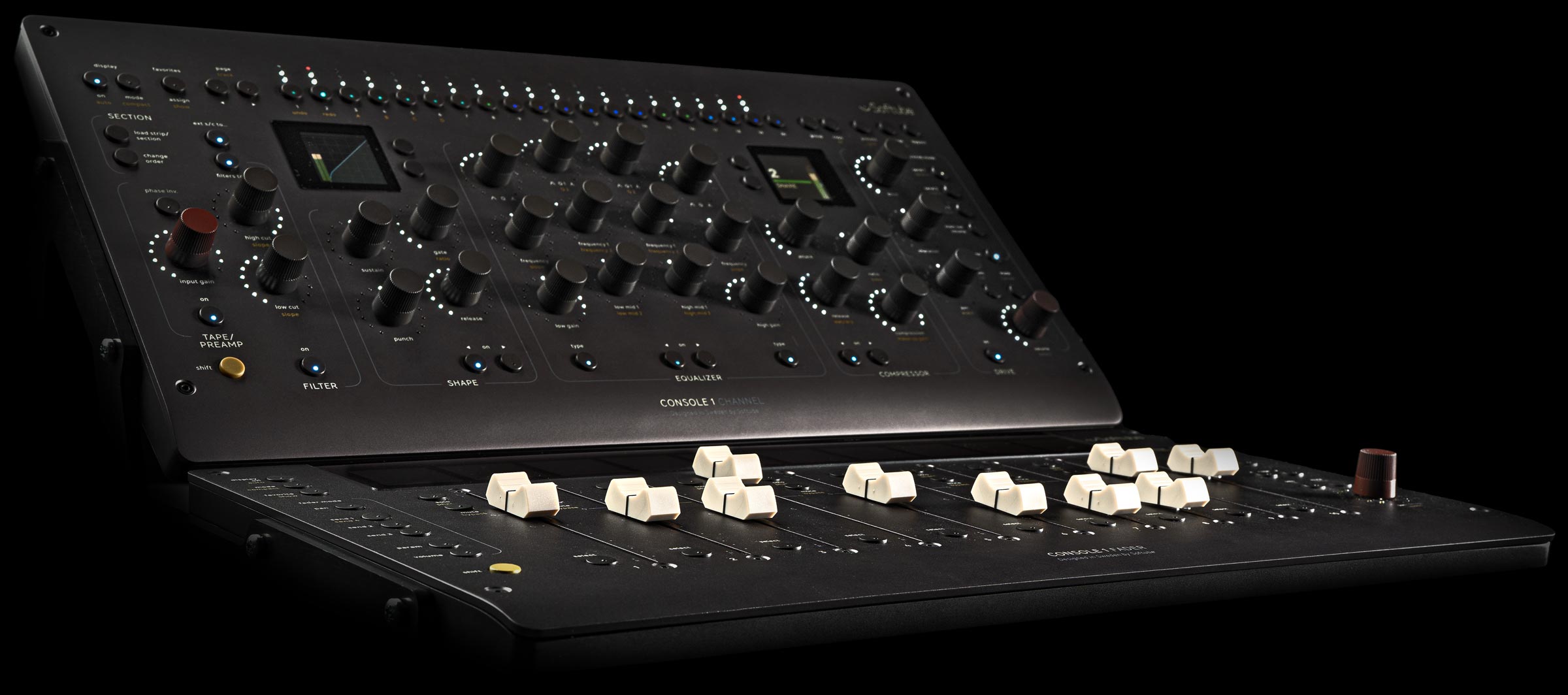
The Softubes Console 1 is an integrated system that includes both hardware and software components. It comes equipped with a sleek knob and button-based console that allows you to control and manipulate your mix with precision. The system also comes with a powerful plugin that gives you an array of mixing options. The combination of both components makes it one of the most comprehensive platforms for music production.

Precise And Intuitive Control

The Console 1 gives you hands-on control of your mix and allows for precise adjustments of channel compression, EQ, as well as various other plugin parameters. With the console’s state-of-the-art display, you get instant access to all aspects of your mix, making mixing and mastering a breeze.

Support For Multiple Plugins

One of the greatest features of the Console 1 is its compatibility with multiple plugins. Each plugin has a unique sound, style, and functionality, allowing you to tailor your mix to your specific needs. The integration of multiple plugins enables you to create a mix that is rich in character and depth. In conclusion, Softubes Console 1 is a remarkable mixing solution that offers an intuitive and straightforward approach to mix and mastering. With its virtual console emulation, integrated hardware-software system, precise and intuitive control, and support for multiple plugins, it’s a must-have tool for any music producer looking to take their music to the next level.

Use Softubes Console 1

Credit: www.youtube.com

How To Set Up Softubes Console 1

Setting up Softube’s Console 1 is pretty simple and straightforward. Start by downloading and installing the Console 1 software on your computer, then connect the Console 1 hardware to your computer via USB and follow the on-screen prompts to calibrate the hardware.

Once you’ve completed the setup process, you can start using the Console 1 to control your favorite DAW plugins and mixing tools.

Softubes Console 1 is a hardware/software mixing solution that emulates the feel of mixing console hardware, with the convenience of a digital audio workstation. Setting up Softubes Console 1 is straightforward, and after completing this guide, you will be ready to use this powerful mixing tool. In this guide, we will cover how to get started with Console 1, how to connect the hardware, install the software, and configure the plugin.

Getting Started

Before connecting the hardware, make sure that you have everything you need. This includes a compatible computer with an available USB port, the Console 1 hardware, and the included USB cable. Once you have all your equipment, you can start the setup process.

Connecting The Hardware

Connecting Softubes Console 1 hardware is relatively simple. Begin by locating a free USB port on your computer and plug in the included USB cable. Once the hardware is connected, it should be recognized by your computer automatically.

Installing The Software

After connecting the hardware, the next step is to install the Console 1 software. Insert the included installation disk into your computer and follow the installation instructions. Once the installation is complete, you may need to restart your computer to ensure the software installation is successful.

Configuring The Plugin

Now that the hardware and software are installed, the next step is to configure the plugin. Open your preferred digital audio workstation, create a new session, and insert the Console 1 plugin onto a track or group. This plugin will allow you to control aspects of Softubes Console 1 hardware via your digital audio workstation. In conclusion, setting up Softubes Console 1 is easy and straightforward if you follow these steps. After completing these steps, you will be ready to start mixing with Softubes Console 1.

Using Softubes Console 1

Softube’s Console 1 is a powerful tool for enhancing your mixing experience. It makes it easier to work with multiple channels and provides a more intuitive workflow. With its advanced features, you can achieve professional sound quality in your productions.

Softube’s Console 1 is a mixing console hardware and software hybrid that combines the power and flexibility of a digital audio workstation with the sound and feel of an analog console. With Console 1, you can easily control your mixing process and achieve a professional-grade sound. In this section, we’ll explore how to use Softube’s Console 1.

Loading A Plugin

When using Console 1, the first step is to load your preferred plugin. To do this, you need to open your DAW and insert Console 1 as a plugin on your track. Once the plugin is loaded, you can access it on the hardware interface to start adjusting your track settings.

Navigating The Console Interface

Now that you have loaded the plugin, you can start navigating the console interface. Console 1’s interface is user-friendly and easy to navigate, with clear labeling and intuitive controls. Each control is mapped to a specific function, making it easy to locate and adjust the settings you need.

Adjusting Settings

With Console 1, you can adjust a wide range of settings to achieve the ideal sound for your mix. The hardware interface allows you to control EQ, compression, saturation, and more, with real-time visual feedback on your DAW. You can also use the Console 1 software to adjust settings in more detail and save presets for future use.

Working With Presets

Console 1 features a range of presets that you can use as a starting point for your mix. These presets cover various genres and styles, making it easy to achieve the sound you want quickly. You can also create and save your own presets based on your preferred settings and workflow, allowing you to streamline your mixing process and achieve consistent results. In conclusion, Softube’s Console 1 is a powerful and versatile mixing tool that can help you achieve professional-grade sound with ease. By following the steps outlined above, you can take full advantage of its functions and achieve a polished, well-balanced mix.

Use Softubes Console 1

Credit: www.sweetwater.com

Benefits Of Softubes Console 1

If you are a music producer or mixing engineer, you would know the importance of having a good mixing console. Softube Console 1 is a powerful tool that can help improve your workflow, deliver an authentic analog sound, save time and effort, and enhance your creativity. Let’s dive into each of these benefits in detail.

Improved Workflow

One of the biggest benefits of Softube Console 1 is its ability to streamline your workflow. The plugin provides a hands-on mixing experience by allowing you to control every aspect of your mix with physical knobs and buttons. This means you can quickly adjust levels, EQ, compression and other parameters with a simple twist or push of a button. You can even switch between tracks seamlessly, without having to open multiple windows or menus.

More Authentic Analog Sound

If you are a fan of analog gear, then you’ll love the sound of Softube Console 1. The plugin features accurate analog emulations of some of the world’s most iconic mixing consoles. The sound is warm, natural and organic, just like a real console. You can also choose from a wide range of presets that simulate different consoles and channel strips, giving you complete control over your sound.

Saves Time And Effort

Softube Console 1 can save you a lot of time and effort by automating repetitive tasks. For example, you can easily copy settings from one channel to another or even copy an entire channel strip to a different track. This feature alone can save you hours of manual labor. You can also assign your favorite plugins to the Console 1 for quick access, eliminating the need to search through endless menus and options.

Enhances Creativity

With Softube Console 1, you can focus on the creative side of mixing without getting bogged down in technical details. The plugin offers a tactile and intuitive way to mix your tracks, allowing you to experiment with different sounds and techniques. You can also collaborate with other producers and engineers by sharing your Console 1 settings or using the plugin in conjunction with other software and hardware.

Overall, Softube Console 1 is an essential tool for any mixing engineer or music producer. It offers a powerful and intuitive mixing experience that can enhance your workflow, sound, and creativity. With Softube Console 1, you can focus on what really matters – making great music.

Compatibility And Pricing

When it comes to mixing music, having the right tools is crucial, and Softube’s Console 1 has quickly become a favorite among producers. Not only does it give you the analog sound and feel of a traditional mixing console, but it also streamlines your workflow and speeds up the mixing process. In this section, we’ll take a closer look at the compatibility and pricing options of Softube’s Console 1.

Supported Daws

Softube’s Console 1 is compatible with most popular digital audio workstations (DAWs), making it easy to integrate into your workflow. Supported DAWs include:

  • Pro Tools
  • Cubase
  • Logic Pro X
  • Ableton Live
  • Studio One
  • and more

Whether you’re working on a Mac or PC, Console 1 works seamlessly with your DAW of choice, allowing you to focus on the mixing and not the technology.

Pricing Options

Softube’s Console 1 is available in two versions: the Console 1 MKII hardware unit, and the Console 1 software plugin. The hardware unit gives you tactile control over your mix, with physical knobs and buttons for adjusting settings, while the software plugin is a more affordable option that integrates with your existing MIDI controller.

ProductPrice
Console 1 MKII hardware unit$499
Console 1 software plugin$249

Both options come with the same award-winning sound and ease-of-use, so the choice ultimately comes down to your personal preferences and budget.

Use Softubes Console 1

Credit: www.softube.com

Frequently Asked Questions For Use Softubes Console 1

How Do I Use Console 1?

To use console 1, connect it to your computer and open the console application. Type commands in the console window and press enter to execute them. Use console 1 to perform various tasks such as debugging, network analysis, and performance optimization.

Does Softube Console 1 Work With All Plugins?

Softube Console 1 is compatible with all UAD and Native plugins, along with Softube’s own products. However, third-party plugins that do not have support for Console 1 may not work properly.

Can I Use Console 1 Without The Hardware?

Yes, you can use Console 1 without the hardware. However, you will still need to install the Console 1 software on your computer and use a compatible DAW plugin to access the features of the software.

How Do I Activate Softube?

To activate Softube, follow these steps: 1. Visit Softube’s website to create an account or log in to an existing one. 2. Enter your iLok User ID in your account settings. 3. Install iLok License Manager software on your computer.

4. Download and install Softube software. 5. Open iLok License Manager and activate your Softube license.

Conclusion

It’s time to take your music production to the next level with Softube’s Console 1. This innovative mixing system allows for seamless integration with your favorite digital audio workstation, enhancing your workflow and providing you with incredible creative freedom. The intuitive interface and unparalleled sound quality make Console 1 a must-have for any serious producer.

Don’t settle for mediocre mixes – upgrade to Softube’s Console 1 today.

Categories
Archive

How To Mix Kick Drum

To mix a kick drum, adjust the volume and EQ to enhance the desired sound. A well-mixed kick drum creates a strong foundation for the song.

The kick drum is the heartbeat of any song. A poorly mixed kick drum can ruin the entire production. However, a well-mixed kick drum creates balance and depth throughout the song. The key is to adjust the volume and EQ until the desired sound is achieved.

It’s important to listen carefully to the kick drum in the context of the entire mix, as it needs to blend with other instruments and create a cohesive sound. Using compression and other effects tools can also enhance the mix. With the right techniques and practice, anyone can expertly mix a kick drum for a professional-grade recording.

Choosing The Right Kick Drum Sample

Selecting the right kick drum sample is crucial when it comes to mixing. It can make or break a track. Experiment with different samples and adjust the EQ to create the perfect kick sound that fits the genre and style of the music.

Sample Selection Criteria

Choosing the right kick drum sample is crucial in the overall sound of your mix. It sets the foundation and energy of your track. When choosing a kick drum sample, there are a few things that you should consider to ensure that it fits perfectly with your mix. Firstly, you need to think about the style of the track you’re producing. A hard-hitting techno track will require a different sample compared to a soft-pop ballad. Make sure you select a sample that fits the overall feel of your track. Secondly, pay attention to the key of your track. Your kick drum should complement your bassline, and choosing a sample in the right key can help make sure they blend together seamlessly. Lastly, think about the frequency range of your kick drum sample. A well-balanced kick drum should have a good balance of lows, mids, and highs.

Tips For Finding Quality Samples

Finding the perfect kick drum sample can be a challenge, but there are plenty of resources available. Here are some tips to help you find quality samples quickly and efficiently:

  • Find trusted sample packs from reputable music producers or sample companies.
  • Look for samples with a good variety of styles, keys, and frequencies.
  • Preview samples in context with your mix to ensure a good fit.
  • If you can’t find the right sample, consider layering samples together to create a unique one.

When it comes to mixing kick drums, taking the time to choose the right sample is essential. Keep these sample selection criteria and tips in mind, and you’ll be well on your way to a mix with a solid foundation.

Eq For Kick Drum

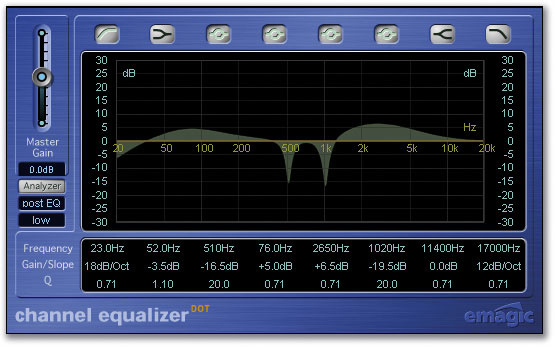
Equalization, or EQ, is an essential tool for any mixing engineer. EQ helps shape the individual tones within a track, allowing each element to stand out and contribute to the overall sonic picture. For a kick drum, EQ can help emphasize the low-end punch, add clarity and definition, and even help clean up muddy frequencies. Here are some tips for using EQ to mix a kick drum:

Dealing With Frequency Muddiness

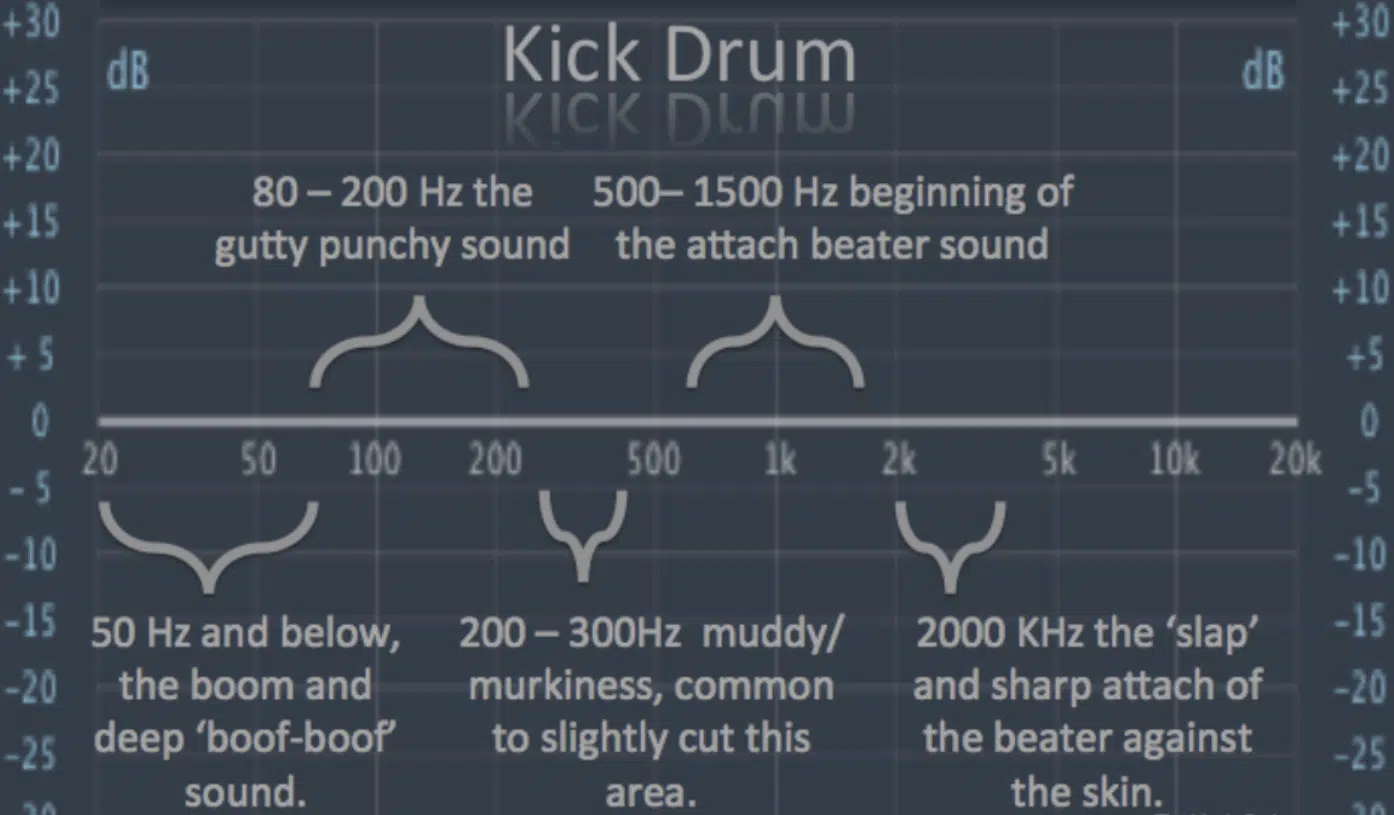
One of the most common issues with kick drums is an excess of low-mid frequencies that obscure the attack and clarity of the kick. To address this, try using a high-pass filter to remove some of the mud and muck. Start by setting the filter to around 50-60 Hz and slowly raising the cutoff frequency until you find a balance between a clean low-end and the desired weight and power of the kick. You can also use a narrow-band parametric EQ to surgically remove problem frequencies around 200-400 Hz.

Boosting The Kick Drum’s Attack

The attack phase of the kick drum is critical to its sound and its impact in a mix. To help accentuate the attack and provide more clarity, try boosting the high frequencies with a shelving equalizer or a wide-band peak EQ. Start by adding around +2-3 dB of high-frequency boost around 5-7 kHz, and adjust to taste. This can help bring out the beater sound and provide more definition to the kick drum’s overall shape.

Thinning Out The Kick Drum

Sometimes, a kick drum can be too thick or boomy, particularly in smaller or untreated rooms with excessive low-end resonance. To help address this, use a low-shelf EQ to remove some of the sub-bass frequencies below around 40 Hz. You can also try using a parametric EQ to notch out specific low-end resonances around 60-100 Hz. Be careful not to overdo it, as removing too much low-end can make the kick drum sound weak and thin.

Compression Techniques For Kick Drum

Kick drums are the foundation of most music genres, and a well-mixed kick can bring a track to life. One effective technique for achieving the perfect mix is by using compression. With careful manipulation of attack and release times, you can bring out the power of the kick drum without making it sound overbearing.

When it comes to mixing a kick drum, compression is an essential tool that can help you to achieve a powerful, punchy, and well-defined sound. Compression is used to control the dynamic range of the kick drum and create a more consistent sound. In this article, we will focus on three compression techniques for kick drum: Using Sidechain Compression, Expanding the Kick’s Dynamic Range, and Parallel Compression.

Using Sidechain Compression

Sidechain compression is a popular technique used in kick drum mixing. It involves routing the kick drum to a compressor’s sidechain input, allowing the compressor to only compress the other tracks when the kick drum’s volume goes above a certain threshold. Using sidechain compression can create a more defined and tight kick drum sound, making it cut through the mix without clashing with other instruments.

Expanding The Kick’s Dynamic Range

Expanding the kick drum’s dynamic range means increasing the difference between the loudest and the quietest parts of the kick drum track. This technique can be especially useful for creating a more natural and organic sound. One way to do this is by using a multiband compressor to compress only the lows and leaving the highs uncompressed. This maintains the kick drum’s punchy attack while keeping the overall volume under control.

Parallel Compression

Parallel compression is a technique that involves blending a heavily compressed version of the kick drum with the original track. This can be done by duplicating the kick drum track, heavily compressing the duplicate, and then blending it back in with the original track. Parallel compression can add weight and depth to the kick drum without sacrificing its attack or clarity. In conclusion, these three compression techniques for kick drum are powerful tools that can help you to create a punchy, well-defined, and balanced mix. Whether you’re working on a rock track or a dance production, experimenting with these techniques can take your kick drum sound to the next level.

How To Mix Kick Drum

Credit: unison.audio

Creative Effects For Kick Drum

Enhance the sound of your kick drum by applying creative effects while mixing. Experiment with compression, EQ, distortion, and other plugins to find the perfect blend to make your kick drum stand out in the mix.

Kick drum is a crucial instrument that holds the base of any music genre. The sound of a kick drum can be enhanced and manipulated creatively to add more depth and character to the music. In this post, we will talk about the various creative effects that can be used to modify and enhance the sound of a kick drum. Here are some of them:

Adding Saturation Distortion

One of the creative ways to modify the kick drum sound is by adding some saturation distortion to it. Distortion can add harmonics and warmth to the kick drum sound, making it sound fuller and richer. You can add saturation distortion using plugins like Waves Abbey Road Saturator, Soundtoys Decapitator, or FabFilter Saturn. Make sure not to overdo the saturation as it can make the kick drum sound muddy.

Using Harmonic Exciters

Harmonic Exciters work by enhancing the high frequencies of the kick drum, which can make it sound more prominent in the mix. Harmonic Exciters work by adding harmonics to the sound, making it sound brighter, clearer, and more defined. Some popular Harmonic Exciters plugins include Izotope Ozone Exciter, Waves Vitamin Sonic Enhancer, and Sonalksis SV-315Mk2.

Enhancing The Low-end With Subharmonic Generators

Subharmonic generators can be used to add more depth and low-end to the kick drum sound. These plugins work by generating subharmonic frequencies that are lower than the fundamental frequency of the kick drum. This will make your kick drum sound huge and powerful. Some of the popular subharmonic generators include Waves MaxxBass, Waves LoAir, and Sonnox Oxford Sub-Generator. To conclude, adding creative effects to your kick drum can take your music production to the next level. Each of these creative tools has its strengths and can be used to modify the kick drum sound in their own way. The key thing is to experiment and find out which one works best for the sound you want to achieve in your music production.

Tips For Achieving A Punchy Kick Drum Mix

Creating a punchy kick drum mix takes time and effort, but the results are worth it. A good mix will give your track the low-end impact it needs to stand out, and make it sound professional. Here are some tips to help you achieve a punchy kick drum mix.

Balancing The Kick With The Bass

One of the most important aspects of a punchy kick drum mix is finding the right balance between the kick and the bass. The kick and bass should complement each other and work together to create a solid foundation for the rest of the track.

Start by ensuring that the kick and bass are in the correct frequency ranges. The kick drum should typically sit between 80Hz and 120Hz, while the bass should sit between 60Hz and 80Hz.

  • Use EQ to remove any unwanted frequencies that are clashing between the kick and bass.
  • If you want the bass to stand out more, try side-chaining the kick to the bass.

Carving Out Space For The Kick Drum

It’s important to make sure the kick drum has its own space in the mix. If other elements in the mix are competing for the same frequency range, it can make the kick drum sound weak.

To make space for the kick drum:

  • Use EQ to cut out frequencies that are not essential.
  • Remove any unnecessary reverb or delay from the kick drum.
  • Pan other elements in the mix away from the center and leave the low-end centered for the kick to dominate.

Using Sample Layering To Add Weight

If you find that your kick drum is lacking in weight or impact, try layering samples. This involves combining different kick drum samples to create a more full and satisfying sound.

To layer your kick drum:

  1. Choose a few samples that complement each other, with one acting as the main source of impact.
  2. Make sure the samples are in phase with each other and not causing any phase cancellation.
  3. Blend the samples together using EQ and compression to create a cohesive sound.

Overall, creating a punchy kick drum mix requires attention to detail and a thoughtful approach. By balancing the kick with the bass, carving out space for the kick drum, and using sample layering, you can achieve a mix that is both powerful and impactful.

How To Mix Kick Drum

Credit: www.soundonsound.com

How To Mix Kick Drum

Credit: mixedinkey.com

Frequently Asked Questions On How To Mix Kick Drum

How Do You Mix Kick Drum Tips?

Mixing a kick drum involves adjusting its various elements, such as compression, EQ, and volume, to achieve a clear and punchy sound. To do this, you should use EQ to enhance the kick’s frequencies, compress the signal to tame dynamic range, and adjust the volume to balance the kick with other elements in the mix.

Experiment until you find a balance that fits the overall sound you’re going for.

How Do You Make Kick Drum Stand Out In Mix?

To make kick drum stand out in mix, you can try increasing its volume, using equalization to emphasize its fundamental frequencies, adding compression to give consistency, and pairing it with a complementary bass line. You can also experiment with reverberation, delay, and distortion to create a unique blend.

Where Does The Kick Drum Sit In The Mix?

The kick drum should sit at the center of the mix and be balanced with other instruments such as bass, vocals, and snare. The kick drum’s presence should provide a solid and punchy foundation while still allowing other instruments to be heard clearly.

Proper EQing and compression can help achieve a well-rounded mix.

How Do You Mix Bass Drums?

To mix bass drums, use EQ to cut off unnecessary frequencies and give the bass drum its own space in the mix. Add compression for a consistent sound and consider adding distortion or saturation for more character. Experiment with panning to find the best placement and adjust levels according to the overall mix.

Conclusion

In crafting the perfect kick drum mix, it is important to remember that every element of the production matters. From the initial sound selection to the final touches of compression and EQ, each step should be carefully considered and executed.

By following the tips outlined in this post, you can ensure that your kick drum will cut through the mix and provide a solid foundation for the rest of your track. With practice, you’ll be able to achieve the perfect balance and create powerful, impactful drum mixes.

Categories
Archive

How To Layer Leads

Learning how to layer leads is the secret behind the huge, wide synth hooks in EDM, pop and hip-hop. A single synth patch rarely sounds big enough on its own. By stacking several complementary sounds that each cover a different job, you can build a lead that is thick, bright and powerful while staying clear in the mix.

What Lead Layering Means

Layering means playing the same melody with two or more sounds at once, so they blend into a single, richer lead. The goal isn’t more volume. It’s a sound where each layer fills a specific role: body, brightness, width or character.

The Three Core Layers

1. The Main Layer (Body)

This is the foundation and the sound people recognize as “the lead.” It covers the core midrange, roughly 300 Hz to 3 kHz. A saw wave, supersaw or plucky patch often works well. Keep it fairly centered.

2. The Top Layer (Brightness)

This layer adds air and sparkle. Try a thinner saw, square or noise-based patch an octave up. High-pass it so it doesn’t add mud, and let it sit mostly above 2–3 kHz.

3. The Width Layer (Stereo)

A detuned supersaw, chorus-heavy patch or stereo-spread sound adds width around the main layer. Keep its low end mono or filtered so the lead stays solid in mono.

Optional extras include a sub or low octave for weight in sparse sections, a pluck layer for a sharper attack, or a vocal-style or formant layer for character.

Step-by-Step: Building a Layered Lead

  1. Write the melody first with one simple sound so you focus on the musical idea.
  2. Duplicate the MIDI to two or three new instrument tracks.
  3. Choose sounds with different roles rather than three similar saws.
  4. Filter each layer to its frequency range using high-pass and low-pass filters.
  5. Balance levels so the main layer leads and the others support it.
  6. Group the layers to a bus and process them together with EQ, compression, saturation and reverb.

Avoiding Phase and Mud Problems

Layers can cancel each other out or pile up in the low mids. To prevent this:

  • Keep only one layer responsible for the low end of the lead.
  • Use EQ cuts to give each layer its own space.
  • Check the group in mono for thinning or volume drops.
  • Retrigger oscillators or adjust phase settings if layers clash.

For broader techniques, read our guide to layering sounds and how to layer sounds for the perfect mix.

Matching Attack and Release

Layers blend best when their envelopes match. If one layer has a slow attack and another is instant, the lead can sound smeared. Align attack times, or deliberately pair a fast pluck with a slower pad-like layer to create a combined shape. Match release times too, so notes don’t trail unevenly.

Processing the Lead Bus

  • EQ: clean up the low end and tame harsh frequencies, often around 2–5 kHz.
  • Compression: gently glue layers together so they move as one.
  • Saturation: adds harmonic glue and helps the lead cut through.
  • Reverb and delay: send rather than insert, to keep the core lead upfront.
  • Sidechain: duck the lead slightly with the kick for groove and clarity.

Using Different Synths for Each Layer

Layering patches from different synths often sounds bigger than stacking several patches from one. Each synth has its own filters, oscillator character and built-in effects, so the layers complement each other rather than doubling the same tone. A wavetable synth for the main body, a virtual-analog synth for brightness and a sampled instrument for character can make a lead feel unique. Our Serum sound design tips cover patch-building ideas you can use for individual layers.

Another approach is to layer a real instrument, such as a plucked guitar or a piano, quietly under a synth lead. It adds natural attack and movement that’s hard to program.

Common Mistakes When Layering Leads

  • Stacking too many layers, which makes the lead blurry and loud but not bigger.
  • Using sounds that all occupy the same frequency range.
  • Making the whole lead wide, so it collapses in mono.
  • Forgetting that arrangement matters: a lead can feel larger simply because other elements make room.

Layering Leads for Different Genres

Genre changes how you layer leads. In big-room EDM and trance, wide supersaw stacks with an octave layer create huge drops. In future bass, layers often include a chord-based saw with heavy sidechain and a vocal-style layer. In hip-hop, a lead might combine a bell or pluck with a soft pad or a subtle vinyl-style texture. Study reference tracks in your genre and try to identify each layer’s job before you build your own.

Whatever the genre, the principle is the same: every layer needs a clear job, and the combined lead must still sound focused in mono and on small speakers.

Frequently Asked Questions

How many layers should a lead have?

Two to four is usually enough. Each layer should have a clear purpose. If muting a layer changes nothing, remove it.

Should all layers play the same notes?

Usually yes, though octave layers and occasional harmony layers can add richness.

Why does my layered lead sound thin in mono?

Wide or detuned layers can cancel in mono. Keep the main layer centered and reduce stereo spread on the lower frequencies.

Should I bounce my layered lead to audio?

Bouncing the group to audio saves CPU and lets you process it as one sound, but keep the MIDI in case you need to edit.

Categories
Archive

Arturia Mini V3

Arturia Mini V3 is a software synthesizer that emulates the vintage Minimoog. It offers a wide range of features and allows users to create authentic analog sounds on their computer.

As a modern composer, sound designer, or music producer, one of the most important tools in your arsenal is a high-quality synthesizer. The Arturia Mini V3 is a software instrument that combines the power of modern technology with the iconic sound of the Minimoog.

The software gives you the ability to create a vast array of sounds, from fat basses to soaring leads, thanks to its oscillators, filters, modulation options, and effects. With the Mini V3, you get all the power and flexibility of modern software synthesis with the classic sound of an analog legend.

Arturia Mini V3

Credit: www.sweetwater.com

Overview

Arturia Mini V3 is a software synthesizer that emulates the classic Minimoog Model D. It has been updated with modern features like polyphony, an arpeggiator, and presets, making it a versatile tool for music producers.

Arturia Mini V3 is a legendary software synthesizer modeled after the iconic Minimoog synthesizer. It offers users the ability to create rich analog sounds via a user-friendly interface that captures the essence of the original instrument. This software synthesizer offers a range of features that help to bring your creativity to life. In this blog post, we will explore the features, interface and everything else you need to know about Arturia Mini V3.

Features

Arturia Mini V3 is equipped with various features that make the software synth worthwhile for music producers, sound designers, and composers. Here are some of the features that make Mini V3 stand out among other synthesizers in its class:

  • 3-VCO Model with sync
  • 24 dB/oct ladder filter
  • 2 envelope generators
  • 1 LFO
  • ADSR controller
  • Externally triggered envelope generator
  • External audio input
  • Advanced automation and MIDI mapping
  • Over 500 onboard presets

Interface

The Arturia Mini V3 interface is designed to provide an analog-like experience. The synth features a virtual patchbay that can be accessed by clicking on the Patchbay button. It allows you to connect the synth’s output to external effects processors, automation, or mapping inputs. The interface also offers fast and intuitive control of the synthesizer’s sound engine. Users can select, move, and adjust multiple parameters quickly without having to go through layer menus. Additionally, the Mini V3 interface allows you to resize the window to your desired size. It’s an excellent feature for musicians who prefer working on a single-screen interface.

In Conclusion

Arturia Mini V3 is a powerful synth that can create a wide variety of sounds ranging from warm analog leads to deep basses and beyond. Equipped with a user-friendly interface and a packed set of features, it’s a great software instrument for music producers, sound designers, and composers looking to create classic analog synth sounds in the digital realm.

Sound

The Arturia Mini V3 is a software synthesizer that is revered for its authentic sound, modeled after the iconic Minimoog Model D. This synthesizer delivers a high-quality analog sound that is true to the original, but with added flexibility and modern functionality. Let’s take a closer look at what makes the Mini V3 sound so special.

Analog Sound Modeling

The Arturia Mini V3 uses advanced analog modeling technology to accurately replicate the characteristics of the classic Minimoog Model D. This means that every aspect of the sound, from the raw waveforms to the filter response, is modeled after the original analog circuitry. The result is a rich, warm, and dynamic sound that is highly sought after by musicians and producers.

Patches & Presets

One of the great features of the Arturia Mini V3 is the extensive library of patches and presets that are included. The synth comes with over 500 presets that cover a wide range of sounds, from classic analog bass and lead sounds to futuristic synth textures. These presets are a great starting point for your own sound design, and can be easily tweaked and customized to fit your track.

ProsCons
Authentic analog soundFlexible and intuitive interfaceExtensive library of presetsSome may find it priceyMay be overwhelming for beginners

Overall, the Arturia Mini V3 is a powerful and versatile software synthesizer that offers an authentic analog sound and a wealth of features for sound design. Whether you’re a seasoned producer or just starting out, the Mini V3 is a great addition to your studio setup.

Functionality

The Arturia Mini V3 is a powerful software synth with superb functionality. Its oscillators, filters, and modulation options make it a must-have for synthesizer enthusiasts. The Mini V3’s sound quality is unmatched, making it a great choice for any music producer or sound designer.

Arturia Mini V3 is a powerful software instrument with a rich sound palette that emulates the classic Minimoog, but with a modern twist. This virtual analog synth features a range of functionalities that makes it a sought-after tool in the music production world. In this blog post, we will take a deep dive into the Mini V3’s functionality, starting with filtering, arpeggiator, and effects.

Filtering

Filtering is one of the standout features of the Arturia Mini V3. It comes with a powerful 24dB per octave low-pass filter, which can be used to shape the tone of your sounds. You can use it to cut out unwanted frequencies, adding warmth and fullness to your sounds. Furthermore, the Mini V3 offers a high-pass filter that can add brightness and clarity to your sound. The filter’s resonance control further allows you to sculpt the sound in a more creative way. You can even use the filter to create some interesting and unique sound effects.

Arpeggiator

The Arturia Mini V3 comes with an arpeggiator that offers advanced sequencing capabilities. The arpeggiator can be used to create complex and intricate patterns that can add depth and interest to your music. It has multiple modes, including up, down, up/down, and random, enabling you to create different arp patterns. You can also adjust the rate, octave range, and gate length to fine-tune the arp pattern to your liking. Whether you are a beginner or an experienced musician, the Mini V3’s arpeggiator is a fun and inspiring tool.

Effects

The Arturia Mini V3 provides a range of built-in effects that can be used to add more depth and character to your sounds. The effects include chorus, delay, reverb, and distortion. The effects can be used to create anything from subtle modulation to a full-on distortion. For instance, the distortion effect can be used to create gritty and aggressive synth sounds that cut through any mix. The effects can be easily switched on and off, or you can adjust the parameters to create your own unique sound. In conclusion, the Arturia Mini V3 is a versatile synth with a range of features and functionalities that make it a powerful tool for music production. The filtering, arpeggiator, and effects offer endless possibilities for crafting unique sounds that can add interest to your music. Whether you are a professional producer or a beginner, the Arturia Mini V3 is worth checking out.

Arturia Mini V3

Credit: vintageking.com

User Experience

Arturia Mini V3 provides an exceptional user experience, with cutting-edge virtual analog synth sounds and an intuitive interface ideal for both beginners and professionals. The software allows for effortless sound creation and manipulation, offering endless possibilities for creativity.

Arturia Mini V3 is a software synth that delivers a classic analog sound and plenty of features fitting for a modern music production environment. The software synthesizer has garnered praise from musicians and producers around the world, who value its versatility and ease of use. One of the key aspects of the Arturia Mini V3 is its user experience, which makes it an ideal choice for both beginners and professional users alike. In this article, we will explore the user experience of the Arturia Mini V3, with a focus on its ease of use and customization.

Ease Of Use

Arturia Mini V3 has an easy-to-use interface that is intuitive for users of all skill levels. The synth’s layout is designed to resemble the original hardware version, making it easy to navigate the virtual controls and settings. The software synth does not require any external hardware to operate, and it can be used on its own or as a plugin within a digital audio workstation. Moreover, the synth has a built-in browser that allows users to quickly browse through presets and customize them to fit their specific needs.

Customization

One of the standout features of the Arturia Mini V3 is its customization options. Users can tweak and customize nearly every aspect of the synth’s parameters to create their own unique sound. The software synth has an extensive modulation matrix, which allows users to assign any source to any destination. Additionally, users can add their own waveforms to the oscillators, which gives them even more flexibility in creating their own personalized sound. The software synth comes with an abundance of presets, but the customizable aspect of the Arturia Mini V3 is its most notable attribute. In conclusion, the Arturia Mini V3 software synth delivers a user experience that is both easy to use and highly customizable. Its intuitive design and layout make it a great choice for musicians and producers regardless of their skill level. The ability to customize nearly every aspect of the synth’s parameters is a welcome addition that sets it apart from its competitors. Overall, the Arturia Mini V3 is a well-rounded software synth that is worth checking out for anyone in need of a versatile and powerful virtual synthesizer.

Compatibility

The Arturia Mini V3 is a versatile virtual synthesizer that is compatible with most DAWs and music production software available on the market. Its MIDI implementation and multi-output support make it easy to integrate into any existing setup.

Arturia Mini V3 is a virtual instrument plugin widely known for its ability to mimic the classic analog synthesizer. Musicians who want to produce electronic music often prefer this plugin because of its rich, warm tones and user-friendly interface. When it comes to compatibility, there are a few points worth mentioning.

Supported Platforms

Arturia Mini V3 is available for both Mac and Windows operating systems. It is compatible with macOS 10.10 or later and Windows 7 SP1 or later versions. The plugin is also compatible with Linux-based operating systems such as Ubuntu Studio, KXStudio, and AVLinux. Therefore, musicians using any of these platforms can be assured that Arturia Mini V3 is compatible with their systems.

Host Integration

Arturia Mini V3 is compatible with several DAWs (Digital Audio Workstations). It is fully compatible with major DAWs such as Ableton Live, Logic Pro X, Pro Tools, Cubase, and FL Studio. The plugin can be directly accessed from within your DAW, enabling seamless integration and efficient workflow. The plugin supports various audio interfaces, making it easy to connect to any recording device.

Conclusion

Arturia Mini V3 is undoubtedly a must-have for musicians who want to create tones that are impossible to achieve with other synths. With its compatibility across various platforms and DAWs, Arturia Mini V3 is a versatile and reliable plugin for all electronic music producers.

Arturia Mini V3

Credit: www.arturia.com

Frequently Asked Questions For Arturia Mini V3

Is Analog Lab Free?

No, Analog Lab is not free. It is a software synthesizer developed by Arturia and is available for purchase on their website.

What Is Analog Lab V For?

Analog Lab V is a software plugin used for digital music production. It provides access to over 7,000 analog synthesizer sounds and allows for real-time sound manipulation through various effects and processing tools.

What’s Included In Arturia V Collection 8?

Arturia V Collection 8 includes 28 legendary instruments spanning 70 years of music history. It features new instruments, updated versions of classic models, and over 8000 presets. The collection also includes modern enhancements and updated sound engines for improved performance.

Who Makes Analog Lab?

Arturia is the company that makes Analog Lab.

Conclusion

Overall, the Arturia Mini V3 is a powerful and versatile software synthesizer that provides musicians and producers with a vast range of sounds and features to explore. Whether you’re a seasoned synth enthusiast or a beginner, this software is certainly worth considering.

With its intuitive interface, authentic analog sound, and comprehensive modulation capabilities, you can easily create some of the most iconic and unmistakable synth sounds of all time. Simply put, the Arturia Mini V3 is a must-have for any musician looking to expand their sonic arsenal.

So, go ahead and experience the magic for yourself!

Categories
Archive Gear

Best Cubase Midi Controller

The best Cubase MIDI controller is subjective to the user’s personal preference and needs. However, popular choices include the Nektar Panorama T4, Native Instruments Komplete Kontrol, and the Arturia KeyLab Essential.

As an Amazon Associate I earn from qualifying purchases.

When it comes to producing music in Cubase, having a reliable and efficient MIDI controller can significantly enhance the workflow. The right MIDI controller can greatly improve the recording, editing, and mixing process, allowing for more creativity and precision. While there are numerous MIDI controllers available in the market, it is crucial to select one that seamlessly integrates with Cubase.

We will explore some of the best MIDI controllers for Cubase that provide ease of use, flexibility, and advanced features to help you produce music efficiently.

Criteria For Choosing The Best Cubase Midi Controller

Choosing the best Cubase MIDI controller can enhance your music production experience. Consider the number of keys, knobs, faders, and pads it offers, as well as its compatibility with your computer’s operating system. Look for models with quality construction and responsive controls to take your music-making skills to the next level.

Criteria for Choosing the Best Cubase Midi Controller Selecting the right MIDI controller for Cubase can be a daunting task, especially for beginners. With the wide range of models available in the market today, choosing the best one can be challenging. This blog post will help you identify the essential criteria to consider when choosing the best Cubase MIDI controller. The following H3 headings will guide you through the key aspects to consider: Compatibility with Cubase, Number of Keys, Pads and Knobs, and Portability.

Compatibility With Cubase

The first and most important criterion to consider when choosing a Cubase MIDI controller is compatibility. Not all MIDI controllers work with Cubase. Therefore, you must check the compatibility of the MIDI controller with your Cubase version before making a purchase. Cubase controllers that offer plug-and-play functionality for Cubase are the best. Some of the best Cubase controller brands include Steinberg, Akai, Korg, and M-Audio.

Number Of Keys

The number of keys is also an essential criterion when choosing the best Cubase MIDI controller. In most cases, MIDI controllers come in three sizes: 25, 49, and 61 keys. The size of the keyboard you choose will depend on the type of music you want to create. If you are a beginner, a 25-key MIDI controller may be the best choice as it is more portable and straightforward to use. However, if you are an experienced player, a 61-key MIDI controller will give you more room to play.

Pads And Knobs

The next essential criterion to consider is the number and quality of pads and knobs. Pads are essential for drum programming and rhythmic functions, while knobs are used for parameter control, such as volume and effect levels. The more pads and knobs a Cubase MIDI controller has, the more versatile it is. Brands such as Akai and Novation offer some of the best MIDI controllers with high-quality pads and knobs.

Portability

Finally, portability is another essential criterion when choosing the best Cubase MIDI controller. Portability is especially crucial for musicians who travel frequently or work in small spaces. A lightweight and compact MIDI controller that can easily fit into a backpack is the best option. MIDI controllers with a built-in USB interface are also favourable as they require less wiring and are easier to transport. In conclusion, when selecting the best Cubase MIDI controller, you should consider compatibility, number of keys, pads and knobs, and portability. By keeping these essential factors in mind, you can be sure to choose a MIDI controller that fits your needs and budget.

Top 5 Best Cubase Midi Controllers

Discover the top 5 best Cubase Midi Controllers that will elevate your music production. With seamless integration and comprehensive control over your production, these controllers are perfect for any level of music production expertise.

If you are a Cubase user, you know how important it is to have a reliable and functional midi controller. It saves time, enhances creativity, and makes the whole music-making process much more enjoyable. There are dozens of midi controllers on the market, but not all of them are suitable for Cubase. In this post, we will look at the top 5 best Cubase midi controllers that will help you take your music production to the next level.

The Akai Professional MPK Mini MK3 is an ultra-compact and portable midi controller that is specifically designed for Cubase users. It features 25 velocity-sensitive mini keys, 8 backlit drum pads, and 8 assignable knobs. The MPK Mini MK3 also comes with an arpeggiator, a sustain button, and a built-in OLED display that shows the current parameter values. It is USB-powered, and it comes with a comprehensive software package that includes Cubase LE, AIR Music Tech Hybrid 3, and SONiVOX Wobble.

The Arturia KeyLab Essential 49 is a highly customizable midi controller that offers an intuitive workflow and seamless integration with Cubase. It features 49 velocity-sensitive keys, 8 backlit pads, 9 faders, and 9 rotary encoders. The KeyLab Essential 49 also comes with a dedicated DAW control section that allows you to control Cubase directly from the controller surface. It comes with the Analog Lab software that gives you access to over 6,000 synth sounds and 20 classic keyboards.

The Novation Launchkey 49 MK3 is a versatile and feature-packed midi controller that is perfect for Cubase users who want a more hands-on approach to music production. It features 49 velocity-sensitive keys, 16 RGB drum pads, 9 faders, and 8 rotary encoders. The Launchkey 49 MK3 also comes with a powerful arpeggiator and chord mode that allows you to trigger chords with a single key. It is USB-powered, and it comes with a comprehensive software package that includes Ableton Live Lite, Splice Sounds, and AAS Session Bundle.

The Nektar Panorama T6 is a premium midi controller that offers unparalleled integration with Cubase. It features a 61-note synth-action keyboard, 12 backlit drum pads, 16 encoders, and 9 motorized faders. The Panorama T6 also comes with a high-resolution TFT display that shows the current parameter values and a dedicated transport section that allows you to control Cubase’s transport functions directly from the controller surface. It is USB-powered, and it comes with the Nektarine 2.0 software, which gives you quick and easy access to your VST plugins.

The M-Audio Oxygen 49 MKIV is a versatile and affordable midi controller that is perfect for Cubase users who want a reliable and functional controller without breaking the bank. It features 49 velocity-sensitive keys, 8 trigger pads, 9 faders, and 8 rotary knobs. The Oxygen 49 MKIV also comes with a comprehensive software package that includes Cubase LE, SONiVOX Twist, and AIR Music Tech Xpand!2. It is USB-powered, and it comes with a built-in LCD screen that shows the current parameter values.

Akai Professional Mpk Mini Mk3

The Akai Professional MPK Mini MK3 is a popular choice for music producers and Cubase users. This compact MIDI controller packs a punch, offering the necessary tools for music production at an affordable price point. In this section, we will provide an overview of the Akai Professional MPK Mini MK3, its features, pros, and cons.

Overview

The Akai Professional MPK Mini MK3 is a powerful MIDI controller that can be used with Cubase. It features a compact design with 25 velocity-sensitive keys, eight backlit MPC-style pads, and eight assignable control knobs. The controller includes a variety of features such as arpeggiator, note repeat, and full level buttons. It also comes with access to virtual instruments, plugins, and samples from Akai Professional and other top manufacturers, making it easy to get started with music production.

Features

The Akai Professional MPK Mini MK3 offers several features that make it a great choice for Cubase users:

  • 25 velocity-sensitive keys
  • Eight backlit MPC-style pads
  • Eight assignable control knobs
  • Arpeggiator, note repeat, and full level buttons
  • Access to virtual instruments, plugins, and samples from Akai Professional and other top manufacturers
  • USB powered and class-compliant, making it easy to use with your computer or mobile device

Pros And Cons

Like any product, the Akai Professional MPK Mini MK3 has its pros and cons.

ProsCons
Compact and portable designIncludes a variety of useful featuresEasy to use with CubaseAccess to virtual instruments, plugins, and samples from top manufacturersUSB powered and class-compliantKeys may feel small or stiff for some usersPads may feel too sensitive for some usersControls may not offer enough precision for some usersMay require additional configuration for optimal use with CubaseLimited to controlling one MIDI channel at a time

Overall, the Akai Professional MPK Mini MK3 is a great choice for Cubase users who are looking for a compact MIDI controller that is easy to use and offers a variety of features. While it may not be the perfect fit for everyone, its affordability and portability make it a popular choice among beginner and intermediate music producers.

Best Cubase Midi Controller

Credit: www.sweetwater.com

Arturia Keylab Essential 49

The Arturia KeyLab Essential 49 is one of the best midi controllers for Cubase enthusiasts. It features an intuitive interface with backlit drum pads, faders, and rotary encoders that allow for precise control over virtual instruments and effects. With its ergonomic design and seamless integration with Cubase, this midi controller is a must-have for producers and musicians.

The Arturia KeyLab Essential 49 is a MIDI controller that has won many people over with its outstanding features. It is one of the best Cubase MIDI controllers currently on the market. This controller comes with top-of-the-line features suitable for professional music producers and beginners alike. In this blog post, we will take you through the Arturia KeyLab Essential 49’s overview, features, pros, and cons.

Overview

The Arturia KeyLab Essential 49 is a versatile MIDI controller that comes with 49 velocity-sensitive keys and eight velocity-sensitive pads. It also has nine rotary encoders, nine faders, and transport controls. The controller’s interface is user-friendly, and it is designed for seamless integration with Cubase, one of the most utilized digital audio workstations (DAWs). The MIDI controller comes with pre-mapped controls, making it easier for music producers to navigate and control Cubase’s functions.

Features

The Arturia KeyLab Essential 49 has numerous features that make it an excellent choice for producers. Here are some of the KeyLab Essential 49’s top features:

  • 49 Velocity-sensitive keys.
  • Eight velocity-sensitive pads, which are perfect for finger drumming.
  • Nine faders and nine rotary encoders for mixing and automation.
  • The controller has dedicated transport controls, including play, stop, record, rewind, and forward buttons.
  • MIDI Out and USB connectivity, allowing you to connect the controller to your computer, tablet, or mobile device with ease.

Pros And Cons

Like any other MIDI controller, the Arturia KeyLab Essential 49 has its pros and cons. Here are the KeyLab Essential 49’s main pros and cons:

ProsCons
Comes with a vast array of features that enable seamless integration with Cubase.The build quality could be better.
The controller is easy to use, even for beginners.The knobs and faders do not have LED indicators.
The KeyLab Essential 49 is compact and lightweight, making it easy to move around with.The velocity-sensitive pads could be more responsive.

In summary, the Arturia KeyLab Essential 49 is an excellent MIDI controller with top-of-the-line features. Its integration with Cubase makes it an ideal choice for music producers who use Cubase as their main DAW. Despite a few cons, the Arturia KeyLab Essential 49 is worth every penny spent on it.

Novation Launchkey 49 Mk3

Novation Launchkey 49 MK3 is the ultimate Cubase MIDI controller. With its intuitive layout, seamless integration, and extensive performance features, this MIDI keyboard allows musicians to create music effortlessly. The Launchkey 49 MK3’s powerful software package and plug-in controls make it a must-have for any studio or live performance setup.

Novation Launchkey 49 MK3 is an excellent Entry-Level MIDI Keyboard Controller designed to cater to the needs of beginners. It is one of the best Cubase MIDI controllers available in the market. This keyboard is the third version of the Launchkey series by Novation. It comes with an array of features that make it easy to use and highly versatile. The keyboard is lightweight and enables beginners to create music easily, even when they are on the move.

Overview

Novation Launchkey 49 MK3 MIDI Keyboard is a highly popular product among beginners in music production who use Cubase. It comes with a wide range of features that make it an ideal option for those who want to explore music production. This keyboard is designed to help beginners create music easily and boost their productivity. With its excellent functionality and easy-to-use interface, the Novation Launchkey 49 MK3 is a solid investment for those looking to get started with music production.

Features

The Novation Launchkey 49 MK3 is packed with features that make music production a breeze. Here are some of the key features:

Full-sized Velocity-sensitive Keys:

This keyboard features 49 full-sized keys that are highly responsive to touch. This gives musicians the feeling of playing a piano, making the music creation experience more enjoyable.

16 Launch Pads:

The Launchkey 49 MK3 also features 16 RGB backlit Launch pads. These pads provide a very intuitive and hands-on approach to making beats and triggering clips in Cubase. The pads are used to assign samples, loops, and other effects to create unique and creative sounds.

Transport Controls:

The Novation Launchkey 49 MK3 comes with transport controls that enable musicians to control their DAW software with the keyboard. This feature saves a lot of time since musicians don’t need to switch between their keyboard and the computer mouse while working on a track.

USB-Powered:

This keyboard is powered entirely by a USB connection. With no need for additional power sources, this keyboard is highly portable and can be used on-the-go.

Pros And Cons

ProsCons
– Extremely lightweight– Fewer controls than higher-end keyboards
– Easy to use with Cubase– No Aftertouch
– Bus-powered, no need for an adapter– No 5-pin MIDI connectivity
– Highly portable and easy to transport

Overall, the Launchkey 49 MK3 is a great MIDI controller for beginners in music production with Cubase. It comes with a wide range of features that make it easy to use, and it is backed by Novation’s reputation for quality. However, advanced music producers may feel limited by the number of controls. Nonetheless, the Novation Launchkey 49 MK3 stands out as one of the best entry-level MIDI keyboard controllers and has a lot to offer for beginners.

Nektar Panorama T6

The Nektar Panorama T6 is the best MIDI controller for Cubase, offering seamless integration with its extensive control options. Its 61-key format, velocity-sensitive keyboard, and numerous assignable controls make it an ideal choice for musicians and producers seeking a versatile MIDI controller.

Overview

If you’re in need of a powerful MIDI controller for Cubase, the Nektar Panorama T6 is a great option to consider. This MIDI controller is designed to work seamlessly with Cubase, offering a range of features and capabilities that make it a top choice for many professionals.

Features

One of the standout features of the Nektar Panorama T6 is its deep integration with Cubase. With this controller, you can access all of Cubase’s features and functions directly from the controller, making it easier to work quickly and efficiently. Other notable features of the Nektar Panorama T6 include:

  • 61 semi-weighted keys with aftertouch for a high-quality playing experience
  • 16 encoders, 9 faders, and 10 LED buttons for customizable control
  • Integration with VST instruments and effects for easy access to a range of sounds and effects
  • DAW navigation controls for easy transport and timeline control
  • Automap 4 software for quick and easy mapping of parameters

Pros And Cons

As with any MIDI controller, the Nektar Panorama T6 has its pros and cons. Here’s a closer look: Pros:

  • Deep integration with Cubase for seamless control of all features and functions
  • The semi-weighted keys and aftertouch offer a high-quality playing experience
  • Customizable control with a range of encoders, faders, and buttons
  • Integration with VST instruments and effects for easy access to a range of sounds and effects
  • DAW navigation controls make it easy to control transport and timeline functions
  • Automap 4 software makes it quick and easy to map parameters

Cons:

  • The 61-key configuration may be limiting for some users who prefer more keys
  • The price point is higher than some other MIDI controllers on the market
  • The learning curve may be steep for some users who are unfamiliar with Cubase

Overall, the Nektar Panorama T6 is a powerful and versatile MIDI controller that is well-suited to Cubase users. With its deep integration, customizable controls, and high-quality playing experience, it’s a top choice for professionals who need precision control over their music-making process.

M-audio Oxygen 49 Mkiv

The M-Audio Oxygen 49 MKIV is an excellent choice for the best Cubase MIDI controller. With 49 full-size, velocity-sensitive keys, eight assignable knobs, and nine assignable faders, this controller offers complete control over your music production software. It also comes with DirectLink mode, allowing seamless integration with Cubase for a smoother workflow.

The M-Audio Oxygen 49 MKIV is a popular MIDI controller loved by music producers and musicians alike. It’s targeted towards novice and professional musicians looking for a reliable and affordable MIDI controller. This compact MIDI controller packs a punch in terms of features and functionalities. In this section, we’ll be exploring the overview, features, pros, and cons of the M-Audio Oxygen 49 MKIV in full detail.

Overview

The M-Audio Oxygen 49 MKIV is a stylish and innovative MIDI controller with 49 velocity-sensitive keys. It comes equipped with a variety of control options, making it easy to create music with any software. The device is sleek and durable, with a compact design that is great for on-the-go music production.

Features

The M-Audio Oxygen 49 MKIV boasts an array of features to tickle the fancy of musicians. Here is a table showcasing some of the highlights:

FeaturesDetails
HyperControl TechnologyAutomatically map to popular DAWs and VST plugins such as Ableton Live, Pro Tools, Logic, Cubase, and others.
Velocity-sensitive keysDelivers a natural and responsive feel when playing, providing an expressive musical experience.
Eight assignable knobs and buttonsAccommodate a vast range of parameters and provide quick access to your most frequently used controls.
Assignable fadersEnabling precise control over your tracks and automation.
Transport controlsEnsuring seamless playback and recording and easy automation of DAW sessions.
Arpeggiator and chorus settingsAdding effects and note sequences to add to your composition.

Pros And Cons

Like any music gear, the M-Audio Oxygen 49 MKIV has its positives and negatives. These are some of the pros and cons of the device: Pros: – Versatile control over different software setups. – Excellent compatibility with different DAWs and VSTs. – Responsive keys and pitch bend/modulation wheels for expressive and smooth playing. – A compact and robust design for portability and durability. Cons: – Lacks pads and does not have full-sized keys. – Oxygen 49 MKIV is not ideal for professional studio environments and large compositions. – The faders and knobs have a short throw. In conclusion, the M-Audio Oxygen 49 MKIV is a budget-friendly MIDI controller that offers excellent functionality, particularly for beginners and intermediate producers. With its hyper-control technology and vast compatibility with different DAWs and VSTs, the controller makes composing music smooth and accessible. Its compact size makes it a great choice for laptops and on-the-go music production. However, it may not be very suitable for professional studios and complex musical arrangements.

Best Cubase Midi Controller

Credit: www.youtube.com

Best Cubase Midi Controller

Credit: forums.steinberg.net

Frequently Asked Questions On Best Cubase Midi Controller

What Is The Best Controller For Cubase?

The Steinberg CC121 is the best controller for Cubase. Its features include touch-sensitive faders, AI knob, and transport controls. It has seamless integration with Cubase, and provides a more hands-on control experience for editing and mixing.

Why Is Cubase The Best For Midi?

Cubase is the best for MIDI because it has extensive tools for MIDI editing, such as quantization, transpose, and velocity modulation. Moreover, it has a range of virtual instruments that allow users to create professional-sounding music easily. Additionally, it has a flexible workflow, which makes it ideal for any music production application.

What Midi Remotes Does Cubase 12 Support?

Cubase 12 supports various MIDI remotes, including many generic and specific devices. It is also compatible with Mackie Control and Steinberg instruments.

What Is The Most Popular Midi Controller?

The most popular MIDI controller is Akai Professional MPK Mini MKII. It has 25 keys, eight backlit drum pads, and 25 assignable knobs. It is portable, affordable, and perfect for beginners or professionals. Its popularity is due to its versatility, ease of use and excellent functionality.

Conclusion

The best Cubase MIDI controller is essential for music production enthusiasts who are passionate about creating high-quality sounds. A perfect controller offers multi-functionality, seamless workflow, speed, durability, and compatibility with different versions of Cubase. The reviewed products in this post provide a variety of quality choices for you to make the right decision.

Choose a perfect fit, enjoy your music-making experience and take your music production to the next level. Happy music making!

Categories
Archive

Creating Space In Your Mix

Creating space in your mix involves strategic EQ and panning adjustments. In a mix, the goal is to make sure each element can be heard clearly and contributes to the overall sound without competing for attention.

When mixing a project, there are a multitude of factors to consider in order to achieve a clean and balanced sound. It’s easy to get lost in the details, but one of the most essential aspects of the process is creating space in the mix.

This is all about ensuring each instrument or element has its own place in the sonic spectrum, without either overpowering or being drowned out by any other component. This can be accomplished through strategic use of EQ to boost or cut particular frequencies, as well as through panning adjustments to place each element in a specific location within the stereo field. In order to create a polished and professional sounding mix, careful attention to space and balance is crucial.

Creating Space In Your Mix

Credit: vintageking.com

Frequency Spectrum

One way to create space in your mix is by understanding the frequency spectrum. By analyzing and controlling the balance of frequencies within each instrument, you can avoid frequency clashing and achieve a clear and well-balanced mix.

Understanding The Frequency Spectrum

When it comes to creating space in your mix, it’s essential to understand the frequency spectrum. The frequency spectrum is the range of frequencies that humans can hear, from 20 Hz to 20 kHz. Each sound within a mix falls into a specific range within the frequency spectrum.

How To Identify Clashing Frequencies

Identifying clashing frequencies within a mix is crucial to creating space. When two sounds within a mix occupy the same frequency range, they clash and can muddy the overall mix. You can use a spectrum analyzer to visualize the frequency range occupied by each sound. This visualization makes it easier to spot clashing frequencies and make adjustments. To create space in your mix, you want to ensure that each sound occupies its own frequency range within the spectrum. For example, if you have a bass guitar and a kick drum, you want the bass guitar to occupy the lower frequencies, while the kick drum occupies the higher frequencies.

Creating Space In Your Mix

To create space in your mix, you need to identify the main elements of the mix and give each of them their own frequency space, ensuring they do not clash with one another. Table 1 shows the frequency range of common instruments in a mix. Table 1: Frequency Range of Common Instruments | Instrument | Frequency Range | | — | — | | Bass | 60-250 Hz | | Piano | 250-2000 Hz | | Guitar | 80-880 Hz | | Vocals | 1000-4000 Hz | | Cymbals | 4000-20000 Hz | Once you have identified the frequency range of each element, you can start making adjustments to create space. EQ is an essential tool to adjust the frequency range of an element. You can use a high-pass filter to remove unwanted low frequencies or a low-pass filter to remove unwanted high frequencies. In conclusion, understanding the frequency spectrum and identifying clashing frequencies are key to creating space in your mix. By giving each sound its own frequency range and using EQ to make adjustments, you can create a clean and balanced mix.

Creating Space In Your Mix

Credit: www.youtube.com

Arrangement

Arrangement is the foundation of any mix, and creating space through arrangement is an essential step for achieving a clean, balanced sound. When done correctly, arrangement can help ensure every element of the track has its own space to breathe, minimizing clutter and allowing each element to shine through. Let’s take a closer look at how to remove clutter from your arrangement to create space in your mix.

Creating Space Through Arrangement

To create space in your mix, you need to be intentional with your arrangement. A well-executed arrangement is not only about what elements are present in the track but also about where each element sits in the stereo field and how they interact with each other. To start, consider the following:

  • Group elements that belong together, such as drums or background vocals, and pan them accordingly, creating a wider and more spacious stereo field.
  • Use automation to bring elements in and out of the mix, making sure each element has its moment to shine while also giving them space to rest when necessary.
  • Avoid stacking similar-sounding elements on top of each other, such as layering multiple synths on the same frequency range, causing them to clash and muddy up the mix.
  • Blend contrasting elements carefully by paying attention to their frequency range. EQ and panning can be effective tools to keep elements from fighting for space in the mix.

Removing Clutter In Your Arrangement

Removing clutter is an essential part of creating space in your mix. With so many elements in a typical mix, it’s easy to overcrowd the mix with unnecessary sounds, creating chaos. Here are some tips to remove clutter:

  • Start with the essentials, such as the kick, snare, and lead instrument. Build the rest of the mix around them.
  • Eliminate elements that do not contribute anything essential to the mix, and mute them.
  • Be selective with your effects such as reverbs and delays. Too much reverb can make the mix sound cluttered and muddy. Dialing back on the effects can also create more space.
  • Use EQ and compression to clean up tracks that are clashing with each other, making each track sit in its own space.

By being mindful of your mix arrangement and eliminating unnecessary clutter, you can create a balanced and spacious mix that allows each element to shine. At the end of the day, the key is to know when to add elements and when to strip them down to achieve the desired sound. Remember, sometimes less is more.

Eq

As a music producer or mixer, one of the most challenging aspects of creating a great mix is ensuring that each instrument has its own space in the sonic spectrum. In other words, you need to ensure that each sound has its own frequency range and sits well in the mix, without cluttering or overpowering the others. One of the best tools to achieve this is the equalizer, commonly known as EQ. It allows you to adjust the frequency content of each sound, making it easy to create space and balance in your mix. Here’s how to use EQ to create space:

Using Eq To Create Space

If you want to create space in your mix, you need to use EQ to tailor the frequency content of each instrument. EQ lets you boost or cut specific frequencies of a sound to make it stand out or blend in with the other instruments. For instance, you can cut the low frequencies on a guitar to give the bass guitar more room to breathe, or boost the high frequencies on the hi-hat to make it sound brighter and clearer.

Cutting Frequencies To Reduce Clutter

One of the most common problems when mixing is the cluttering of sounds in the same frequency range. This often happens when you have too many instruments occupying the same frequency spectrum, causing them to compete with each other and create a muddy or chaotic sound. The solution is to use EQ to cut frequencies that are not essential to a particular instrument. For example, you can cut the low frequencies on a vocal track to remove the hum or rumble, or reduce the mid frequencies on a guitar to make it sit better with the other instruments.

Conclusion

EQ is a powerful tool that allows you to create space and balance in your mix. By using this tool correctly, you can make each instrument sound clear and distinct, without clashing with the others. Remember to cut frequencies that are not essential to a particular instrument and boost the frequencies that give it character and personality. With a little practice and experimentation, you can create a mix that sounds professional and well-balanced.

Reverb

Creating space in your mix is essential to achieving a professional sound. Reverb is a powerful tool to help create depth and dimension in your mix by placing each instrument in its own unique space.

Reverb is a powerful tool for adding depth and dimension to your mix. It is used to simulate the sound of a space, whether that be a large concert hall or a small room. Using reverb effectively can make a huge difference in the overall sound of your mix. Below are some tips on how to use reverb to create a more cohesive and spacious mix.

Using Reverb To Create Depth

One effective way to use reverb is to create a sense of depth in your mix. Imagine a band on a stage: the guitarist is playing in the front while the drummer is located at the back. Applying different amounts of reverb to each instrument can create the illusion of depth, making it sound like the drummer is farther away from the listener than the guitarist. To achieve this effect, place the reverb send on the channel for the instrument you want to move backward. Adjust the reverb time and level until it sounds like the instrument is positioned behind the other instruments in the mix. Keep in mind that the reverb should be subtle and not overpowering, otherwise, it can muddy up the mix.

Modifying Reverb Settings For A More Cohesive Mix

While reverb can add depth to a mix, it can also make it sound messy and unbalanced. To prevent this, it’s important to modify the reverb settings to integrate it more smoothly into the mix. One way to do this is by adjusting the pre-delay time, which determines how long it takes for the reverb to kick in after the initial sound. A longer pre-delay can make the reverb feel like a more distinct element in the mix, while a shorter pre-delay can make it blend in more. Another way to modify reverb settings is to use EQ to shape the reverb sound. For example, if the mix sounds too muddy, apply a high-pass filter to the reverb to remove low frequencies. Or, if the reverb is too harsh, apply a low-pass filter to smooth out the high frequencies. In conclusion, reverb is a powerful tool for creating space and depth in your mix. By using reverb effectively, you can create a cohesive and spacious mix that sounds professional and polished.

Panning

If you’re looking to take your mix to the next level, then panning is a technique that you absolutely must master. Panning allows you to create a wide, spacious soundstage in your mix, giving each instrument its own unique space in the stereo image. In this post, we’ll take a look at how to use panning effectively in your mix, and how to balance the left and right channels to create a cohesive, professional mix.

Using Panning To Create A Wider Soundstage

When it comes to creating a wide, spacious mix, panning is your best friend. By assigning different instruments to different locations in the stereo field, you can create a sense of depth and width in your mix, giving each instrument its own space to breathe. This can help to add clarity and definition to your mix, and can make your tracks sound more exciting and immersive.

Balancing Left And Right Channels

One thing you’ll need to keep in mind when panning your tracks is the balance between the left and right channels. It’s important to ensure that each channel is balanced, so that your mix doesn’t sound lopsided or uneven. To do this, start by assigning the most important elements of your mix to the center of the stereo field; typically, this will be your lead vocal, bass, and drums. Then, start panning your other elements around these central elements, making sure that your mix sounds balanced and cohesive.

Overall, panning is a crucial technique for creating a wide, spacious mix that sounds professional and engaging. By using panning effectively, you can help to add clarity, definition, and excitement to your mix, and can take your tracks to the next level.

Automation

Automation is an effective way to create space in your mix and improve the overall sound quality. With the right automation techniques, you can balance the levels of individual tracks, adjust panning, and apply dynamic processing for a more fluid and cohesive mix.

Using Automation To Create Movement And Space

Automation is an excellent way to add a sense of movement and space to your mix. By automating certain parameters in your DAW, you can create subtle or dramatic shifts in the mix, making it more interesting for the listener. The key is to use automation in a targeted way that doesn’t distract from the overall musicality of the track.

Automating Effects For Buildup And Breakdowns

One effective way to use automation is to add effects during the buildup and breakdown sections of your track. By automating effects like reverb, delay, and filter sweeps, you can create a sense of tension and anticipation as the track progresses. This can make the eventual payoff even more satisfying for the listener.

Using Sidechain Compression For Space

Another automation technique to create space in your mix is sidechain compression. By sidechaining certain elements in the mix to the kick drum or bassline, you can create a pumping effect that gives the mix more groove and energy. This can also create space in the mix, as elements that might otherwise be too dense or cluttered are pushed back in the mix during the kick or bass hits.

Conclusion

In conclusion, automation can be an incredibly powerful tool for creating movement and space in your mix. Whether you’re automating effects during the buildup and breakdown sections of your track, or using sidechain compression to create a pumping effect, targeted automation can make your mix more interesting and engaging for the listener. So don’t be afraid to experiment with automation in your mixes and see how it can enhance your music.

Creating Space In Your Mix

Credit: www.masteringthemix.com

Frequently Asked Questions Of Creating Space In Your Mix

How Do I Make More Space In My Mix?

To make more space in your mix, you can consider the following tips: 1. Start with EQ: Cut out unnecessary frequencies to avoid clutter. 2. Apply compression: Helps control volume and avoid overlapping of sounds. 3. Use panning: Spread out elements in the stereo field to avoid congestion.

4. Experiment with reverb: Applying different levels of reverb to different tracks can create depth and space. 5. Remove unnecessary sounds: Eliminate any tracks that don’t add value to the mix.

How Do You Create Separation In A Mix?

To create separation in a mix, you can make use of panning, EQ, compression, reverb, and delay. Panning helps in placing the sounds correctly in the stereo field, while EQ can be used to boost or cut certain frequencies. Compression helps in controlling the dynamics of the sounds, and reverb and delay can be used to create space and depth in the mix.

How Do You Create A Space For An Instrument In A Mix?

To create space for an instrument in a mix, you need to use EQ to carve out its frequency range and pan it to a location in the stereo field. You can also adjust the volume levels, use reverb and delay effects, and consider the arrangement and timing of the other instruments in the mix to create a balanced and cohesive sound.

How Do You Carve Space In Mix?

To carve space in a mix, you need to use a combination of EQ, volume and panning techniques. EQ allows you to cut or boost specific frequencies for each instrument or vocal track. Volume helps create foreground and background elements.

Panning can provide spatial placement for each element. Using these techniques in a strategic manner will allow for a balanced and clear mix.

Conclusion

Creating space in your mix is crucial for achieving a professional and polished sound. By using techniques like EQ, panning, and reducing unnecessary frequencies, you can ensure that each element of your mix has its own space to breathe. Keep in mind that every song is different, and experimentation is key when it comes to finding the right balance for your mix.

By taking your time and paying attention to the details, you can create a mix that is both balanced and dynamic, allowing each individual element to shine.