Categories
Archive Gear

Microphone Types And Uses

Microphone types and uses can vary depending on the application. There are several common types of microphones, including dynamic, condenser, ribbon, and USB, each with their own characteristics and benefits for different recording situations.

As an Amazon Associate I earn from qualifying purchases.

Microphones are essential tools in the audio industry, capturing sound for various purposes such as music recordings, live performances, podcasts, and video productions. Understanding the different types of microphones and their uses can help you choose the right one for your specific needs.

We will explore the basics of microphone types and their different applications. We will go over the differences between dynamic and condenser microphones, as well as explain ribbon and USB microphones. Additionally, we will discuss some common uses for each type of microphone to help you make an informed decision when selecting the right one for your next project.
Microphone Types And Uses

Credit: sessionville.com

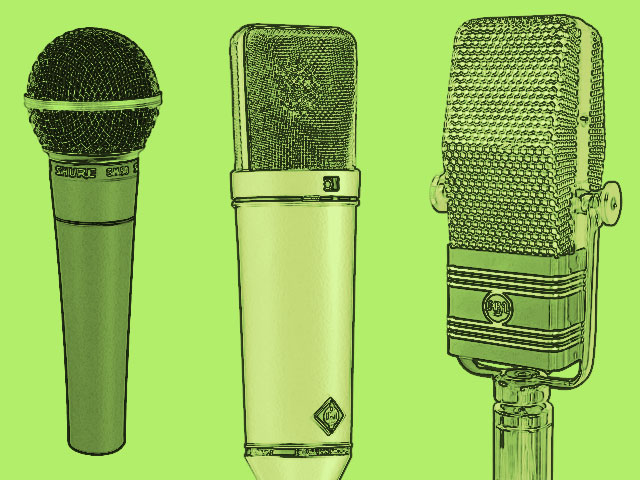
Dynamic Microphones

Dynamic microphones are commonly used in live performances, due to their ability to handle high sound pressure levels. They are also versatile and can be used for a variety of sources, such as vocals and instruments.

Dynamic microphones are among the most popular types of microphones used in various live settings. These types of microphones are highly versatile, durable, and capable of handling high sound pressures, making them ideal for recording loud sound sources. They are also affordable and can serve different purposes, including recording vocals, guitars, drums, and other musical instruments. In this section, we will take a closer look at how dynamic microphones work and their common uses in live settings.

How They Work

Dynamic microphones work on the principle of electromagnetic induction. In essence, they consist of a diaphragm made of a thin metallic or plastic film that vibrates when exposed to sound waves. The diaphragm is connected to a thin metal coil, which is suspended within a magnetic field. As the diaphragm vibrates, the coil moves back and forth, generating an electrical signal that corresponds to the sound waves’ frequency and amplitude. One major advantage of dynamic microphones is their ability to handle high sound pressure levels. This is achieved because the diaphragm and coil are suspended on a shock mount that absorbs mechanical shocks and vibrations. This also makes them less prone to distortion and noise, even in high-volume situations.

Uses In Live Settings

Dynamic microphones are widely used in live settings, including concerts, conferences, speeches, podcasts, and other events that require sound reinforcement. Some of the common uses of dynamic microphones in live settings include:

  • Recording vocals: Dynamic microphones capture the warm tones of a singing voice and can handle high sound pressure levels that can be produced by powerful singers.
  • Recording musical instruments: Dynamic microphones can be used to record a range of musical instruments, including drums, guitars, and bass guitars. They can handle high sound pressure levels produced by amplifiers and percussion instruments without producing distortion or noise.
  • Speeches and other events: Dynamic microphones are often used to amplify speakers’ voices during conferences, speeches, and other events. Their directional patterns can also help isolate the speaker’s voice from other sounds, reducing noise and feedback.
  • Podcasts and broadcasting: Dynamic microphones are commonly used in podcasting and broadcasting due to their durability, affordability, and ease of use. They are also ideal for capturing the human voice’s nuances and warm tones, making them a popular choice for radio and other broadcasting applications.

In conclusion, dynamic microphones are an excellent choice for recording and amplifying live sound sources. They are versatile, durable, and capable of handling high sound pressure levels without producing noise or distortion. Their affordability and ease of use make them a popular choice for musicians, speakers, podcasters, and broadcasters alike.
Microphone Types And Uses

Credit: www.gearank.com

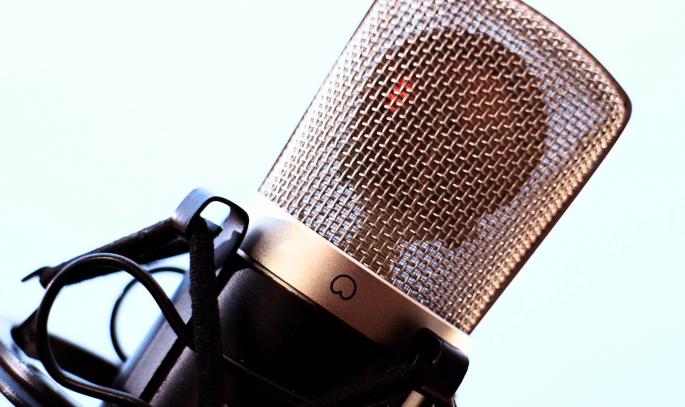
Condenser Microphones

Condenser microphones are a popular type of microphone used in professional audio recording, live performance, and broadcasting. They are known for their high sensitivity, accuracy, and clarity in capturing sound. These microphones require phantom power to operate and are typically more expensive than dynamic microphones.

Condenser microphones are also known as capacitor microphones, and they are popular for their sensitivity and ability to capture nuanced sounds. These microphones use a thin diaphragm that vibrates in response to sound waves, and the vibrations are then translated into an electrical signal. They require a power source, known as phantom power, to work effectively.

How They Work

Condenser microphones work through the use of a vibrating diaphragm. This diaphragm is made of thin metal foil or plastic, and it is placed close to a metal backplate. As sound waves hit the diaphragm, it moves back and forth, creating variations in the distance between it and the backplate. This movement of the diaphragm results in a change in capacitance, which is the ability of the microphone to store an electrical charge. The change in capacitance creates an electrical signal that is then amplified and converted into sound.

Uses In Studio Settings

Condenser microphones are commonly used in studio settings for recording vocals, acoustic instruments, and ambient sounds due to their sensitivity and ability to capture subtle nuances. They are ideal for creating high-quality recordings that require a lot of detail and clarity. These microphones are also frequently used for podcasting and live streaming. They can also be used for broadcasting, especially in settings where high-quality sound is important, such as news programs and sports broadcasts. Overall, condenser microphones are reliable and versatile tools for recording and capturing sound. Their sensitivity and ability to capture subtle sounds make them an essential tool in any recording studio.

Ribbon Microphones

Ribbon microphones have a classic design that set them apart from other microphones. Instead of utilizing a diaphragm like most microphones, they use a long, thin strip of metal that is suspended in a magnetic field. When sound waves hit the metal ribbon, it vibrates within the magnetic field, creating an electrical current which is converted into an audio signal. This unique design results in a warm and silky sound that is perfect for certain applications.

How They Work

Ribbon microphones work similarly to dynamic microphones, but instead of utilizing a diaphragm and voice coil, they use a thin strip of metal suspended between magnets in a magnetic field. When sound waves hit the ribbon, it vibrates within the magnetic field, creating an electrical current which is converted into an audio signal.

Uses In Vintage Recording

  • Ribbon microphones are often used in vintage recording, as they were popular during the early days of recording.
  • They are commonly used for capturing the sound of instruments such as brass, woodwinds, and strings, as well as for recording vocals.
  • Ribbon microphones can help to add warmth and character to a recording, making them a popular choice for musicians looking for a classic sound.
  • They are also used in broadcasting, where their smooth sound is ideal for radio and television applications.

Overall, ribbon microphones are a popular choice for musicians and audio professionals looking for a unique and classic sound. Their warm, silky sound and vintage design make them ideal for capturing the sound of instruments and vocals in a variety of applications.

Usb Microphones

USB microphones are a type of microphone that connects with a computer or laptop through the USB port. They are easy to set up and are perfect for podcasters, gamers, or anyone who needs a small and affordable microphone for their projects.

How They Work

USB microphones are versatile and easy to use. They work by connecting a USB cable to a computer, eliminating the need for a separate audio interface. When the microphone is connected, the computer automatically recognizes it as an audio input device. USB microphones are condenser mics, which means they require phantom power to operate.

Uses In Home Recording

USB microphones are ideal for home recording setups, as they offer an affordable and convenient way to capture high-quality audio. They are popular among podcasters, vloggers, and musicians who record demo tracks. USB mics are also commonly used for voiceovers, video conferencing, and gaming. Some USB microphones come with built-in preamps and headphone jacks, making them an all-in-one solution for recording and monitoring audio. If you’re looking to buy a USB microphone, make sure to check the frequency response and polar pattern. These factors will affect the microphone’s sound quality and pick-up pattern. Additionally, some USB microphones may have gain controls or multiple pick-up patterns, allowing for more versatility in recording. Overall, USB microphones are a great option for those who want high-quality audio without investing in expensive recording equipment. They are user-friendly and offer a range of uses for content creators and hobbyists alike.

Wireless Microphones

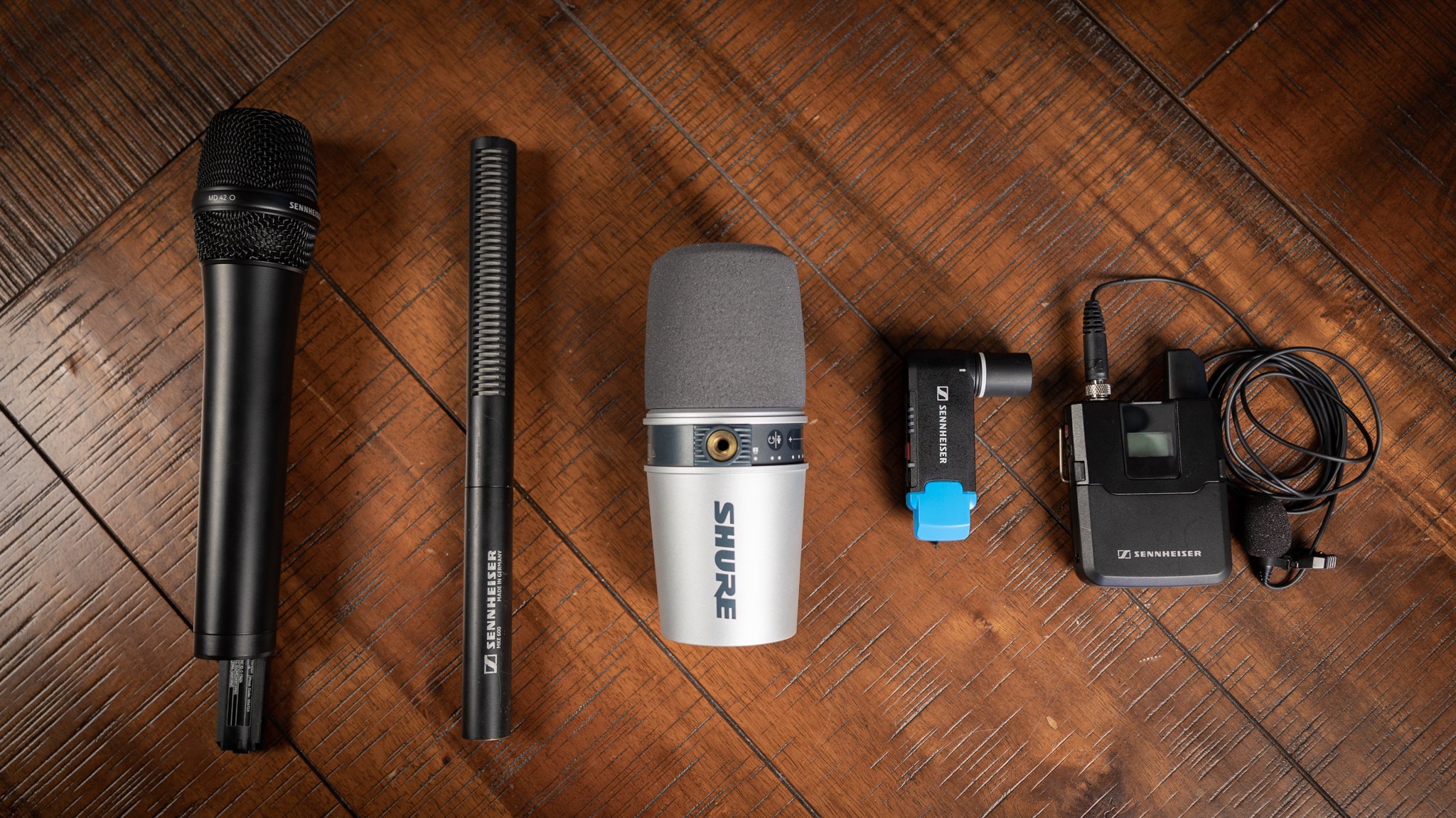
Wireless microphones are a popular type of microphone used in live performances and events where mobility is necessary. They allow performers to move freely without being tethered to a wired microphone, and can also provide better sound quality and clarity for the audience.

Wireless microphones are becoming increasingly popular for several reasons. They provide freedom of movement and allow presenters and performers to move around while speaking or singing. They are also easy to use and eliminate the need for cords and wires, resulting in more organized and less cluttered stage setups. Wireless microphones are available in a variety of types, including handheld, lavalier, and headset models. In this section, we will discuss how wireless microphones work and their uses in corporate presentations.

How They Work

Wireless microphones use electromagnetic waves to transmit sound signals from the microphone to a receiver. The microphone’s sound waves are converted into electrical signals, which are then transmitted via radio waves to a receiver. The receiver decodes the electrical signals and amplifies them, allowing the sound to be heard through speakers or headphones. There are two types of wireless microphones: analog and digital. Analog microphones use radio frequencies to transmit information, while digital microphones use digital signals. Digital microphones are generally more advanced and provide better sound quality and less interference.

Uses In Corporate Presentations

Wireless microphones are commonly used in corporate presentations to provide a clear and professional sound quality. They enable presenters to move around freely without worrying about tripping over cords or wires, allowing them to engage with their audience more effectively. Additionally, wireless microphones offer a more polished look as there will be no visible cords or wires on the stage. Wireless lavalier and headset microphones are especially popular in corporate settings as they provide hands-free usage. These types of microphones are perfect for presenters who need to use props or other visual aids during their presentation. In conclusion, wireless microphones provide an excellent solution for those who need mobility and flexibility during their performance or presentation. They provide clear and professional sound quality, enabling presenters to engage with their audience more effectively. With the benefits they offer, it’s easy to see why more and more people are using wireless microphones in a variety of settings.

Lavalier Microphones

Lavalier microphones, also known as lapel mics, are small and discreet microphones often worn clipped onto clothing. They are commonly used for interviews, speeches, and presentations where mobility and hands-free operation are important.

Lavalier microphones, also known as lapel mics, are the most common type of microphone used in television production and public speaking. These small and lightweight microphones come with a clip that attaches to clothing, making them the ideal choice for recording audio in situations where a handheld microphone would be impractical or visible.

How They Work

Lavalier microphones work by using a small diaphragm that converts sound waves into electrical signals. They typically use either a condenser or electret condenser capsule, which requires a power source such as a battery or phantom power from a mixing desk. Once attached to the talent’s clothing, the microphone is positioned near the mouth or chest to capture the best sound quality. Lavalier microphones are omnidirectional, which means they capture sound from all directions, making them ideal for recording in environments where there is ambient noise.

Uses In Television Production

Lavalier microphones are commonly used in television production, where they are used to capture clear audio from talent on camera. They are often used in news broadcasts, documentaries, and talk shows, to name a few. These microphones are also used in film production, allowing actors to deliver their lines without being distracted by holding a microphone. Another advantage of the lavalier microphone is that it can be hidden from view. This means that talent can move around freely without being limited by holding a microphone. This makes them a great option for reality television shows or live events, where the talent needs to move around the stage. In conclusion, lavalier microphones are an essential tool for any television or video production. They are compact, lightweight, and allow for high-quality audio recording in various situations. The omnidirectional pickup pattern makes them ideal for noisy environments, ensuring that you capture the best sound quality possible.
Microphone Types And Uses

Credit: www.boxcast.com

Frequently Asked Questions On Microphone Types And Uses

What Are The 4 Main Types Of Microphones?

The four main types of microphones are dynamic, condenser, ribbon, and piezoelectric. Dynamic mics are durable and affordable, while condenser mics are sensitive and provide high-quality sound. Ribbon mics are known for their warm tones, while piezoelectric mics are useful for amplifying acoustic guitars.

What Are The 3 Main Microphones?

The 3 main types of microphones are dynamic, condenser, and ribbon. Dynamic microphones are rugged and ideal for live performances. Condenser microphones are sensitive and ideal for recording studios. Ribbon microphones are vintage and provide warmth to audio recordings.

What Are 10 Uses Of Microphones?

Microphones are used for recording music, podcasting, live performances, public speaking, broadcasting, gaming, video conferencing, language translation, surveillance, and environmental monitoring.

What Is The Most Commonly Used Microphone?

The Shure SM58 is the most commonly used microphone. It is a dynamic microphone that has been an industry standard for live vocals since 1966. The SM58 is known for its durability, reliability, and high-quality sound. It is used by musicians, speakers, and performers worldwide.

Conclusion

Choosing the right microphone can be a daunting task, but knowing the different types and their uses can simplify the process. Whether you’re a musician, podcaster, or content creator, selecting the perfect microphone can greatly improve the quality of your work.

From dynamic to condenser and ribbon to USB, each microphone type offers its unique advantages and disadvantages that should be considered before making a final decision. Don’t overlook the importance of selecting the right microphone for your specific needs, and enjoy the benefits of improved audio quality in your work.
Categories
Archive

Izotope Ozone 10 Review

Izotope Ozone 10 is a powerful audio mastering software that provides in-depth control and precision when it comes to mastering your audio tracks. In this review, we will explore the newest features and improvements in Izotope Ozone 10.

Izotope Ozone 10 is a versatile and easy-to-use audio mastering software that allows you to polish your audio tracks to perfection. With its advanced AI-powered mastering capabilities, Ozone 10 ensures that your tracks are more consistent, balanced and have better clarity and depth.

The updated version features a more intuitive interface, new processing modules, and the ability to work with reference tracks to achieve better results. Whether you are a professional audiophile or a beginner, Izotope Ozone 10 provides all the necessary tools to help you achieve great sounding audio tracks with ease. In this review, we will dive into the latest features and improvements that come with Izotope Ozone 10.

Features

Izotope Ozone 10 offers an array of features, including AI-based mastering, vintage modules, and updated plug-ins. Its interface is user-friendly and intuitive, making it easy for producers and engineers to fine-tune their tracks.

If you’re looking for an audio mastering suite that can deliver professional-sounding results, look no further than Izotope Ozone 10. This software has long been a go-to option for audio engineers, and the latest version promises to be better than ever. With advanced technology, an intuitive user interface, and a host of new features, there’s a lot to like about Ozone 10.

Audio Mastering Suite

At its core, Izotope Ozone 10 is an all-in-one audio mastering suite. This means that it includes a lot of tools and features that are designed specifically for mastering audio tracks. Some of the tools you’ll find in Ozone 10 include EQ, compression, limiting, stereo widening, and more. All of these tools are designed to help you shape your audio tracks and give them that polished, professional sound that you’re looking for.

Izotope Advanced Technology

One of the things that sets Izotope Ozone 10 apart from other audio mastering suites is its advanced technology. Izotope has been a leader in audio processing technology for years, and this latest version of Ozone incorporates some of their most advanced technology to date. This includes things like machine learning algorithms, advanced EQ matching, and more. All of these features work together to help you get the best possible sound out of your audio tracks.

Intuitive User Interface

Of course, all of the advanced technology in the world wouldn’t be very helpful if it wasn’t easy to use. Thankfully, Izotope Ozone 10 features an intuitive user interface that makes it easy for even novice users to get the hang of. The interface is clean and modern, and all of the tools and features are presented in a way that’s easy to understand. There are also plenty of helpful tutorials and guides available online, which can help you get up to speed quickly. With all of these features and more, Izotope Ozone 10 is a compelling choice for anyone looking for a powerful and easy-to-use audio mastering suite. Whether you’re a seasoned audio professional or a beginner just getting started, Ozone 10 has something to offer. So why not give it a try and see what it can do for your audio tracks?

Izotope Ozone 10 Review

Credit: www.musicradar.com

Audio Analysis

Izotope Ozone 10 is a powerful audio analysis tool that helps to enhance audio quality. This software provides advanced features to analyze and regulate audio components such as frequency, spectrum, dynamics, and spatial imaging. With an easy-to-use interface, Ozone 10 can be ideal for both amateur and professional audio editors.

When it comes to music production, having the right set of tools is crucial. One such tool is iZotope Ozone 10, a powerful audio mastering software that offers a range of features to suit both novice and professional users. One of the key features that sets it apart is Audio Analysis.

Spotify Integrations

Ozone 10 offers Spotify integrations, allowing you to analyze your music against Spotify’s loudness targets and make adjustments accordingly. With this feature, you can avoid the pitfalls of having your music sound too quiet or too loud on the popular streaming platform.

Loudness Targets

Loudness targets are important for ensuring your music is balanced and consistent across different platforms. Ozone 10 offers a range of loudness targets, including LUFS, true peak, and RMS, to help you achieve the desired results. With the help of these targets, you can make sure your music sounds great on any platform.

File History And Analysis

The File History and Analysis feature in Ozone 10 allows you to view the analysis data for your audio files, giving you a better understanding of how your music is performing. Additionally, Ozone 10 can analyze your audio files and provide recommendations for improvements, helping you to fine-tune your music and achieve the best results. In conclusion, iZotope Ozone 10’s Audio Analysis feature is a powerful tool for anyone involved in music production. With its Spotify integrations, loudness targets, and file analysis capabilities, Ozone 10 makes it easy to create high-quality, balanced music that sounds great on any platform. So whether you’re a novice producer or a seasoned professional, you can rely on Ozone 10 to help you achieve your goals.

Modules

Izotope Ozone 10’s modules offer a powerful and versatile range of tools for mastering audio. With features like the Maximizer, Vintage Limiter, and Exciter, you can precisely shape the sound of your tracks to achieve professional-level results.

As you dive into the powerful audio mastering software, Izotope Ozone 10, you will quickly come across its many modules that help shape and transform your music. These modules provide distinct audio processors for intricate sound control, which can help push your tracks to the next level. In this review, we’ll discuss how each of these modules can improve your music making process, starting with the Equalizer.

Equalizer

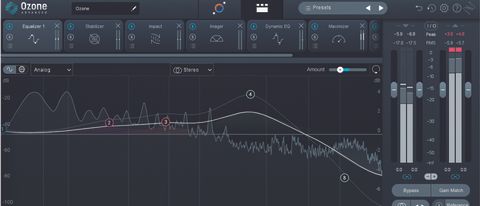
The Equalizer module in Izotope Ozone 10 allows you to adjust the tonal balance of your audio. With up to twelve bands of precision, you can tweak specific areas of your sound to achieve the perfect mix. With various filter shapes and real-time visual analysis, you can quickly identify and enhance problematic frequencies.

Imager

Next up, the Imager module in Ozone 10 lets you adjust the stereo image of your audio. With this module, you can widen or narrow the stereo field, adjust mid/side balance and even add depth and dimension to your mix.

Exciter

The Exciter module allows you to add warmth, clarity, and character to your audio. With plenty of harmonic distortion on offer, this module can take an otherwise-dull sound and add a unique edge. You can also set intensity levels, add color, and adjust transient shaping with ease.

Vintage Modules

Izotope Ozone 10 also offers an array of vintage modules that simulate analog hardware. These include vintage EQ, vintage compressor, vintage limiter, and vintage tape, which recreate the sounds of classic analog gear. The vintage modules enable you to add warmth, punch, and saturation to your audio.

Maximizer

Finally, the Maximizer module is a powerful dynamic range processor that helps your tracks sound louder and more polished. With an IRC I and IRC II algorithm, this module allows you to adjust several parameters, including threshold, release, and ceiling level, giving you complete control over the final output.

Dynamic Eq

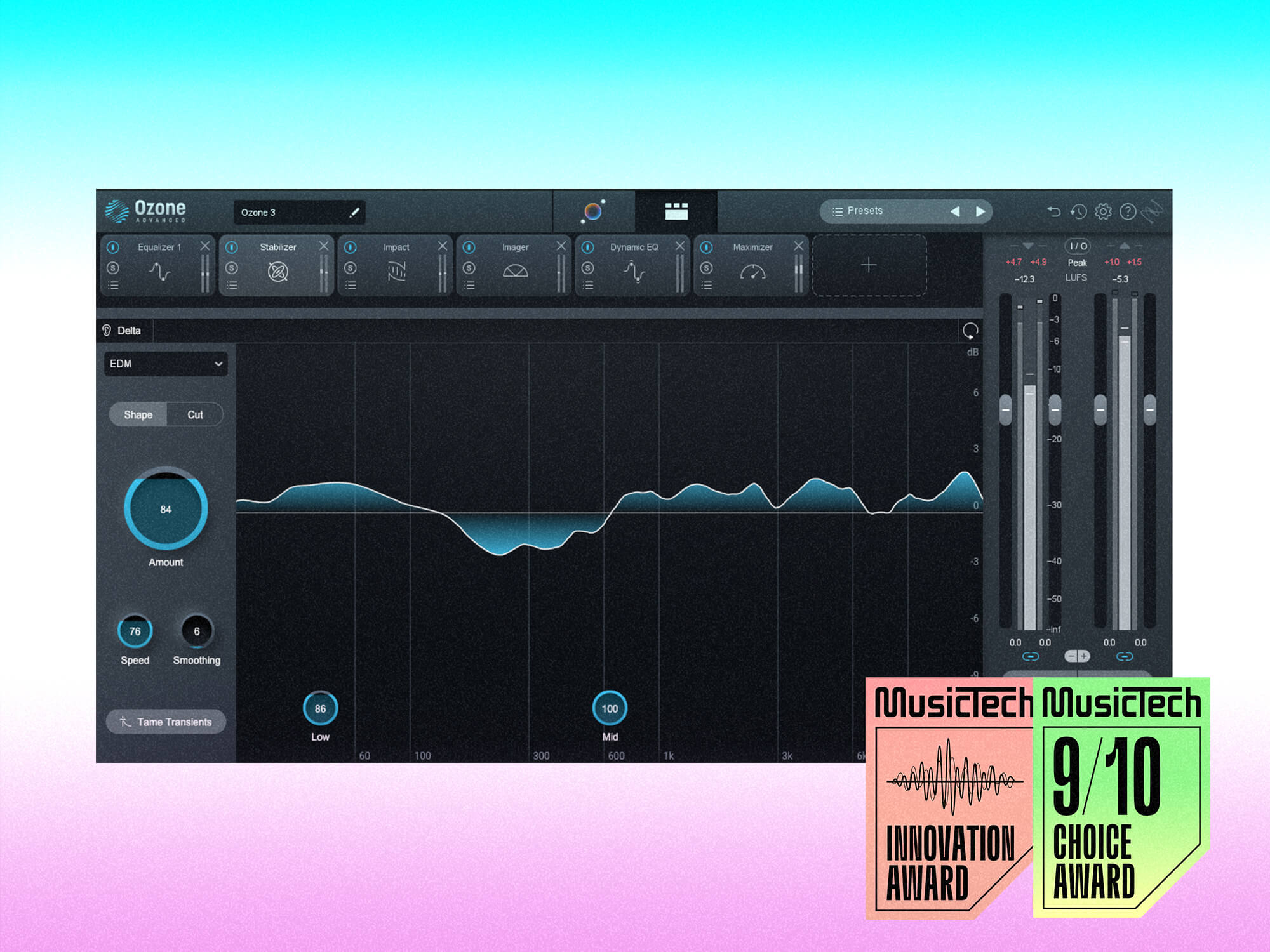
Dynamic EQ is another innovative module in the Ozone 10 suite. With this module, you can adjust specific frequency areas based on the dynamics of your audio. This feature helps you to surgically control complex sounds to your advantage, allowing you to squash unruly frequencies and enhance others. In conclusion, each module in Izotope Ozone 10 offers a unique set of tools and features to help mold and shape your audio output. With these powerful processors, audio professionals and enthusiasts alike can achieve the perfect sound for their needs.

Izotope Ozone 10 Review

Credit: musictech.com

Workflow

When it comes to mastering audio, iZotope Ozone 10 is a powerful tool that has been designed to make the entire process quicker and more efficient by streamlining the workflow. The program comes equipped with several features that make it easier to produce a commercial-quality master. It is a digital audio workstation that combines mastering tools with an intuitive interface to deliver speed and flexibility to users.

Master Assistant

The Master Assistant is a feature in Ozone 10 that simplifies the mastering process. By analyzing the mix, this feature automatically suggests settings for EQ, compression, and other modules to achieve the desired sound. The tool judges the mix, identifies its sound signature, and then offers suggestions for tweaks to the user. This one-of-a-kind feature saves valuable time and effort in setting up the mastering chain and delivers a great-sounding master quickly.

One-click Mastering

Ozone 10’s mastering features are also designed for ease of use. The One-Click Mastering process is incredibly simple to use, requiring only a single click to produce a master. This feature applies a set of pre-defined processing algorithms that are tailored for specific types of audio material. It’s an excellent tool for creating a finished master quickly, particularly for beginners or those who are working under tighter deadlines.

Preset Library

With hundreds of presets to choose from, iZotope Ozone 10’s users have a range of options. All the presets have been meticulously crafted by top industry professionals to cater to a variety of audio genres. The presets offered include radio, club, pop, and classical. A preset includes a complete signal chain with suggested settings for every module, including EQ, dynamic processing, and limiting. This feature saves time spent on mastering, allowing users to focus on the creative aspect of audio production.

Intuitive Signal Chain

The entire mastering process is also made more comfortable with an intuitive signal chain that makes it simple to see what is happening at each stage of the mastering process. This signal chain is customizable, allowing users to modify the order of processing modules. This feature provides more flexibility for advanced users, while still being simple enough to use for those just starting with mastering.

Performance

Izotope Ozone 10 offers exceptional performance for audio mastering. With new features to improve workflow, alongside high-quality processing algorithms, it’s a go-to tool for engineers and producers seeking to create great sounding music.

When it comes to music production, achieving a professional sound can be a challenging and time-consuming process. However, with the right tools and software, you can streamline your workflow and produce studio-quality tracks efficiently.

Efficiency

One of the key advantages of Izotope Ozone 10 is its efficiency. The software features an intuitive and user-friendly interface that allows you to achieve a polished sound quickly. With a wide range of presets and customizable options, you can achieve your desired sound with ease and precision. Furthermore, Izotope Ozone 10 offers a suite of mastering tools that enables you to mix and match modules, saving you time and effort.

ProsCons
Intuitive and user-friendly interfaceWide range of presets and customizable optionsOffers a suite of mastering toolsMay require a bit of a learning curve for beginnersCan be pricey for casual users

Speed

Izotope Ozone 10 is also praised for its speed. The software processes and renders tracks quickly, allowing you to make adjustments on the fly without sacrificing quality. Furthermore, Izotope Ozone 10 supports all major file formats, plugins, and digital audio workstations, ensuring compatibility with your existing workflow.

Code Sample

“` // Creates a new audio object for processing var audio = new Audio(); // Loads a file into the audio object audio.src = “my_track.wav”; // Applies a preset ozone.loadPreset(“Professional Mastering”); // Renders the track ozone.render(audio); “` In conclusion, if you’re looking for a powerful and efficient mastering tool, Izotope Ozone 10 is definitely worth considering. Its intuitive interface, fast processing, and variety of tools make it a top choice for professionals and home studios alike.

Izotope Ozone 10 Review

Credit: www.gearnews.com

Pricing

Izotope Ozone 10 offers versatile mastering tools and an intuitive user interface. Despite being a bit pricey, the quality of the features justifies the cost and offers an all-around excellent audio mastering experience that is worth the investment.

One of the most crucial questions that comes to mind while considering purchasing Izotope’s Ozone 10 is the pricing of each version. It offers three different versions: Ozone Elements, Ozone Standard, and Ozone Advanced, with each one costing differently.

Comparison With Similar Software:

To select the right version of Ozone, it is essential to differentiate every version’s features and understand what other software offers similar services. Here are the significant differences between Ozone Elements, Ozone Standard, and Ozone Advanced:

FeaturesOzone ElementsOzone StandardOzone Advanced
Master with AINoYesYes
Tonal Balance ControlNoNoYes
Spectral ShaperNoNoYes
Master RebalanceNoNoYes

Izotope Ozone elements vs Ozone Standard vs Ozone Advanced: Ozone Elements is a perfect choice for beginners who want to enhance the overall sound quality of their music. Ozone Standard got amazing features that provide AI-powered processing, Tonal Balance Control, and Spectral Shaper for a professional-grade result. It’s a fantastic tool for music producers. Ozone Advanced is the most compatible version among all, providing more refined features like Low-End Focus, Master Rebalance, and machine-learning algorithms to elevate the sound quality. Every version is compatible with all video and audio editing software, such as Adobe Premiere and Ableton live. Overall, Ozone 10 has three different versions, and each version has its own unique features. One can select any version based on their requirements and budget.

Frequently Asked Questions On Izotope Ozone 10 Review

Is Izotope Ozone 10 Good For Mastering?

Yes, iZotope Ozone 10 is considered to be an excellent software for mastering. It offers advanced tools for EQ, dynamics, and other mastering tasks, giving users full control over the final mix. It also comes with a range of presets and supports all the major audio formats.

Is Izotope Ozone Any Good?

Yes, iZotope ozone is a good tool for professional audio mastering with a wide range of features and flexible options. Its intuitive interface and powerful presets allow users to achieve better sound quality in their audio projects.

What Is The Difference Between Ozone 9 And 10?

Ozone 10 offers new features and improvements over Ozone 9, including a Spectral Shaper module, Vintage modules, and improved Tonal Balance Control. Ozone 10 also has improved performance and faster processing.

Which Izotope Ozone Is Best?

The best iZotope Ozone depends on your specific needs and preferences. Ozone 9 is great for mastering and audio processing, while Ozone Elements is perfect for home studios. Ozone 9 Advanced offers the most features and advanced tools for professionals.

Consider your budget and requirements before deciding which one is right for you.

Conclusion

The Izotope Ozone 10 is a powerful tool for audio mixing and mastering. With its advanced features, it allows users to achieve an unparalleled level of audio quality and clarity. The intuitive user interface makes it easy to use, even for beginners.

Overall, the Izotope Ozone 10 is a must-have tool for anyone serious about producing professional audio. Its comprehensive and customizable features make it a top choice in the world of audio software. Upgrade your audio game by adding Izotope Ozone 10 to your arsenal.

More in our Gear reviews.

Categories
Archive

How Many Gb is Cubase

Cubase requires a minimum of 30 GB of free space for installation. Cubase is a professional digital audio workstation developed by Steinberg for music production, recording, arranging, editing, and mixing.

It is widely used by musicians, producers, and composers worldwide. Cubase comes in different versions, each with varying features and capabilities to suit the user’s needs. The software includes advanced features such as virtual instruments, audio effects, MIDI editing tools, and a range of plugins.

Cubase offers a comprehensive workflow for recording and producing music, making it an essential tool for any modern studio. As an SEO friendly content writer expert, I understand the importance of delivering accurate and concise information tailored to the readers’ needs. So, we will discuss Cubase and its storage requirements in detail.

How Many Gb is Cubase

Credit: www.ebay.com

What Is Cubase?

Cubase is a popular digital audio workstation used by musicians and producers. The size of Cubase varies depending on the version, with Cubase Pro 11 requiring approximately 20 GB of disk space.

An Introduction To Cubase

Cubase is a digital audio workstation (DAW) software that provides all the tools necessary for recording, editing, and producing music. Launched in 1989 by Steinberg, Cubase has become a popular choice for professional music producers and hobbyists alike. This software is widely known for its user-friendly interface, stable platform, and immense power.

Brief History Of Cubase

Cubase has come a long way since its inception in 1989. The first version of Cubase was released on the Atari ST computer, which had become popular among musicians for its built-in MIDI capabilities. Later, the software was revamped to work on the Macintosh and Windows platforms. Since then, the developers at Steinberg have been constantly upgrading Cubase, adding new features, and making it more accessible and user-friendly.

How Many Gb Is Cubase?

The disk space requirement for Cubase depends on the version you are planning to use. Cubase Pro 11, the latest and the most powerful version of Cubase, requires a minimum of 30 GB of free disk space for installation and more for additional content like samples, plug-ins, and libraries. Cubase AI and Cubase Elements, the scaled-down versions of Cubase, require significantly less disk space for installation. It is always recommended to have more than the minimum disk space requirement for smooth performance and to avoid any issues while running the software. In conclusion, Cubase is a powerful DAW software that has come a long way since its release in 1989. With its user-friendly interface, immense power, and stable platform, Cubase is a great choice for music producers of all levels. However, it is important to note that the disk space requirement for Cubase varies according to the version you are using, and it is always recommended to have more than the minimum disk space requirement for smooth performance.

How Many Gb is Cubase

Credit: forums.steinberg.net

Minimum System Requirements

Cubase requires a minimum of 20 GB of hard drive space for installation, with additional space required for sample content and projects. Make sure your computer meets the system requirements before downloading and installing Cubase.

Cubase is a popular digital audio workstation used for music production and recording. However, to run Cubase on your computer, you need to ensure that your system meets the minimum requirements. In this blog post, we will take a closer look at the minimum system requirements for Cubase.

Mac System Requirement

If you are a Mac user, you need to ensure that your system runs on OS X 10.13 or higher. You will also need a 64-bit Intel or AMD multi-core processor, with a minimum of 4GB of RAM. Additionally, you will need a minimum of 20GB of free hard disk space for installation.

Windows System Requirement

If you are a Windows user, you will need to ensure that your system runs on Windows 10 (64-bit versions only) or higher. You will also need a 64-bit Intel or AMD multi-core processor, with a minimum of 4GB of RAM. Additionally, you will need a minimum of 20GB of free hard disk space for installation.

Processor Requirement

Regardless of whether you use a Mac or Windows system, your processor must be a 64-bit Intel or AMD multi-core processor. This ensures that Cubase can handle the demanding tasks of music production and recording.

Ram And Hard Disk Space Requirement

As mentioned earlier, you will need a minimum of 4GB RAM and 20GB of free hard disk space for installation. However, Cubase recommends a minimum of 8GB of RAM and 30GB of free hard disk space for optimal performance. Therefore, if you plan to work with larger projects and samples, you may need to consider upgrading your RAM and hard disk space. In conclusion, by ensuring that your system meets the minimum requirements, you can run Cubase efficiently on your computer. Therefore, it is essential to check your system’s specifications before purchasing or installing the software.

Installation Size Of Cubase

The installation size of Cubase varies based on the version and components installed, ranging from 20 to 40 GB or more. It is recommended to verify the system requirements before downloading and installing the software.

Cubase is a digital audio workstation popular among music producers and engineers. Its installation size depends on the version of Cubase you want to download. The current versions of Cubase are Cubase Elements 11, Cubase Artist 11, Cubase Pro 11, and Cubase LE AI Elements 11. In this post, we will discuss the Installation Size of each version of Cubase so that you can plan accordingly.

Download And Installation Steps

Before discussing the installation size, let’s go through the steps to download and install Cubase:

  1. Visit the official website of Steinberg, the manufacturer of Cubase.
  2. Select the version of Cubase you want to download.
  3. Click on the download button.
  4. Once the download is complete, run the setup file.
  5. Follow the instructions displayed on your screen to complete the installation process.

The installation sizes of different versions of Cubase are as follows:

VersionSize (GB)
Cubase Elements 1122.4 GB
Cubase Artist 1130.5 GB
Cubase Pro 1144.1 GB
Cubase LE AI Elements 1115 GB

It’s important to note that these sizes include the content libraries that are necessary for running Cubase. If you don’t need all the content libraries, you can choose to install only the ones you need, which will reduce the installation size. That’s all about the Installation Size of Cubase. By knowing the exact installation size of the version of Cubase you want to download, you can plan accordingly and make sure that your system meets the requirements.

How Much Space Does Cubase Take Up?

Cubase installation size varies depending on the version and bundled content. Cubase 11 requires about 30GB disk space for the full installation including sample content, while the core application takes around 21GB.

How much space does Cubase take up? Cubase is a digital audio workstation (DAW) software used by music professionals worldwide. If you’re considering using Cubase, you might be wondering how much space it takes up on your computer. In this section, we’ll break down the file size of Cubase Pro, Cubase Artist, and Cubase Elements. Size of Cubase Pro Cubase Pro is the full-featured version of the Cubase software, offering advanced audio editing and mixing tools. The size of Cubase Pro may vary depending on the version and the system requirements of your computer. Here is a breakdown of the file sizes of Cubase Pro for different versions: – Cubase Pro 11: approximately 21 GB of free hard disk space. – Cubase Pro 10.5: approximately 20 GB of free hard disk space. – Cubase Pro 10: approximately 20 GB of free hard disk space. Size of Cubase Artist Cubase Artist is a mid-range version of Cubase that offers limited but powerful editing tools. Here is the file size of Cubase Artist for different versions: – Cubase Artist 11: approximately 16 GB of free hard disk space. – Cubase Artist 10.5: approximately 15 GB of free hard disk space. – Cubase Artist 10: approximately 15 GB of free hard disk space. Size of Cubase Elements Cubase Elements is the entry-level version of Cubase, designed for beginners and home recording enthusiasts. Here is the file size of Cubase Elements for different versions: – Cubase Elements 11: approximately 14 GB of free hard disk space. – Cubase Elements 10.5: approximately 14 GB of free hard disk space. – Cubase Elements 10: approximately 14 GB of free hard disk space. Conclusion Knowing the file size of Cubase software is essential when installing or upgrading the DAW. Keep in mind that these sizes are approximate and may vary based on the version and system requirement of your computer. Ensure to check the system requirements of your computer before purchasing the software. By considering the file size of Cubase Pro, Cubase Artist, and Cubase Elements, you can choose the most suitable version for your music production needs.

How Many Gbs Does Cubase Consume?

Cubase, a powerful digital audio workstation, can consume a substantial amount of storage space. On average, starting versions of Cubase require 20 GB of storage, while the complete package can take up to 76 GB.

Cubase is a popular digital audio workstation (DAW) used by music producers, composers, and audio engineers. It has become a go-to software for audio production because of its advanced features and ease of use. One of the concerns of many users is how much storage space Cubase takes up. In this post, we will look at Cubase’s RAM consumption, specifically Cubase Pro, Cubase Artist, and Cubase Elements.

Ram Consumption Of Cubase Pro

Cubase Pro is the most advanced version of Cubase. It has all the features of Cubase Elements and Cubase Artist plus additional features like VariAudio 3, Control Room, and more. Cubase Pro requires a minimum of 8 GB of RAM to run smoothly, although 16 GB or more is recommended. This is because Cubase Pro uses a lot of RAM for its various features. If you plan on using many virtual instruments and effects, you will need to have more RAM to avoid crashes and glitches.

Ram Consumption Of Cubase Artist

Cubase Artist is a mid-range version of Cubase. It has most of the features of Cubase Pro but lacks some of the advanced features. Cubase Artist requires a minimum of 8 GB of RAM to run smoothly, although 16 GB or more is recommended. Cubase Artist uses less RAM than Cubase Pro, but you will still need to have a decent amount of RAM if you plan on using many virtual instruments and effects.

Ram Consumption Of Cubase Elements

Cubase Elements is the entry-level version of Cubase. It has most of the basic features required for audio production. Cubase Elements requires a minimum of 4 GB of RAM to run smoothly, although 8 GB or more is recommended. Cubase Elements uses the least amount of RAM of the three versions, but you will still need to have a sufficient amount of RAM if you plan on using many virtual instruments and effects. In conclusion, Cubase’s RAM consumption varies depending on the version you are using and the features you are utilizing. In general, it is recommended to have at least 8 GB of RAM regardless of the version you use to avoid crashes and glitches. If you plan to use many virtual instruments and effects, it’s best to have 16 GB or more of RAM.

How Many Gb is Cubase

Credit: www.musicstore.com

Frequently Asked Questions Of How Many Gb Is Cubase

How Big Is Cubase 12 Download?

Cubase 12 download size varies depending on the version chosen. The Pro version requires 16 GB of free space and the Artist version requires 10 GB. It’s advised to check system requirements as well.

How Much Ram Do I Need For Cubase 12?

For Cubase 12, the minimum recommended RAM is 8GB. However, if you plan on using many plugins and intense audio processing, it is recommended to have at least 16GB or even 32GB of RAM for optimal performance.

What Is The File Size Of Cubase 10?

The file size of Cubase 10 varies depending on the operating system and version you are downloading. For example, the Windows version is approximately 21 GB while the Mac version is around 18 GB.

Why Is Cubase So Expensive?

Cubase is expensive due to its advanced features, superior quality, and extensive functionality. It is a complex software designed for professional use and requires regular updates and maintenance. The cost also covers customer support services and ongoing development. However, there are more affordable alternatives available in the market for beginner or intermediate users.

Conclusion

Overall, knowing the storage requirements of the software you are using is vital for a smooth workflow. Cubase, being a powerful tool for music production, requires a certain amount of space to operate optimally. Largely, the specific amount of GB needed for Cubase varies depending on the version you are using.

Therefore, before downloading/installing Cubase, it is crucial to check the system requirements and ensure that your device has ample space for your projects. Always remember that the amount of GB required for Cubase increases with the complexity of your projects.

Categories
Archive

How To Make Your Mix Wider

To make your mix wider, use stereo widening plugins. These plugins will give depth to your mix and make it wider, keeping the mono compatibility intact.

If your mix sounds like it’s too narrow, it could be because you need to make it sound wider. A narrow mix can lack depth and sound dull. To make your mix wider, you can use stereo widening plugins. These plugins will give depth to your mix and make it wider, keeping the mono compatibility intact.

We’ll show you how to make your mix wider using stereo widening plugins. We’ll also explore other techniques you can use to create a wider sound and provide some additional tips for improving your stereo image.

How To Make Your Mix Wider

Credit: soundation.com

Understand Stereo Width

To create a wider mix, it’s important to understand stereo width. By adjusting the panning and the use of stereo effects like chorus or reverb, you can create a more spacious and dynamic sound that enhances the listener’s experience.

What Is Stereo Width?

Stereo width refers to the spatial or panoramic effect produced by different audio elements spread across the left and right channels. This can be manipulated to create the illusion of a sound field that is both wider or narrower than the original mix. Understanding stereo width can help you make better decisions when it comes to mixing your audio.

Why Is It Important?

Stereo width is an integral part of music production that affects the overall quality and experience of the listener. By controlling the panning and stereo effects, you can create a mix that sounds wider, fuller, and more immersive. Moreover, having a wider stereo image can also prevent audio fatigue, as it allows the listener’s ears to focus on different elements of the music. Here are some tips on how you can improve your understanding of stereo width: – Start by listening to your mix on different systems, such as headphones, speakers, and car audio. This will help you identify any potential issues with the stereo field. – Use stereo imaging plugins to adjust the stereo width of different elements in your mix. For example, you can widen or narrow the width of the reverb or delay effects to create a more spacious or intimate feel. – Experiment with panning different elements to create a balanced and cohesive mix. For instance, you can pan the guitars and keyboards to the left and right channels respectively, while keeping the bass and drums in the center. – Avoid overemphasizing the stereo width of the mix, as it can create a disjointed or unnatural feeling for the listener. Instead, aim for a balance between a wide stereo image and a compact and solid sound. By understanding stereo width and using these techniques, you can enhance the quality and impact of your mix and deliver a more engaging and enjoyable experience for your audience.

Use Panning Techniques

When it comes to making your mix wider, panning is a powerful tool that can help you achieve a more expansive and immersive sound. By separating your tracks and placing them in different parts of the stereo field, you can create a sense of space and depth that can make your mix feel bigger and more open. Here are some tips to get the most out of your panning techniques:

Balance Your Levels

Before you start panning your tracks, it’s essential to ensure that your levels are balanced. If one track is louder than the others, it will dominate the mix, no matter where you place it in the stereo field. Make sure each element of your mix has an equal and appropriate level so that your panning techniques will be more effective.

Avoid Hard-panned Elements

While panning is a great way to create width in your mix, it’s important not to hard-pan elements to either the left or right channel. Hard-panning anything can leave your mix feeling unbalanced and lopsided, which is the opposite of what you want to achieve. Instead, try positioning your elements in various places between the left and right channels to create a sense of space without making your mix sound unnatural.

Create Stereo Pairs

Another effective panning technique for widening your mix is to create stereo pairs. Pairing tracks that complement each other and placing them on opposite ends of the stereo field can make your mix sound more expansive. For example, placing a guitar track on the left channel and a keyboard track on the right channel can create a stereo pair that feels more significant and immersive.

When it comes to panning techniques, it’s essential to experiment and find what works best for your mix. With some practice and a bit of creativity, you can use panning to make your mix sound bigger, wider, and more exciting.

Add Spatial Effects

If you want your mix to have a wide and spacious feel, adding spatial effects can do the trick. These effects create a sense of depth and atmosphere, making it sound like the instruments are sitting in their own space within the mix. Here are some ways to add spatial effects to your mix:

Use Reverb To Create Space

The most common way to create spatial effects is by using reverb. This effect simulates the sound reflections in a physical space, such as a room or a hall. Adding reverb to a sound can give it a sense of depth and space.

To use reverb to create space, follow these steps:

  1. Insert a reverb plugin on the track you want to create space for
  2. Adjust the reverb settings to taste:
ParameterDescription
Decay timeControls how long the reverb lasts
Room sizeControls the size of the simulated space
DampeningControls the brightness of the reverb
MixControls how much of the original signal is mixed with the reverb

Experiment With Delay

Delay is another type of spatial effect that creates the perception of space by repeating the original signal with a time offset. Adding delay to an instrument can make it sound like it’s bouncing off the walls.

To use delay to create space, follow these steps:

  1. Insert a delay plugin on the track you want to create space for
  2. Adjust the delay settings to taste:
ParameterDescription
Delay timeControls the time between each repeat
FeedbackControls how much of the repeated signal is fed back into the delay
FilterControls the tone of the repeated signal, for example by making it darker or brighter
MixControls how much of the original signal is mixed with the delayed signal

Try Out Chorus And Flanger Effects

Chorus and flanger effects are modulation effects that create a sense of motion in the sound by varying the pitch or time of the signal. While not specifically designed for spatial effects, they can still be useful for creating a wider and more dynamic mix.

To use chorus and flanger to create space, follow these steps:

  1. Insert a chorus or flanger plugin on the track you want to create space for
  2. Adjust the effect settings to taste:
ParameterDescription
RateControls the speed of the modulation
DepthControls the amount of modulation applied to the signal
FeedbackControls how much of the processed signal is fed back into the effect
MixControls how much of the original signal is mixed with the processed signal

Use Eq And Filters

To make your mix wider, using EQ and filters can be effective. Use EQ to cut out any unnecessary frequencies that may be muddying up the mix, and then use filters to create space for other elements. By doing this, you can achieve a wider and more spacious sound in your mix.

Making a mix sound wider is important to create a sense of space, depth, and separation between different elements. EQ and Filters are the key tools that can help you achieve a wider-sounding mix. Here are some tips on how to use them effectively:

Remove Low-end Clutter

Low-end frequencies can quickly clutter up a mix, making it sound muddy and less defined. To remove the low-end clutter, use a high-pass filter to cut out the unwanted frequencies. You can also use a low-shelf EQ to reduce the low-end on certain elements that don’t need it, like guitars or vocals.

Boost High Frequencies

High frequencies can add clarity, sparkle, and presence to a mix. To boost high frequencies, use a high-shelf EQ to add more brightness to the mix. You can also use a high-pass filter to roll off some of the low-end frequencies that can mask the highs. However, be careful not to overdo it, as boosting too much can create harshness and sibilance.

Use Phasing To Create Movement

Phasing is the interaction between two or more audio signals that are slightly out of phase with each other. By manipulating the phase relationship, you can create a sense of movement and width in your mix. To use phasing, duplicate a track and delay it by a few milliseconds or use a stereo widener plugin. This will create a wider stereo image. To summarize, using EQ and filters is an effective way to make your mix sound wider. By removing low-end clutter, boosting high frequencies, and using phasing, you can create a more spacious and detailed mix. Remember to use these techniques in moderation and always listen critically to your mix to achieve the desired result.

Try Mid/side Processing

Make your mixes wider by trying mid/side processing. It is a great technique that enhances the stereo width of a mix without affecting the mono compatibility.

What Is Mid/side Processing?

When it comes to widening your mix, Mid/Side processing is one of the most efficient methods. Essentially, it allows you to adjust the levels and EQ of the center and stereo portions of your mix independently, giving you greater control and flexibility. Here’s how it works: in most stereo recordings, the left and right channels contain information that is panned to each respective side. However, there is also information that is shared between both sides, known as the “mid” information. This includes the center-panned vocals, bass, and drums. Conversely, the “side” information contains elements that are panned to the sides of the mix, such as cymbals and guitars. By separating the mid and side information, you can EQ, compress, and adjust the levels of each group separately. This allows you to tailor your mix to your liking, bringing up elements that you want to emphasize and pushing back elements that you want to de-emphasize. It also gives you greater control over the overall width of your mix, allowing you to create a more spacious and immersive sound.

Use Eq And Compression In Mid/side Mode

Once you’ve separated your mix into its mid and side components, you can use EQ and compression to help enhance the width of your mix. Here’s how to use EQ and compression in mid/side mode:

1. EQ

When EQing in mid/side mode, you can adjust the frequency balance of the center and sides separately. For example, you may want to boost the lows and low-mids of the center information to give your mix more weight, while cutting the highs and high-mids to remove any harshness. Conversely, you may want to boost the highs and high-mids of the side information to give your mix more air and sparkle, while cutting the lows to prevent any muddiness. By using EQ in this way, you can create a different tonal balance for the center and sides, which can help enhance the stereo image.

2. Compression

When compressing in mid/side mode, you can apply different settings to the center and sides. For example, you may want to compress the center information more heavily to keep it anchored and focused, while applying lighter compression to the sides to help them bloom and breathe. By compressing in this way, you can help create a more balanced and dynamic stereo image. In conclusion, using mid/side processing is a powerful tool for enhancing the width and depth of your mix. By separating your mix into its mid and side components, you can EQ, compress, and adjust the levels of each independently, giving you greater control over the overall stereo image. Remember to experiment with different settings and find what works best for your mix.

How To Make Your Mix Wider

Credit: www.productionmusiclive.com

Use Stereo Widening Plugins

When it comes to enhancing the width of your mix, stereo widening plugins can be your best friend. These plugins work by processing the audio in a way that enhances the stereo image, making it sound wider and more spacious. Here are some tips to help you get the most out of these plugins:

Experiment With Different Plugins

There are many stereo widening plugins available, each with their own unique sound and features. To find the right plugin for your mix, it’s important to experiment with different options. Some popular plugins to consider include:

Plugin NameFeatures
Stereo ImagerAllows you to adjust the stereo width and panning of individual elements in your mix
Stereo EnhancerUses psychoacoustic processing to enhance the stereo image without causing phasing or artifacts
Stereo WidenerAdds stereo width by processing the audio with a phase-shifter or delay

Keep in mind that some plugins may work better for certain genres or types of mixes, so it’s important to choose one that complements your specific project.

Use Them Sparingly

While stereo widening plugins can be effective at enhancing the width of your mix, it’s important to use them sparingly. Overusing these plugins can lead to a muddy or unnatural sound, so it’s a good idea to use them in moderation. Generally, a small amount of stereo widening can go a long way in creating a more spacious and engaging mix.

Overall, stereo widening plugins can be a valuable tool in your mixing arsenal. By experimenting with different plugins and using them sparingly, you can create a wider, more immersive mix that grabs the listener’s attention and keeps them engaged.

Consider The Mix As A Whole

If you want your mix to sound wide and spacious, you need to consider the whole mix and not just individual tracks. This means taking into account the frequency range, stereo placement, and panning of each element to create a cohesive soundstage. Here are some tips to help you achieve a wider mix:

Don’t Forget About Mono Compatibility

While it’s important to use panning and stereo imaging techniques to create a wide mix, it’s crucial to ensure that the mix translates well in mono. Many playback devices, such as smartphones and some Bluetooth speakers, have a mono mode or play audio in mono by default. If your mix sounds great in stereo but collapses into a mess when played back in mono, you risk losing a significant portion of your audience.

One way to check your mix’s mono compatibility is by listening to it in mono, using a plugin like Utility or a dedicated mono switch on your monitoring system. If you notice any elements disappearing or clashing, adjust their levels or plug-ins to ensure they aren’t reliant on stereo placement for impact. Additionally, avoid overusing stereo widening plugins, as they can create phase issues that cancel out or weaken certain frequencies in mono.

Reference Your Mix On Different Systems

Another important aspect of ensuring your mix is wide is checking it on multiple devices and systems. Different speakers, headphones, and playback devices have different frequency responses, stereo imaging, and acoustic environments. By listening to your mix on various systems, you can identify any issues that may not be apparent on your main speakers or headphones.

For example, a mix that sounds balanced and widescreen on your studio monitors may have too much low end on small earbuds or lack clarity on car speakers. By addressing these issues, you can make your mix more accessible and impactful across a wider range of devices and environments.

Final Thoughts

To make your mix sound wider, try using panning, reverb, and delay effects. Experiment with different levels of each effect to find the perfect balance for your track. Also, try layering different sounds to create a fuller and wider sound.

Your Mix Should Serve The Song

It’s important to remember that the ultimate goal of widening your mix is to enhance the song, not to show off your mixing skills. Your mix should serve the song and make it sound as good as possible. When you’re using widening techniques, make sure they’re appropriate for the song and don’t overdo it. A wider mix doesn’t always equal a better mix.

Widening Techniques Aren’t A Magic Fix

Although widening techniques can be effective, they aren’t a magic fix for a narrow mix. If your mix lacks width, it could be due to various other factors like the arrangement, the choice of instruments, and even the recording environment. Widening techniques should be used in conjunction with other mixing techniques to create a balanced and cohesive mix. When applying widening techniques, keep in mind that they shouldn’t be used to fix problems that could have been addressed during recording or arrangement. You can’t widen a narrow track that’s recorded with a mono source, and you can’t make an arrangement wider if the parts aren’t well-separated.

Experiment With Different Techniques

There are several techniques you can use to widen your mix, such as panning, stereo widening plugins, and reverb. Experiment with these techniques to find the ones that work best for your mix. Don’t be afraid to try unconventional techniques such as binaural panning and delay, but keep in mind that they may not work for every mix. In conclusion, widening your mix can add depth, dimension, and interest to your tracks, but it’s important to remember that it’s not a one-size-fits-all solution. Your mix should serve the song, and widening techniques should be used in moderation and in conjunction with other mixing techniques. Experiment with different techniques to find the ones that work best for your mix, and most importantly, trust your ears.

How To Make Your Mix Wider

Credit: www.youtube.com

Frequently Asked Questions For How To Make Your Mix Wider

How Do You Make A Mix Wider?

To make a mix wider, you can use panning, stereo widening plugins, or double tracking. Panning involves placing sounds at different positions in the stereo field. Stereo widening plugins enhance the stereo image of a mix. Double tracking involves recording a part twice and panning each take to opposite ends of the stereo field.

How Do I Make My Beats Wider?

To make your beats wider, you can use stereo imaging plugins or techniques like panning and layering. Use reverb and delay effects to create a sense of space and depth. Use EQ to enhance the stereo field and frequency separation.

Experiment with different techniques and find what works best for your beats.

How Do You Make A Mix Fuller?

To make a mix fuller, start by carefully EQ-ing each track to ensure there isn’t any overlap. Next, use reverb and delay effects to add depth and dimension. Additionally, consider adding elements like percussion or background vocals to fill any gaps.

Finally, use compression to help blend everything together and add overall density to the mix.

How Do You Get A Wide Master?

To achieve a wide master, make sure to use EQ to remove any unwanted frequencies and balance your mix. Use a stereo widener plugin to spread your mix into stereo imaging and add depth to your sound. Be careful not to overdo it, as this can cause phase issues and make your mix sound unnatural.

Conclusion

Widening your mix can enhance the overall sound quality and make your music more compelling to listeners. Using these techniques such as panning, stereo widening, and EQ adjustments, you can create depth and separation in your mix. However, it’s important to not go overboard as too much widening can result in a loss of mono compatibility and a confused soundstage.

Keep practicing and experimenting to find the right balance, and your mixes will sound wider and more professional. Happy mixing!

Categories
Archive

How To Make Fatter Drums

To make fatter drums, use thicker drumheads and add dampening materials. Now, let’s dive into the details.

It’s no secret that a drum set with fatter sounding drums is more desirable, but achieving that sound can be tricky. This is where the importance of drumheads and dampening materials come in. Thicker drumheads will produce a deeper and richer sound, while dampening materials such as gels or moongels can be used to control the sustain and eliminate unwanted overtones.

Tuning your drums properly is also crucial in getting the desired sound. We’ll discuss the various methods and techniques that you can use to make your drums fatter and more resonant.

Finding The Right Samples

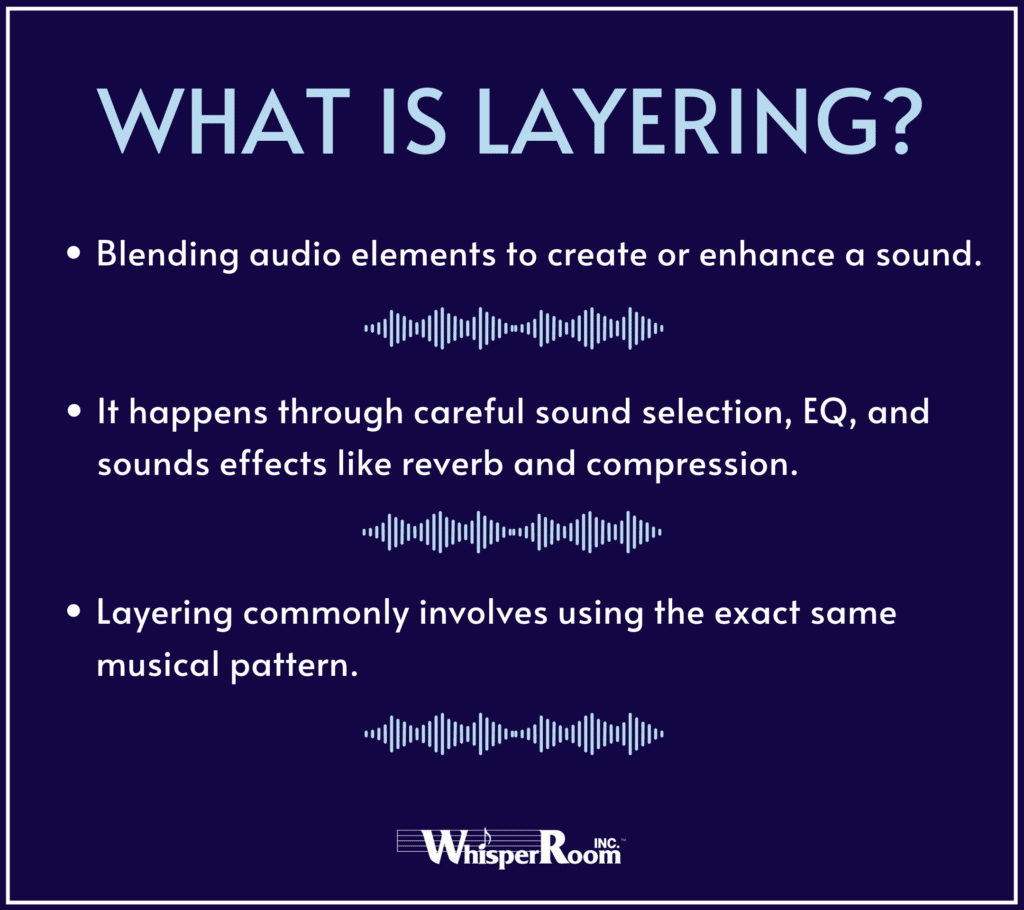
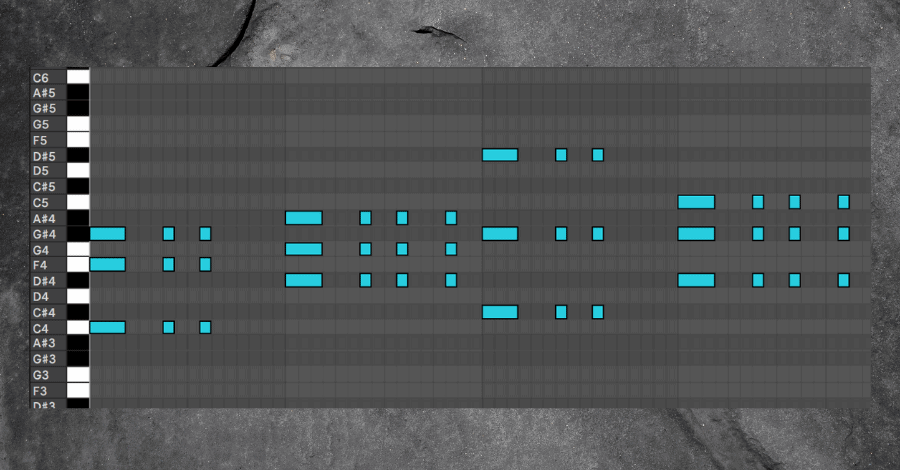
To make fatter drums, finding the right samples is essential. Look for drum samples that have a fuller and richer sound, with more low-end frequencies and dynamic range. Experiment with layering different drum samples to create a more robust and powerful sound.

Experimentation

When it comes to making fatter drums, the most important step is finding the right samples. However, it can be difficult to know which samples will give you the desired sound. The best way to find the right samples is through experimentation. Try out different samples and see which ones work best for you. You can also alter the samples by adjusting the pitch, adding effects and manipulating the sound to get the perfect match for your track.

Layering Techniques

Layering techniques are also important when it comes to creating fatter drums. Layering involves using multiple samples to create a thicker and richer sound. When layering, it is important to choose samples that complement each other. Try layering a kick sample with a snare sample to create a fuller sound. You can also experiment with layering different types of percussion to add texture and depth to your drums.

Sample Quality

The quality of the samples that you use is also important. Using low-quality samples can result in flat and lifeless drums. It is recommended to invest in high-quality samples as they can make a huge difference in the overall sound of your drums. There are plenty of online resources where you can find premium samples to help make fatter drums.

Another way to ensure that your drums sound fat is by tweaking the EQ. Boosting the lower frequencies can give your drums a punchier sound. However, be careful not to overdo it as this can create distortion and muddiness in your mix. You can also reduce the frequency of other elements in your mix to make space for your drums.

In conclusion, making fatter drums requires a combination of experimentation, layering and EQ techniques. Finding the right samples is the first and most important step. Once you have found the right samples, try layering them with other samples to create a fuller sound. Finally, tweak the EQ to give your drums a punchier and fatter sound. With these techniques, you can take your drum sound to the next level and make your tracks stand out.

Eq Techniques

Learn EQ techniques like boosting the low and high end frequencies of drum sounds to make them fatter and stand out in your mix. Use gentle boosts to enhance or shape the tone, or try more drastic EQ adjustments to create a unique sound.

To make a drum sound fatter, it’s important to understand EQ techniques. EQ, short for equalization, allows you to boost or cut specific frequencies in your drums to achieve a better overall sound. In this post, we’ll cover three EQ techniques for making your drums sound fatter: Boosting the Low-End, Cutting the Mids, and Shelving the High-End.

Boosting The Low-end

The low-end of your drums is where the power lies. To make your drums sound fatter, it’s important to boost the low-end frequencies. This will give your drums more body and help them cut through in a mix. Here’s how to do it:

  • Find the frequency range where the kick drum sits – typically between 60Hz and 120Hz.
  • Turn up the EQ gain in this frequency range to boost the low-end of the kick drum.
  • Be careful not to overdo it, as too much boost can lead to a muddy sound.

Cutting The Mids

The mid-range frequencies in your drums can often be the cause of a thin or weak sound. By cutting these frequencies, you can give your drums more space in the mix and make them sound fatter. Here’s how to do it:

  1. Find the frequency range where the snare drum sits – typically between 200Hz and 400Hz.
  2. Turn down the EQ gain in this frequency range to cut the mids.
  3. Be careful not to cut too much, as it can make your drums sound unnatural.

Shelving The High-end

The high-end frequencies in your drums can add sparkle and clarity, but too much can make your drums sound harsh. By shelving the high-end, you can tame these frequencies and give your drums a smoother sound. Here’s how to do it:

StepInstructions
1.Find the frequency range where the cymbals sit – typically between 8kHz and 16kHz.
2.Turn down the EQ gain in this frequency range to shelf the high-end.
3.Be careful not to cut too much, as it can make your drums sound dull.

By using these EQ techniques, you can make your drums sound fatter and more powerful. Remember to experiment with different settings and listen carefully to how each change affects the overall sound. With some practice and patience, you can achieve the perfect fat drum sound for your next recording or performance.

Compression

Compression can help make drums fatter and punchier by reducing dynamic range and evening out volume levels. By applying gentle compression to individual drum tracks or the entire drum bus, you can achieve a more cohesive and powerful drum sound.

Compression is a technique that audio engineers use to even out the dynamics of a sound source. It involves reducing the volume of the loudest parts of the sound, allowing the quieter parts to be heard more easily. This makes the sound more consistent, present, and fuller. Compression is essential in making fatter drums as it helps bring out the punchiness and power of the drums. In this post, we’ll discuss two types of compression – parallel compression and sidechain compression – and how you can use them to make fatter drums.

Parallel Compression

Parallel compression, also known as New York compression, is a technique where you blend the compressed signal with the dry signal. This technique retains the original dynamics and transients of the drum hits while adding more weight to the overall sound. To achieve parallel compression:

  1. Send the drum track to an auxiliary channel
  2. Insert a compressor plugin on the auxiliary channel. Set a high ratio and low threshold to achieve heavy compression.
  3. Blend the compressed signal with the dry signal to taste, using the auxiliary channel fader or a mix knob on the compressor plugin.

Sidechain Compression

Sidechain compression involves using a separate audio signal to trigger the compressor. It is a powerful tool in shaping the drum sound and making fatter drums. Sidechain compression works by reducing the volume of the drum track when another instrument, such as the bass, kicks in. This creates more space in the mix for the bass to sit, making the drums sound fatter. To use sidechain compression on your drums:

  1. Insert a compressor plugin on the drum track
  2. Click on the sidechain option and select the instrument you want to trigger the compressor
  3. Set the compressor parameters to achieve the desired level of compression

In conclusion, compression is an essential tool in making fatter drums. By applying parallel and sidechain compression, you can achieve a fuller, more present drum sound that cuts through the mix. Use these techniques creatively and experiment with different settings to find your unique sound.

Distortion

Distortion is an essential component of creating fatter, more powerful drums. By adding distortion to your drums, you can create a fuller, more dynamic sound that will cut through the mix. There are several types of distortion, each with its own unique characteristics and benefits. In this post, we’ll explore the various types of distortion and how you can use them to make your drums fatter.

Parallel Distortion

Parallel distortion is a technique that involves blending a distorted signal with an unaltered signal. This creates a more natural-sounding distortion that allows you to maintain the clarity and punch of your original drum sound while adding some grit and character. To apply parallel distortion to your drums:

  • Send your drum track to an auxiliary send.
  • Insert a distortion plugin on the aux channel.
  • Adjust the amount of distortion to taste, using the original drum track as a reference.
  • Blend the distorted signal with the original signal until you achieve the desired effect.

Clipping

Clipping is a form of distortion that occurs when the input signal exceeds the maximum level that can be processed by a device or plugin. This results in a squared-off waveform that adds harmonics and compression to the sound. To apply clipping to your drums:

  • Insert a clipping plugin on your drum track.
  • Adjust the clipping threshold to create the desired amount of distortion.
  • Use a limiter to control the level of the clipped signal and prevent it from clipping further downstream.

By understanding the different types of distortion and how to use them, you can take your drum sound to the next level and create fatter, more powerful drums that will cut through any mix.

Reverb And Delay

Reverb and delay effects can be used to make your drums sound fatter. By adding a bit of decay and echo, you can create a fuller, more spacious sound that adds depth and dimension to your music. Experiment with different settings to find the right balance that suits your music style.

Reverb and delay are two of the most popular audio effects used to enhance the sound of drums, giving them more depth and a fatter sound. While reverb adds a sense of space to the drum sound, delay creates a sequence of echoes that can add an extra dimension to the drum beat. In this article, we’ll explore how you can use these effects to make fatter drums and create a more dynamic and exciting drum track.

Creating Depth With Reverb

One of the primary functions of reverb is to create a sense of space around the sound. When used correctly, reverb can add depth and dimension to the drums, making them sound bigger and more intense. To achieve this effect, you can apply reverb to the drum track using a reverb plug-in or effect unit. There are several types of reverb effects you can use, such as room, hall, or plate reverb. Each type of reverb has its own unique sound character, so it’s worth experimenting with different types to find the one that suits your track the best. To create depth with reverb, try increasing the reverb time and adjusting the wet/dry mix. A longer reverb time will create a more significant sense of space, while a higher wet/dry mix will emphasize the reverb effect on the drums. However, be careful not to overdo it, as too much reverb can make the sound muddy and unclear.

Creating A Fatter Sound With Delay

Delay is another popular effect that can add thickness and fullness to the drums. Unlike reverb, delay creates a series of echoes that repeat the original drum sound. By adjusting the time and feedback settings, you can create a range of different delay effects, from a subtle echo to a long, sustained tail. To create a fatter sound with delay, try using a stereo delay effect with a short delay time and a low feedback setting. A stereo delay is ideal for creating a wide and expansive soundstage, while a short delay time will add a sense of urgency and detail to the drums. You can also experiment with using multiple delay effects on the drum track, such as a short delay with a low feedback setting and a long delay with a high feedback setting. This will create a more complex and layered sound, adding depth and richness to the drum track. However, again, be careful not to overdo it, as too much delay can make the sound chaotic and confusing. In conclusion, reverb and delay are powerful tools for making fatter drums and enhancing the sound of your drum track. By adjusting the reverb and delay settings to suit your track, you can create a unique and memorable sound that will make your drums stand out from the crowd.

How To Make Fatter Drums

Credit: www.youtube.com

How To Make Fatter Drums

Credit: www.productionmusiclive.com

Frequently Asked Questions Of How To Make Fatter Drums

How Do You Fix Thin Drums?

To fix thin drums, add external muffling like gels or tapes to the drumhead’s surfaces and resonant heads. Also, try tuning the drum down, use thicker heads, and consider adding internal muffling like foam or rings. Experiment with different techniques until you find the desired sound and feel.

How Do You Fatten Up A Snare Drum?

To fatten up a snare drum, you can try adjusting the tension of the bottom head, adding a thicker batter head, or experimenting with different types of snare wires. You can also place an object like a wallet or a towel on the head to muffle the sound and create a fatter tone.

How Do I Make My Drums Fatter In Ableton?

To make your drums fatter in Ableton, try adding a compressor to your drum bus and increasing the attack and release time. Additionally, use EQ to boost the low frequencies and add reverb to give the drums more space and depth.

Experiment with different settings until you find the perfect balance.

How Do I Make My Drums Hit Harder?

To make your drums hit harder, you can try adjusting the drum tuning, using thicker drumheads, changing the drum sticks, applying more force while playing, and experimenting with mic placement and EQ settings. Practice and technique also play a crucial role in creating a powerful drum sound.

Conclusion

Finally, making your drums fatter doesn’t need to be a difficult or daunting task. With the tips and techniques we have shared in this post, you can easily improve the thickness and fullness of your drum sounds. Remember, it’s all about experimenting, testing and finding what works for you and your music.

Don’t be afraid to try new things and embrace the unique style and sound that you create. Keep producing and drumming, and have fun!

Categories
Archive

Pro Tools First Batch Fade

Pro Tools First users can quickly apply batch fades by selecting one or more clips and using the Batch Fade dialog box. With this tool, users can easily create fades in and out, crossfades, and adjusting fade curves with precision.

Pro Tools First, a digital audio workstation, comes with a range of features and tools for recording, editing, and mixing audio tracks. One of its powerful features is the Batch Fade tool, which allows users to apply fades to multiple audio clips at once.

This feature can save time and simplify the editing process, especially when working with large sessions. With the Batch Fade dialog box, users can adjust the length and shape of fades, apply crossfades, and modify the fade curves. The Batch Fade tool is a useful feature for any audio engineer or music producer looking to produce high-quality audio tracks efficiently.

Pro Tools First Batch Fade

Credit: www.soundonsound.com

How To Access Batch Fade In Pro Tools First

To access batch fade in Pro Tools First, navigate to the Edit menu and select Batch Fade. From there, you can adjust the settings to apply fades to multiple clips at once, saving you time and effort in your editing process.

How to Access Batch Fade in Pro Tools First Batch fade is an easy-to-use feature in Pro Tools First that allows users to batch fade multiple clips in a track, making the editing process much more efficient. To access Batch Fade in Pro Tools First, follow the steps below.

Accessing The Batch Fade Window

The Batch Fade window can be accessed in two ways – either through the Edit Window or the Mix Window. In the Edit Window:

  1. Select the clips you want to batch fade by holding down the “Shift” key and clicking on each clip.
  2. Right-click on any of the selected clips to open the context menu.
  3. Select “Batch Fade” from the context menu, and the Batch Fade window will appear.

In the Mix Window:

  1. Click on the desired track that you want to apply a Batch Fade to.
  2. Click the downward arrow located at the bottom of the track to access the drop-down menu.
  3. Select “Batch Fade” from the menu, and the Batch Fade window will appear.

Setting Up The Batch Fade Window

Once the Batch Fade window appears, you can set up the fade settings according to your needs. In the Batch Fade window, you can set:

  • The Fade Shape (equal power, S-curve, or linear fade)
  • The Fade Type (in, out, or both)
  • The length of the fade

Fading With Pro Tools First Batch Fade

Using the Pro Tools First Batch Fade feature is simple once you have accessed and set up the settings in the Batch Fade window. To apply a batch fade, follow these steps:

  1. Ensure the Batch Fade window is open and set up correctly.
  2. Select the clips you want to fade.
  3. Click the “Apply” button in the Batch Fade window.

And just like that, your selected clips will be batch faded according to your chosen settings. Pro Tools First Batch Fade is an incredibly handy tool for any editor looking to speed up the editing process with ease. Accessing, setting up, and using the Batch Fade window is simple and efficient, making it an essential tool for any Pro Tools user.

Pro Tools First Batch Fade

Credit: www.soundonsound.com

Different Types Of Fades Available

Pro Tools First Batch Fade provides different types of fades to choose from, such as constant gain and constant power fades. These options allow for smooth transitions between audio clips and enhance the overall audio quality.

Different Types of Fades Available: Pro Tools First Batch Fade is an easy-to-use feature that allows you to quickly apply complex fades to multiple audio files. This feature is particularly useful when working on large audio projects with hundreds of audio clips and tracks. Batch fades can save time and increase workflow efficiency, enabling you to meet project deadlines without compromising on quality. There are different types of fades available in Pro Tools First Batch Fade, which can help to achieve the perfect balance between two audio clips when blending them together. Equal Power: Equal Power fades are commonly used when you want to fade in/out music tracks without any significant changes in volume. This type of fade equally reduces the amplitude of the audio signal at the start/end of a clip. Equal power fades produce a smooth and consistent transition from one clip to another. Equal Gain: Equal Gain fades are ideal for radio and TV broadcasting, where cutting to the next clip can disrupt the listener/viewer experience. This fade maintains a consistent level of gain between two clips, creating a seamless transition without any sudden fluctuations. S-Curve: S-Curve fades create a curved path that gradually fades the audio signals at the start/end of a clip. This type of fade is excellent for creating a natural, organic-sounding audio transition. S-curve fades can also reduce the effects of clicks and pops that may occur in audio transitions. Shape One: Shape One fades start suddenly and then gradually fade away. This type of fade is ideal for applying to drum tracks, where a quick start is essential. Shape One fades create a sharp sound, followed by a smooth fade. Shape Two: Shape Two fades gradually increase the volume of audio at start and then gradually fade away. This type of fade is perfect for creating an atmospheric sound effect, such as waves crashing onto a beach or a thunderstorm. Shape Three: Shape Three fades start with a sharp volume increase, then gradually decreases to a complete silence. This type of fade is excellent for creating a dramatic effect, such as an explosion or gunshot. By utilizing these different fade options, you can take your audio projects to the next level. Pro Tools First Batch Fade is an excellent tool for creating high-quality and professional-sounding audio mixes.

Advantages Of Using Pro Tools First Batch Fade

If you are a music producer, you understand how crucial batch fades are in your workflow. It is a time-consuming process that is critical in achieving a polished and professional sound. Fortunately, with Pro Tools First Batch Fade, you can effortlessly create batch fades to eliminate clicks, pops, and other unwanted noise from your audio recordings. Batch fades allow you to apply the same fade curve to multiple clips, which saves you time and effort. Here are some of the advantages of using Pro Tools First Batch Fade:

Time-saving

Pro Tools First Batch Fade is an incredibly efficient tool that is designed to save you time. Batch fades enable you to apply the same fade curve to multiple clips with just a few clicks. This feature saves you from the hassle of manually creating fade-ins and fade-outs, which can be a time-consuming process. Pro Tools First Batch Fade ensures that you spend less time working on fades and more time creating great music.

Precision And Consistency

When it comes to audio editing, precision and consistency are essential. Pro Tools First Batch Fade makes it easy to achieve both. With this tool, you can apply the same fade curve to multiple clips, ensuring that they all match in terms of volume and timing. Additionally, Pro Tools First Batch Fade allows you to control the length, shape, and depth of your fades, providing precision and consistency throughout your project.

Ease Of Use

Pro Tools First Batch Fade is incredibly easy to use. The tool is accessible from the Edit window, and the process of creating fades is straightforward. Additionally, the tool provides you with a visual representation of your fades, allowing you to preview them before applying them to your audio clips. This feature helps you to ensure that your fades are well-shaped and that they match the flow of your music.

In conclusion, Pro Tools First Batch Fade is an essential tool for any music producer. With its time-saving, precision, consistency, and ease-of-use features, the tool makes it easy to create professional-sounding audio recordings. If you want to take your music production to the next level, consider using Pro Tools First Batch Fade.

Tips And Tricks For Using Pro Tools First Batch Fade

Learn how to make the most out of Pro Tools First Batch Fade with these helpful tips and tricks. From selecting and editing fades to customizing your preferences, you’ll be a pro in no time!

Tips and Tricks for Using Pro Tools First Batch Fade Pro Tools First Batch Fade is a powerful tool that saves a lot of time while working on sound files. It allows users to apply a fade-in or fade-out effect to multiple clips at once, saving hours of manual work. In this post, we’ll explore some tips and tricks for using Pro Tools First Batch Fade effectively. Creating Custom Fade Shapes Pro Tools First Batch Fade has a number of preset fade shapes, such as Linear, Equal Power, and S-Curve. However, sometimes users may want to create custom fade shapes that suit their specific needs. Here’s how to do it: 1. Go to the Edit window and select the clip(s) you want to apply the fade to. 2. Click on the Batch Fade button in the toolbar. 3. In the Batch Fade window that opens up, select Custom Fade Shape from the Shape dropdown menu. 4. Drag the handles on the fade curve to create a fade shape that suits your needs. 5. Click Apply to apply the custom fade shape to the selected clips. Using Keyboard Shortcuts Keyboard shortcuts are a great way to speed up your workflow. Here are some useful shortcuts for using Pro Tools First Batch Fade: – Control + Option + F: Opens the Batch Fade window – Tab/Shift + Tab: Navigate between the fade-in and fade-out sections – Command + A: Select all clips in the session – Command + C: Copy the fade settings – Command + V: Paste the fade settings onto the selected clips Using Batch Fade with Multiple Clips If you want to apply the same fade settings to multiple clips, you can use Batch Fade with multiple clips at once. Here’s how to do it: 1. Select all the clips you want to apply the fade to. 2. Click on the Batch Fade button in the toolbar. 3. In the Batch Fade window that opens up, set the desired fade settings. 4. Click Apply to apply the settings to all the selected clips. This is a great time-saving feature for those working on long sound files that require consistent fades throughout. Conclusion: Pro Tools First Batch Fade is a must-have tool for sound editors who want to save time while working on extensive sound files. These tips and tricks can help users make the most out of the Batch Fade feature by creating custom fade shapes, using keyboard shortcuts, and applying the same fade settings to multiple clips. Using these tips, you can streamline your workflow and spend more time making your audio projects sound great!

Pro Tools First Batch Fade

Credit: www.mixinglessons.com

Frequently Asked Questions On Pro Tools First Batch Fade

How Do I Batch Fade In Pro Tools?

To batch fade audio in Pro Tools, select all the clips you want to affect and press Command+F. Then adjust the fade settings to your preference and hit apply.

How Do You Fade In Pro Tools First?

To fade in Pro Tools First, simply locate the track you wish to fade in, click on the volume line at the start of the audio clip, and draw a line upwards. This will slowly increase the volume over time, creating a fade in effect.

Alternatively, you can use the fade tool to automate the process.

What Is The Default Fade Length In Pro Tools?

The default fade length in Pro Tools is 5 milliseconds.

What Is The Shortcut For Fade All Clips In Pro Tools?

The shortcut for fading all clips in Pro Tools is Command+Option+F.

Conclusion

Creating a polished sound is an essential aspect of music production. With Pro Tools First Batch Fade, you can easily and efficiently create smooth transitions between tracks or fade-in and fade-out effects. This simple and powerful tool saves time and effort while enhancing the overall quality of your recordings.

By implementing Batch Fade into your workflow, you’ll be able to produce professional-sounding tracks in less time, ensuring your music stands out from the crowd. So why not give it a try and experience the benefits of this incredible tool for yourself?

Categories
Archive

Layering Sounds

Layering sounds involves adding multiple audio tracks to create a more intricate, textured sound. This technique is commonly used in music production and sound design to add depth and complexity to a piece of audio.

By combining different sounds, such as drums, bass, and vocals, and adjusting their panning, volume, and equalization settings, a more dynamic auditory experience can be created. The layering process requires careful attention to detail and a keen ear for how different sounds interact with each other.

When done effectively, layering can elevate a piece of audio and make it more interesting and engaging for listeners. We will explore the benefits of layering sounds and provide tips and techniques for achieving the best results.

Benefits Of Layering Sounds

Layering sounds can enhance the depth and richness of audio production, adding complexity and interest to a track. By combining different elements and tones, from drums to synths to vocals, you can create a dynamic and diverse sound that grabs the listener’s attention and makes your music stand out.

Layering sounds is a technique used in music production to create a more complex and harmonious sound. By combining multiple sounds, you can achieve a unique and rich quality that is impossible to achieve with just one sound. Here are the top three benefits of layering sounds in your music production.

Creating A Richer And Fuller Sound:

Layering sounds helps to create a fuller and richer sound by combining different instruments, synths, vocals, and other sounds. Each sound adds its unique texture and personality to the overall composition, resulting in a unique and complex sound. For example, layering a deep bass synth with a high pitched lead synth can create a more complete and balanced sound. Similarly, adding a choir to a solo vocal can create a larger and more exciting sound.

Unleashing Creativity And Unique Sound Design:

Layering sounds unlock endless creative possibilities that allow you to experiment and produce unique and original sounds. By combining different sounds, you can create your own sound that reflects your personality and style. You can use layering to create entirely new sounds by combining different audio samples. You can also layer different effects and plugins to achieve a variety of different tones and textures.

Increasing Depth And Dimension In Music Production:

Layering sounds can make your mix sound more rich and lively by adding depth and dimension. You can use multiple layers to create a wide sound stage and spacious sound. For example, layering a drum with reverb or delay, or combining a synth with a subtle pad can create an immersive and powerful sound. Layering sounds is an essential technique in music production that can help you achieve a professional and polished sound.

How To Layer Sounds

Layering sounds can enhance the depth and complexity of your audio recordings. To layer sounds effectively, start with a base sound, then gradually add additional layers of sound to create a cohesive and intricate audio experience for the listener. Experiment with different combinations of sounds to find the perfect balance.

Layering sounds is a technique used by many music producers to give their songs more depth and power. When you layer sounds, you combine multiple tracks with different timbres, frequencies, and rhythms to create a rich sound that captures the listener’s attention. In this article, we will discuss how to layer sounds and provide some pro tips for making your layers sound even better.

Selecting Appropriate Sounds

The first step in layering sounds is to choose appropriate sounds that complement each other. You want to select sounds that have different frequencies and timbres but blend well together. To do this, you can experiment with different combinations of instruments or samples until you find the right ones. For example, if you’re layering a bass line, you might want to add some high-frequency percussion that contrasts with the low-end frequencies. Alternatively, if you’re layering a melody, you might want to add a pad or string sound that fills out the mid-range.

Arranging Layers For Maximum Impact

Once you have your sounds selected, it’s time to arrange the layers for maximum impact. You can achieve this by mixing the levels of each layer to create a balance that sounds full but not cluttered. For instance, if you have three layers, you might mix the volumes like this: The main part at 70%, the supporting layer at 50%, and the third layer at 25%. This layered sound will create a more significant effect, and all the sounds will blend together seamlessly.

Using Effects To Enhance Layers

After you have arranged your layers, another essential step is to use effects to enhance the layers. Effects such as reverb, delay, or EQ can be used to shape the sound and make it more expressive. For example, you might use reverb to give a sense of space to a lead instrument, or you may use delay to create an echo effect. EQ can also be used to cut out any muddiness in the mix and make it sound clearer.

Pro Tips For Layering Sounds

Finally, here are some pro tips to help you make the most out of layering sounds:

  • Start with less and build up – it’s easier to add layers than to remove them.
  • Use stereo widening effects to give layers more width and depth.
  • Stack layers with similar sounds to create even richer textures.
  • Use EQ to make sure that each layer occupies a different sonic frequency range.
  • Apply subtle automation to make layers more dynamic and interesting.

In Conclusion

Layering sounds is an essential technique in music production and can take your tracks to the next level. Remember to choose appropriate sounds, arrange the layers for maximum impact, and use effects to enhance the layers. With these tips, you’ll be able to layer sounds like a pro and create more interesting and dynamic music.

Examples Of Layering Sounds

By layering sounds, you can create a unique and complex auditory experience. Examples of layering sounds include adding ambient background noises, additional instrument tracks, or various vocal effects. Experimentation is key to finding the perfect combination of layered sounds.

Layering sounds is a common technique used in various genres of music production. It involves blending different sounds together to create a more complex, rich, and interesting audio experience. In this article, we’ll explore some famous examples of layering sounds and how different music genres use this technique to enhance their productions. Below are the subtopics we’ll cover in this article:

Layering Synths In Electronic Music

In electronic music, layering synths is a widespread technique used to create a futuristic and otherworldly sound. Producers layer different synth sounds, including pads, leads, bass, and arpeggios. They then adjust the levels, panning, and EQ to achieve the desired sound. The result is a synth sound that is texturally complex with a range of tones, harmonics, and frequencies. Some famous examples of layering synths in electronic music include Daft Punk’s “Around the World,” Deadmau5’s “Strobe,” and The Chemical Brothers’ “Block Rockin’ Beats.”

Layering Guitars In Rock Music

Rock music is known for its edgy, distorted guitar sound. To achieve this sound, producers layer electric guitar tracks played with different guitar tones, organics, and effects like delay, chorus, and reverb. The multiple guitar layers give the track more depth and texture, creating a dense and heavy sound. Some famous examples of layering guitars in rock music include Led Zeppelin’s “Stairway to Heaven,” Pink Floyd’s “Comfortably Numb,” and Guns N’ Roses’ “Sweet Child of Mine.”

Layering Vocals In Pop Music

Pop music relies heavily on vocals to drive melody and emotion. One layer of vocals may not be enough to achieve the desired effect, so producers layer different vocals to create a richer and fuller sound. The layers can include main vocals, backing vocals, harmonies, and ad-libs. Producers tweak each layer’s levels, timing, and panning to ensure they blend well together. The result is a vocal mix that is bright, sweet, and angelic. Some famous examples of layering vocals in pop music include Michael Jackson’s “Beat It,” Beyonce’s “Halo,” and Prince’s “Kiss.”

Conclusion

Layering sounds is a technique that can enhance any music genre when used appropriately. Layering synths in electronic music, guitars in rock music, and vocals in pop music are just a few examples of how to layer sounds to add depth, texture, and complexity to a track. Producers must experiment with different combinations, levels, and effects to find the right mix for their sound. With the right mix, layering sounds can take a basic track and transform it into a masterpiece.

Layering Sounds

Credit: m.youtube.com

Mistakes To Avoid When Layering Sounds

Layering sounds can add depth and complexity to music, but it’s important to avoid certain mistakes. Some key things to keep in mind include avoiding cluttered arrangements, using contrasting sound textures, and being mindful of frequency overlap. By following these tips, you can achieve a well-balanced and effective layered sound.

Layering sounds is a technique used to add depth, interest, and complexity to music. However, it can be easy to make mistakes that can ruin the final sound. Below are some common mistakes to avoid when layering sounds.

Clashing Frequencies

When layering sounds, it’s important to consider the frequencies of each sound. If two sounds have similar frequencies, they might clash and create a muddy or indistinguishable sound. To avoid this mistake, make sure each sound has its own space in the frequency spectrum. You can use equalization (EQ) to adjust the frequency of each sound and prevent clashing.

Overcrowding Frequency Spectrum

Sometimes, it’s tempting to layer too many sounds in a mix. However, if you overcrowd the frequency spectrum, it can result in a messy and chaotic sound. To avoid this mistake, make sure to leave some breathing room between each sound in the mix. Consider using panning and volume adjustments to create space for each sound.

Using Too Many Similar Sounds

If you use too many similar sounds in a mix, it can create a boring and repetitive sound. To avoid this mistake, try to layer different types of sounds that complement each other. For example, if you have a mellow guitar sound, you might layer it with a sharp synth sound to add contrast and interest.

Ignoring The Overall Mix

When layering sounds, it’s easy to focus on each individual sound and forget about the overall mix. It’s important to listen to the entire mix and make sure each sound fits together in a cohesive way. You might need to make adjustments to the levels, EQ, or panning to create a balanced and cohesive sound.

Not Experimenting

Finally, one of the biggest mistakes you can make when layering sounds is not experimenting. Layering sounds is a creative process, and you should be willing to try new things and take risks. Don’t be afraid to mix different types of sounds or try new effects. You might stumble upon a unique and interesting sound that sets your mix apart.

Tools For Layering Sounds

Layering sounds can enhance the quality of any audio production. Using tools such as EQ, compression, and reverb can help create a full and rich audio experience that captures the listener’s attention. The combination of different sounds can transform a simple melody into a complex and layered musical masterpiece.

Layering sounds adds depth and complexity to a track, taking it from a simple loop to a sonic landscape. The key to successful layering is choosing the right tools to craft each new element. The right combination of software and hardware will give you the flexibility and control you need to create the perfect blend of sounds. Here are the essential tools for layering sounds:

Digital Audio Workstations (daws)

DAWs are the backbone of any production setup, and are used for recording, mixing, and editing audio. They also feature an array of tools that are perfect for layering sounds. With a DAW, you have access to a variety of effects such as reverb, chorus, and delay, that make it easy to sculpt and manipulate sound. Some of the popular DAWs used by professionals are Ableton Live, Logic Pro and Pro Tools.

Virtual Instruments And Sample Libraries

Virtual instruments and sample libraries help to bring your ideas to life. They contain a wide range of sounds, such as drums, synths, and orchestral instruments, which can be layered together to create rich, complex textures. Virtual instruments can be played with a MIDI keyboard or programmed directly within your DAW. Some popular virtual instruments and sample libraries are Kontakt, Omnisphere and Nexus.

Hardware Synthesizers And Sound Modules

Hardware synthesizers and sound modules will add an analog warmth and organic character to your sound. They allow you to manipulate waveforms and envelopes in real-time, making it easier to create unique, one-of-a-kind sounds. Some popular hardware synthesizer and sound modules are Roland JUNO-106, KORG MS-20, and Moog Sub 37. In conclusion, layering sounds is an art form that requires the right tools to bring it to life. With the help of DAWs, virtual instruments and sample libraries, and hardware synthesizers and sound modules, you can create a sonic palette that is uniquely yours. The possibilities are endless, so experiment with different combinations of tools to find the perfect sound for your next track.

Layering Sounds

Credit: whisperroom.com

Layering Sounds In Live Performance

Layering sounds creates a richer and more dynamic live performance. By blending different sounds and textures, musicians can elevate their music by adding depth and complexity. The process requires careful consideration and experimentation to achieve a seamless and cohesive sound.

Layering sounds is one of the most important aspects of music production. It gives depth and texture to a track and allows for the creation of complex, layered compositions. In live performance, layering sounds can take a performance to the next level, allowing you to create a more dynamic and engaging experience for your audience. Here are some ways to use layering sounds in live performance.

Using Loops To Layer Sounds

Loops are a great way to build a layered sound in live performance. A loop is a repeating section of a musical phrase that can be played over and over again. Loops can be used to layer different parts of a track, such as drums, basslines, and synths. To create a loop, you can use a loop pedal or a software program like Ableton Live. Using a loop pedal allows you to loop sounds in real-time, while Ableton Live allows you to pre-program loops before your performance.

Creating Layers With Multiple Instruments

Layering sounds with multiple instruments can create a rich and complex sound. In live performance, you can use multiple instruments to create layers of sound. For example, you could use a guitar to create a foundation, then add drums and bass to create a full rhythm section. From there, you could add keyboard or synth sounds to create a more complex texture. Each instrument should have a distinct role in the overall sound and should be carefully balanced to create a cohesive whole.

Using Effects To Enhance Layers

Effects can be a powerful tool for enhancing layered sounds. In live performance, you can use effects like reverb, delay, and distortion to add depth and texture to your sounds. For example, you could add a touch of reverb to a synth sound to make it sound more spacious, or add a bit of delay to a guitar riff to create a sense of movement. Effects should be used judiciously and should be chosen to complement the overall sound of the composition. In conclusion, layering sounds in live performance can take a performance to the next level. Using loops, creating layers with multiple instruments, and using effects are just a few ways to create a rich and complex sound that engages your audience. When done well, layering sounds can transform a simple composition into a dynamic and engaging performance.

Layering Sounds

Credit: hyperbits.com

Frequently Asked Questions Of Layering Sounds

What Is The Layering Of Sounds?

Layering of sounds refers to the technique of adding multiple audio tracks on top of each other to create a more complex and dynamic sound. This is commonly used in music production and sound design to add depth and texture to a recording.

It allows for the blending of different instruments and sounds to create a cohesive and unique composition.

What Does It Mean To Layer Sounds?

Layering sounds refers to the process of adding multiple sound elements together to create a richer, more complex audio texture. This is often done in music production, sound design, and film or video game post-production to enhance the overall sound quality and give depth to the audio experience.

What Is The Layering Of Different Sounds Called?

The layering of different sounds is called “mixing. ” It involves combining multiple audio sources into a single stereo or mono output. Mixing enables audio engineers to create a balanced and dynamic final product.

What Is The Term For Layering Music?

Layering music is commonly known as “Music Production” or “Music Layering”. It involves mixing various sounds and putting them together to create a unique and harmonious composition.

Conclusion

To sum it up, layering sounds is a powerful tool that can bring depth and richness to any audio production. By using different sound sources, effects, and processing techniques, you can create a unique and complex sonic landscape that captivates your listeners.

Whether you’re a musician, a sound designer or a filmmaker, mastering the art of layering sounds can take your projects to the next level and make them stand out from the crowd. So, experiment, be creative, and have fun exploring the endless possibilities of sound layering!

Categories
Archive

What Are My Musical Rights

Your musical rights include copyright protection, performance rights, mechanical rights and synchronization rights. As a creator and performer of music, it is important to understand these rights in order to protect your work and earn revenue from its use.

Music is an integral part of human life. It has the power to evoke emotions, trigger memories, and create an atmosphere. As a creator and performer of music, it is important to understand what your musical rights are. These rights include copyright protection, performance rights, mechanical rights, and synchronization rights.

Copyright protection ensures that you have the exclusive right to use, distribute, and profit from your original music composition. Performance rights give you the ability to earn revenue from your music being played in public performance settings. Mechanical rights cover the rights to record and distribute your music in physical or digital format. Synchronization rights allow your music to be used in TV shows, films, and other visual media. Understanding and protecting these rights is crucial for any musician’s success.

What Are My Musical Rights

Credit: quotefancy.com

Types Of Musical Rights

When it comes to the music industry, there are various rights associated with the creation and distribution of music. These rights are important for ensuring that the appropriate parties are compensated for their work and that their work remains protected. One of the main types of musical rights includes performance rights, mechanical rights, and synchronization rights.

Performance rights refer to the right to perform a musical composition publicly or to broadcast it over radio, television, or the internet. This means that anyone who wishes to perform a musical composition publicly or broadcast it must obtain permission from the appropriate parties. This permission is typically granted in the form of a license, which can be obtained from a music licensing organization such as ASCAP, BMI, or SESAC.

Mechanical rights refer to the right to reproduce and distribute a musical composition in a physical or digital format. This includes the right to create and distribute CDs, digital downloads, and other forms of media that contain a musical composition. Like performance rights, mechanical rights are typically licensed through a music licensing organization.

Synchronization rights refer to the right to use a musical composition in synchronization with visual media such as a movie, TV show, video game, or commercial. This means that anyone who wishes to use a musical composition in synchronization with visual media must obtain permission from the appropriate parties. This permission is typically granted in the form of a synchronization license.

Performance Rights

As a musician, you have the performance rights to control how your music is played, performed and distributed. These rights include the right to receive payment for the use of your work, and to allow or deny others to use it.

Make sure you understand and protect your musical rights to avoid any legal issues in the future.

As a musician, it’s important to understand your rights when it comes to your music. One important area to consider is performance rights. Performance rights refer to the right to perform your music in public, whether in a live performance or a recorded version. In this section, we will discuss what performance rights are and who collects them.

What They Are

Performance rights are the exclusive right to perform a musical work publicly. It means that no one else can perform your music in public without your permission. The right to perform music publicly includes performing it live, playing it on the radio, streaming it online, and more. If someone wants to perform your music in public, they need to obtain a license from the organization that collects performance rights.

Who Collects Them

Performance rights are typically collected by performing rights organizations (PROs). These organizations collect royalties on behalf of their members for the public performance of their music. In the United States, there are three main PROs: ASCAP, BMI, and SESAC. These organizations represent songwriters and music publishers and ensure that they receive fair compensation for public performances of their music. PROs collect performance royalties from a variety of sources. They collect fees from radio stations, television networks, and other businesses that play music publicly. They also collect royalties from live music venues, such as bars and restaurants, that host live music performances. In conclusion, understanding performance rights is essential for musicians. It’s important to know what they are and who collects them to ensure that you’re receiving proper compensation for the public performance of your music. By working with a PRO, you can ensure that your rights are protected and that you’re able to earn a fair income from your music.

Mechanical Rights

As a musician, it is important to understand the various rights associated with your music. One such right is the mechanical right, which gives a copyright holder the exclusive right to reproduce and distribute their music in the form of CDs, vinyl, or digital downloads. In this post, we will explore what mechanical rights are and who collects them.

What They Are

Mechanical rights are one of the many rights granted to a copyright holder. Under this right, the copyright holder has the exclusive right to license the reproduction and distribution of their musical works in the form of CDs, vinyl, digital downloads, and other media. Essentially, mechanical rights ensure that the copyright holder is fairly compensated for the reproduction and distribution of their music.

Who Collects Them

The mechanical rights to a musical work are usually administered by a music publisher or a mechanical licensing agency such as the Harry Fox Agency or Music Reports Inc. These organizations act as intermediaries between the copyright holder and those who wish to reproduce and distribute their music. When a song is played on the radio or streamed online, the performing rights organization (PRO) collects the performance royalties on behalf of the copyright holder. However, mechanical licensing agencies collect the mechanical royalties for the reproduction and distribution of the musical work.

When a music publisher or mechanical licensing agency licenses a song for reproduction or distribution, they issue a mechanical license. This license sets the terms for how the work can be used and the royalties that must be paid to the copyright holder. The licensee (person or company who is reproducing or distributing the work) must pay the mechanical royalty for each copy of the musical work that is produced.

Conclusion

Understanding mechanical rights is an important part of being a musician. It ensures that copyright holders are fairly compensated for the reproduction and distribution of their musical works. Music publishers and mechanical licensing agencies play key roles in administering these rights and issuing licenses for the use of musical works.

What Are My Musical Rights

Credit: www.praisecharts.com

Synchronization Rights

When it comes to the world of music, there are many different types of rights that come into play. Whether you are a musician, songwriter, or producer, it is important to have a clear understanding of these rights and how they impact your work. One type of right that you are likely to encounter is synchronization rights.

What Are Synchronization Rights?

Synchronization rights, often referred to as sync rights, refer to the right to use a piece of music in synchronization with visual media such as a film, TV show, or commercial. This means that if a filmmaker wants to use a certain song in their movie, they need to obtain synchronization rights from the owner of the song’s publishing rights.

The use of music in visual media has become increasingly important in recent years, with many people discovering new music through their favorite TV shows or movies. As such, synchronization rights are a valuable asset for musicians and songwriters.

Who Collects Synchronization Rights?

In most cases, synchronization rights are collected by performing rights organizations (PROs) such as ASCAP, BMI, and SESAC. These organizations work on behalf of songwriters and publishers to collect royalties for the use of their music in visual media.

However, it is important to note that in some cases, synchronization rights may be negotiated directly between the filmmaker and the owner of the song’s publishing rights. This can be beneficial for both parties, as it allows for more direct communication and potentially higher royalties.

Final Thoughts

Understanding synchronization rights is essential for anyone involved in the music industry. Whether you are a songwriter, musician, or producer, it is important to have a clear understanding of these rights and how they impact your work. By working with a reputable PRO and staying informed about industry developments, you can help ensure that your music is being used legally and that you are receiving the royalties that you are entitled to.

How To Protect Your Musical Rights

As a musician, it’s important to understand your rights when it comes to your music. These rights include copyright protection, performance royalties, and mechanical royalties. It’s crucial to properly register your work and work with industry professionals to protect and maximize your musical rights.

As a musician, it’s imperative to understand what your musical rights are and how to safeguard them. Every artist invests a considerable amount of time, effort, and resources into creating quality music that deserves to receive the protection it deserves. That’s where registering and copyrighting your music comes in. In this article, we’ll cover the essential steps you need to take to protect your creative property.

Registering Your Music

Registering your music is the initial step you need to take to secure your musical rights. It’s a crucial step because it establishes a public record of your ownership and allows you to legally prove your claim to your compositions. Moreover, registering your works will enable you to collect royalties for the use of your music. Here are the steps for registering your music:

  1. Visit the US Copyright Office website
  2. Create an account and login
  3. Select “Register a Copyright”
  4. Fill in the application form and pay the fee

Copyrighting Your Music

The second step to safeguard your musical rights is to copyright your music. Copyright gives you exclusive rights over who can reproduce, distribute, or perform your work or any part of it. While registration establishes ownership, copyright enables you to take legal action against anyone who infringes on your musical rights. Here’s how to copyright your music:

  1. Create and record your original composition
  2. Document the creation date
  3. Submit your application through the US Copyright Office’s website
  4. Pay the fee

Furthermore, you can increase your protection by putting a copyright notice on your music. The notice should include the symbol ©, your name as the owner, and the year your work was first published. In conclusion, registering and copyrighting your music is crucial to protect your musical rights as an artist, and it’s a straightforward process. It’s worth investing in protecting your compositions, which are the fruits of your labor and creativity.

Consequences Of Violating Musical Rights

As a musician, it’s important to understand your rights. Violating musical rights can result in legal consequences, such as fines and even imprisonment. You can protect your rights by ensuring you have permission to use any copyrighted material, and respecting the creative work of others.

Musicians spend years perfecting their craft, composing their tunes, and recording their music. Music rights protection laws exist to protect them. When these laws are violated, it can lead to serious consequences, including hefty fines and legal actions.

Fines And Legal Consequences

If you are caught violating music rights, you may face severe financial consequences. The fines for copyright infringement can cost anywhere from a few hundred to several thousand dollars per violation. Additionally, you may face jail time or community service as part of your penalty. The legal consequences of violating music rights can be more severe. You may face lawsuits and legal actions that can lead to substantial financial damages. Furthermore, your reputation as a musician or company may suffer, which can have long-term effects on your career.

What Can You Do To Ensure You Don’t Violate Musical Rights?

The first step is to understand music rights and what they entail. Establishing a licensing agreement with the owner of the music rights is crucial if you want to use someone else’s music. You can consult with a lawyer or licensing company to help you navigate the legalities. Another option is to create original music. This will ensure that you own the rights to your music, and no one else can use it without your permission. If you want to use someone else’s music, you can reach out to the copyright holder and request permission. Finally, it’s important to educate yourself and your team about music rights. By doing so, you can ensure that you don’t accidentally violate anyone’s rights while creating your music or promoting it online. In conclusion, it’s essential to take music rights seriously if you want to avoid legal consequences. By understanding music rights and following best practices, you can protect yourself, your team, and your music.

What Are My Musical Rights

Credit: www.instagram.com

Frequently Asked Questions Of What Are My Musical Rights

What Musicals Have Free Rights?

Some musicals are available for performance with no costs or royalties, such as “Godspell”, “The Fantasticks”, “Little Shop of Horrors”, “Once Upon a Mattress”, and “You’re a Good Man, Charlie Brown”. Check with licensing agencies to verify the rights and conditions.

How Do I Find Out The Rights To A Song?

To find out the rights to a song, you can search for the owner or publisher of the song on the Repertoire Database of your local Performing Rights Organization. You can also search for copyright information on the Copyright Office’s website.

Additionally, you can contact music licensing companies for assistance in obtaining rights to a song.

How Do You Get Rights To Perform A Musical?

To get the rights to perform a musical, you need to acquire the license from the publisher or rights holder. This can be done by contacting them directly or using a licensing agency. You will need to provide details about the production, such as the dates, venue, and type of performance.

Be prepared to pay a licensing fee and adhere to any restrictions or guidelines set by the rights holder.

How Long Do You Own The Rights To Your Music?

As the owner of the music, you own the rights forever. However, in some cases, you may sell the rights or transfer them to someone else. It’s essential to understand the terms and conditions of the agreement to determine how long you will own the rights.

Conclusion

It’s important for musicians to understand their rights when it comes to their music. By registering your work with a performing rights organization, obtaining licenses, and understanding copyright laws, you can protect your intellectual property and ensure that you are properly compensated for your work.

Remember, your music is valuable and deserves to be protected just like any other form of creative expression. Stay informed and advocate for your rights as a musician.

Categories
Archive

Sine Wave Trick

The sine wave trick involves using a continuous sine wave to distinguish between real and fake stereo audio. This technique is commonly used in audio engineering to detect phasing issues and ensure accurate stereo imaging.

By analyzing the waveform display, engineers can adjust the phasing of the audio signals to produce a more natural and immersive listening experience. The sine wave trick is a simple but effective method for improving the overall quality of stereo recordings, and is often used in professional music production and sound design.

Whether you are a recording engineer, music producer or audiophile, understanding this fundamental audio technique can help you achieve better results in your work.

Sine Wave Trick

Credit: www.charliemccarron.com

Real-life Applications Of Sine Wave Trick

Sine wave trick is a commonly used technique that involves the manipulation of sine waves in various applications. This technique is widely used in sound engineering, power generation, and oscilloscopes to achieve different results. In this article, we will explore the real-life applications of the sine wave trick in these different fields.

In Sound Engineering

Sine wave trick is a fundamental technique used in audio signal processing to manipulate sound waves. Sound engineers use sine waves to analyze different aspects of sound, including frequency, wavelength, and amplitude. With the sine wave trick, sound engineers can achieve various effects, such as equalization, compression, and phase cancellation. For instance, equalization involves the use of sine waves to boost or reduce specific frequencies in a sound. This technique is essential in creating balanced and pleasant sounds.

In Power Generation

Sine wave trick is also crucial in power generation. Power generators use sine waves to produce electricity. These generators work by turning mechanical energy into electrical energy by rotating a coil in a magnetic field. As the coil rotates, it generates a sine wave that is then converted into electrical energy. The frequency and amplitude of the sine waves produced by the generator determine the amount and quality of the electrical energy generated. Therefore, the sine wave trick plays a crucial role in ensuring the effectiveness and efficiency of power generation.

In Oscilloscopes

Oscilloscopes are electronic devices used to analyze and visualize electronic signals. This equipment captures electronic signals and displays them as waveforms. In this process, the sine wave trick is applied to manipulate the signals to achieve different results. For instance, the sine wave trick can be used to determine the frequency and amplitude of a signal. Additionally, oscilloscopes use the sine wave trick to correct distortions in electronic signals to create accurate measurements.

Sine Wave Trick

Credit: www.musicguymixing.com

Mathematics Behind Sine Wave Trick

The beautiful sine wave trick is an essential concept in mathematics. It is used to describe periodic phenomena and waveforms and is widely used in engineering and physics. The shape of the sine wave is determined by its amplitude, wavelength, and frequency, making it useful in many applications.

Deriving A Sine Wave From A Circle

A sine wave is a continuous oscillating signal that is periodic in nature and resembles the shape of a curve known as a sine wave. To understand the sine wave, we need to know the basic concept of a circle. We can derive a sine wave by mapping the horizontal component of a circle’s rotation to produce a wave.

Defining Amplitude, Frequency, And Phase

Amplitude, frequency, and phase are the three main characteristics of sine waves. Amplitude refers to the maximum height of the wave. Frequency refers to the number of waves that pass through a specific point within a specified time. The phase describes the starting point of the wave’s cycle, and it determines how the wave behaves in relation to other waves.

Explaining The Periodicity Of Sine Waves

Sine waves are periodic signals, which means they repeat themselves over a specific time interval. The time taken to complete one full cycle of the wave is known as the wave’s period. The frequency of the sine wave is inversely proportional to its period, meaning the higher the frequency, the shorter the period, and vice versa. In conclusion, the Sine Wave Trick is based on the mathematical concepts of the circle, amplitude, frequency, and phase. Understanding these concepts is crucial in comprehending the properties of sine waves. With that knowledge, we can decipher the periodic nature of sine waves and analyze their behavior accurately.

How To Use Sine Wave Trick

The Sine Wave Trick is a technique used to improve your cycling through consistent power output and smoother pedal strokes. By adopting a circular motion rather than pushing down on the pedals, you can take advantage of the natural motion of your legs and improve your overall efficiency on the bike.

Are you interested in waveforms and signal generation? Then the sine wave trick is worth learning. Sine waves are a type of wave with a distinctive shape and are used in different fields for various applications. In this article, we will explore how you can use the sine wave trick by generating a sine wave using math, sampling and reconstructing it, and using it as a carrier wave in communication systems.

Generating A Sine Wave Using Math

Sine waves can be generated using math, especially with trigonometric functions. The sine function accepts an angle value in radians and returns a sine value between -1 and 1. For instance, a sine wave can be generated using the equation y=sin(x), where x is a variable ranging from 0 to 2π radians. A sine wave can also be generated using the cosine function using the equation y=cos(x). Once a sine wave is generated, it can be displayed using a graph or chart.

Sampling And Reconstructing A Sine Wave

In the digital world, sine waves can be created by sampling and reconstructing analog signals. Sampling involves measuring an analog signal at regular intervals, while reconstruction involves converting the discrete samples back into a continuous, analog signal. The process of sampling is determined by the Nyquist sampling theorem, which states that to avoid aliasing, a signal must be sampled at least twice the highest frequency contained in the signal. After sampling, digital signal processing techniques are used to remove any artifacts or distortions in the signal, and the signal can then be reconstructed as a continuous sine wave.

Using Sine Wave As A Carrier Wave In Communication Systems

Sine waves are also widely used as carrier waves in communication systems such as radio and television broadcasting, wireless communication, and radar systems. The carrier wave carries the information being transmitted by modulating it on top of the sine wave. By varying the amplitude, frequency, or phase of the sine wave, the information is transmitted over long distances. Sine waves are preferred in communication systems because they are easy to generate and superpose with other waves. In conclusion, the sine wave trick is a powerful tool that can be used to generate signals, sample and reconstruct analog signals, and transmit information in communication systems. By understanding the basics of trigonometry and digital signal processing, you can create and manipulate sine waves to suit your needs.

Sine Wave Trick

Credit: blogs.solidworks.com

Advantages And Limitations Of Sine Wave Trick

Sine wave trick is a commonly used method for digital signal processing that is popular among engineers and researchers. It involves using a sine wave to perform signal analysis, allowing for more accurate measurement and manipulation of data. However, like all techniques, it has both advantages and limitations that should be considered before use.

Advantages

  • Highly accurate: The sine wave trick provides highly accurate results, as it allows for precise measurement of signals.
  • Can be used on a variety of signals: The technique can be applied to a broad range of signals, making it widely applicable.
  • Easy to implement: The sine wave trick is relatively straightforward to implement, requiring only basic knowledge of signal processing principles.
  • Cost-effective: It is cost-effective, as it requires only a simple oscillator and a few other basic components.

Limitations

LimitationsExplanation
Limited frequency rangeThe technique is limited in its frequency range, making it less suitable for certain types of signals.
Vulnerability to noiseThe sine wave trick is highly vulnerable to noise in the signal, which can lead to inaccurate results.
Requires careful calibrationProper calibration is essential for accurate measurements, which can be time-consuming and challenging.

In conclusion, the sine wave trick is a valuable tool for signal processing, but like any technique, it has its advantages and limitations. Careful consideration should be given to these factors before implementing this method.

Frequently Asked Questions For Sine Wave Trick

What Is The Formula For A Sine Wave?

The formula for a sine wave is y = A*sin(Bx + C) + D, where A is the amplitude, B is the period, and C is the phase shift.

What Is The Best Way To Generate Sine Wave?

The best way to generate sine wave is by using an electronic oscillator circuit that produces a constant amplitude waveform with a precisely controlled frequency. This circuit can be built using various components such as op-amps, transistors, or digital signal processing techniques.

The sine wave output can be used in various applications such as signal processing, communication, and audio equipment.

What Is The Sine Wave Indicator Strategy?

The Sine Wave indicator strategy is a technical analysis tool used in trading to identify market trends and generate buy/sell signals. This indicator displays a sine wave pattern which oscillates above and below a zero line, indicating price direction and momentum.

Traders use this strategy to capitalize on market movements and improve their trading results.

What’s So Special About Sine Wave?

A sine wave is a fundamental waveform in nature, characterized by its smooth and repetitive oscillation between positive and negative values. It is important in many fields, especially in electronics, where it is used as a reference for measuring and analyzing signals.

The simplicity and purity of its shape make it useful for a wide range of applications such as audio and video transmission, power generation, and control systems.

Conclusion

To conclude, the Sine Wave Trick is a powerful tool that can help in various fields, from audio engineering to electrical and mechanical engineering. It can provide a better understanding of complex mathematical concepts and make tasks simpler for professionals and enthusiasts alike.

By understanding how the sine wave works, individuals can harness its power and enhance their work processes. So, if you’re looking to improve your skills in these fields, mastering the Sine Wave Trick is a must-have in your toolkit!

Categories
Archive

How To Use Reverbs

To use reverbs, choose the right type of reverb, adjust the wet and dry mix, and finetune the parameters. Reverb is an essential effect used in creating depth and space in audio production.

Reverberation replicates the natural ambiance of sounds within a physical space, such as a concert hall or a recording studio. It’s used to add a sense of depth, dimension, and realism to audio recordings. Using reverbs can be a tricky business, as there are different types of reverbs to tailor your mix’s mood and vibe, from halls and plates to chambers and rooms.

Moreover, there are also many parameters to adjust, such as decay time, pre-delay, and frequency dampening, to create the ideal reverb that complements your audio mix. We’ll delve deep into the world of reverb and explore how to use reverbs in your music productions.

How To Use Reverbs

Credit: www.soundonsound.com

Different Types Of Reverbs

Reverbs are essential in music production, and there are different types of reverbs to choose from, such as plates, rooms, halls, and chambers. It is imperative to understand each type and how to use them to achieve the best results in your music production.

Reverb is a crucial component of music production and is used to create an illusion of space and depth. Different types of reverbs are used for creating different effects and soundscapes. In this blog post, we will explore some of the most common types of reverbs used by music producers around the world. The different types of reverbs discussed in this post are Plate Reverb, Spring Reverb, Hall Reverb, and Room Reverb.

Plate Reverb

Plate reverbs are based on the concept of a large metal plate suspended by springs in a frame. When a sound is played, it is sent to the large metal plate, which vibrates in response, creating an echo that is picked up by a transducer and sent back to the mixer. Plate reverbs are known for their warm, lush, and smooth sound. They are particularly well-suited for use on vocals, drums, and guitars.

Spring Reverb

Spring reverbs were popular in the fifties and sixties. They are created by sending an audio signal through one or more springs. The springs vibrate in response to the audio signal, creating a reverb effect. Spring reverb is known for its distinctive twangy sound and is often associated with surf rock and country music. They are also effective on guitar amps and harmonicas.

Hall Reverb

Hall reverbs simulate the sound of a concert hall or large room. They are characterized by a long decay time, high diffusion, and a smooth decay. Hall reverbs are used to create a sense of space and depth. They are best suited for use on orchestral recordings, choirs, and vocals.

Room Reverb

Room reverbs simulate the sound of a small to medium-sized room. They have a shorter decay time than hall reverbs and are less diffuse. Room reverbs are commonly used to add ambience and depth to a mix. They are particularly well-suited to drums, percussion, and acoustic guitar. In conclusion, different types of reverbs offer different sonic characteristics and can be used to create unique soundscapes. It is important to experiment with different types of reverbs to find the perfect sound for your mix.

How To Use Reverbs

Credit: m.youtube.com

Using Reverbs In Music Production

Reverbs are a crucial tool in music production, adding depth and dimensionality to tracks. To use reverbs effectively, experiment with different types of reverb, adjusting parameters such as decay and pre-delay to achieve the desired effect.

Reverb is an essential tool for music producers and audio engineers. It adds space, depth, and a sense of realism to your audio, making it sound less dry and more natural. When used correctly, reverb can make a production sound remarkable. In this post, we’ll explore how to use reverbs in music production.

Creating Realistic Environments

Reverb can create a sense of space, making sound sources appear as if they’re in a real environment. When using reverb in music production, it’s essential to think about the environment you wish to create. For example, if you want to create a realistic concert hall or concert-like sound, use a long reverb with a decay time of around two to three seconds. If you’re working on a pop song and want to create a smaller environment, use a shorter reverb with a decay time of around one to two seconds.

Adding Depth And Texture

Reverb can also add depth and texture to a sound source. When using reverb for adding depth, it’s best to use it as a send effect. This approach allows you to control the wet/dry mix and apply the same reverb to multiple tracks, creating a cohesive sound. When adding texture, use reverb as an insert effect. Here you can add reverb to a specific track, creating a unique effect that stands out in the mix.

Using Reverb Fx Sends

To use reverb as a send effect, create an FX channel and insert a reverb plugin. Then, set the wet/dry mix so that the dry signal passes through, with only a small amount of the wet signal receiving the reverb effect. Finally, add a send from the original track to the reverb channel.

Using Eq To Shape The Reverb Tail

To avoid reverb from muddying up a mix, you can use EQ to shape the tone of the reverb tail. For example, if you have a lot of low frequencies in a mix, reduce the low end in the reverb tail using a high-pass filter. Similarly, if you’re working on an acoustic guitar track, boost the high frequencies of the reverb tail to add sparkle and shine. In conclusion, reverb is an essential tool to add space, depth, texture, and realism to a production. Use it wisely, shape it with EQ, and experiment with send and insert effects to create a cohesive mix with a unique vibe.

Common Mistakes To Avoid When Using Reverbs

To make the most out of your reverb, avoid these common mistakes when using it in your music production. Be careful not to overuse the effect, avoid muddiness by using EQ, and keep in mind the context and style of the music you’re creating.

Reverb is an essential element that can be added to various musical instruments and vocals to create space, depth and atmosphere. Adding reverberation can provide a sense of realism and contribute to the overall sound quality of your mix. However, it requires careful consideration to ensure that the reverb blends in well with the mix. In this section, we’ll discuss the most common mistakes to avoid when using reverb.

Using Too Much Reverb

One of the common mistakes made by many is the overuse of reverb. Many beginner music producers or sound engineers think that adding a lot of reverb can instantly make their mix sound better. But it’s not true. In fact, the more you use, the more it can make your mix sound unnatural, muddy, and indistinct. End up ruining your overall mix. This error is especially evident in large halls or arenas, where the sound can get muddled if too much reverb is applied. To avoid such problems, be mindful of the reverb level. Try to keep the reverb effect subtle, use it as a “spice” rather than a “main ingredient.” A rule of thumb is to adjust the reverb level until it’s barely noticeable, then turn it down a bit. It’s always better to go slow in contrast to applying too much reverb from the start.

Wrong Reverb Type

Choosing the wrong type of reverb is another major mistake that can ruin your mix. There are many types of reverb available, each with different characteristics, such as decay time, coloration, and tail. Some examples include plate reverb, chamber reverb, hall reverb, and spring reverb. Picking a reverb effect that doesn’t match your mix’s style can lead to an unnatural sound that feels out of place. For instance, if you’re mixing a ballad or a slow song, then using a large hall reverb can make the instruments and vocals sound too distant, which may not be appropriate. On the other hand, if you’re mixing a fast-paced rock song, a short reverb with a fast decay time (like a plate or room) might work better.

Overusing Predelay

Predelay is an adjustable parameter that adds a time delay between the dry sound and the start of the wet reverb signal. It’s a useful tool to create a sense of distance or depth. Many people make the mistake of using too much predelay, leading to a delayed sound that can sound disorienting. To avoid such problems, set the predelay to a level that feels natural. It’s always better to start with a small amount and gradually increase it until you achieve the desired effect. Additionally, experiment with predelay time on different tracks to see which adds more depth and space.

Not Eqing Reverb Tail

Most reverbs have a tail, which is the sound that remains after the dry signal has ended. The reverb tail can sometimes interfere with other instruments, leading to a messy mix. To avoid such problems, you should consider equalizing (EQing) the reverb tail. By applying equalization to the reverb tail, you can remove unwanted frequencies that may clash with other instruments. For example, suppose the reverb tail of a vocal track shares the same frequency range as a guitar. In that case, applying EQ to the reverb tail can remove the vocal’s frequency range from the reverb tail.

Common Mistakes To Avoid When Using Reverbs:
Using too much reverb
Wrong reverb type
Overusing predelay
Not EQing reverb tail

In conclusion, reverb is a powerful effect that can add depth and atmosphere to your mix. By avoiding these common mistakes and learning how to use reverb effectively, you can create a more natural and professional-sounding mix.

How To Use Reverbs

Credit: www.soundonsound.com

Frequently Asked Questions Of How To Use Reverbs

How Do You Use Reverb Effectively?

To use reverb effectively, start by understanding the space you’re working in and adjusting the reverb settings accordingly. Try experimenting with different reverb types, settings and placement. Use reverb as a way to create depth and space in the mix, but be careful not to overdo it as too much reverb can muddy the sound.

Remember to listen critically and trust your ears.

How Does Reverb Work?

Reverb is created when sound waves bounce off surfaces and reflect back to our ears, causing a series of delayed and attenuated reflections. These reflections mix with the original sound and give it a sense of space, depth, and realism.

Different reverb types and parameters can be used to adjust the decay time, predelay, diffusion, damping, and other characteristics of the reflections, allowing for a wide variety of reverberation effects in music production and audio engineering.

When Should You Use Reverb?

You should use reverb to add depth and space to your audio production. Whether recording vocals, instruments, or sound effects, reverb can enhance the overall sound and create a sense of realism. It is particularly useful when trying to mimic a particular acoustic environment or when seeking a unique creative effect.

How Do I Know What Reverb To Use?

To choose the right reverb, first determine the type of sound you want to create. Different types of reverb, such as hall or plate, offer unique sounds. Next, consider the length and decay time of the reverb, as well as the pre-delay time.

Experiment with different types of reverb until you find the one that best suits your desired sound.

Conclusion

As we’ve seen, using reverbs is an essential aspect of music production. They add depth and character to any musical piece. From basic settings to more advanced parameters, your creativity is your only limitation. Experiment with different reverb types, and don’t be afraid to try out new things.

Remember to use the right amount and type of reverb to achieve quality sound, and you’ll have a great mix in no time. Keep practicing, and with each new piece, your skills will only get better. So go ahead, dig into those reverbs, and create something amazing!