Categories
Archive Audio Production

How To Spot A Legitimate Online Mixing Service

To determine if an online mixing service is legit, check for customer reviews and industry reputation. Rely on testimonials for valuable insights.


In the ever-evolving realm of music production, finding a trustworthy online mixing service is crucial for artists and musicians seeking professional sound quality. With countless options available, distinguishing between legitimate services and scams can be a daunting task. Understanding the key indicators that set reputable mixing services apart from fraudulent ones is essential in making an informed decision.


This article aims to provide insights into recognizing the legitimacy of online mixing services, offering tips and guidelines to help you navigate the digital landscape with confidence. Let’s delve into the essential factors that can help you identify whether an online mixing service is trustworthy and reliable.


Key Features Of Legitimate Online Mixing Services


Legitimate online mixing services offer clear pricing, secure payment options, and transparent policies. They provide detailed project timelines, sample works, and client testimonials, showcasing their reliability and credibility. Additionally, they may offer a satisfaction guarantee or free revision policy, ensuring client confidence in their professional services.

Professional Portfolio

Legitimate online mixing services showcase a professional portfolio that includes a diverse array of high-quality projects.

Clear Pricing Structure

Clear pricing structure ensures transparency, listing all services offered with corresponding costs upfront.

Positive Customer Testimonials

Positive customer testimonials reflect the satisfaction of past clients, highlighting the service’s reliability and quality.


Understanding Red Flags

Lack Of Transparency

Check for unavailable pricing or unclear communication about services offered.

  • Absence of clear examples of past work or satisfied clients.
  • Opacity in the mixing process or rates should raise concern.

Unrealistic Promises

Be cautious of claims of instant success or overnight results.

  1. Promises of making your song a hit without proper work might be deceptive.
  2. Unrealistic turnaround times or guaranteed fame are red flags.

Researching Potential Mixing Services

When it comes to hiring an online mixing service, it’s crucial to ensure their legitimacy and the quality of their work. Research plays a pivotal role in identifying potential mixing services that are reliable and capable of meeting your requirements.

Check Online Reviews

Checking online reviews is a significant step in evaluating the credibility of an online mixing service. Look for feedback on platforms like Google My Business, Yelp, or music production forums. Pay attention to both positive and negative reviews, and consider the overall sentiment and recurring themes in the feedback.

Request Sample Work

One effective way to gauge the expertise of an online mixing service is to request sample work. Ask for examples of their past projects or a sample of how they would handle your specific track. This allows you to assess the quality of their mixing, the attention to detail, and their ability to enhance the sound of the music.


Importance Of Communication And Collaboration


Effective communication and collaboration are vital when determining the credibility of an online mixing service. Transparent communication ensures clarity and trust, while seamless collaboration between clients and service providers guarantees a successful outcome. Prioritizing these aspects helps in identifying legitimate online mixing services.

Clear communication and collaboration play a pivotal role in ensuring the success of any endeavor, and the same goes for the online mixing process. When you entrust your music to an online mixing service, it’s vital to have open and transparent lines of communication between you and the service provider. This ensures that your vision and preferences are accurately understood and incorporated into the final mix. Strong collaboration fosters a seamless and productive working relationship where both parties are actively involved in the process, resulting in a high-quality end product.

Clear Communication Channels

A reputable online mixing service will have clear communication channels in place to facilitate effective and efficient interaction between you and the mixing engineer. These channels can include email, phone, video conferencing, or even a dedicated project management platform. The ability to communicate promptly and clearly allows you to convey your ideas, provide feedback, and address any concerns in a timely manner. With open communication, you can maintain a strong working relationship, asking questions and receiving updates throughout the mixing process.

Involvement In The Process

One of the indicators of legitimacy for an online mixing service is their willingness to involve you in the process. Collaborative mixing ensures that the mix aligns with your artistic vision and meets your expectations. Legitimate services will value your input and actively seek your feedback at various stages of the process. This involvement can range from discussing your goals and preferences at the initial stage to providing you with mix revisions based on your feedback. A transparent and inclusive approach demonstrates that the service is genuinely dedicated to delivering the best possible result for your music.

Securing Your Investment

When it comes to hiring an online mixing service for your music, it’s crucial to ensure that you are making a wise investment. With numerous services available, it can be challenging to determine which ones are legit and trustworthy. However, there are a few key factors to consider when securing your investment in an online mixing service.

Contracts And Agreements

One of the first steps in securing your investment is to establish clear contracts and agreements with the mixing service. Contracts protect both parties involved and outline the terms and conditions of the service. It is essential to thoroughly read and understand the contract before engaging with the service. Pay close attention to details such as delivery time, revision limits, and ownership of the final product.

Additionally, ensure that the mixing service offers a detailed agreement that outlines the cost of the service. This agreement should clearly state the payment terms, including any upfront fees or installments. Having a solid contract in place not only protects your investment but also ensures that both parties are on the same page.

Payment Protection

Another crucial aspect of securing your investment is ensuring payment protection. Trustworthy online mixing services will have secure and reliable payment systems in place. Look for services that offer payment options through well-known platforms such as PayPal or Stripe. These platforms provide an extra layer of security by offering buyer protection, ensuring that your payment is safe.

Furthermore, it’s important to inquire about the service’s refund policy. Legitimate mixing services will have a clear and reasonable refund policy that protects clients in case of dissatisfaction or unforeseen circumstances. Familiarize yourself with the policy and ensure that it aligns with your expectations.

When hiring an online mixing service, don’t hesitate to ask for references or testimonials from previous clients. This will give you insight into the service’s reliability, quality of work, and customer satisfaction. Reading reviews and testimonials can help you make an informed decision and further secure your investment.

In conclusion, securing your investment when hiring an online mixing service requires thorough research and attention to detail. By establishing clear contracts, ensuring payment protection, and considering client testimonials, you can confidently choose a legit and trustworthy service that will enhance the quality of your music.


Frequently Asked Questions For How To Tell If An Online Mixing Service Is Legit


How Can I Determine If An Online Mixing Service Is Legitimate?


To determine if an online mixing service is legitimate, check for customer reviews and testimonials. Look for any certifications or affiliations with reputable organizations. Consider the experience and reputation of the service provider. Additionally, ensure that the service has clear and transparent pricing and terms of service.


Trust your instincts and do thorough research before making a decision.


What Are The Signs Of An Unreliable Online Mixing Service?


Signs of an unreliable online mixing service may include poor communication, lack of professional website or branding, unresponsive customer service, ambiguous pricing, and unrealistic promises or guarantees. Be cautious if the company does not provide samples of their previous work or if there are numerous negative reviews or complaints from previous clients.


How Important Is Customer Feedback When Choosing An Online Mixing Service?


Customer feedback is crucial when choosing an online mixing service. Positive reviews and testimonials indicate satisfied customers and the service’s credibility. Check for reviews on multiple platforms to get a comprehensive view of the company’s reputation. Feedback from other customers can help you determine the quality of their work, communication, and overall satisfaction level.


Can I Trust Online Reviews For Online Mixing Services?


While online reviews can provide valuable insights, it’s essential to be cautious and do further research. Some reviews may be biased or manipulated, so consider reviews from multiple sources. Look for reviews that provide specific details about the service and its impact on the customer’s project.


Consider both positive and negative reviews to make an informed decision.


Conclusion


Verifying the online mixing service’s reputation is crucial for ensuring quality. Customer feedback, credentials, and portfolio are valuable indicators of legitimacy. Trust your instincts and take the time to research before making a decision. By following these steps, you can confidently identify and engage with a reputable online mixing service.
 

https://www.youtube.com/watch?v=QiBmQuz9yr4


Categories
Archive Audio Production

How to Master Vst Plugins in Garageband: Expert Tips

To use VST plugins in Garageband, simply install the plugins on your computer and then open the Garageband software to access and use them in your music projects. By following these steps, you can enhance your music production with a variety of sound effects and virtual instruments.


Garageband provides a user-friendly interface for integrating VST plugins seamlessly into your creative process. With the ability to customize and manipulate your sounds using VST plugins, you can take your music to the next level and create professional-sounding tracks. Explore the vast world of plugins available and experiment with different effects to find the perfect combination for your unique sound.


Mastering the use of VST plugins in Garageband will help you unlock endless possibilities for your music production journey.

How to Master Vst Plugins in Garageband: Expert Tips


Credit: www.groove3.com


Choosing The Right Vst Plugins

Researching Different Vst Options

Before diving into Garageband, research a variety of VST plugins

available. Compare features, pricing, and reviews to find

ones that suit your music production needs.

Considering Compatibility With Garageband

When selecting VST plugins, ensure they are compatible

with Garageband’s system requirements. Check for any

compatibility issues before making your final decision.

Optimizing Vst Plugin Performance

  1. Check tasks running in the background to lessen CPU load.
  2. Limit the number of active plugins simultaneously.
  3. Monitor CPU usage through the Garageband performance meter.
  • Automate parameter changes for evolving soundscapes.
  • Assign automation to plugin parameters for a seamless mix.
  • Experiment with automation curves for unique effects.

Creative Sound Design With Vst Plugins


Enhance your Garageband compositions with VST plugins for unparalleled sound design. Unleash your creativity by incorporating virtual instruments, effects, and synths to elevate your music production to new heights. With a wide array of VST plugins available, you can customize your sound and create unique tracks effortlessly.

Creative Sound Design with VST Plugins With VST plugins, Garageband users can expand their sound design possibilities and elevate their music production. Creative sound design is essential in producing unique and compelling music, and VST plugins offer a wide array of tools to achieve this. This guide will focus on leveraging these plugins in Garageband for creative sound design, particularly exploring layering and stacking techniques and utilizing modulation for unique textures. H3 headings: 1.

Exploring Layering And Stacking Techniques

2.

Utilizing Modulation For Unique Textures

Exploring Layering and Stacking Techniques Layering and stacking different sounds using VST plugins can add depth and richness to your music. By mixing and matching various instrument and effect plugins, you can create complex and dynamic sounds that stand out in your mix. Experiment with layering synthesizers, samplers, and virtual instruments to build up a multi-dimensional sonic landscape. Utilizing Modulation for Unique Textures Modulation is a powerful tool for adding movement and character to your sounds. VST plugins often include a range of modulation effects such as chorus, flanger, and phaser, which can be used to transform static sounds into evolving textures. By adjusting modulation parameters, you can create unique and interesting sonic textures that capture the listener’s attention. Embrace the versatility of VST plugins in Garageband to unlock a world of creative sound design possibilities. By understanding layering and stacking techniques and utilizing modulation for unique textures, you can take your music production to new heights, creating compelling and original sounds that set your music apart.

How to Master Vst Plugins in Garageband: Expert Tips


Credit: m.youtube.com


Midi Mapping And Customization

When it comes to using VST plugins in Garageband, understanding midi mapping and customization is crucial. Midi mapping allows you to assign parameters within a plugin to specific controllers on your MIDI device, giving you enhanced control and flexibility. Customization takes things a step further, allowing you to create personalized templates for different plugins and maximize your workflow efficiency.

Creating Custom Midi Mapping Templates

Creating custom midi mapping templates in Garageband is a straightforward process that can greatly enhance your productivity. By customizing your MIDI device to control specific parameters in your VST plugins, you can save time and streamline your workflow. Here’s a step-by-step guide:

  1. Open Garageband and create a new project.
  2. Navigate to the “Window” menu and select “Show MIDI Studio.”
  3. In the MIDI Studio window, click on your MIDI device to select it.
  4. Click on the “Configure…” button to open the Configure Device window.
  5. In the Configure Device window, click on the “Assignments” tab.
  6. Select the parameter you want to assign to a controller on your MIDI device.
  7. Move the desired controller on your MIDI device to assign it to the selected parameter.
  8. Repeat steps 6 and 7 for each parameter you want to assign.
  9. Once you have finished assigning all the desired parameters, click on the “Save As…” button at the bottom of the window.
  10. Enter a name for your custom midi mapping template and click “Save.”

That’s it! You have now created a custom midi mapping template in Garageband. Whenever you load your VST plugin, you can easily recall your custom template and start making music without spending time on repetitive manual assignments.

Maximizing Workflow Efficiency

To maximize your workflow efficiency with VST plugins in Garageband, here are a few additional tips:

  • Create multiple custom midi mapping templates for different plugins or different use cases. This way, you can quickly switch between templates depending on your needs.
  • Experiment with different controller assignments to find the most intuitive and efficient setup for your workflow.
  • Save your custom templates in a centralized location, like a dedicated folder, to ensure easy access.
  • Consider creating a cheat sheet or documentation for your custom midi mapping templates, especially if you use complex setups with multiple plugins.
  • Regularly review and refine your midi mappings to adapt to your evolving needs and preferences.

By utilizing these tips, you can take full advantage of midi mapping and customization features in Garageband, allowing you to work faster and more creatively with VST plugins.

Advanced Mixing And Mastering Techniques


Discover advanced mixing and mastering techniques using VST plugins in Garageband to enhance your music production. Learn how to leverage cutting-edge tools for professional-grade audio editing and production efficiency. Elevate your sound quality with expert insights into optimizing plugin usage within the Garageband platform.

Utilizing Vst Plugins For Professional Mixing

For musicians and producers looking to take their sound to the next level, leveraging VST plugins in Garageband can be a game-changer. By incorporating advanced mixing techniques, you can achieve professional-level results that rival those of a high-end studio. With the vast array of VST plugins available, you have the power to sculpt your sound with precision and finesse. One essential aspect of advanced mixing is EQ (equalization). This process involves adjusting the frequency levels of your audio tracks to ensure a well-balanced and cohesive sound. By utilizing EQ plugins, such as FabFilter Pro-Q or Waves SSL E-Channel, you can target specific frequencies, cut unwanted elements, and enhance the overall clarity and definition of your mix. Remember to be mindful of the frequency ranges of your instruments and make specific EQ adjustments accordingly. Another crucial step in the mixing process is compression. Compression plugins like Waves SSL G-Master Buss Compressor or Universal Audio LA-2A offer dynamic control by subtly leveling out the volume of your tracks, enhancing their punch and presence. By applying compression to individual tracks or the master bus, you can achieve a more consistent and polished sound. Experiment with different compression settings to find what works best for your mix. Reverb is an essential tool for creating depth and space within your mix. With reverberation plugins like Valhalla VintageVerb or Soundtoys Little Plate, you can add realistic and immersive reverberation to your tracks. Use different reverb types, such as rooms, halls, or plates, to give each instrument its own unique sonic environment. Adjusting the decay time, pre-delay, and wet/dry mix allows you to sculpt the perfect reverb settings for each track.

Mastering Tips For Polishing Your Tracks

Once you’ve achieved a well-balanced mix, it’s time to dive into the mastering process. Mastering adds the final polish to your tracks, ensuring they sound consistent and professional across different playback systems. Consider these tips to elevate your mastering game. One crucial step in mastering is achieving the right loudness level. Utilize mastering plugins like iZotope Ozone or FabFilter Pro-MB to balance the dynamic range, ensuring your tracks are loud enough without sacrificing clarity. Be careful not to overcompress or limit your tracks excessively, as this can result in a loss of dynamics and a “squashed” sound. Another essential aspect of mastering is stereo imaging. By utilizing plugins like iZotope Imager or Brainworx bx_control V2, you can widen or narrow the stereo field of your tracks, creating a more immersive and detailed sound. Experiment with different stereo imaging techniques to enhance the overall width and depth of your mix while maintaining a balanced center. When applying final equalization during mastering, focus on making subtle enhancements rather than drastic changes. Use EQ plugins like Waves SSL G-Master EQ or FabFilter Pro-Q to shape the overall tonal balance of your tracks. Tweak the low-end frequencies to ensure a solid foundation, enhance the clarity of the midrange, and smoothen any harshness in the high frequencies. Lastly, use a limiter plugin like FabFilter Pro-L or Waves L3 Multimaximizer to maximize the loudness of your tracks while preventing distortion and ensuring a competitive volume level. Adjust the threshold and output gain to achieve the desired loudness without compromising the integrity of your mix. Remember, the key to successful advanced mixing and mastering is experimentation. Each track is unique, and the plugins mentioned here serve as starting points for you to explore and discover your own signature sound. With practice and an understanding of these techniques, you’ll be well on your way to creating professional-quality mixes in Garageband using VST plugins.

How to Master Vst Plugins in Garageband: Expert Tips


Credit: support.apple.com


Frequently Asked Questions Of How To Use Vst Plugins In Garageband


How Do I Install Vst Plugins In Garageband?


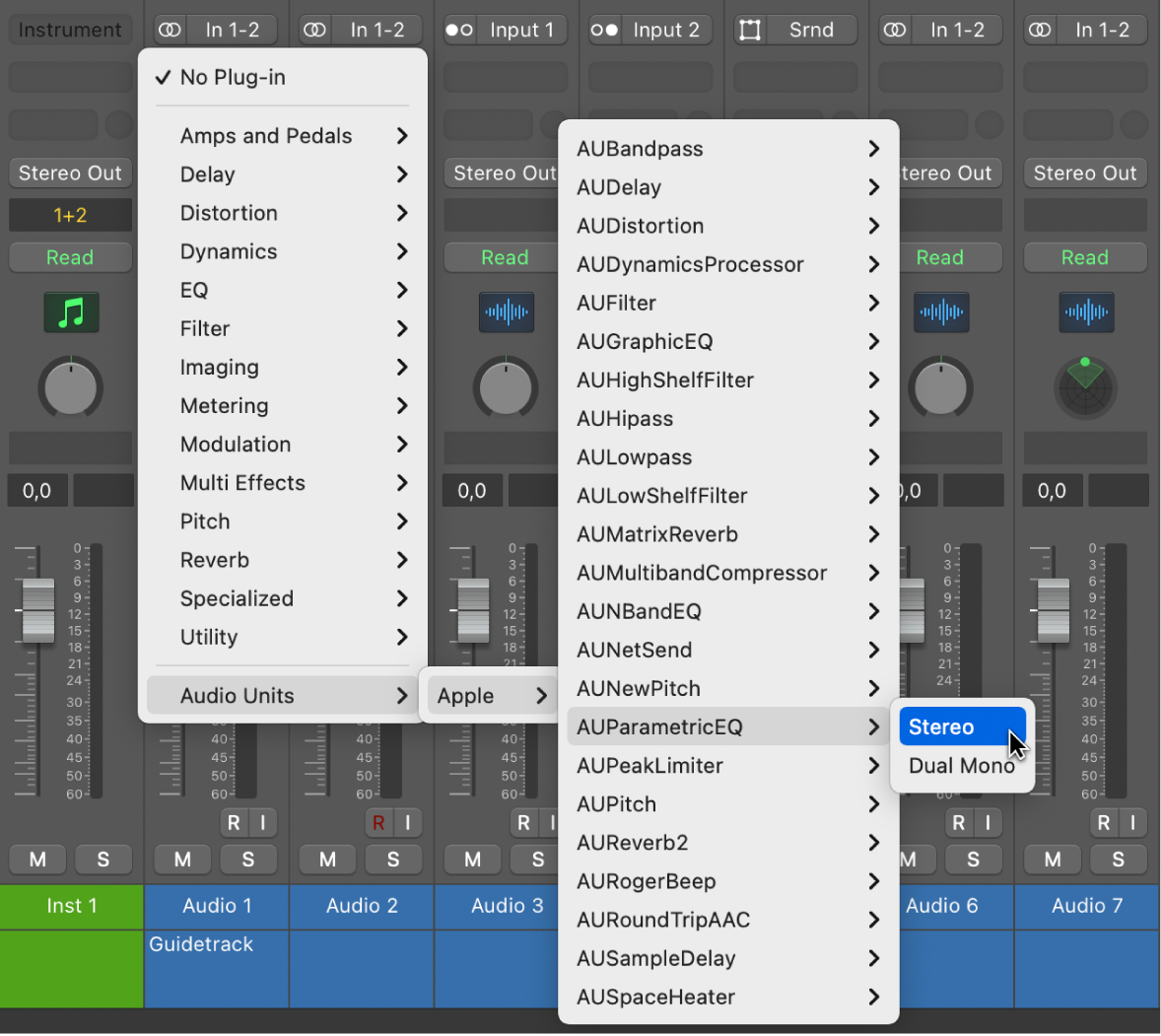
To install VST plugins in Garageband, first, download the plugin files. Then, locate the Garageband plugins folder on your computer and move the downloaded files into this folder. Finally, open Garageband, go to the preferences menu, and enable the newly installed plugins in the audio/MIDI settings.


Can I Use Third-party Vst Plugins In Garageband?


Yes, you can use third-party VST plugins in Garageband. By default, Garageband supports Audio Unit (AU) plugins, but you can also use VST plugins with the help of a plugin host like JBridge or Blue Cat’s PatchWork.


How Do I Add A Vst Plugin To A Track In Garageband?


To add a VST plugin to a track in Garageband, select the track you want to add the plugin to and open the Smart Controls panel. Click on the Plugins button in the Smart Controls panel, select the desired VST plugin from the list, and adjust its settings according to your preferences.


Conclusion


VST plugins can greatly enhance your music production in Garageband. Embracing the powerful functionalities of VST plugins allows you to explore new sounds and effects, elevating the quality of your music. With the right approach and understanding, integrating VST plugins into your workflow can bring out the best in your creativity and musical expression.


Categories
Archive Audio Production

How to Effortlessly Install Vst Plugins in Fl Studio

To install VST plugins in FL Studio, download the plugin and place it in the correct folder. Then, open FL Studio, go to Options, Manage Plugins, and add the directory where the plugin is located.


This will enable FL Studio to recognize and use the VST plugin seamlessly. Are you looking to enhance your music production in FL Studio? One way to unlock a new world of sounds and effects is by installing VST plugins.


By following a few simple steps, you can integrate third-party plugins into FL Studio to expand your creative possibilities. In this guide, we’ll walk you through the process of installing VST plugins in FL Studio, allowing you to take your music production to the next level.

How to Effortlessly Install Vst Plugins in Fl Studio


Credit: unison.audio


Choosing Vst Plugins

When selecting VST plugins for FL Studio, it is essential to invest time in researching to find high-quality options.

With a myriad of plugins available, research is crucial to determine which ones will best suit your needs.

Consider user reviews, professional feedback, and demo versions to discover the most effective plugins.

Considering Compatibility

When choosing VST plugins for FL Studio, compatibility is key to ensure smooth integration and functionality.

  • Check the system requirements of the plugin to ensure it is compatible with your FL Studio version.
  • Confirm if the plugin supports the operating system you are using on your computer.
  • Verify if the plugin is compatible with the specific hardware and software configurations of your setup.
How to Effortlessly Install Vst Plugins in Fl Studio


Credit: www.youtube.com


Acquiring Vst Plugins

When it comes to installing VST plugins in FL Studio, the first step is acquiring the plugins you want to use. Whether you are looking for free or paid plugins, it’s essential to download them from trusted sources to ensure they work properly with your software.

Free Vs. Paid Plugins

1. Free Plugins: Can be a great starting point for beginners on a budget.

2. Paid Plugins: Offer advanced features and professional quality but at a cost.

Downloading Plugins From Trusted Sources

  1. Visit the official website of the plugin developer to ensure authenticity.
  2. Check for user reviews and ratings to gauge the plugin’s reliability.
  3. Scan the plugin files for viruses before installation using a trusted antivirus program.


Installing Vst Plugins

To install VST plugins in FL Studio, you need to follow a few simple steps. One of the crucial steps in the process is Installing VST Plugins.

Locating The Plugin Folder

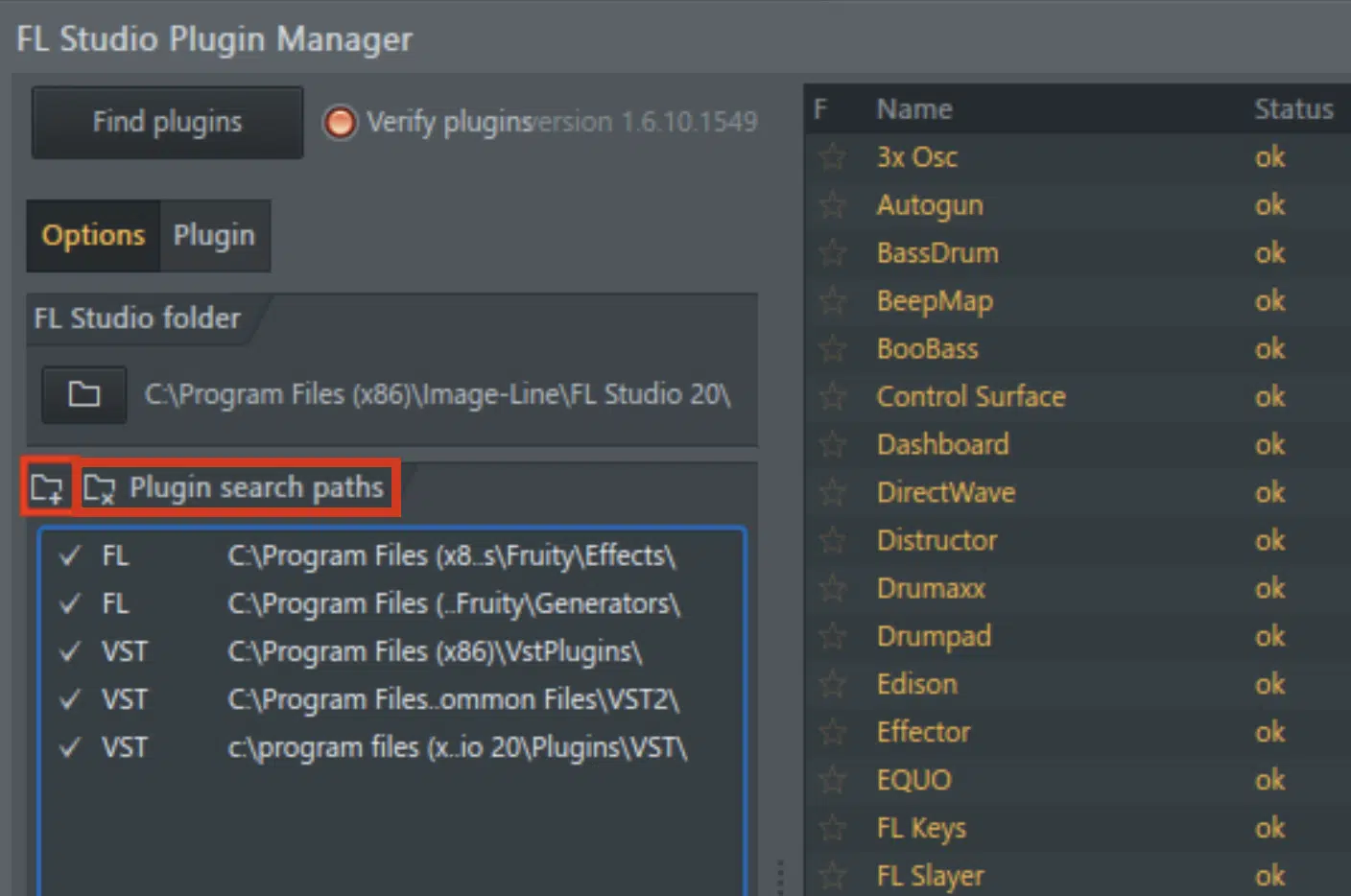
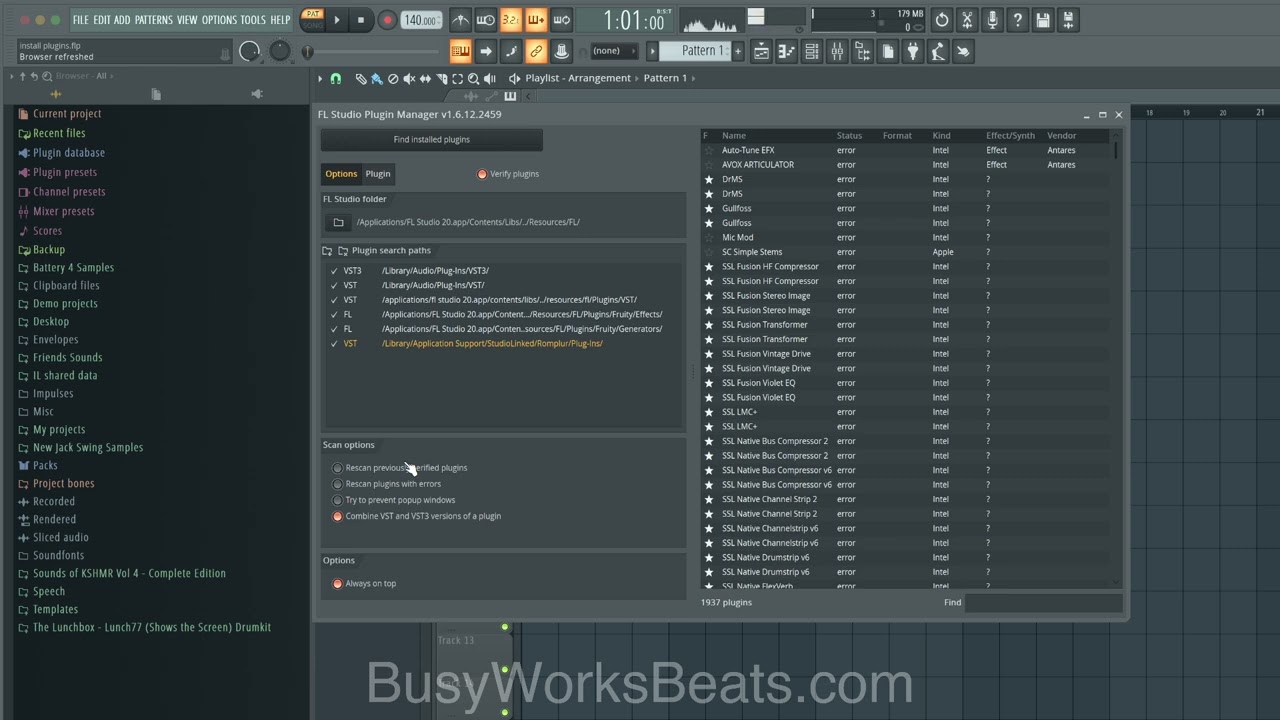
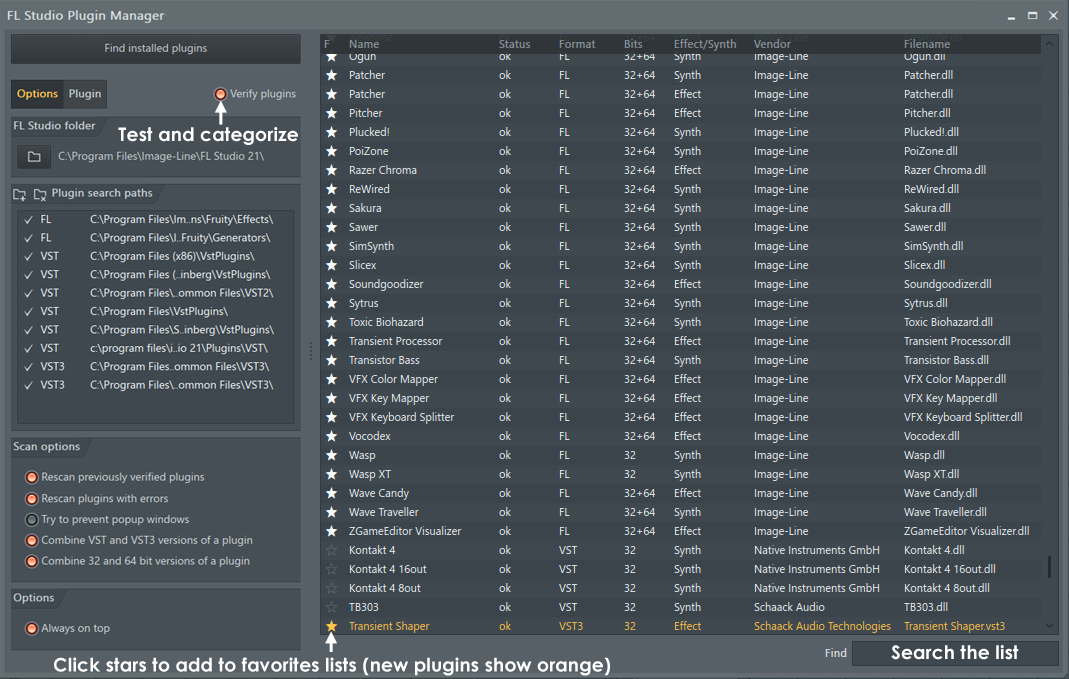
First, you need to locate the plugin folder in your FL Studio installation directory. To do this, open FL Studio, go to the “Options” menu, and select “Manage Plugins.” Here, you will find the option to open the plugin manager, which will show you the list of all the installed plugins, and their installation path.

Copying And Pasting The Plugin Files

  1. Once you have located the plugin folder, navigate to the location on your computer where your VST plugin files are stored.
  2. Copy the plugin files from this location and paste them into the plugin folder within your FL Studio installation directory.

Adding Vst Plugins To Fl Studio

Installing Vst plugins in Fl Studio allows you to expand your creative possibilities and take your music production to new heights. Whether you are a beginner or an experienced producer, this guide will walk you through the process of adding Vst plugins to Fl Studio, so you can start exploring a variety of new sounds and effects. In this section, we will cover two important steps – scanning for new plugins and organizing them in Fl Studio.

Scanning For New Plugins

Before you can start using your newly downloaded Vst plugins, you need to let Fl Studio know where they are located on your computer. The scanning process in Fl Studio automatically searches your computer for any new plugins and adds them to your library. Here’s how you do it:

  1. Open Fl Studio and navigate to the “Options” menu at the top. Click on “Manage Plugins” to access the plugin manager.
  2. In the plugin manager window, click on the “Find plugins” button. Fl Studio will start scanning your computer for new plugins.
  3. Once the scan is complete, Fl Studio will display a list of all the newly found plugins. You can select the ones you want to add by checking the boxes next to their names.
  4. Click on the “Add selected” button to add the plugins to your Fl Studio library.
  5. Restart Fl Studio to make sure the newly added plugins are properly integrated.

Organizing Plugins In Fl Studio

With all your plugins added to Fl Studio, it’s essential to keep them organized for easy access and efficient workflow. Here are some tips on how to keep your plugin library in order:

  • Create custom folders in the Fl Studio browser to categorize your plugins based on their type or purpose. For example, you can have separate folders for synths, effects, drums, etc.
  • Use color-coding to visually distinguish between different types of plugins. Fl Studio allows you to assign different colors to plugin names, making it easier to identify them at a glance.
  • Drag and drop your most frequently used plugins onto the toolbar for quick access. This way, you won’t have to search through your library every time you need a specific plugin.
  • Regularly update and maintain your plugin library by removing any plugins that you no longer use. This will help free up space and keep your workspace clutter-free.

By following these steps, you can ensure that your Vst plugins are organized and readily available whenever you need them, saving you valuable time and enhancing your creative workflow in Fl Studio.

Testing And Troubleshooting

Once you have successfully installed your VST plugins in FL Studio, it’s important to test their functionality and address any common installation issues you may encounter. This step is crucial to ensure that your plugins are working properly and that you can start creating music seamlessly. In this section, we will walk you through the process of verifying plugin functionality and provide solutions to common installation issues.

Verifying Plugin Functionality

After installing a VST plugin in FL Studio, it’s essential to verify its functionality to guarantee smooth usage. Here’s what you need to do:

  1. Load the Plugin: Open FL Studio and select a project or create a new one. Navigate to the plugin browser and locate the installed VST plugin. Double-click on the plugin to load it into your project.
  2. Test Basic Functions: Once the plugin is loaded, test its basic functions such as playing an instrument or applying effects. Make sure that you can hear the sounds and that the plugin’s parameters can be adjusted without any issues.
  3. Check Compatibility: Some plugins may have compatibility issues with specific versions of FL Studio. Verify that the plugin you installed is compatible with your version of the software. Check the plugin manufacturer’s website for compatibility information and any available updates or patches.
  4. Ensure Stability: Run your project with the plugin loaded for a reasonable amount of time to ensure that it remains stable and doesn’t cause any crashes or system errors. If you experience any issues, proceed to the next section to address common installation problems.

Addressing Common Installation Issues

Despite following the installation instructions carefully, you may encounter common issues when installing VST plugins in FL Studio. Here are some solutions to help you troubleshoot these problems:

Issue Solution
Plugin not showing up in FL Studio Check the plugin’s installation directory and ensure it is located in the correct folder. In FL Studio, go to the Plugin Manager and verify that the plugin is scanned and detected. If not, manually add the plugin path to the search list.
No sound or audio glitches Ensure that the plugin’s audio output is correctly routed in FL Studio’s mixer. Check your audio settings and make sure the plugin is assigned to the correct input channel. Additionally, update your audio drivers and, if necessary, adjust the sample rate and buffer size settings to optimize performance.
Crashes or system errors Update FL Studio and your plugins to the latest versions as they often include bug fixes that can resolve stability issues. Disable any conflicting plugins or presets and test if the crashes persist. If the problem continues, reach out to the plugin manufacturer’s support for further assistance.

By following these steps, you can verify the functionality of your VST plugins in FL Studio and troubleshoot any common installation issues that may arise. Remember that each plugin may have specific troubleshooting steps provided by the manufacturer, so always consult their documentation or support resources if needed. With your plugins validated and working smoothly, you can now focus on creating amazing music!

How to Effortlessly Install Vst Plugins in Fl Studio


Credit: m.youtube.com


Frequently Asked Questions Of How To Install Vst Plugins Fl Studio


How Do I Install Vst Plugins In Fl Studio?


To install VST plugins in Fl Studio, go to the “Options” menu, select “Manage Plugins,” and click on “Add path. ” Locate the folder where your VST plugins are stored and select it. Now, your plugins will be available in Fl Studio.


Can I Use Third-party Vst Plugins In Fl Studio?


Yes, you can use third-party VST plugins in Fl Studio. Simply install the plugins as mentioned earlier, and they will be ready to use. Third-party VST plugins offer a wide range of additional effects and instruments to enhance your music production.


Are There Any Free Vst Plugins Available For Fl Studio?


Yes, there are numerous free VST plugins available for Fl Studio. Many developers offer free versions of their plugins, allowing beginners and budget-conscious producers to access high-quality tools without spending a dime. You can find these plugins on various websites and forums dedicated to audio production.


Conclusion


Learning to install VST plugins in FL Studio can significantly enhance your music production experience. By following the steps outlined in this guide, you can expand your sonic capabilities and take your creativity to new heights. Embrace the opportunity to experiment with different plugins and unlock the full potential of your music.

Categories
Archive Audio Production

How To Mix Hip Hop Song: Master the Art of Sonic Excellence

To mix a hip hop song, adjust levels for vocals, beats, and instruments. Balance frequencies for clarity.


Mixing a hip hop song involves blending vocals, beats, and instruments to create a cohesive and powerful sound. By adjusting the levels to ensure each element is heard clearly and balancing the frequencies to prevent muddiness or harshness, you can achieve a professional and polished mix.


With careful attention to detail and a good ear for sound, you can elevate your hip hop track to the next level and make it stand out in the crowded music scene. Experimenting with various techniques and effects can help you find the perfect mix that complements the unique style of the hip hop genre.


Credit: stanforddaily.com


Understanding Hip Hop Mixing

Understanding Hip Hop Mixing: Exploring the art of mixing in hip hop music is essential for creating professional-level tracks that stand out. Mastering the nuances of hip hop mixing involves a deep understanding of the specific elements that contribute to the genre’s unique sound. By grasping the key components and common techniques employed in hip hop mixing, you can elevate the quality of your productions.

The Elements Of Hip Hop Mixing

  • Drums: Drum rhythms are at the core of hip hop music. Perfecting the balance and impact of kick, snare, and hi-hat sounds is crucial.
  • Vocals: Clear and well-mixed vocals are vital in hip hop. Pay attention to effects, levels, and vocal presence in the mix.
  • Bass: Deep and powerful basslines are characteristic of hip hop. Ensure the bass is punchy and sits well in the mix without overpowering other elements.
  • Sampling: Sampling is a common practice in hip hop. Blend samples seamlessly with other elements while maintaining clarity and cohesion.

Common Mixing Techniques For Hip Hop

  1. Compression: Use compression to control dynamics and add consistency to drum elements and vocals.
  2. EQ: Utilize EQ to sculpt the frequency balance of different elements and create space in the mix.
  3. Reverb and Delay: Experiment with reverb and delay effects to add depth and atmosphere to vocals and instruments.
  4. Stereo Imaging: Enhance stereo width to create a spacious soundstage and enhance the overall mix.

Preparing Your Mix

Get ready to elevate your hip hop songs with a professional mix by following these essential steps.

Setting Up Your Daw And Session

  • Open your digital audio workstation (DAW) to start the mixing process.
  • Ensure your session is set to the appropriate sample rate and bit depth.
  • Adjust the buffer size for smooth playback and recording in your DAW.

Organizing And Labeling Tracks

  • Organize your tracks by grouping them based on instrument type or sound category.
  • Label each track with clear and concise names for easy identification.
  • Color code your tracks to visually distinguish between different elements in the mix.

Crafting The Hip Hop Sound

Crafting the Hip Hop Sound involves a seamless blend of various elements to create a unique and captivating audio experience. To achieve this, it’s essential to focus on specific aspects such as balancing levels and panning, as well as utilizing EQ and compression techniques to ensure a polished and professional sound.

Balancing Levels And Panning

When mixing a hip hop song, achieving the right balance of audio levels is crucial. Each element, from the vocals to the instruments, should be carefully adjusted to ensure that they complement each other harmoniously. Additionally, panning can be utilized to create a sense of depth and space within the mix, providing a more immersive listening experience.

Utilizing Eq And Compression

EQ and compression are indispensable tools in crafting the hip hop sound. EQ allows for the fine-tuning of frequencies, ensuring that each element occupies its rightful place within the mix. Compression, on the other hand, helps control dynamics and can add punch and clarity to individual sounds, contributing to the overall impact of the track.

How To Mix Hip Hop Song: Master the Art of Sonic Excellence


Credit: m.facebook.com


Enhancing With Effects

When it comes to mixing a hip hop song, adding effects is a key step in bringing the track to life. Effects can transform a dry and static mix into something dynamic and exciting. In this section, we will explore two essential techniques for enhancing your hip hop song with effects: creating depth with reverb and delay, and using creative effects for impact.

Creating Depth With Reverb And Delay

Reverb and delay are powerful tools for adding depth and dimension to your mix. Reverb recreates the sound of a space, making your instruments and vocals sound like they’re in a specific environment. Delay creates echoes and repeats, adding a sense of space and movement to your mix.

To create depth with reverb, follow these steps:

  1. Start by inserting a reverb plugin on your track or bus.
  2. Adjust the reverb time and decay settings to control the length and clarity of the reverb.
  3. Experiment with different room sizes and types to find the right ambiance for your mix.
  4. Use EQ to shape the reverb, cutting or boosting frequencies to make it fit seamlessly with your mix.
  5. Finally, adjust the reverb level to ensure it enhances the vocals or instruments without overpowering them.

Next, let’s explore how to use delay to add depth:

  1. Insert a delay plugin on your track or bus.
  2. Set the delay time to determine the length of the repeats.
  3. Adjust the feedback parameter to control the number of repeats.
  4. Experiment with different delay types, such as ping-pong or tape delay, to add movement and character.
  5. Finally, adjust the delay level to achieve the desired balance between the dry signal and the delays.

Using Creative Effects For Impact

In addition to reverb and delay, there are numerous creative effects you can use to make your hip hop song stand out. These effects can add unique textures, enhance transitions, and create exciting moments in your mix.

Here are several creative effects for added impact:

  • Reverse reverb: Create a reverse reverb effect by reversing a vocal or instrument track, applying reverb, and then reversing it back. This effect can add a surreal and ethereal quality to your mix.
  • Filter sweeps: Use high-pass or low-pass filters to create sweeping effects that add energy and movement to your mix. Automate the filter cutoff frequency to create rhythmic or melodic variations.
  • Crushing distortion: Apply heavy distortion to drums, vocals, or instruments to add grit and aggression. This technique is especially effective in sections where you want to create intense impact.
  • Panning and automation: Experiment with panning and automation to create interesting stereo movement. You can pan individual elements to different positions, automate the panning throughout the mix, or create auto-panning effects.

By incorporating these creative effects into your mix, you can make your hip hop song sound unique, engaging, and memorable.

Mastering And Finalizing

Once you have finished the mixing process, it’s time to move on to mastering and finalizing your hip hop song. Mastering is the last step in the production process and involves making the necessary adjustments to ensure your mix is polished, well-balanced, and ready for distribution.

Understanding The Mastering Process

During mastering, a skilled audio engineer will carefully examine your mix and make small adjustments to enhance its overall sound quality. This involves using a combination of specialized tools and techniques to address any issues and bring out the best in your mix.

  • Compression and equalization ensure that the different elements of the song are well-balanced and blend together harmoniously.
  • Limiting and maximizing the loudness of the song to make it competitive with other tracks when played on different media platforms.
  • Adding a final touch of depth and dimension to the mix using effects such as reverb and stereo enhancement.

Preparing Your Mix For Distribution

Before you can release your hip hop song to the world, it’s important to ensure that your mix meets the necessary quality standards and is compatible with various playback systems. Below are some key steps to prepare your mix for distribution:

  1. Export your mix in a high-quality audio file format, such as WAV or FLAC.
  2. Check the overall volume levels to avoid clipping and ensure consistency.
  3. Apply dithering to reduce quantization noise when converting the audio to a lower bit depth for online streaming.
  4. Add metadata, such as artist name, track title, and album information, to the audio file.
  5. Ensure your mix sounds good on different sound systems and headphones by conducting thorough playback tests.

By following these steps and working with a professional mastering engineer if needed, you can ensure that your hip hop song achieves its fullest potential and is ready to captivate listeners worldwide.

How To Mix Hip Hop Song: Master the Art of Sonic Excellence


Credit: www.nytimes.com


Frequently Asked Questions For How To Mix Hip Hop Song


How Can I Mix A Hip Hop Song?


To mix a hip hop song, start by setting the levels for each track, ensuring that they blend well together. Use EQ to balance the frequencies and make sure everything sounds clear. Add effects like reverb or delay for depth, and pan different instruments to create a wide stereo image.


Finally, use compression to control dynamics and make everything sound cohesive.


What Are Some Common Mixing Mistakes In Hip Hop Songs?


Common mixing mistakes in hip hop songs include using too much compression, neglecting proper leveling, overusing effects, and not paying attention to the low end. It’s important to maintain a balanced mix and avoid cluttering the sound with unnecessary elements.


Taking breaks while mixing can also help to avoid ear fatigue and make better decisions.


How Do I Make The Vocals Stand Out In A Hip Hop Mix?


To make vocals stand out in a hip hop mix, start by ensuring they have a clear space in the frequency spectrum. Use EQ to boost the desired frequencies and cut any unnecessary ones. Then, apply compression to control vocal dynamics and make them more present.


Adding subtle reverb or delay can also help to create depth and make the vocals pop in the mix.


Conclusion


Mixing a hip hop song requires precision and creativity. By balancing levels, adding effects, and fine-tuning the details, you can make your mix stand out. Remember to trust your ears and experiment with different techniques. With patience and practice, you can elevate your hip hop mixes to the next level.


https://www.youtube.com/watch?v=SfsJK-5gp9w


Categories
Archive Audio Production

How to Master VST Plugins in Cakewalk: Unleash Your Musical Potential

To use VST plugins in Cakewalk, simply navigate to the plugin manager and scan for new plugins. Select the desired VST plugins to use in your project.


VST plugins enhance the functionality and creativity of Cakewalk, a popular digital audio workstation. By incorporating these plugins, users can access a wide range of effects, instruments, and tools to elevate their music production process. Integrating VST plugins in Cakewalk allows for customization and experimentation, enabling musicians and producers to achieve the desired sound and quality in their projects.


In this guide, we will explore the seamless integration of VST plugins within Cakewalk, offering insights and tips on optimizing their usage to enhance the overall music production experience.

How to Master VST Plugins in Cakewalk: Unleash Your Musical Potential


Credit: usashop.jzmic.com


Choosing The Right Vst Plugins

Researching Vst Plugins

Before delving into Cakewalk, research various VST plugins to find ones that suit your needs.

  • Check reviews from reputable sources.
  • Explore demo versions to test compatibility.
  • Consider the reputation of the plugin developer.

Understanding Your Specific Needs

Identify what you require from VST plugins to enhance your music production in Cakewalk.

  1. Determine the type of instruments or effects you need.
  2. Assess your production style and genre preferences.
  3. Consider the technical requirements of your setup.
How to Master VST Plugins in Cakewalk: Unleash Your Musical Potential


Credit: m.youtube.com


Integrating Vst Plugins Into Cakewalk


To integrate VST Plugins into Cakewalk, open the DAW and go to the Preferences menu. Under the VST settings, select the correct plugin location and rescan for plugins. Once the scan is complete, the new VST plugins will be available for use in Cakewalk’s interface.

Installing Vst Plugins

To install VST plugins in Cakewalk, follow these simple steps:

  • Download the VST plugin files to your computer.
  • Locate the downloaded files and extract them if necessary.
  • Copy the extracted plugin files to the designated VST folder on your computer.
  • Open Cakewalk and navigate to the plugin manager to scan for new plugins.
  • Once the scan is complete, your VST plugins will be available for use in Cakewalk.

Setting Up Vst Plugin Paths

Follow these steps to set up VST plugin paths in Cakewalk:

  1. Open Cakewalk and go to the settings menu.
  2. Locate the VST settings section and add the path to your VST plugin folder.
  3. Scan for new plugins to ensure Cakewalk recognizes the added paths.
  4. Your VST plugins are now integrated and ready for use in Cakewalk.


Optimizing Workflow With Vst Plugins

When it comes to optimizing your workflow within Cakewalk, utilizing VST plugins effectively is crucial. These plugins can greatly enhance the quality and creativity of your music production. In this guide, we will explore how to make the most out of VST plugins in Cakewalk by focusing on the subheading: Optimizing Workflow with VST Plugins.

Utilizing Presets Effectively

Utilizing presets can significantly save time and help you discover new sounds that you might not have considered before. When importing a VST plugin, be sure to explore its preset library to get a feel for the variety of sounds available. Additionally, consider organizing and categorizing presets based on the type of instrument or effect for easy access during production.

Customizing And Saving User Presets

Customizing and saving user presets allows you to tailor VST plugins to your specific preferences. Take advantage of the customization options within each VST plugin, such as adjusting parameters and creating unique sound profiles. Once you’ve crafted a personalized preset, be sure to save it for future use. This ensures that your favorite settings are easily accessible in future projects, enhancing your workflow.

How to Master VST Plugins in Cakewalk: Unleash Your Musical Potential


Credit: www.amazon.com


Advanced Techniques For Vst Plugins

When it comes to music production, using VST plugins can take your tracks to a whole new level. Cakewalk is a powerful digital audio workstation (DAW) that allows you to harness the full potential of these plugins. In this article, we’ll explore some advanced techniques for using VST plugins in Cakewalk, including unleashing sound design potential and exploring automation and modulation. Let’s dive in!

Unleashing Sound Design Potential

If you want to make your tracks truly unique, sound design is the key. VST plugins offer a myriad of possibilities to shape and manipulate sounds in ways you never thought possible. Cakewalk provides a variety of tools and features that allow you to unleash your creativity and take your sound design to the next level.

One technique to explore is layering multiple VST instruments to create complex and rich sounds. By combining different VST plugins, you can blend their unique characteristics and create sounds that have depth and complexity. Experiment with different combinations and tweak the settings to achieve the desired sound.

Pro Tip: Use the mixer in Cakewalk to fine-tune the levels and panning of each layer, creating a balanced and immersive soundstage.

Another way to unleash the sound design potential of VST plugins is by utilizing the extensive range of effects they offer. From reverb and delay to distortion and modulation, these effects can transform your sounds and add depth and character to your tracks. Experiment with different parameters and presets to find the perfect combination that complements your music.

Exploring Automation And Modulation

Automation and modulation are essential techniques for adding movement and dynamics to your tracks. By utilizing the automation features in Cakewalk, you can control various parameters of your VST plugins over time, creating evolving and dynamic sounds. From volume and filter cutoff to effect parameters, automation allows you to breathe life into your music.

Another powerful technique is modulation. With Cakewalk’s modulation routing capabilities, you can assign different modulation sources to control various parameters of your VST plugins. This opens up a world of possibilities, allowing you to create expressive and dynamic sounds that evolve and change with the music.

Pro Tip: Experiment with different modulation sources, such as LFOs and envelopes, to add movement and expression to your sounds. Combine multiple modulation sources for even more intricate and unique effects.

In conclusion, by unleashing the sound design potential of VST plugins and exploring automation and modulation techniques in Cakewalk, you can take your music production to a whole new level. The possibilities are endless, so don’t be afraid to experiment, and let your creativity soar!

Troubleshooting Vst Plugin Issues


Having trouble with VST plugins in Cakewalk? Ensure your plugins are compatible and up to date. Check settings for routing and conflicts to troubleshoot any issues effectively. Experiment with different plugins to enhance your music production experience.

Resolving Compatibility Problems

If you are experiencing compatibility problems with VST plugins in Cakewalk, there are a few troubleshooting steps you can take to resolve the issue. Incompatible plugins can cause crashes, freezes, or unexpected behavior within your DAW.

Here are some simple steps you can follow to resolve compatibility problems:

  1. Check System Requirements: Ensure that your computer meets the minimum system requirements for the VST plugin. Double-check if you need a specific version of Cakewalk or if any additional software is required.
  2. Update Everything: Keep your Cakewalk software, VST plugins, and your operating system up to date. Developers often release updates to address compatibility issues and enhance performance.
  3. Disable Conflicting Plugins: If you suspect that a particular VST plugin is causing compatibility issues, try disabling it to see if the problem persists. If the issue is resolved, contact the plugin developer for an updated version or seek alternative plugins with similar features.
  4. Scan for Plugins: In Cakewalk, navigate to the Plugin Manager and run a plugin scan to ensure that all your VST plugins are recognized and properly installed. Sometimes plugins may not appear or function correctly due to installation errors.

Dealing With Latency And Performance Issues

Latency and performance issues can be frustrating when using VST plugins in Cakewalk. These issues can result in audio delays, glitchy playback, or high CPU usage. Fortunately, there are several steps you can take to address these problems:

  1. Adjust Buffer Size: In Cakewalk’s audio settings, try increasing or decreasing the buffer size to find a balance between low latency and stable performance. Lower buffer sizes reduce latency but may require more processing power.
  2. Free Up Resources: Close any unnecessary applications or processes running in the background to free up system resources. This can help reduce CPU usage and improve the performance of your VST plugins.
  3. Disable Unused Plugins: If you have multiple VST plugins loaded in your project, consider disabling any that are not currently in use. This can help reduce CPU usage and improve overall performance.
  4. Use Freezing or Bouncing: If you have complex projects with many resource-intensive plugins, consider freezing tracks or bouncing them to audio. This can alleviate strain on your CPU by processing the plugins ahead of time.

By following these troubleshooting tips, you can resolve compatibility problems and address latency and performance issues when using VST plugins in Cakewalk. Remember to stay updated with the latest versions of your plugins and make use of the tools provided in Cakewalk to optimize your workflow.

Frequently Asked Questions For How To Use Vst Plugins In Cakewalk


How Do I Install Vst Plugins In Cakewalk?


To install VST plugins in Cakewalk, simply go to the Cakewalk menu, select “Utilities,” and click on “Cakewalk Plugin Manager. ” From there, click on “Scan VST plugins” and select the folder where your VST plugins are located. Cakewalk will then scan and load the plugins for you to use.


Can I Use Third-party Vst Plugins In Cakewalk?


Yes, Cakewalk supports third-party VST plugins. You can easily add and use VST plugins from different developers in Cakewalk by following the installation process mentioned in the previous question. This allows you to expand your collection of plugins and explore different sounds and effects to enhance your music production.


How Do I Use Vst Plugins In Cakewalk?


To use VST plugins in Cakewalk, open a project and navigate to the track where you want to apply the plugin. Click on the FX button on the track’s inspector panel and select “Insert VST Plugin. ” Choose your desired VST plugin and adjust the settings.


You can then start applying the plugin’s effects or instruments to your track.


Conclusion


Incorporating VST plugins into Cakewalk can significantly enhance your music production experience. With a wide range of plugins to choose from, you have the power to customize your sound and unleash your creativity. By following these simple steps, you can take your music to the next level and create professional-grade tracks.

Categories
Archive Audio Production

How to Select the Ultimate Audio Engineer for Your Song

To choose an audio engineer to mix your song online, evaluate their experience and portfolio. Finding the right audio engineer to mix your song online is essential for achieving the desired sound quality.


With the rise of online music production, there are many options available, making it crucial to assess various factors before making a decision. By considering an audio engineer’s experience, portfolio, and communication skills, you can ensure that your song is mixed to perfection.


In this digital age, selecting the right professional for online mixing can significantly impact the overall success of your music project.


Understanding Audio Engineering

The Role Of An Audio Engineer

An Audio Engineer is responsible for blending different sounds into a harmonious mix.

They optimize the sound quality, balance volume levels, and ensure clarity.

Their role is crucial in enhancing the overall listening experience for the audience.

Key Skills And Expertise

  • Technical Proficiency: Knowledge of audio equipment and software is essential.
  • Attention to Detail: Precision in adjusting levels and fine-tuning sound is key.
  • Creative Flair: Ability to experiment and add unique elements to the mix.
Role Skills Needed
Audio Engineer Technical proficiency, attention to detail, creative flair
How to Select the Ultimate Audio Engineer for Your Online Song Mix!


Credit: www.avid.com


Finding The Right Audio Engineer

When it comes to finding the right audio engineer to mix your song online, it is essential to conduct thorough research and evaluate their previous work to ensure the best possible outcome for your music.

Researching Audio Engineers

Begin your search by exploring online platforms and forums for recommendations on skilled audio engineers.

  • Look for professionals who have experience in your specific music genre.
  • Read reviews from clients to assess reliability and quality of work.
  • Check the engineer’s website for credentials and a portfolio of past projects.

Assessing Previous Work

Listen to samples of their previous work to gauge their mixing and production skills.

  1. Ensure their style aligns with your vision for your song.
  2. Evaluate the clarity and balance of the mixes they have done before.
  3. Reach out to them for additional information or to discuss your project in detail.


Communication And Collaboration

Communication and collaboration are crucial components when choosing an audio engineer to mix your song online. Establishing clear expectations, providing effective feedback and input are vital in ensuring the successful outcome of your music project.

Establishing Clear Expectations

Clear communication from the start is essential. Provide detailed guidelines on your vision for the mix, including preferred tones, effects, and specific references for the desired sound. Clearly outline your goals, deadlines, and any technical requirements for the project. This initial communication will set the foundation for a productive partnership.

Effective Feedback And Input

When the mixing process is underway, it’s important to provide constructive feedback, emphasizing what you like and dislike about the current mix. Be specific about the changes you desire, whether it’s adjusting the levels of instruments, enhancing vocals, or refining the overall sound. Exchange ideas with the audio engineer, as collaboration can lead to innovative solutions and an exceptional final product.

How to Select the Ultimate Audio Engineer for Your Online Song Mix!


Credit: blog.adobe.com


Technical And Creative Compatibility


Choosing a suitable audio engineer for online song mixing requires considering both technical expertise and creative compatibility. Look for professionals who demonstrate a strong grasp of sound engineering principles and have a proven track record of bringing creative visions to life.


These qualities will ensure a seamless and effective collaboration.

When it comes to choosing an audio engineer to mix your song online, it is crucial to consider both technical and creative compatibility. Finding someone who understands your musical vision and has the technical skills to bring it to life is essential for a successful collaboration.

Technology And Software Proficiency

One of the first things to evaluate when choosing an audio engineer is their technology and software proficiency. The engineer should be well-versed in the latest tools and techniques used in the audio industry. This includes having knowledge of popular digital audio workstations (DAWs) such as Pro Tools, Logic Pro, or Ableton Live. Ensure that the engineer has experience working with the specific software you prefer, as this will streamline the collaboration process.

Creativity And Artistic Vision

Alongside technical expertise, an audio engineer should possess creativity and an artistic vision. They need to understand the genre and style of music you’re working with to produce a mix that aligns with your vision. Look for an engineer who can offer unique ideas and suggestions to enhance your song’s overall sound. A good audio engineer knows how to balance technical precision with artistic flair, resulting in a mix that stands out from the crowd.

Budget And Timelines


For your online song mixing, prioritize finding an audio engineer who respects your budget and meets agreed timelines. This ensures a seamless and cost-effective process, making it a decisive factor in selecting the right professional for your project.

Negotiating Fees And Costs

audio engineer to mix your song online, budget plays a crucial role. Negotiating fees and costs can help you find the right balance between the quality of the service and your financial resources. Here are a few tips to keep in mind:

  • Research different audio engineers to get an idea of their typical rates.
  • Compare prices and services offered to ensure you are getting a fair deal.
  • Consider the complexity and length of your song, as these can affect the overall cost.
  • Be open to discussion and willing to communicate your budget limitations.
  • Ask about any additional charges, such as revisions or mastering, to avoid surprises.

negotiating fees and costs with prospective audio engineers, you can find a balance that works for both parties involved. It’s important to be transparent about your budget upfront, as this will allow the engineer to provide you with options that fit within your financial constraints.

Setting Realistic Timeframes

setting realistic timeframes is vital when choosing an audio engineer for your online song mix. It ensures that you receive your final product within the desired timeframe without compromising the quality of the mix. Here are some guidelines to help you with this process:

  • Discuss your preferred timeframe with the audio engineer before committing to their services.
  • Clarify any specific deadlines or milestones you have in mind.
  • Consider the complexity of your project and allow for ample time for revisions and adjustments.
  • Ask about the engineer’s availability and workload to ensure they can meet your desired timeline.

setting realistic timeframes and communicating them clearly to your audio engineer, you can ensure a smoother process and avoid unnecessary stress. Remember that rushing the mix process can compromise the quality, so it’s crucial to find a balance that works for both parties involved.

How to Select the Ultimate Audio Engineer for Your Online Song Mix!


Credit: www.husson.edu


Frequently Asked Questions On How To Choose An Audio Engineer To Mix Your Song Online


How Do I Find A Reliable Audio Engineer Online?


Finding a reliable audio engineer online can be done through research on reputable websites, reading customer reviews, and checking their previous work samples. It’s important to also communicate and ask for references to ensure their expertise matches your requirements.


What Qualities Should I Look For In An Audio Engineer?


When choosing an audio engineer, it’s crucial to consider their experience, technical skills, attention to detail, ability to communicate effectively, and their understanding of your specific genre and requirements. They should also have a good track record of delivering high-quality audio mixes.


How Do I Evaluate An Audio Engineer’s Previous Work?


To evaluate an audio engineer’s previous work, listen to their portfolio or samples of the songs they have mixed. Pay attention to the sound quality, balance, clarity, and how the mix enhances the overall song. It’s also helpful to consider if their previous work aligns with your musical style and objectives.


Are There Different Types Of Audio Engineers?


Yes, there are different types of audio engineers specialized in recording, mixing, mastering, and sound design. It’s important to understand your specific needs and hire an engineer who specializes in the area you require. Some audio engineers may offer a combination of these skills.


Conclusion


Choosing an online audio engineer can make or break the success of your song. It’s essential to prioritize experience, communication, and understanding of your musical style. By carefully considering these factors, you can ensure that your song is mixed to the highest standard and truly represents your artistic vision.

Categories
Archive Audio Production

How to Effortlessly Install VST Plugins in FL Studio 20

To install VST plugins in FL Studio 20, simply place the plugin file in the designated folder and then refresh the plugin list. Once the plugin is properly installed, you can access it within FL Studio.


If you encounter any issues during the installation process, make sure to check the plugin’s compatibility with your version of FL Studio. Proper installation of VST plugins is essential for enhancing the functionality and capabilities of FL Studio 20. By following the correct steps, you can easily integrate a wide range of plugins to expand your creative possibilities within the software.


Whether you are a beginner or an experienced user, installing VST plugins can take your music production to the next level.

How to Effortlessly Install VST Plugins in FL Studio 20


Credit: m.youtube.com


Choosing The Right Vst Plugins


To install VST plugins in FL Studio 20, start by selecting the “Channels” tab and then clicking on “Add One” in the pop-up window. Once there, choose “More plugins” and “Manage plugins” from the list. Next, click on “On disk” and select the VST plugin folder.


Finally, click on “Start scan” to complete the process.

Researching And Selecting Vst Plugins

Before diving into the process of installing VST plugins in FL Studio 20, it’s crucial to choose the right ones for your needs. Research and carefully select VST plugins that align with your music production goals.

Considerations For Compatibility

Compatibility with your operating system and FL Studio version is key. Check if the VST plugins you are considering are compatible with FL Studio 20 to ensure smooth integration and operation.

How to Effortlessly Install VST Plugins in FL Studio 20


Credit: www.image-line.com


Understanding Fl Studio 20 Compatibility

FL Studio 20 supports VST plugins to enhance your music production process. To ensure compatibility, follow these crucial steps:

Identifying Compatible Vst Plugin Formats

FL Studio 20 is compatible with VST, VST2, and VST3 plugin formats, offering flexibility for your music projects.

Exploring Fl Studio 20’s Vst Plugin Locations

Locate or set your VST plugin directories in FL Studio 20 under the Plugin Manager for easy access and integration.

Installing Vst Plugins In Fl Studio 20


To install VST plugins in FL Studio 20, simply navigate to the plugin options and select ‘install. ‘ Locate the VST plugin file on your computer, then click ‘scan and verify plugins’ within FL Studio to add the new plugin to your library.

Locating Vst Plugin Installation Files

Before you begin installing VST plugins in FL Studio 20, you need to ensure that you have the relevant plugin installation files readily available. These files are typically acquired from the plugin developer’s website or through a reputable plugin marketplace. Make sure to keep track of where these files are saved on your computer for easy access during the installation process.

Placing Vst Plugins In The Correct Fl Studio 20 Folder

Once you have the VST plugin installation files at hand, the next step is to place these plugins in the appropriate folder within FL Studio 20. The default location for VST plugins is the ‘VSTPlugins’ folder within the FL Studio installation directory. However, it’s a good practice to double-check the specific installation instructions provided by the plugin developer, as some plugins may require placement in a different folder.

Activating And Using Vst Plugins In Fl Studio 20


Learn how to easily activate and use VST plugins in FL Studio 20 to enhance your music production. Installing VST plugins in FL Studio 20 is a straightforward process that allows you to unlock a plethora of creative possibilities in your projects.


Start exploring new sounds and effects today with VST plugins in FL Studio 20.

Scanning For Vst Plugins In Fl Studio 20

Before you can start utilizing VST plugins in FL Studio 20, it’s essential to scan and add them to your library. FL Studio offers a convenient feature that automatically scans your computer for VST plugins and adds them to your plugin database. Here’s how you can scan for VST plugins in FL Studio 20:

  1. Launch FL Studio 20 on your computer.
  2. Go to the “Options” menu at the top of the interface and click on “Manage Plugins.”
  3. A window will appear with various plugin settings. Here, click on the “Add” button located at the bottom-left corner.
  4. FL Studio will start scanning your computer for VST plugins. This process may take a few minutes, depending on the number of plugins you have installed.
  5. Once the scan is complete, FL Studio will display a list of all the detected VST plugins.
  6. Select the plugins you want to add to your library by checking the boxes next to their names.
  7. Click on the “Enable” button to activate the selected plugins in FL Studio.
  8. Finally, click on the “Close” button to exit the plugin manager.

Utilizing Installed Vst Plugins In The Daw

Now that you have successfully added and activated your VST plugins in FL Studio 20, it’s time to start using them in your projects. Here’s how you can utilize the installed VST plugins:

  1. Create a new project or open an existing one in FL Studio.
  2. Click on the “Channels” menu at the top of the interface and select “Add One” or “Add Multiple” depending on your preference.
  3. A list of plugin categories will appear. Navigate to the desired category where your installed VST plugins are located.
  4. Select the VST plugin you want to use and click on the “Add” button.
  5. FL Studio will insert the selected VST plugin into the channel rack.
  6. To access the plugin’s user interface and make adjustments, simply double-click on its name in the channel rack.
  7. Experiment with the various controls and settings provided by the VST plugin to achieve the desired sound.
  8. You can add multiple VST plugins to different channels to create complex and unique sounds in FL Studio.

By following these steps, you can easily activate and use VST plugins in FL Studio 20, unleashing a whole new world of sound possibilities for your music production endeavors.

https://www.youtube.com/watch?v=HBa7oK1EjkA


Troubleshooting Vst Plugin Installation Issues

Are you excited to dive into the world of VST plugins but facing some installation issues in FL Studio 20? Don’t worry, troubleshooting these problems is easier than you think. In this section, we will explore the common problems you may encounter during VST plugin installation and provide simple solutions to resolve them. We will also discuss how seeking help from the FL Studio 20 community can assist you in overcoming any hurdles you may face.

Common Problems And Solutions

When it comes to installing VST plugins in FL Studio 20, you may encounter a few common issues. However, with the right solutions, these problems can be quickly resolved, allowing you to enjoy the full potential of your VST plugins.

Problem 1: VST plugin not detected

If you find that your VST plugin is not being detected by FL Studio 20, it could be due to several reasons. One common cause is an incorrect installation path. Ensure that you have selected the correct folder for your VST plugins during the installation process.

If the plugin is installed in the correct location, try refreshing the plugin list in FL Studio. Navigate to the Options menu, select Manage Plugins, and then click on the Refresh button. This action will prompt FL Studio to scan for any newly installed plugins.

In some cases, the VST plugin may be installed as a 32-bit version while FL Studio is running the 64-bit version. This mismatch can result in the plugin not being detected. Make sure that both the plugin and FL Studio are running on the same architecture, either 32-bit or 64-bit.

Problem 2: Plugin crashes or freezes FL Studio

If your VST plugin causes FL Studio 20 to crash or freeze, it can be frustrating. One possible reason for this problem is an outdated or incompatible plugin version. Ensure that you have the latest version of the plugin installed by visiting the manufacturer’s website and downloading any available updates.

Another possible cause could be conflicts with other plugins or settings in FL Studio. Try disabling any other plugins you have installed and see if the issue persists. If it does not, you can then narrow down the problematic plugin by re-enabling them one at a time.

Seeking Help From The Fl Studio 20 Community

If you are still facing difficulties with your VST plugin installation in FL Studio 20, reaching out to the FL Studio community can be immensely helpful. The community is filled with experienced producers and FL Studio users who are always ready to lend a helping hand.

There are various ways to seek assistance from the FL Studio community. You can visit the official FL Studio forums, join online communities, or participate in social media groups focused on FL Studio 20. These platforms provide an opportunity to connect with like-minded individuals, share your installation issues, and gather valuable insights and solutions.

Remember, you are not alone in your journey to install VST plugins in FL Studio 20. By utilising the troubleshooting solutions presented here and seeking help from the vibrant FL Studio community, you will be well-equipped to overcome any issues that come your way and unlock the true potential of your music production.

How to Effortlessly Install VST Plugins in FL Studio 20


Credit: unison.audio


Frequently Asked Questions For How To Install Vst Plugins In Fl Studio 20


How Do I Install Vst Plugins In Fl Studio 20?


To install VST plugins in FL Studio 20, you need to navigate to the “Options” menu, select “Manage Plugins,” and click on “Start Scan. ” FL Studio will then scan for all available plugins and make them accessible in the browser.


From there, you can select and use the plugins in your projects.


Can I Use Third-party Vst Plugins In Fl Studio 20?


Absolutely! FL Studio 20 supports third-party VST plugins. To use them, you simply need to install the VST plugin in your system and follow the steps mentioned earlier to scan and access the plugin within FL Studio’s browser. This way, you can expand your sound library and explore endless creative possibilities.


What Are Vst Plugins And Why Are They Useful?


VST (Virtual Studio Technology) plugins are software instruments or effects that can be used within a digital audio workstation (DAW) like FL Studio 20. They allow musicians and producers to enhance their music production by adding virtual instruments, effects processors, and various sound manipulation tools.


VST plugins provide a wide range of sounds and effects, making your music production versatile and professional-sounding.


Conclusion


Installing VST plugins in FL Studio 20 is a straightforward process that can enhance your music production experience. By following the steps outlined in this guide, you can unlock a world of creative possibilities and access a wide range of high-quality virtual instruments and effects.


With these tips, you’ll be well-equipped to take your music to the next level.

Categories
Archive Audio Production

The One Trick Every Successful Singer And Rapper Does That Helps Their Songs Sound Better: Mastering Harmony

One trick every successful singer and rapper uses to enhance their songs is proper vocal training. This training helps improve their voice control, pitch accuracy, and overall performance quality.


By mastering vocal techniques such as breathing, resonance, and diction, artists can deliver powerful and emotive vocals that resonate with their audience. Successful singers and rappers also prioritize vocal health, ensuring longevity and consistency in their music careers. Investing time and effort in vocal training can significantly impact the quality and success of a song, making it an essential practice for any aspiring artist in the music industry.


The Importance Of Harmony

How Harmony Enhances Songs

Harmony is crucial in creating well-rounded, dynamic music that resonates with fans.

• Complementing Melodies: Harmony enriches melodies, creating depth and emotion.

• Filling Sound: Harmonies fill out the sound, making songs more engaging and captivating.

The Impact Of Harmony On The Listener

Listeners are subconsciously drawn to songs that incorporate harmony due to its powerful effects.

• Emotional Connection: Harmony evokes strong emotions, connecting listeners to the music.

• Memorability: Harmonious arrangements make songs more memorable and enjoyable to revisit.

The One Trick Every Successful Singer And Rapper Does That Helps Their Songs Sound Better: Mastering Harmony


Credit: soundbetter.com


The Role Of Harmony In Music Production

The Role of Harmony in Music Production

Creating Harmony In The Studio

Harmony in music production is vital for creating depth and richness in songs.

  • Artists must experiment with different vocal tones to find the perfect harmonies.
  • Using techniques like layering vocals can enhance the overall sound quality.

Using Harmony To Elevate Song Quality

Harmony isn’t just about singing the same notes; it’s about blending voices in perfect unison.

  1. Adding harmonies can evoke emotion and captivate listeners.
  2. It accentuates the melody, making the music more appealing.

Harmony Techniques For Singers And Rappers

When it comes to making music that stands out, harmony techniques for singers and rappers can make a significant difference. Developing vocal harmony skills and incorporating harmony into songwriting are the essential techniques that successful musicians use to enhance the quality of their songs.

Developing Vocal Harmony Skills

Developing vocal harmony skills is crucial for singers and rappers to create captivating melodies and arrangements. Mastering techniques such as layering and finding harmonies for different parts of a song can add depth and emotion to the music. These skills allow artists to create a rich and dynamic sound that resonates with their audience.

Incorporating Harmony Into Songwriting

Integrating harmony into songwriting is another crucial aspect of enhancing songs. By understanding chord progressions and melodic phrasing, singers and rappers can craft melodies that complement the harmonies in their music. This integration helps in creating cohesive and compelling compositions that elevate the overall quality of their work.

The Psychological Effect Of Harmony On Audiences

Successful singers and rappers understand the importance of the psychological effect of harmony on their audiences. By incorporating harmonies into their songs, these artists are able to create a deeper emotional connection with listeners, enhance the memorability of their music, and increase audience engagement. Let’s take a closer look at the specific ways in which harmony can have a profound impact on the way audiences perceive and connect with music.

Emotional Connection Through Harmony

Harmony has a powerful ability to evoke emotions and create a strong emotional connection between the listeners and the music. When harmonies are skillfully used within a song, they can elicit feelings of joy, nostalgia, or even sadness. By strategically incorporating harmonies that complement the main melody, singers and rappers can enhance the overall emotional experience of their music, resonating deeply with the audience on a subconscious level.

Harmony’s Influence On Memory And Engagement

Harmonies play a significant role in enhancing memory and increasing audience engagement with music. Research shows that when a song contains harmonies, the brain is stimulated in a way that facilitates memory consolidation. This means that listeners are more likely to remember and recall a song that includes harmonies compared to a song without. Furthermore, harmonies can help in engaging the audience by adding complexity and variety to the musical arrangements, keeping their attention captivated throughout the song.

Harmonies have a unique ability to create a sense of completeness and satisfaction within a song. When the right harmonies are introduced at the right moments, they can elevate the overall quality of the music and leave a lasting impression on the listeners. Successful singers and rappers understand this psychological effect of harmony and utilize it as a tool to enhance the impact of their songs, ensuring that their music resonates deeply with audiences and leaves a lasting impression.


Conclusion: Mastering Harmony For Musical Success


Mastering harmony is the one key that successful singers and rappers use to enhance the quality of their songs. Understanding how to harmonize effectively can elevate musical performance and breathe new life into compositions. This skill is a crucial element in achieving musical success.

In the world of music, harmony plays a crucial role in creating songs that truly resonate with listeners. From famous singers to aspiring rappers, successful artists understand the power of harmony and its ability to elevate their music to new heights. In this article, we explored how harmony is not just a key element in song creation, but also how it can be maximized to amplify impact and appeal. By honing their skills in creating harmonious melodies, singers and rappers can enhance their musical abilities and pave the way for long-term success.

Harmony As A Key Element In Song Creation

Harmony is more than just a combination of notes; it is the foundation upon which great music is built. Singers and rappers who prioritize harmony in their song creation process unlock the potential to create captivating melodies that resonate deeply with their audience. By blending different notes and chords in thoughtful ways, artists can create a harmonious tapestry of sound that complements their lyrics and emotions. This deliberate attention to harmony ensures that the song not only sounds cohesive but also evokes the desired emotions in the listener.

Maximizing Impact And Appeal Through Harmony

When singers and rappers master harmonizing techniques, they unlock the potential to maximize the impact and appeal of their songs. By incorporating harmonies strategically throughout their tracks, artists can create moments that are both musically and emotionally powerful. These harmonious elements can add depth and complexity, capturing the listener’s attention and leaving a lasting impression. By skillfully utilizing melodies and harmonies, singers and rappers can engage their audience on a deeper level and create music that resonates long after the final note fades away.

So, if you aspire to be a successful singer or rapper, learning to master harmony is a crucial step on your musical journey. Take the time to develop your skills in creating harmonious melodies, and you will undoubtedly enhance the overall sound and impact of your songs. Remember, harmony is not just about blending notes; it’s about creating a seamless and enchanting musical experience that captures the hearts of your listeners. Embrace the power of harmony, and watch your musical success soar to new heights.

The One Trick Every Successful Singer And Rapper Does That Helps Their Songs Sound Better: Mastering Harmony


Credit: blog.native-instruments.com


The One Trick Every Successful Singer And Rapper Does That Helps Their Songs Sound Better: Mastering Harmony


Credit: tim.blog


Frequently Asked Questions On The One Trick Every Successful Singer And Rapper Does That Helps Their Songs Sound Better


What Is The One Trick That Successful Singers And Rappers Use To Make Their Songs Sound Better?


Successful singers and rappers often use vocal warm-ups before recording or performing. These exercises help improve vocal range, tone, and control, resulting in better sounding songs.


Why Is It Important For Singers And Rappers To Warm Up Their Voices?


Warming up the voice helps prevent strain and injury while singing or rapping. It also helps improve vocal technique, breath control, and overall performance quality.


How Can Vocal Warm-ups Enhance The Sound Of A Song?


Vocal warm-ups increase vocal flexibility, allowing singers and rappers to hit high notes with ease and maintain consistent control and tone throughout a song. This enhances the overall sound and quality of their performance.


Are There Any Specific Vocal Warm-up Exercises That Singers And Rappers Should Do?


Singers and rappers can benefit from exercises such as lip trills, sirens, humming, and tongue twisters. These exercises focus on breath control, vocal resonance, articulation, and vocal range, contributing to better sounding songs.


Conclusion


Incorporating emotion into songwriting is crucial. Capturing the audience’s feeling and engaging them is key. Remember, authenticity is key when connecting with your audience. So, let your emotions shine through your music, and watch as your songs resonate with listeners on a deeper level.

Categories
Archive Audio Production

Mastering VST Plugins in Pro Tools

To use VST plugins in Pro Tools, first ensure they are compatible with the software version. Then, install the plugins following manufacturer instructions.


Are you a music producer looking to enhance your Pro Tools experience with VST plugins? Learning how to seamlessly integrate these powerful tools can take your productions to the next level. VST plugins offer a diverse range of effects and instruments to diversify your sound palette in Pro Tools.


Let’s explore the simple steps required to properly utilize VST plugins within the Pro Tools interface. By incorporating these plugins effectively, you can elevate your music production experience and achieve professional-quality results.

Mastering VST Plugins in Pro Tools: Unleash Your Music Production Potential


Credit: www.groove3.com


Choosing The Right Vst Plugins

Understanding Different Types Of Vst Plugins

When selecting VST plugins, it’s crucial to understand the various types available.

  • Instrument Plugins
  • Effect Plugins
  • Utility Plugins

Researching And Selecting The Best Vst Plugins

Before diving in, thorough research is essential to identify top-quality VST plugins.

  1. Read Reviews and User Feedback
  2. Consider Compatibility with Pro Tools
  3. Check for Demo Versions or Free Trials

Optimizing Vst Plugin Workflow In Pro Tools

Enhancing your efficiency when using VST plugins in Pro Tools can significantly boost your productivity. From organizing and categorizing your plugins to utilizing shortcuts and macros, optimizing your workflow is essential.

Organizing And Categorizing Plugins

  • Group similar plugins together for easy access.
  • Create folders based on instrument type or effect category.
  • Utilize color-coding for visual organization.
  • Regularly update and clean up your plugin library.

Utilizing Shortcuts And Macros For Efficient Workflow

  1. Learn essential Pro Tools keyboard shortcuts for quick navigation.
  2. Create custom macros for common plugin actions.
  3. Use batch commands to speed up repetitive tasks.
  4. Assign shortcuts to frequently used plugins for instant access.

Exploring Advanced Vst Plugin Techniques

When diving into the world of music production, understanding advanced VST plugin techniques can take your sound to the next level. In this guide, we’ll explore how to use VST plugins in Pro Tools to achieve professional and creative results. Let’s dive in and uncover the power of these techniques.

Understanding Signal Flow And Chain

Signal flow is the path that audio signals travel through a software or hardware setup. In Pro Tools, understanding the signal flow and chain of your VST plugins is crucial for achieving the desired audio effect.

Here’s a brief breakdown of the signal flow:

  • Input signal enters Pro Tools
  • Signal passes through the track’s inserts
  • Signal flows through the VST plugins in the specified order
  • Output signal exits Pro Tools

By comprehending the signal flow and chain, you can effectively manage the order of your VST plugins to achieve the desired audio processing and manipulation.

Utilizing Automation And Modulation For Creative Effects

Automation and modulation allow you to add dynamic movement and variation to your audio tracks. In Pro Tools, these advanced VST plugin techniques open the door to unparalleled creative possibilities.

Using automation, you can precisely control the parameters of your VST plugins over time, creating smooth transitions and evolving textures within your music. Moreover, harnessing modulation effects such as tremolo, chorus, and flanger can infuse your tracks with depth and character.

By incorporating automation and modulation into your workflow, you can elevate your productions and craft immersive sonic experiences for your listeners.

Mastering VST Plugins in Pro Tools: Unleash Your Music Production Potential


Credit: www.izotope.com


Troubleshooting Vst Plugin Issues In Pro Tools

Working with VST plugins in Pro Tools can greatly enhance your audio production process, allowing you to access a wide variety of sounds and effects. However, sometimes you may encounter issues that prevent the smooth operation of these plugins. In this section, we will discuss common troubleshooting techniques to help you resolve latency problems, as well as compatibility and stability issues with VST plugins in Pro Tools.

Identifying And Resolving Latency Problems

Latency can be frustrating when working with VST plugins in Pro Tools, as it can significantly affect the timing and synchronicity of your audio tracks. Fortunately, there are several strategies you can employ to identify and resolve latency issues:

  1. Check your buffer settings: Adjusting the buffer size in your Pro Tools preferences can help reduce latency. Larger buffer sizes can increase latency but improve stability, while smaller buffer sizes can reduce latency but may cause audio dropouts. Experiment with different buffer sizes to find the right balance for your needs.
  2. Utilize delay compensation: Pro Tools offers a delay compensation feature that automatically adjusts the timing of tracks to compensate for plugin-induced latency. Ensure that this feature is enabled, and Pro Tools will accurately align all your tracks, regardless of the latency introduced by VST plugins.
  3. Disable unnecessary plugins: If you’re experiencing excessive latency, check if you have any unnecessary plugins running in your session. Disabling or removing these plugins can help reduce latency and optimize performance.
  4. Monitor CPU usage: High CPU usage can contribute to latency issues. Keep an eye on your computer’s CPU meter in Pro Tools to identify any plugins or processes that may be causing excessive CPU usage. Consider freezing tracks or bouncing them to audio to alleviate the processing load.

Dealing With Compatibility And Stability Issues

Another common challenge when using VST plugins in Pro Tools is compatibility and stability issues. These can manifest as crashes, plugin errors, or even Pro Tools failing to load the plugins properly. Here are some troubleshooting steps to tackle these issues:

  1. Update plugins and Pro Tools: Ensure that both your VST plugins and Pro Tools software are up to date. Developers frequently release updates to address compatibility issues and bug fixes. Keeping your software current can help resolve any compatibility problems.
  2. Verify plugin compatibility: Double-check that the VST plugins you are using are compatible with your version of Pro Tools. Visit the plugin manufacturers’ websites or forums to confirm compatibility and find any specific instructions or workarounds.
  3. Isolate problematic plugins: If you experience crashes or errors, isolate the problematic plugin by systematically removing or disabling plugins one by one. This process can help you identify the culprit and find a solution.
  4. Reset Pro Tools preferences: Corrupted preferences can sometimes cause stability issues. Resetting your Pro Tools preferences can often rectify these problems. Consult Pro Tools documentation or online resources for instructions on how to perform a preferences reset.

By following these troubleshooting techniques, you can address common VST plugin issues and ensure a smoother workflow in Pro Tools. Identifying and resolving latency problems, as well as dealing with compatibility and stability issues, will help you make the most of the powerful VST plugins available for your audio production needs.


Maximizing Mixing And Mastering With Vst Plugins

Maximizing Mixing and Mastering with VST Plugins can take your Pro Tools sessions to a whole new level of professional sound. VST plugins offer a wide range of dynamic mixing and mastering tools that allow you to enhance and perfect your audio recordings. Whether you’re working on a music track, podcast, or audio for film and television, utilizing VST plugins in Pro Tools can help you achieve a polished and impactful sound.

Utilizing Vst Plugins For Dynamic Mixing

With VST plugins, you have the power to precisely control and shape the dynamics of your mix. From compressors and equalizers to reverbs and delays, VST plugins provide a toolbox of powerful processing tools that allow you to sculpt your mix in any way you desire.

One effective technique for dynamic mixing is using a VST plugin compressor. Compressors allow you to control the dynamic range of your audio, tightening up the peaks and boosting the quieter elements. By applying compression selectively, you can bring out the nuances in your mix, ensuring that every instrument and vocal has its rightful place in the sonic spectrum.

Another useful tool for dynamic mixing is an equalizer plugin. With an equalizer, you can shape the frequency response of individual tracks, making them fit together better in the mix. Whether it’s boosting the lows on a kick drum for extra punch or cutting the harsh frequencies of a vocal, using equalization can help you achieve a balanced and cohesive sound.

Mastering Techniques And Best Practices With Vst Plugins

When it comes to mastering, VST plugins become indispensable tools for adding that final touch of polish to your mix. While mixing focuses on individual tracks, mastering involves the overall enhancement and optimization of the entire mix, ensuring it sounds great across different playback systems.

One key technique in mastering is using a multiband compressor. This type of compressor allows you to control the dynamics of different frequency bands independently. By compressing the low, mid, and high frequencies separately, you can achieve greater clarity and balance in your final mix.

In addition to compression, a limiter is another crucial plugin in the mastering process. Limiters help prevent audio from exceeding a certain loudness threshold, ensuring that your mix sounds loud and punchy without distorting. They act as a safety net, catching any stray peaks and allowing you to increase the overall volume while maintaining the desired clarity and dynamics.

A great approach in mastering is to use a combination of EQ, compression, and other plugins to properly shape the overall sound of your mix. Each master may require different adjustments, and experimenting with different VST plugins and settings is crucial in achieving a professional and commercially competitive result.


Frequently Asked Questions On How To Use Vst Plugins In Pro Tools


Can I Use Vst Plugins In Pro Tools?


Yes, Pro Tools supports VST plugins. With the help of a VST wrapper, you can use your favorite VST plugins seamlessly in Pro Tools, enhancing the creative possibilities and expanding your sound palette.


How Can I Install Vst Plugins In Pro Tools?


To install VST plugins in Pro Tools, you’ll need a VST-to-RTAS adapter. After installing the adapter, simply place the VST plugin files in the designated plugin folder, and Pro Tools will recognize them. You can then access and use the plugins from the Pro Tools interface.


Are There Any Limitations When Using Vst Plugins In Pro Tools?


While Pro Tools supports VST plugins, it’s important to note that not all VST plugins may be compatible or optimized for Pro Tools. The performance and stability of VST plugins can vary, so it’s recommended to research and choose plugins that are known to work well with Pro Tools to avoid any issues or incompatibilities.


Conclusion


Using VST plugins in Pro Tools can greatly enhance your music production. By following the steps outlined in this guide, you can seamlessly integrate these powerful tools into your workflow. With the ability to access a wide range of sounds and effects, your creative potential is limitless.


Embrace the power of VST plugins and unlock new possibilities in your music projects.

Categories
Archive Audio Production

Unveiling the Secret: Where Are VST Plugins Stored on Windows?

VST plugins are stored in a specific folder on Windows, typically located in the “VSTPlugins” directory within the program files. These plugins are essential for enhancing audio production and creating unique sounds in music production or editing software.


VST plugins play a crucial role in enhancing audio quality and offering a wide range of effects and instruments for music creators. Understanding where VST plugins are stored on Windows is essential for easy access and integration into your preferred digital audio workstation (DAW).


By knowing the exact location of these plugins, you can seamlessly install and utilize them to elevate your music production workflow. In this guide, we will explore the storage location of VST plugins on Windows and how you can effectively manage and organize them for optimal performance and creativity in your projects.

Unveiling the Secret: Where Are VST Plugins Stored on Windows?


Credit: bedroomproducersblog.com


Locating Vst Plugins

When it comes to locating VST plugins on Windows, it’s essential to know where these plugins are stored on your system. This information ensures you can easily access and manage your plugins for seamless integration into your music production workflow.

Default Installation Folder

The default location where VST plugins are stored on Windows is in the Program Files folder.

Custom Installation Locations

If you have custom VST plugins, their installation locations can vary based on your preferences or the plugin developer’s instructions.

Unveiling the Secret: Where Are VST Plugins Stored on Windows?


Credit: www.producerspot.com


Managing Vst Plugins

Managing VST Plugins is essential for maintaining a streamlined workflow in your digital audio workstation (DAW).

Organizing Plugins In Daw

Arrange VST plugins in categorized folders within your DAW for easy access and navigation.

  • Create folders based on plugin type (e.g., EQ, compressor, reverb) for efficient organization.
  • Sort plugins alphabetically within each folder to quickly locate specific plugins.
  • Utilize color-coding or tagging features if supported by your DAW for visual organization.

Updating And Removing Plugins

Regularly update VST plugins to ensure compatibility and optimal performance in your DAW.

  1. Check for updates on the plugin developer’s website or through the plugin manager within your DAW.
  2. Remove unused or outdated plugins to declutter your plugin library and improve loading times.
  3. Disable plugins that are temporarily not needed rather than uninstalling them completely for future use.


Optimizing Plugin Performance

The performance of VST plugins on Windows can be optimized by streamlining the plugin folder structure and resolving plugin path issues. By organizing the plugin folders and ensuring the correct path, you can improve the efficiency and functionality of your VST plugins.

Streamlining Plugin Folder Structure

Organizing the plugin folders in a structured manner can significantly enhance the performance of VST plugins. By creating separate folders for different plugin types such as instruments, effects, and utilities, you can easily locate and manage the plugins. This also helps in optimizing the loading time and reduces the strain on system resources when loading plugins in your DAW.

Resolving Plugin Path Issues

Ensuring that the plugin paths are correctly set is crucial for optimizing plugin performance. Incorrect path configurations can lead to plugins not being located or loaded properly, resulting in performance issues. By verifying and correcting the plugin paths in your DAW settings, you can prevent any potential disruptions and ensure smooth operation of the VST plugins.

Unveiling the Secret: Where Are VST Plugins Stored on Windows?


Credit: m.facebook.com


Frequently Asked Questions Of Where Are Vst Plugins Stored On Windows


Where Are Vst Plugins Stored On Windows?


VST plugins are typically stored in a specific folder on your Windows computer. The location can vary depending on the software you’re using, but common locations include the VSTPlugins folder within your DAW’s installation directory or a dedicated VST folder within the Program Files directory.


Check your software’s documentation for the exact location.


How Do I Find The Vst Folder On Windows?


To find the VST folder on Windows, open your digital audio workstation (DAW) software and go to the preferences or settings menu. Look for the “Plugins” or “VST” section, where you will likely find the path to the VST folder.


Alternatively, you can search for “VST folder” in the search bar of your computer’s file explorer.


Can I Change The Default Vst Plugin Folder Location On Windows?


Yes, you can change the default VST plugin folder location on Windows. Most DAW software allows you to specify a custom folder for VST plugins. In the preferences or settings menu, look for the “Plugins” or “VST” section, and there should be an option to change the folder location.


This can be useful if you want to keep your plugins organized or if you have limited storage space on your system drive.


How Do I Install Vst Plugins On Windows?


To install VST plugins on Windows, first, download the plugin files from the developer’s website. Then, navigate to the VST folder on your computer. Copy the plugin files (typically. dll files) into the VST folder. Finally, open your DAW software and scan for new plugins.


The newly installed VST plugins should appear in your DAW’s plugin list.


Conclusion


Knowing the storage location of VST plugins on Windows is essential for seamless music production. With a solid understanding of where these plugins are stored, you can easily manage and access them. Make sure to keep your VST plugins organized to streamline your workflow and enhance your creative process.