Categories
Archive

Import Audio Pro Tools

To import audio to Pro Tools, you can simply drag and drop the audio file into the Pro Tools session. Once the audio is imported, you can edit and manipulate it as needed.

Pro Tools is a powerful digital audio workstation used by music producers, audio engineers, and sound designers to create music, podcasts, and other audio projects. Whether you’re a seasoned Pro Tools user or just getting started, importing audio is a basic task that you’ll need to know how to do.

We’ll walk you through the steps of importing audio to Pro Tools and give you some tips for working with audio files in this popular software.

Import Audio Pro Tools

Credit: subscription.packtpub.com

Setting Up Your Session

Before you start with importing audio in Pro Tools, you need to set up your session. Creating a new session, browsing workspace and importing audio files properly are crucial steps that ensure your project runs smoothly.

Create A New Session

To begin with, you have to create a new session in Pro Tools. Go to ‘File’ and select ‘New Session.’ Enter the session name and location where you want to save it. You can also select the session template according to your preferences. After this, configure the other settings such as sample rate, bit depth, and I/O settings for your project.

Workspace Browser

Getting started with the Workspace browser is easy and important as it enables you to easily locate the files you need for your project. Click on ‘Window’ and select the ‘Workspace’ option from it. You can access clips, tracks, and regions stored on your computer, external drives, or other devices. You can then proceed to import the audio required for your session.

Importing Audio Files Into Pro Tools

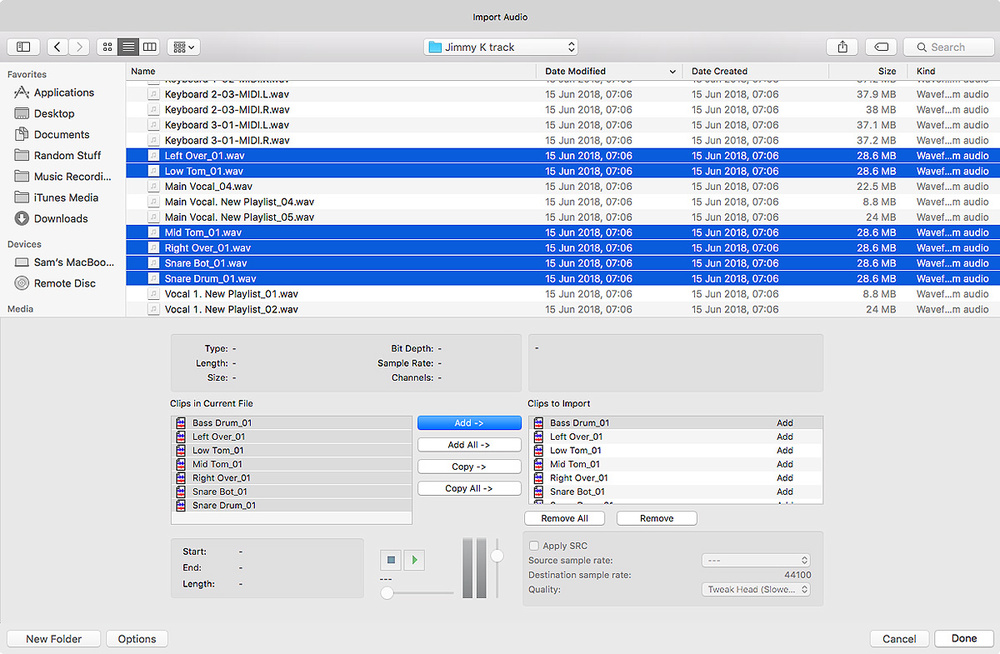
After selecting the audio files, click on the ‘Import Audio’ button, and a dialogue box will appear. Select the files you want to upload and click ‘Open’ to begin the import process. Ensure that the files you import are compatible with your project settings, or you may face issues later on. As the files import, you will receive a notification of their progress and completion.

In summary, setting up your session for importing audio in Pro Tools requires you to create a new session, browse your workspace and import the appropriate audio files required for your project. This process ensures that your project runs smoothly, and you can work on it with ease.
Import Audio Pro Tools

Credit: www.soundonsound.com

Importing Audio Files

Importing audio files into Pro Tools is a simple process. Users can either drag and drop files directly into the session or use the Import Audio function in the File menu. Once imported, audio files can be manipulated, edited, and mixed with ease using Pro Tools’ powerful tools and features.

File Formats Supported By Pro Tools

Pro Tools is capable of importing an array of audio file formats, including AIFF, WAV, SDII, MP3, and AAC, among others. However, to avoid compatibility issues, it’s advisable to use AIFF or WAV file formats if the audio will undergo further editing.

How To Import Audio Into Pro Tools

Importing audio files into Pro Tools is a straightforward process. The following are the steps to follow:

  1. Open Pro Tools
  2. Go to the File menu and select “Import.”
  3. Select the audio file you want to import.
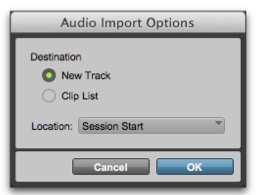
  4. Choose the options that suit your project. You can auto-create files on import, copy the audio files, convert the audio files to a different format, and many more.
  5. Click the “Import” button, and Pro Tools will import your audio file instantly.

Preparing Or Optimizing Audio For Importing

Preparing audio files before import can save you time and improve your workflow. The following are some tips:

  • Ensure that your audio files have a sample rate and bit depth consistent with the session settings before importing them into Pro Tools.
  • Trim or edit any unnecessary parts of the audio file to optimize your workflow.
  • Normalize the audio files to ensure that the audio levels are consistent. However, avoid normalizing to the maximum level as it may result in audio distortion.
  • If you have multiple audio files, organize them into separate folders to avoid confusion when importing.
  • Ensure that the names of the audio files are unique and descriptive to facilitate easy identification.

In conclusion, importing audio files into Pro Tools is a simple task. However, it’s crucial to ensure that the audio files are in the correct format. Preparing or optimizing your audio files before importing can save you time and streamline your workflow.

File Management In Pro Tools

Pro Tools offers a convenient way to import audio files into your project. You can drag and drop audio files into the clip list or import them through the menu bar. Once your files are imported, they can be managed and edited with ease using the software’s powerful file management tools.

Importing audio files in Pro Tools is a crucial step in the audio production process. However, like any other software, it requires you to manage your files to keep your projects organized. The file management process involves several tasks like identifying audio files, renaming them, consolidating regions, and organizing audio clips with playlists. In this section, we will cover some of the critical aspects of file management in Pro Tools.

Naming Audio Files And Consolidating Regions

Naming your audio files is a fundamental aspect of file management in Pro Tools. When importing audio files, Pro Tools automatically assigns a name based on the file’s location. This name might not be descriptive enough to identify the audio file. Therefore, it is beneficial to rename the audio files to something that is easily identifiable. Naming conventions could include the track name, session information, or any descriptive information that can help identify the file. Consolidating regions is another file management task that can help keep your projects organized. Pro Tools allows you to consolidate regions, which makes it easier to move the files between sessions or backup projects. When consolidating regions, Pro Tools makes a copy of the file, and you can choose to trim it according to your original edits. This process helps keep your sessions organized and your files secure should anything happen to your hard disk.

Organizing Audio Clips With Playlists

Playlist organization is an essential aspect of file management in Pro Tools. Playlists enable you to organize audio clips by creating a list of playlists specific to your needs. Once you create playlists, you can easily switch between them and choose the one that suits your needs. For example, you could create a playlist that includes all the audio files from a particular session. Playlists also enable you to move clips between sessions and backup projects with minimal effort.

Editing Audio Clips In Pro Tools

Editing audio clips is the final phase of file management in Pro Tools, and it involves using the various editing tools available in Pro Tools. The editing process enables you to adjust the length of clips, move them around the timeline, and apply various audio effects. You can also split clips, trim them, and adjust fades to polish your audio. The editing process is the final stage in creating a polished audio project that meets your needs. In conclusion, file management is an essential aspect of using Pro Tools to produce professional audio. Naming your audio files, consolidating regions, organizing audio clips with playlists, and editing audio clips are some of the tasks that can help you keep your projects organized and efficiently complete your audio projects.

Tips For Importing Audio Into Pro Tools

Importing audio into Pro Tools can be a daunting task, but following simple steps can make it easy. Make sure the audio file format is compatible, set the correct sample rate, and assign the correct inputs and outputs to avoid any issues.

If you’re working on audio editing, Pro Tools is a comprehensive digital audio workstation that can help you achieve the best outcome. However, in order to achieve the best outcome, it’s essential to import audio files into Pro Tools efficiently. In this section, we’ll provide you with tips to ensure that the audio is correctly imported into Pro Tools.

Importing Audio Preferences And Techniques

Before importing the audio files into Pro Tools, it’s essential to set the correct preferences. To set preferences, click on “Pro Tools” and then “Preferences.” On the Audio tab, select the “Import Audio” option. This is where you can specify the format of the audio file you want to import. Here are some tips for importing audio files into Pro Tools:

  • Ensure that the file you are importing has the required sample rate and bit depth.
  • Choose the correct file type – MP3, WAV, etc.
  • Ensure that the audio file is properly named.
  • Organize the session data to reduce clutter.
  • Use an external hard drive to prevent the audio files from filling up your computer’s hard drive.

Matching Audio To Tempo And Pitch In Pro Tools

In Pro Tools, users can match audio files to the tempo and pitch of their session. This is particularly useful when working with instrumental or vocal tracks that may have been recorded at different tempos or pitches. Here are some tips for matching audio to tempo and pitch in Pro Tools:

  1. Use the “Elastic Audio” feature to adjust the tempo of the audio file.
  2. Use the “Pitch Shift” feature to adjust the pitch of the audio file.
  3. Use the “Varispeed” feature to adjust both the pitch and tempo of the audio file simultaneously.

Troubleshooting Common Audio Import Issues

There can be several issues when importing audio files into Pro Tools. Here are some common import issues that you may encounter, along with their troubleshooting methods:

IssueTroubleshooting Method
The audio file won’t import into Pro Tools.Ensure that the file format is compatible with Pro Tools. Convert the file if necessary.
The audio file is distorted after import.Check the import format. Make sure the sample rate and bit depth are correct
The audio file is out of sync with the session.Manually align the audio file with the session.

By keeping these tips in mind, you can ensure that your audio files are properly imported into Pro Tools, and spend more time on producing quality audio content.
Import Audio Pro Tools

Credit: www.sweetwater.com

Frequently Asked Questions Of Import Audio Pro Tools

Can You Import Audio Files Into Pro Tools?

Yes, audio files can be imported into Pro Tools. Simply click on File, select Import, and choose the audio file you want to bring in. Pro Tools supports a variety of audio formats, including WAV, AIFF, MP3, and more.

How Do I Add An Audio Track In Pro Tools?

To add an audio track in Pro Tools, go to “Track” on the menu bar and select “New Track. ” Choose “Audio Track” and set your desired settings. Then, locate and import your audio file by going to “File” and selecting “Import.

“

Which Of The Following Methods Can Be Used To Import Audio Into Pro Tools?

There are multiple methods to import audio into Pro Tools. You can drag audio files into the session window, go to the ‘File’ menu and select ‘Import Audio’, use the ‘import audio’ shortcut key, or use the ‘Spot’ feature to import audio from a specific timecode location.

How Do I Drag Audio Into Pro Tools?

To drag audio into Pro Tools, simply navigate to the desired audio file on your computer, click and hold on the file, and drag it into your Pro Tools session’s edit window. The audio file will then import into your session for further editing and manipulation.

Conclusion

To sum up, importing audio files into Pro Tools has never been easier. With just a few clicks, you can bring in your desired sound files and manipulate them to your liking. This will save you time and make your workflow more efficient.

Also, keep in mind that a properly labeled project with well-managed audio files will make it easier for you to keep track of your work. So, follow these steps and get your creative juices flowing!
Categories
Archive

Slate Vocal Presets

Slate vocal presets are software plugins used by music producers to optimize vocal recordings. They offer a range of tools that can enhance vocal processing, mixing, and mastering to create professional-sounding tracks.

Slate vocal presets are gaining popularity among music producers for their ability to provide pre-configured settings for perfecting vocal tracks. With the use of these presets, music producers can create customized, professional-sounding recordings with ease. These presets come with a variety of choices, catering to diverse styles of music.

From classic rock to mellow jazz, and even rap, there is a slate vocal preset for every genre. Additionally, these presets are user-friendly and can help save time during the recording process. We’ll discuss what slate vocal presets are, how they work, and their benefits to music producers.

Slate Vocal Presets

Credit: keywav.io

Types Of Slate Vocal Presets

For those who are not familiar with Slate Vocal Presets, let us first define what it is. In music production, a vocal preset is a pre-programmed setting that you can apply to your vocals to achieve a specific sound. These presets can save you a lot of time and effort in mixing vocals, especially for beginners.

Slate Digital has been offering different types of vocal presets that you can use for your music projects. Let’s explore these types below:

Default Presets

The default presets are the built-in presets that come with the Slate Digital plugins. There are various default presets that are ready to use for different genres of music. These presets are perfect for those who do not have the luxury of time to tweak different settings. Simply select a preset that suits your vocals, and you are done.

Custom Presets

If you want to tailor your vocals according to your taste and style, you can create custom presets. These presets can be based on the default presets or made from scratch. Custom presets are ideal for those who want a more personalized touch in their music production.

Creating custom presets can be challenging, but it is worth it in the long run. You can use the custom presets over and over again for future projects and save yourself more time.

Third-party Presets

Aside from the default and custom presets, you can also use third-party presets for your Slate plugins. These presets are made by other music producers who have created presets for specific genres or styles. You can purchase third-party presets online or get them for free on some websites.

Using third-party presets can give you more options and save you time in mixing. You can also learn a lot from the settings and techniques used by other producers.

Summary Table: Types of Vocal Presets
TypeDescription
Default PresetsBuilt-in presets that come with the Slate plugins
Custom PresetsPersonalized presets made from scratch or based on default presets
Third-Party PresetsPresets made by other music producers that can be purchased or obtained for free
Slate Vocal Presets

Credit: www.vocalmultitrack.com

How To Use Slate Vocal Presets

Learn how to use the Slate Vocal Presets to enhance the quality of your vocal recordings. These presets are designed to add warmth, clarity, and character to your vocals, and are a must-have for any serious recording engineer or producer.

Whether you’re working on a home recording or a professional project, the Slate Vocal Presets can help take your vocals to the next level.

Slate vocal presets are a great tool for novice and expert singers alike. They can transform your raw vocals into professional-sounding recordings. In this blog, we will discuss how to use these presets effectively.

Installation

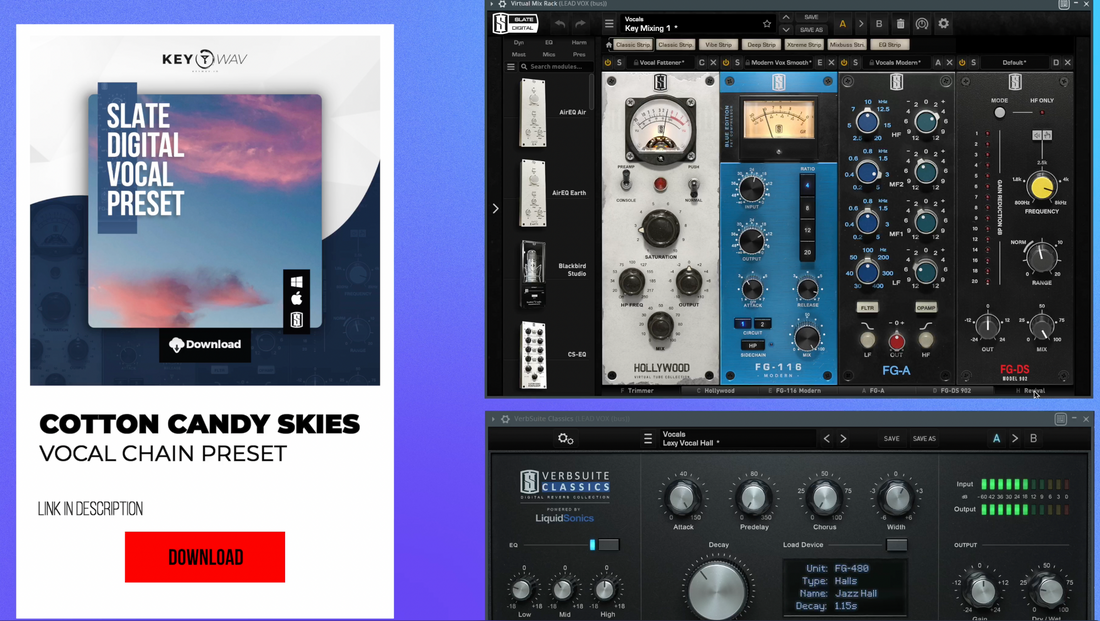
Before using slate vocal presets, you need to install the Slate Digital Virtual Mix Rack. This can be downloaded from the official website and installed as a plugin to your digital audio workstation. After installation, you can access the collection of vocal presets included in the plugin.

Choosing The Right Preset

Choosing the appropriate slate vocal preset can make or break your vocal recordings. You can choose among different presets with varying levels of brightness, tone and style that complement your music genre. For example, for a soulful vocal, a preset with a warmer tone and moderate compression might work best. Whereas, for more energetic vocals, a preset with a brighter tone and higher compression might be perfect.

Adjusting Settings

After you have chosen a suitable vocal preset, you can adjust the settings using the Slate Digital Virtual Mix Rack. This can be done by adding or reducing effects like reverb, compression, equalization and saturation. You can also experiment with the different settings to find the perfect blend for your vocals.

  • For instance, reducing the threshold on the compressor can give your vocals more presence and energy.
  • Increasing the amount of reverb can bring more depth to your vocal recordings.
  • Adding EQ can bring more clarity to your vocals, and reducing the high frequencies can reduce the sibilance in your recordings.

You can repeat this process until you achieve the sound you desire.

Saving And Organizing Presets

After tweaking your vocal preset and adjusting your settings, you can save the preset to use in future recordings. You can save your presets into suitable folders and label them with descriptive names that reflect the tone and style of your vocals. Organizing your presets can help you quickly find suitable preset without wading through the collection. With these simple steps, you can use Slate vocal presets to create professional-sounding vocal recordings suitable for your genre of music.

Popular Slate Vocal Presets

For those who are not familiar with what Slate Vocal Presets are, they are a set of pre-configured settings that help you achieve the sound of your favorite artist. These presets are designed to make your vocals sound like they were recorded in the same studio, with the same equipment, and by the same sound engineer as your preferred celebrity. In this post, we will take a look at some of the most renowned and Popular Slate Vocal Presets that you can use on your next mix.

The Mix And Master Bundle

If you are looking for an all-in-one solution, then the Mix and Master Bundle is what you need. This bundle includes five essential plug-ins for mixing and mastering vocals, including the Virtual Mix Rack, FG-116 Blue Series, FG-116 Modern White Series, FG-401 EQ, and the FG-160 Compressor. With this bundle, you can achieve the same sound quality as some of the most famous musicians in the world.

Adam Levine

Adam Levine’s voice has a unique and recognizable tone because of his time as the lead vocalist of Maroon 5. The Adam Levine preset is designed to give your vocals that same pop sound. It includes compression, EQ, and de-esser that make your voice stand out in a mix. The preset can be further customized to suit individual needs. This preset is perfect if you want to achieve the quintessential “pop” sound in your vocals.

Chris Cornell

The Chris Cornell preset is designed to give your vocals the same full-bodied warmth as the late Soundgarden frontman. This is an ideal preset for those working on rock and alternative genres. The preset can help you achieve that same edgy sound and make your vocals sound powerful and grittier, just like Chris Cornell.

Miley Cyrus

If you are looking to achieve a youthful and contemporary sound, then Miley Cyrus Preset is perfect for you. This preset is particularly useful for pop songs or any track that demands vocal clarity. The Miley Cyrus preset includes compression, de-essing, and reverb to produce a bright and airy vocal sound.

Prince

Prince was a sonic pioneer who blended several genres together to create his unique sound. The Prince preset is designed to capture that same energy and sound that made him stand out. This preset includes EQ, compression, reverb, and delay. The Prince preset can give your vocals a funky vibe and a quintessential 80’s sound.

Experimenting with different presets is an excellent way to learn about vocal processing and how to get the sound you want. Slate Vocal Presets have made it possible to get the sound of your favorite stars from the comfort of your studio. With endless possibilities, these presets can be a great place to start and inspire creativity.

How Slate Vocal Presets Can Improve Your Workflow

Slate vocal presets can significantly improve your workflow by simplifying the recording process and providing a starting point for processing vocals. These presets allow for easy customization and can save you time while producing high-quality recordings.

Faster Vocal Processing

Slate Digital Vocal Presets are an excellent tool for musicians, producers, and engineers to streamline their workflow and create professional-sounding vocal recordings in a fraction of the time. These presets eliminate the need for tedious manual adjustments, allowing you to focus on creating music instead of getting bogged down in technical details.

Improved Vocal Consistency

Consistency is the key to creating a cohesive vocal performance, and that’s where Slate Vocal Presets really shine. These presets provide a consistent starting point that can be customized to suit your specific needs. This helps you achieve a consistent tone across takes and between different songs or projects. The presets also ensure that your vocal recordings have the same balance and EQ levels, which is essential for a polished final mix.

Reduced Mixing Time

Using Slate Vocal Presets significantly reduces your mixing time. Since the presets already provide a solid starting point, you’ll spend less time tweaking individual tracks. This can help you complete projects faster, whether you’re a musician creating your own recordings or an engineer working with a client. The time you save can be used for other tasks, such as writing new music or promoting your work.

High-quality Results

Quality is of the utmost importance in music production, and the Slate Vocal Presets offer top-quality results. These presets are expertly crafted by a team of professionals, ensuring that you get a sound that is polished, professional, and refined. You can trust that your vocal recordings will sound amazing, whether you’re creating music for yourself or your clients. In conclusion, Slate Vocal Presets offer a range of benefits that can help improve your workflow and produce high-quality vocal recordings with ease. With faster vocal processing, improved vocal consistency, reduced mixing time, and high-quality results, these presets are an essential tool for any musician or producer looking to take their recordings to the next level.

Slate Vocal Presets

Credit: m.youtube.com

Frequently Asked Questions On Slate Vocal Presets

What Is The Best Slate Compressor For Vocals?

The Slate Digital FG-76 or the UA LA-2A are the best compressors for vocals. Both of them offer transparent compression, smooth sound, and add character to the vocals. These compressors are known for their warmth, color, and musicality, and are popular among top producers around the world.

Do Artists Use Vocal Presets?

Yes, some artists use vocal presets. These presets are pre-defined settings that can be used to modify the sound of a vocalist’s voice. This can save time during recording sessions and can be useful for achieving a consistent sound across multiple tracks.

However, it’s important to note that not all artists use presets and many prefer to customize their vocal settings according to their own unique sound.

What Vocal Plugins Do Professionals Use?

Professionals often use vocal plugins such as Waves Vocal Rider, iZotope Nectar, Antares Auto-Tune, and FabFilter Pro-Q3. Each plugin offers unique features like automated level adjustments, pitch correction, and EQ tools to enhance vocal recordings.

Does Logic Have Vocal Presets?

No, Logic does not have vocal presets. However, you can create your own vocal effects and save them as presets for future use.

Conclusion

Slate Vocal Presets offer a practical solution for sound engineers and music producers seeking to enhance their vocal recordings. With a vast range of presets and intuitive interface, it doesn’t matter whether you’re a beginner or experienced professional. The presets can help to fine-tune and customize vocal tracks, adding more color, power, and presence.

In general, Slate Vocal Presets represent a powerful and versatile tool that can help keep your music productions sounding their best.

Categories
Archive

A B To Your Demo Mix

To improve your demo mix, focus on selecting songs with similar tempo and key signatures. This creates a cohesive and flowing mix that keeps listeners engaged.

As a DJ, creating an exceptional demo mix is crucial to showcasing your skills and attracting potential gigs. A demo mix is a blend of multiple tracks that showcases your ability to mix tracks seamlessly. It’s essential to carefully select your tracks, paying attention to the tempo and key signatures, which helps create a cohesive and flowing mix.

To truly stand out, you should also add your own flair through scratching, effects, and transitions. We’ll explore some tips and tricks for creating a memorable and impactful demo mix.

Credit: www.amazon.com

Basics Of Creating A Demo Mix

Creating a demo mix can be overwhelming, but it’s essential in showcasing your music production skills. Start with selecting the best tracks for your demo and arrange them in a way that shows your versatility as an artist. Don’t forget to use transitions between tracks to ensure smooth playback and flow.

As a DJ, a demo mix is essential in showcasing your skills and talent. It is your ticket to getting more gigs and exposure in the music industry. A demo mix needs to be well-thought-out and executed to perfection. Here are some basics of creating a demo mix that will capture the attention of your target audience.

Selecting Tracks

The first step in creating a demo mix is selecting the right tracks. The tracks you choose should showcase your style and strengths as a DJ. Your track selection needs to flow smoothly and create a vibe that resonates with your target audience. To select tracks, you can start by listening to different genres of music, analyzing the beats and rhythms, and curating a playlist that aligns with your style. You can also seek recommendations from other DJs or music enthusiasts to expand your music library.

Creating A Theme

A theme is essential in creating a demo mix that stands out. A theme can be based on a genre, mood, or event type. Your theme should be well-defined and executed throughout your mix. It will help your audience connect with your mix and keep them engaged. To create a theme, you can start by identifying the occasion or event type, analyzing the audience, and selecting tracks that align with the theme. You can also experiment with different effects and mixing techniques to bring your theme to life.

Mixing Technique

The mixing technique is the core of your demo mix. It involves blending tracks seamlessly to create a musical journey that takes your audience on a ride. You need to pay attention to transitions, tempo, and key sync to ensure your mix flows smoothly. To improve your mixing technique, you can start by practicing with different tracks, experimenting with effects, and attending mixing classes. You can also use software tools such as beatmatching and harmonic mixing to improve your skills. In conclusion, creating a demo mix requires dedication, creativity, and passion. By selecting the right tracks, creating a theme, and perfecting your mixing technique, you can create a demo mix that showcases your talent and attracts more fans.

A B To Your Demo Mix

Credit: www.etsy.com

Essential Tools For Creating A Demo Mix

Creating a demo mix can be a daunting task, but with the right tools, it can be a breeze. Important tools to consider include a DAW, sample libraries, and virtual instruments. Each plays a crucial role in bringing your demo mix to life and helping showcase your talents as a music producer.

Creating a demo mix that stands out among thousands of competitors requires the right tools and skills. As a music producer or DJ looking to showcase your creativity, a demo mix is a powerful tool to increase visibility and attract potential clients or fans. In this section, we’ll explore the essential tools you need to create a demo mix, including DJ software, hardware equipment, and audio plugins.

Dj Software

DJ software is the backbone of any demo mix and critical for music production. However, with so many options available, it can be challenging to choose the right one. While some software is expensive, others are free, but the most popular, user-friendly, and flexible software options include Virtual DJ, Traktor, Serato, and Ableton Live. Consider the features and functionalities of each before making a choice. For example, some software is perfect for beginners, while others are more advanced.

Hardware Equipment

In addition to DJ software, hardware equipment is just as crucial. A competent sound system, studio headphones, and a mixer are necessary to ensure your mix sounds professional. While it’s possible to create a demo mix with just a laptop and software, having the right hardware equipment is essential to ensure you achieve the right sound. Some popular hardware equipment includes DJ controllers, soundcards, studio monitors, and mixers, among others. Choose hardware that match your set-up and budget.

Audio Plugins

Audio plugins play a significant role in enhancing the quality of a demo mix. They can add effects, filters, compressors, and equalizers to make your mix sound more professional. There are thousands of audio plugins available in the market, both free and paid. Some popular audio plugins include FabFilter, Waves, Native, and iZotope. Choose audio plugins based on your style, music genre, and budget. In conclusion, creating a demo mix requires the right tools and skills. DJ software, hardware equipment, and audio plugins are the most critical tools you need for creating a professional demo mix. Ensure you choose the right tools for your set-up and budget to create a mix that stands out and showcases your skills.

Tips For Creating A Successful Demo Mix

To create a successful demo mix, focus on showcasing your skills and personality through music selection and transitions. Choose tracks that represent your style and mix them in a cohesive way while keeping the energy and mood of the mix consistent.

It’s important to showcase your unique style and stand out among other DJs.

As a musician, creating a demo mix that showcases your talent and versatility can be a challenging task. A demo mix is your chance to grab the attention of potential collaborators, producers, and record labels. It is vital to ensure that your demo mix is of high quality and presents your work in the best possible light. In this section, we will discuss some tips for creating a successful demo mix that will help you get noticed in the industry.

Keep It Simple

When creating a demo mix, it is essential to keep it simple and straightforward. Avoid overcomplicating the mix with too many instruments or vocal tracks. Stick to a few well-produced tracks that showcase your best work. Remember, less is more. Keeping the mix simple will allow the listener to focus on your talents, melodies, and lyrics without getting lost in a sea of sound.

Build Momentum

Creating a demo mix that builds momentum is critical to grabbing attention from the first track. You want to attract listeners and keep them engaged throughout the mix. Start with an upbeat intro track that sets the tone for the rest of the mix. Your second track should be more complex than the first, building upon the momentum created by the opening track. Add variation to your mix as it progresses to ensure that the listener remains hooked from start to finish.

Show Range And Diversity

Demonstrating range and diversity in your demo mix allows potential collaborators, producers, or record labels to see your versatility. It means showing the full range of your skills such as songwriting, composing, and producing. In your mix, showcase your ability to create music spanning different genres, tempos, and styles. This helps create a unique and memorable portfolio, increasing your chances of getting noticed.

Useful Tools

Creating a demo mix is a challenging task that requires attention to detail and an ear for music. Thanks to the advancements in technology, there are now various tools and software that can help you create a studio-quality demo mix. Some of the tools you could use include:

  • A digital audio workstation (DAW) like Ableton Live, FL Studio, or Logic Pro X
  • Sample packs and sounds available online
  • Software synths

Take advantage of these tools to create a professional demo mix that accurately represents your musical style.

Conclusion

By following these tips, you can create a demo mix that showcases your talents and helps you stand out in the industry. Remember to keep it simple, build momentum, show range and diversity, and leverage tools to create a studio-quality mix. Go out there, create your demo mix, and let your talents shine!

A B To Your Demo Mix

Credit: www.instagram.com

Promoting Your Demo Mix

Once you have put together an impressive demo mix, it’s time to get it out there and reach potential listeners. Here are some effective ways to promote your demo mix:

Sharing On Social Media

Social media platforms such as Facebook, Twitter, Instagram, and TikTok present excellent opportunities to promote your demo mix. Share your demo mix on your social media accounts and encourage your followers to repost it to their own profiles. Use relevant hashtags to reach a wider audience and engage with users who show interest in your music.

Submitting To Music Blogs

Another way to promote your demo mix is by submitting it to music blogs. Do some research and find blogs that cater to your genre. Pay attention to their submission guidelines and follow them accordingly. A well-crafted email, including a brief introduction of yourself and your music, will greatly increase your chances of being featured on their website.

Sending To Record Labels

If your demo mix is of a high enough standard, you may want to consider submitting it to record labels. Be selective and identify labels that specialize in your genre. Look for their submission guidelines on their website and follow them carefully. Make sure your demo mix stands out by including a well-written cover letter introducing yourself, your music, and your goals for the future.

Don’t underestimate the power of promoting your demo mix. Social media, music blogs, and record labels are all valuable platforms to get your music heard and take your career as a music artist to the next level.

Frequently Asked Questions On A B To Your Demo Mix

What Should My Mix Be Before Mastering?

Your mix should be well-balanced, with appropriate levels for each element such as vocals, drums, bass, etc. It’s important to ensure there are no clipping or distortion issues and the volume levels are consistent throughout. Good mixing will make the mastering process smoother.

Is Mix Mastering Hard?

Mix mastering can be challenging, especially for beginners. It requires technical knowledge, a good ear for sound, and attention to detail. However, with practice and the right tools, anyone can learn to master their mixes. It’s important to note that professional mastering services can also be a great option for those who want a polished and consistent sound.

Where Do I Start My Mix?

To start your mix, begin with the foundation instruments, such as drums or bass. Mix in the other instruments one at a time, adjusting levels and EQ as you go. Remember to keep the overall sound balanced and clear.

How To Mix A Song For Dummies?

To mix a song for dummies, follow these basic steps: 1. Balance the levels of each instrument and vocal track 2. Use EQ to adjust the tonal balance of each track 3. Use compression to control dynamics and add sustain 4.

Add effects like reverb and delay to create space and depth 5. Refer constantly to reference tracks and make small incremental adjustments until satisfied with the mix.

Conclusion

To conclude, creating a demo mix is crucial for any musician looking to showcase their talent and reach new audiences. Incorporating the right elements, from song selection to arrangement and transitions, can make all the difference. Remember to keep it concise, engaging, and representative of your unique style and goals.

With these tips and a little experimentation, you can create a demo mix that truly stands out. Happy mixing!

Categories
Archive

Studio One Review

“Studio One is a powerful and intuitive DAW software for music production, recording, and mixing.” Studio One is a digital audio workstation (DAW) created by PreSonus that has made waves in the music production industry in recent years.

It offers a user-friendly interface, powerful features, and a wide range of plugins and virtual instruments. In this review, we’ll take an in-depth look at the benefits, drawbacks, pricing, and overall quality of Studio One. Whether you’re new to music production or an experienced professional, this review will give you a comprehensive overview of what Studio One has to offer.

Let’s get started!

What Is Studio One?

Studio One is a top-rated digital audio workstation that offers an intuitive and user-friendly interface, making it the perfect choice for both beginners and professionals. With its extensive library of virtual instruments, effects, and loops, it’s a versatile option for music production.

Studio One is a Digital Audio Workstation (DAW) that offers an all-in-one solution for recording, mixing, mastering, and music production. Created by PreSonus in 2009, Studio One has soon become a game-changer in the music industry, thanks to its user-friendly interface, impressive mix engine, and a range of advanced features designed to simplify today’s complex music-making workflows.

History And Background

PreSonus, a Louisiana-based audio hardware company, introduced Studio One in 2009 as their first software offering. The program quickly gained a reputation in the music industry for its innovative take on the traditional DAW layout. Studio One was a finalist at the 2010 MIPA Awards and won Electronic Musician’s coveted 2010 Best DAW Award. It has since gone through several updates, with the latest version, Studio One 5, released in 2020.

Main Features

Studio One offers a vast array of features that cater to the needs of musicians and producers at all levels. Here are some of the main features that set Studio One apart from other DAWs:

FeatureDescription
Single-screen interfaceStudio One’s drag-and-drop interface lets you work on everything from arranging to mastering in a single window.
Arranger TrackStudio One’s Arranger Track lets you easily rearrange sections of your song, create alternate versions, and experiment with new ideas.
ScratchpadThe Scratchpad feature lets you try out different ideas without committing to them. You can create multiple versions of a song and jump back and forth between them.
Fat Channel XTStudio One’s Fat Channel XT is a virtual mixing console that can be used in any channel. It comes with a wide range of vintage-style EQ and compression options.
Melodyne IntegrationThe software comes with full Melodyne integration, enabling you to edit pitch and timing of your audio recordings.

Overall, Studio One has cemented its place as a robust and efficient DAW, favored by beginners and professionals alike. It is an excellent choice for those looking for flexibility in their music production workflow and seamless integration with numerous VST plugins. Its intuitive interface and many advanced features make it a formidable contender in the world of music software.

Studio One Review

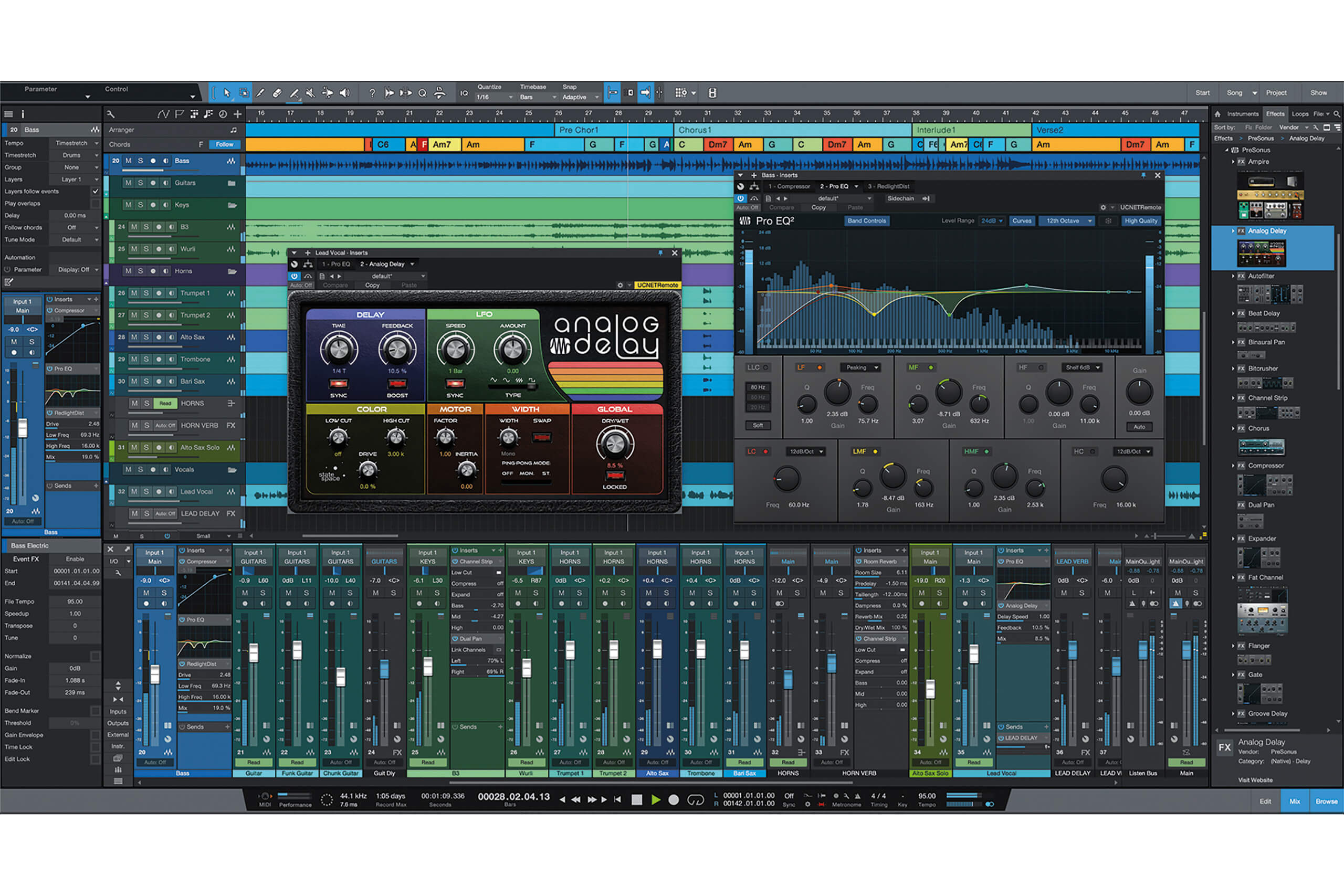
Credit: www.soundonsound.com

Installation And Setup

Studio One Review covers the process of installation and setup in a clear and concise manner, making it easy for users to get started with the software. The review provides step-by-step instructions and helpful visuals to ensure a smooth experience for all users.

Studio One is a popular digital audio workstation that offers various features to produce exceptional music compositions. To use this software, users first have to install and set it up on their computers. In this section, we will cover the entire process of installing and setting up Studio One, starting with the system requirements.

System Requirements

Before downloading and installing Studio One, it is essential to ensure that your computer meets the software’s minimum system requirements. Having an insufficient hardware configuration can cause the software to run slowly, resulting in crashes, lagging, and incompatibility issues. Here are the minimum system requirements for Studio One:

Operating SystemCPURAMScreen Resolution
Windows 10 (64-bit)Multicore Processor (Intel or AMD)4 GB1366 x 768
macOS 10.13 or higherIntel Core 2 Duo Processor4 GB1366 x 768

Downloading And Installing

Once you verify that your computer meets the minimum requirements, downloading and installing Studio One is a straightforward process. Follow the steps below:

  1. Go to the PreSonus website.
  2. Click on the ‘Downloads’ link on the top menu bar.
  3. Select your preferred version of Studio One based on your operating system and architecture (32-bit or 64-bit).
  4. Click ‘Download’ and save the file to your computer.
  5. Run the downloaded file and follow the installation wizard instructions.
  6. Once Studio One is installed, launch the application.

By following these simple steps, you can easily download and install Studio One on your computer. Remember to check for any software updates to ensure that you’re using the latest version of Studio One. In conclusion, the process of downloading and installing Studio One is relatively simple, and the minimum system requirement is not too demanding. By following the instructions in this section, users can get started with using this powerful and innovative digital audio workstation.

User Interface And Navigation

The user interface and navigation of a digital audio workstation have a significant impact on the user experience and workflow. Studio One stands out from other DAWs in terms of its user interface as it provides a sleek and intuitive design. In this article, we will explore Studio One Review with a specific focus on the User Interface and Navigation.

Overview Of The Interface

The Studio One interface is well-designed, with its modern and minimalist design, making it user-friendly. It features a customizable, drag-and-drop rack-style interface. The interface is intuitive and uncluttered, which helps to keep the workflow efficient. The design of Studio One’s interface is ideal for users who prefer to work using multiple screens. Studio One gives users the chance to customize their interface by changing the size of icons, color, and layout of the interface. Users can also customize their view using different layouts like the Mix, Edit, and Song Page.

Customization Options

Studio One provides different customization options for users to modify the interface in a way that works best for them. It comes with several color schemes, which can be switched using the theme manager. Users can change the colors, template, and icon visibility, as well as add custom backgrounds to their interface. Studio One allows users to set up their interfaces based on their workflow preferences and optimize the user experience.

If you are looking for a DAW with an easy-to-use interface and navigation, then Studio One is a highly recommended option. Its intuitive interface and customizable design make it easier to work with and saves time. With Studio One, users get an efficient and streamlined workflow, which ensures a smooth and enjoyable music-making experience.

Recording And Editing

Studio One is an exceptional digital audio workstation with top-class recording and editing capabilities. It provides users with a user-friendly interface, making it ideal for both beginners and professionals alike. With its advanced editing tools, Studio One stands out from the competition.

Recording And Editing With Studio One: A Comprehensive Review

If you’re in the market for a new digital audio workstation (DAW), you may have come across Studio One. Developed by PreSonus, Studio One is a feature-packed DAW with a clean user interface that offers powerful tools for music production. In this review, we’ll take a closer look at Studio One’s recording and editing features, including audio recording, MIDI recording, and basic editing tools.

Audio Recording

Studio One’s audio recording capabilities are top-notch and offer a range of tools for capturing the perfect take. Users can record up to 384kHz, 32-bit floating-point audio, making it an excellent option for high-quality recording. Studio One also has an intuitive audio recording interface with a range of options, including punch-in/out, loop recording, and an audio level meter.

Midi Recording

MIDI is an essential part of modern music production, and Studio One’s MIDI recording tools simplify the process. Studio One allows users to record MIDI performances in real-time or step mode. Moreover, the software has a range of features for editing and quantization of MIDI data, such as MIDI Transform, which can map, filter, or scale MIDI data based on specific parameters.

Basic Editing Tools

Studio One’s basic editing tools are easy to use and intuitive. Users can perform typical editing functions such as cut, copy, paste, and trim, with precision using a range of tools. Additionally, the program has an automatic beat detection feature that makes it easier to sync audio and MIDI data with tempo changes. The software also offers various audio effects, such as delay, chorus, and reverb, along with built-in virtual instruments. Overall, Studio One’s recording and editing features offer a wealth of tools and options for musicians and producers. The program’s clean interface and powerful capabilities make it a top contender for those looking for a new DAW. Whether you’re recording audio, MIDI data, or editing tracks, Studio One is a well-rounded software that delivers excellent results.

Mixing And Mastering

Studio One has made a name for itself as one of the best DAWs in the market today due to its intuitive interface and comprehensive array of features. Mixing and mastering is where Studio One truly shines, offering a range of powerful tools designed to give you total control over your sound. Here’s a look at some of the key features:

Mixer Console

The mixer console in Studio One is a standout feature that lets you mix tracks, add effects and control levels with ease. The console offers a magnified view of your tracks, with a range of metering options that help you keep your mix levels in check. The drag-and-drop interface also lets you route tracks, add effects, and adjust levels just by clicking and dragging. It’s a powerful tool designed to help you craft the perfect mix.

Effects And Plugins

Studio One also boasts an impressive collection of effects and plugins that help you customize your sound to your liking. From classic analog EQs and compressors to advanced reverbs and delays, Studio One has it all. The software also supports VST, AU, and other third-party plugins, making it easy to expand your collection and take things to the next level.

Exporting And Mastering

Once your mix is complete, Studio One helps you export and master your tracks with ease. The software offers a range of export options, including multiple file formats and bitrates, as well as support for CDDA and DDP formats. The mastering tools are also top-notch, with a comprehensive suite of EQ, compression, and stereo imaging plugins designed to give your tracks a professional polish.

In conclusion, Studio One is an excellent choice for anyone looking to produce high-quality music, with its powerful mixing and mastering tools making it a standout in the crowded DAW market. Whether you’re a seasoned pro or a novice producer, Studio One offers the tools you need to create the perfect mix.

Studio One Review

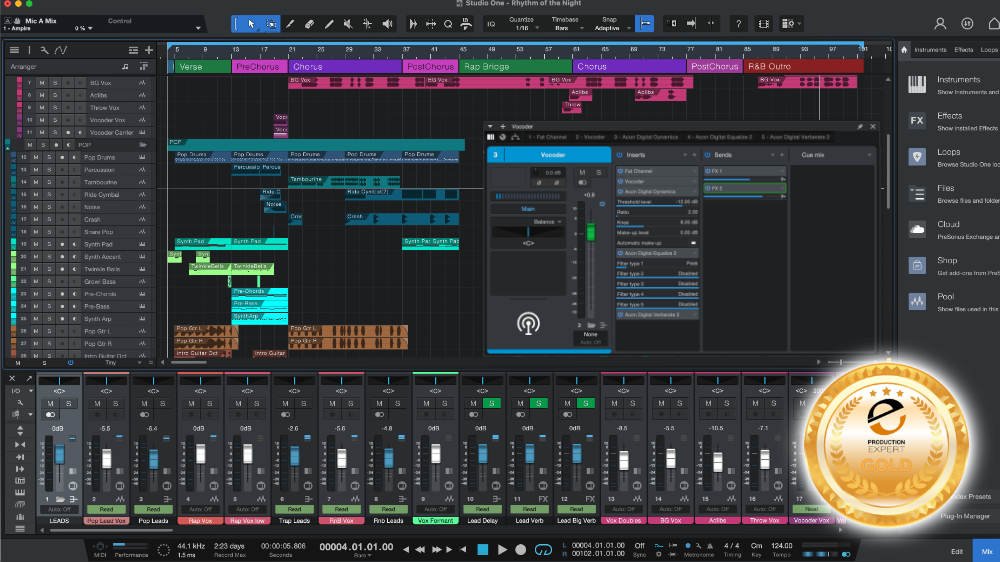
Credit: www.production-expert.com

Collaboration And Integration

If you’re a musician, you know that collaboration and integration with other musicians and software are essential for creating the highest quality music. Studio One, a digital audio workstation, has gained popularity among music creators due to its various collaborative features and extensive integration capabilities. In this Studio One review, we will focus on the collaboration and integration aspects of this software.

Collaborating With Other Musicians

One of the significant strengths of Studio One is its ability to facilitate collaboration between musicians. With Studio One, musicians can easily work together in real-time, whether they are in the same location or not. Through Studio One, you can collaborate with other musicians on a track, share songs and project files with others, and even give feedback and make changes while the project is in progress.

Studio One’s features allow for seamless collaboration between musicians. For example, through the use of the Cloud Collaboration feature, you can share your project files with other musicians and allow them to make changes to your project files. Additionally, you can use the built-in messaging system to communicate with other musicians in real-time and share audio files and other project-related data.

Integration With Other Software

Studio One has extensive integration capabilities with other software. This is a significant advantage as it means that musicians can use their favourite plugins and software within Studio One. Additionally, integration with other software allows for streamlined workflow as well as increased productivity.

Some of the software that Studio One supports includes Melodyne, the Soundtoys effects plugin suite, and the Eventide H9 plugin. The integration is seamless, and all the software works efficiently within Studio One.

Conclusion

Studio One is a digital audio workstation that offers an excellent collaborative platform for musicians. Its integration capabilities with other software make it highly versatile for creators to use. Collaborating with other musicians is comfortable and seamless, thanks to the various collaborative features of Studio One. Whether you’re a songwriter, producer, or musician, Studio One is a vital tool for creating your best projects.

Studio One Review

Credit: musictech.com

Frequently Asked Questions For Studio One Review

Is Studio One Software Any Good?

Yes, Studio One software is excellent for music production and recording. It has a user-friendly interface, a vast library of built-in plugins and sounds, and excellent audio quality. Many professional musicians and producers use and recommend Studio One for their work.

What Are Some Weaknesses Of Presonus Studio One?

PreSonus Studio One has limited third-party plugin support, lacks advanced features for audio editing, and may have instability issues with larger projects. However, it offers amazing MIDI capabilities and a user-friendly interface, making it a great fit for both beginners and professionals.

Is Studio One As Good As Pro Tools?

Both Studio One and Pro Tools are powerful DAWs (Digital Audio Workstations) used in the music industry. While they have different features, overall they are comparable in terms of functionality and quality. Both have their pros and cons, and the choice between them ultimately depends on personal preference and the specific needs of the user.

Is Studio One Pro Worth It?

Yes, Studio One Pro is worth it for music producers and audio engineers who want a professional DAW (digital audio workstation) with advanced features and a user-friendly interface. It offers high-quality audio recording, mixing, mastering, and editing, as well as third-party plugin support, collaboration tools, and a flexible workflow for any kind of music production project.

Conclusion

Studio One is an impressive DAW that provides easy setup and user-friendly interface. Its features like scratchpad, arrangement and comping tools make it stand out in the crowd. With its drag-and-drop functionality, it’s a perfect fit for novice producers as well as professionals.

It’s definitely worth considering as an alternative to other DAWs in the market. Overall, Studio One is a versatile software for recording, mixing and mastering.

More in our Gear reviews.

Categories
Archive

Pro Tools First Slip Mode

Pro Tools First Slip Mode is a feature that allows for non-destructive audio editing of a track’s timing and position. Slip Mode can be used to easily adjust the timing of individual audio events within a track by dragging them forward or backward in time.

Pro Tools First is an entry-level digital audio workstation designed for home studios and aspiring musicians. The Slip Mode feature in Pro Tools First allows users to non-destructively adjust the timing and position of audio events within a track. With Slip Mode, users can easily move audio clips forward or backward in time to improve the overall timing and feel of their tracks.

This feature is particularly useful for editing drums and percussion, as well as for aligning multiple takes or performances. By using Slip Mode, Pro Tools First users can achieve professional-sounding results without the need for advanced editing techniques or specialized tools.

Benefits Of Using Slip Mode In Pro Tools First

Pro Tools First Slip Mode is a powerful editing feature that allows for faster and more accurate editing in your music projects. Slip Mode is a fantastic tool in Pro Tools First, which gives users creative freedom while editing audio clips and tracks.

Efficient Editing Workflow

Slip Mode is your go-to editing feature when it comes to creating a more efficient editing workflow. By using Slip Mode, you can edit multiple audio clips and tracks in Pro Tools First quickly, without needing to cut, paste, or drag them.

This editing mode enables users to instantly switch between the original and edited versions of a clip without having to use any other tool or tab. Thus, the workflow remains consistent, allowing the user to make the necessary adjustments with ease and precision.

Accurate Edits

Pro Tools First Slip Mode allows users to take complete control over their audio editing experience. This editing feature provides the user with a bird’s eye view of the audio data, allowing them to make precise changes with ease.

The Slip Mode enables accurate edits, allowing users to modify or move the audio clip or track easily. It makes it easy for you to perform any editing tasks, such as deleting specific parts of a clip, splitting it, or repairing it with minimal effort.

Saves Time

Time is crucial when it comes to music production, and Slip Mode helps you to save an ample amount of time. By allowing users to execute faster edits, Pro Tools First Slip Mode enables you to finish your project quicker.

The Slip Mode helps users to complete audio edits systematically, quickly and efficiently, without the need to repeatedly copy and paste portions of the audio clip or track.

Allows For Creative Experimentation

Pro Tools First Slip Mode opens up a whole new world of creative possibilities. By using this tool, users can experiment with different audio settings and effects, and test out each version with ease.

Slip Mode provides users with creative flexibility, for example, users can adjust audio clips and tracks in terms of timing and rhythm, or modify individual themes and melodies while retaining the original tempo. Hence, users can create new soundscapes, motifs and musical ideas with ease.

Overall, the Pro Tools First Slip Mode feature creates an efficient workflow, allowing users to make accurate edits in less time. It encourages creative experimentation for efficient music production and editing.

Pro Tools First Slip Mode

Credit: www.mixinglessons.com

How To Enable And Use Slip Mode In Pro Tools First

Pro Tools First offers a variety of editing modes to suit different audio editing workflows. One of the most useful modes for manipulating audio clips is Slip Mode. Slip Mode allows you to move the contents of a clip while maintaining its original length. In this blog post, we’ll show you how to enable Slip Mode in Pro Tools First and explain how to use it for precise audio editing.

Enabling Slip Mode

To enable Slip Mode in Pro Tools First, follow these simple steps:

  1. Open the Edit window by selecting Window > Edit from the main menu.
  2. Click on the Slip Mode button in the toolbar. If the Slip Mode button is not visible, you can add it by right-clicking on the toolbar and selecting Slip Mode from the drop-down menu.
  3. Once Slip Mode is enabled, you can start using it to move the contents of your audio clips.

Navigating Within Slip Mode

Once you’ve enabled Slip Mode, you can start navigating within your audio clips to find the exact position you want to edit. Here are some useful navigation tips:

  • Use the zoom tool to zoom in on your audio waveform for more precise editing.
  • Drag the scroll bars or use the keyboard shortcuts to move around the timeline.
  • Select a specific timecode in the timecode ruler to jump to a particular position.

Making Edits In Slip Mode

Now that you’ve enabled Slip Mode and navigated to the desired position, you’re ready to make edits. Here’s how to use Slip Mode to move the contents of your audio clip:

  1. Click and drag the center of the clip to move it horizontally without changing its length.
  2. Click and drag the left or right edge of the clip to adjust the clip’s start or end point. The contents of the clip will shift to maintain the original length.
  3. Hold down the Command (Mac) or Control (Windows) key while dragging to make minor adjustments to the clip’s position.

Exiting Slip Mode

To exit Slip Mode in Pro Tools First, simply click on the Slip Mode button in the toolbar again. If you forget to disable Slip Mode, you may inadvertently move the contents of your audio clips when you intend to make other types of edits.

Tips And Tricks For Using Slip Mode Effectively

If you’re a music producer or audio engineer, Pro Tools First Slip Mode is probably a feature you use all the time. Slip Mode allows you to move individual audio or MIDI clips within a track, without affecting any other clips or the overall length of the track. This can be incredibly useful for fine-tuning a performance, adding fills or transitions, or simply rearranging a track. However, like any editing tool, it’s important to understand how to use Slip Mode effectively to get the best possible results. Below are some tips and tricks to help you use Slip Mode like a pro.

Using Keyboard Shortcuts

One of the best ways to speed up your workflow in Pro Tools First Slip Mode is to learn the keyboard shortcuts. This can save you time and energy by allowing you to make quick adjustments without having to switch tools or modes constantly. Some of the most useful keyboard shortcuts for Slip Mode include:

ShortcutFunction
SToggle Slip Mode on or off
Option+Left/Right ArrowMove clip left or right without affecting adjacent clips
Ctrl+Option+Left/Right ArrowMove clip left or right, snapping to grid lines

Adjusting Slip Mode Preferences

Another way to get the most out of Pro Tools First Slip Mode is to adjust your preferences to suit your specific workflow. To access the Slip Mode preferences, go to the Edit menu and choose Preferences > Editing. Here, you can customize options such as how much of an adjacent clip is affected when you move a clip, or whether you want to snap to a specific grid size. By experimenting with these settings, you can fine-tune Slip Mode to work exactly how you want it to.

Using Grid Mode With Slip Mode

Grid Mode is another incredibly useful tool in Pro Tools First, and it can be especially helpful when using Slip Mode. To toggle Grid Mode on or off, simply click the grid button in the Edit window toolbar. With Grid Mode enabled, you can easily snap your clips to specific points on the timeline, making it easier to align them with other elements in the track. This can be especially useful when making small adjustments or aligning different takes of the same performance.

Combining Slip Mode With Other Editing Tools

Finally, it’s important to remember that Slip Mode is just one tool in your editing arsenal. Combining Slip Mode with other tools such as Trim Mode, Shuffle Mode, or Auto-Crossfade can help you achieve even more precise edits and transitions. For instance, you might use Slip Mode to adjust the timing of a particular clip, and then use Trim Mode to nudge the fade-in/out for a smooth transition. By experimenting with different editing modes and tools, you can find the workflow that works best for you.

Pro Tools First Slip Mode

Credit: musictech.com

Difference Between Slip Mode And Other Editing Modes

Pro Tools First Slip Mode allows users to move audio clips forward or backward without changing the project’s overall length. Unlike other editing modes that affect the entire project, Slip Mode provides precise control over audio clip positioning, making it an essential tool for audio editors and mixing engineers.

Editing and manipulating audio is an essential aspect of producing quality music, and different software provides various editing modes. In Pro Tools First, one of these crucial editing modes is Slip Mode. Slip Mode is different from other editing modes because it allows users to move audio clips, stretch or shrink them and manipulate their timing without affecting the rest of the track. This feature makes it easier for producers and audio engineers to make more precise edits without changing too much of the track. In this blog post, we will be comparing Slip Mode with other editing modes – Shuffle Mode, Grid Mode, and Spot Mode.

Comparing Slip Mode And Shuffle Mode

Slip ModeShuffle Mode
Moves audio clips independently without affecting other clips.Moves audio clips within a specified range of bars, beats, and time.
Allows users to manipulate timing by stretching or shrinking audio clips.Changes the order of clips and fills gaps or overlaps automatically.
Useful for editing drums or percussive instruments, vocal doubles, and other rhythmic elements.Great for rearranging sections of a song, especially when working with loops and samples.

Comparing Slip Mode And Grid Mode

Slip ModeGrid Mode
Allows for precise manipulation of audio clips by moving them with no restrictions.Automatically snaps clips to the nearest grid point.
Gives producers and engineers full control of timing and positioning of audio clips.Makes it easier to align audio clips to the beat and maintain a consistent tempo throughout the song.
Great for making small adjustments and edits to tracks.Recommended when working with electronic or synthesized music that is often quantized and lacks natural timing variations.

Comparing Slip Mode And Spot Mode

Slip ModeSpot Mode
Moves selected audio clips freely without affecting the arrangement before and after.Places audio clips at precise time positions.
Allows for flexible manipulation of clips for a more natural sound.Useful when you want to insert a clip at an exact position without disrupting the existing arrangement.
Recommended when doing vocal editing, rhythm editing and sound design.Gives producers a more accurate way of synchronizing sound and visuals, e.g. matching sound effects to on-screen events.

Slip Mode is a useful tool in Pro Tools First when editing audio tracks. Knowing how Slip Mode compares to Shuffle, Grid, and Spot Modes can help you decide which mode to use depending on the type of audio you are editing. Mastering these editing modes can make the difference in producing high-quality, professional-sounding music.

Pro Tools First Slip Mode

Credit: transom.org

Frequently Asked Questions Of Pro Tools First Slip Mode

How Do I Get To Slip Mode In Pro Tools?

To get to slip mode in Pro Tools, simply click and hold the Grabber tool while in the Edit window. A dialog box will appear, allowing you to choose the Slip mode. Alternatively, press Ctrl+Alt+5 on a PC or Command+Option+5 on a Mac.

What Is The Function Key For Slip Mode In Pro Tools?

The function key for slip mode in Pro Tools is F6.

What Does Slip Mean In Pro Tools?

In Pro Tools, slip refers to the ability to shift audio or MIDI clips within a track without affecting their start and end points. This allows for more precise timing adjustments while maintaining the overall arrangement of the track.

What Are The 4 Edit Modes In Pro Tools?

Pro Tools has four edit modes: Shuffle, Slip, Spot and Grid. Shuffle edits clips moving them earlier or later without leaving space between. Slip allows clips to move within their boundaries. Spot is used for precise placement of clips, and Grid aligns clips to a specific time interval.

Conclusion

After exploring Pro Tools First Slip Mode, it is evident that this feature is a valuable tool for any music producer or editor. Its ability to edit audio accurately and efficiently is unparalleled. By taking advantage of the slip mode, users can enhance their workflow and produce higher quality content.

With its intuitive interface and diverse functionality, Pro Tools First Slip Mode is a must-have for any music producer or editor looking to take their skills to the next level.

Categories
Archive

Drums In Ableton Guide

In Ableton, drums can be played using the Drum Rack or the simpler Drum Kit. Both options offer a range of sounds and customization capabilities for creating unique drum tracks.

Ableton Live is a popular digital audio workstation that is widely used for music production and performance. One of its notable features is its built-in drum tools, which allow producers to create and manipulate drum tracks with ease. In this guide, we will explore the two main ways of playing drums in Ableton: the Drum Rack and the Drum Kit.

We will also discuss how to customize drum sounds, add grooves, and incorporate MIDI controllers for a dynamic and expressive drum performance. Whether you are a seasoned producer or a beginner, this guide will help you make the most out of Ableton’s drum capabilities.

Getting Started

Installation And Setup

Before you start exploring the drums in Ableton, it is important to install and set up the software correctly. Firstly, ensure that your computer meets the requirements listed on the Ableton website. Then, download and install the software onto your computer. Once installed, connect your MIDI controller to your computer and launch Ableton.

If you encounter any issues during the installation or setup process, the Ableton website has detailed installation and setup guides and a comprehensive FAQ section to answer any questions you may have.

Creating A New Project In Ableton

Once you have installed and set up Ableton, you can create a new project to start making music. To create a new project, open Ableton and click on “New Live Set.”

Next, select the tempo and time signature for your project. You can change these settings later on if needed. Finally, select “Create” to start your new project.

Now, you are ready to explore the drums in Ableton. You can use the built-in drum samples and drum racks to create beats and rhythms or upload your own samples.

Remember, the more you practice, the more comfortable you will become with using Ableton to create your own unique drum tracks!

Drum Rack Essentials

Drum Rack Essentials is a comprehensive guide to using drums in Ableton. It covers everything from setting up drum racks to using effects to create unique sounds. This guide is a must-have for anyone looking to take their drum production skills to the next level.

The Drum Rack Essentials is one of the most vital parts of Ableton Live’s music production workflow. Understanding how Drum Racks work and how to load samples into them is essential for creating compelling drum sequences in Ableton Live. In this guide, we have provided a comprehensive overview of Drum Rack Essentials, which will include the following H3 headings: Understanding the drum rack, Loading drum samples into the drum rack, and Editing and customizing drum samples.

Understanding The Drum Rack

The Drum Rack is a powerful MIDI instrument in Ableton Live that allows you to create drum kits using drum samples. The drum rack consists of various components, including pads and cells, and each cell can hold a different sound. The Drum Rack can hold up to 128 cells, making it easy to create a complex drum kit.

Loading Drum Samples Into The Drum Rack

To load a drum sample into the Drum Rack, simply drag and drop a sample into one of the cells. Ableton Live will automatically detect the sample’s note, which you can then use to trigger the sample. The Drum Rack interface allows you to adjust various settings for each sample, including volume and panning.

Editing And Customizing Drum Samples

Once you have loaded your drum samples into the Drum Rack, you can begin editing and customizing them. Ableton Live provides various tools to help you customize your samples, including filters, envelopes, and effects. You can also adjust the pitch and timing of your samples to create unique and compelling drum sequences. In conclusion, mastering Drum Rack Essentials is vital for any producer who wants to create professional-sounding drum tracks in Ableton Live. By understanding how the Drum Rack works, loading samples into it, and customizing your samples, you can create unique and compelling drum sequences that will bring life to your music.

Programming Drums

Learn how to program drums like a pro in Ableton with this guide. Discover tips and tricks for crafting the perfect beat and take your productions to the next level.

Programming Drums is a crucial aspect of producing music in Ableton. By creating beats with different patterns and rhythms, you can give life to your compositions and make them stand out. In this guide, we will focus on exploring the MIDI clip editor, adjusting note velocities and durations, and adding groove and swing to your beats. With these techniques, you will be able to program drums that are both expressive and unique.

Exploring The Midi Clip Editor

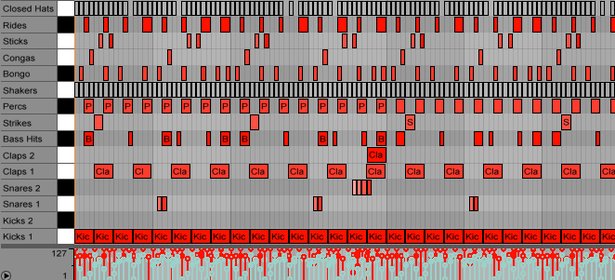
The MIDI clip editor in Ableton is where you can visually create and edit your drum patterns. To access it, double-click on a MIDI clip in the arrangement view or session view. Once you’re in the editor, you can start adding notes to your drum rack. Each note corresponds to a specific drum sound, such as a kick, snare, or hi-hat. You can adjust the length of the notes by dragging their edges, and you can move them around by clicking and dragging them.

Adjusting Note Velocities And Durations

Note velocities determine the loudness of each drum hit. By adjusting them, you can add dynamics and accents to your beats. To change a note’s velocity in Ableton, click on it and then drag the velocity bar up or down. You can also adjust the duration of a note by dragging its length. This allows you to create rhythmic variations and syncopations.

Adding Groove And Swing To Your Beats

Groove and swing are essential elements of drum programming. Applied correctly, they can make your beats sound more human and lively. In Ableton, you can add groove by using the Groove Pool. The Groove Pool contains a range of pre-programmed groove templates that you can apply to your clips. You can also adjust the amount of groove applied to a clip by using the Timing and Velocity controls. Swing, on the other hand, can be added by adjusting the timing of your notes. To do this, use the Swing control in the MIDI clip editor. In conclusion, Programming Drums is an important skill for any music producer. By exploring the MIDI clip editor, adjusting note velocities and durations, and adding groove and swing, you can create unique and expressive drum patterns in Ableton. With these techniques, you’ll be able to take your music to the next level.

Drums In Ableton Guide

Credit: www.djgym.co.uk

Advanced Techniques

Learn advanced techniques for drums in Ableton with this comprehensive guide. Discover new ways to incorporate unique sounds and effects into your productions, and take your music to the next level.

When it comes to creating dynamic drum patterns, fills, and variations, Ableton offers a wide range of advanced techniques that can take your music production skills to the next level. In this guide, we’ll explore some of the powerful tools you can use to enhance your drum programming skills in Ableton.

Using Automation To Create Dynamic Drum Patterns

If you want to give your drum patterns a dynamic and evolving feel, the automation feature in Ableton is a great tool to use. With automation, you can adjust parameters such as volume, pan, and effects over time, creating dynamic and intricate drum patterns that evolve throughout your track. To get started with automation, simply select the parameter you want to automate and then create an automation line in the arrangement view. You can then adjust the shape and curve of the automation line to create different effects. For example, you can use a curved automation line to gradually increase the volume of a snare drum hit over time, creating a rising drum fill that builds energy in your track.

Creating Fills And Variations

Drum fills and variations are essential elements in any music track, as they add excitement and interest to the music. In Ableton, there are many ways to create unique and interesting fills and variations for your drum patterns. One simple technique is to use the duplicate feature to create a variation of your existing drum pattern. You can then modify the duplicated pattern by adding or removing drum hits, changing the velocity of the hits, or applying effects. This technique is a quick and easy way to create simple variations on the fly. For more complex fills, you can use the MIDI editor to program in intricate drum fills manually. With the MIDI editor, you can adjust the timing of each drum hit, the velocity, and even the pitch. This gives you complete control over the drum fill, allowing you to create unique and rhythmically complex patterns.

Building Hybrid Drum Kits

One of the most exciting features of Ableton is the ability to build hybrid drum kits using samples and synthesized sounds. This technique allows you to create custom drum sounds that are unique to your music. To build a hybrid drum kit, start by selecting a base drum kit in Ableton’s drum rack. You can then add samples or synthesized sounds to each drum pad in the rack. This gives you the ability to combine traditional acoustic drum sounds with electronic and synthetic sounds, creating a unique hybrid kit that can be used in a wide range of music genres. In addition to traditional drum sounds, you can also use Ableton’s built-in synthesizers and effects to create unique sound effects and percussive sounds that can be used in your drum patterns. In conclusion, there are many advanced techniques for drum programming in Ableton that can help you take your music production skills to the next level. With tools like automation, MIDI editing, and hybrid drum kits, you have all the tools you need to create unique and dynamic drum patterns that will make your music stand out.

Effects And Processing

Learn how to enhance the sound of your drums in Ableton with various effects and processing techniques. From EQ and compression to reverb and delay, this guide provides tips and tricks for achieving the perfect drum sound in your productions.

Drums are an essential part of any music track, be it electronic or acoustic. The right effects and processing on your drum tracks can make all the difference in creating a polished and professional sound. In this guide, we’ll take you through some of the key effects and processing techniques you can use to enhance your drum tracks in Ableton Live.

Applying Eq And Compression To Drums

One of the most important steps in processing your drum tracks is applying EQ and compression. EQ allows you to carve out space in the frequency spectrum for each individual drum sound so that they all sit harmoniously together in the mix. Compression can help even out the levels of your drum sounds and make them more punchy and dynamic. Consider using a multiband compressor to target specific frequency ranges for each drum sound.

Using Distortion And Saturation For Texture

If you’re looking to add some grit and character to your drum tracks, distortion and saturation are great tools to turn to. Distortion can add bite and harmonics to your drum sounds, while saturation can add warmth and depth. With Ableton Live’s built-in distortion and saturation plugins, you can experiment with different settings and find the perfect amount of texture for your drums.

Creating Unique Drum Sounds With Reverb And Delay

Reverb and delay are two effects that can take your drum tracks from basic to unique and interesting. Adding reverb can create a sense of space and depth, while delay can add rhythmic interest and create complex textures. Experiment with different types of reverb and delay, as well as different settings like decay time and feedback, to really sculpt your drum sounds and make them stand out in the mix. In conclusion, the effects and processing techniques listed above are just a few of the many ways you can elevate your drum tracks in Ableton Live. Whether you’re looking to add some character, texture, or depth to your drum sounds, these tools can help you achieve your desired results. With practice and experimentation, you’ll be on your way to creating incredible-sounding drum tracks in no time.

Drums In Ableton Guide

Credit: www.ableton.com

Performing Live

If you are a drummer looking to perform live with Ableton, the software’s built-in drum rack can be an invaluable tool. Using a drum pad controller, you can trigger drum samples and loops in real-time, allowing you to create dynamic, engaging performances that take advantage of Ableton’s unique features. In this guide, we will explore some tips for setting up your drum pad controller in Ableton, as well as mapping drum rack parameters for live performance.

Setting Up A Drum Pad Controller In Ableton

The first step in performing live with Ableton is to ensure that your drum pad controller is properly set up and functioning within the software. To do this, you will need to connect your controller to your computer via USB and ensure that it is recognized by Ableton. Once your controller is connected, you can create a new MIDI track in Ableton and select your controller as the input device. From there, you can start mapping your drum pad controller to trigger specific drum samples and loops within the drum rack.

Mapping Drum Rack Parameters For Live Performance

To effectively use Ableton’s drum rack in a live performance setting, it is important to map drum rack parameters to your drum pad controller. This allows you to quickly and easily adjust parameters such as volume, pitch, and decay for each individual drum sample or loop. To do this, you can use Ableton’s built-in MIDI mapping feature to assign specific drum rack parameters to different pads on your controller. This will allow you to make on-the-fly adjustments to your drum sounds during a live performance, creating a unique and engaging experience for your audience.

Collaborating With Other Musicians

Collaborating with other musicians is an essential aspect of music creation. With Ableton’s Drum Rack, collaboration becomes seamless and productive. The software allows musicians to share drum projects and stems with each other easily. However, before discussing how we can collaborate with other Ableton users, let’s first look at how we can export drum MIDI files for use in other DAWs.

Exporting Drum Midi Files For Use In Other Daws

Ableton’s Drum Rack is not the only software musicians use for music creation. Suppose you would want to use drum tracks created in Ableton in other Digital Audio Workstations (DAWs). In that case, exporting drum MIDI files is the way to go. Here’s a quick guide on how to do that:

  1. Select the clip with your drum MIDI file.
  2. Right-click on the clip, and on the dropdown menu, select “Crop Clips to New Midi Track.”
  3. In the new track, right-click on the drum rack and choose “Extract Chain.”
  4. You can now copy and paste the MIDI notes to your preferred DAW.

Collaborating With Other Ableton Users Using The Drum Rack

Collaboration with other Ableton users is seamless and comfortable with the Drum Rack. The software allows you to save drum Racks which you can share via various platforms. Here’s a quick guide on how to do that:

  1. Click on the “Save” icon on the top right corner of the Drum Rack.
  2. Select a location where you would like to save your file.
  3. You can share this file via various platforms such as email, Dropbox, Google Drive, or OneDrive.
  4. The recipient should then drag and drop the file into their Drum Rack, and all the drum elements will be loaded and ready to use.

The Drum Rack is an excellent tool for enhancing collaboration with other musicians, or you can export your drum MIDI files for use on different DAWs. With Ableton’s Drum Rack, collaboration has never been more comfortable.

Tips And Tricks

If you are a musician or a music producer, using Ableton for creating drum tracks is an essential part of your workflow. Drums bring life to a music composition, but programming drums in Ableton can be challenging, especially if you are new to the software.

Working With Live Drum Recordings In Ableton

Live drum recordings are an excellent addition to your music production. However, they can be hard to work with, especially when trying to quantize the beats or grooves. When you try to quantize live drum recordings, it might sound robotic and lose its human feel. Instead of quantizing the recordings, try warping them. Warping preserves the drum’s human feel while aligning it with the project’s tempo.

Creating Complex Drum Patterns With The Arpeggiator

Ableton’s Arpeggiator is not only for creating arpeggios; it is also a great tool for creating complex drum patterns. The Arpeggiator allows you to create patterns by using different rate and gate settings, which can make your drums have a more diverse sound. Experiment with different settings on the Arpeggiator to create unique and complex drum patterns.

Using Third-party Drum Packs And Plugins

Ableton has a vast library of drum sounds, but sometimes, they don’t fit the sound you’re looking for. This is where third-party drum packs and plugins come in handy. There are tons of third-party drum packs and plugins available online, and they are often designed to fit specific genres or styles. Utilizing third-party packs can help you create unique drum patterns and add variety to your productions.

Benefits of using Third-Party Drum Packs:
– Variety of drum sounds and grooves
– Tailored to specific genres or styles
– Allows for unique drum pattern creations

With these tips and tricks, you can create more dynamic and creative drum tracks in Ableton. Remember, don’t be afraid to experiment! Drum programming is an art form, and the more you practice, the better you will get.

Drums In Ableton Guide

Credit: www.productionmusiclive.com

Frequently Asked Questions On Drums In Ableton Guide

How Do You Use Drums In Ableton?

To use drums in Ableton, start by creating a new MIDI track and selecting a drum kit instrument. Create a drum loop by using the MIDI keyboard, drum pad controller, or by drawing notes in the piano roll. Adjust the individual drum sounds’ volume, pitch, and effects to create a unique beat.

Repeat this process to build your track.

How Do I Make My Drums Sound Real In Ableton?

To make your drums sound real in Ableton, use realistic drum samples, layer different sounds, adjust the timing, velocity, and dynamics of each hit, add humanizing effects like swing or slight variations in pitch, and use parallel compression to make them sound bigger and wider.

How Do You Sequence Drums In Ableton?

To sequence drums in Ableton, simply drag and drop drum samples onto the MIDI track. Open the drum rack, assign each drum sound to a specific MIDI note and arrange patterns using the step sequencer or piano roll. You can also use the swing feature or quantization to adjust timing and add groove.

How Do I Make My Drums Hit Harder In Ableton?

To make your drums hit harder in Ableton, try these tips: 1. Use a compressor to even out the volume of your drums. 2. Add saturation or distortion to give them more character and depth. 3. EQ your drums to bring out their natural frequencies and cut any unwanted frequencies.

4. Layer your drums with complementary sounds to fill out your mix. 5. Adjust the levels and panning of your drums to create separation and clarity.

Conclusion

The drums in Ableton guide is an essential tool for producers, composers, and musicians who are looking to create unique and dynamic sounds. With the powerful features of Ableton, you have the flexibility to customize your drum tracks and take your music to the next level.

By understanding the basics of drum programming and working with the right tools and plugins, you can create complex and sophisticated rhythm sections that will add depth and character to your music. Don’t hesitate to experiment and explore all the possibilities that Ableton has to offer.

Happy producing!

More in our Drums & beats guide.

Categories
Archive

How To Make A Sample Pack

To make a sample pack, choose a theme, select high-quality samples, organize them, and package them for distribution. Sample packs offer producers easy access to inspiration and unique sounds to incorporate into their projects.

Sample packs are an excellent resource for music producers to enhance their productions. They provide a source of inspiration and help bring a fresh perspective to musical compositions. Creating a sample pack may seem daunting at first, but it can be an enjoyable and fulfilling process.

It involves selecting sounds that fit a specific theme, organizing, and packaging them for delivery. We’ll go through the steps for creating a sample pack that will inspire fellow producers and help you generate income. So, let’s get started!

How To Make A Sample Pack

Credit: blog.native-instruments.com

Creating A Sample Pack

Learn how to make a sample pack with these easy steps. Gather your best products, select appropriate packaging, create attractive design, show off your brand’s personality, offer a discount and promote your sample pack to potential customers.

If you’re a music producer looking to put together a sample pack, you’re in the right place. Sample packs are an excellent way to showcase your music production skills and earn some extra income. In this article, we’ll go over the three essential steps to creating a successful sample pack. Let’s dive in!

Determining Your Target Audience

Before designing your sample pack, it’s crucial to determine your target audience. Who are you making this sample pack for, and what’s their skill level? You need to make sure that your sample pack meets their needs. Aiming your sample pack at the wrong audience could result in fewer sales than expected. You can use the following list of questions to help define your target audience:

  • What kind of music do they produce?
  • What software do they use?
  • What’s their skill level?
  • What kind of samples are they looking for?

Doing thorough research to obtain this information can help you produce a sample pack that speaks directly to your audience.

Selecting Your Samples

Once you have defined your target audience, it’s time to select your samples. You can select your samples from your existing works or create new works explicitly designed for the sample pack. Picking the right sounds can make or break your sample pack. It’s essential to cater to the needs of your audience. You should consider the following when selecting samples:

  • What samples would your target audience need?
  • What sounds are popular in the music scene?
  • Are the samples created with high-quality sound?

Your sample pack should consist of loops, one-shots, and midi files. These files come in different variants, such as drum loops, bass loops, and chord loops. Remember to select sounds that are relevant to your audience’s preferences and needs.

Crafting Your Branding

The third step in creating a sample pack is branding. It’s vital to distinguish your sample pack from others. This can be achieved through branding. Your brand is how your sample pack is perceived by others. Branding can help convince potential customers to buy your sample pack. You should consider the following when crafting your branding:

  • What’s your brand name?
  • What are your brand colors?
  • What’s your brand logo?
  • What’s your brand story?

Use unique and memorable branding to stand out. Consider the preferences of your target audience when choosing your brand’s design elements. Craft your branding to make it clear what your sample pack contains and what makes it unique.

Conclusion

By following these steps, you’ll create a successful sample pack that meets the needs of your target audience. Determine your target audience, select your samples with care, and craft your branding carefully. With the right samples that cater to the needs of your audience, you’ll produce a sample pack that stands out from the rest.

How To Make A Sample Pack

Credit: www.productionmusiclive.com

Packaging Your Samples

Creating a sample pack can be a great way to showcase different products and attract new customers. When packaging your samples, make sure to use clear and attractive branding, and include information about each product. Good presentation can make all the difference when it comes to making a positive first impression.

When it comes to making a sample pack, packaging is just as important as the samples themselves. Your sample pack’s packaging is what will make it stand out and attract potential customers. In this article, we will discuss the three main aspects of packaging your sample pack: choosing your packaging materials, assembling your sample packs, and designing your packaging.

Choosing Your Packaging Materials

The packaging materials you choose for your sample pack should reflect your brand and the products you are offering. Some popular options include custom printed boxes, clear plastic bags, or even a reusable canvas tote bag. When selecting the materials, make sure to consider the durability and the ease of use. If your samples are fragile or require specific storage conditions, you might want to consider adding extra padding or selecting a package that can withstand drops and other impacts.

Assembling Your Sample Packs

Assembling your sample pack is as important as choosing the materials. Your sample packs should be easy to use and visually appealing. Consider including detailed instructions on how to use your product–this can help prevent confusion and frustration. Additionally, you can also add value by including special promotions, discounts, or samples for other products. If you decide to go this route, make sure to clearly label each item and include any necessary disclaimers.

Designing Your Packaging

The design of your package is the first thing a potential customer will see. You may want to consider working with a graphic designer to help create visually appealing packaging that reflects your brand’s style and personality. The design should be simple but effective, with clear labeling and branding. The typography and color scheme should also complement your brand’s overall aesthetic. Finally, make sure to include all necessary information, such as ingredients or product information. In conclusion, packaging your sample pack requires careful consideration of the materials, assembly, and design. You want to create a packaging that is visually appealing, reflects your brand, and is easy to use. By following these tips, you can create a sample pack that stands out and attracts potential customers.

Marketing Your Sample Pack

To effectively market your sample pack, it’s important to first identify your target audience and determine the best platforms to reach them. Tailor your messaging and visuals to appeal to their interests and needs, and consider offering promotions or discounts to entice them to try your product.

Utilize social media, email marketing, and influencer partnerships to expand your reach and generate buzz for your sample pack.

Congratulations! You have created an incredible sample pack that your audience will love. But creating a sample pack and marketing it to the right audience are two different things. In this section, we will discuss how to effectively market your sample pack and reach your target audience.

Creating Marketing Materials

The first step in marketing your sample pack is creating attractive marketing materials. Your marketing materials should clearly highlight the benefits and features of your sample pack. You can create a landing page, graphics, and a sales page that highlights the value of your sample pack. Make sure your design and visuals are engaging and appealing.

Exploring Advertising Channels

Once you have created your marketing materials, you need to explore advertising channels to promote your sample pack. Some popular advertising channels include Facebook Ads, Instagram Ads, Google Ads, and Pinterest Ads. You can use these platforms to target your ideal audience based on demographics, interests, and behavior. Remember to track and analyze your advertisement metrics to optimize your campaigns.

Leveraging Influencer Marketing

Influencer marketing is another great way to promote your sample pack. Identify influencers in your niche who have an engaged following and who align with your brand values. Collaborate with them to review and promote your sample pack. This will help to increase your brand awareness and credibility. You can also offer affiliate marketing to influencers to incentivize promotion. In conclusion, marketing your sample pack is essential for generating conversions. Create engaging marketing materials, explore advertising channels, and leverage influencer marketing to reach your ideal audience. Remember to track and analyze your metrics to continuously improve your marketing strategy.

How To Make A Sample Pack

Credit: www.productionmusiclive.com

Selling Your Sample Pack

When it comes to making a sample pack, the key is to select high-quality samples that showcase your sound. Once you’ve organized your samples, consider selling your pack online through various marketplaces and social media platforms to reach a wider audience.

By providing valuable and unique sounds, you can create a loyal following and set yourself up for success as a producer or sound designer.

Selling Your Sample Pack If you’ve successfully made a sample pack, it’s time to focus on how to sell it. But before that, let’s make sure your sample pack is good enough to sell. Your pack must be well-curated, high-quality, and valuable to your potential buyers. Once you’ve ensured all the crucial factors, it’s time to focus on selling your sample pack. Setting Your Price Point The first thing to consider when selling your sample pack is to determine the price point. It’s crucial because your potential buyers will check the price before buying. Setting the right price point is essential because you don’t want to set it too high or low. If set too high, it may be too expensive for your potential buyers to afford. On the other hand, if it’s too low, it may be perceived as low-quality. To set the right price point, evaluate the value of your sample pack, time invested, and the expenses incurred. Once you’ve evaluated the factors, see what your competitors are charging for similar sample packs. Determining Your Sales Channels Once you’ve figured out the price point, it’s crucial to determine your sales channels. You can sell your sample pack through various mediums, such as your website, marketplaces like Amazon or eBay, or social media platforms like Instagram or Facebook. You can sell through multiple channels to enhance your outreach and better your chances of making a sale. Choose the channels wisely, depending on your potential buyers’ interests and preferences. Measuring Your Success After setting your price point and determining the sales channels, it’s crucial to measure your success. It gives you an understanding of what works and what doesn’t, which can help you refine your strategy. You can measure your success by setting goals and tracking key performance indicators (KPIs) such as sales volume, revenue generated, traffic generated, and customer reviews. Analyzing these metrics will help you understand your performance and modify your selling strategy accordingly. In conclusion, creating a sample pack is one thing, but selling it is another. By following the tips mentioned above, you’ll be in a better position to sell your sample pack effectively. Remember to be patient, persistent, and keep refining your strategy until you achieve your goals.

Frequently Asked Questions On How To Make A Sample Pack

How Do I Make My Own Sample Pack?

To create your own sample pack, you’ll need to select your desired sounds and record them. Edit the recordings to your liking and organize them into a cohesive package. It’s important to ensure that the samples are high-quality and properly labeled with their key and BPM information.

Finally, promote your sample pack through social media and other channels to get it in front of potential buyers.

What Should Be Included In A Sample Pack?

A sample pack should include a small amount of your product or service for potential customers to try out. It could include items such as trial-sized products, free samples, or promotional items. The purpose of a sample pack is to give customers a taste of what your business has to offer and hopefully encourage them to make a purchase.

What Does A Sample Pack Look Like?

A sample pack typically consists of small quantities of products or materials offered by a company to customers for evaluation or testing purposes. It may vary in size, shape and content depending on the company and product.

How To Sell Your Own Sample Pack?

To sell your own sample pack, start by identifying your target market and creating a high-quality product. Use social media to promote your sample pack and set up an online store to make purchasing easy. Consider partnering with influencers or offering discounts to increase sales.

Don’t forget to track your progress, adjust your strategy as needed, and always prioritize customer satisfaction.

Conclusion

Once you’ve followed these steps, you’ll have a stellar sample pack that showcases your best work and helps you stand out in your industry. Remember to stay organized, prioritize quality over quantity, and market your sample pack effectively. By doing so, you can attract more clients and gain recognition for your expertise.

Don’t underestimate the power of a well-crafted sample pack – it could be the key to unlocking your professional success.

For more background, see Sample (music) on Wikipedia. You may also like our guide: Things That Makes A Sample Pack Great.

Categories
Archive Gear

Record Vocals In One Take

To record vocals in one take, prepare mentally and physically through warm-ups and relaxation techniques, choose the right equipment and environment, rehearse thoroughly, and make use of a good microphone technique and performance skills. Recording vocals can be a tedious process that requires patience, determination, and the right set of skills.

As an Amazon Associate I earn from qualifying purchases.

Many vocalists aim to capture their performances in one take to achieve a more natural and authentic sound. However, recording a vocal track seamlessly in one go can be quite challenging, even for experienced singers. Poor microphone technique, physical tension, mental blocks, and environmental distractions can contribute to subpar results.

We will explore some tips and techniques for recording vocals effectively in one take, from preparation and equipment choice to techniques and mindset.

The Pros Of Recording Vocals In One Take

If you’re a recording artist or producer, you’re probably familiar with the idea of recording vocals in multiple takes. However, the trend of recording vocals in one take is gaining traction in the industry. In this section, we will discuss the advantages of recording vocals in one take.

Capturing Authenticity And Emotion

Recording vocals in one take allows the artist to capture their most authentic self. Recording in multiple takes can lead to overthinking and over-analyzing, which can result in a lack of genuine emotion and energy. When recording in one take, the artist is more likely to let their emotions guide their performance, resulting in a more raw and authentic sound.

The lack of editing and polishing in post-production can also add to the genuine feel of the recording. The imperfections of the performance can communicate a sense of vulnerability that the audience can connect with, resulting in a more emotional listening experience.

Saving Time And Money

Recording in multiple takes can be time-consuming and costly. Each retake requires more time for the artist to warm up and prepare mentally, which can result in longer studio hours and higher costs. Recording in one take can save both time and money by reducing the number of retakes needed.

In addition, having to record in multiple takes can also increase the pressure on the artist to deliver a perfect performance. Recording in one take can remove some of that pressure, allowing the artist to focus more on their performance and less on the result.

Overall, recording vocals in one take has numerous benefits for both the artist and the producer. It allows for a more authentic and emotional recording while saving time and money in the long run.

Record Vocals In One Take

Credit: medium.com

How To Prepare For Recording Vocals In One Take

To achieve the perfect recording of vocals in one take, preparation is key. Ensure that the artist is adequately hydrated, get the correct microphone placement, rehearse the song extensively before recording, and ensure that all necessary equipment is in good condition.

Additionally, create a comfortable environment for the artist to minimize distractions and maximize their performance.

Record vocals in one take can be intimidating, even for the most experienced singers. But with the right preparation and mindset, it can be achieved. In this article, we’ll focus on how to prepare for recording vocals in one take. Follow these easy steps to ensure a successful recording session.

Warm Up Your Voice

Before you start recording, it’s essential to warm up your voice. Just like any other physical activity, singing requires proper preparation to prevent injury and maximize performance. A simple warm-up routine can help you avoid vocal strain and reach your full potential. Try humming, lip trills, or gentle sirens to loosen up your vocal cords. Gradually increase your range and intensity, but never strain or push yourself too hard.

Get Familiar With The Song

One of the most crucial parts of recording is getting familiar with the song. Take some time to learn the melody, lyrics, and phrasing of the song before recording. This will help you feel more confident when singing, which can translate into a better performance. Listen to the song several times, and try singing along with the headphones to get a feel for the rhythm and dynamics.

Practice Proper Breathing Techniques

Breathing is the foundation of any good singing technique. Proper breathing can help you control your voice, extend your range, and reduce tension. To practice proper breathing, start by standing up straight with your feet shoulder-width apart. Inhale deeply while expanding your diaphragm, and exhale slowly while releasing the air. Focus on breathing from your stomach and not your chest. This type of breathing will help you control your voice and produce consistent tone and sound quality. In conclusion, preparing to record vocals in one take requires practice, patience, and persistence. By warming up your voice, getting familiar with the song, and practicing proper breathing techniques, you can achieve a successful recording session and create a high-quality recording. Remember to be confident, stay focused, and trust your skills as a singer. Happy recording!

Essential Equipment For Recording Vocals In One Take

For recording vocals in one take, you’ll need to invest in some essential equipment. A high-quality microphone, pop filter, and a soundproof studio environment are just a few of the necessary items to ensure a successful recording session.

Recording vocals in one take can be a difficult task, but with the right equipment, it can be made easier. The quality of the recording equipment can make or break a vocal recording, hence it is important to invest in some high-quality equipment.

Quality Microphones

The microphone is the most important piece of equipment when it comes to recording vocals in one take. It is important to use a high-quality microphone that is suited to the singer’s voice and the type of recording environment. A condenser microphone is typically used for vocals due to its sensitivity and ability to capture subtle nuances in the voice. Some popular choices include the Neumann U87, Shure SM7B, and AKG C414.

Pop Filters And Windscreens

Pop filters and windscreens are important accessories that can help to reduce pops and plosives (popping sounds caused by the air hitting the microphone during pronunciation of certain consonants) in the vocal recording. A pop filter is typically made of nylon mesh or a metal screen, and is placed between the microphone and the singer. A windscreen is usually made of foam and is placed over the microphone to protect it from wind noise.

Acoustic Treatment

Acoustic treatment is important for creating a clean and professional sounding vocal recording. This can be achieved by using acoustic panels, bass traps, and diffusers to control the reflection and absorption of sound waves in the recording environment. This reduces the amount of echo and reverberation in the recording, resulting in a much cleaner and more precise recording.

Headphones For Monitoring

Monitoring is an important aspect of vocal recording. It allows the singer and engineer to listen to the recording in real-time and make adjustments as needed. It is important to use headphones that accurately reproduce the sound of the vocals, so that any issues can be identified and addressed immediately. Some popular options include the Sony MDR-7506 and Beyerdynamic DT770.

In conclusion,

Using the right equipment for recording vocals in one take is essential in achieving a high-quality recording. Investing in a high-quality microphone, pop filters and windscreens, acoustic treatment, and monitoring headphones can significantly improve the quality of the vocal recording. By selecting the right equipment and taking the time to properly set up the recording environment, you can create a clean and professional sounding vocal recording with ease.

Setting Up Your Recording Space For One-take Vocals

Create a recording space that suits the purpose for one-take vocals. Position the mic, check for any background noise, make sure you’re comfortable and start recording. With these steps, achieving your desired result has never been easier.

Choosing The Right Room

Picking the right room for recording can mean the difference between a professional-grade recording and a subpar one. If you want to record your vocals in one take, choosing the right room is critical. Ideally, you need a quiet room with enough space to accommodate your equipment and allow for good acoustics. A smaller room with minimal soundproofing is ideal for recording crisp vocals, but it’s essential to avoid rooms that produce too much echo. A good practice is to test out several rooms in your home to find the perfect one that fits your recording space needs.

Minimizing Background Noise

Once you have selected your room, it’s time to eliminate any background noise that might interfere with your recording. External sounds like traffic, voices, or dogs barking can all disrupt your recording process. Having a quiet space with minimal background noise is crucial in achieving perfect one-take vocals. Consider using sound-absorbing materials such as carpets, specialized foam tiles, or curtains to reduce any external noise. If possible, recording in the early morning or late at night can be helpful when external noises are minimal.

Setting The Right Temperature And Humidity

Recording vocals in unfavorable temperature and humidity conditions can lead to a less than perfect output. High humidity can make it uncomfortable to sing while a low-humidity environment can dry out your throat, affecting your tone. Keep the room temperature at a comfortable level between 68 and 75 degrees Fahrenheit, and humidity between 40% and 60%; this helps you maintain vocal health and aids in achieving excellent recordings. You can use a humidifier or dehumidifier to adjust the room’s humidity level, allowing for better-quality recordings. In conclusion, if you want to record vocals in one take, setting up your recording space is crucial for achieving great results. Choosing the right room, minimizing background noise, and setting the right temperature and humidity are the essential ingredients for a perfect vocal recording. Follow these simple steps and get ready to create exceptional vocal recordings.

Tips For A Successful One-take Vocal Recording Session

Recording vocals in one take requires preparation and practice. Be sure to warm up your voice prior to recording, know the song inside and out, and take breaks when needed to prevent fatigue. Confidence, focus, and a clear mindset are essential for a successful one-take vocal recording session.

Recording vocals in one take can be a challenging task, but it is a skill that every singer should aim to master. One-take vocal recordings not only save time and money, but they also capture the natural and raw essence of the singer’s performance. However, to achieve a successful one-take vocal recording session, there are a few tips that every singer should keep in mind. Here are some tips for a successful one-take vocal recording session:

Use Proper Microphone Technique

Using proper microphone technique is crucial for a successful one-take vocal recording session. Make sure you position the microphone at the correct distance from your mouth, and use a pop filter to prevent plosives and other unwanted sounds. It’s also important to use headphones to monitor your performance and adjust your distance to the microphone, as well as your dynamics and tone, accordingly.

Stay Hydrated And Avoid Coffee

Staying hydrated is essential for a good vocal performance, as it helps to keep your vocal cords lubricated and prevents dryness. Avoid drinking coffee or other caffeinated drinks before your recording session, as they can dehydrate your body and vocal cords. Instead, stick to drinking room temperature water or herbal tea.

Take Breaks And Stay Relaxed

Recording vocals in one take can be mentally and physically draining, so it’s important to take breaks and stay relaxed throughout the session. Take short breaks every 30-45 minutes to rest your voice and stretch your body. During breaks, avoid talking or whispering to prevent vocal fatigue. Stay relaxed by taking deep breaths and maintaining good posture, as tension and anxiety can negatively affect your vocal performance. In conclusion, recording vocals in one take is a challenging but rewarding experience for every singer. By using proper microphone technique, staying hydrated, taking breaks, and staying relaxed, you can achieve a successful one-take vocal recording session that captures the authentic and natural essence of your performance.

Common Mistakes To Avoid When Recording Vocals In One Take

If you’re planning to record vocals in one take, it’s important to be aware of the common mistakes that can ruin a perfect performance. Recording vocals can be intimidating, but with some practice and preparation, you can nail that perfect take on your first attempt.

Not Preparing Enough

One of the biggest mistakes that singers make when recording vocals in one take is not preparing enough. To ensure you give your best performance, it’s important to practice, rehearse and warm up before recording.

You should also make sure you’re well-rested and hydrated before recording. Dehydration can negatively affect your vocals, leading to inconsistent tonality during the recording. Additionally, you should warm up your vocals and prepare your body by doing some simple stretches and exercises before hitting the record button.

Using The Wrong Microphone

The microphone you use can make or break your recording. Using the wrong microphone can result in a weak or muffled-sounding vocal recording, even if your performance is excellent.

When choosing a microphone, you should consider the type of voice you have, the genre of the music you’re recording, and the acoustics of the recording space. A condenser microphone is the most commonly used microphone for recording vocals, but you may also consider dynamic microphones or a ribbon microphone depending on your preference.

Ignoring The Recording Space

Recording vocals in a poor acoustic environment can lead to unwanted sounds and an unprofessional recording. When recording vocals in one take, it’s important to choose the right recording space to minimize background noises, echoes, and any unwanted sounds that may affect your performance.

You can turn any space into a good recording environment by using some soundproofing techniques such as hanging blankets, sound-absorbing panels, or foam. Be sure to test your recording environment before going ahead with your recording and make any changes as necessary.

Recording vocals in one take takes a lot of skill and practice, but by addressing these common mistakes, you can improve your chances of nailing that perfect take. With adequate preparation, using the right microphone and choosing the right recording space, you’ll be on your way to achieving a professional-sounding vocal recording.

Editing And Mixing One-take Vocal Recordings

Achieving a high-quality take of your vocals can be challenging, but recording in one take can help ensure a cohesive sound. Editing and mixing one-take vocal recordings requires careful attention to detail to blend the different sections and enhance the overall quality of the performance.

Recording vocals in a single take can be challenging, but it can also result in a more authentic and emotional performance. However, this doesn’t mean that the recording is perfect. In most cases, it needs some tweaking and polishing to make it sound smooth and professional. This is where editing and mixing come in. By applying the right techniques, you can enhance the quality of the recording and make it stand out. In this article, we’ll discuss some effective ways to edit and mix one-take vocal recordings.

Using Eq And Compression

The first step in editing and mixing one-take vocal recordings is to use EQ and compression. Equalization, or EQ, allows you to adjust the frequency response of the recording, making it sound balanced and clear. Compression, on the other hand, helps to even out the dynamics of the performance, making the loud parts quieter and the quiet parts louder. Using EQ and compression can help to eliminate unwanted resonances, enhance the clarity of the vocal, and make it sit well in the mix.

Adding Effects And Reverb

Another way to enhance one-take vocal recordings is to add effects and reverb. Effects such as delay and chorus can add depth and dimension to the vocal, while reverb can create a sense of space and ambiance. However, it’s important not to overdo it, as too many effects can make the recording sound artificial and distracting. Experiment with different types and settings of effects and reverb until you find the right balance.

Mixing Vocals With Other Instruments

Finally, when mixing one-take vocal recordings, it’s important to consider the relationship between the vocals and other instruments in the mix. The vocals should be the focal point of the recording, but they should also complement and blend well with the other elements of the arrangement. Use panning, volume, and EQ to create separation between the vocals and other instruments, while still maintaining a cohesive and balanced sound. In conclusion, editing and mixing one-take vocal recordings can be a daunting task, but with the right tools and techniques, you can achieve a professional and polished result. By using EQ and compression to balance the recording, adding effects and reverb for depth and ambiance, and mixing the vocals with other instruments, you can create a high-quality and engaging recording that showcases the emotion and authenticity of the performance.

Record Vocals In One Take

Credit: www.youtube.com

Famous One-take Vocal Recordings And Their Impact

Recording a perfect vocal track in one take is an achievement in itself. Not only does it showcase the singer’s talent, but it also requires a combination of skill, emotion, and technique. Some of the most memorable recordings ever made were achieved in a single take. Let’s take a look at some of these iconic recordings.

Queen’s ‘bohemian Rhapsody’

Queen’s ‘Bohemian Rhapsody’ is an all-time classic. The song’s intricate vocal arrangement was recorded in a single take by Freddie Mercury. His soaring vocals and stunning harmonies are a testament to his talent and the creativity of the band. The song became a cultural icon and is still loved by millions of fans today.

Bruce Springsteen’s ‘thunder Road’

Bruce Springsteen’s ‘Thunder Road’ is another example of a masterpiece that was recorded in one take. The song’s heartfelt lyrics and soulful vocals capture the essence of Springsteen’s unique style. The energy and emotion of the song are palpable, and it continues to resonate with listeners today.

Adele’s ‘rolling In The Deep’

Adele’s ‘Rolling in the Deep’ is a modern classic that showcases the singer’s incredible range and power. The song was recorded in a single take and has become a signature tune for the singer. Adele’s raw and emotional delivery has won her millions of fans around the world.

The impact of these one-take recordings cannot be overstated. They are a testament to the skill and creativity of the artists involved and have become cultural touchstones for generations of fans. These recordings continue to inspire and captivate audiences, and their influence can be heard in countless modern recordings today.

Record Vocals In One Take

Credit: www.reddit.com

Frequently Asked Questions For Record Vocals In One Take

Do You Record Vocals In One Take?

No, it depends on the singer and the project. Some singers can record vocals in one take, while others may need to do multiple takes. The goal is to get the best possible vocal performance for the specific project.

How Long Does It Take To Record Vocals For One Song?

It usually takes around 2 to 4 hours to record vocals for one song. However, the time varies depending on the artist’s proficiency, the length of the song, and the recording environment.

Are Songs Usually Recorded In One Take?

No, songs are not usually recorded in one take. Recording a song requires multiple takes, as the artist and producers seek to perfect the sound, vocals, and instrumental accompaniment. Multiple takes are then edited together to produce the final track that we hear.

How Many Vocal Takes Should I Record?

It depends on the quality you want to achieve for your recording. Typically, you should aim to record 3-5 vocal takes to ensure you have enough material to create a polished final product. However, some artists may prefer to record more takes in order to have a greater variety to choose from during the editing process.

Conclusion

One take recordings are achievable with proper preparation, skill, and equipment. The process involves warming up the vocals, choosing the right microphone and space, controlling breathing, and keeping a consistent tempo. The key is to avoid overthinking and trust the initial instincts.

By embracing imperfections and staying focused, you can deliver a natural and captivating performance. With practice, you can master this technique and save time and resources in the studio. Happy recording!

Categories
Archive

What Is Sync Licensing

Sync licensing refers to the legal process of obtaining permission to use copyrighted music in media productions such as films, TV shows, commercials, and video games. This involves the licensing of both the master recording and the underlying composition of the music being used.

Sync licensing has become increasingly popular in recent years due to the rise of streaming services and the importance of creating a strong emotional connection between the audience and the media they’re consuming. By using the right music, filmmakers and advertisers can significantly enhance the impact of their visuals and storytelling.

It also provides an added revenue stream for artists and their representatives, as well as opportunities for exposure and new fans. For these reasons, understanding sync licensing is crucial for both creators and music industry professionals alike.

What Is Sync Licensing

Credit: www.tunecore.com

The Different Types Of Sync Licenses

Sync licensing refers to the permission granted to use a song for a specific media project. There are different types of sync licenses, including master use, synchronization, and mechanical licenses that vary depending on the intended use and distribution.

When a piece of music or a song is used in movies, TV shows, advertisements, video games, or any other visual media, a sync license is required. A sync license allows the user to synchronize the music with the visual content. There are different types of sync licenses available, and each type serves a different purpose. Understanding the different types of sync licenses is crucial, especially for musicians, songwriters, and producers who want to monetize their music.

Master Sync License

A master sync license gives the licensee the right to use a specific recording of a song in a visual production. This license must be obtained from the owner of the master recording, which is usually the record label. The master recording is the final version of a recording that is used for distribution. When a licensee wants to use a specific recording of a song, they need to obtain a master sync license from the record label that owns that recording.

Mechanical License

A mechanical license gives the licensee permission to use a specific composition or song in a visual production. This license must be obtained from the owner of the composition, which is usually the songwriter, composer, or publisher. The mechanical license allows the licensee to reproduce and distribute a specific composition or song. When a licensee wants to use a specific song or composition, they need to obtain a mechanical license from the owner of that composition.

Synchronization License

A synchronization license, also known as a sync license, allows the licensee to synchronize a specific composition or song with visual content. This license must be obtained from the owner of the composition, which is usually the songwriter, composer, or publisher. The synchronization license allows the licensee to use the composition or song in a visual production, such as a movie, TV show, or advertisement. When a licensee wants to use a specific song or composition in a visual production, they need to obtain a synchronization license from the owner of that composition. In conclusion, understanding the different types of sync licenses is crucial for anyone who wants to monetize their music. Whether you are a musician, songwriter, or producer, you need to know which type of sync license to obtain when your music is used in visual media. Remember that a master sync license is required to use a specific recording of a song, while a mechanical license and a synchronization license are required to use a composition or song.

What Is Sync Licensing

Credit: www.otherrecordlabels.com

How Sync Licensing Works

Are you wondering what sync licensing means and how it works in the music industry? Sync licensing is the process of granting permission to use music in audiovisual projects. This can include the use of music in films, TV shows, commercials, video games, and more. In this section, we will explore how sync licensing works and the key role played by music supervisors in the process.

The Role Of The Music Supervisor

In sync licensing, a music supervisor is a critical player. These individuals often work for production companies, studios, or advertising agencies, and their job is to find the right music to fit the project’s needs. They work closely with the creative team to identify and secure the right tracks, negotiate the sync license terms with the rights holder, and handle the clearance process.

The Sync Licensing Process

The sync licensing process typically follows a few key steps. First, the music supervisor identifies the tracks they wish to use in the project. They then reach out to the rights holders and negotiate the terms of the sync license. This can involve paying a one-time fee for the use of the music or offering a share of the royalties generated from the project.

Once the license is granted, the clearance process begins. This involves obtaining permission from any additional rights holders, such as publishers or record labels. Once clearance is obtained, the music is ready to be used in the project.

The Bottom Line

Sync licensing is a critical process in the music industry. It enables music to be used in a variety of audiovisual projects, which can help increase exposure for the music and generate income for the rights holders. By understanding how sync licensing works and the role of the music supervisor, you can make more informed decisions about your music licensing strategy.

What Is Sync Licensing

Credit: diymusician.cdbaby.com

Frequently Asked Questions Of What Is Sync Licensing

How Does Sync Licensing Work?

Sync licensing works by obtaining permission from the copyright holder of a song to use it in audio or visual content like movies, TV shows, advertisements, and games. The licensing fee varies depending on factors such as usage, territory, and length of time.

This agreement allows the license holder to synchronize the song with their content and create a cohesive artistic product.

Who Gets Paid For Sync Licensing?

Sync licensing pays music rights-holders such as recording artists, songwriters, and music publishers. They receive a contractual fee for allowing their music to be used in films, TV shows, commercials, video games, and other media.

Who Needs A Synchronization License?

A synchronization license is needed by anyone who wants to use copyrighted music in audio or visual productions like TV commercials, films, TV shows, video games, or online videos. This license grants permission to use the music in sync with the visuals, and the copyright owner receives payment for it.

What Is The Difference Between A Sync License And A Mechanical License?

A sync license is required to synchronize music with visual media, like TV shows and movies. On the other hand, a mechanical license is needed for the reproduction and distribution of recorded songs in formats such as CDs and digital downloads.

Conclusion

Sync licensing is a vital component of the Music Industry. It offers songs and artists the platform to be accessible to the public with an added benefit of revenue generation. The impact of sync licensing is evident through numerous films, TV shows, and advertisements.

This innovative concept has opened doors for artists and provided endless opportunities to showcase their talent. It goes without saying, Sync Licensing has become a staple and will continue to be, as the Music Industry evolves.

Categories
Archive

How To Mix Bass Synth

To mix a bass synth, adjust the levels and EQ for the mid and low frequencies. A well-mixed bass synth complements other instruments and enhances the overall sound quality of a track.

The key is to find the right balance between the bass and other elements of the mix. Effective bass mixing requires skill and practice, but following a few basic guidelines can help you achieve a professional and polished sound. By paying attention to levels, EQ, and frequency spectrum, you can create a bass synth mix that enhances the overall sound of your production.

We will discuss how to effectively mix bass synth to achieve a balanced and powerful sound.

Selecting The Right Synth Bass Plugin

Choosing the right synth bass plugin is crucial when mixing bass synth. It’s important to consider factors such as the type of music you’re producing and the sound you’re aiming for. Take the time to research and experiment with different plugins to find the one that best suits your needs.

When mixing bass synth, selecting the right synth bass plugin can make a huge difference in achieving the desired sound. With so many options available, it can be overwhelming for beginners. In this section, we’ll explore how to evaluate different synth bass plugins and choose the best one based on genre and mix.

Evaluate Different Synth Bass Plugin

Before selecting a synth bass plugin, it’s essential to evaluate and compare different options. Some plugins may come with a variety of features, while others may be simple yet effective. Here are some factors to consider to help assess each plugin’s suitability:

  • Sound Quality: Check for sound depth, clarity, and note sound.
  • Functionality: Look for the features and functions you need for your mix. For example, some synths offer filters, sequencers, and modulation tools.
  • Compatibility: Ensure the plugin is compatible with your digital audio workstation (DAW).
  • User Interface: Choose a plugin with an interface that is easy to understand and use.
  • Price: Consider the plugin’s cost in relation to your budget and needs.

Once you have evaluated each plugin, you are better equipped to make an informed decision on which one to use.

Choosing Plugin Based On Genre And Mix

When selecting a synth bass plugin, it’s vital to consider the genre and style of music you are producing. Different genres of music need different synth bass sounds. For instance, hip hop music may require a heavy low-end bass sound, while electronic dance music (EDM) may need a more-defined bass sound. Your mix should also determine the plugin you choose. For example, If you want a fuller bass sound, you should consider a synth bass plugin with a multi-layer sound. If you want a cleaner sound, then a simple synth bass plugin may be better. In conclusion, selecting the right synth bass plugin is essential for creating a perfect bass mix. Evaluating the different plugin options and choosing the one that best suits the genre and mix is key to achieving great results.

How To Mix Bass Synth

Credit: musictech.com

Eqing The Bass Synth

Achieving a balanced mix with a bass synth requires careful EQing. Start by identifying the fundamental frequency of the synth and cutting any unnecessary low-end frequencies. Then, boost the mid-range frequencies to give it a presence in the mix.

If you’re producing bass-heavy dance music, then EQing the bass synth should be a critical part of your mixing process. A well-mixed bass synth determines whether a track is danceable or not, as it’s the foundation of the song. In this blog post, we’ll cover three essential EQ techniques that will improve your mixing skills and make your bass lines pop: Cleaning up low-end muddiness, Boosting midrange frequencies, and Removing unwanted high-end frequencies.

Cleaning Up Low-end Muddiness

1. Use a high-pass filter: A low-end rumble can make a mix sound muddy. You can cut off the low frequencies to keep bass sounds clear. Start by setting the high-pass filter at around 30 Hz and adjust it upwards to find a sweet spot where the bass remains prominent. 2. Address the conflicting frequencies: If the bass synth conflicts with another instrument, adjust the EQ to provide room for that instrument. Adjust the corner frequency and bandwidth to decrease the bass synth’s frequencies that conflict with other instruments.

Boosting Midrange Frequencies

1. Optimize the sweet spot: Sweet spots are the characteristic sound frequencies of an instrument. By using a parametric EQ, adjust the midrange frequency’s volume to get a warm and punchy tone. Aim to enhance the midrange frequencies around 100Hz – 1kHz range to give the bass synth more energy. 2. Selective boosting: Consider where the bass synth needs more presence. Use a narrow bandwidth to selectively boost key frequencies and reduce narrow dips that impact the instrument’s quality.

Removing Unwanted High-end Frequencies

1. Sweep through high frequencies: Sweep through the high frequencies until you find any undesirable ones and use a low pass filter to cut them off. 2. Manage harmonics and sibilance: Use a de-esser to manage harsh frequencies that may occur in the harmonics and sibilance. This will maintain a smooth and clean sound in the high frequencies. In conclusion, applying proper EQ techniques is critical to achieve a balanced bass synth. Work closely with your ears to find the sweet spot, deal with conflicting frequencies and find the right balance. By using these techniques, your bass synth will blend seamlessly with other elements, and your mixes will sound professional.

Compressing The Bass Synth

To achieve a well-mixed bass synth, compressing is key. Use a compressor to even out the levels of the bass and glue it together with the other elements of the mix. Experiment with different compression settings, ratios and thresholds to find the perfect balance.

Understanding Compression In Mixing

Compression is an essential tool in mixing, and it helps to control the dynamic range of a sound signal. A compressor reduces the volume of the loud parts of a sound signal while leaving the quieter parts untouched. With the help of compression, you can even out the volume of a bass synth, making it sit better in a mix.

Choosing The Right Compression Ratio

To choose the correct compression ratio for your bass synth, you need to consider the dynamic range of the sound. A higher ratio means more compression, which results in less dynamic range. Conversely, a lower ratio means less compression, and more dynamic range. The standard compression ratio for bass synth is between 3:1 and 5:1.

Setting Attack And Release Times

Attack time is how soon the compressor begins to reduce the volume after the bass synth signal has crossed the threshold. A fast attack time will reduce the volume more quickly, while a slower one will allow more of the initial transient to come through. Release time determines how long the compressor takes to reduce its gain reduction. A fast release will return the bass synth’s volume to normal quickly, while a slow release will cause the volume to rise more gradually. When compressing the bass synth, it’s essential to set the attack and release times appropriately. To determine the best settings, you need to consider the tempo of the song, the rhythm of the bassline, and the overall mix composition. In conclusion, compressing the bass synth is a crucial part of mixing that can make a significant difference in the final product. Understanding compression ratios and setting attack and release times is vital for achieving a balanced and cohesive mix.

Modulating The Bass Synth

Modulating the bass synth involves creating movement in the sound. It is done to avoid a monotonous bass line and keep the listener interested. Modulating the bass synth can be achieved through different methods, including using LFOs and adjusting the rate and depth to achieve the desired effect.

Using Lfos To Create Movement

Low-Frequency Oscillators (LFOs) are used to modulate the bass synth and add movement to the sound. The LFOs can be used to modulate different parameters of the bass synth, including pitch, volume, and filter cutoff. The LFOs create variations in the parameters controlled, resulting in a dynamic and evolving bass line.

Adjusting Rate And Depth For Desired Effect

The rate and depth of the LFOs can be adjusted to achieve the desired effect. The rate dictates how fast the LFO repeats, while the depth determines the extent to which the LFO modulates the parameter. A slow rate and shallow depth result in subtle modulation, while a fast rate and deep depth create a pronounced effect.

It’s essential to experiment with different combinations of rate and depth to achieve the desired effect. The mixer can reduce the modulation to avoid overpowering the mix.

To conclude, modulating the bass synth is crucial in creating movement and interest in the bass line. Using LFOs to modulate different parameters, adjusting the rate and depth to achieve the desired effect, are some ways to create movement. With practice, a well-modulated bass line can enhance the overall mix.

Adding Saturation And Distortion

To mix bass synth, adding saturation and distortion can be a useful technique to give it more presence and depth. However, it’s important to not overdo it, as too much saturation and distortion can muddy the mix and cause it to sound unbalanced.

Finding the right balance is key to achieving a clear, powerful sound.

When it comes to mixing bass synth, adding saturation and distortion can be an effective way to make it sound more interesting and dynamic. Saturation adds warmth and subtle distortion, while distortion can add harmonics and grit to the sound. In this article, we’ll discuss the best ways to use saturation and distortion plugins to mix bass synth.

Choosing The Right Saturation Plugin

Choosing the right saturation plugin is crucial when it comes to mixing bass synth. Saturation plugins can range from subtle warmth to intense distortion, so it’s important to choose one that works well with the sound you’re trying to achieve. Some popular saturation plugins for bass synth are:

  • Waves J37: This plugin is modeled after the vintage tape machines used in Abbey Road Studios and can add subtle warmth to your bass synth.
  • Slate Digital VCC: This plugin emulates the sound of analog consoles and can add harmonics and saturation to your bass synth.
  • Soundtoys Decapitator: This plugin can add intense distortion and grit to your bass synth.

Using Distortion To Add Harmonic Content

Another way to add interest to your bass synth is by using distortion. Distortion can add harmonics and grit to the sound, making it more interesting and dynamic. Here are some tips for using distortion:

  • Use a gentle amount of distortion to add warmth and harmonics to your bass synth.
  • Use a more intense amount of distortion for a grittier, more distorted sound.
  • Try using different types of distortion plugins, such as tube or tape distortion, to achieve different sounds.

In conclusion, adding saturation and distortion can be an effective way to make your bass synth sound more interesting and dynamic. Choosing the right saturation plugin and using distortion effectively can help you achieve the sound you’re looking for. With these tips and tricks, you’ll be well on your way to mixing a killer bass synth track.

How To Mix Bass Synth

Credit: www.facebook.com

Mixing The Bass Synth

Achieving a balanced mix of the bass synth in your music can make or break your track. To create a professional and polished sound, consider using EQ to carve out space for the bass in the mix, using compression to control dynamics, and experimenting with stereo imaging and effects processing to add depth and character.

Mixing the bass synth can be a tricky process, but with some tips and tricks, you can make it stand out in your mix. The bass synth is an essential instrument in any track, providing the foundation of the entire groove. Therefore, it is crucial to balance and equalize its sound to make it complement the rest of the track.

Balancing The Bass Synth In The Mix

Start by ensuring that the bass synth sits well in the mix without overpowering the rest of the elements. Ensure its volume level is just right; not too loud or too soft. The bass synth’s volume should be high enough to be audible but low enough to leave room for other instruments.

Creating Space For Other Instruments

Mixing the bass synth also requires freeing up space for other instruments to shine. Using appropriate EQ to remove unnecessary frequencies can significantly improve your mix. For example, you can lower the bass synth’s low-mids frequencies to eliminate any muddiness in your mix. Doing so creates enough space for other instruments’ sounds to fit comfortably without any interference.

Adding Effects

Once you have balanced the bass synth levels and EQ’d it to fit your mix, the final step is to add effects. Using reverb and delay, or any other desired effects, can add depth and width to the bass synth’s sound, making it stand out more in the mix. Always use these techniques with varying degrees to fit the style of the song. Keep the bass synth supportive of the song, and not to mix around it, and you’ll have a balanced and coherent mix in no time.

How To Mix Bass Synth

Credit: www.masteringthemix.com

Frequently Asked Questions For How To Mix Bass Synth

How Do You Mix Bass Synths?

To mix bass synths, start by ensuring they don’t clash with the kick drum. Use EQ to identify and eliminate conflicting frequencies. Add compression and limiters for added power and control. Experiment with different effects like distortion, reverb, and chorus to add depth and character.

Compare your mix against reference tracks to make necessary adjustments until it sounds balanced.

How Do You Make A Good Synth Bass Sound?

To create a good synth bass sound, start by selecting the right waveform. Use low-pass filters to tame high frequencies and adjust the envelope to shape the sound. Add effects such as distortion, reverb, or chorus to enhance the sound.

Finally, play around with the pitch and resonance to achieve your desired result.

How Do You Mix Bass Sounds?

To mix bass sounds, start by establishing a foundation with the kick drum. Use EQ to carve out space for the bass and add saturation or distortion for warmth. Consider using sidechain compression with the kick to allow the bass to cut through.

Use frequency analysis and critical listening to ensure your mix is balanced.

Should Synth Bass Be Mono?

Synth bass should generally be in mono to avoid phase issues and ensure it sounds consistent on all playback systems.

Conclusion

To sum up, mixing bass synth is crucial in music production, where it can make or break your track. However, with the five easy tips shared mixing bass synth is no longer a daunting task. You can use a combination of EQ, compression, saturation, and other effects to achieve a professional-sounding mix.

Remember to always trust your ears and experiment until you get the perfect balance. Happy mixing!